---
showToc: true
---
# Connector
A CSV connector enables to export data using CSV files. It enables to configure data which need to be exported and transformation rules must be configured with a "Mapping".
It is also possible to develop a specific connector to take in account specific work rules and send the data in a specific format.
beCPG provides a standard connector which enables the extraction of entities and their datalists in csv format. It is also possible to export documents
(images, technical sheets) in native format.
## Version
There are different versions of the connector according to your version of beCPG.
It is advised to use the latest stable version of the connector. *isV1Api* (option) activates compatibility with version 1.
> Some connector options are not adapted with all [API](./API.md) versions. That is indicated in the documentation `[>=3.2.1]`
| Connector version | JAVA version | beCPG Tools version | API Support | Major changes |
| ---- | ---- | ---- | ---- | ---- |
| 3.2.2 | JDK11 | 3.2 | 3.1^, 3.0, 2.1 ,2.0, 1.0^^ ( ^^ with connector.isV1APi = true) | Equadis and X3 export plugin |
| 3.2.1 | JDK11 | 3.2 | 3.1^, 3.0, 2.1 ,2.0, 1.0^^ ( ^^ with connector.isV1APi = true) | JDK11, number and csv format, XLS Mapping support |
| 3.0.0 | JDK8 | 3.0.0 | 3.1^, 3.0, 2.1 ,2.0, 1.0^^ (^Not recommended, ^^with connector.isV1APi = true) | SFTP support, API V2 Support, compressParam Support [V2.1] |
| 1.6.0 | JDK8 | 1.4 | 3.1^, 3.0^, 2.1^ ,2.0^, 1.0 (^Not recommended) | Workflow and document export plugin |
## Installation
Install Java **JDK** on your machine and choose a version corresponding to your version of the connector.
Download and unzip the file: becpg-connector-3.2.2-distribution.zip
If your application uses HTTPS and the SSL certificate is not recognised by JAVA, then you must install the certificate. For windows, please read [Annex I](#annex1).
## Use
On linux, execute the following command in a terminal :
```bash
./becpg-connector.sh
```
On windows, double click on **becpg-connector.bat**
In a docker environment, it is necessary to create your own launch script and mount the docker volume corresponding to the file destination path:
Example of docker launch script:
```bash
docker run --rm -v "$PWD":/usr/becpg-connector -v "$PWD"/data:/usr/becpg-connector/data -w /usr/becpg-connector/data \
--net inst1_internal --link inst1_becpg-mail_1 openjdk:8 java -Dfile.encoding=UTF8 \
-jar /usr/becpg-connector/lib/becpg-connector-3.2.0-jar-with-dependencies.jar -file=/usr/becpg-connector/becpg-connector.properties >> $TMPFILE 2>&1
```
CSV files are created in **connector.dest.path**
Examples of files that you generate:
csv/:
bcpg_client.csv bcpg_semiFinishedProduct.csv compoList.csv organoList.csv physicoChemList.csv
bcpg_finishedProduct.csv bcpg_supplier.csv nutList.csv packagingList.csv
## Configuration
It is necessary to edit *becpg-connector.properties*to configure the connector.
these parameters can also be overcharged in the call script with JAVA option **-D** [>=3.0.0].
Example:
```bash
java -Dremote.scheme=https -Dremote.host=server.becpg.local -Dremote.port=443
-Dconnector.query.template="+TYPE:\"bcpg:finishedProduct\""
-Dconnector.dest.path=".\data\case-units"
-jar ./lib/becpg-connector-3.2.0-jar-with-dependencies.jar -file=becpg-connector-case-units.properties
```
> The file becpg-connector.properties is specified thanks to the option -file=*sample-config.properties*
### Serveur et destination
First, you must indicate the address of the beCPG server:
```properties
remote.scheme=http
remote.host=localhost
remote.port=8080
remote.login=admin
remote.password=becpg
```
You must also indicate the destination path of the CSV files (by default in the current folder)
```properties
connector.dest.path=.
```
> Warning : Path must be indicated in windows as
> c:\\\\Temp\\\\becpg-connector (or c:/Temp/becpg-connector)
### Notifications
It is possible to send e-mail notifications after the execution of a connector:
```properties
notify.enabled=false
connector.notify.from=support@becpg.fr
connector.notify.to=support@becpg.fr
mail.smtp.host=localhost
mail.smtp.port=25
```
It is also possible to send FTP files after the execution of a connector:
```properties
ftp.protocol=ftp or ftps or sftp (default is ftp) [ >= 3.0.0]
ftp.enabled=false
ftp.host=
ftp.port=21
ftp.login=
ftp.password=
ftp.destFolder=
ftp.deleteOnSuccess=false
```
Finally, you can write properties in the PLM for each synchronised entity using XML format of the API [>=3.0.0]:
```properties
plm.activity.enabled=false
plm.activity.syncRemoteXml=false \
%s
```
### Compatibility
In some cases, the list of fields to extract is too long, it is necessary to compress the headers [API >= 2.1]:
```properties
connector.compress.param=true
```
Or to use API VI [>=3.0.0]:
```properties
connector.isV1APi=true
```
### Post-connector Actions
It is possible to execute actions after the connector has processed by using the following parameters:
```properties
connector.channel.onSuccess.remote=
connector.channel.onError.remote=
```
Here is an example of JSON to apply to the entity after the connector has processed, in the remoteEntity format:
```properties
connector.channel.onSuccess.remote={"attributes": {"bcpg:productState": "Simulation"}}
```
### Creation of a backup
In the cas of CSV export, you can choose to enrich the existing csv (connector.csv.appendToExistingFiles=true) or to create a backup repository (connector.csv.appendToExistingFiles=false) in which the old csv will be moved.
To do that, please use connector.csv.appendToExistingFiles (by default absent // at false)
To enrich existing csv files and not create a backup repository:
```properties
connector.csv.appendToExistingFiles=true
```
### Debugging
You can raise the levels of debugging using property **connector.debug.level** in arguments on the command line.
```
-Dconnector.debug.level=trace
-Dconnector.debug.level=debug
-Dconnector.debug.level=info
-Dconnector.debug.level=warn
-Dconnector.debug.level=error
```
By default, level INFO is used.
### SSL
It is possible to disable SSL verification with the option (For testing only for security reasons) [>=3.2.2]:
```
ssl.trustAll=true
```
### Plugin configuration
One or more plugins can be used to extract PLM data [ >= 3.0.0]
| Plugins | Function |
| ------------------------------------------------- | --------------------------------------------- |
| fr.becpg.connector.plugin.StandardCSVVisitor | Extraction of data products to CSB format |
| fr.becpg.connector.plugin.StandardDocumentVisitor | Document extraction |
| fr.becpg.connector.plugin.MultiLevelCSVVisitor | Multilevel bill of material extractions |
| fr.becpg.connector.plugin.WorkflowCSVVisitor | Workflow extractions |
| fr.becpg.connector.plugin.EquadisVisitor | Extract to Equadis XML format |
| fr.becpg.connector.plugin.X3CSVVisitor | Multilevel X3 format |
To specify one or several plugins, use the following parameters:
```properties
connector.plugin.class=fr.becpg.connector.plugin.StandardCSVVisitor,fr.becpg.connector.plugin.StandardDocumentVisitor,fr.becpg.connector.plugin.WorkflowCSVVisitor
```
## Standard configuration
### CSV format
Standard plugin 'fr.becpg.connector.plugin.StandardCSVVisitor' enables to specify CSV format to exit with the option **connector.csv.format**
```
connector.csv.format=
```
| Format | Delimiter | Quote | Separator | Description |
| --------------- | --------- | ----- | --------- | --------- |
| (beCPG) | ; | " | \r\n | Excel like format with ; separator. Quotes are forced |
| NoQuoteFormat | ; | | \r\n | Excel like format with ; separator. Values are not quoted and special characters are escaped with `'\'` |
| Excel | , | " | \r\n | Excel file format (using a comma as the value delimiter). Note that the actual value delimiter used by Excel is locale dependent, it might be necessary to customize this format to accommodate to your regional settings. |
| InformixUnloadCsv | , | " | \n | Values are not quoted and special characters are escaped with `'\'`The default NULL string is `"\\N"`. |
| MongoDBCsv | , | " | | This is a comma-delimited format. Values are double quoted only if needed and special characters are escaped with `'"'`. A header line with field names is expected. |
| MySQL | \t | | \n | This is a tab-delimited format with a LF character as the line separator. Values are not quoted and special characters are escaped with `'\'`. The default NULL string is `"\\N"`. |
| Oracle | , | " | | This is a comma-delimited format with the system line separator character as the record separator.Values are double quoted when needed and special characters are escaped with `'"'`. The default NULL string is `""`. Values are trimmed. |
| PostgreSQLCsv | , | " | \n | This is a comma-delimited format with a LF character as the line separator. Values are double quoted and special characters are escaped with `'"'`. The default NULL string is `""`. |
| RFC4180 | , | " | \r\n | Comma separated format as defined by [RFC 4180](http://tools.ietf.org/html/rfc4180). |
| TDF | \t | " | \r\n | Tab-delimited format. |
For more details on the different formats:
https://commons.apache.org/proper/commons-csv/apidocs/org/apache/commons/csv/CSVFormat.html
Other options allow to specify the separator for the associations (, by default) [>=3.0.0]:
```
mapping.csv.assoc_separator=|
```
Format number (scientific notation by default) [>=3.2.1]:
```
connector.csv.decimalFormat=#.####
```
and the date format (by default, ISO notation):
```
connector.csv.dateFormat=dd/MM/yyyy
```
https://docs.oracle.com/en/java/javase/11/docs/api/java.base/java/text/DecimalFormat.html
#### Configuration of the entities which must be extracted
The list of entities to extact is configured by a search query where *%* is replaced by the date of the last import. That date is saved in the file **lastImport** which can be modified or deleted manually.
```properties
connector.query.template=(@cm\\:created:[%s TO MAX] OR @cm\\:modified:[%s TO MAX]) AND ( ASPECT:\"bcpg:productAspect\" OR TYPE:\"bcpg:client\" OR TYPE:\"bcpg:supplier\" )
```
In the example, all entities which type is "product" as well as suppliers and clients which were modified//created during the last import are extracted.
#### Configuration of the fields which must be extracted
For each type of entity, you must specify the fields to export in csv files.
##### Export of entities
For each file to extract, you must use prefix key *mapping.csv* and the type of entity, for example **mapping.csv.bcpg_finishedProduct** for finished products. By default, the csv name will be the name of the type.
e.g. bcpg_finishedProduct.csv
It is also possible to redefine the name of the created file [>=3.2.1]:
```properties
mapping.csv.bcpg_finishedProduct.fileName=Custom file name
```
It is also possible to map up to 10 files for a same type [>=3.2.1]:
```properties
mapping.csv.bcpg_finishedProduct.1.fileName=Sample file name
mapping.csv.bcpg_finishedProduct.1=bcpg:code,bcpg:erpCode,cm:name
```
It is also possible to specify aliases to map multiple types with the same mapping [>=3.2.2]:
```properties
mapping.csv.bcpg_rawMaterial.alias=article
mapping.csv.bcpg_semiFinishedProduct.alias=article
mapping.csv.article=bcpg:entityTplRef,cm:name,cm:title,bcpg:productHierarchy1|bcpg:erpCode
```
Example of the mapping for the finished product type:
```properties
mapping.csv.bcpg_finishedProduct=bcpg:code,bcpg:erpCode,cm:name,cm:title,bcpg:eanCode,bcpg:code,bcpg:legalName,cm:description,bcpg:entityTplRef\
,bcpg:productHierarchy1,bcpg:productHierarchy2,bcpg:bestBeforeDate,bcpg:certificateDate,bcpg:contractDate\
,bcpg:foodContact,bcpg:netWeightUnit,bcpg:numberOfServings,bcpg:packagingDescription,bcpg:periodAfterOpening\
,bcpg:precautionOfUseRef,bcpg:preparationTips,bcpg:priceCurrency,bcpg:productComments,bcpg:productDensity\
,bcpg:productMicrobioCriteriaRef,bcpg:productQty,bcpg:productSpecifications,bcpg:productState,bcpg:productUnit\
,bcpg:projectedQty,bcpg:servingSize,bcpg:startEffectivity,bcpg:storageConditionsRef\
,bcpg:supplierPlants,bcpg:suppliers,bcpg:suppliers|bcpg:code,bcpg:suppliers|bcpg:erpCode\
,bcpg:clients,bcpg:clients|bcpg:code,bcpg:clients|bcpg:erpCode,bcpg:unitPrice,bcpg:useByDate
```
Each field is specified by an internal name **bcpg:code** (for example).
It is possible to specify the path of a document in order to share it and get its public share URL.
**Example to export the public share URL of documents:**
```
/Images/produit.jpg,/Documents/${cm:name} - Technical sheet.pdf
```
Here the system will share the document product.jpg and add its public share URL in the CSV.
It is possible to specify several paths on the same column, allowing the system to test each path until the URL obtaining. Example :
```
/Images/produit.jpg|/Images/product.jpg
```
For associations, the name is exported by default. You can specify the association properties to extract with syntax **assoc_name|prop_name**. the attribute bcpg:nodeRef is also available **assoc_name|bcpg:nodeRef**
**Example to export the ISO code of an association:**
```
bcpg:ingListGeoOrigin|bcpg:geoOriginISOCode
```
The standard connector enables to export mulitlungual data from a field which type is "d:mltext". To export the different values of this field, you must add the language code after the name "*locale*"
**Example:**
**cm:description_en**, to export description in English
**bcpg:legalName_ja_JP**, to export the japanese legal name.
##### Exporting list:
Same as entities, you must define for each list a mapping of the fields to export.
Examples for nutrients and packaging lists:
```properties
mapping.csv.nutList=entity|bcpg:code,entity|bcpg:erpCode,bcpg:nutListNut,bcpg:nutListValue,bcpg:nutListFormulatedValue,bcpg:nutListUnit
mapping.csv.packagingList=entity|bcpg:code,entity|bcpg:erpCode,bcpg:packagingListProduct,bcpg:packagingListProduct|bcpg:erpCode,bcpg:packagingListQty,bcpg:packagingListUnit,bcpg:packagingListLossPerc,bcpg:packagingListPkgLevel,bcpg:packagingListIsMaster
```
Fields prefixed **entity|** enable to export fields of the entity (**article|** is a synonym)
Example:
```
entity|bcpg:code, entity|bcpg:erpCode, entity|bcpg:nodeRef
```
Some specific lists have their own fields [>=3.0.0]
##### Nutrient list
- **nut\["Code"\]** ("locale") To get the nutrient rounded value per country
Example :
- **nut\["ENER-KJO"\]** or **nut\["ENER-KJO"\]("EU")** or **nut\[ENER-KJO\](EU**) : European rounded energy value equivalent
- **nut\["FAT"\]("US")** US rounded value for fats
You can also display the following rounded values in *bcpg:nutList*:
- roundedValue_locale
- roundedSecondaryValue_locale
- roundedSecondaryValuePerServing_locale
- roundedMini_locale
- roundedMaxi_locale
- roundedValuePerServing_locale
- roundedGDAPerc_locale
- roundedValuePerContainer_locale
- roundedGDAPercPerContainer_locale
Example:
```
roundedValue_EU
```
Note: You must have the following fields in the mapping
mapping.csv.nutList=bcpg:nutListNut|gs1:nutrientTypeCode,bcpg:nutListRoundedValue
##### Claim list
**claim[Code]** - Sends back true if the claim criteria (nutrition/health) are respected
Example:
```
claim[ORGANIC_GS1]
```
Sends back "true" if the product is organic
Note: You must have the following fields in the mapping
mapping.csv.labelClaimList=bcpg:lclLabelClaim|bcpg:labelClaimCode,bcpg:lclClaimValue,bcpg:lclComments
##### Ingredlient List
**ingLabelingList[label]|value** - Returns manual labeling if available, otherwise the formulated labeling corresponding to the "label".
**ingLabelingList[label]|manualValue** [>=4.1.1] - Returns manual labeling corresponding to the "label".
**ingLabelingList[label]|formulatedValue** [>=4.1.1] - Returns formulated labeling corresponding to the "label".
The "label" can be either the index or the label of the label.
By default, HTML is removed from the labeling. By adding "@" at the end, you can get the version with HTML.
Example:
```
ingLabelingList[Ingredient List]|value
```
Note: The following fields must be present in the mapping
mapping.csv.ingLabelingList=bcpg:illManualValue,bcpg:illValue,bcpg:illGrp|bcpg:lrLabel
##### Allergens
**voluntaryAllergen** voluntary allergen legal names separated by commas
**voluntaryAllergen|code** voluntary allergen codes separated by commas
**inVoluntaryAllergen** involuntary allergen legal names separated by commas
**inVoluntaryAllergen|code** involuntary allergen codes separated by commas
It is possible to retrieve the legal names of voluntary and involuntary allergens in the desired language by adding an underscore and the language code..
Example :
**voluntaryAllergen_en** returns the legal names of voluntary allergens, separated by commas, in English.
Note: You must have the following fields in the mapping
mapping.csv.allergenList=bcpg:allergenListAllergen|bcpg:allergenCode,bcpg:allergenListAllergen|bcpg:legalName,bcpg:allergenListVoluntary,bcpg:allergenListInVoluntary
##### Other lists
**listName[0]|prop** - Sends back the property prop of ieam 0 in the list: listName
Example:
```
compoList[0]|bcpg:compoListQty
```
#### Configuration via an Excel file
Mapping is declared in becpg-connector.properties by default but can also be made in an excel file by specifying as option:
```properties
connector.csv.xlsxMapping=./sample/mapping.xlsx
```
File headers are the followings:
| TYPE | bcpg:finishedProduct | Indicates the type to export |
| ------- | -------------------- | ------------------------------------------------------------ |
| HEADER | ERP Code | Indicates the headers of the CSV file |
| COLUMNS | bcpg:erpCode | Indicates the fields to export |
| # | Comment | A comment in the mapping which won't be exported in the CSV |
- Each tab of the file corresponds to a CSV file.
- A tab without mapping is not exported
- Excel formulas can be used in the headers
- \#MyValue in a column indicates a fix value
Example:
| TYPE | bcpg:finishedProduct | | | | |
| ------- | ------------------------------ | ----------------- | ------------------------------ | ----------- | ----------------- |
| HEADER | IMPORT | 3160920000201 | FICHEP_EA | SP | M |
| HEADER | ADDDESCRIPTION | ADDIDENTIFICATION | ADDITIONALDESCRIPT | BARCODETYPE | BRANDNAME |
| HEADER | ADDDESCRIPTION | ADDIDENTIFICATION | ADDITIONALDESCRIPT | BARCODETYPE | BRANDNAME |
| COLUMNS | cm:title | bcpg:erpCode | cm:description | #EAN-13 | bcpg:trademarkRef |
| # | PCE SANTA CLAUS CHOCOLATE 55g | RX046 | PCE SANTA CLAUS CHOCOLATE 55g | EAN-13 | BRAND CO. |
It is possible to define a similar mapping for multiple types. For example:
| TYPE | bcpg:finishedProduct,bcpg:semiFinishedProduct |
It is also possible to define a mapping for a list of a specific type, for example:
| TYPE | bcpg:rawMaterial|nutList |
#### Formulas
On top of extracting multiple fields, you also can use **SPEL** formulas in the mapping of the fields.
The creation of a formula in column requires 3 parts:
- Part 1 : the word **formula** (static word),is used to indicate that this column is a SPEL formula
- Part 2 : vertical bar | ;
- Part 3 : the formula
Thanks to SPEL formula, you can customize columns which will be displayed.
The easiest formula is to display the value of a property (standard, dynamic, calculated).
Example:
formula|props["bcpg:erpCode"]
That formula gives you the ERP code of the entity.
The list props contains all properties of the entity. You can get the value of a property by having props followed by the name of the property in brackets.
**props[ "PROPERTY_NAME"]**
For propertie linked to associations, the pipe | must be changed to \\|:
**props["bcpg:clients\\|cm:title"]**
To do complex formulas with conditions:
```
formula|props["qty"] != null ? props["qty"] / prop["bcpg:compoListQty"] : props["qty"]
```
which means:
If the property **qty** is not empty (null), calculate the percentage (qty / compoListQty ). Otherwise, display **qty**
SPEL formulas can be used for mathematical or logical operations or to customize data display.
Example to format a value:
```
formula|(new java.text.DecimalFormat("#.###")).format(props["qty"])
```
For more information on the SPEL language, please read:
http://docs.spring.io/spring/docs/3.2.x/spring-framework-reference/html/expressions.html
### Mandatory fields
It is possible to define a mandatory fields list with the option **connector.csv.mandatoryFields**
When a mandatory field is defined and if a mapping contains this field, the system will not extract the entities for which this field is null or empty for this mapping.
Example :
```
connector.csv.mandatoryFields=bcpg:useByDate,bcpg:unitPrice
```
#### Configuration of the document connector
The document connector is a plugin of the standard connector. It can be
activated by typing the following line in the becpg-connector.properties
file.
connector.plugin.class=fr.becpg.connector.plugin.StandardDocumentVisitor
This line is by default in the configuration file but commented with a #. Simply
uncomment the line by deleting \# symbol at the beginning of the
sentence.
Note: you can choose which files will be generated or extracted for each
entity type (finished product, raw material...).
Each entity has a mapping as below:
mapping.document.bcpg_ =
Default mappings can be used to extract technical files and images
for raw materials, semi-finished products and finished products:
mapping.document.bcpg_finishedProduct=/Images/produit.jpg|img_produit${bcpg:erpCode}.jpg;/Documents/${cm:name} - Fiche Technique Client.pdf|FT_client${bcpg:erpCode}.pdf
mapping.document.bcpg_rawMaterial=/Images/produit.jpg|img_produit${bcpg:erpCode}.jpg;/Documents/${cm:name} - Fiche Technique Client.pdf|FT_client${bcpg:erpCode}.pdf
mapping.document.bcpg_semiFinishedProduct=/Images/produit.jpg|img_produit${bcpg:erpCode}.jpg;/Documents/${cm:name} - Fiche Technique Client.pdf|FT_client${bcpg:erpCode}.pdf
We can see that each entity to extract is configured the same way:
- the path on the instance of the file to extract
- a vertical line |
- followed by the name (and path) of the extracted file.
This enables to choose how will be named your file and if it must be saved in another file.
Then, it is important to note that each entity to extract is separated from the next by semi colons ;
Two variables are encrypted and usable in the name of the source file (on beCPG) and the name of the target(on your system). These two variables are the ERP code of the product and the product name.
Therefore, it is possible to extract technical sheets in a folder whose name would be "ERP code - entity name":
/Documents/${cm:name} - Customer Technical Sheet.pdf|${bcpg:erpCode} - ${cm:name}/FT_client${bcpg:erpCode}.pdf
#### Configuration of workflow connectors:
The workflow connector enables to export workflows and their tasks in CSV format. You can activate it in typing the following line in becpg-connector.properties
connector.plugin.class=fr.becpg.connector.plugin.WorkflowCSVVisitor
The following mappings are available to configure fields to extract:
mapping.csv.workflow_instances=id,name,title,description\
,package|cm:name,formula|props["package\\|path"]!=null ?props["package\\|path"].split("/")[props["package\\|path"].split("/").length-1]:""\
,isActive,startDate,priority,message,endDate,dueDate,initiator.userName,initiator.firstName,initiator.lastName
mapping.csv.workflow_tasks=workflowInstance|id,workflowInstance|name,id,state,name,title,description,bpm:completionDate,bpm:workflowDueDate
The property **connector.query.template** enables the filtration of workflows:
connector.query.template=startedAfter=%sZ
Possible values are:
state,initiator,priority
,dueBefore,dueAfter,
,definitionId,definitionName,
,startedBefore,startedAfter
,completedBefore,completedAfter,exclude
### Multilevel Connector configuration
The multilevel connector is a plugin of the standard connector, which
allows you to extract entities in CSV format and also their composition
data lists , packaging data lists and other data lists.
Its name « multilevel connector » indicates that this tool is capable of
showing level of information for each composition item.
In other words, this plugin extracts the composition of a semi-finished product in a finished product or the composition of a semi-finished product in another semi-finished product and so on
It also enables you to see the level of each component.
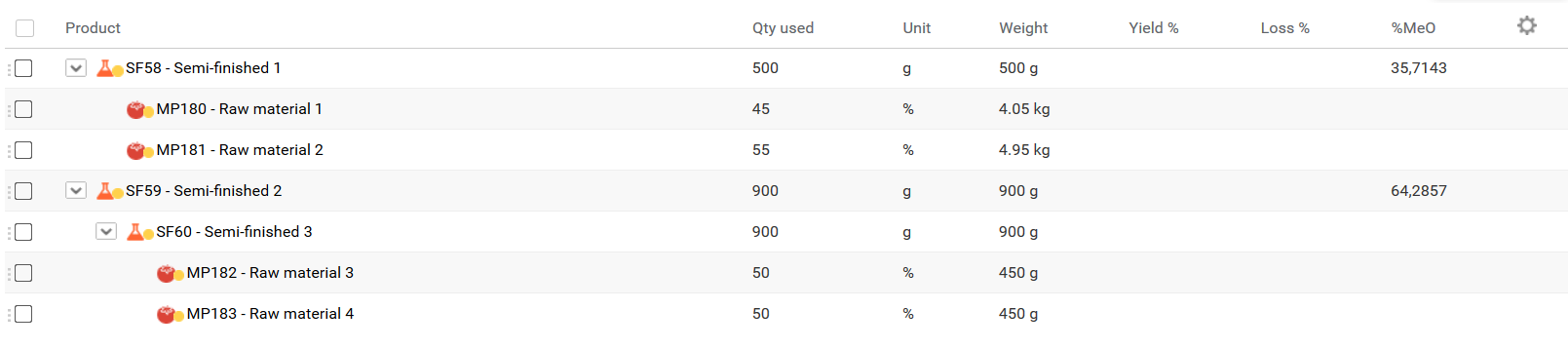
Example:
Composition of a finished product:
#### Calculation of the quantity of semi-finished in a product:
The level of **semi-finished C** is equal to 3. So, to calculate its quantity at product level, we must first calculate the quantity of **semi-finished B**
at product level and in using a rule of three:
Semi-finished B QTY = (Semi-finished B Weight / Semi-finished A Weight) * Semi-finished A Weight at the product level
- Weight of semi-finished A = sum of its components which can be found in formulated characteristics
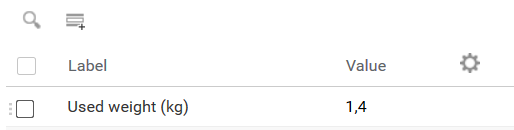
- Semi finished B QTY = (0.31 / 0.66) \* 5 = 2,348 Kg.
That result is the quantity you will use to calculate the quantity of **semi-finished C**, and so on as you go down in the composition level.
In the Example:
- Quantity of **semi-finished B** at product level => after calculation = 2.348 kg.
- Semi-finished B weight = 0.17 kg;
- **Semi-finished C** quantity used in the composition of **semi-finished B** = 0.1 kg.
- The quantity of **semi-finished C** used at product level = (0.1 / 0.17) * 2.348 = 1.381 kg.
The method to calculate the quantity of raw material 3 at product level follows the same logic in using this time 1.381 kg.
The multilevel plugin also calculates packaging values :
- Number of products per PCB packaging;
- Number of boxes per pallet (primary, secondary, tertiary) ;
- Quantity of packaging used for each product.
This tool also extracts dynamic characteristics
(dynamic characteristics). [Documentation on formulated characteristics](recipe-formulation.md#caracteristiques-formulées)
These characteristics are extracted and can be directly displayed or used in more complex calculations as explained in the SPEL
formula section.
**Note:** property names are the same as written in the application,
you just need to replace the white space with a dash ( \_ ) and add the
prefix \*dyn\_ at the beginning of a property name.
For example :
property name : « qty multilevel »\
extract name: « dyn\_qty\_multilevel »
#### Configuration
As in the standard connector, to activate the multilevel connector, you
need to paste the following line.
connector.plugin.class=fr.becpg.connector.plugin.MultiLevelCSVVisitor
This line is available in **becpg-connector.properties** file (you just
have to delete the \# symbol).
Once the plugin is loaded, you can modify which files you would like to
extract for each entity type (Finished Product, SemiFinished Product,
Raw-material, etc.).
Each entity will have a defined mapping as followed:
mapping.document.bcpg_ =
#### Configuration of entities to extract
As the plugin is only dedicated to two types of entities (finished and semi-finished products), CSV files won't work with the other types of entities (clients, suppliers and so on).
This is also valid for the search request. However, in this situation, we won’t need to extract other entities such as suppliers and
clients.
connector.query.template=(@cm\\:created:[%s TO MAX] OR @cm\\:modified:[%s TO MAX]) AND ( TYPE:\"bcpg:finishedProduct\" OR TYPE:\"bcpg:semiFinishedProduct\")
## Annex I: Certificate installation (Windows) {#annex1}
Getting the beCPG server certificate.
On Firefox, click on the lock icon.
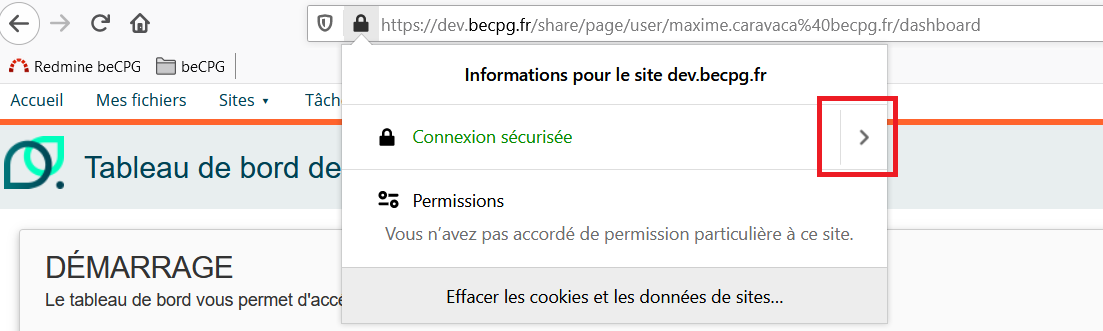
Then, click on the arrow, at the right of connection status.
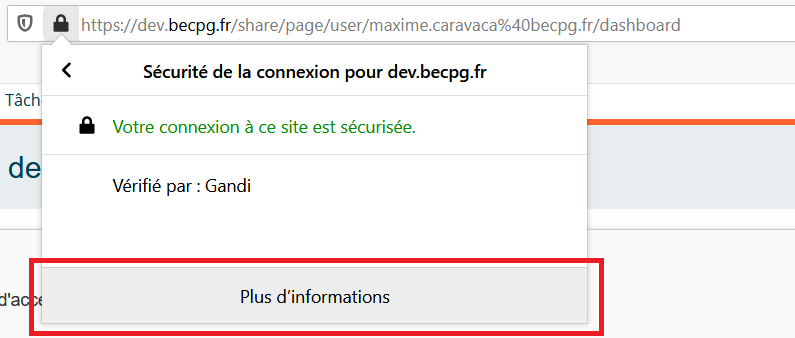
Then, click on "More information".
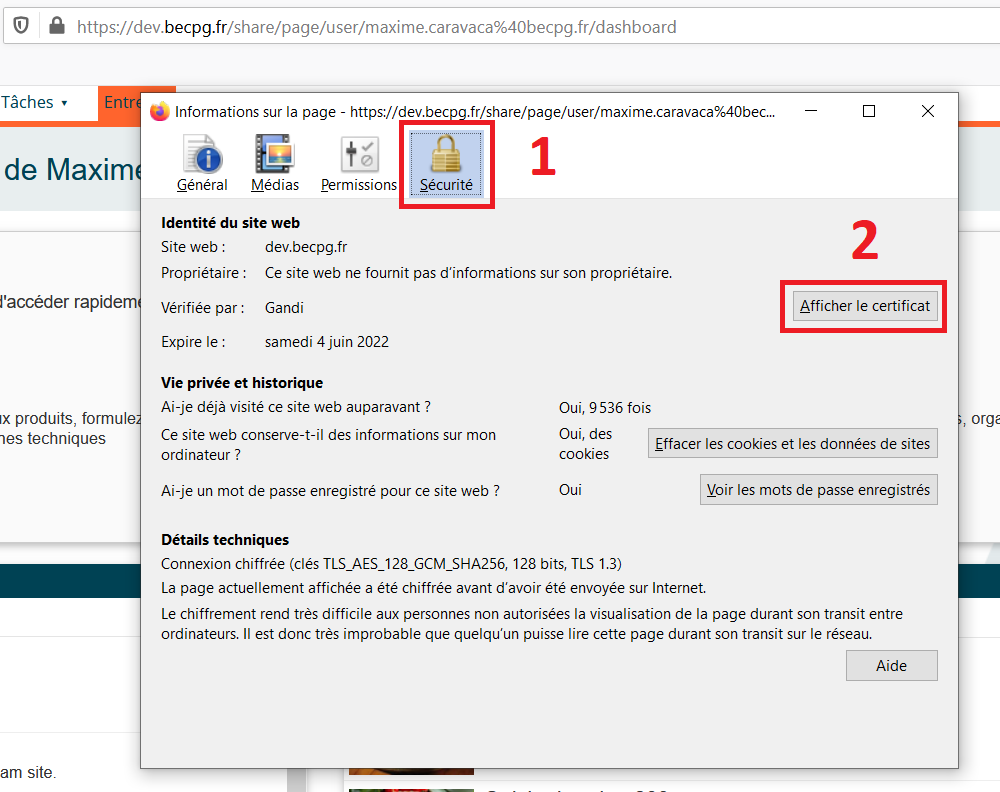
Then, click on "Display certificate".
Go to the section "Miscellaneous", and download the certificate *PEM (cert)*.
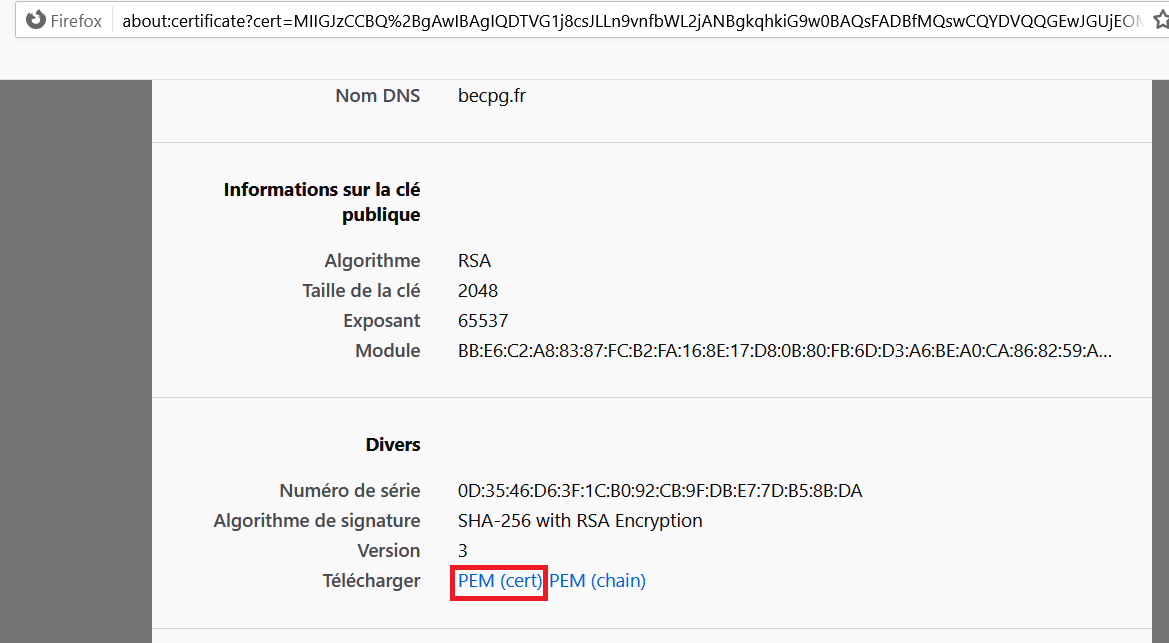
Save the file in a folder in your computer.
Open a terminal in your java folder.
Note: it could be mandatory to open a terminal with administrator rights to continue the installation. To open a terminal, you can search for "cmd" in your windows search bar, right click and "Open as administrator".
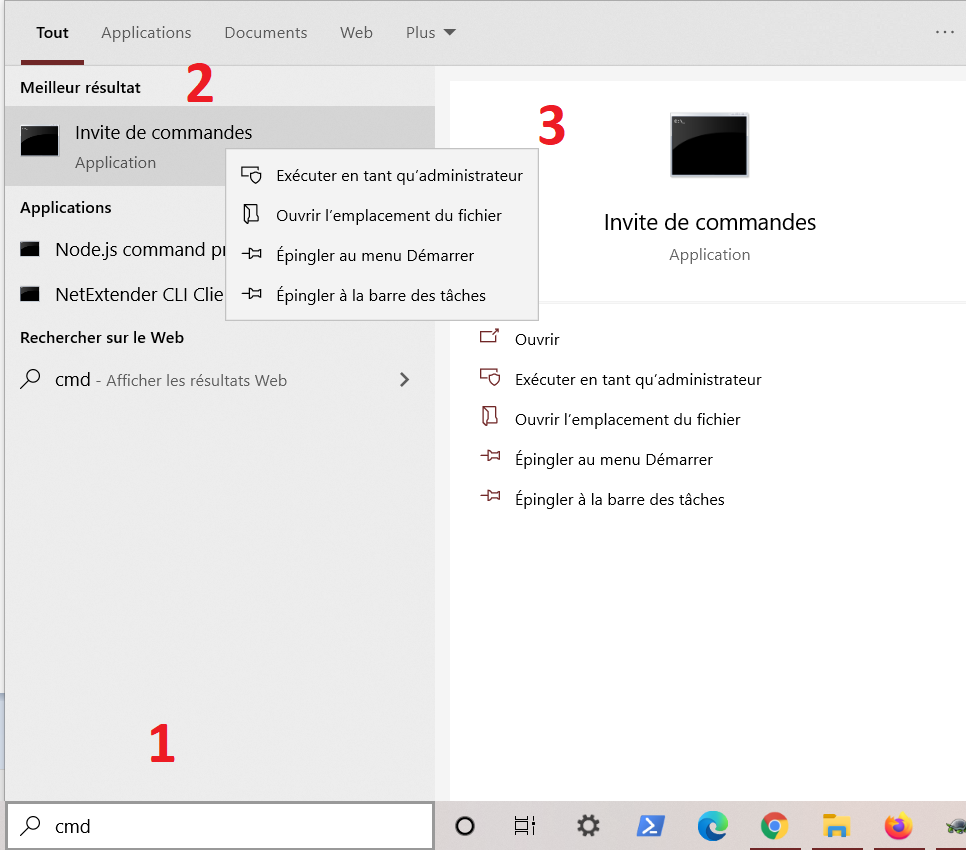
You can go to the right folder with the *cd* command.
Example with a java folder located as C:\Program Files\Java\jre1.8.0_241.
Check if bin\keytool and lib\security\cacerts exist in the java folder.
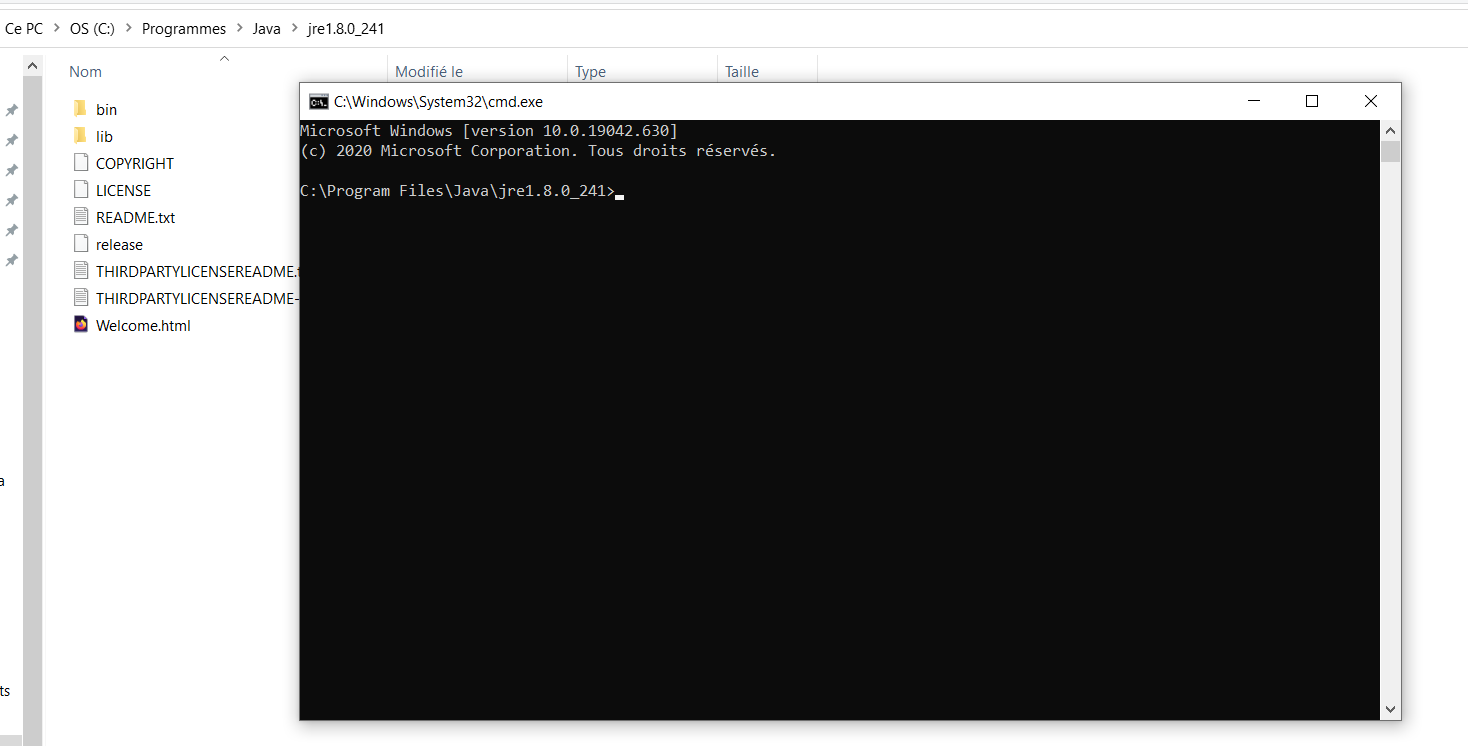
Once the terminal open, you can use the follow command:
bin\keytool -import -alias **{certificate name}** -file **{.pem file location}** -keystore lib\security\cacerts
Example with a certifcate named becpg.pem, located in C:\tmp with an alias becpg :
bin\keytool -import -alias becpg -file C:\tmp\becpg.pem -keystore lib\security\cacerts
The default password is: "**changeit**".
Follow the steps displayed by the terminal.
Once installed, you can use the following command:
bin\keytool -list -v -alias **{certificate name}** -keystore lib\security\cacerts
With our previous example:
bin\keytool -list -v -alias becpg -keystore lib\security\cacerts