Permissions
A permission is a right or authorization granted to a user or group of users to perform certain actions on a system or content. Permissions determine what a user can do with specific content, such as read, modify, create, delete or manage. Permissions can be defined in detail for each user or group, to control access to resources and guarantee data security.
Site permissions
The first step is to define site permissions. As standard, the sites reflect the different states of the product, allowing you to assign different permissions depending on the product's state. Within each site, members and their roles can be defined by clicking "Site members". Members can be added individually or via groups.
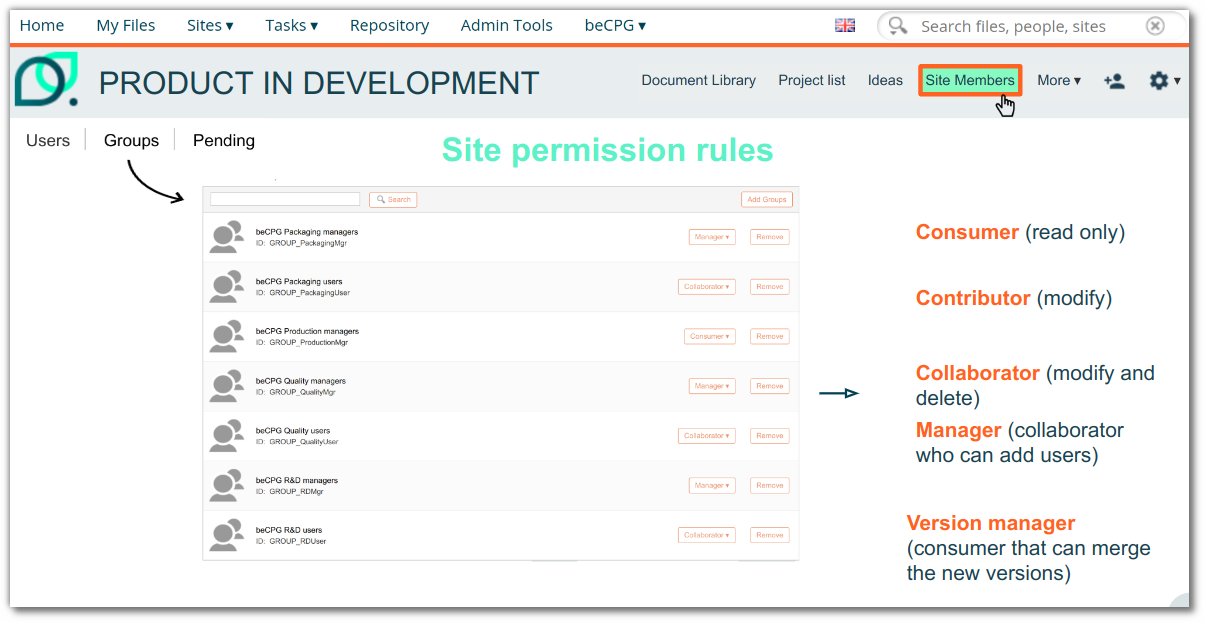
A permission is defined by two elements:
- A user group or a user (to search for a user or a group, type the first 3 letters of the name)
- A role, which determines the level of access:
- Consumer: Can view content.
- Contributor: Can view and modify all content, create new content.
- Collaborator: Has permission to view, modify, create and delete all content.
- Manager: Authorized to view, modify, create and delete all content. Can invite people and manage site permissions.
- Version Manager: Can merge a branch and create a branch (e.g., merge a validated product into its final location, or create a new version from a validated product).
- Branch manager: Can create a branch of content even if they are only a reader on the original site (e.g., create a branch from a validated product).
| Role | Read Content | Edit Content | Add Content | Delete Content | Add User | Merge branch | Create branch |
|---|---|---|---|---|---|---|---|
| Consumer | Yes | No | No | No | No | No | No |
| Contributor | Yes | Yes | Yes | No | No | No | No |
| Collaborator | Yes | Yes | Yes | Yes | No | Yes | Yes |
| Manager | Yes | Yes | Yes | Yes | Yes | Yes | Yes |
| Version manager | Yes | No | No | No | No | Yes | Yes |
| Branch manager | Yes | No | No | No | No | No | Yes |
In the event of conflict, the most permissive access applies.
Note: we recommend that you manage permissions via groups, in order to apply rules and permissions collectively, rather than individually, which simplifies administration and access control.
Permissions in the Repository
Folder Permissions
The parent's permissions are inherited by the content, and it is also possible to add local permissions for each piece of content (e.g. a folder or document) via the "Manage permissions" button. This makes it possible to fine-tune user rights for specific folders:
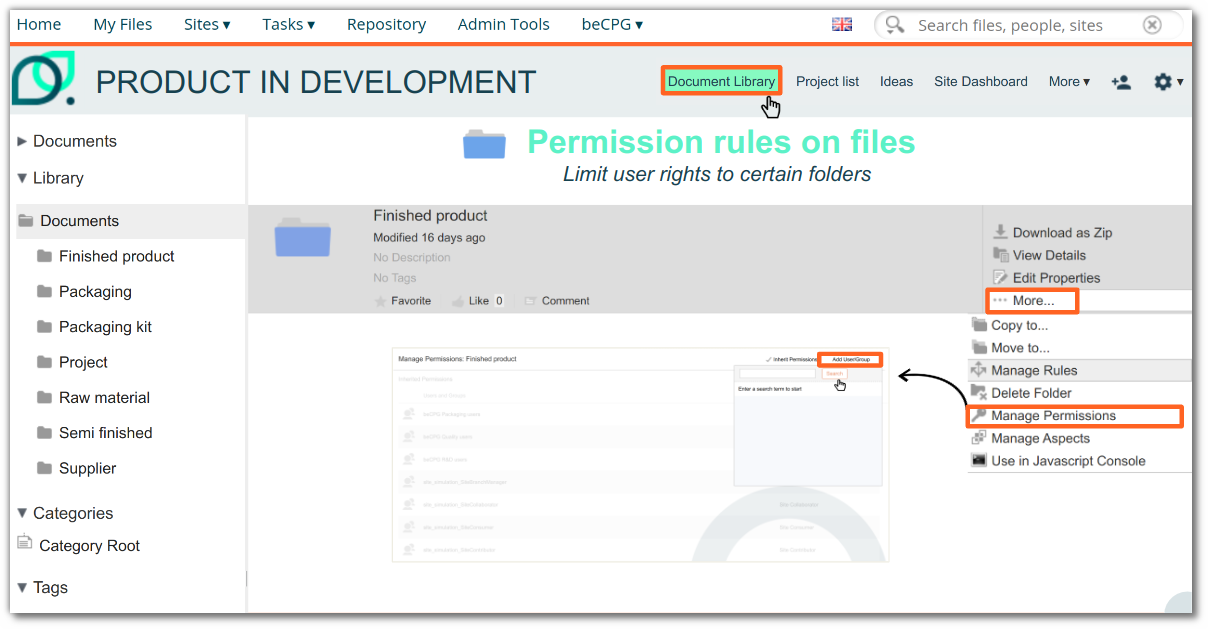
Permission is the association of:
- A user group or a user (to search for a user or a group, type the first 3 letters of the name);
- A role:
- Consumer: Has read access to content.
- Editor: Can view and modify existing content, but cannot create new content.
- Contributor: Can view, modify and create new content.
- Collaborator: Can view, modify, delete and create content.
- Coordinator: Has permission to view, modify, create and delete all content and manage permissions.
There is also a special role called Owner, which is assigned to the creator of a piece of content. The Owner has full access to the content he or she has created. The owner role is disabled in beCPG, except for external users, and if specifically indicated on a node with the Ownable aspect. A supplier, for example, even if only a contributor, has full permissions on the content he or she has created.
| Role | Read Content | Edit Content | Add Content | Delete Content | Full Control |
|---|---|---|---|---|---|
| Consumer | Yes | No | No | No | No |
| Editor | Yes | Yes | No | No | No |
| Contributor | Yes | Yes | Yes | No | No |
| Collaborator | Yes | Yes | Yes | Yes | No |
| Coordinator | Yes | Yes | Yes | Yes | Yes |
| Owner | Yes | Yes | Yes | Yes | Yes |
In case of conflict, the most permissive access applies.
Examples:
- A user has the "Consumer" role on the site and the "Coordinator" role on the folder: they will have the "Coordinator" role for all contents of the folder.
- A user has the "Coordinator" role on the site and the "Consumer" role on the folder: the most permissive rule applies, so they will have the "Coordinator" role for all contents of the folder.
Turn off Permission Inheritance
By default, parent permissions are inherited, but it is also possible to disable permission inheritance. In that case, only local permissions apply to the document/folder. Via the "Manage permissions" button, click "Inherit Permissions" to disable inheritance.
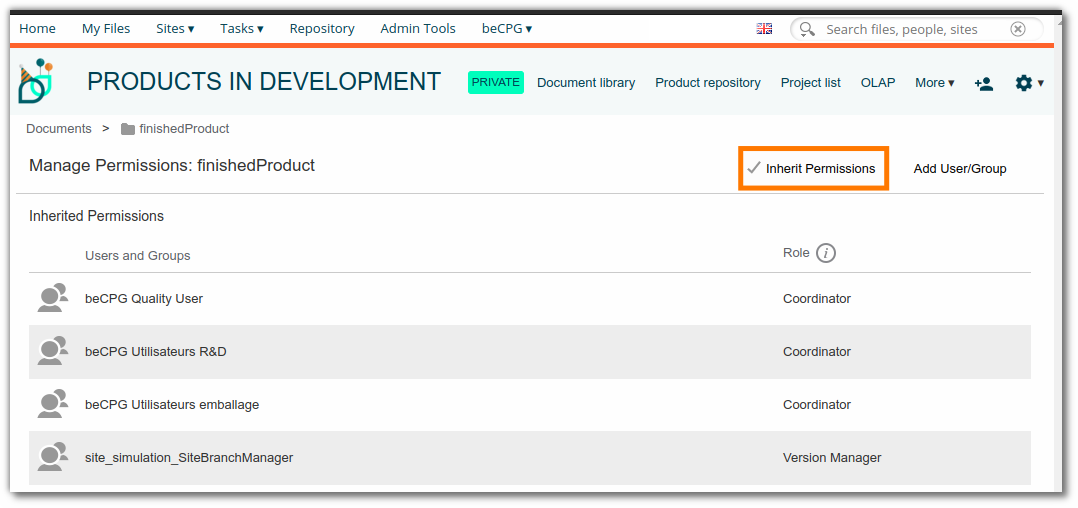
Examples:
- A user has the "Consumer" role on the site but no permission on the folder, and permission inheritance is disabled: they will have no role on the folder contents and will not see the folder.
- A user has the "Coordinator" role on the site and the "Consumer" role on the folder, and permission inheritance is disabled: they will have the "Consumer" role for all folder contents.
ACL permissions
Before creating security rules, we advise you to contact beCPG.
beCPG allows you to restrict access to certain fields and/or restrict/extend access to certain lists of a type by group of users. The type can be an entity type (finished product, raw material, semi-finished product, and so on) or a list (Composition, Cost, Nutrient, and so on). To do this, go to the "Security" system folder in the administration and create a folder. This folder corresponds to a group of permissions (ACL permissions) applied to a type in beCPG.
Once created, the folder becomes an ACL permission group. Edit its properties and choose the type for which the permission is activated:
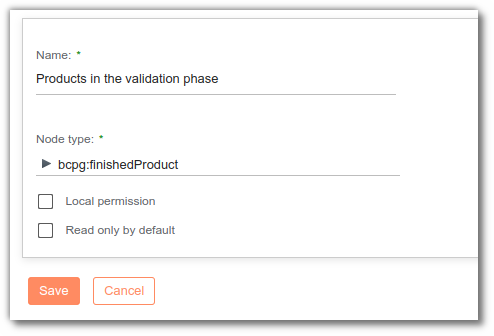
Example: here we choose to create permissions on the "Finished product" type.
Permissions
In the "Permissions" list, define access rights for each property. Three access rights can be set:
- Read - No access for others: Only read rights, other groups have no access to fields.
- Read and write - Read for others: Read and write rights, other groups will only have read rights.
- Read and write - No access for others: Read and write rights, other groups have no access to fields.
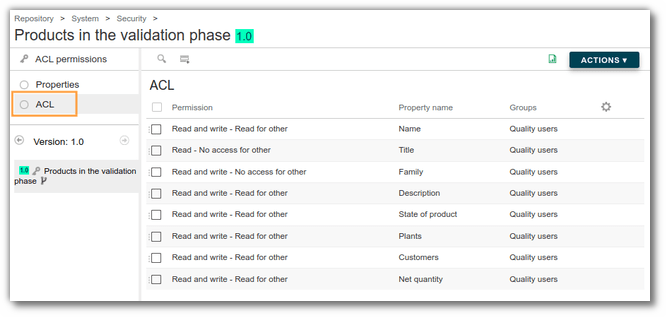
Application of rules
ACL permissions are immediately applied in the beCPG interface on the site.
Permission on fields
Add new permissions to the data list using the "Add" button. Select the access right, property name and group:
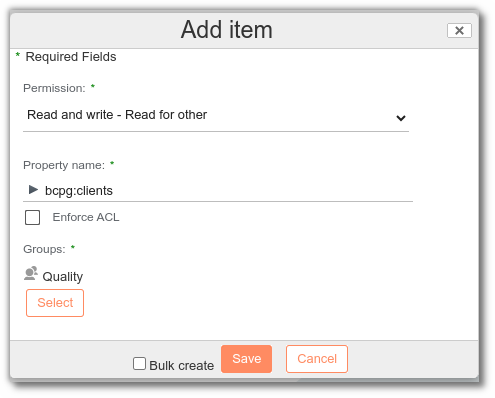
Reminder: access rights restrict inherited permissions, they do not extend them (e.g. restrict a read-write right). It is not possible to extend rights on a field (e.g. open a read/write right).
List permissions
In the properties, an entity's lists are also available. You can therefore define specific access rights (e.g. hide the cost list). It is also possible to extend access to lists. In this case, beCPG needs to make changes to "enable security rule".
Local Permissions
It is also possible to implement local permissions to specifically target certain products.
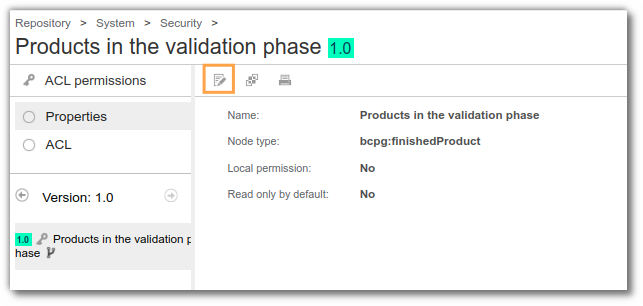
To do this, edit the properties of the security rule and click the "Local Permission" button.
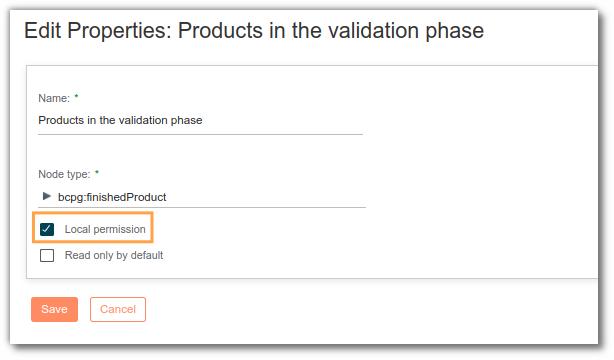
To apply the rule to the products of your choice, two methods are available:
- Manually add the rule to products: this approach allows you to individually select the products that require permissions. Open the product in beCPG and apply the permission rule to it. First, check that the security aspect is among the currently selected aspects. If not, add the aspect: see Aspects. The "Security Rule" field appears in the product properties only once this aspect is added. Then manually add the rules created at the administration level.
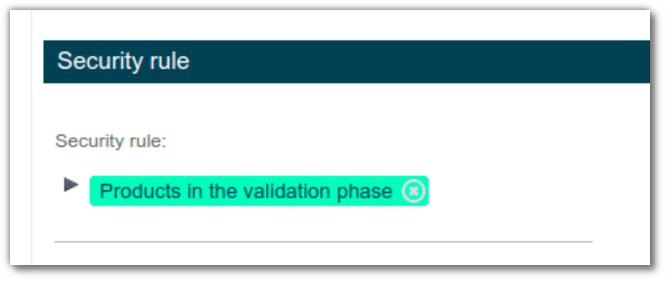
- Add the rule automatically via a SPEL formula that defines the conditions of application. This formula, based on criteria specific to each case, can be applied to a product model to enable more efficient management on a large scale. Example: you can create a formula to apply the security rule to all finished products with a specific model. This method ensures that permissions are correctly assigned without the need for repetitive manual intervention.
Read only by default
When you check the "Read only by default" parameter, all lists and fields of the type are considered read-only by default if no permissions exist on them.
Supplier portal permissions
When an entity is assigned to a supplier, it is moved to the supplier's folder in the supplier portal site. In this folder, all accounts linked to the supplier are set to "Coordinator".
An external user must not be a member of any site.
Permissions on reports
You can define rights on technical data sheets to control who can view and/or edit them.
For that purpose:
- Go to Repository > System > Reports > Product reports;
- Select the folder corresponding to the product type whose technical data sheets you want to manage (finished product, raw material, and so on);
- Place the cursor on the line corresponding to the technical data sheet and click on "More" and then on "Manage permissions";
- If the default configuration does not suit you, that is, if you do not want everybody to be able to view the technical data sheet as a "Consumer", click "Inherit permissions". The icon changes from a "Check" sign to a "No entry" sign so that you can manage your own rights;
- Click "Add a user/group" to give rights on this technical data sheet only to some users or groups. Once the user or the group is selected, give it a role (consumer, collaborator, and so on);
- Click on "Save";
- Finally, place the cursor on the line corresponding to the technical data sheet and click on "More" and then on "Update permissions".
Permissions on projects
beCPG lets you define rights on projects:
- Either on folders that specifically contain projects. For that purpose, see Permissions in the Repository.
Or on individual projects. To do so:
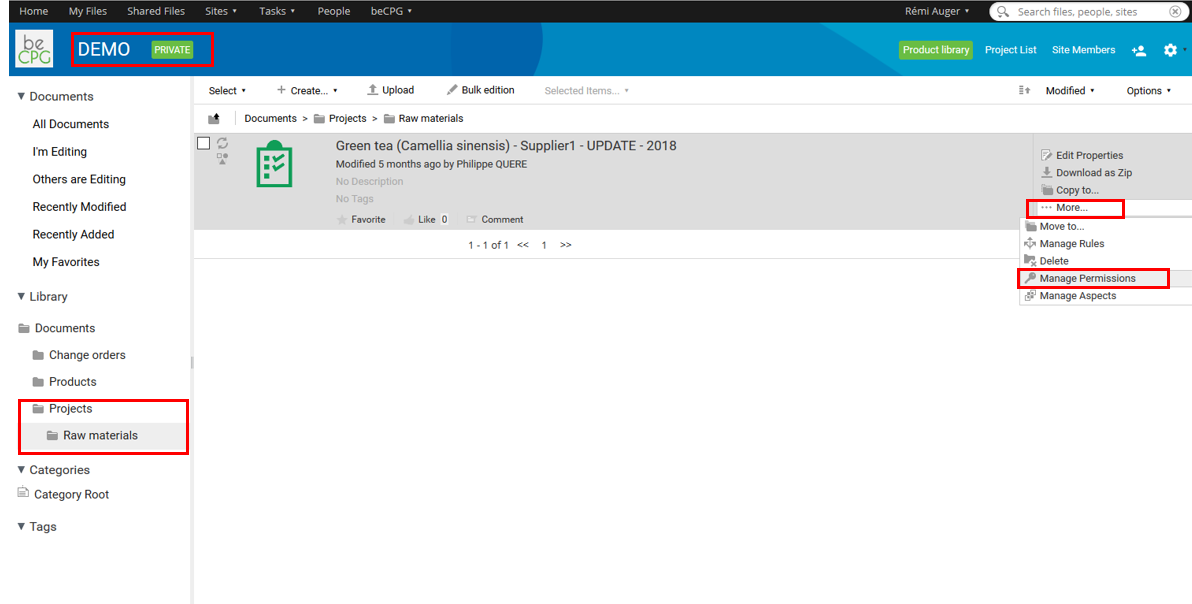
Go to the folder containing the project;
- Place the cursor on the line corresponding to the project and click on "More" and then on "Manage permissions";
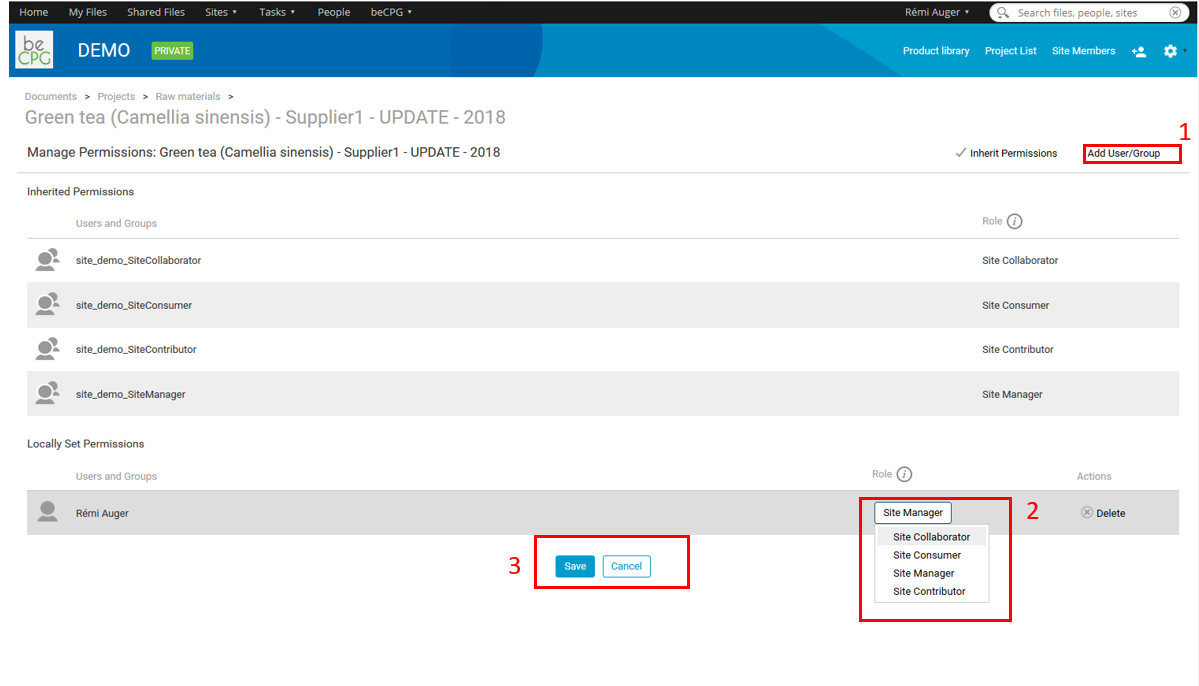
- If the default configuration does not suit you, that is, if you do not want everybody to be able to view the project as a "Consumer", click "Inherit permissions". The icon changes from a "Check" sign to a "No entry" sign so that you can manage your own rights;
- Click "Add a user/group" to give rights on this project only to some users or groups. Once the user or the group is selected, give it a role (consumer, collaborator, and so on);
- Click "Save".
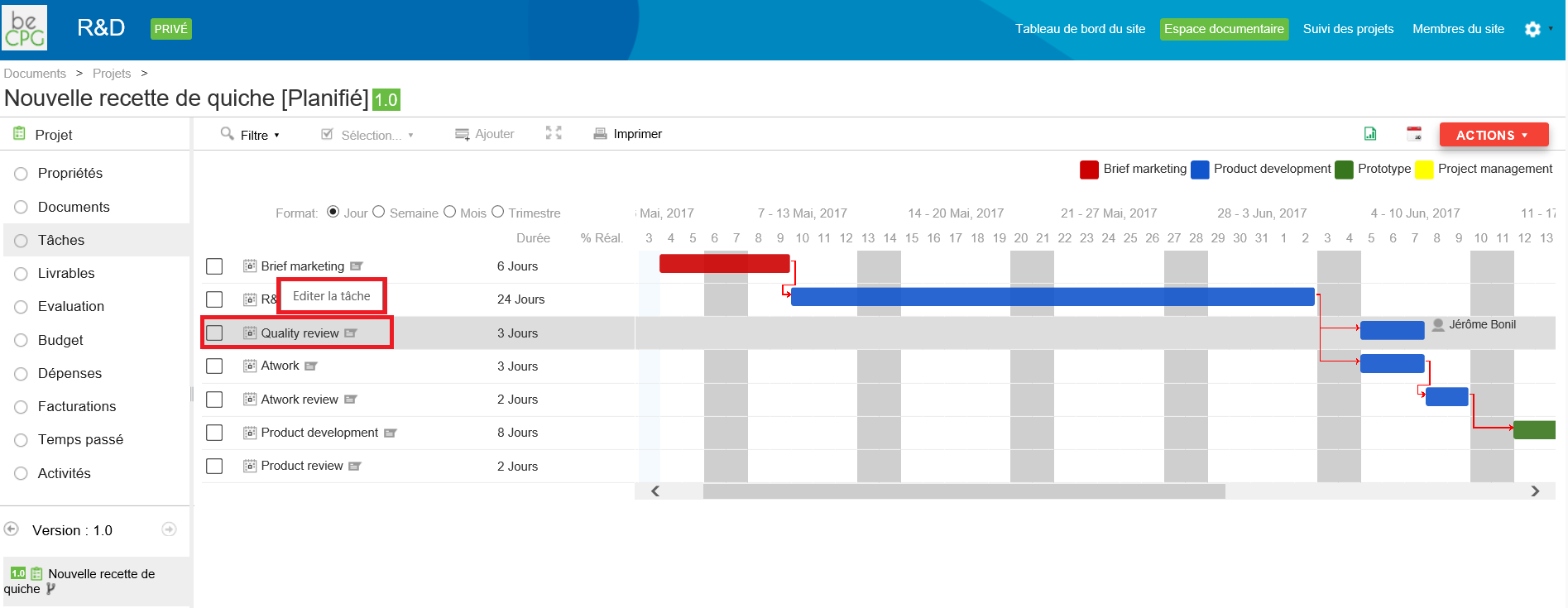
N.B.: a user or a group of users defined as "Consumer" on a project cannot add new tasks, nor modify or delete tasks, UNLESS they are assigned to these tasks!
Depending on their rights, users do not have the same access. For example, a consumer cannot modify a task that is not assigned to them.
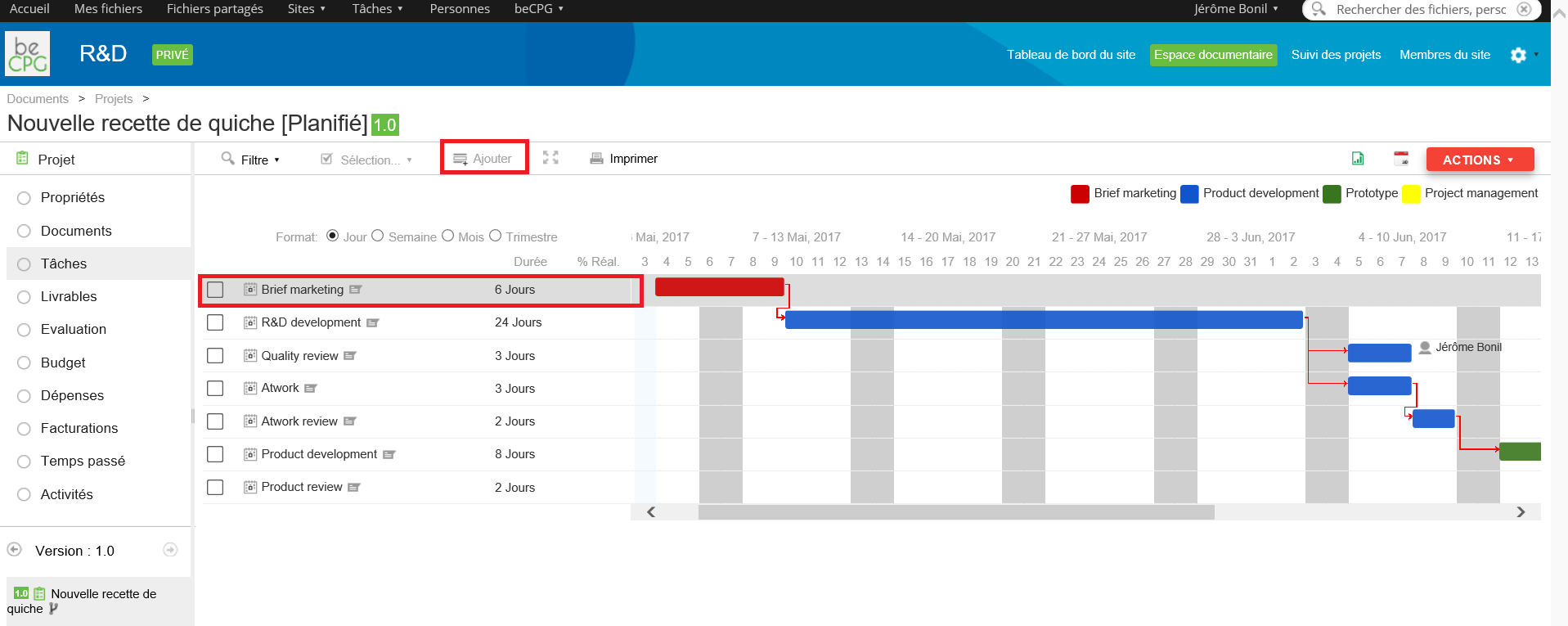
However, the user can modify the tasks that are assigned to them.
Permissions on folders in the document list
It is possible to define rights on folders contained in the Documents list of entities (e.g. deleting the inheritance of permissions on a folder and then creating specific permissions). Permissions are defined at template level and apply to all entities associated with the template.
Permissions are applied when entities are created, or to existing entities when they are formulated, or when models are synchronized.
When synchronizing templates, folder rights for existing entities are synchronized:
- Either the folders do not exist: they are created with the associated permissions.
- Or the folders exist: if the folder names are spelled identically, the permissions are updated.
If the entities contain folders different from those present in the template:
- Either the folders are empty: they are deleted.
- Or the folders are not empty: they are retained, but automatically inherit the permissions of the parent folder. Any specific rights previously set on them are deleted.
N.B.: Subfolders inherit the permissions of the folder in which they are contained.
Permissions on change orders
If you want to create a change order, you need to have the right permissions.
There are 2 different permissions:
- beCPG Change orders creators (CreateChangeOrder): you can create a change order but you cannot apply one.
- beCPG Change orders managers (ApplyChangeOrder): you can apply a change order.
beCPG Change orders managers and the administrator are the only ones able to apply a change order.
How to change user permissions: see User administration.