Imports
Data import lets you push data to the PLM using CSV or Excel files. (You can also import data via the beCPG REST API.)
Use
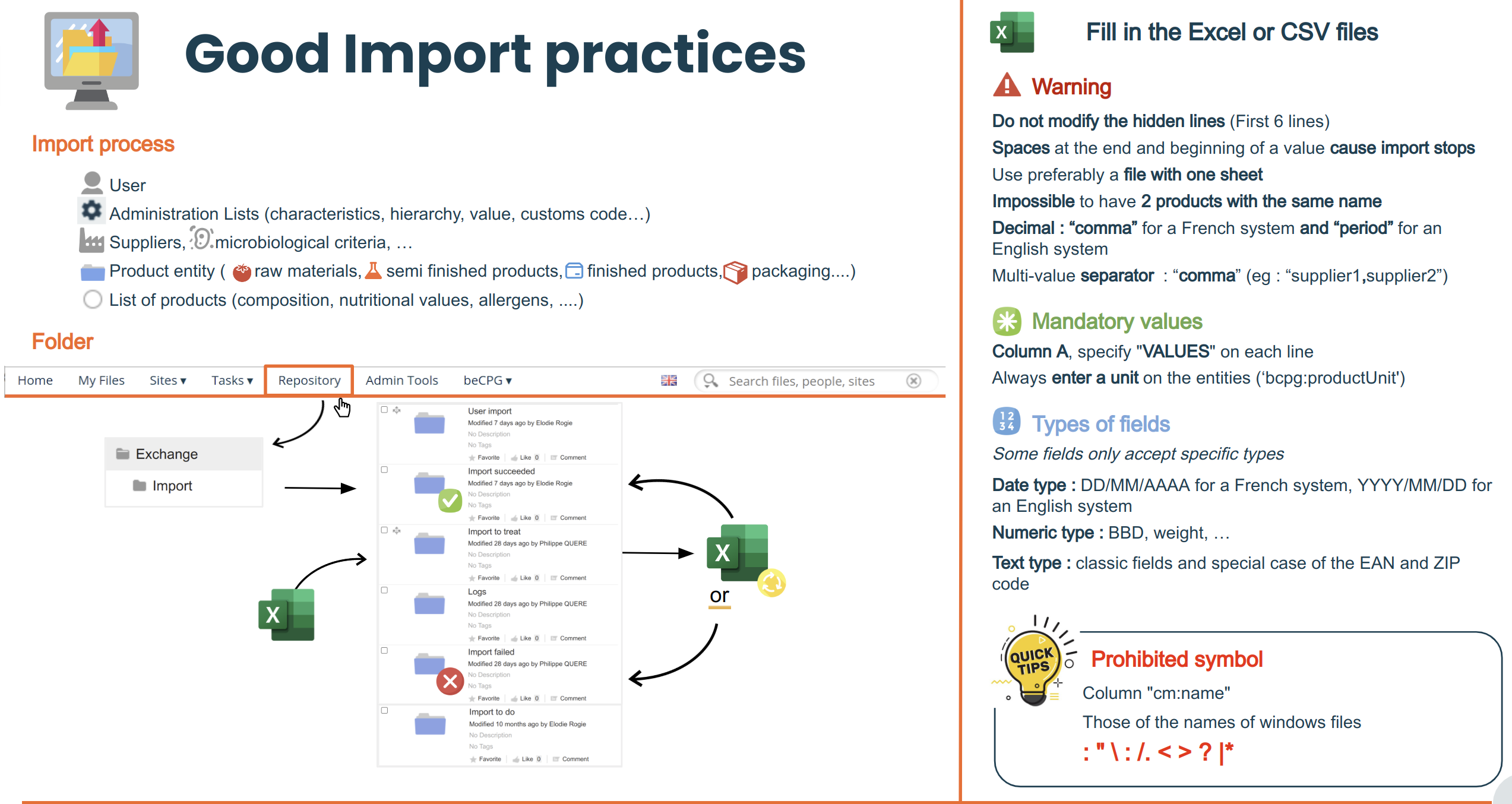
The import folders are in the repository (Repository/Exchange/Import).
The import folders are:
- To treat: to import .csv files;
- Failed: files in error;
- Succeeded: successfully imported files;
- Log: import logs;
- To do: storage folder;
- User import: to import users.
You can get the file layouts directly from the Excel exports generated in the interface, from the lists or with the bulk edit. beCPG also provides ready-to-use Excel or CSV files to import data. To download these files, right click on the links below:
You can also use the CSV format: save the files as CSV with a semicolon (;) as separator.
Import settings
Simple import
The import format is the following:
TYPE;    bcpg:rawMaterial
PATH;    /Exchange/Import/ImportToDo/rawMaterial
COLUMNS_PARAMS;        @Key
COLUMNS;    bcpg:erpCode;    cm:name    bcpg:legalName;
#;    ERP code;    Name    Legal name;
VALUES;    FR001;    Orange;    Orange;
VALUES;    FR002;    Apple;    Apple;
VALUES;    FR003;    Water;    Water;
Where:
- PATH: the folder where the data will be imported;
- TYPE: the type of object to create (raw material, nutrient, etc.);
- LIST_TYPE: the ID of the list in beCPG (survey:surveyList@1);
- COLUMNS: names of the attributes (properties and associations) to import;
- VALUES: values to import, in a specific format:
- Date: DD/MM/YYYY on a French system, YYYY/MM/DD on an English system;
- User: user account;
- Decimal number: the decimal separator is a comma on a French system and a dot on an English system;
- COLUMNS_PARAMS: annotations that specify the column types and keys.
Possible annotations:
All annotations follow this naming rule: @Name(attribute1="", attribute2="", attribute3="",...):
- Annotations start with a @ followed by the name
- Annotations start with a capital letter
- Annotations have attributes
- Attribute names start with a lowercase letter
- Attributes are separated with a comma
- Annotations have mandatory attributes and optional attributes
Examples:
@Key: to choose the identifier of the entity.
@Assoc: to identify the association.
  key: the association key. (mandatory)
  path: to specify the search path. (optional)
  type: to specify the target type. (optional)
@DataListKey: the key used in a list (composition, packaging, etc.).
@Hierarchy: the family/subfamily.
   path: the path to the list of families in the administration. (optional in the case of product families)
   parentLevelColumn: the parent column is the family column. (only mandatory for subfamilies)
   parentLevelAttribute: the attribute which links the family to the subfamily, in general **bcpg:parentLevel**. (only mandatory for subfamilies)
- @File: to import files, images, etc.
   attribute: the name of the property which is used, "cm:content", "cm:title"... (mandatory)
   path: the destination file. (mandatory)
- @Attribute: imports the attribute from properties of type d:nodeRef or from associations.
   attribute: the name of the property. (optional)
   type: the type of the target. (mandatory)
   key: the key of the association. (cm:name if not indicated)
- @Charact: imports characteristics in columns.
   dataListQName: the name of the characteristic list. (Cost, Nutrient, Allergens..). (mandatory)
   charactQName: the property of the list where the characteristic is saved. (mandatory)
   charactNodeRef: the id of the characteristic. (optional, if empty the system takes the charactKeyValue or charactName). (optional)
   charactKeyValue/charactName: the name of the imported characteristic. (optional, if empty the system takes the column title)
   charactKeyQName: the name of the property used to search the characteristic. (optional, if empty the system takes bcpg:charactName)
   dataListAttribute: the attribute to fill by the value of the column. (mandatory)
@Formula: uses a SPEL formula in a column.
@MLText: imports multilingual fields without adding the default field (the one without a language extension such as "_en" or "_fr", for example "bcpg:legalName").
If there is a default field but the MLText property is still used, then it must be added in the first column.Note:
- Annotation names are case-sensitive: respect the names and attributes.
- Use only one annotation per cell.
- A column can be a key, an association and an MLText at the same time. In that case, use separate COLUMNS_PARAM lines.
Example:
Additional settings
With @File (the annotation for the path of the files to import), you can use the following prefixes:
- file: - For a local file path
- classpath:
- url:
- http: - For a file on a website
- ftp: - For a file retrieved over FTP
reg: - Used with the DOCS_BASE_PATH header:
DOCS_BASE_PATH
Indicates the folder where the documents are stored when you use reg.
Note: the file extension is kept during the import.
IMPORT_TYPE
Indicates the type of import:
- Node, or no IMPORT_TYPE line: imports an object (e.g. RM, SF, FP, packaging, etc.)
- EntityListItem: imports a list associated with the entity (e.g. compoList, ingList, etc.)
- Comments: imports a comment
If an error occurs while importing a list, you can import it again. To do so, the list must first be deleted during the next import. Add the following parameter:
DELETE_DATALIST true
This function is equivalent to a "CANCEL & REPLACE"
STOP_ON_FIRST_ERROR false
- Continues the import when an error occurs on a line.
DISABLED_POLICIES cm:auditable,rep:reportEntityAspect
- Disables policies during the import (beCPG code generation or unmet constraints).
ENTITY_TYPE
- Specifies the entity type during the import. By default, bcpg:product is used.
User import
beCPG lets you import a batch of users and associate them with groups and/or sites. Missing sites and groups are created by the import. The import uses a .csv file placed in the repository folder "Exchange/Import/User import". Once the import has run, the file is automatically moved to Exchange/Import/Import succeeded.
The .csv file must contain a header row:
"cm:lastName";"cm:firstName";"cm:email";"cm:telephone";"cm:organization";"username";"password";"memberships";"groups";"notify"
You can add other user properties by adding the property names to the header. "Username" and "Password" fields are mandatory.
The "memberships" field allows the association between users and sites. The user's role in the site must be defined. The available roles are:
- Consumer
- Collaborator
- Manager
Sites are separated by "|" and roles by "_". Thus, for the user "Test", a member of "Test site 1" as "Manager" and of "Test site 2" as "Consumer", the "memberships" field is filled in as follows: "Test site 1_Manager|Test site 2_Consumer"
The "Groups" field allows the association between users and groups. Groups are separated by "|". You can build a group hierarchy using "/". beCPG groups should be referenced by their system names:
- Marketing (Marketing)
- Marketing manager (MarketingMgr)
- Marketing user (MarketingUser)
- Purchaser (Purchasing)
- Purchase manager (PurchasingMgr)
- Purchase user (PurchasingUser)
- Quality manager (QualityMgr)
- Quality user (QualityUser)
- R&D (RD)
- R&D manager (RDMgr)
- R&D users (RDUser)
- Product reviewers (ProductReviewer)
- System manager (SystemMgr)
Thus, for a user belonging to the "Product reviewer" group and to the "Test group 2" group (a child of "Test group 1"), the "Groups" field is filled in like this: "ProductReviewer|Test group 1/Test group 2"
The "notify" field sends an email to the user. Possible values are "True" or "False".
Complete CSV example for the Test user:
"cm:lastName";"cm:firstName";"cm:email";"cm:organization";"username";"password";"memberships";"groups";"notify"
"test";"test";"test@becpg.fr";"";"test";"test"; "Test site 1_Manager|Test site 2_Consumer";"ProductReviewer|Test group 1/Test group 2";"false"