Change orders
Change orders let you simulate changes on a product in its where-used entities (raw materials, packaging, semi-finished products) and then apply them.
A change order (CO) reformulates the impacted products. It can create a new minor or major version of the products, or apply the changes without creating a new version.
WARNING: when you APPLY the change order, you make mass changes to several entities. Applying a change order is definitive. Dedicated permissions limit the risk of improper manipulation.
Permissions
To create a change order, you need the right permissions.
There are two different permissions:
- beCPG Change orders creators (CreateChangeOrder): you can create a change order but you cannot apply one.
- beCPG Change orders managers (ApplyChangeOrder): you can apply a change order.
Only beCPG Change orders managers and the administrator can apply a change order.
For further information, refer to the documentation on user groups.
Replace an entity
Replace an entity with another (RM, SF, etc.)
When an entity has to be replaced with another, use a change order. Replacing a raw material by hand in all the recipes that use it would be a considerable amount of work.
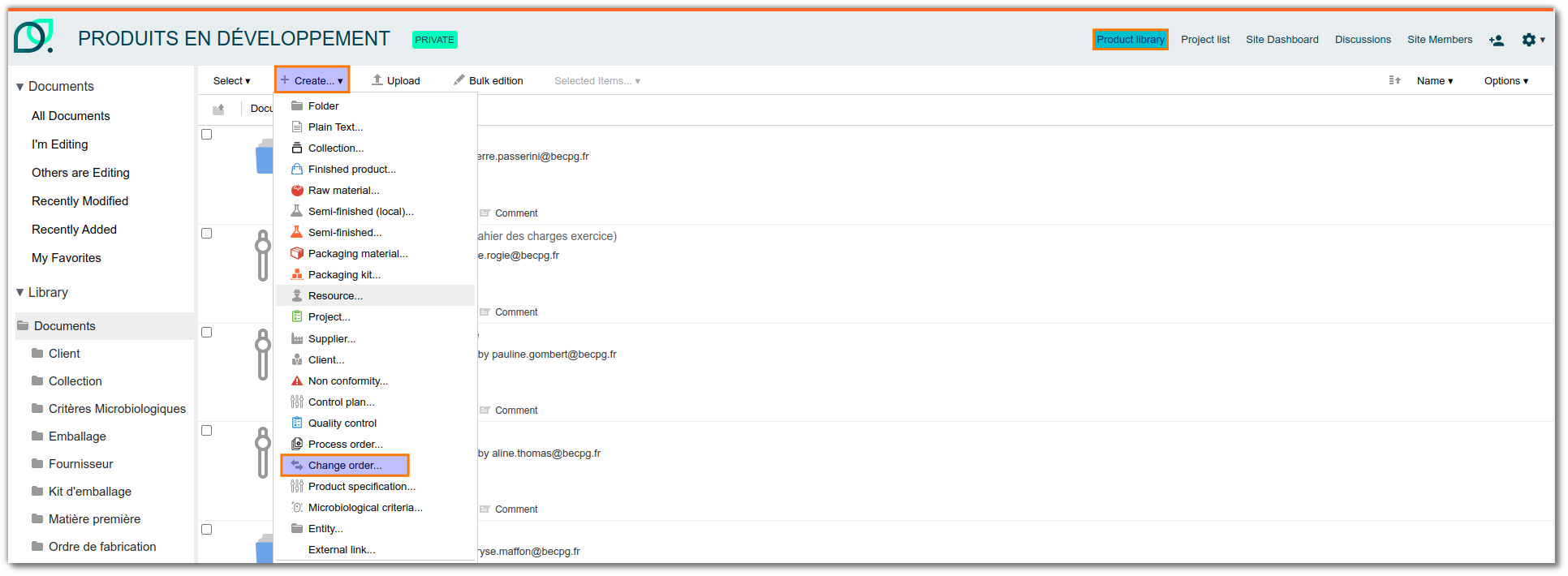
Create a change order by going to "Site" > "Products Space" > "Create" > "Change order".
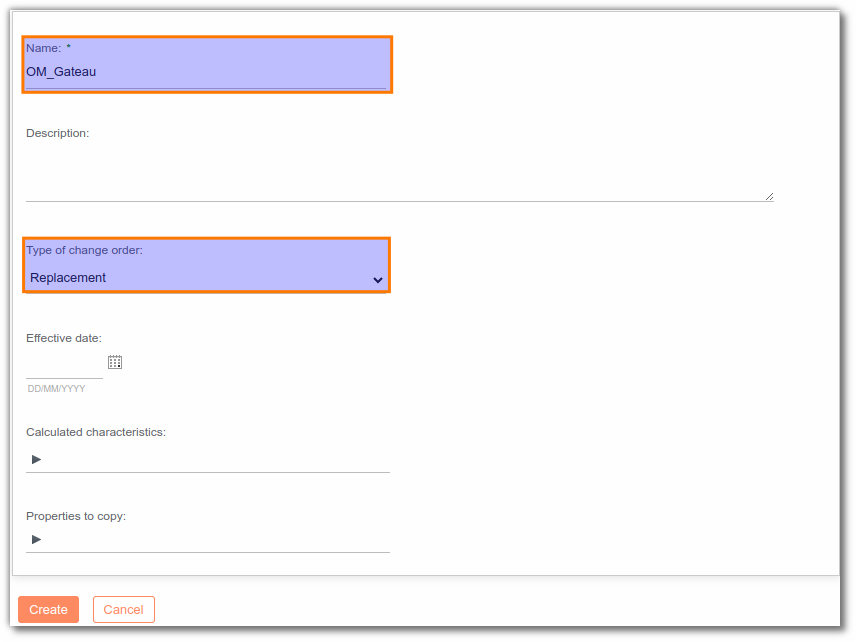
Fill in the change order name, its type ("Replacement" in this case) and the characteristics to compute after the entity has been replaced, then click "Create".
Go to "Replacements" and click "Add" (New Row). Fill in the "Revision" field to decide whether the replacement creates a new minor or major version of the impacted products, or keeps the same version. Enter the entity to replace ("Sources") and its substitute ("Target"), then click "Save".
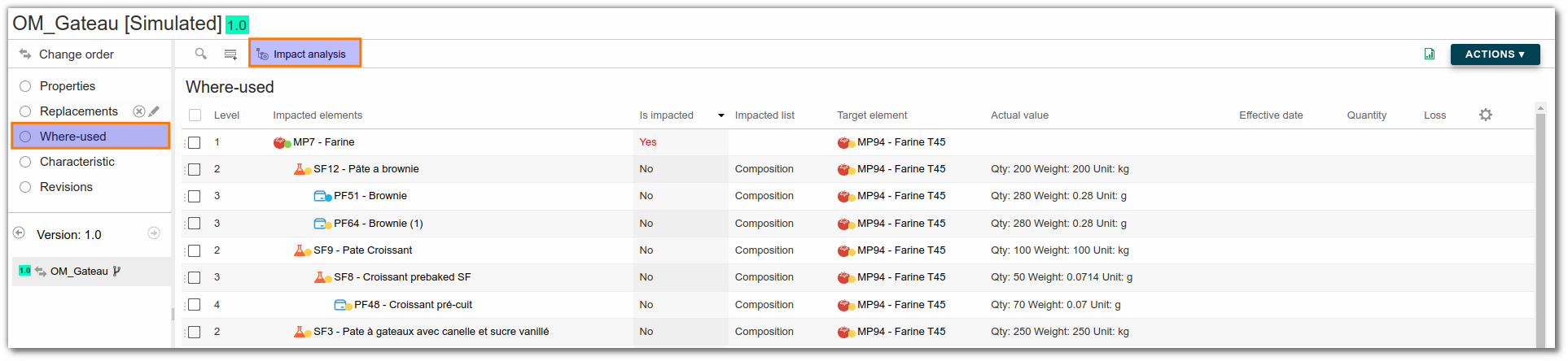
Go to "Where used" and click "Impact analysis" to see all the products concerned by the replacement. The list shows the impacted raw material (because it is replaced) and the finished and semi-finished products that use it.
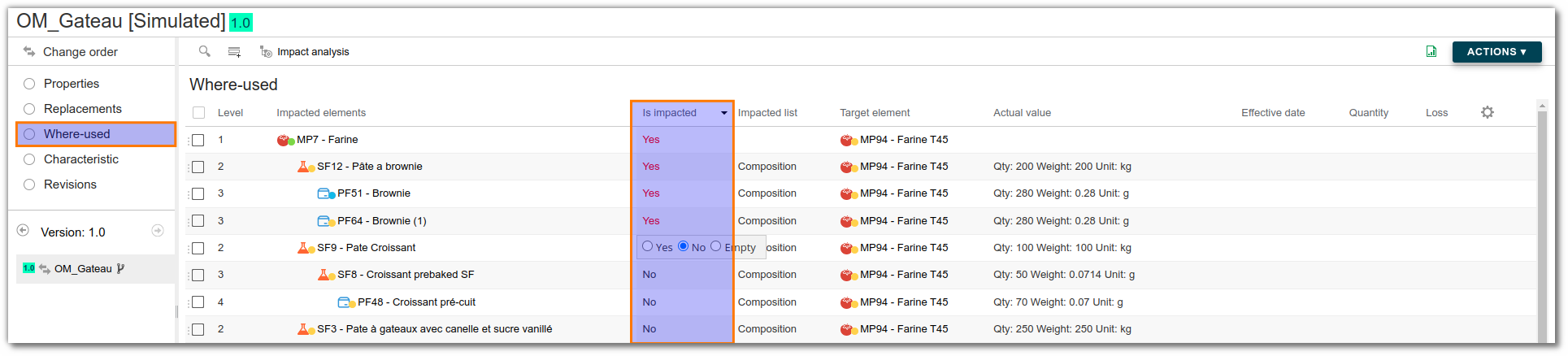
Still in "Where used", define the entities to impact by clicking the boxes of the "Where used" column and choosing "Yes".
Go to "Characteristics" and click "Simulate" to see the impact of the replacement on the characteristics chosen previously.

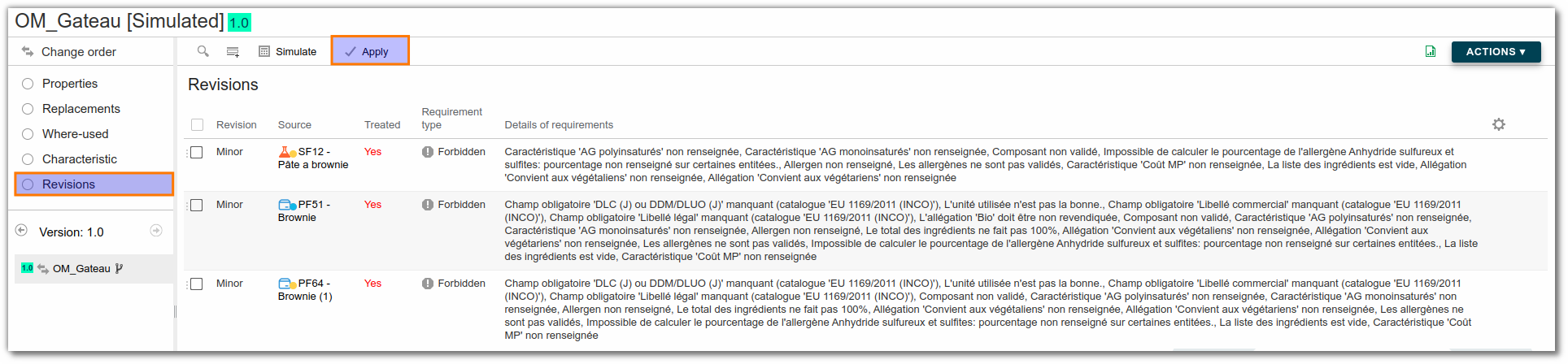
Go to "Revisions" to see which missed requirements would appear on the product after the replacement. Then, apply the change order to the entities by clicking "Apply". Once the change order is completed, "Yes" appears in red in the "Treated" column.
Replace one entity with two, or two entities with one
Sometimes, an ingredient must be removed from existing recipes. When this ingredient is inseparable from another, you can use a change order to replace one entity with two, or two entities with one.
Replace two entities with one entity
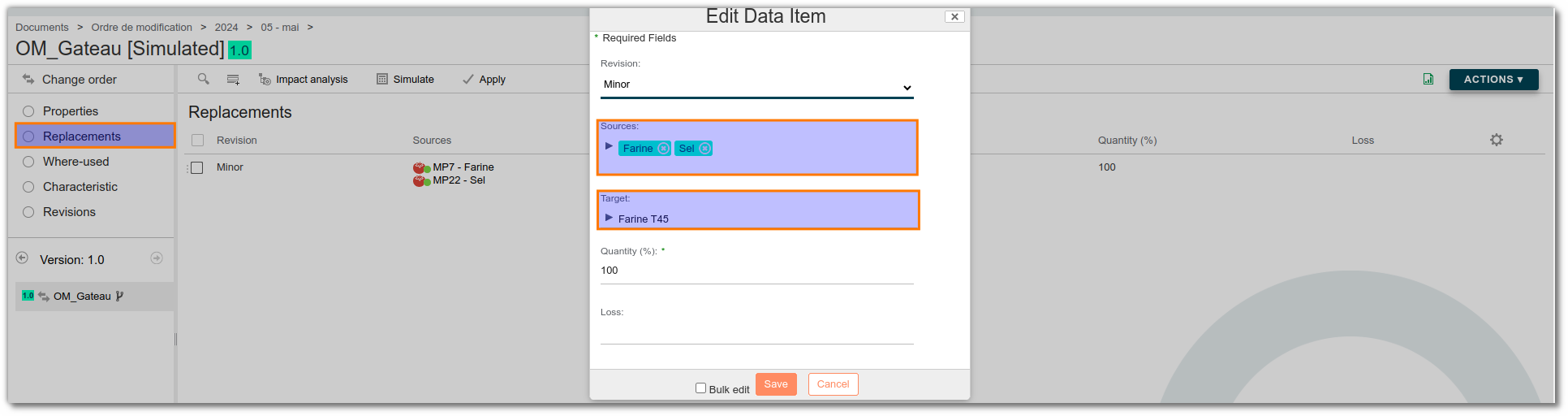
Let's say that you want to remove salt from our puff pastry. You can do this by replacing flour + salt with flour.
- To do so, follow all the steps of "Replace an entity with another" and change only the third step as follows:
Replace one entity with two entities
If white sugar has to be replaced with a mix of white and brown sugar, you can do it with a change order:
- To do so, follow all the steps of "Replace an entity with another" and change only the third step as shown in the screenshot below:

Entering 50% in the first line and 100% in the second one replaces White sugar A (100%) with White sugar B (50%) and adds the same quantity of Brown sugar (50%) as White sugar (50%).
Halve an entity in all the recipes
If the flour quantity must be halved in all the recipes, you can do it at once with a change order.
- To do so, follow all the steps of "Replace an entity with another" and change only the third step as follows:

Merge a branch
Sometimes, finished product recipes must be updated from a semi-finished product branch. You can use change orders for that.
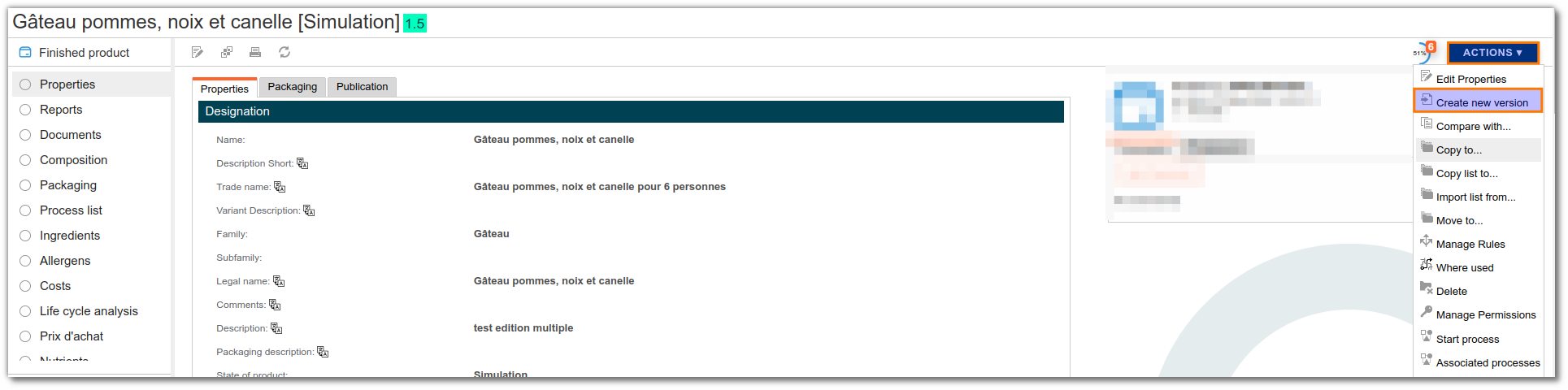
Create a new branch of a semi-finished product by opening it and clicking "Action" > "Create a new branch" (see the documentation on branches and versions).
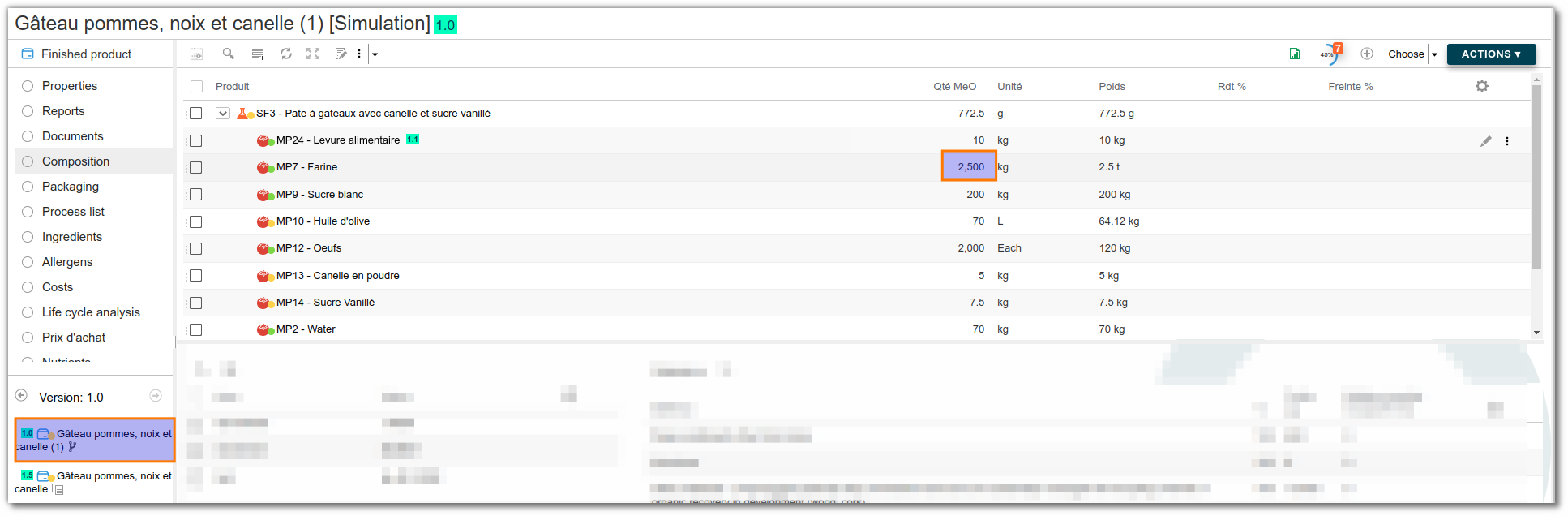
Make the desired modifications to the semi-finished product (here, the flour quantity is increased from 250 to 2,500 kg).
Create a change order by going to "Site" > "Document library" > "Create" > "Change order".
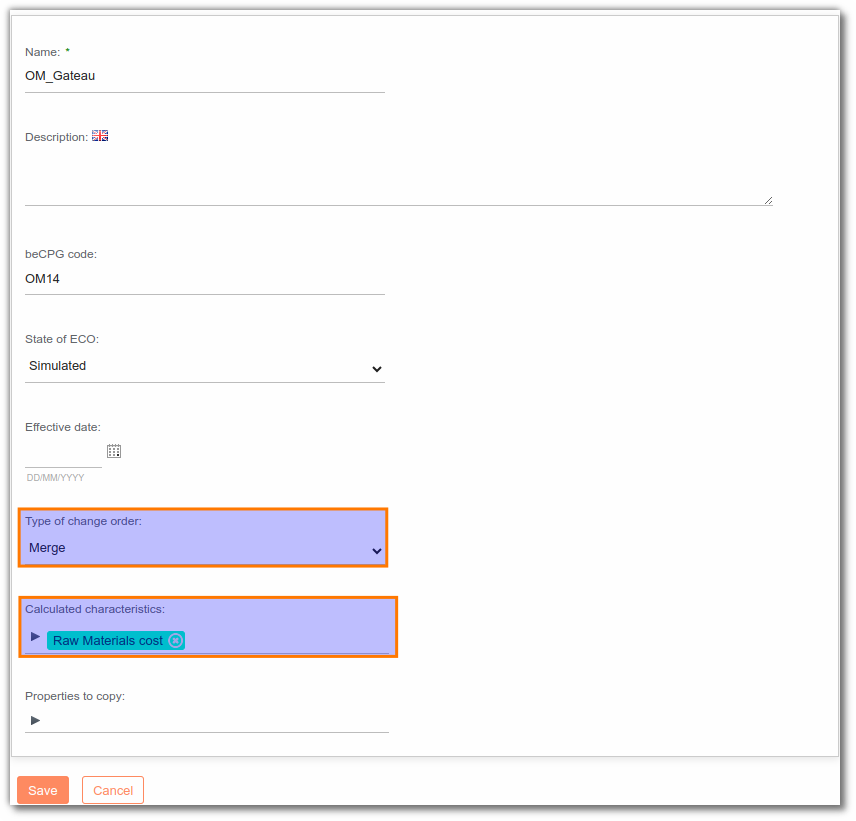
Fill in the change order name and its type ("Merge" in this case) and click "Create".
Click "Edit properties" and, in "Calculated characteristics", choose the data you want to compare after the change order has been performed (here, the calculated characteristic is the raw material cost).
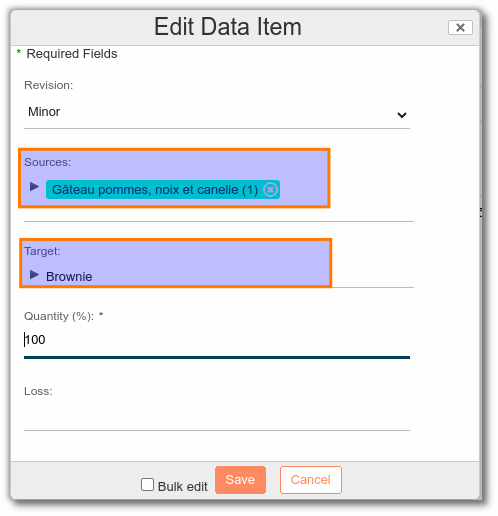
Go to "Replacements" and click "Add". In the "Revision" field, choose "Major", "Minor" or "No revision". In "Sources", choose the branch you have just created and, in "Target", choose the recipe (finished product) into which the branch will be merged. Finally, click "Save".
Go to "Where used" and click "Impact analysis". You get the list of the impacted products (all are set to "Yes" by default in the "Is impacted" column).

Go to "Characteristics" and click "Simulate". This can take several minutes depending on the number of impacted products (refresh the page if needed). For each impacted product, each characteristic chosen for the comparison is displayed for the source and the target.

Finally, go to "Revisions" and click "Simulate" to simulate the change order before applying it. If everything is correct, click "Apply" to apply the change order definitively.
When the change order has been applied, "Yes" appears in red in the "Treated" column.

Simulate the impact of a change
Change orders let you simulate the impact of a change in beCPG. To simplify the analysis and the modification, four columns are available to modify the where-used list by impacted product:
- Current value: view the quantity and the net weight on the entity
- Effective date: apply an effective date to the change
- Quantity: change the quantity
- Loss: add a loss
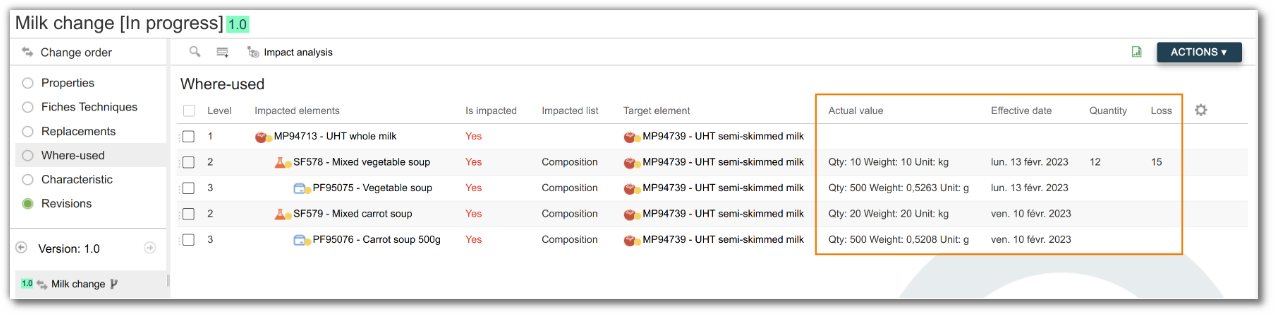
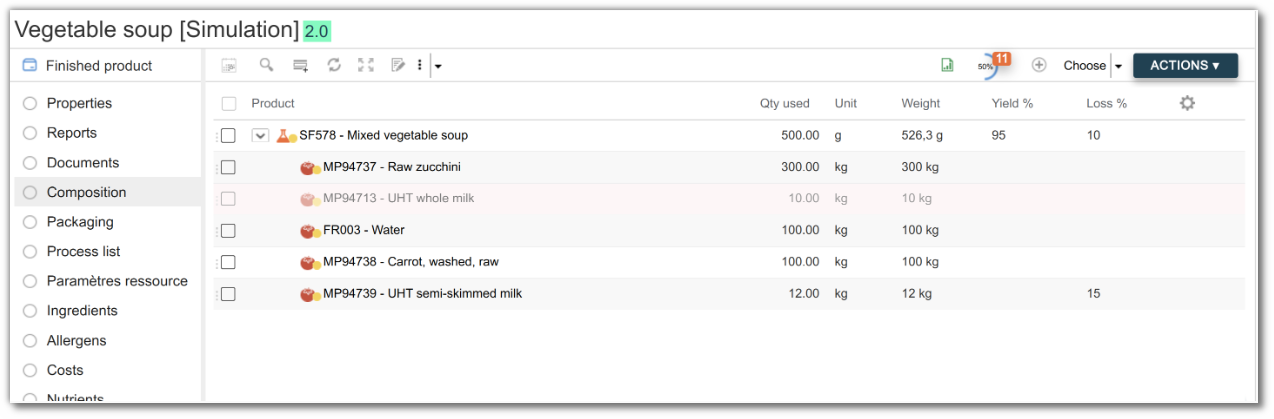
When the effective date differs from today's date, beCPG creates an additional line on the product when the change order is applied.
Automatic change order
The automatic change order monitors the changes applied to products in the repository and then reformulates the impacted where-used entities. You can configure it to monitor products according to their state.
For example: when a raw material in the "In progress" state is modified, it is added to the automatic change order.
Based on this configuration, the module creates a change order and moves it to the "Repository" > "System" > "Change order" folder, with its creation date and time.
This change order is then automatically supplemented with the modifications made in real time in the system.
The change order can either be simulated and applied manually (a new automatic change order is created after the next modification), or simulated and applied automatically after a predefined period of time.
If the change order is applied automatically, you can define whether a new version is created on the impacted products.
You can also delete this change order automatically once it has been applied.
Examples of configuration:
    # Comma separated product state to monitor
    # Simulation, ToValidate, Valid, Refused, Archived
    beCPG.eco.automatic.states=Valid

    # Should ECO apply automatically
    beCPG.eco.automatic.apply=true

    # Should Automatic ECO create new product versions
    beCPG.eco.automatic.version=true

    # Automatic cron expression
    beCPG.eco.automatic.cron=0 0/30 * * * ?

    # Deletes automatic ECO after they're successfully applied
    beCPG.eco.automatic.deleteOnApply=true