Project management
The project management module is designed to help work teams and project managers plan, organize, track, and manage the various stages and resources of a project. It optimizes the management of tasks, deadlines, budgets, and human and material resources, offering a variety of features tailored to each phase of the project. In beCPG, the project module includes:
- Task planning and management: Allows you to define and assign tasks, track their progress, and manage priorities;
- Deadline tracking: Manages deadlines and schedules to ensure project deadlines are met;
- Resource management: Allows you to allocate resources optimally;
- Team collaboration: Facilitates communication between team members with tools for messaging, file sharing, comments, and more;
- Cost tracking: Helps manage budgets and track expenses in real time;
- Dashboard and reports: Provide project overviews, performance indicators and detailed reports to assess progress and make informed decisions.
This module also lets you create project templates representing company workflows. For example:
- Development of a new product;
- Referencing of a raw material, packaging, or trade product;
- Change of packaging;
- Modification of a recipe;
- Modification of the manufacturing plant.
Project
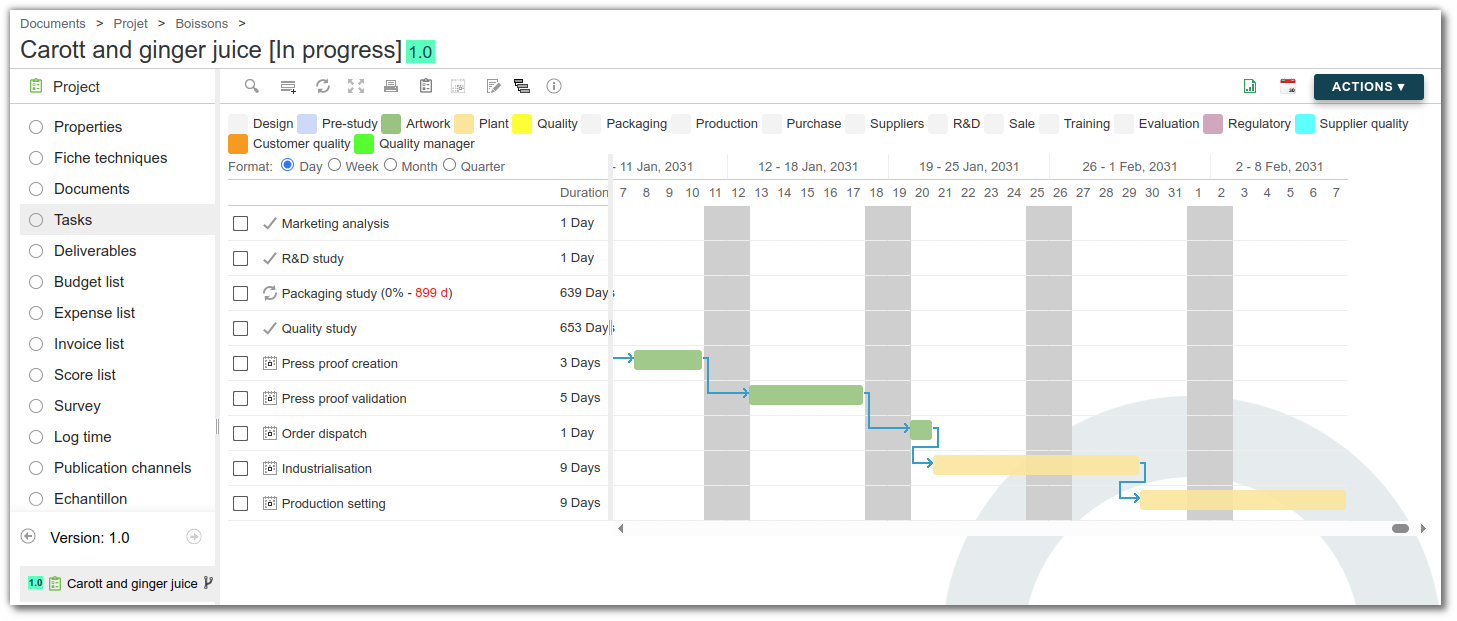
In beCPG PLM, project entities are structured around tasks and deliverables, visualized on a Gantt chart. Project metadata can be found in the "Properties" tab. Each project has:
- a document tree;
- a schedule or retroplanning with assigned tasks;
- the expected deliverables.
Create a project
When you create a new project, enter the following elements to ensure efficient management:
- Template: Select a project template to use a pre-established task plan.
- Project manager: Indicate the person responsible for managing the project.
- Observers: These people receive emails about the progress of the project.
- Entity: Allows you to associate one or more entities with the process.
- Planning mode: Choose between Planning and Retroplanning, depending on the needs of the project:
- Planning: This is a calendar detailing the tasks to be completed in chronological order. Each task is scheduled for a specific date, and its progress can have an impact on subsequent tasks. In beCPG PLM, when a task is completed, the schedule is automatically recalculated to adapt to new constraints without disrupting the next participants.
- Retroplanning: Unlike traditional planning, retroplanning starts from the final deadline and works backwards to define the intermediate stages. In this way, the end of the project remains fixed, and the dates of the tasks are adjusted according to this constraint. In beCPG PLM, retroplanning guarantees that the final deadline will not be modified, even if adjustments are made during the project.
This choice of planning method allows flexible management adapted to the specific needs of each project.
Tasks
The "Tasks" tab shows the entire process, with the time allocated to each task and the people involved. The colors of the tasks correspond to the captions, which are managed in the beCPG administration.
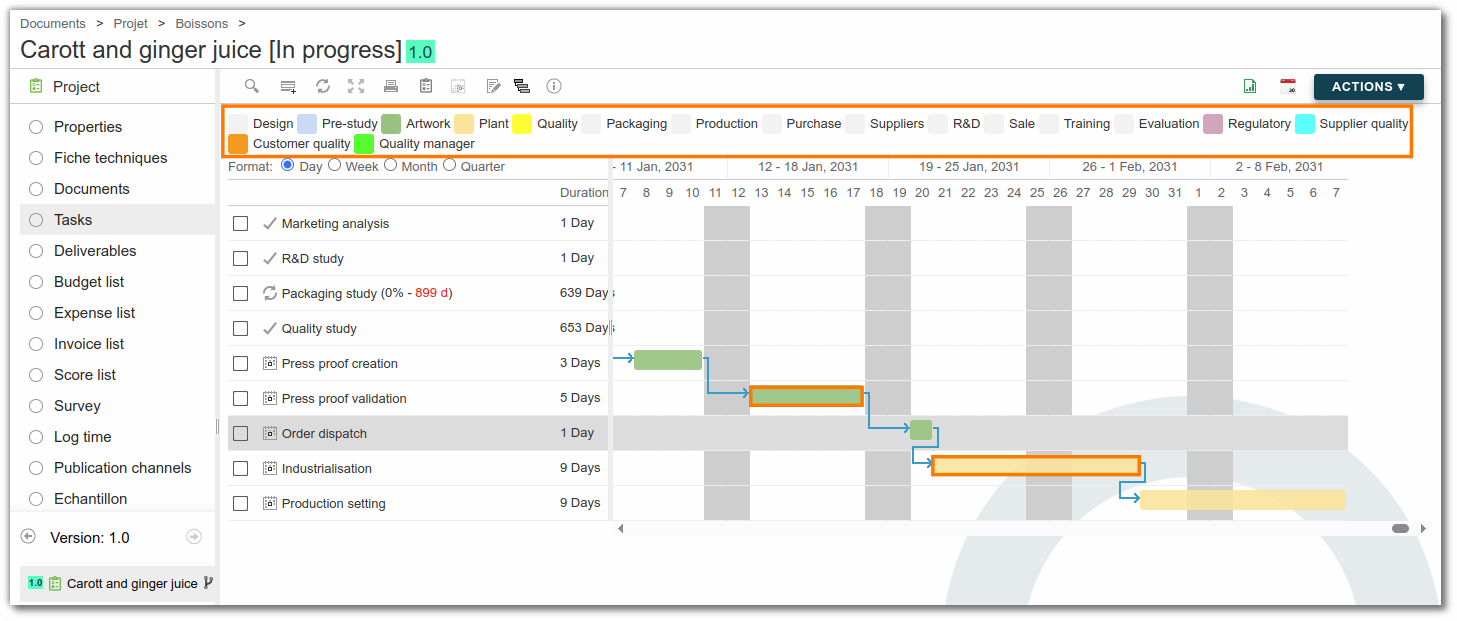
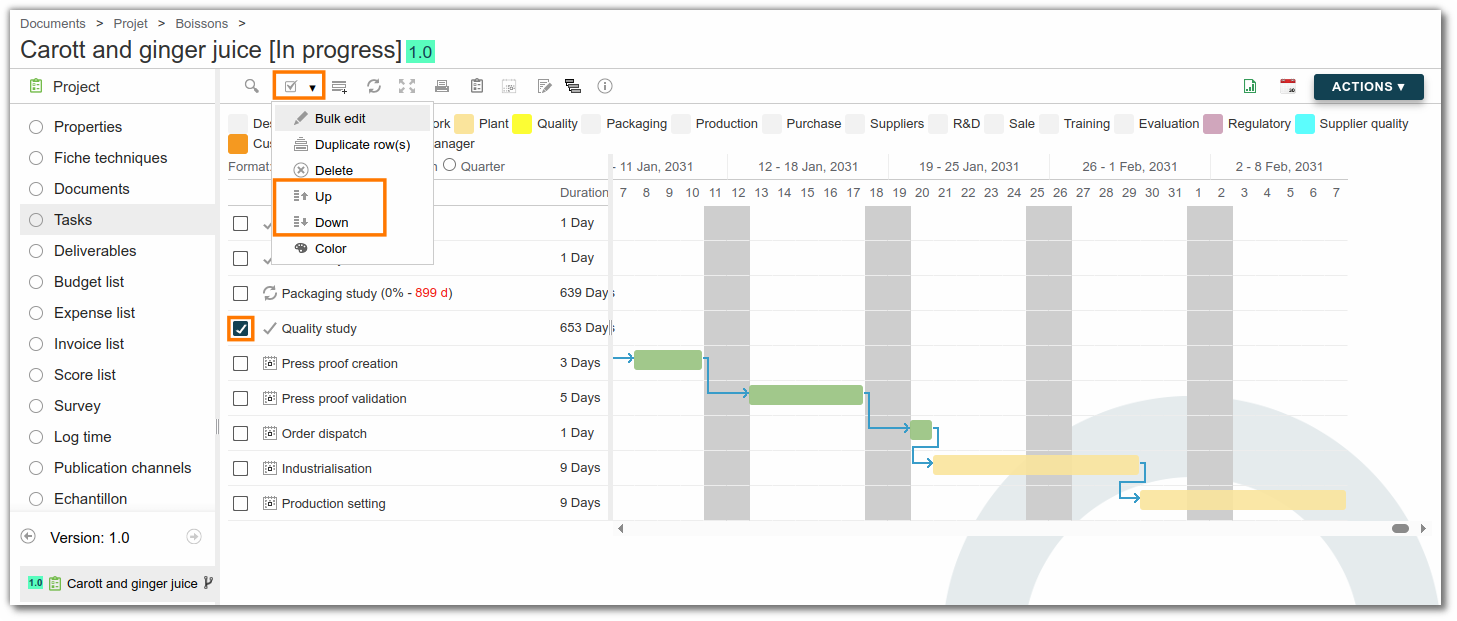
Tasks are generally organized in parent tasks according to the order in which they are executed. By default, the order of the tasks depends on the order of entry, but you can change it using the up and down buttons of the multiple selection.
When creating a task, several fields are available:
Designation tab
- Previous tasks: Allows you to see which tasks open when a previous task is closed. Several tasks can open simultaneously when a task is closed;
- Parent task: Visual marker for grouping tasks. Folding and unfolding parent tasks makes projects with a large number of tasks easier to read;
- Reopened task on refused: If the task being created is rejected, indicate in this field the task from which the workflow resumes;
- Tasks to reopen in case of refusal: If the task being created is rejected, then indicate in this field which specific task(s) should be opened so that the workflow does not have to be repeated. The tasks indicated in this field must be attached to this task.
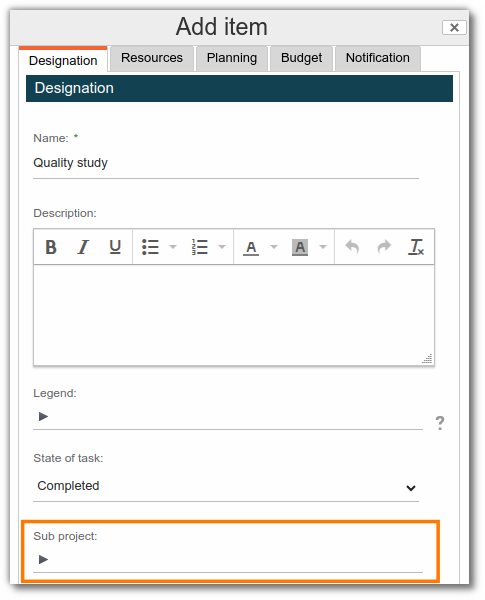
Sub-project: Used to link a project as a sub-project of the current project. There are two ways of linking two projects:
A sub-project can be linked to a parent project using this field.
The planning button shown below in the "Tasks" tab can be used to create a sub-project directly within the project task.
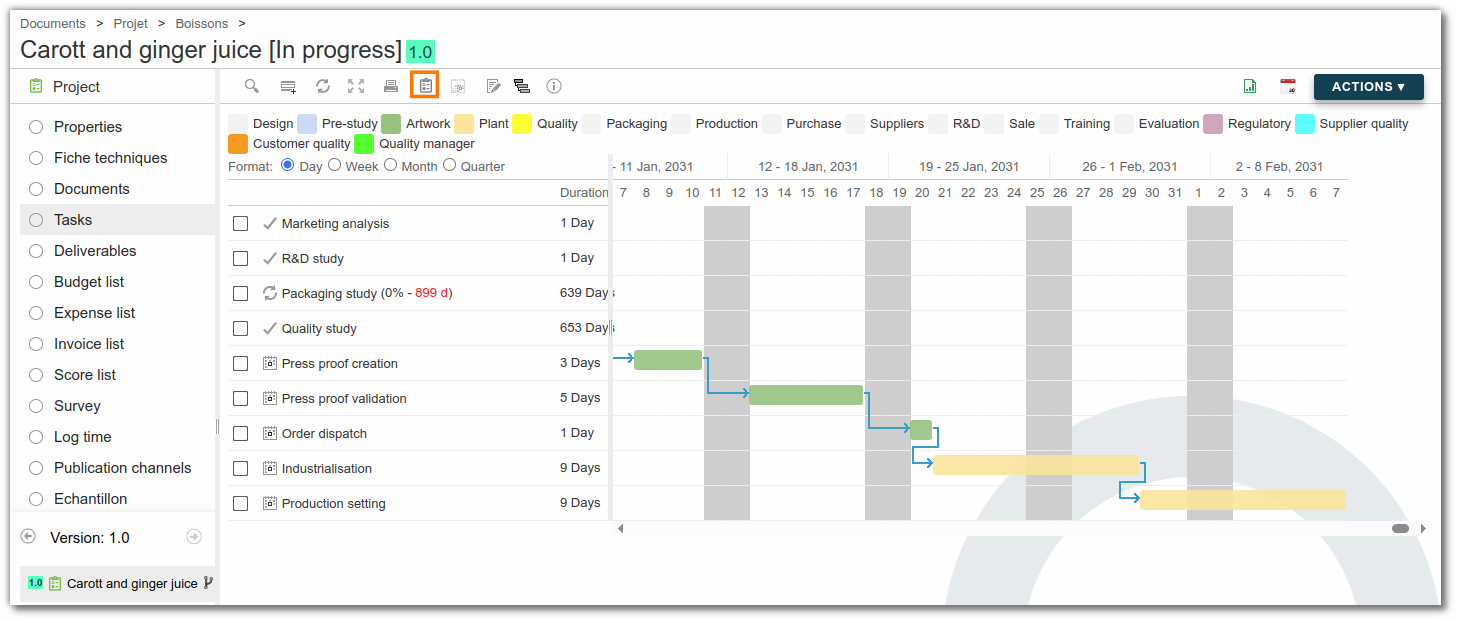
Sub-projects allow specific tasks to be grouped together. For example, in a product development project, a sub-project such as “Development of new packaging” facilitates the integration of processes. To list all the sub-projects of a project, you can add where-used lists showing the parent projects of the sub-projects.
Resources tab
- Resources: Designates the users responsible for carrying out the task:
- A single assigned person: opens and closes the task.
- Several people assigned: only one person can carry out the task. You can assign the task to yourself as soon as you receive it, which removes the other resources and prevents parallel execution. Otherwise, the first person to perform it completes the task.
- A group containing several users: this works in the same way as several people assigned individually.
- Observers: Refers to people who receive email notifications about the progress of the task. The "Notifications by email" field is used to specify the conditions under which alerts are sent. Unlike the users entered in the project properties, these observers are specific to this task.
- Workflow name: Defines the type of workflow. There are 2 types of workflow: Adhoc (simple task), Create New Product.
When a task consists of creating a new product, you can base it on an existing product, packaging or recipe. At the end of this task, you have two options:
- Create the new product: this action generates a new product based on the element selected. The task is not automatically validated, so you can return to it if necessary. Once the product has been created, you can be redirected to its page to continue configuring it.
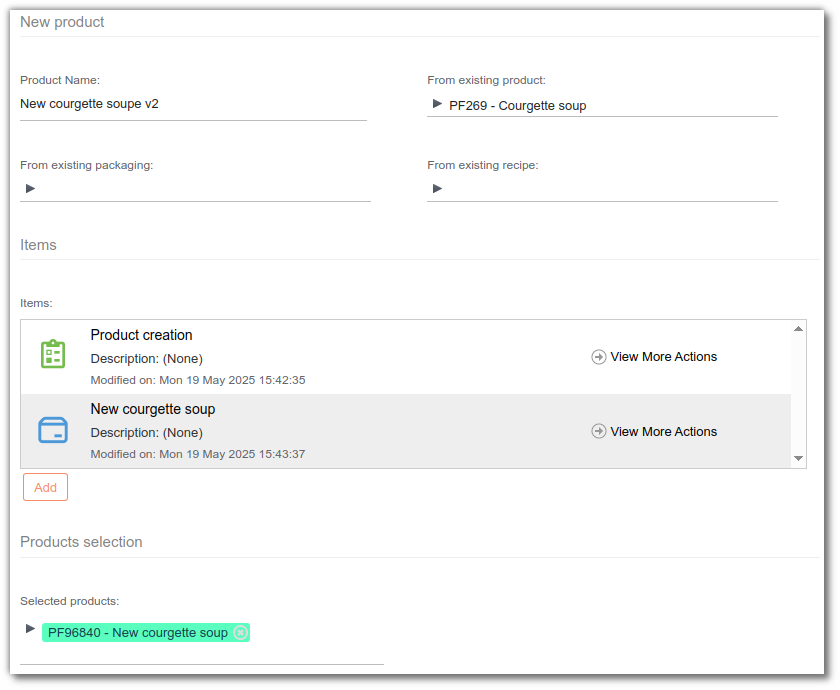
- Task done: validates the task and moves on to the next one.
Planning tab
- Milestone: displays a marker in the task view to indicate the end of an important stage. It corresponds to a validation and often has no duration.
- Duration: in working days. This field calculates the start and end dates of tasks on a project-by-project basis.
- Manual date: manually defines the start or end date. Choose the calculation mode (start or end), then override the date calculated by beCPG.
Notification tab
You can configure reminders and their frequency. To remind users before the due date, enter a negative number in the "First frequency (days)" field. For example:
- -1 sends a notification one day before;
- 0 sends a notification on day D;
- 1 sends a notification one day after.
Users notified: Used to notify people other than the task resources. If the field is left blank, no one receives a notification.
Deliverables
The "Deliverables" tab lets you associate files with tasks. Several types are available:
- Checkbox;
- External link;
- Documents;
- Wizard;
- Script.
For document, script and wizard deliverables, the option is added to the project template. Documentation is available here.
Checkbox deliverable
Checkboxes represent a simple to-do list in text format. You can use the “% Completion” field on the deliverable to quantify the overall progress of the task, as the boxes are checked. This enables you to monitor your project indicators more accurately.
Create a project template
In beCPG, you can create a project without a template, an approach suited to one-off projects. However, to avoid systematically recreating the same structure, projects are generally based on a predefined template. The use of a template is particularly useful for recurring projects, such as product validation. A project template is used to define a structure of tasks and deliverables, which are automatically copied when a new project based on the template is created. Changes made to the template do not affect projects already created; they only apply to future projects using the updated template. Project templates can be managed and created via beCPG administration. Documentation is available here.
Creating a project in beCPG
In the beCPG standard, a project can be linked to an entity or not. If the project is linked to an entity, it can be launched directly on the entity. If the project is not yet linked to an entity, it is advisable to create the project as an entity and then attach the entity.
Launching the project
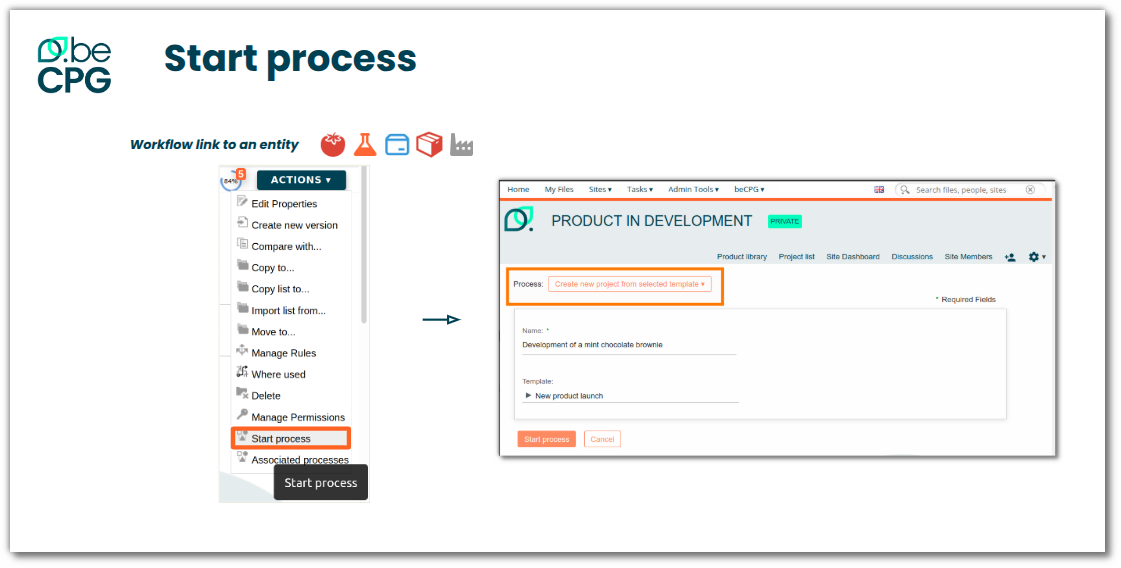
From an entity
A process can be started from the template or directly on an entity, by clicking "Actions" > "Start a process".
Via the creation button
Another way of starting a process is to create a new project. From a site, select "Create" > "Project". In the creation form, fill in the entities linked to the project if necessary and, if applicable, associate a project template.
View tasks
Tasks assigned to you are visible on the PLM home page.
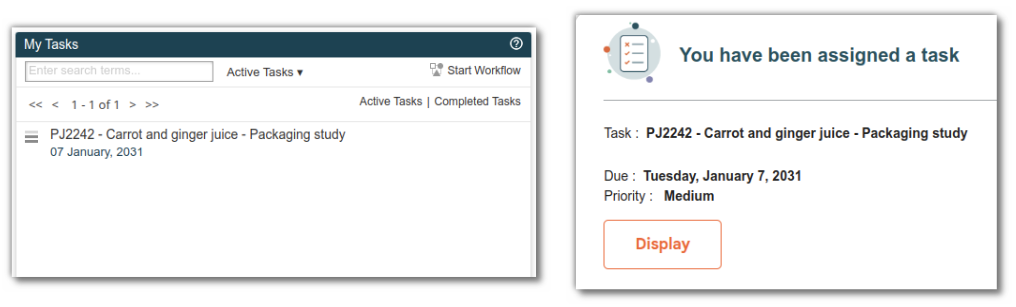
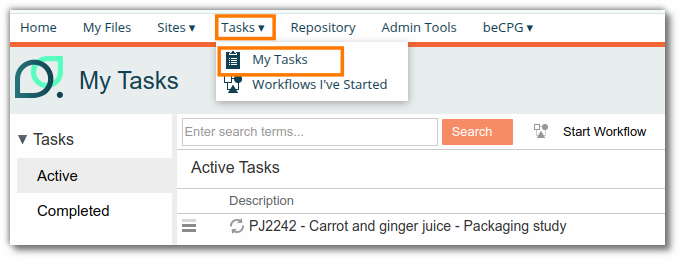
A notification is also sent by email. All the tasks assigned to the user are visible in "Tasks" > "My Tasks".
Complete tasks
Once you have clicked on the task, a page opens with information such as the deadline of the current task and its priority. In the "Items" section, a link to the project and the entity is available.
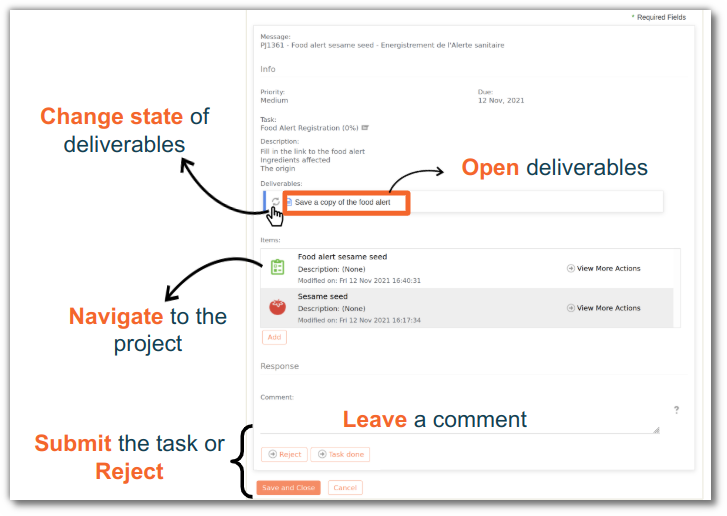
Once the task is completed, you can write a comment that will be associated with the task. Comments provide the various resources with a history of the project. Comments can be viewed in the task notification email, on the task opening or in the Task tab of the project. To validate the task, click "Task done".
The "Save and Close" button only saves what has been done on the task (e.g. entering comments), but does not validate it.
Refuse task
You can also refuse a task. This option is not available by default: the button only appears if the "Reopened task on refused" or "Tasks to reopen in case of refusal" field was filled in when the task was created.
Reassign the task
Click "Reassign" to delegate the task to another person.
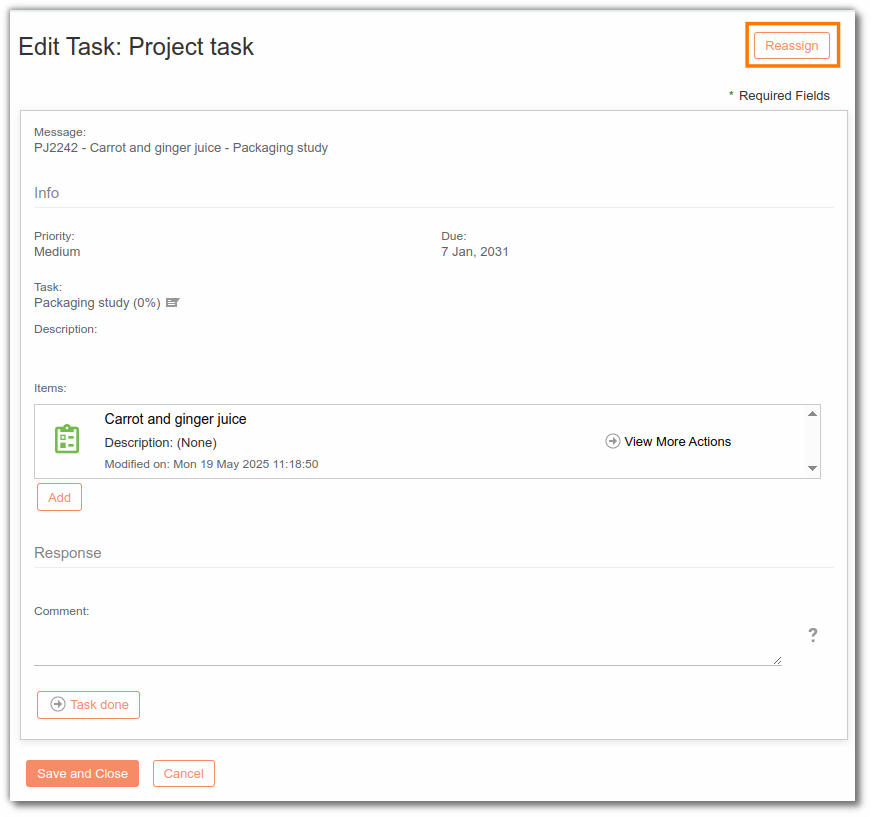
Note: this feature is useful if you make a mistake when entering resources on the task.
Monitoring the progress of a project
Monitoring is carried out from the "Tasks" tab, which provides a clear overview of progress:
- Clear chronology: the arrows between tasks show their sequence.
- Dynamic icons: the icon of each task changes according to its status (sun, cloud, storm, etc.).
- Additional details: by clicking the "Informations" icon (see box in image below), a detailed overview is displayed, including any delays to the project, the percentages of work completed, open and overdue, and the list of milestones and upcoming tasks.
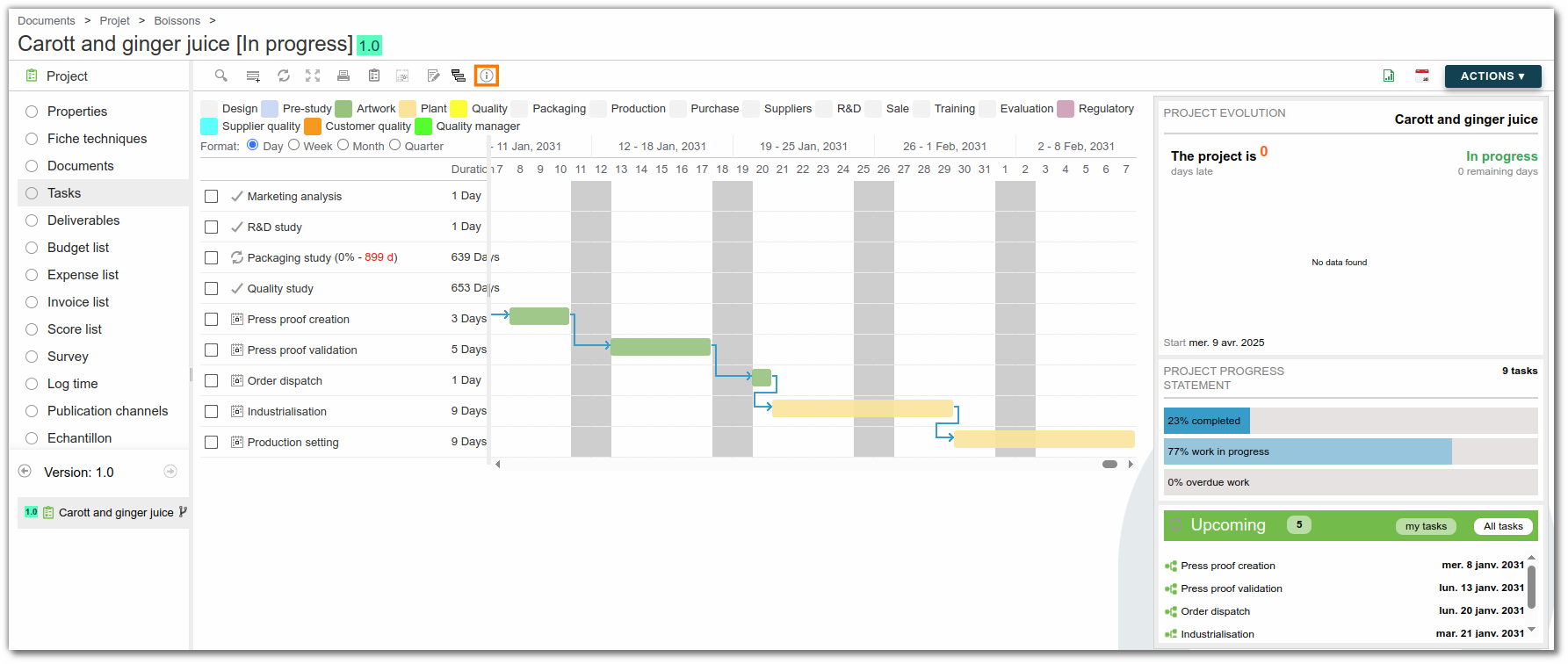
This view provides efficient management of the project and its deadlines. If the "Project manager" and "Observers" fields are filled in, the people assigned to these fields receive email notifications of the project's progress. Monitoring can also be carried out in the Project list.
Project list
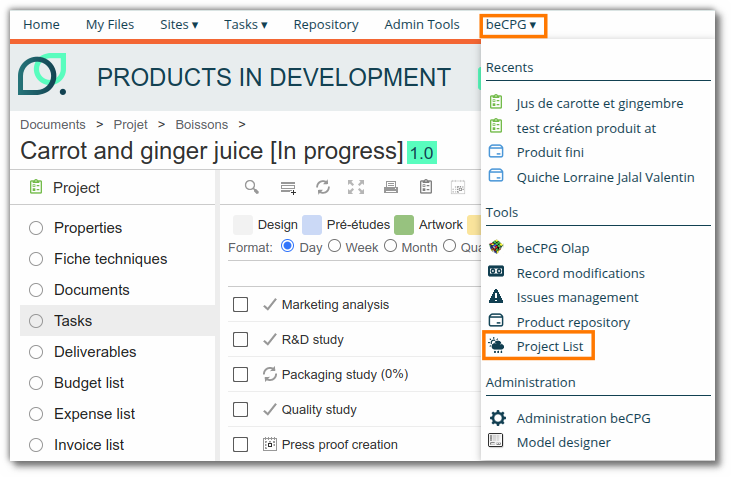
Projects can be tracked via "beCPG" > "Project list".
This view provides an overview of current and planned projects and more. The state and status of the project are identifiable through visual indicators, such as:
- Sun: the project is on schedule;
- Rain: there is a delay;
- Wheel: the project is underway;
- Check: the project is complete.
The current task is easily visible, as are the key dates under the project name. Project properties can be modified from this interface.
To access more detailed visual information, click the "Informations" icon.
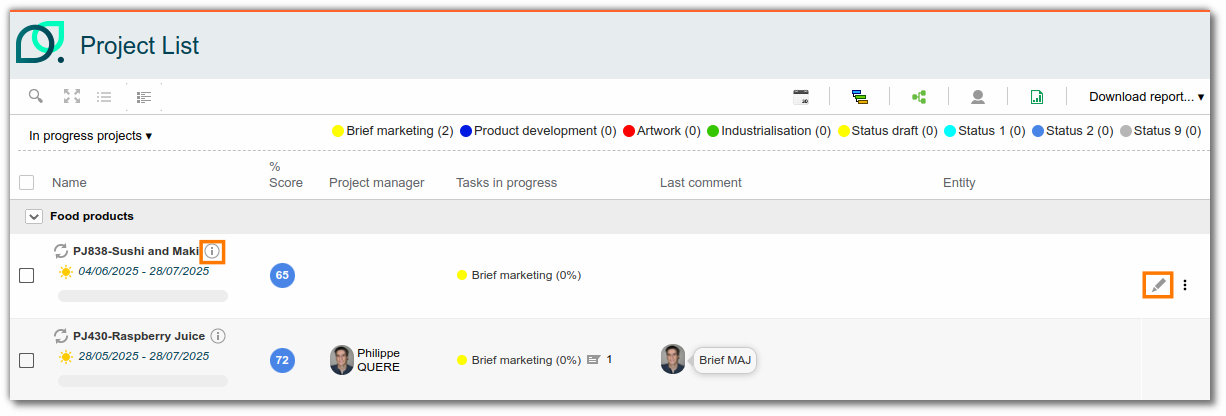
Simple view
Displays the different projects (in progress, cancelled, completed, etc.) with the status of the project, the task(s) in progress, the associated comments and the entities linked to the project.
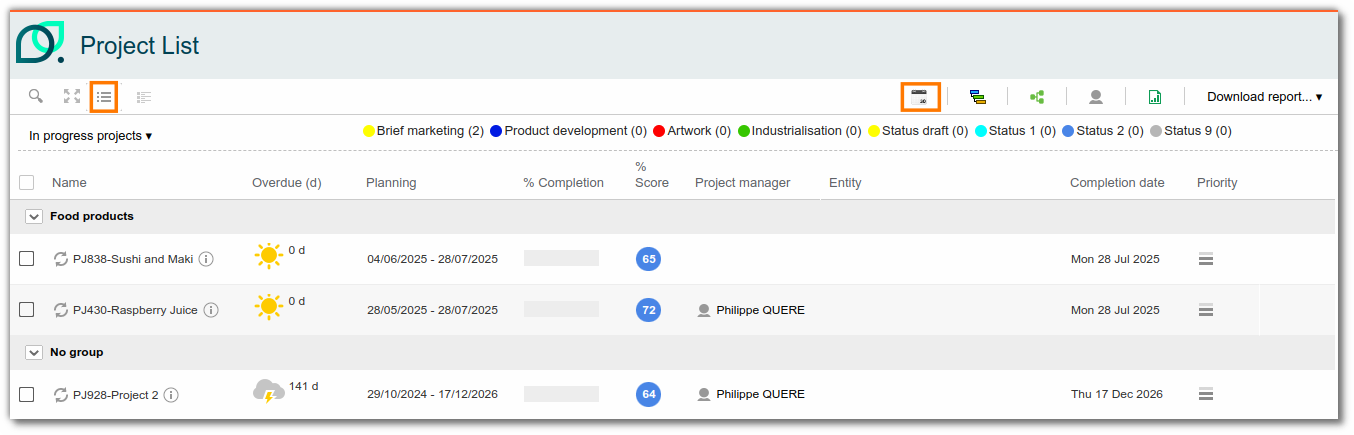
Detailed view
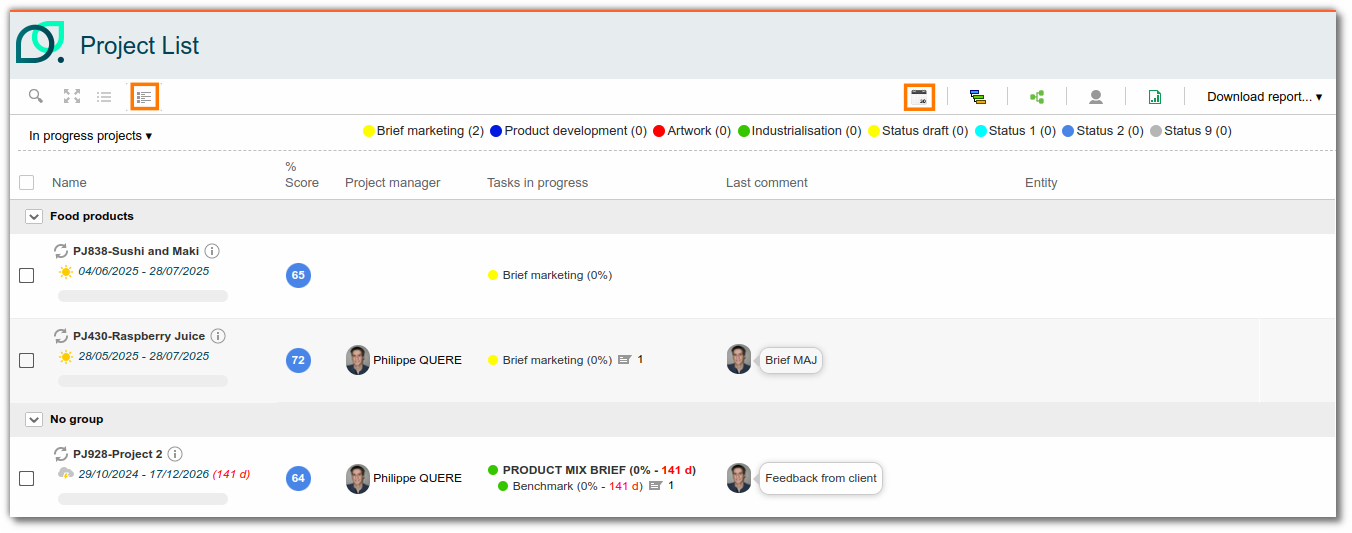
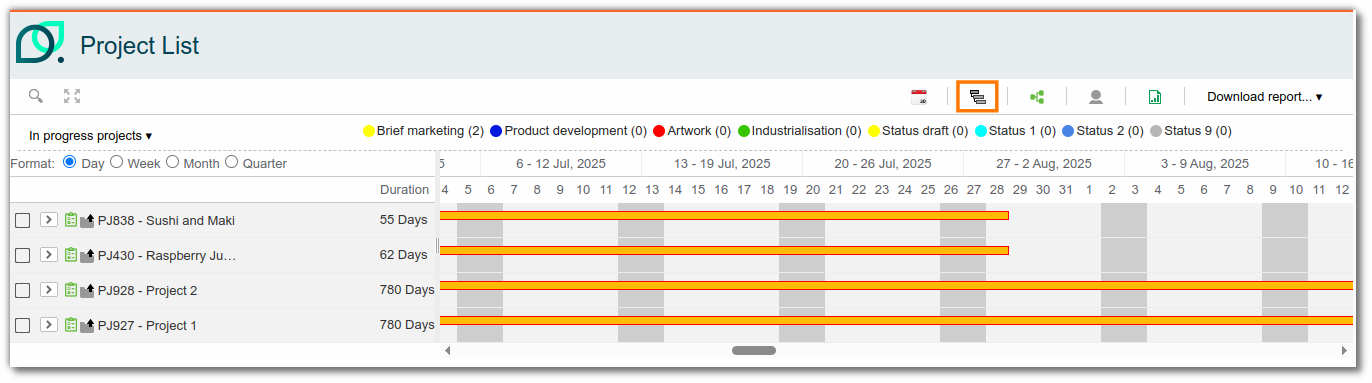
List of projects in Gantt format
The Gantt chart is a project management tool that shows all the tasks involved in a project from start to finish. This diagram provides a clear view of project tasks, their dependencies and the people involved. This view provides a visual representation of the progress of project tasks. Important stages are marked by milestones.
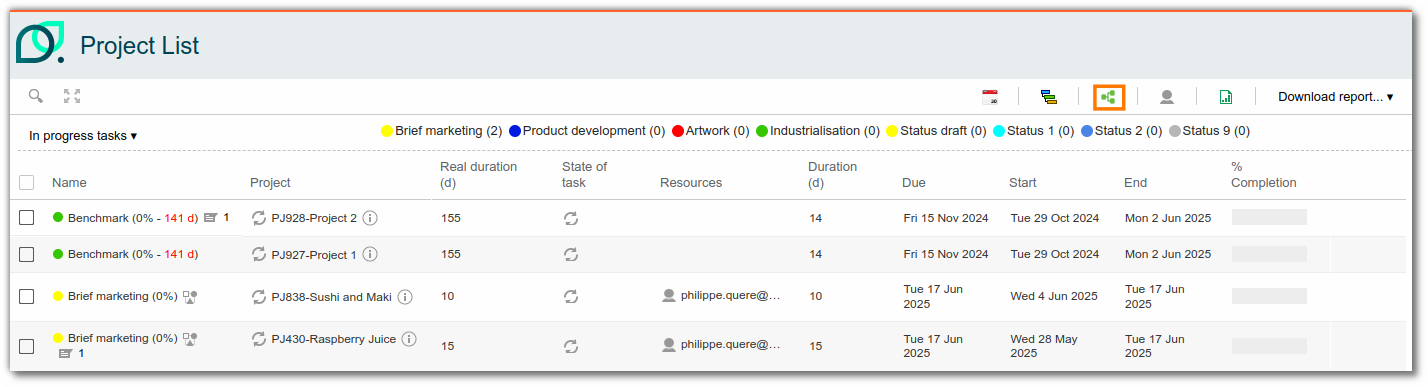
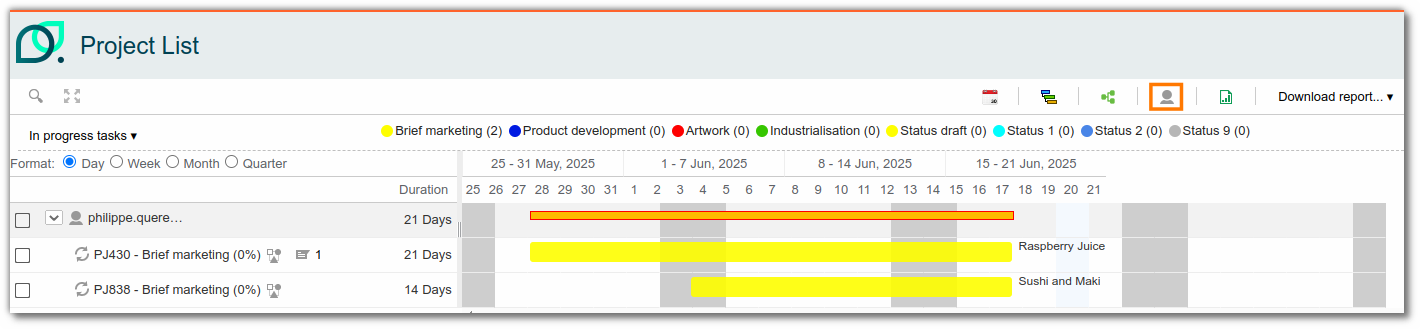
Tasks list (simple and by resource)
This view is used specifically to display project tasks. It provides information about the people or group responsible for carrying out the task, its duration and its deadline. Tasks can be filtered by their status (completed, cancelled, etc.) or by their caption.
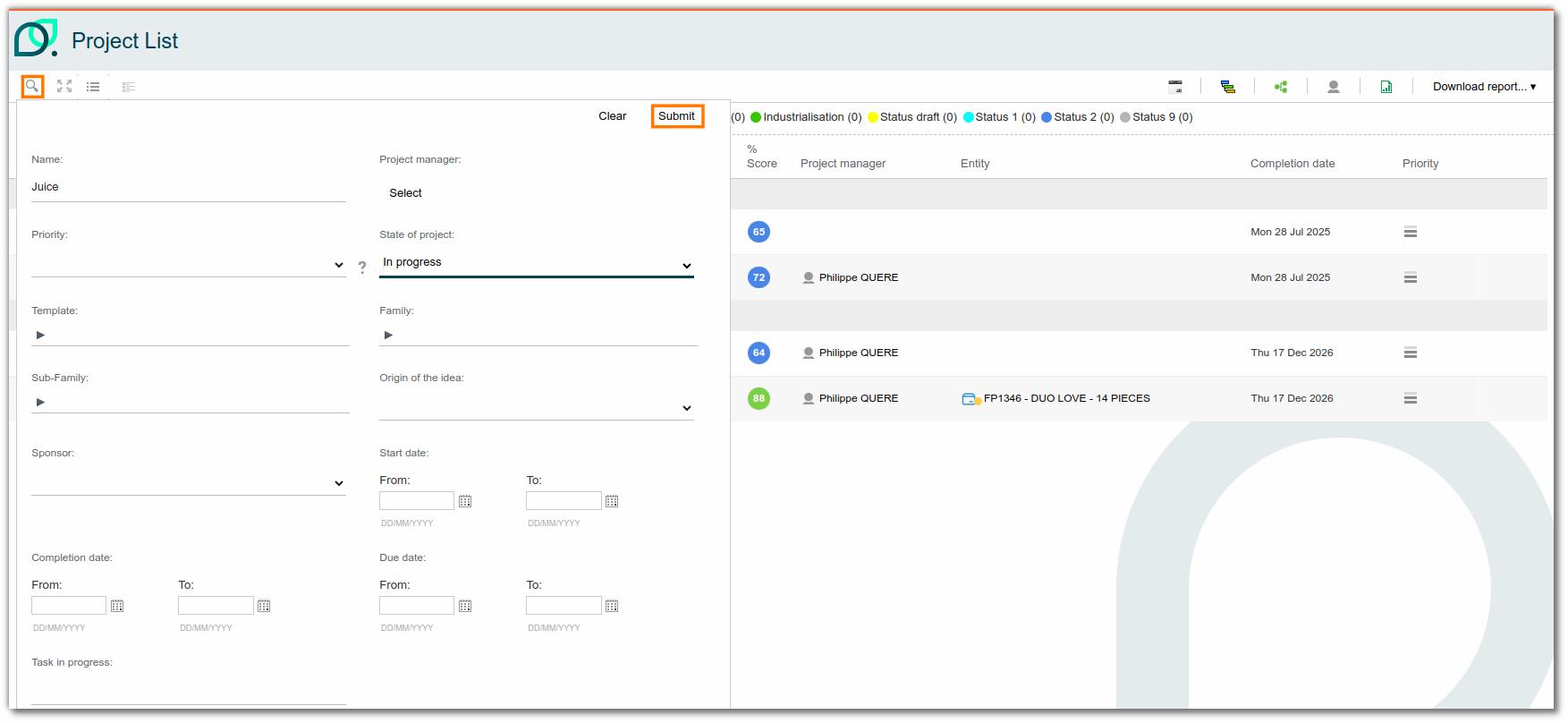
Filter information
Filters let you specify the information you want to view. You can combine several filters. Click the magnifying glass icon to filter.
Bulk edit
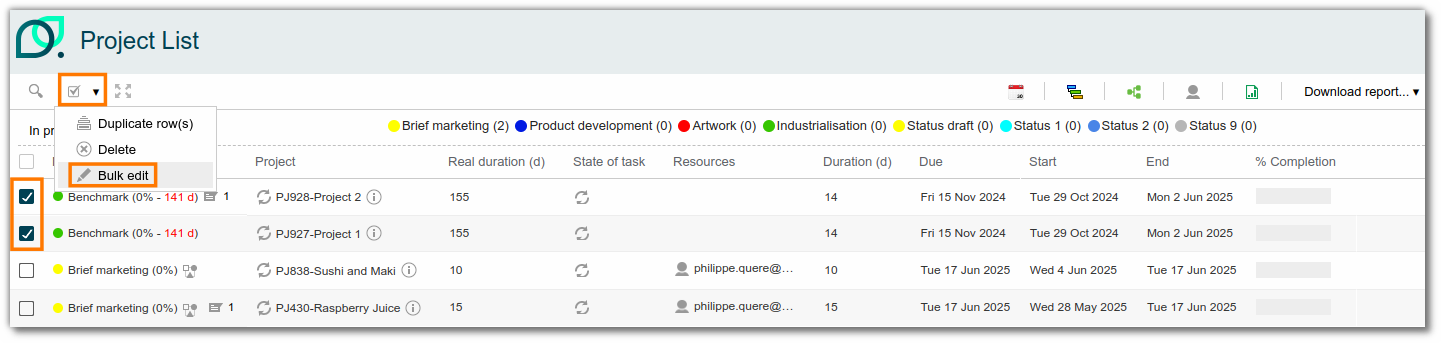
By checking projects or tasks, you can edit the fields in the project properties.
For example, you can change the project manager and observers by checking these two fields and entering the desired resources.
Export information
All lists in beCPG include the option of generating an Excel report. Data can also be exported from projects.
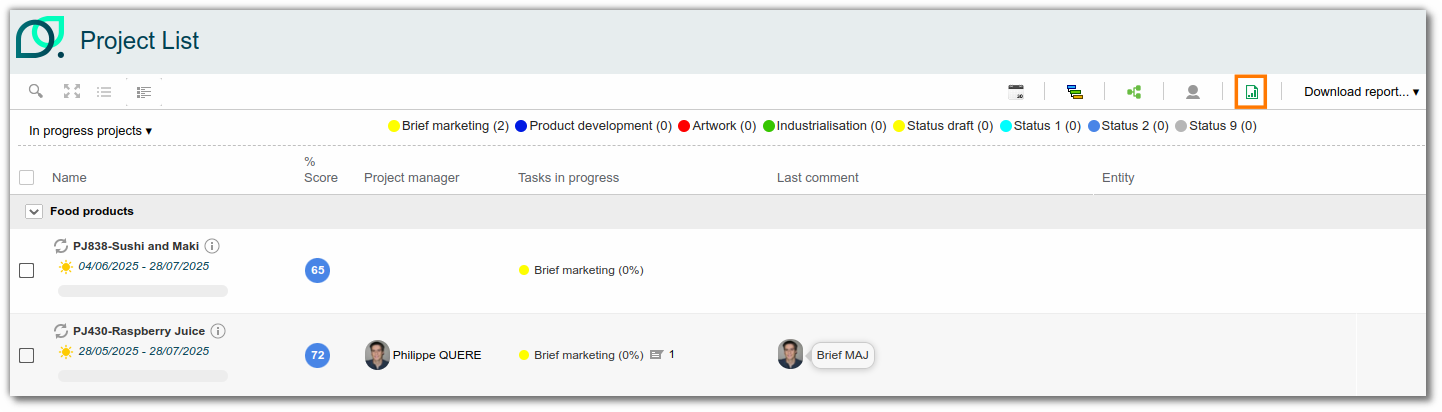
The advanced search allows you to display all the projects or to filter according to specific criteria. Customized exports can be configured as required. See the search documentation.