Tutorial: creating a product and a recipe
This tutorial is intended for new beCPG users, to help them understand the general operation of the software. The tutorial covers how to create a product and view its main characteristics (composition, costs, nutrients, allergens, labeling, technical data sheets).
Product creation
To facilitate the sharing of the products you create, we recommend creating them on a collaborative site, such as "Products in Development". This site allows you to share the products you create with other users. These sites are accessible from the dashboard or the menu bar. See the Navigation documentation.
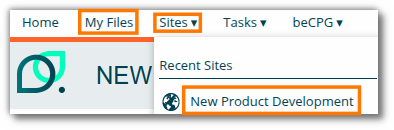
Note: you can also use the "My Files" folder. Products created in this personal space will not be visible to your colleagues. If you work in a team, it is preferable to create them in dedicated collaborative sites.
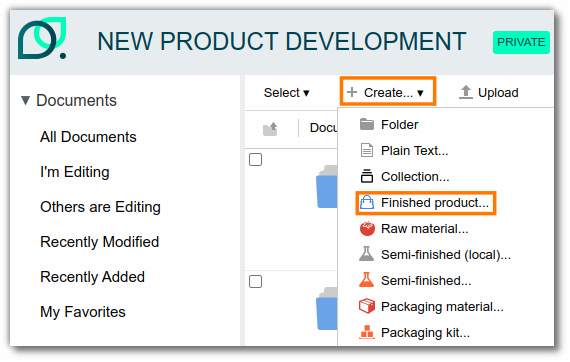
The "+ Create..." button is present in all beCPG folders and allows you to create entities such as finished products, semi-finished products, or raw materials.
Example: To create a finished product, click "+ Create..." then "Finished Product".
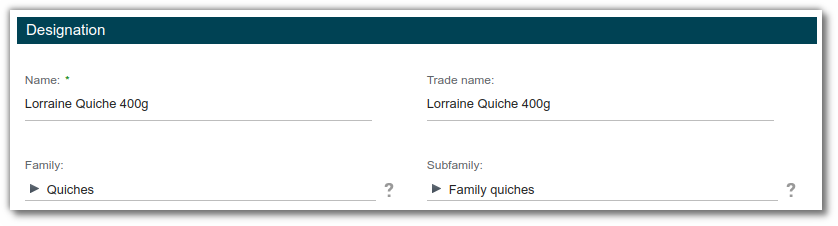
The creation form then appears, allowing you to fill in several properties, such as:
- Product name (e.g., Quiche Lorraine 400g);
- Net quantity (e.g., 0.4kg);
- Serving size (e.g., 80g);
- other properties.
Click "Create" at the bottom of the form.
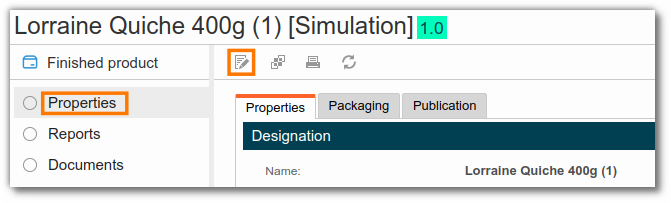
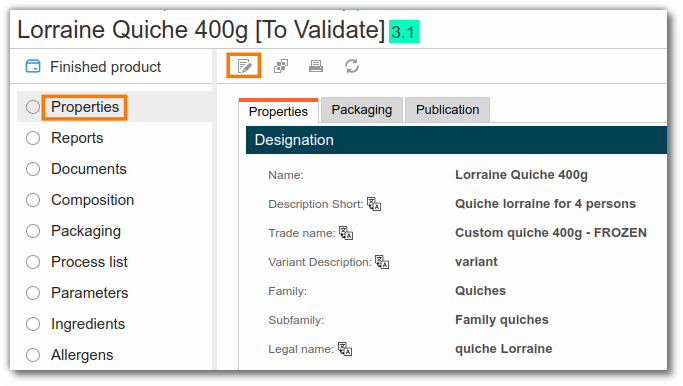
Once the entity is created, you are automatically redirected to the "Properties" tab, which shows the information you entered. To modify these values, click "Edit Properties". Additional properties are also available to describe your product.
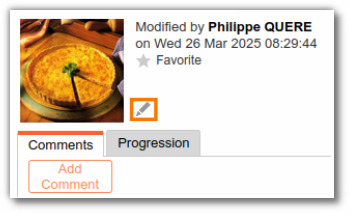
You can associate a picture with the product by clicking its icon (on the "Properties" page).
Recipe creation and formulation
Recipe creation and formulation covers product development with the addition of raw materials or semi-finished products, cost analysis, nutrient and allergen management, and product labeling.
Composition: developing the recipe
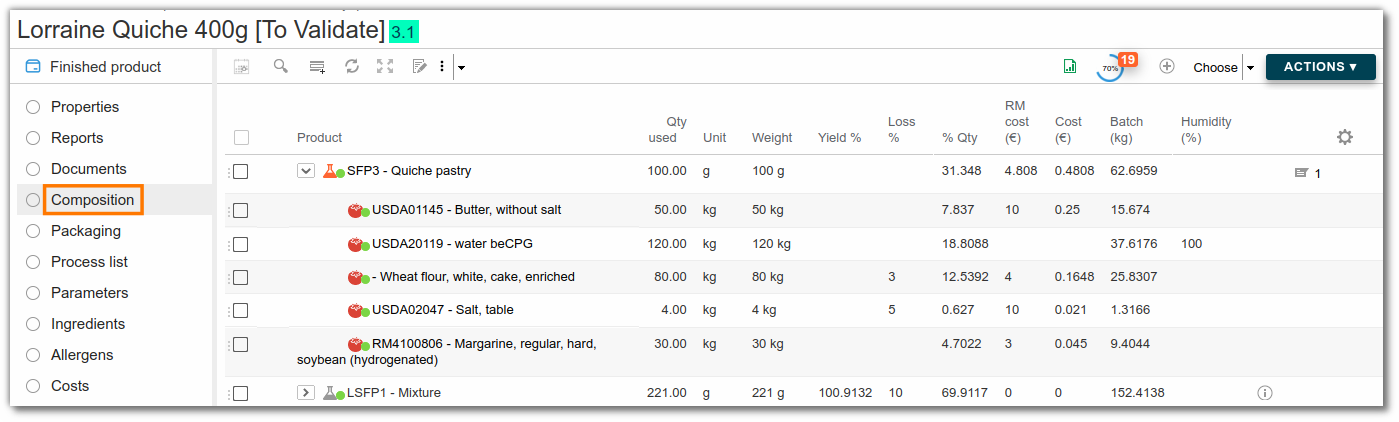
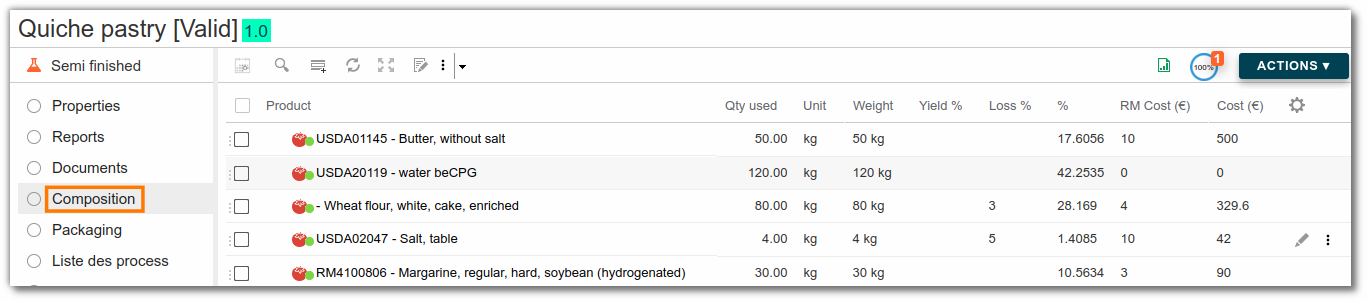
The "Composition" list is accessible from the left menu of the entity.
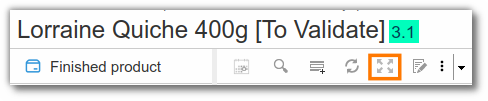
To work in full screen mode, click the button outlined in orange in the screenshot below:
Adding a raw material
There are three ways to add a raw material:
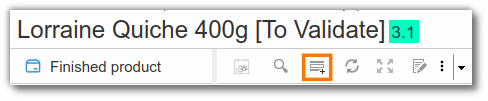
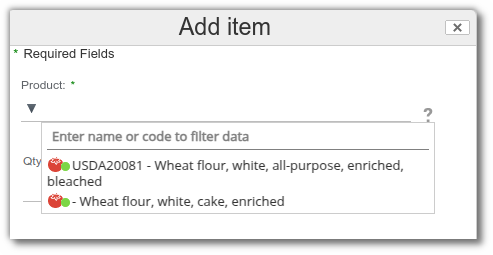
- Add an existing raw material or semi-finished product in beCPG by typing at least the first 3 letters of its name.
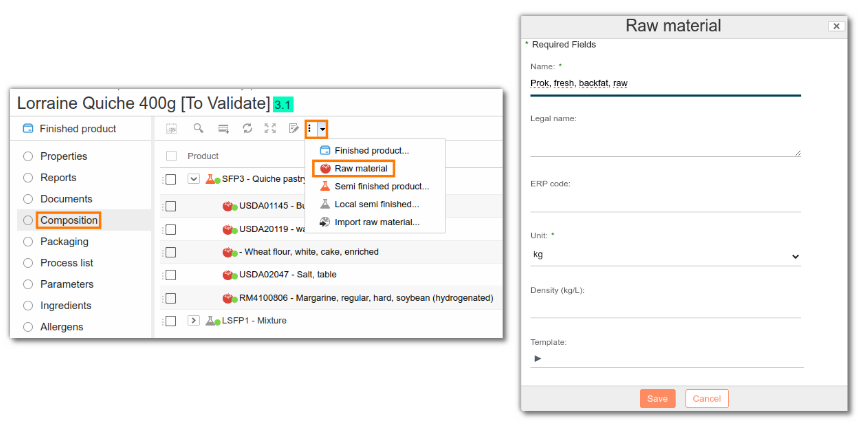
- Create a new raw material by entering at least its name and unit (kg by default).
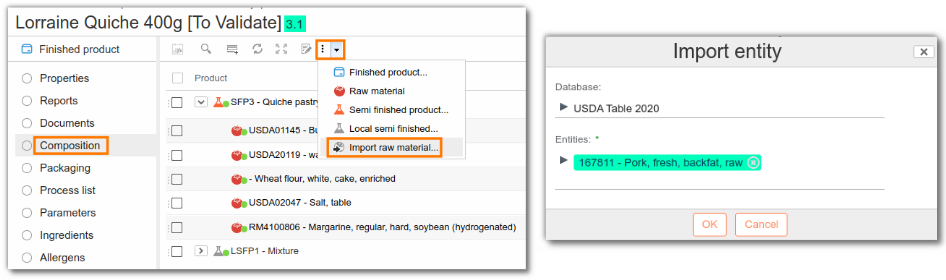
- Import it from a nutritional database (e.g. CIQUAL, USDA).
Adding a semi-finished product
A semi-finished product is a product that is not sold as such, composed of raw materials or other semi-finished products that have undergone in-house processing (e.g. quiche dough or quiche filling, used in several finished products).
- To add a semi-finished product that already exists in beCPG, click the "Add a line" button, then enter at least the first three letters of its name.
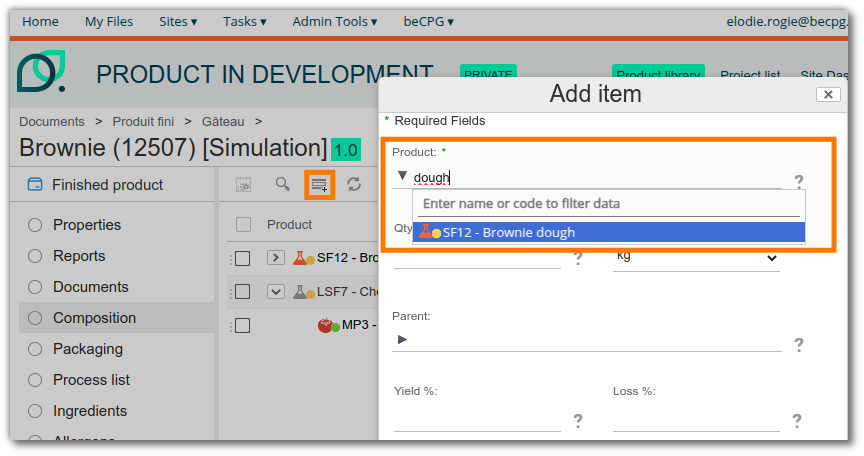
- To create a new semi-finished product, click the "Create" button and enter at least its name and unit (kg by default).
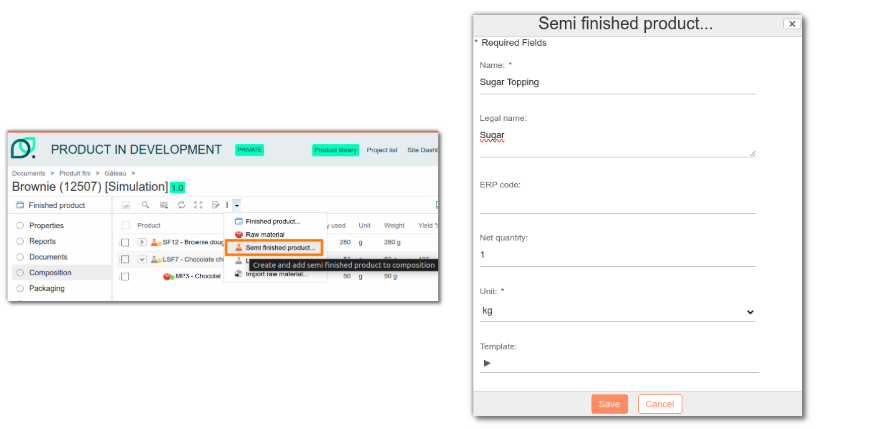
Entering quantities
Once the components have been added to the composition, you can enter their quantities in different ways:
- Edit the line by clicking the pencil icon at the end of the line: a full editing form appears.
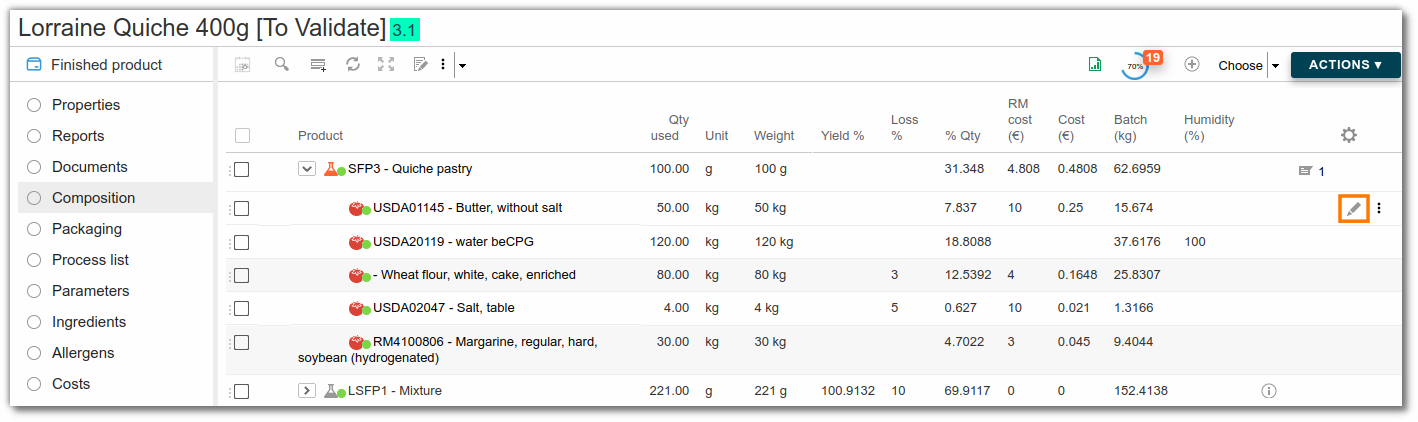
- Double-click a cell in a row to edit it. To move between cells, you can use the keyboard or the mouse.
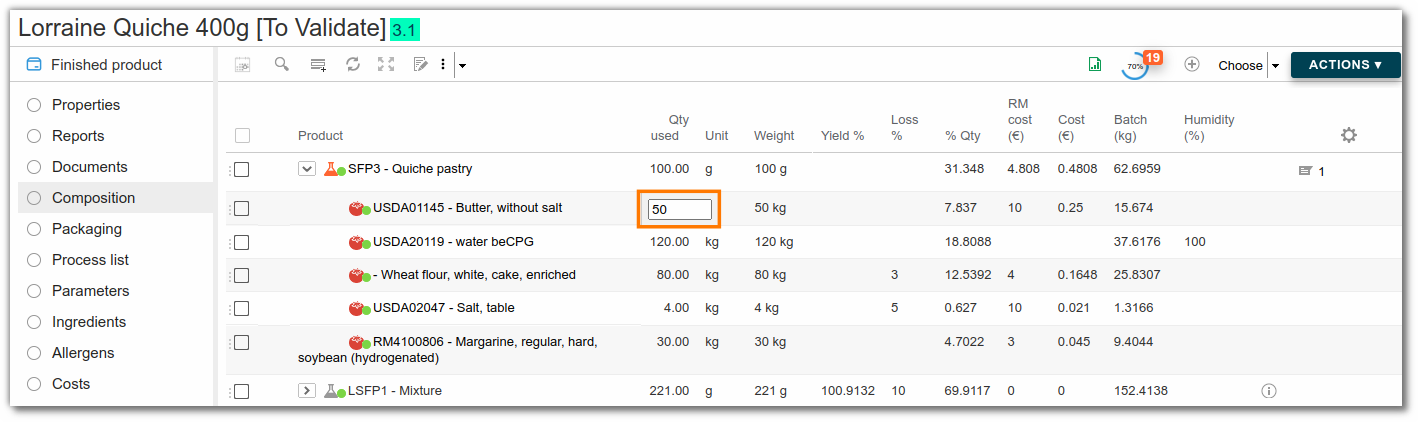
- For semi-finished products, enter the quantity used in the recipe (e.g., 200g for a 100kg batch). Then, click the semi-finished product to access its recipe and add the ingredients (flour, water, salt, etc.).
Yields
In the food industry, yield represents the ratio between the quantity of final product and that of the initial product. The initial product undergoes losses during the various processing steps, and water losses during cooking are often the most significant. This is why, in beCPG, yield allows you to differentiate between a raw product (containing 100% of its water content) and a cooked product (in which some of the water has been lost during cooking). When yield is taken into account, the nutritional values of the product are affected. For example, when the water content decreases, the dry matter content increases.
Yield is calculated using the formula:
Yield = Final quantity/Initial quantity x 100
For more information, see the documentation on yields.
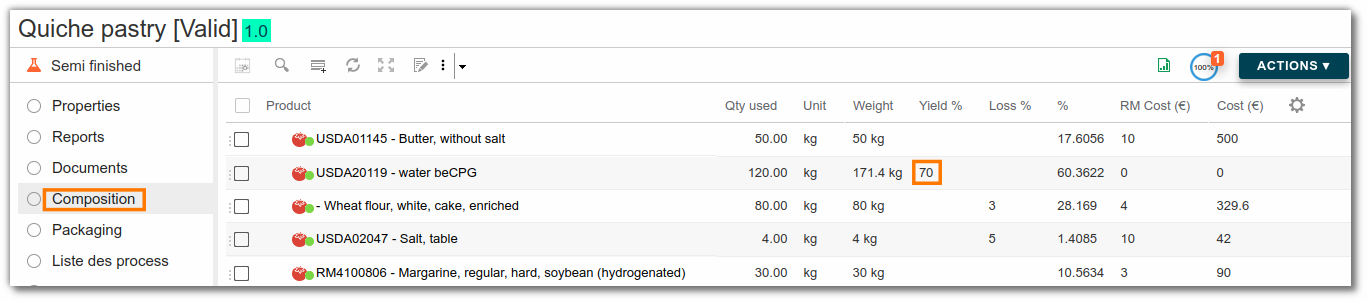
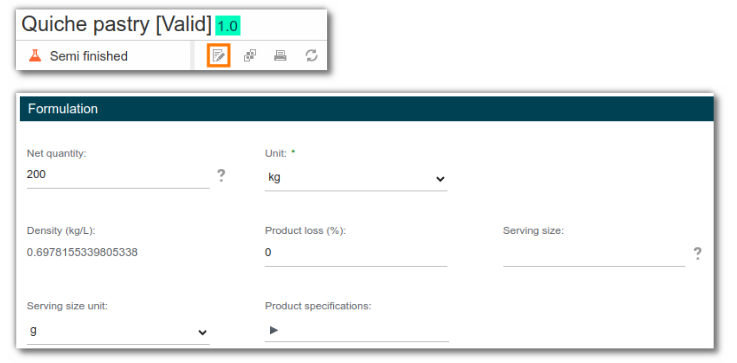
In beCPG, "Quantity Used" refers to the initial product quantity and "Net Quantity" refers to the final product quantity. beCPG thus allows yield to be taken into account in two ways:
- Either by entering the yield for each raw material by going to the product composition:
- Or by entering the net quantity of the finished product in the "Net quantity" field of the product properties.
Example: In this recipe, the yield of bread croutons is 63% because 47.62 kg of raw material was used for 30 kg of product after processing.
Product Formulation
Formulation calculates costs, ingredients or allergens based on the quantity of raw materials in the composition and the information entered on these raw materials. The formulation button (a circle with two arrows) refreshes the calculations made by beCPG. To calculate the characteristics of the finished product, the information on the raw materials must first be completed.
Cost Details
On raw materials, add their cost (purchase price).
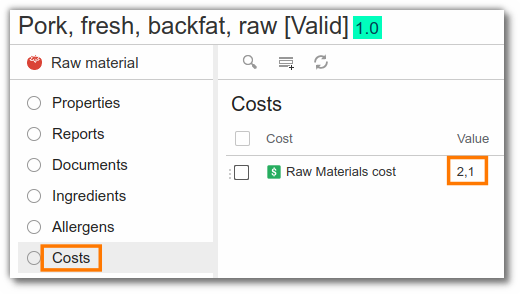
Click the where-used list, then navigate to the finished product, or return to the finished product composition via the beCPG menu, which provides quick access to recently viewed products. Remember to click "Formulate" to calculate costs, ingredients, allergens, etc.
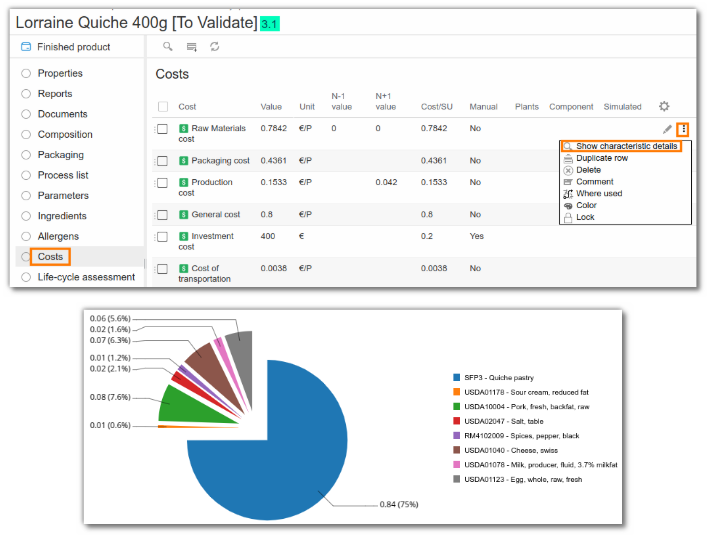
To view a cost breakdown, click the magnifying glass icon in the "Costs" list of the finished product.
Management of physico-chemical characteristics
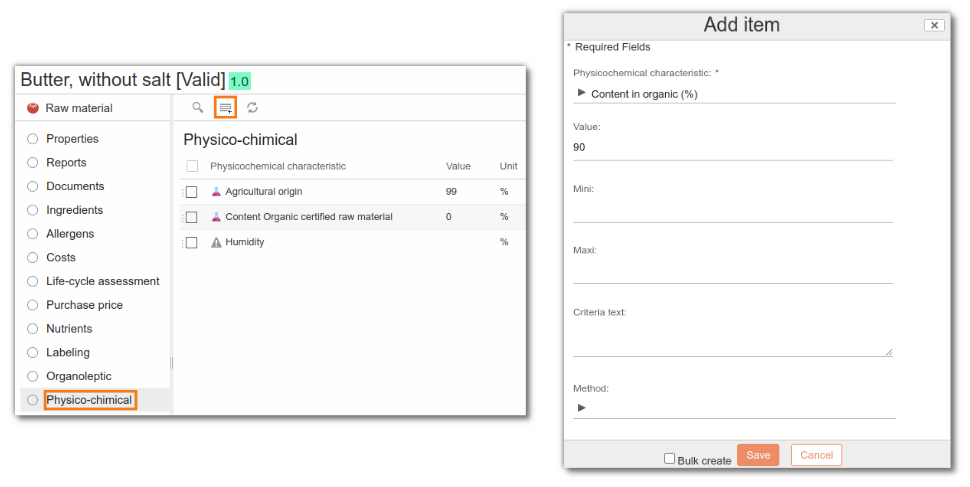
For each raw material, enter the physico-chemical characteristics (e.g. PPAI, CPAI, pH). If the characteristic you wish to fill in is not automatically present (added on the entity template), you can add it directly on the raw material.
Claim management
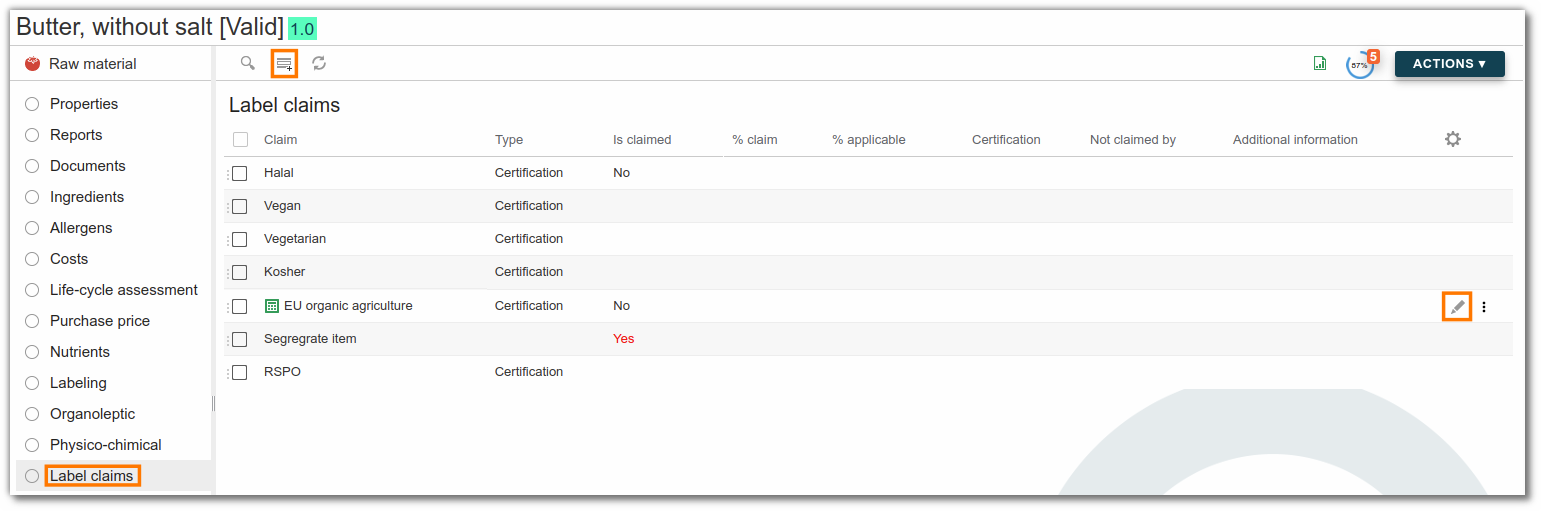
Enter claims for each raw material (e.g. Organic, Halal). You can edit an existing line by clicking the pencil icon, or add a new one.
Nutrient management
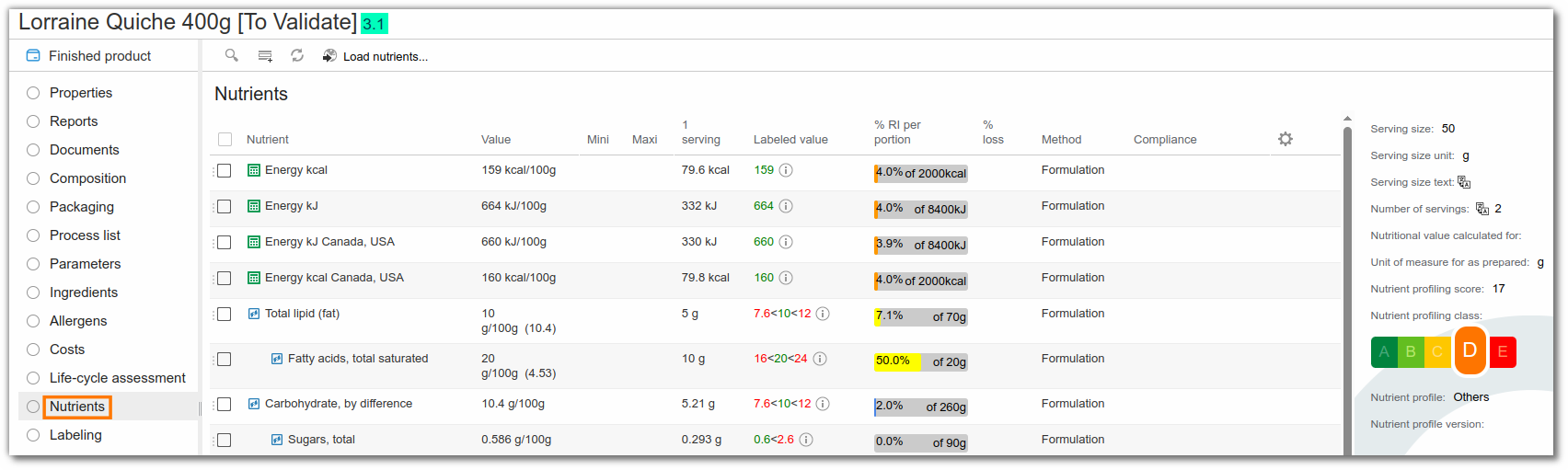
In the "Nutrients" list, all nutritional values are calculated. Those with the calculator icon are values determined from other nutrients. For example, salt is calculated from sodium (2.5 × sodium). Other nutrients are formulated on the basis of information provided on raw materials. It is also possible to enter values manually, replacing those calculated by beCPG.
To add a new nutrient, click the "Add" button:
Allergen management
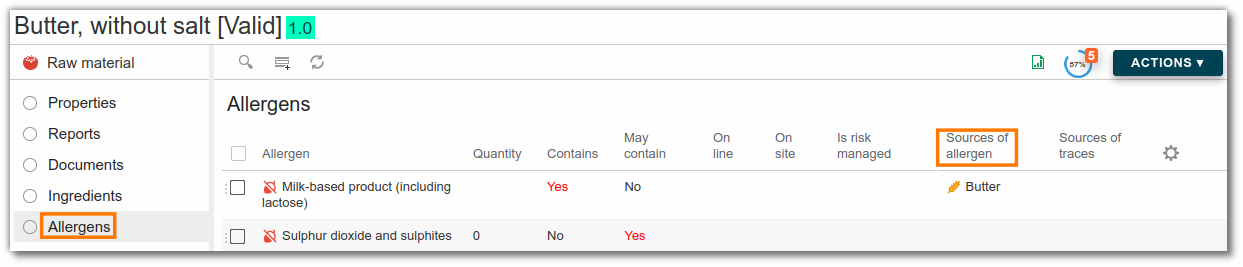
Allergens are managed at the raw material level. To do this, select the "Allergens" list:
- Click "Add" to associate an allergen or modify existing allergens.
- Check whether the presence is voluntary (it is an integral part of the raw material) or accidental (the allergen comes from cross-contamination on the raw material or the production line). If the presence is intentional, specify the ingredient that causes the allergen so that it appears in bold on the labeling.
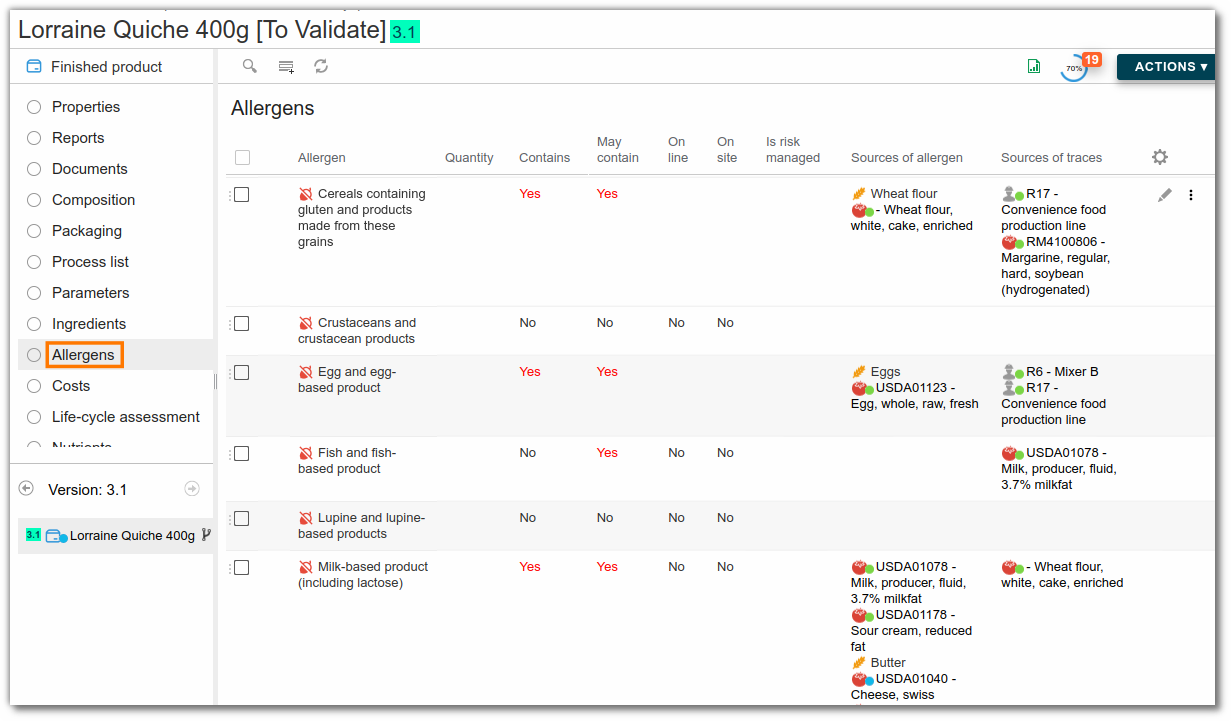
Once this is done for all the raw materials, formulate the finished product: the allergens are listed on it, together with their sources.
Product labeling
For each raw material, you can specify its ingredients and their proportions.
Example: Cheese is made from milk, salt and lactic acid starter culture.
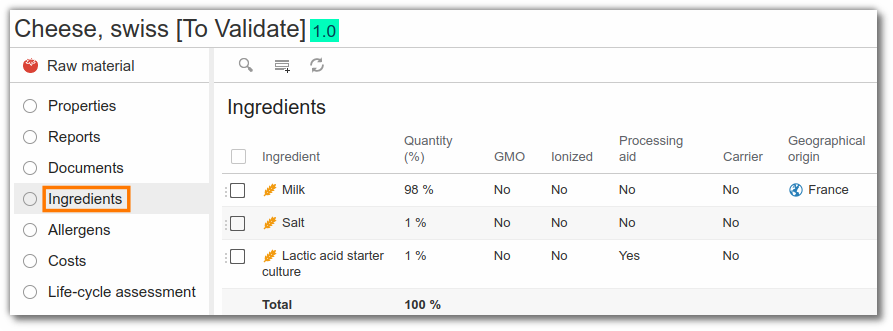
Once the ingredients have been entered, return to the finished product and click the "Labeling" list.
This list offers three different views:
- Labeling;
- The list of labeling rules applied to the entity (bottom left): documentation on labeling rules is available here;
- The list of the entity's different components, with the declaration type (bottom right): from this view, you can define how the raw materials present should be declared.
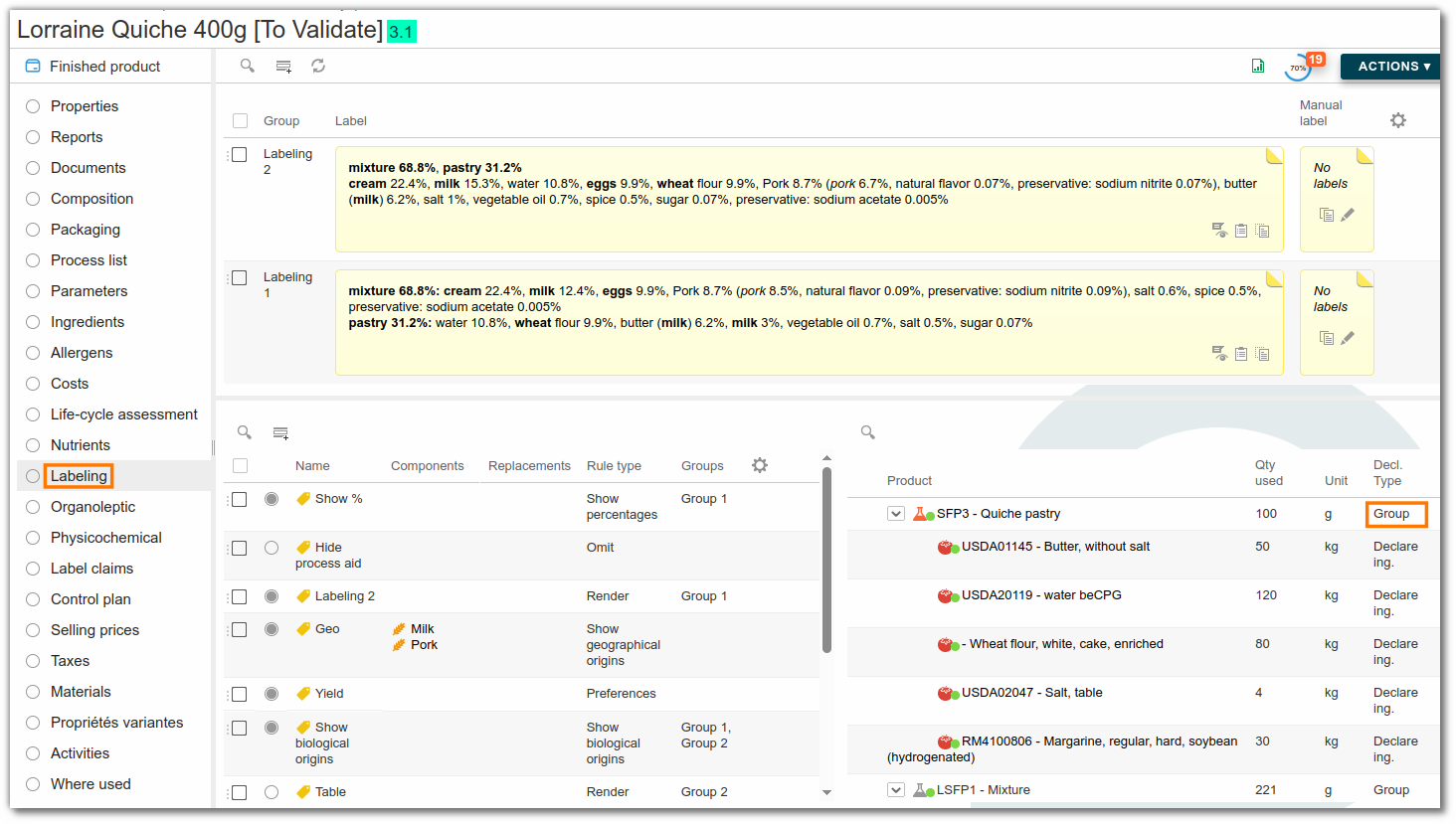
For example:
- Declare ingredients will display all of a product's ingredients;
- Declare legal label will display only its legal label;
- Detail will display all ingredients and their classification (raw material or semi-finished product). For example: Bacon (ing1, ing2, ing3);
- Group will display ingredients by product layer (e.g., Topping 50%: ing1 30%, ing2 20%). The group option must be enabled for the layer (e.g., Topping).
It is also possible to add labeling rules, allowing you, for example, to change the name or hide one or more ingredients/components. The main types of rules are as follows:
- Rename will change the name of a component or ingredient on the label. The replacement name is defined in the "Label" field of the new rule (it is multilingual).
- Show % will indicate the ingredients for which you want to display the %.

If an ingredient is missing, you can ask the system administrator to add it in the administration:
- beCPG (in the menu bar at the top of the screen) > beCPG Administration > Characteristics > Ingredients.
Specification
Unmet requirements appear if a specification is linked to the product. More detailed documentation on product specifications is available here. To display these requirements, click the progress wheel in the top right corner of the window. They are of the types "Prohibited", "Tolerated", or "Info".
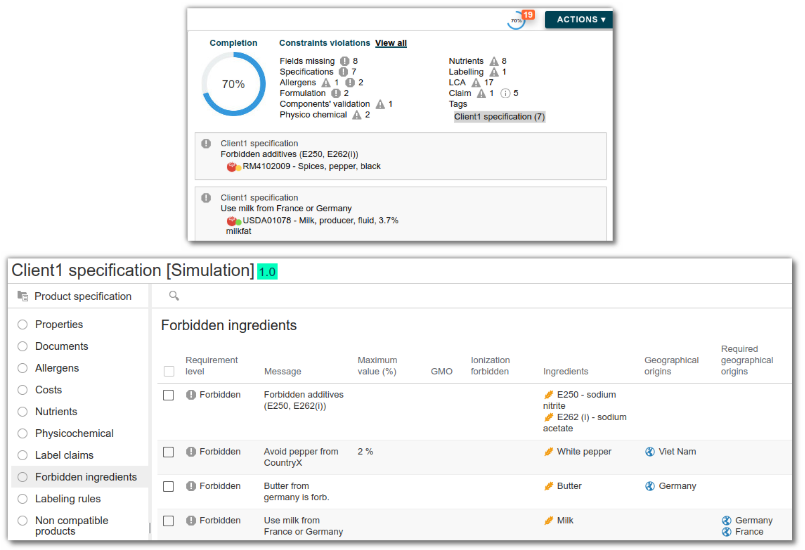
Viewing generated technical data sheets
In the "Technical Data Sheets" list, click "Generate Reports" (same button as for the formulation). The page refreshes and the technical data sheets are generated.
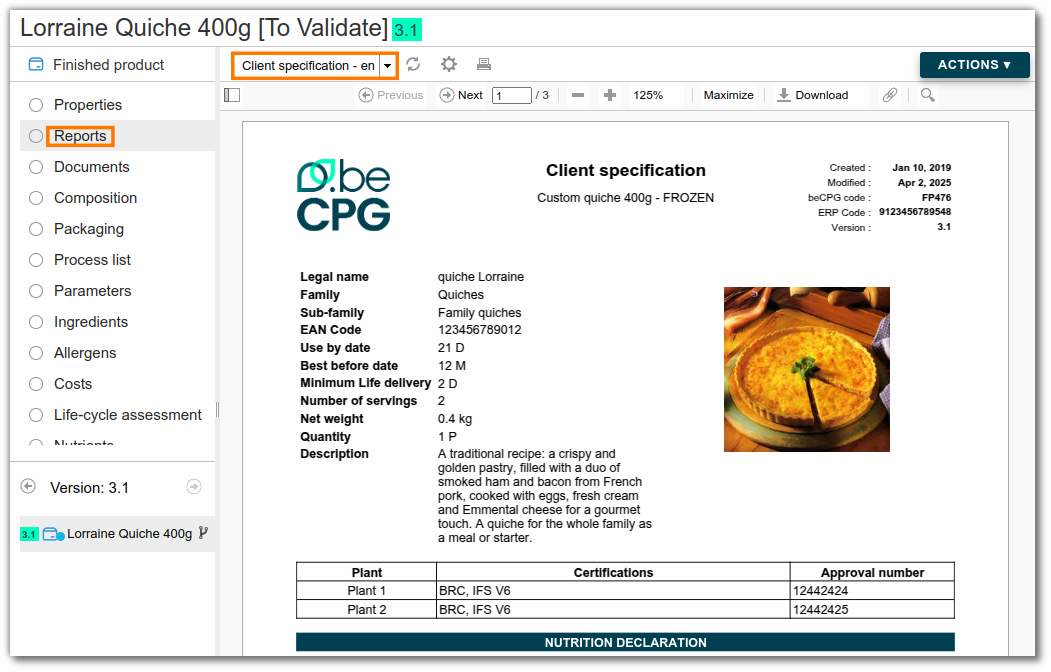
Note: once generated, the technical data sheets are automatically updated as soon as the product is modified.
Creating multiple trials
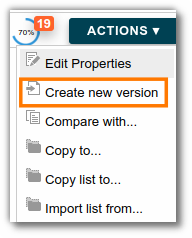
From the "Quiche Lorraine 400g" product composition, create a trial using "Action" > "New version".
A new trial "Quiche Lorraine 400g (1)" is then created and appears in the list at the bottom left of the screen. You can navigate from one trial to another to modify the recipe of each.
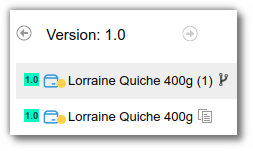
Rename each trial by clicking the edit button in the "Properties" tab.