Tools
Node Browser
To populate the .csv import files (see previous section), including specifying the folder path where data will be imported, you can use the Node Browser.
There are two scenarios:
The target is an entity (e.g., if you want to import product nutrients), in which case the NodeRef needed for the Node Browser is visible in the web address (URL).
The target is a folder (e.g., to import Raw materials into a folder on a specific site).
In the second case, to retrieve the NodeRef of this folder, start creating a new product in it.
Once you are on the product creation page, the NodeRef of the folder is visible in the web address (URL).

In the rest of this section, we assume that the data is imported into an existing entity.
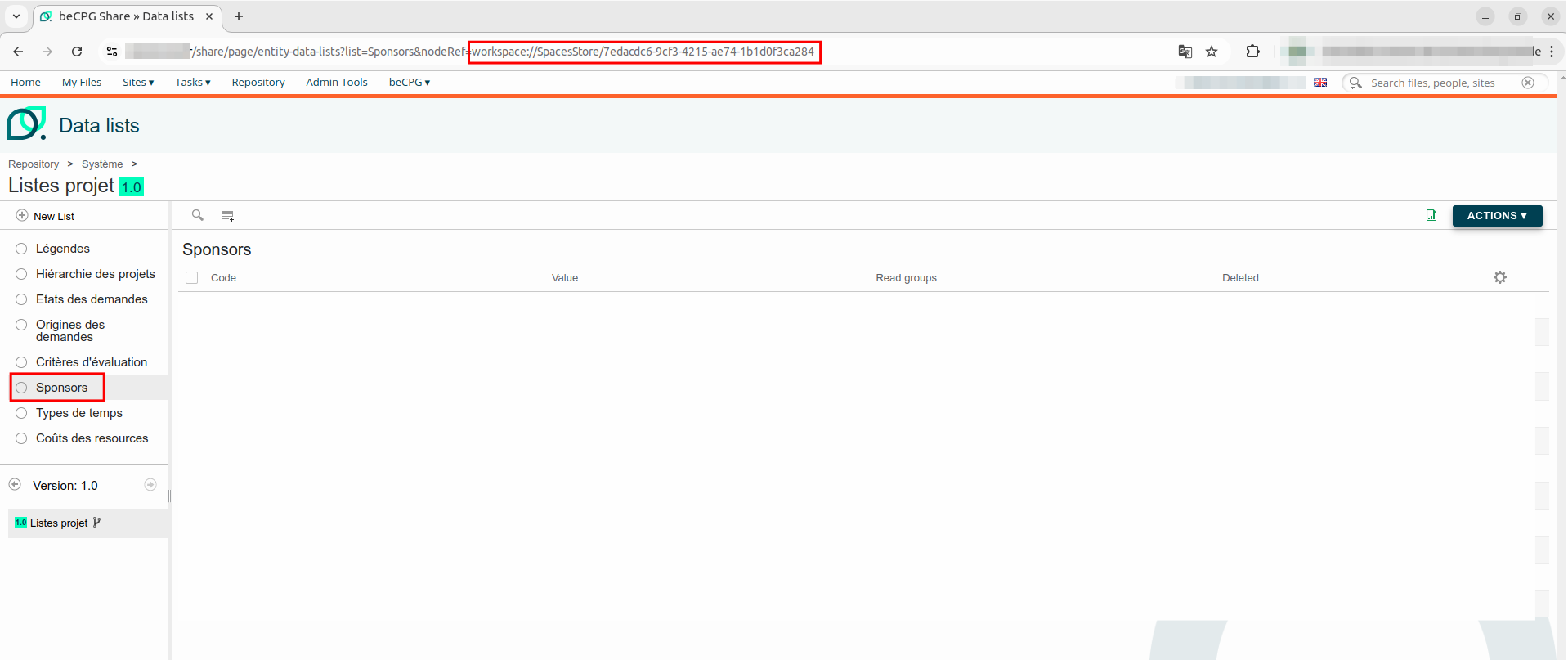
Go to the URL of the list to be completed and copy the NodeRef.
Then go to "beCPG > Administration Tools > Node Browser". Click "fts-alfresco" and choose "noderef". Paste the NodeRef obtained from the URL into the white box and click "Search". You will then be able to navigate through the "children" and find the terms associated with each list/entity to write the "PATH".
Example: Importing the "Sponsors" dropdown list of a project
1. Copy the NodeRef
To do this, go to "beCPG > beCPG Administration > Project Lists > Sponsors".
2. Find the "PATH" in the Node Browser
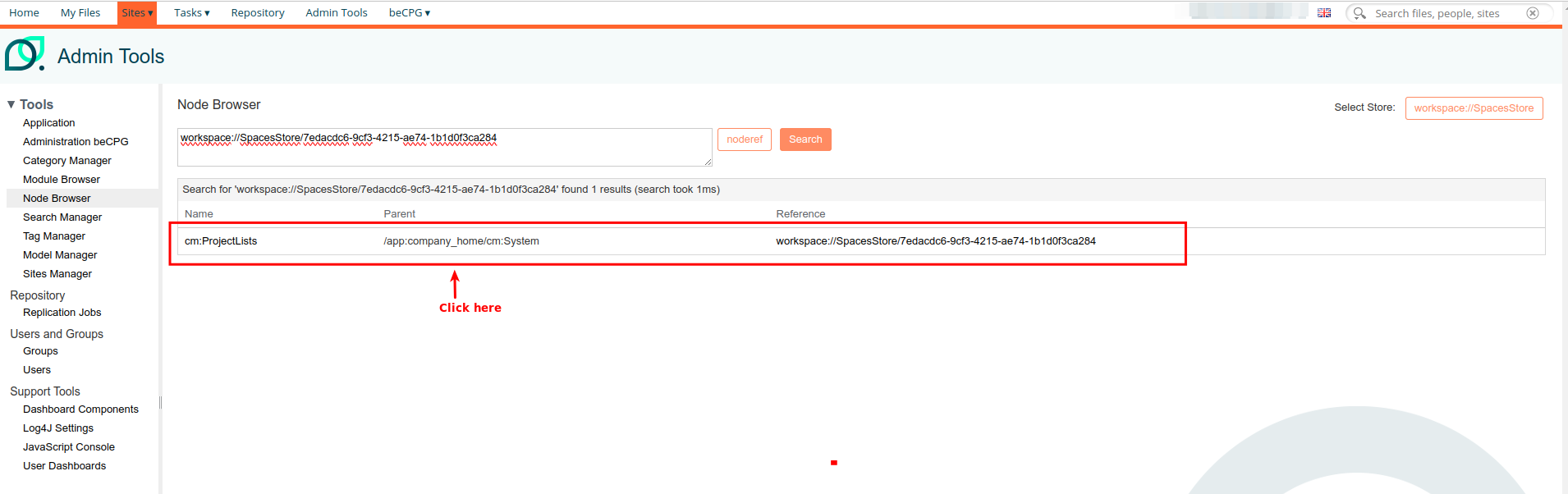
Scroll to the bottom of the page and click the "entitylist" link in the "Children" section. Once on the new page, scroll down to the bottom and under the "Children" section, find "Sponsors" and click on the associated link.
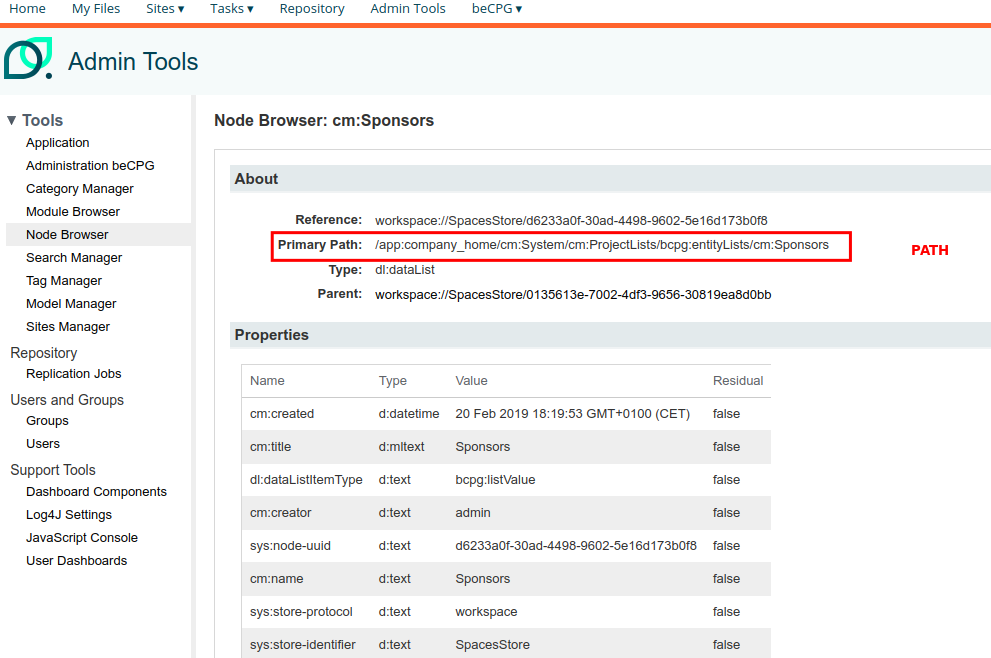
You arrive on this page, which shows the "PATH":
3. Complete the PATH in the .csv file
The copied PATH needs to be reduced for imports:
- The "app:company_home" part can be omitted.
- Similarly, all "cm:" can be removed, but other prefixes like "bcpg:" should remain.
PATH: /System/ProjectLists/bcpg:entityLists/Sponsors
Field Name Identification in the Interface
Identification of Property Names
There are several methods to identify property names. Two of them are:
- Method via Multiple Editing.
- Method via Using the Inspector
Let's look at each of these methods.
Via Multiple Editing
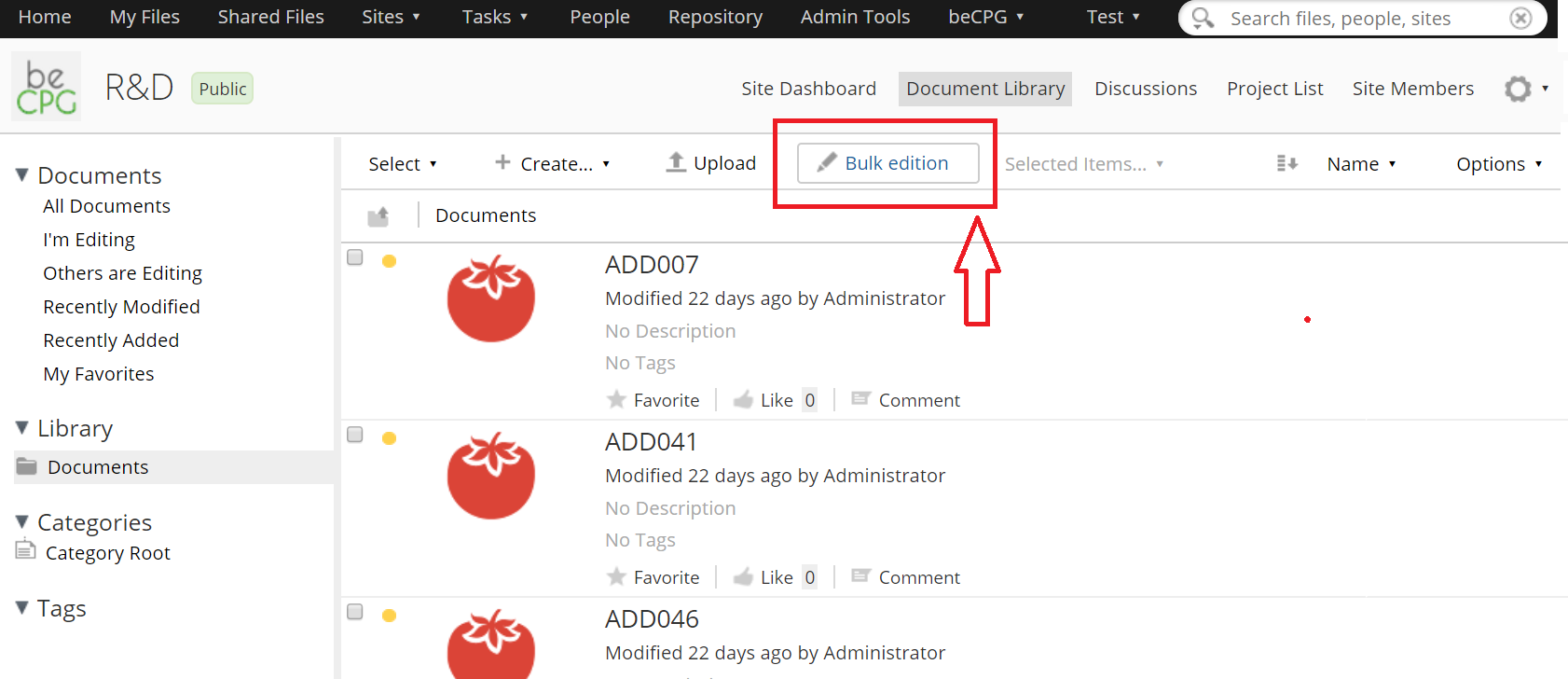
Multiple editing gives you access to the property fields of a product type. To access it:
- Navigate to the folder containing the products.
- Click the "Bulk edition" button (red arrow).
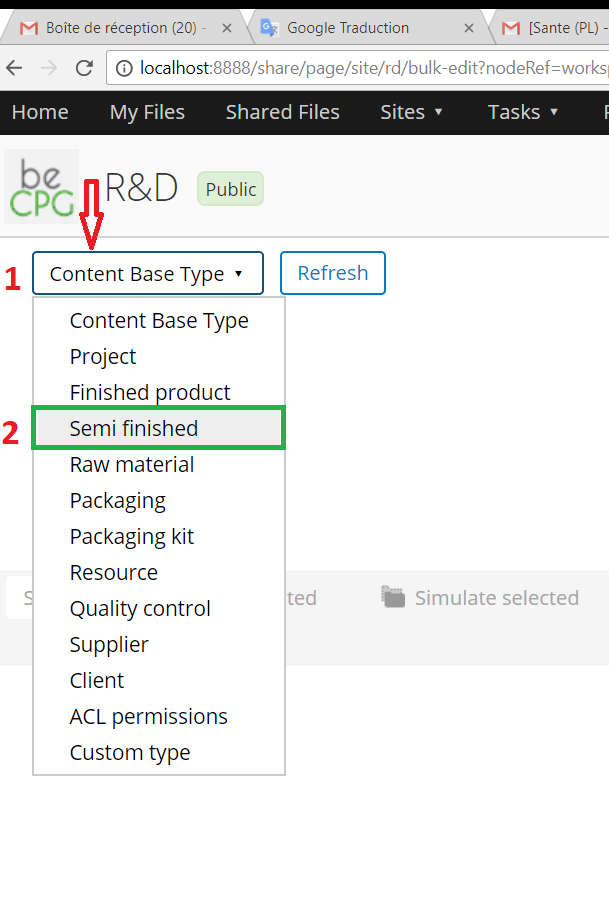
In the multiple editing interface, click "Content Base Type" (red arrow).
Then select a product type from the dropdown list. In our case, "Semi-finished product" (green box).
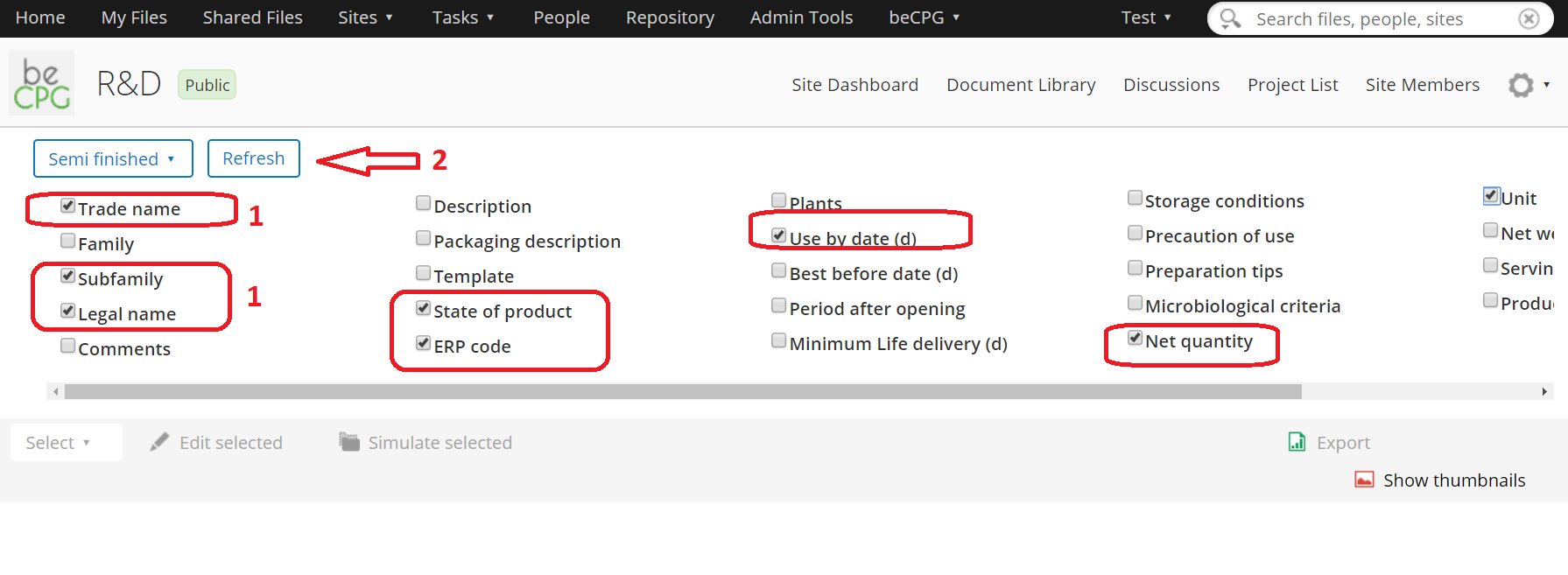
Check the properties you want to import.
Click the "Refresh" button (red arrow).
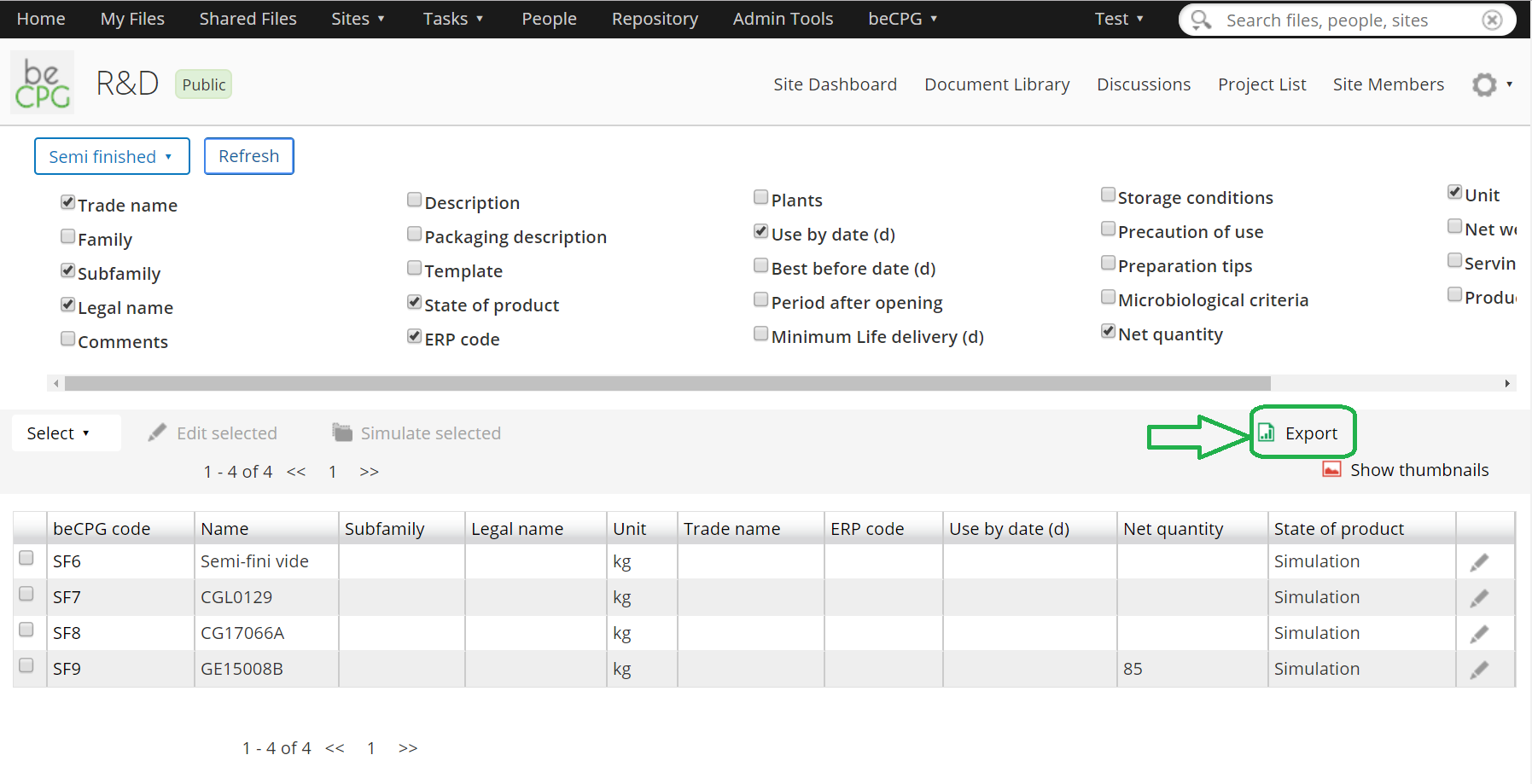
- Click "Export" to download the Excel export of the results (green arrow).
- Open the downloaded Excel file.
The property names of the entity are above the field titles (here, line 7).
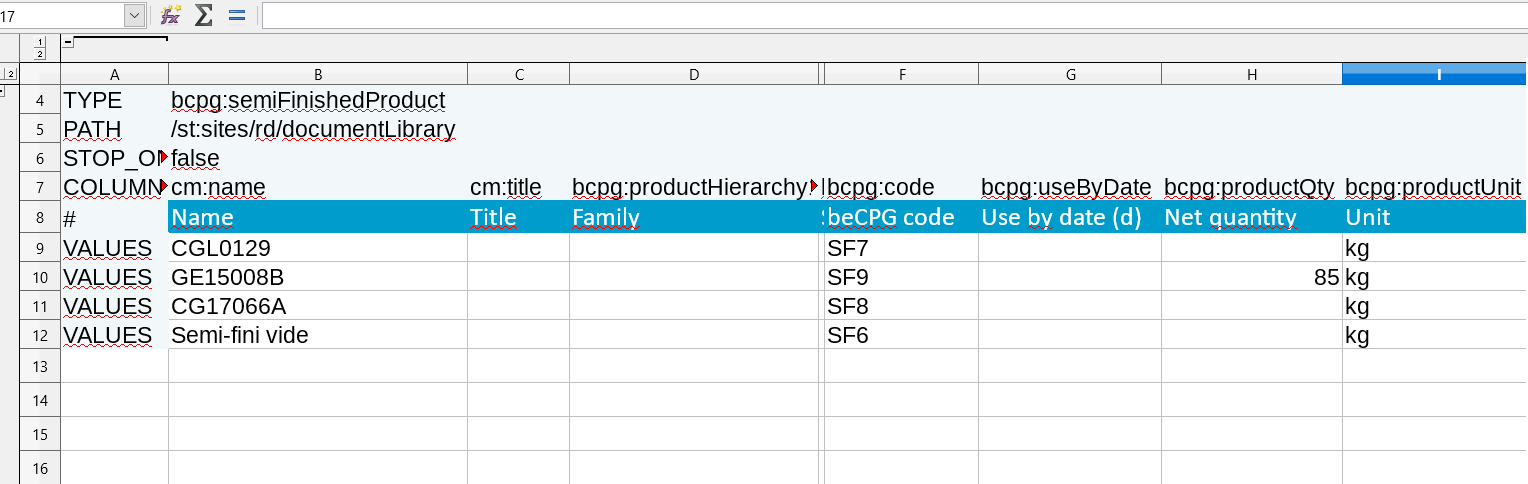
Note: the first lines of the Excel file are collapsed by default; make sure to expand them.
Via using the Inspector
The multiple editing method is preferred because it is simpler. However, depending on the system configuration, some fields of an entity (e.g., Finished product) may not be accessible via multiple editing. In such cases, you can find the internal field names using the browser developer tools.
Procedure
Let's take the "Legal name" field of the Finished product as an example.
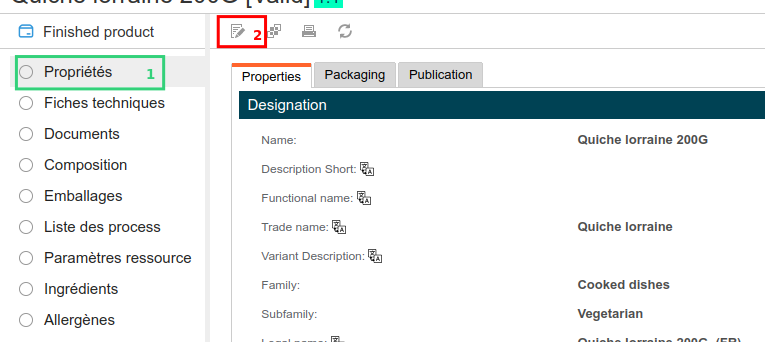
- 1. Navigate to the properties section of the Finished product (green box) and click "Edit Properties" (red box).
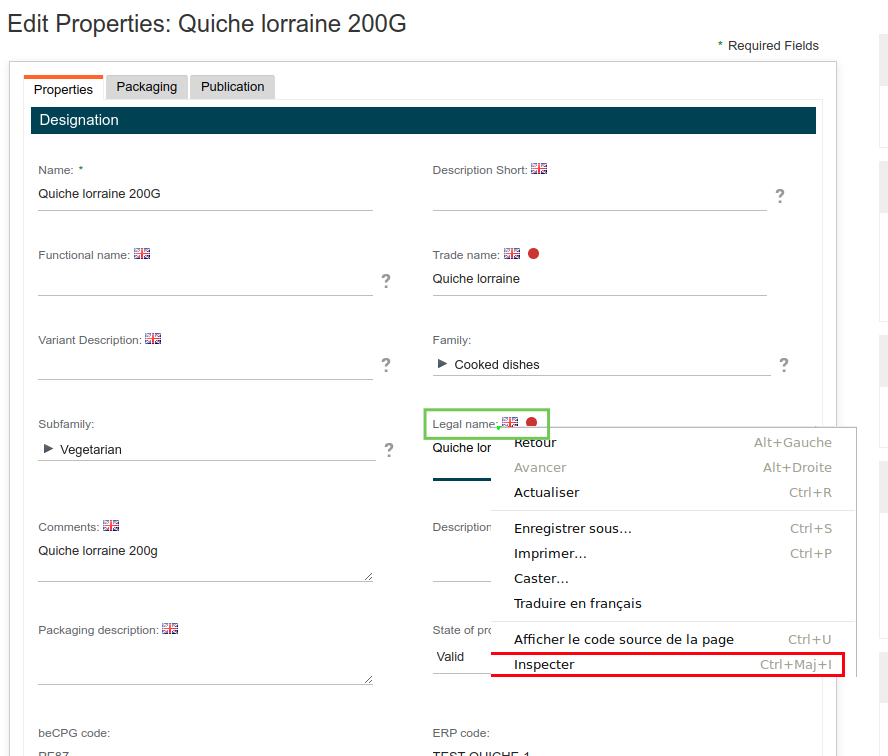
- 2. Once on the properties editing page, right-click on the "Legal name" label (green box) and select the "Inspect" option from the pop-up menu (red box).
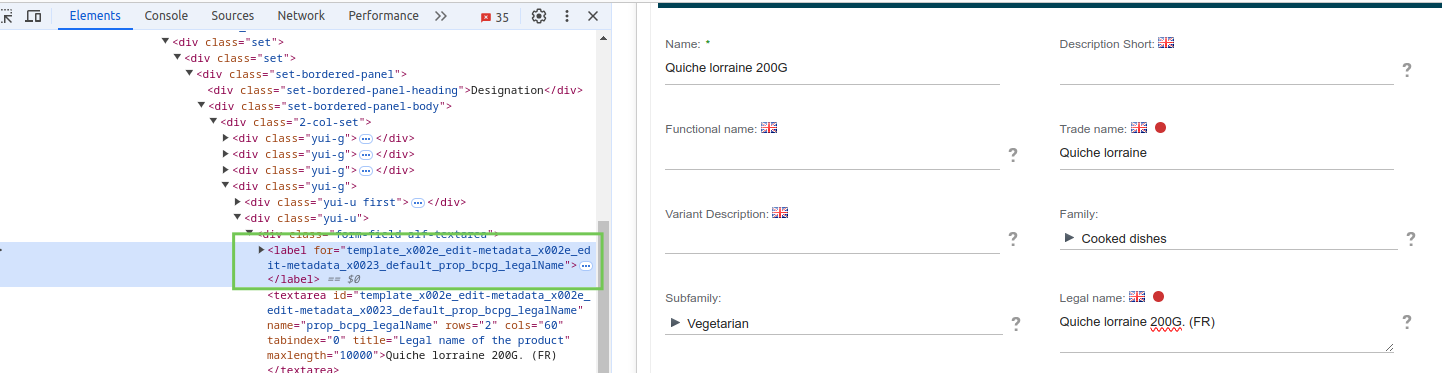
- 3. The developer tools open. Their layout may vary depending on your browser, but the principle is the same. You will see the text block corresponding to the element you clicked on (green box).
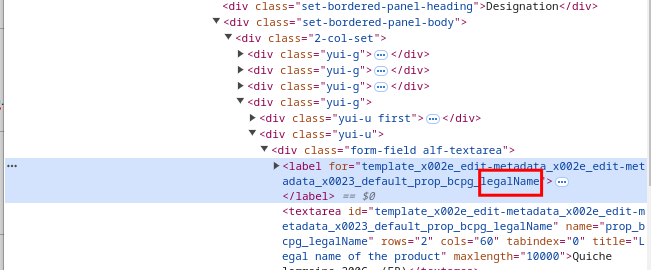
- 4. In the highlighted text block, the for attribute contains the internal name of the "Legal name" property, legalName (red box).
Identification of List Field Names
beCPG lets you export to Excel directly from the list interface.
Go to the list to export; for example, click the Composition list (green box).
Click the "Export" button (red arrow).
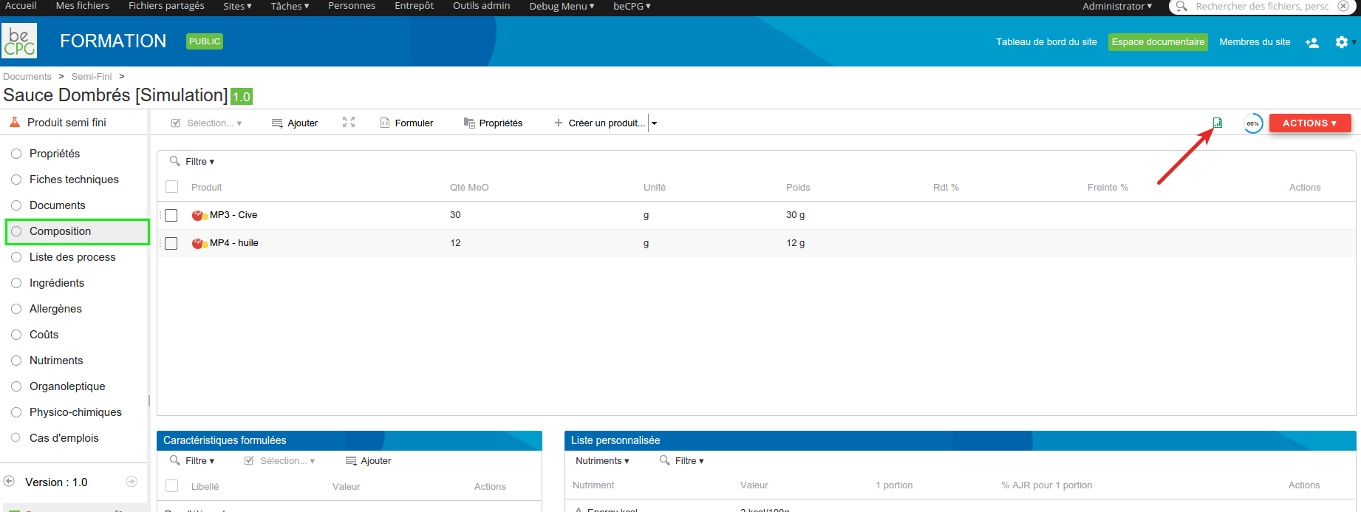
- Open the downloaded Excel file.
Line 2 of the Excel file contains the field names.

Constructing Lucene Queries
Alfresco lets you run Lucene queries on:
- NodeRef (id)
- Type
- Properties
- Aspects
- Keywords
To perform a query, the syntax is as follows:
On a Type:
TYPE:"TypeQName"TYPE:"bcpg:client"On a Property:
@PropertyQName:"Value"(escape the:of the QName with\)@cm\:name:"*sup*"The asterisk matches any string of characters. In this example, the name property must contain the word "sup".
On an Aspect:
ASPECT:"AspectQName"ASPECT:"bcpg:erpCodeAspect"
Lucene operators can be used to combine conditions:
- AND: AND
- OR: OR
- NOT: NOT
Note: when you write the query inside a JSON string or a connector configuration file, also escape the double quotes (\") and double the backslashes (\\:).
Query Examples
Retrieve the list of Semi-finished products with a name containing "sauce":
TYPE:"bcpg:semiFinishedProduct" AND @cm\:name:"*sauce*"Retrieve the validated Finished products created or modified since the last export (
%sis replaced by the date of the last export):TYPE:"bcpg:finishedProduct" AND @bcpg\:productState:"Valid" AND (@cm\:created:[%s TO MAX] OR @cm\:modified:[%s TO MAX])
See the Alfresco Search Services documentation for the complete syntax.