Advanced project configuration
Note: This section requires some knowledge of Alfresco models and JavaScript APIs.
The Project module can be used to achieve advanced goals instead of creating workflows.
Some of the advanced features are:
- Role assignment;
- User wizard;
- JavaScript deliverable.
Imagine you want to create a new project to implement a supplier portal.
You want:
- A supplier to be assigned to a task and to have a wizard to set up Raw material properties;
- Custom actions and emails at the end or start of a task.
This documentation uses this example as a tutorial.
Creating the supplier project template
Our sample project will contain two tasks:
- One that will be assigned to a supplier role.
- One assigned to the initiator of the project to validate data.
To do so, create a new project and add tasks like this:
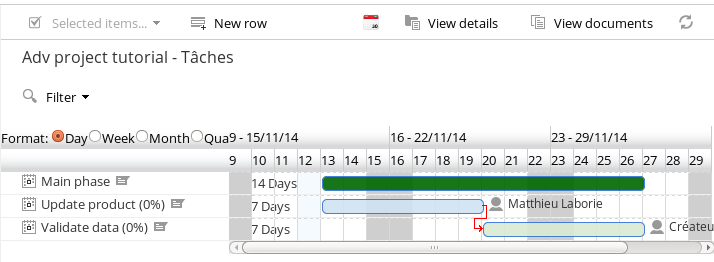
Once done, you can set your new project as a template to reuse it later.
Creating user roles
Out of the box, the project module comes with two roles:
- Project Manager (PROJECT_pjt_projectManager)
- Project Creator (PROJECT_cm_creator)
A role is an Alfresco group.
To create a new project role, create a group whose name starts with PROJECT_ followed by the qName of an Alfresco association. This property is read on the project node and must be of type person.
Example of the Supplier role:
- First, create your custom Alfresco aspect with the association to Supplier.
You can use the beCPG model designer.
Go to the designer, open the ext model and add a new association of type cm:person to the custom aspect. Create the corresponding form and publish your model.
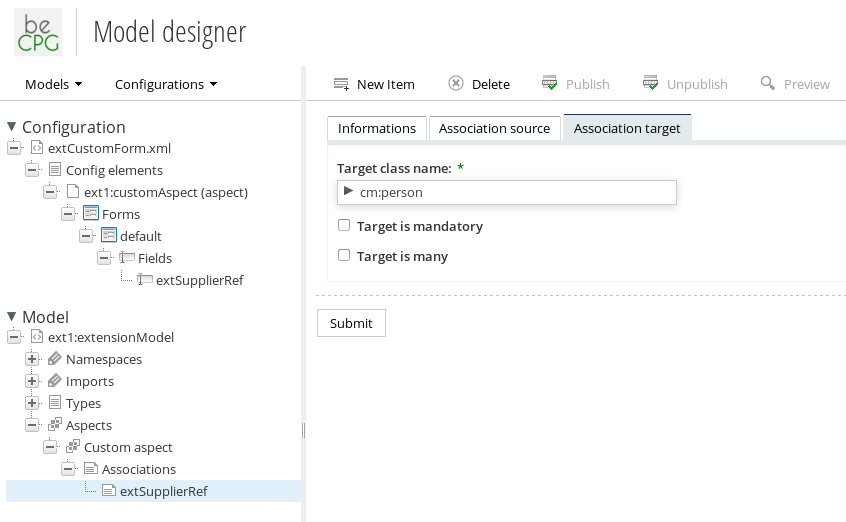
Or you can create it using XML.
First the model:
<aspect name="ext1:customAspect">
    <title>Adv project tutorial aspect</title>
    <associations>
        <association name="ext1:extSupplierRef">
            <title>Supplier role</title>
            <source>
                <mandatory>false</mandatory>
                <many>true</many>
            </source>
            <target>
                <class>cm:person</class>
                <mandatory enforced="false">false</mandatory>
                <many>false</many>
            </target>
        </association>
    </associations>
</aspect>
Then the Share form configuration:
<alfresco-config>
    <config condition="ext1:customAspect" evaluator="aspect" replace="false">
        <forms>
            <form>
                <field-visibility>
                    <show force="false" id="ext1:extSupplierRef" />
                </field-visibility>
                <appearance>
                    <field id="ext1:extSupplierRef" mandatory="false" read-only="false" />
                </appearance>
            </form>
        </forms>
    </config>
</alfresco-config>
- Then add your aspect to the project template.
You can use the JavaScript console:
var node = search.findNode("workspace://SpacesStore/1c99529c-3719-4381-bf29-4175ec3ee255");
node.addAspect("ext1:customAspect");
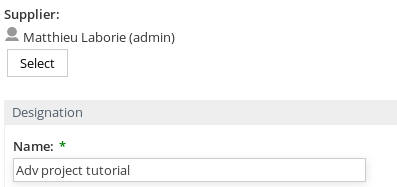
You should then have your new field, where you can add a supplier to your project.
- Finally, create a new Alfresco group named PROJECT_ext1_extSupplierRef and add it as a resource to your task.
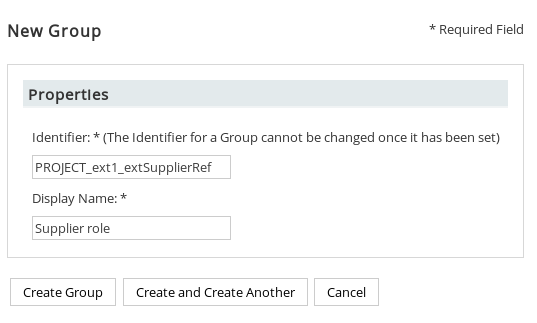
You have created a new project role.

Your users can now start a new project, choose the Supplier template and assign a person to the Supplier role.
Creating task scripts
Task scripts are a powerful way to execute arbitrary code during the project flow.
Task scripts are defined with Alfresco repository scripts plus some custom variables:
- project: a reference to the project. Caution: this is not an Alfresco node, but a beCPG ProjectData.java wrapper. To get the project Alfresco node, use this:
var projectNode = search.findNode(project.nodeRef);
- shareUrl: the Share URL
Note: Set all the variables present in ProjectData through the project data accessor. Do not use the Alfresco API for this, or you will get unpredictable results.
Example:
    project.state = "InProgress";
    project.hierarchy1 = "workspace://SpacesStore/678c2a75-1c2c-4b00-91e7-594788c004d3";
    project.hierarchy2 = "workspace://SpacesStore/4d2a7e69-4b02-4458-a61f-dcd87416ea7c";
See the Alfresco documentation for the complete API: https://docs.alfresco.com/content-services/latest/
In our example, we use this feature to send a custom email to the supplier once the Raw material has been reviewed.
Create a post-validation.js file with the following content in Alfresco:
function main()
{
    var supplier = null, rawMaterial = null;

    var projectNode = search.findNode(project.nodeRef);


    if (projectNode.assocs["ext1:extSupplierRef"] != null && projectNode.assocs["ext1:extSupplierRef"].length > 0)
    {
        supplier = projectNode.assocs["ext1:extSupplierRef"][0];
    }

    if (projectNode.assocs["pjt:projectEntity"] != null && projectNode.assocs["pjt:projectEntity"].length > 0)
    {
        rawMaterial = projectNode.assocs["pjt:projectEntity"][0];
    }

    if (supplier != null && rawMaterial!=null)
    {
                try
                {
                    var mail = actions.create("mail");
                    mail.parameters.html = "html";
                    mail.parameters.to = supplier.properties["cm:email"];
                    mail.parameters.subject = "[" + projectNode.name + "] Raw material validated";
                    mail.parameters.from = "support@becpg.fr";
                    mail.parameters.ignore_send_failure = true;
                    mail.parameters.text = "<html>Hi, <br/><br/>" + "Raw material is validated. Thanks"
                    +"<a href=" + shareUrl + "/page/entity-details?nodeRef=" + rawMaterial.nodeRef + ">" + rawMaterial.name + "</a></html>";
                    mail.execute(projectNode);
                }
                catch (e)
                {
                    logger.error("Cannot send mail :");
                    logger.error(" - project: " + projectNode.name);
                    logger.error(" - e: " + e);
                }
    }
}

main();
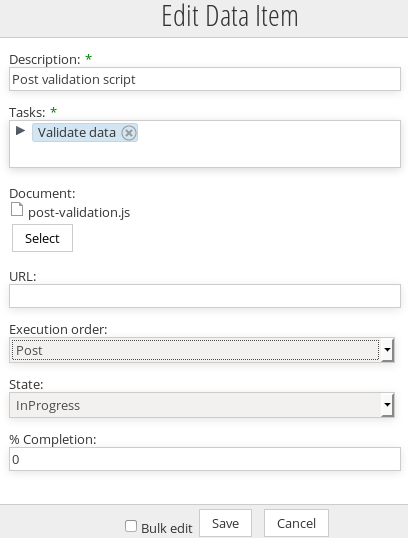
In your project, add a new deliverable. Choose the JS file as document and set the "Execution order" option to "Post".
The script runs once the task is done. Use "Pre" to run it before.
Conclusion
As you can see, the project module lets you build advanced process flows without any workflow. The main advantage of this approach is that you can manage the planning of your process and change it at run time. A project is also easier to set up, as it can be deployed without restarting the server.
You can also create validation and refusal tasks. If you enable refusal in the task settings, the ad hoc task shows a "Refuse" button.
Use a workflow when the process does not change over time and you need advanced flow returns and forks.