The "Chef AI" assistant
Chef AI is the beCPG conversational assistant, provided by the optional beCPG AI module. It understands natural language, answers in the user's language and supports project managers, product developers and quality engineers throughout the product lifecycle. A subscription is required to use this feature.
Chef AI does not replace the beCPG calculation engines: formulation, labelling, Nutri-Score and CLP calculations are still produced by the deterministic engines of the PLM. The assistant is there to find information, analyse it, prepare it and propose changes, which always remain subject to your approval.
The beCPG AI module is optional: refer to the operating manual for its installation and for the configuration of the AI provider.
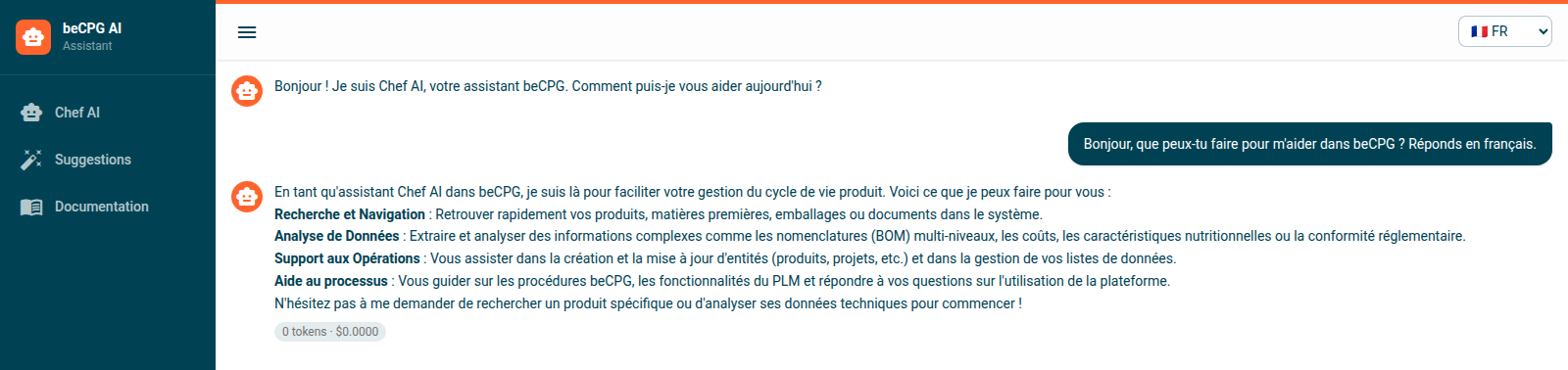
Opening the assistant
The assistant is available in three ways:
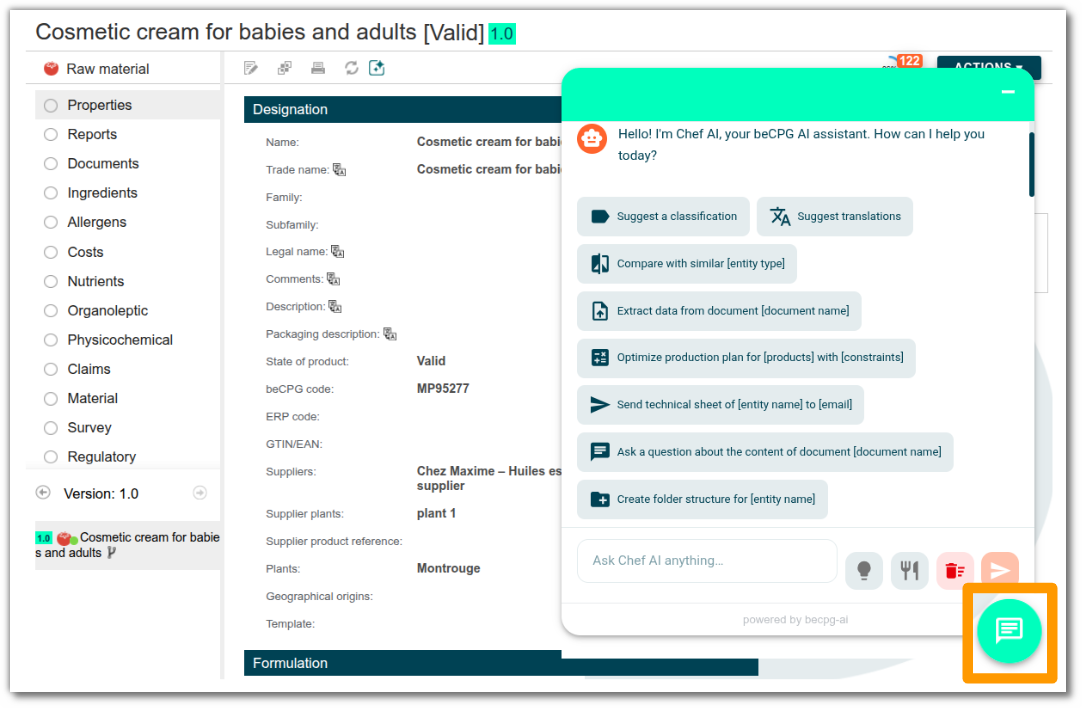
- through the chat button available in the beCPG interface, which opens the conversation window;
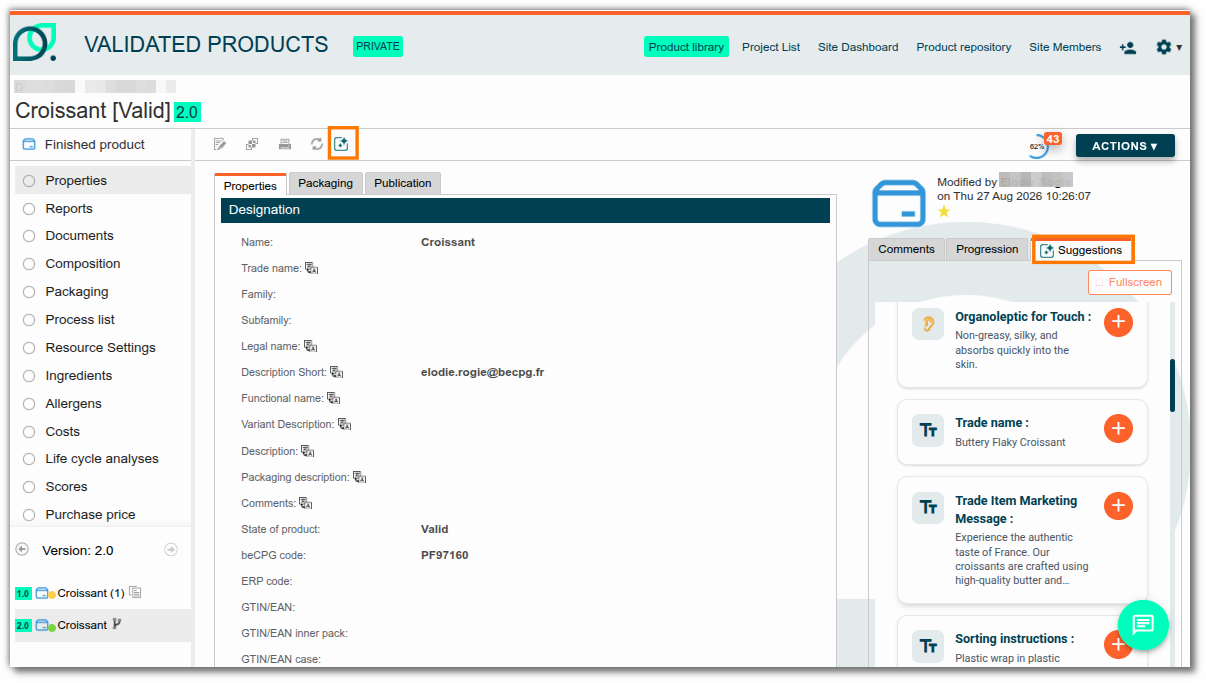
- through the Suggestions panel displayed on documents and entities, which proposes improvements without having to ask a question;
- from an external AI assistant connected to the beCPG MCP server (see Using beCPG from an external assistant).
The conversation window has three tabs: Chef AI (the conversation), Suggestions (the proposals related to the entity being viewed) and Documentation (the online help). A language selector sets the language of the answers, and the number of tokens consumed and the related cost are displayed below each answer.
The suggested sample prompts adapt to the page you are on: they differ depending on whether you are viewing a finished product, a project or a document.
What Chef AI can do
Search and consult
Find a product or an entity by name, code or property, display its characteristics, compare several products (their Nutri-Score for instance).
"Which finished products contain palm oil?"
Analyse and optimise
Analyse the multi-level composition of a product with costs, optimise the cost of a recipe under constraints using the GLOP engine (see Linear solver), and query data through the OLAP cubes (see Business Intelligence).
"Reduce the cost of this recipe without degrading the Nutri-Score."
Projects and workload
List your priority projects and tasks, display a schedule, analyse the workload of a team member (see Project management).
Regulatory compliance
Ask a regulatory question and check the compliance of a product, based on the regulatory module.
Enrich and correct
Suggest a classification, translate fields, propose descriptions and marketing messages, check spelling, detect allergens or generate an organoleptic profile.
Work with documents (RAG)
Extract data from a supplier technical data sheet to pre-fill an entity, query the content of a PDF, or compare an artwork proof with a customer specification.
Create and update
Create finished products, raw materials, semi-finished products, projects or packaging from a brief, initialise their composition, duplicate an entity or increment a version.
Suggestions: nothing is saved without your approval
Every creation or change proposed by the assistant is presented as a suggestion to approve. You review the proposal, then accept or reject it: as long as you have not confirmed, nothing is written to the PLM. Accepted changes are then tracked like any other beCPG change (see Activities).
The Suggestions panel relies on plugins that can be enabled independently:
| Plugin | What it proposes |
|---|---|
| Classification | The most likely product hierarchy based on name and description |
| Fields | Title, legal name, description, marketing messages, preparation tips, etc. |
| Translation | The translation of the multilingual fields of the entity |
| Spell checking | Spelling corrections for the fields that have been filled in |
| Allergens | The allergens detected from the composition |
| Organoleptic | An organoleptic profile consistent with the recipe |
| Document extraction | The data of a technical data sheet, to pre-fill an entity |
| Document review | The differences between a document and the reference specification |
| Image | An illustration for the entity (disabled by default) |
Each plugin can be enabled, disabled and assigned a specific AI model in the module configuration (fr.becpg.ai.suggestion.plugins.<Plugin>.enabled and ....model properties).
Using beCPG from an external assistant (MCP)
The same beCPG tools are exposed to external AI assistants - Claude, Cursor, VS Code, Gemini... - through an MCP (Model Context Protocol) server. An assistant connected this way can search products and documents, consult technical data sheets, manage documents and create entities, under the same permissions as the logged-in user.
- Endpoint:
BASE/mcp/sse(SSE transport), whereBASEis the URL of the beCPG AI module. - Authentication: beCPG ticket or delegated OIDC token, depending on the instance configuration.
The configuration of MCP clients is described in the technical documentation of the beCPG AI module.
Good practices
- Always review suggestions before accepting them, especially on data with legal implications (allergens, legal name, labelling).
- Be precise about the context: open the relevant entity before asking your question, answers rely on the current page.
- Do not enter confidential data that is not meant to be sent to the configured AI provider; where sovereignty is required, the instance can be configured to use a locally hosted model.
- Calculations with regulatory value remain produced by the beCPG engines: should an answer from the assistant differ from a formulated value, the formulated value prevails.