Data models and forms
Setting up and modifying data models and forms in beCPG is intended for administrators. It requires knowledge of XML and content modeling. A video presents the creation of models and forms using the designer.
The data model and forms in beCPG allow you to customize and adapt the system to the specific needs of your company by adding extra fields to store additional data and displaying them in the relevant objects.
Modifying or creating fields requires a good understanding of aspects in order to avoid performance issues. It is essential to structure fields properly by distributing them across different aspects so that all data is not grouped within a single entity. Feel free to contact the beCPG team for advice on designing your fields or using a standard field in a context for which it was not originally intended.
This modification is done in 3 steps:
- Modification of the data model to create the additional fields
- Modification of the forms to add and display the field in the concerned object(s)
- Publication of the files to apply the changes
You therefore need to create or modify 2 files:
- {$client}Model.xml for the modification of the data model
- {$client}-form-config.xml for the formatting of the forms
where {$client} is the name of the client.
1. Modification of the data model (manually)
The standard data models are defined in the following files:
| File | Description |
|---|---|
| becpgModel.xml | beCPG Model |
| gs1Model.xml | GS1 Model |
| ecmModel.xml | Process Model |
| projectModel.xml | Project Model |
| packagingModel.xml | Packaging Model |
| qualityModel.xml | Quality Model |
| nonConformityModel.xml | Non Conformity Model |
The client data model is defined in the {client}Model.xml file, available in "Repository > Data Dictionary > Models". If this file is not available, you can create it from the extCustomModel.xml file. In the {client}Model.xml file, you can add:
- Properties: text values, numbers, datalists, etc.
- Associations: association to an object type (e.g. geographical origin, raw material, etc.)
- Object types: a set of several properties/associations (e.g. a new list)
- Aspects: group of properties and/or associations that can be added to an object type. This lets you reuse a group of properties common to many object types, for example a "Saleable products" group of properties.
Prefix
When creating a client model, define a prefix in <namespace>. All fields created in the model start with this prefix (e.g. client:name).
<model xmlns="http://www.alfresco.org/model/dictionary/1.0" name="$client:extensionModel">
    <description>Extension model</description>
    <author>beCPG</author>
    <version>1.0</version>
    <imports>
        <import uri="http://www.alfresco.org/model/dictionary/1.0" prefix="d"/>
        <import uri="http://www.alfresco.org/model/content/1.0" prefix="cm"/>
        <import uri="http://www.bcpg.fr/model/becpg/1.0" prefix="bcpg"/>
        <import uri="http://www.bcpg.fr/model/quality/1.0" prefix="qa" />
        <import uri="http://www.bcpg.fr/model/project/1.0" prefix="pjt" />
    </imports>
    <namespaces>
        <namespace uri="http://www.bcpg.fr/model/$client/1.0" prefix="$client"/>
    </namespaces>
Setting of a property
The property types are:
| Types | Description |
|---|---|
| d:date | Date |
| d:text | Simple text |
| d:mltext | Multilingual |
| d:content | Document |
| d:int | Integer |
| d:float | Number with 6-7 decimals |
| d:datetime | Date with hours and minutes |
| d:double | Number |
| d:boolean | Check box |
| d:noderef | Hierarchy |
| d:path | Node path |
The properties of an object type are defined in the <properties> section.
Model for defining a property:
      <property name="...">
        <type>Type of data</type>
        <mandatory>true or false</mandatory>
        <multiple>true or false</multiple>
        <default>Default value</default>
        <constraints>
           <constraint ref="ID" />
        </constraints>
      </property>
Example:
    <property name="bcpg:productType">
        <type>d:text</type>
        <mandatory>true</mandatory>
        <multiple>true</multiple>
        <constraints>
        <constraint ref="bcpg:systemProductType" />
        </constraints>
    </property>
Setting of a constraint
Constraints are defined in the <constraints> section of the
{$client}Model.xml file.
Here are some examples of constraints:
- Regular expression
    <constraint name="test:regex1" type="REGEX">
           <parameter name="expression"><value>[A-Z]*</value></parameter>
           <parameter name="requiresMatch"><value>false</value></parameter>
    </constraint>
Adding forbidden characters to a field.
Example:
<constraint name="test:regex1constraint" type="REGEX">
<parameter name="expression">
<value>(')|(TM)|(®)|(œ)|(Œ)|(Æ)|(ç)|(ù)|(é)|(è)|(ê)|(ë)|(â)|(ô)|(à)|(ï)|(î)|(")|(&)</value>
</parameter>
<parameter name="requiresMatch">
<value>false</value>
</parameter>
</constraint>
- Length Min/Max
    <constraint name="test:stringLength1" type="LENGTH">
            <parameter name="minLength"><value>0</value></parameter>
            <parameter name="maxLength"><value>256</value></parameter>
    </constraint>
- Number Min/Max
    <constraint name="test:minMax1" type="MINMAX">
            <parameter name="minValue"><value>0</value></parameter>
            <parameter name="maxValue"><value>256</value></parameter>
    </constraint>
- Fixed value list
    <constraint name="test:list1" type="LIST">
            <parameter name="allowedValues">
                <list>
                    <value>ABC</value>
                    <value>DEF</value>
                </list>
            </parameter>
            <parameter name="caseSensitive"><value>true</value></parameter>
    </constraint>
- Dynamic value list (Administration)
<constraint name="test:dynListConstraint1" type="fr.becpg.repo.dictionary.constraint.DynListConstraint">
   <parameter name="path">
      <list>
         <value>/System/Lists/bcpg:entityLists/NutGroups</value>
      </list>
   </parameter>
   <parameter name="constraintType">
      <value>bcpg:listValue</value>
   </parameter>
   <parameter name="constraintProp">
      <value>bcpg:lvValue</value>
   </parameter>
</constraint>
Aspects
Aspects are defined in the <aspects> section.
An aspect is a group of properties or associations that can be applied
to a type. An aspect can be mandatory or optional.
        <aspect name="cm:auditable">
             <title>Auditable</title>
             <properties>
                <property name="cm:created">
                   <type>d:datetime</type>
                </property>
                <property name="cm:creator">
                   <type>d:text</type>
                </property>
                <property name="cm:modified">
                   <type>d:datetime</type>
                </property>
                <property name="cm:modifier">
                   <type>d:text</type>
                </property>
                <property name="cm:accessed">
                   <type>d:datetime</type>
                </property>
             </properties>
    </aspect>
To add a mandatory aspect to a type, use the <mandatory-aspects> section.
Example:
    <type name="XXX">
        <parent>YYY</parent>
        <mandatory-aspects>
            <aspect>ZZZ</aspect>
        </mandatory-aspects>
    </type>
Where ZZZ is the mandatory aspect defined on the XXX type.
Good practice: create several aspects to store the fields, rather than putting them all in the same aspect. We recommend creating a separate aspect for each "storage place" of the fields (e.g. Finished product, Semi-finished product, ingredient list, etc.). If some fields are used on several objects, you can group them in a common aspect, named product or list for example.
2. Modification of the forms
Client forms are defined in the {$client}-form-config.xml file, available in "Repository > Data Dictionary > Configuration". If this file is not available, you can create it from the standard beCPG forms. The standard beCPG forms are available here:
| File | Description |
|---|---|
| becpg-plm-fp-form-config.xml | Finished product form |
| becpg-plm-sfp-form-config.xml | Semi-finished product form |
| becpg-plm-rm-form-config.xml | Raw material form |
| becpg-plm-pm-form-config.xml | Packaging form |
| becpg-plm-form-rp-config.xml | Resource form |
| becpg-plm-form-config.xml | List forms and other forms |
| becpg-project-form-config.xml | Project form |
| becpg-quality-form-config.xml | Quality form |
Configuration
For each XML form, 2 configurations (<config>) are available: one for creation (model type) and one for editing (node type) (see the Form types section). Each one contains several forms (<forms>).
To override a form, copy the two <config> blocks that have the object type name as condition, and add "replace=true" to the config tags.
For example, to modify the form for creating a Raw material:
- Copy the two
<config>blocks with the condition "bcpg:rawMaterial" and add replace="true" to the<config>line. - Modify the create
<forms>.
<config evaluator="model-type" condition="bcpg:packagingMaterial" replace="true">
   <forms>
      <form id="create">
      ...
      </form>
   </forms>
</config>
Types form
There are different types of forms. A form is identified by its ID (create, formulation, etc.).
Creation form
This is the form displayed when creating a product by clicking "+ Create...".
Example: Finished product creation form
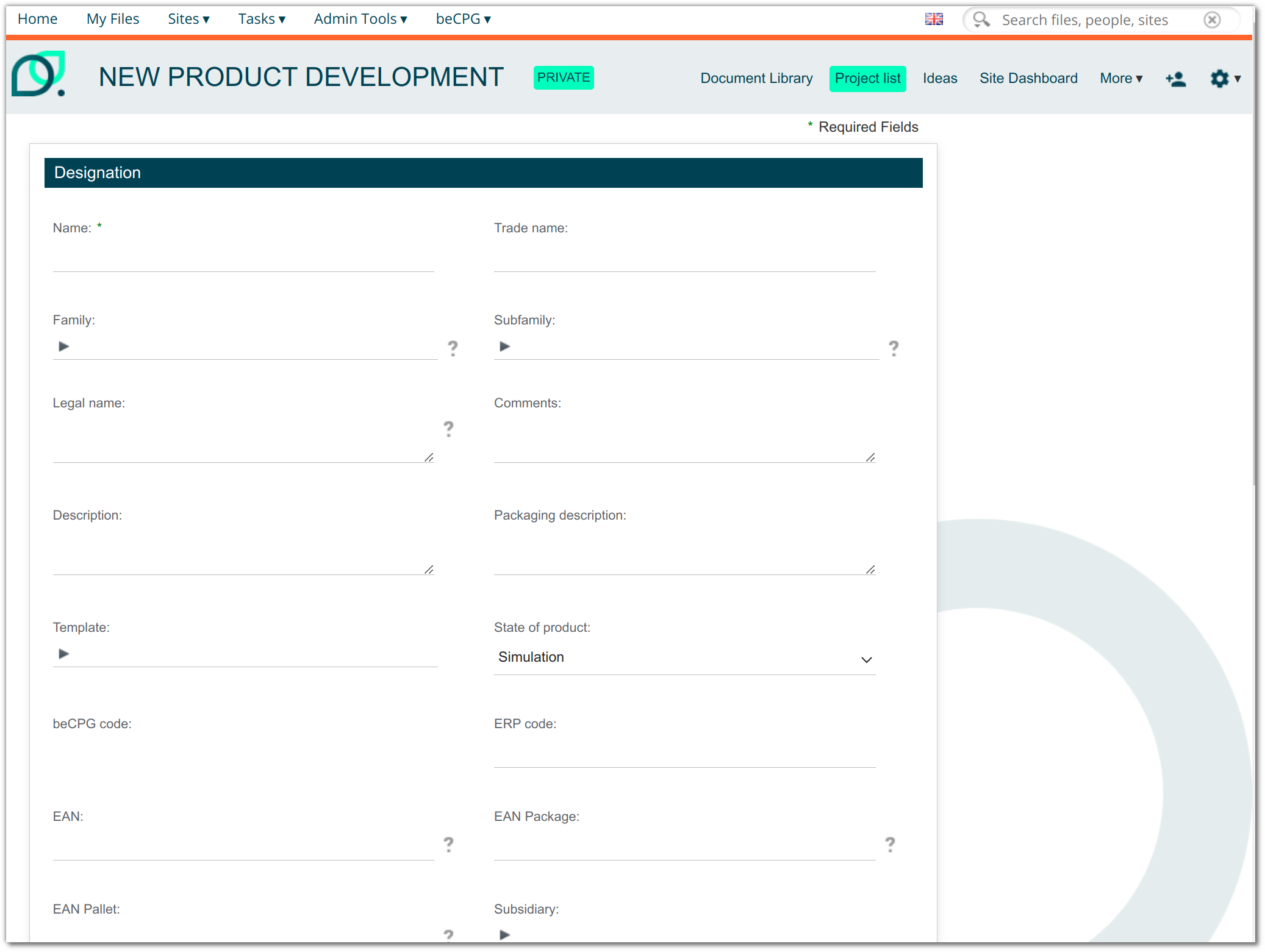
To modify it, override the <config> whose condition is the name of the type and whose evaluator is model-type, then modify the <forms> with id="create".
    <config evaluator="model-type" condition="bcpg:finishedProduct">
      <forms>
        <form id="create">
Formulation form
This is the creation form displayed when a product is added to the recipe composition datalist.
Example: Raw material formulation form
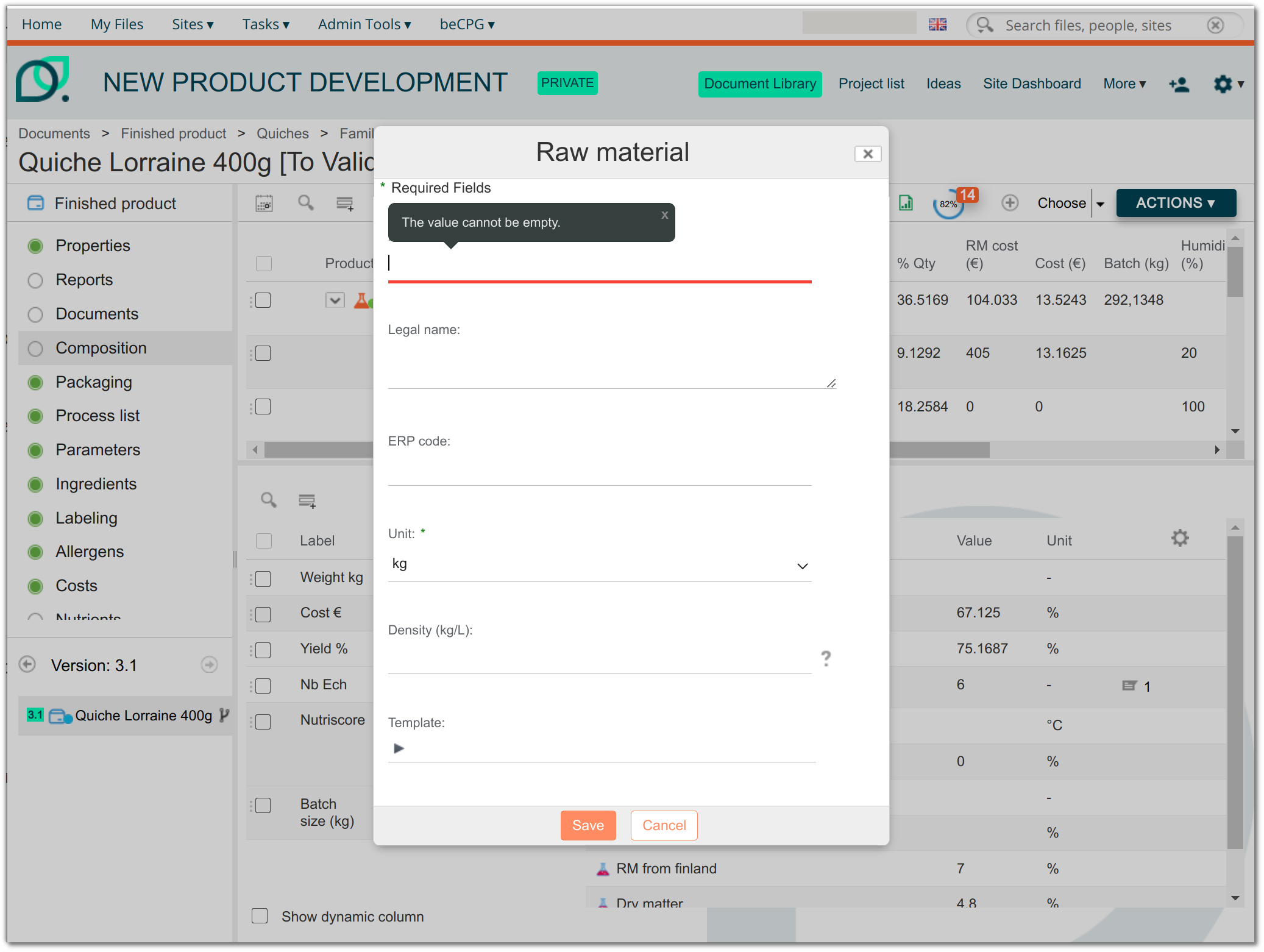
To modify it, override the <config> whose condition is the name of the type, then modify the <forms> with id="formulation".
    <config evaluator="model-type" condition="bcpg:rawMaterial">
      <forms>
        <form id="formulation">
Editing form
This is the form displayed when editing the properties of a product by clicking "Edit Properties".
Example: Form for editing the properties of a finished product.
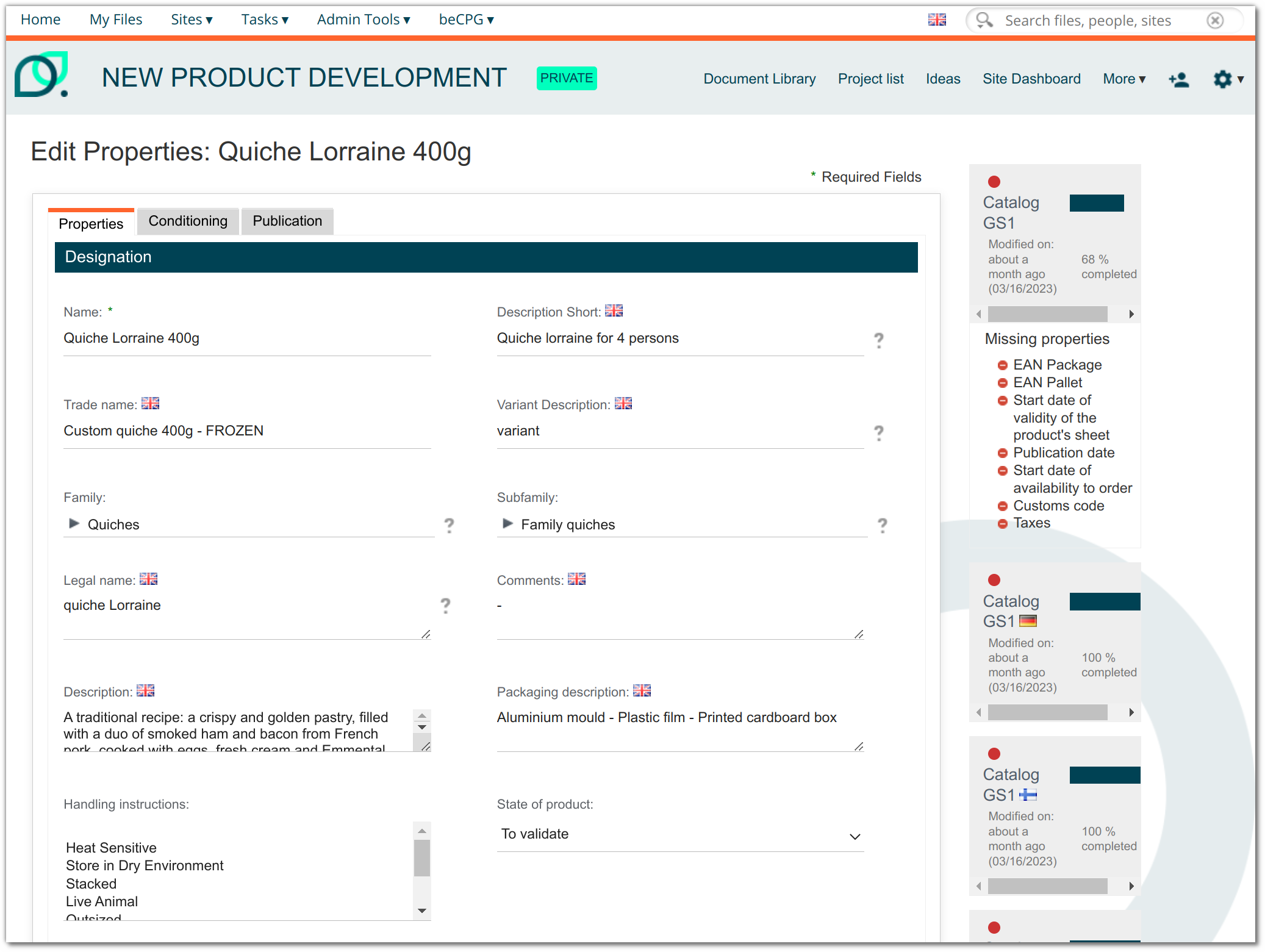
To modify it, override the <config> of the product with the node-type evaluator, then modify the default <forms>, that is, the one without id.
    <config evaluator="node-type" condition="bcpg:finishedProduct">
      <forms>
        <form>
Editing form from the warehouse
When editing the properties of a product from the warehouse, a pop-up window appears. This edit form is less detailed than the previous one.
Example: Form for editing the properties of a raw material from the warehouse
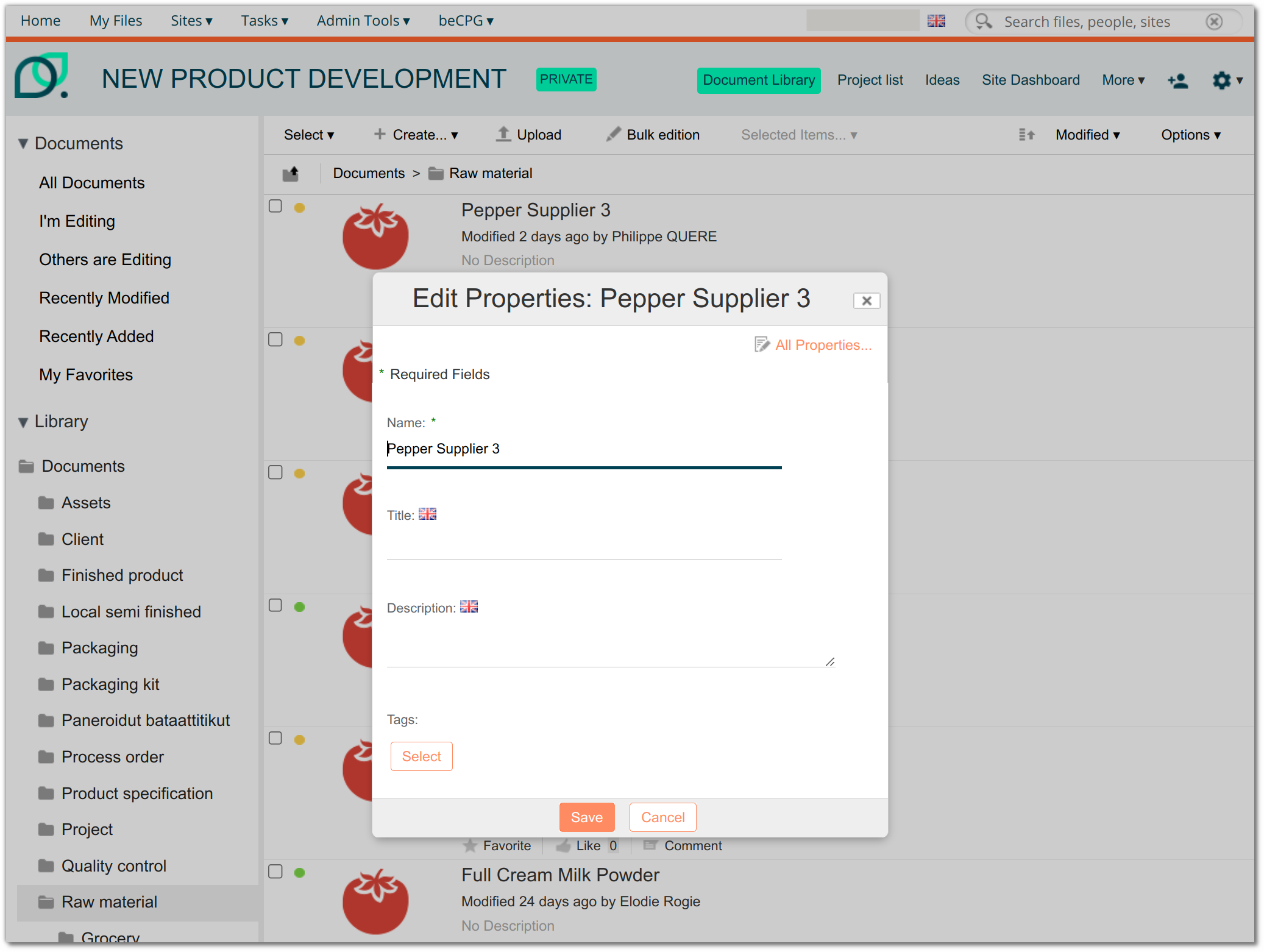
To modify it, override the <config> of the product with the node-type evaluator, then modify the <forms> with id="doclib-simple-metadata".
    <config evaluator="node-type" condition="bcpg:rawMaterial">
      <forms>
        <form id="doclib-simple-metadata">
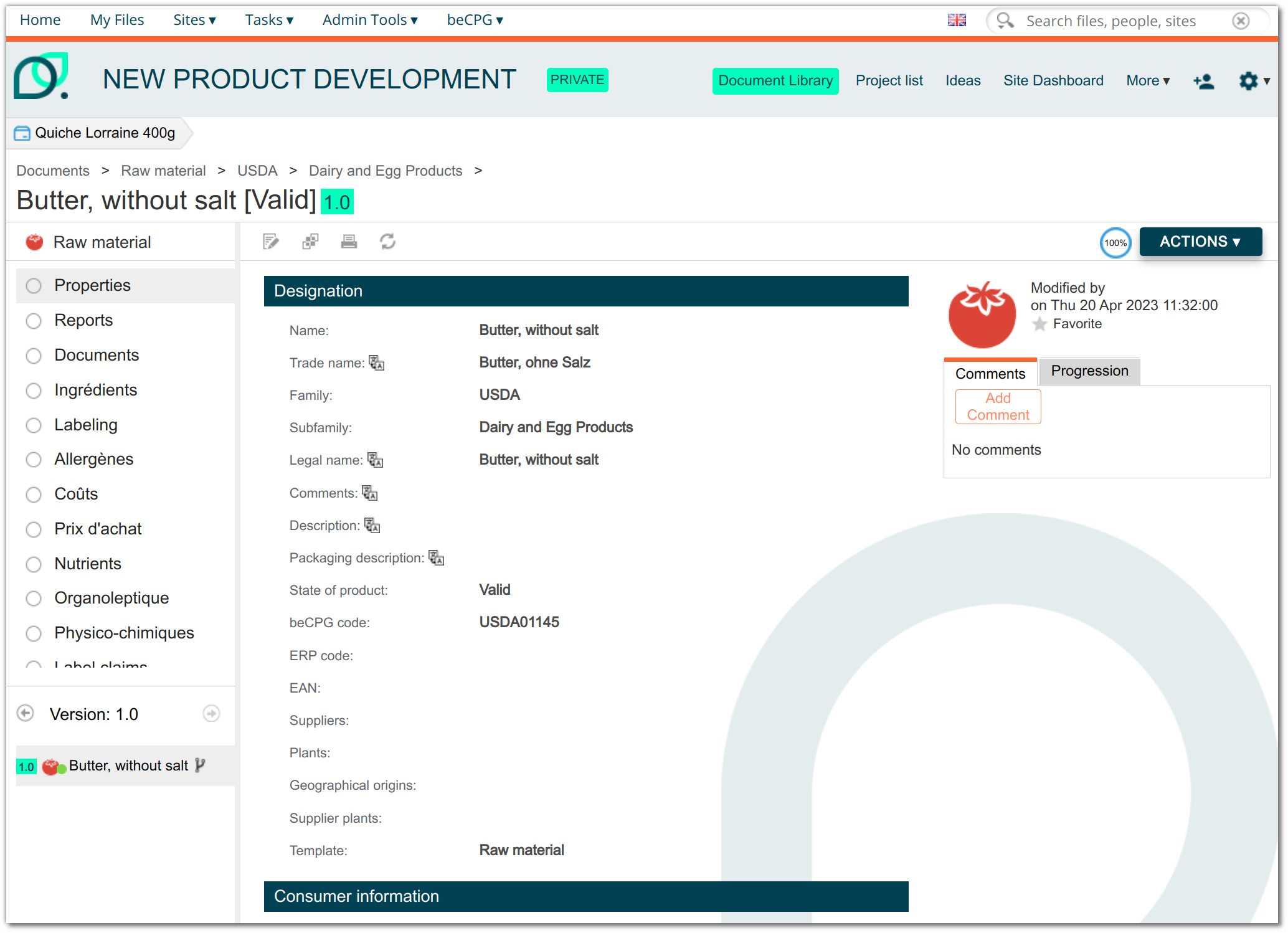
Consultation form
This is the form displayed when viewing the properties of a product by clicking "Properties". It has the same fields as the edit form.
Example: Form for consulting the properties of a raw material
Report settings form
This is the form displayed when changing report parameters by clicking the gear icon of a data sheet.
Example: Finished product report parameters form
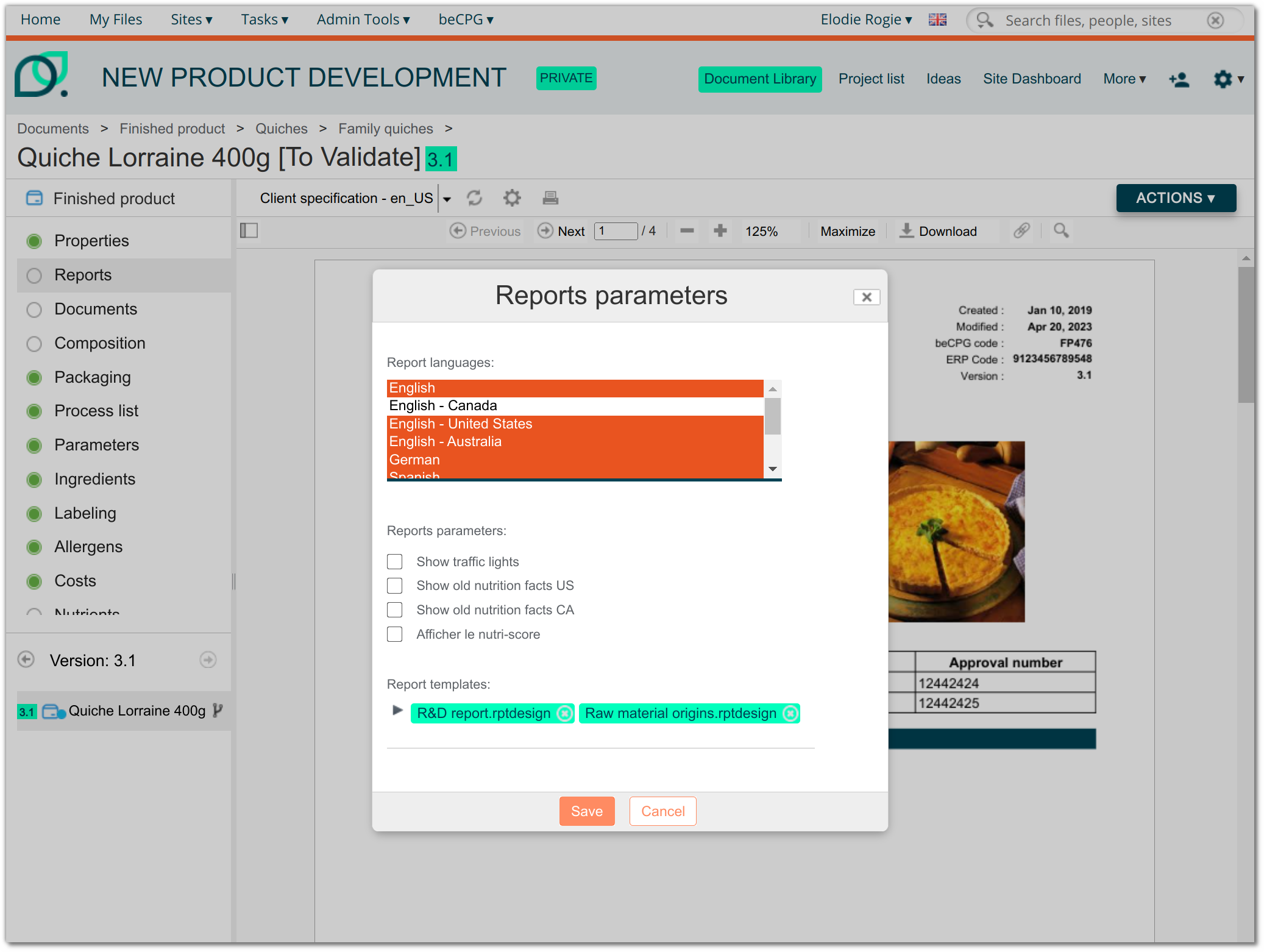
To modify it, override the <config> of the product with the node-type evaluator, then modify the <forms> with id="reports-parameters".
    <config evaluator="node-type" condition="bcpg:finishedProduct">
      <forms>
        <form id="reports-parameters">
Form per site
You can define a form specific to a particular site. To do this, add the site ID to the form ID.
Example: Definition of a Raw material creation form in the validated products site (ID valid)
<config evaluator="model-type" condition="bcpg:rawMaterial">
   <forms>
      <form id="create-valid">
         </form>
Datalists form
In the datalists of a product (tabs in the left panel: properties, composition, etc.), you can configure the columns displayed in the central panel.
Example: Columns of the Nutrients datalist of a finished product
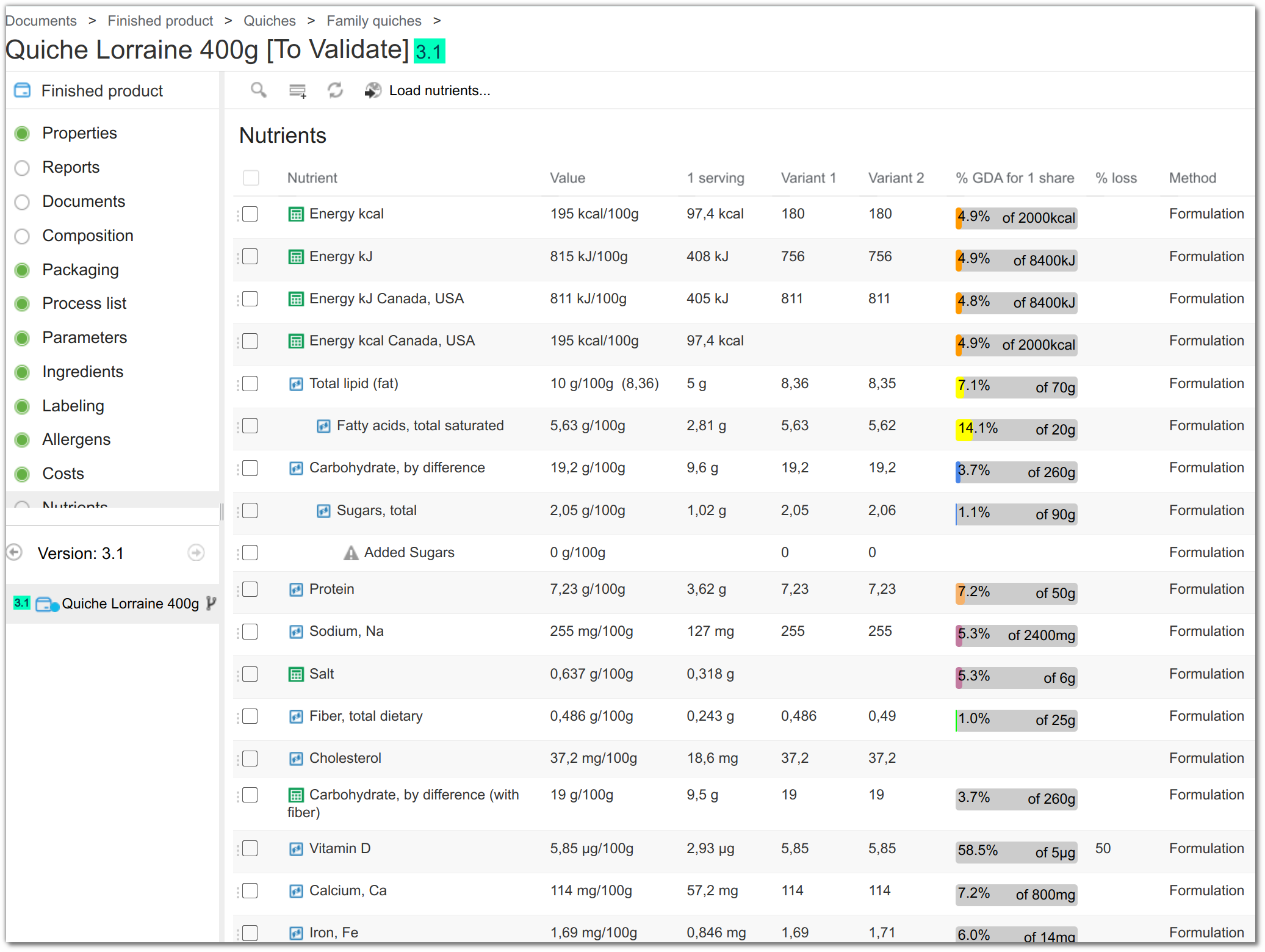
To add or remove displayed columns, override the <config> of the product with the model-type evaluator and modify the <forms> with id="datagrid".
    <config evaluator="model-type" condition="bcpg:nutList">
       <forms>
          <form id="datagrid">
In the list form, you can also specify column sizes with the help parameter (see Help).
Export form
You can create an export form on a list, used when exporting it to Excel with the "Export to Excel" button:
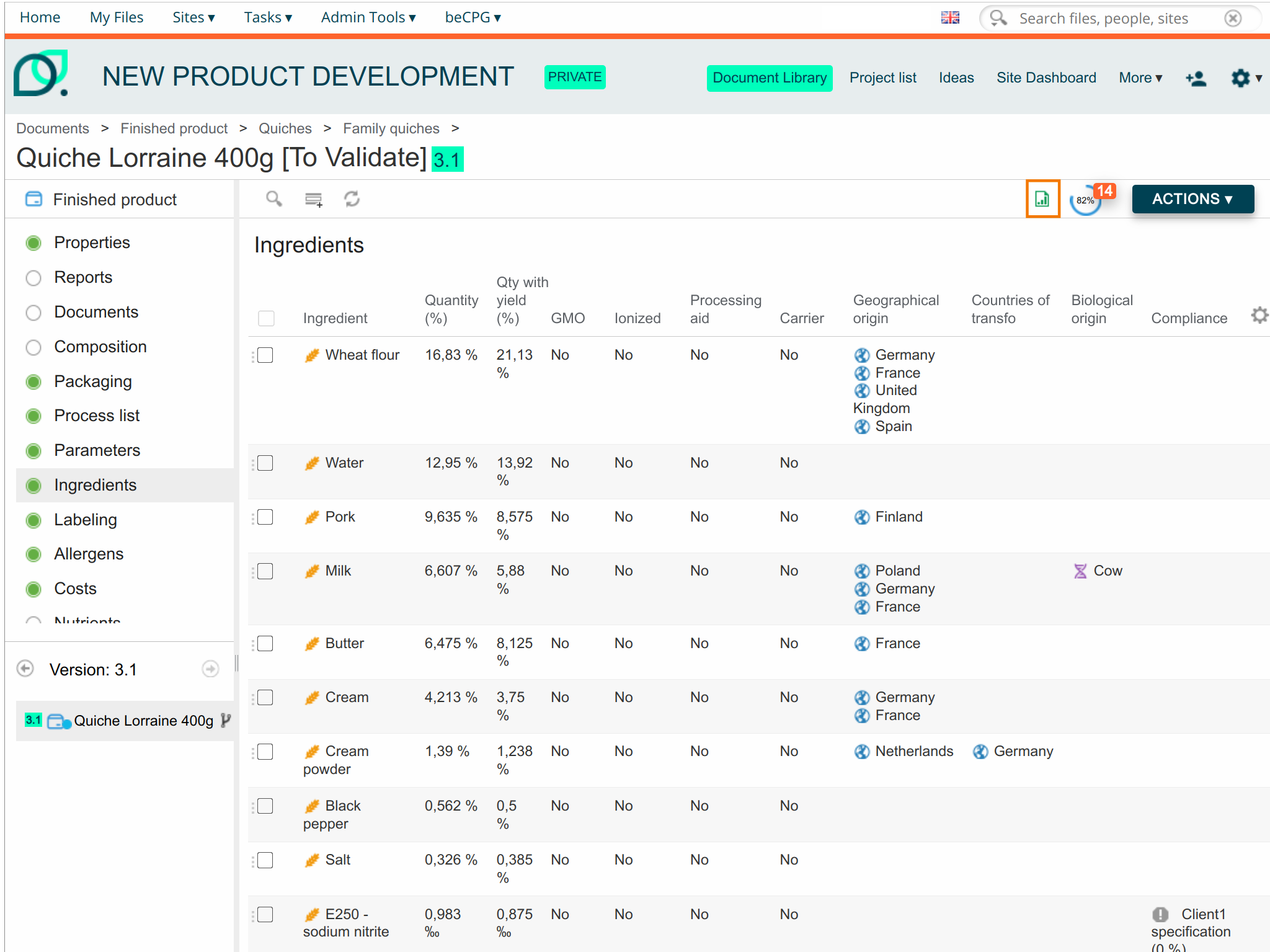
<config evaluator="model-type" condition="bcpg:ingList">
       <forms>
          <form id="export">
If there is no "export" form, the Excel export uses the "datagrid" form.
List form
In some datalists (such as nutrients) of a specific type, a panel on the right displays a form with additional information.
Example: Nutrient filter form for a finished product
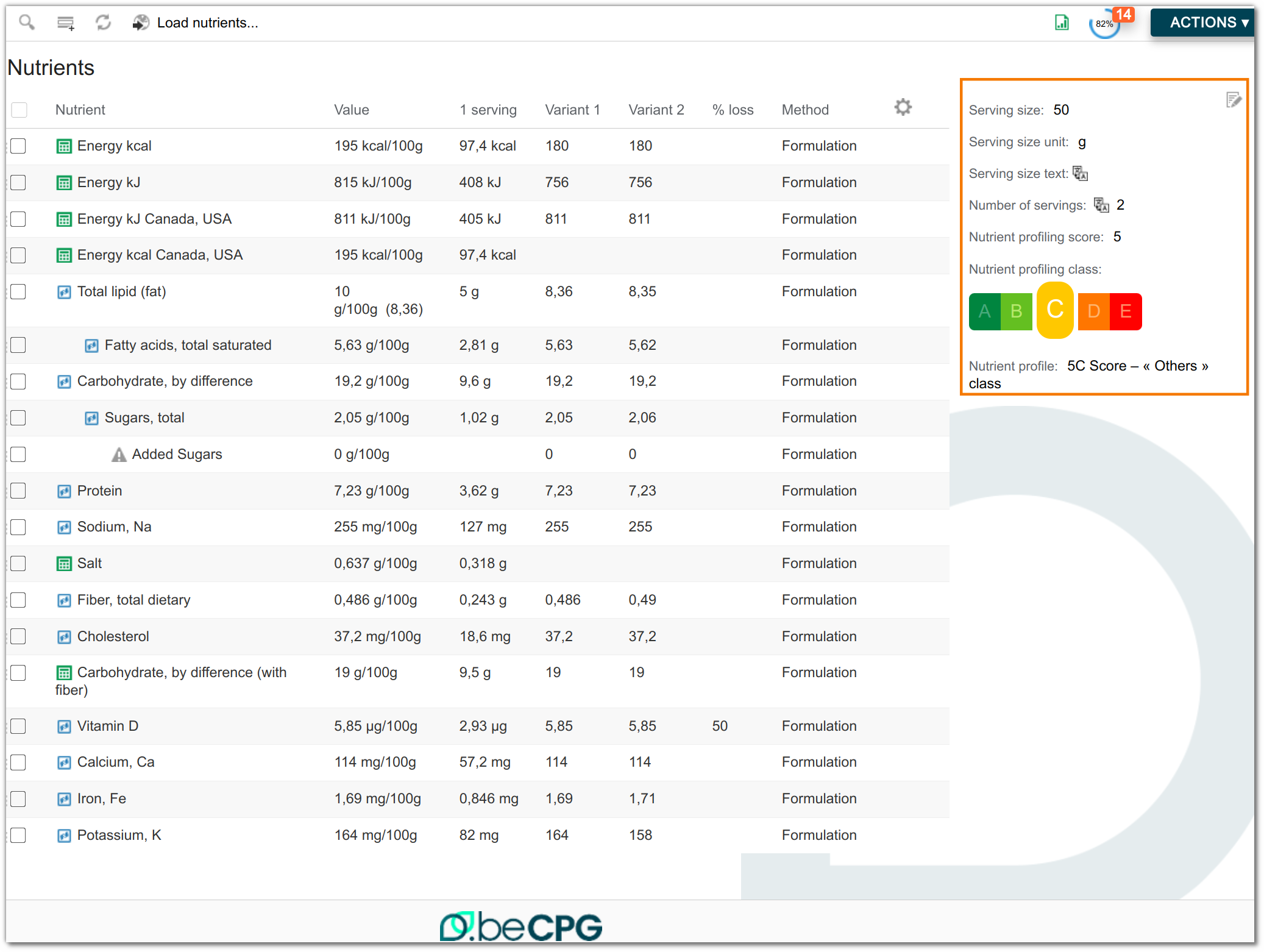
To modify it, override the <config> of the product with the node-type evaluator and modify the <forms> with id="datalist".
Example: for the Nutrients datalist of a finished product, the form ID is "nutList".
    <config evaluator="node-type" condition="bcpg:finishedProduct">
       <forms>
          <form id="nutList">
Filter and search form
Filter
In the product datalists, you can filter the displayed items by clicking the magnifying glass. A form with the filter criteria is then displayed.
Example: Nutrient filter form for a finished product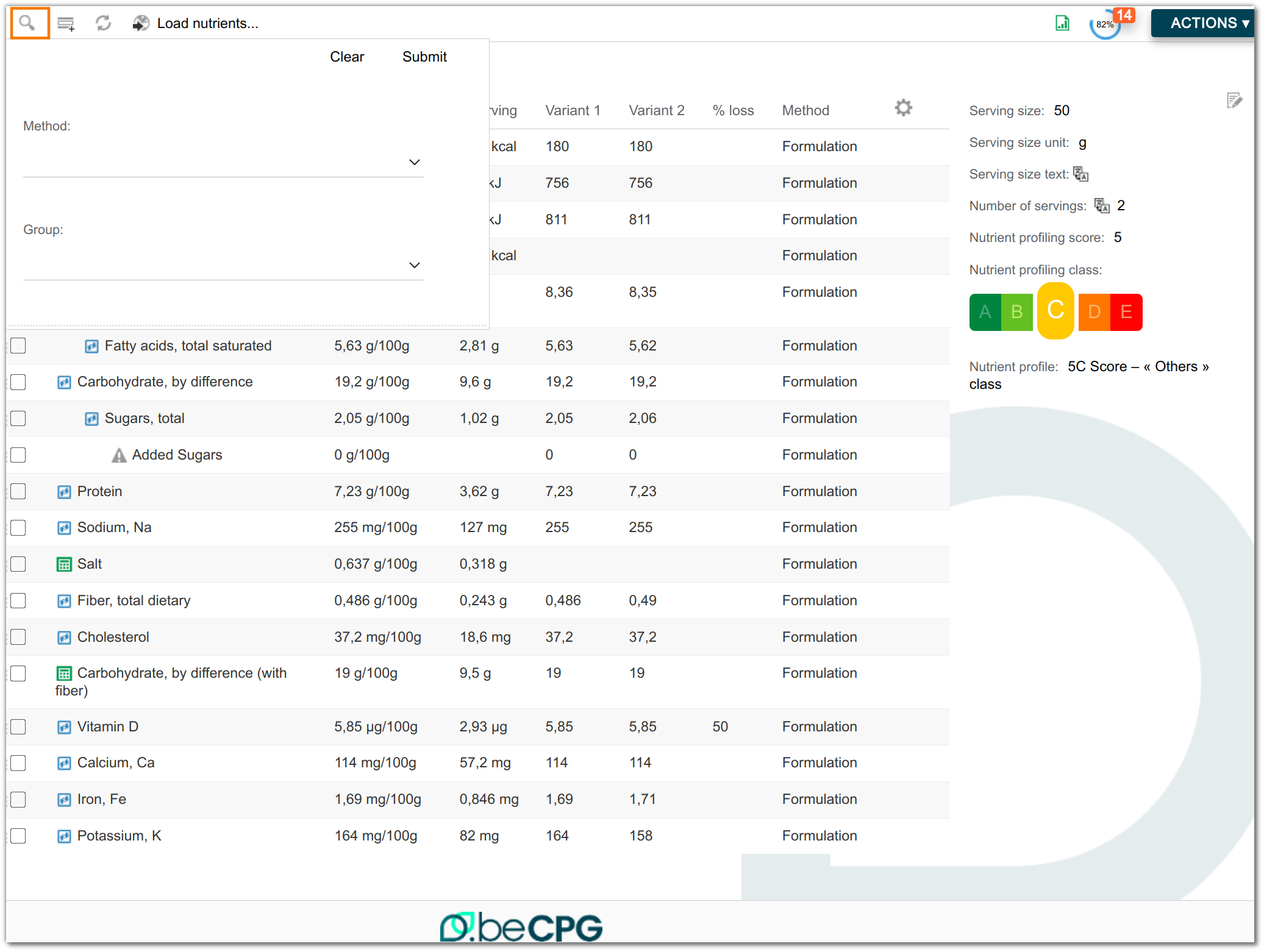
To modify it, override the <config> of the product with the model-type evaluator and modify the <forms> with id="filter".
    <config evaluator="model-type" condition="bcpg:nutList">
       <forms>
          <form id="filter">
Search
This is the form displayed when running an advanced search on a specific product type.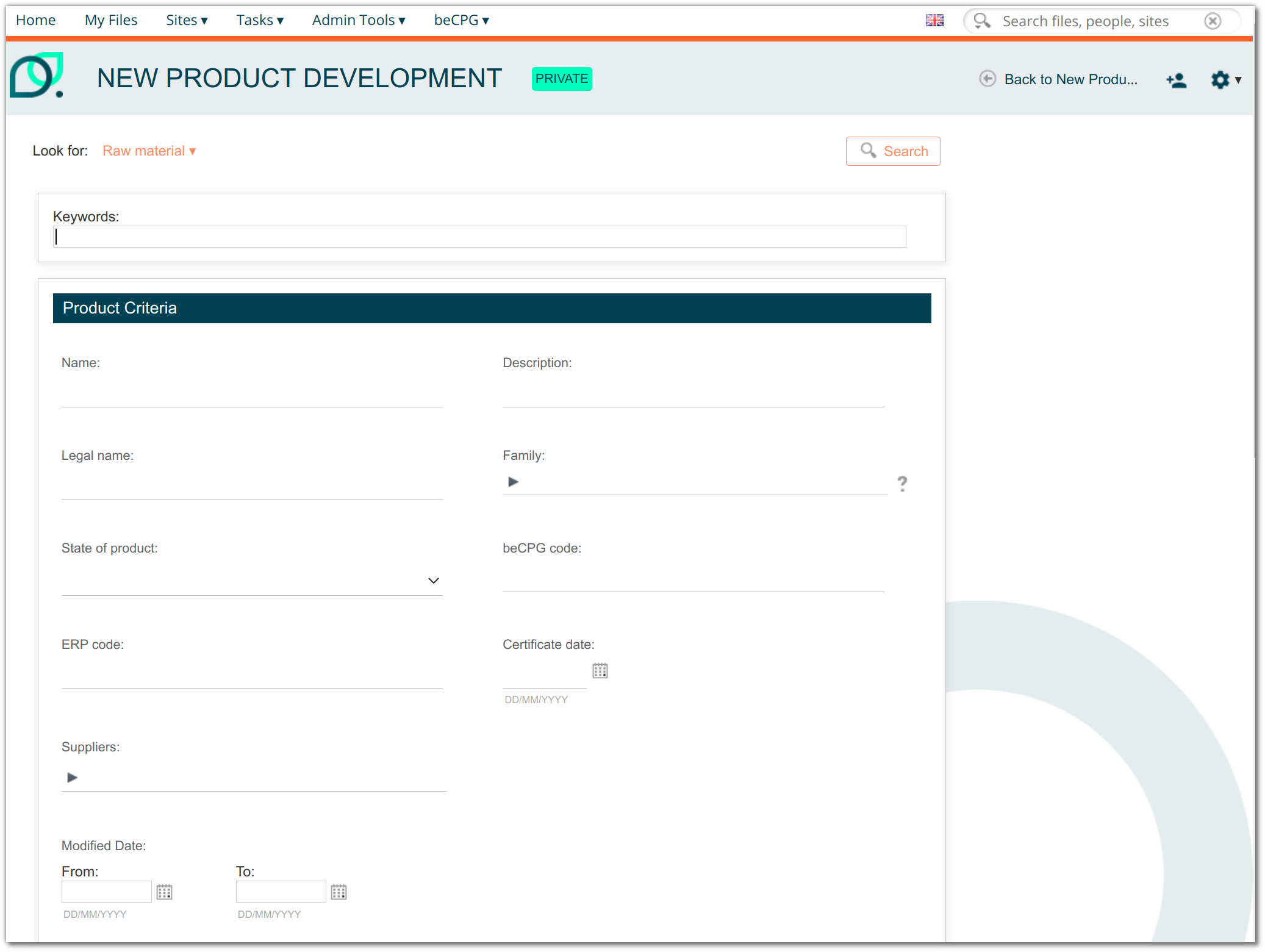
To modify it, override the <config> of the product with the model-type evaluator and modify the <forms> with id="search".
    <config evaluator="model-type" condition="bcpg:rawMaterial">
       <forms>
          <form id="search">
Bulk edit and where used form
Bulk edit
This is the form displayed during a bulk edit, to choose which fields to display for a given content type. It is displayed by clicking "Bulk Edit" from the warehouse.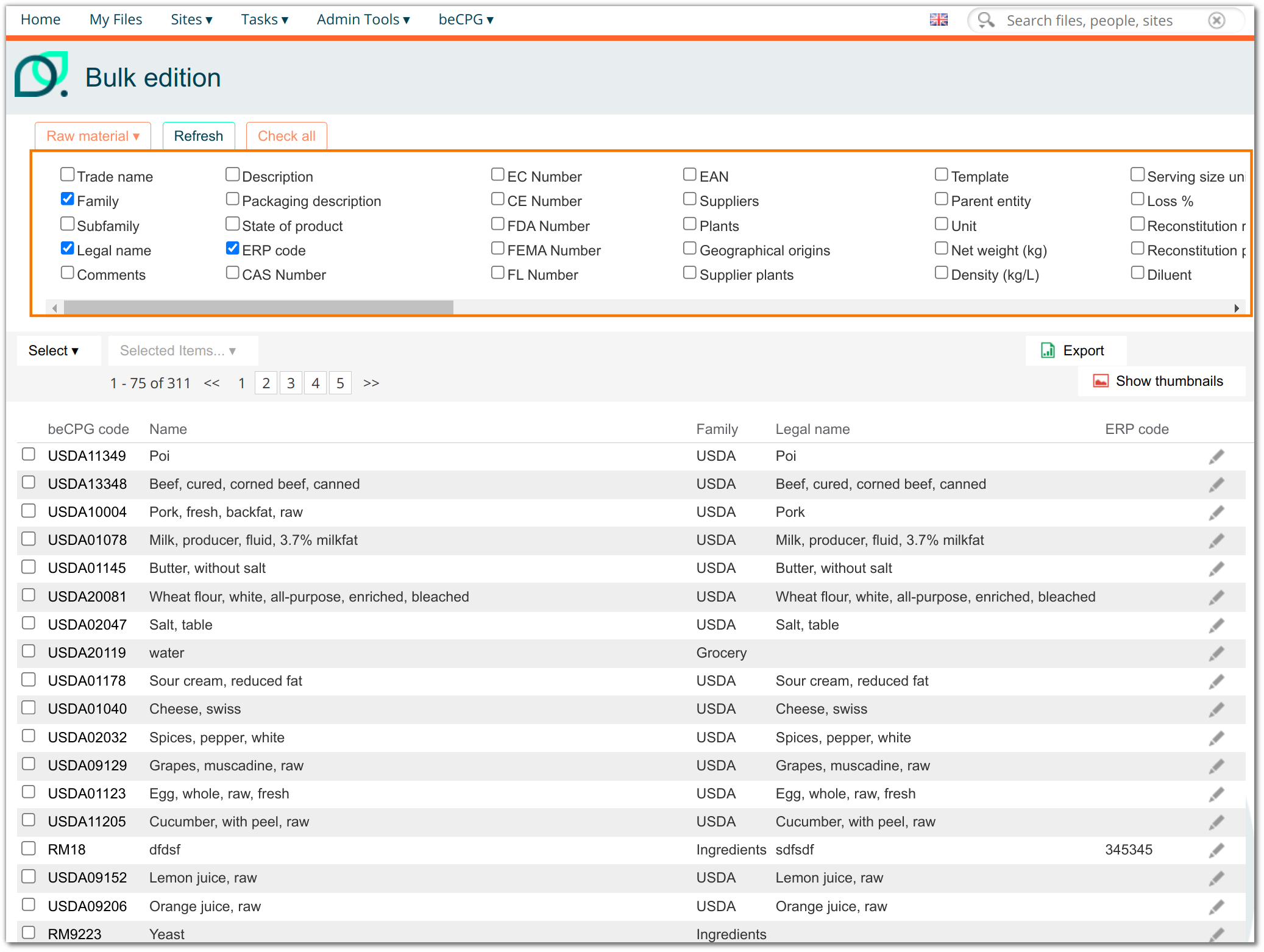
To modify it, override the <config> of the product with the model-type evaluator and modify the <forms> with id="bulk-edit".
    <config evaluator="model-type" condition="bcpg:rawMaterial">
       <forms>
         <form id="bulk-edit">
Where used
For each product type, there is a "Where-Used" datalist. This list has the ID WUsed.
Example: where used of a Finished product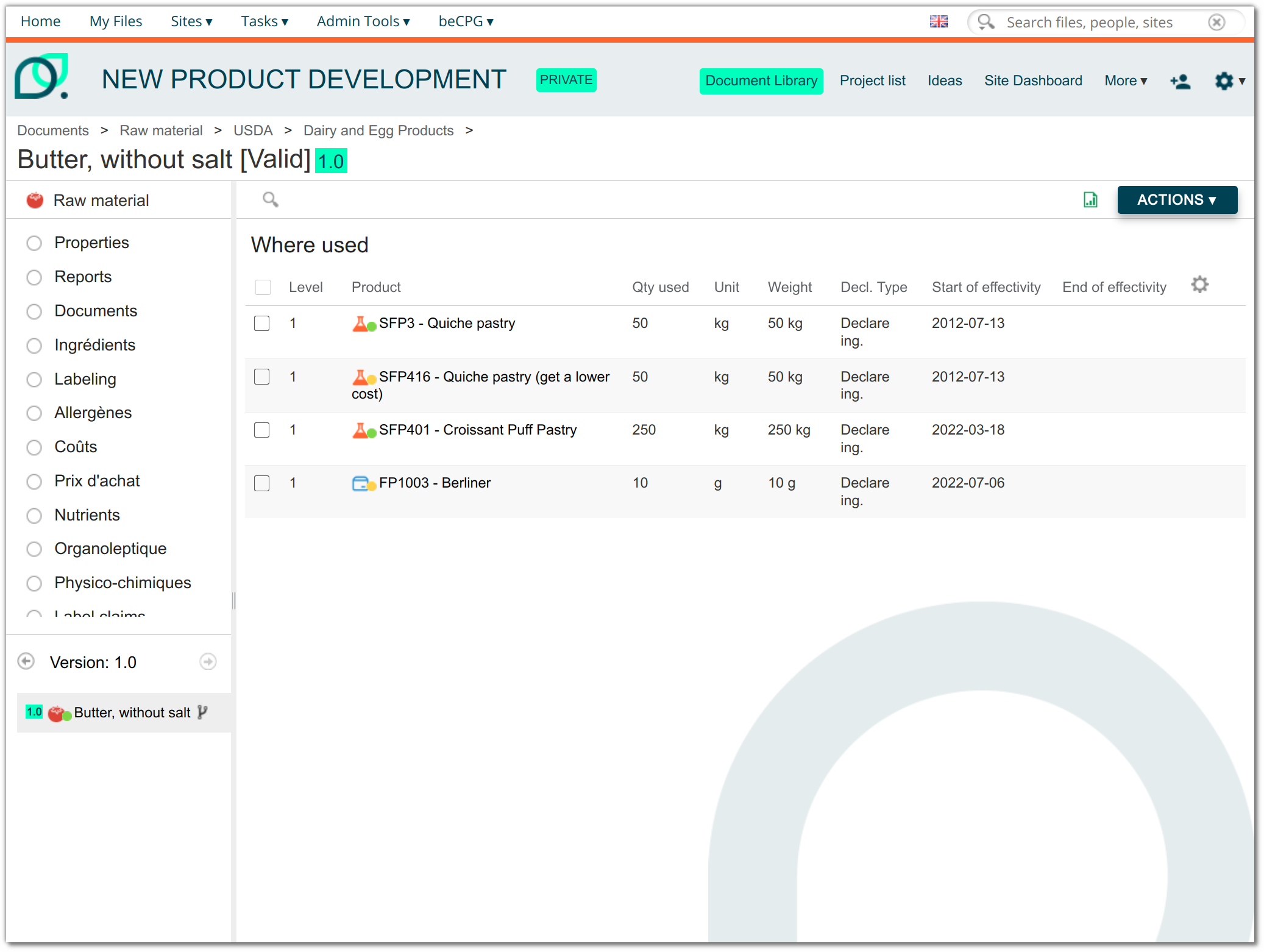
Where used filter
In some datalists, such as the nutrient list, you can view where a selected item is used. Select a nutrient and click "Where-used". A pop-up window with a form is then displayed.
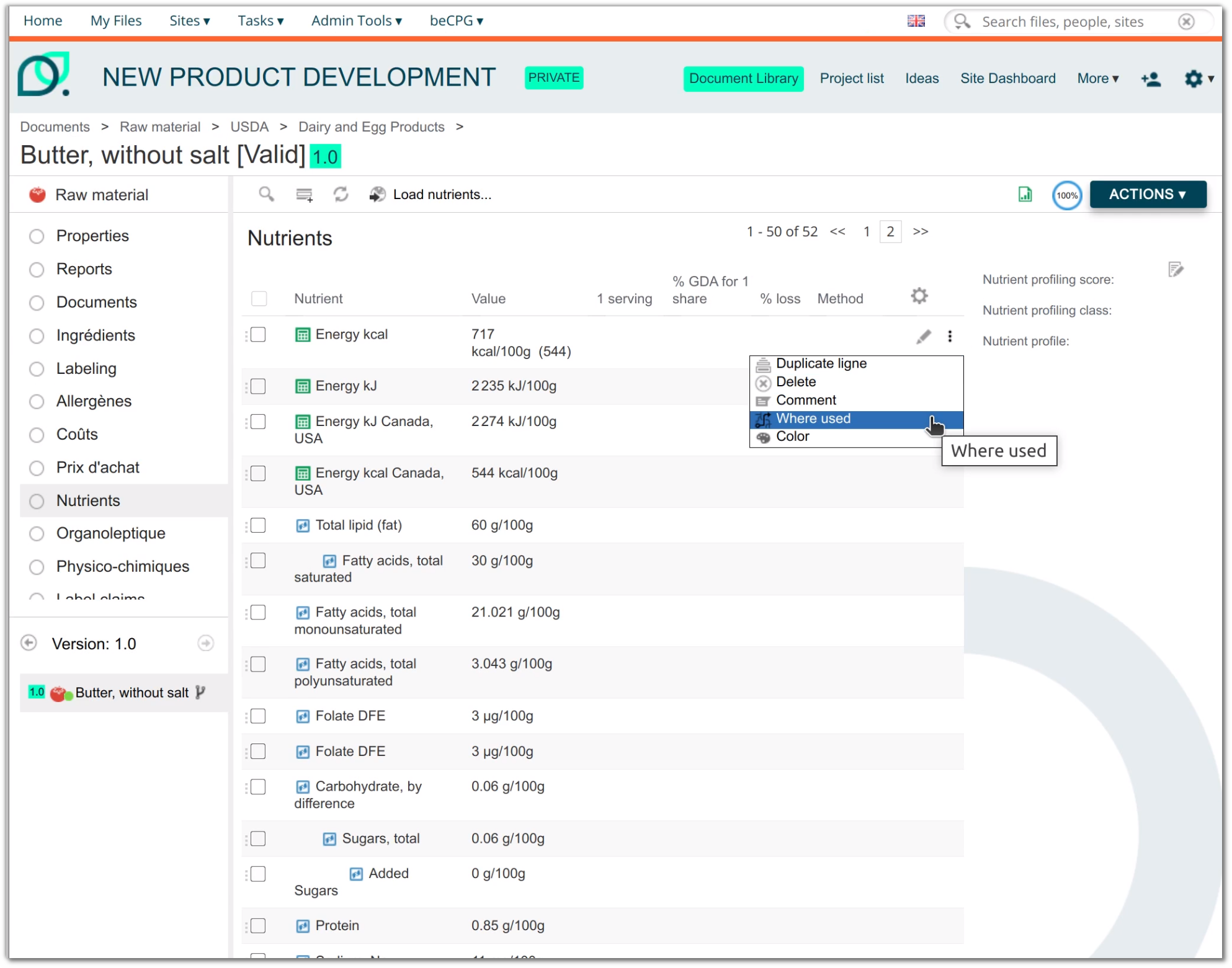
To modify it, override the <config> of the product with the model-type evaluator and modify the <forms> with id="filter-wused".
    <config evaluator="model-type" condition="bcpg:compoList">
       <forms>
         <form id="filter-wused">
Where used list
Once you have set the where-used filter in the pop-up, you are redirected to the "Where Used" page. Choose the search parameters from the drop-down menus. The search results are then displayed.
Example: where-used list for a cost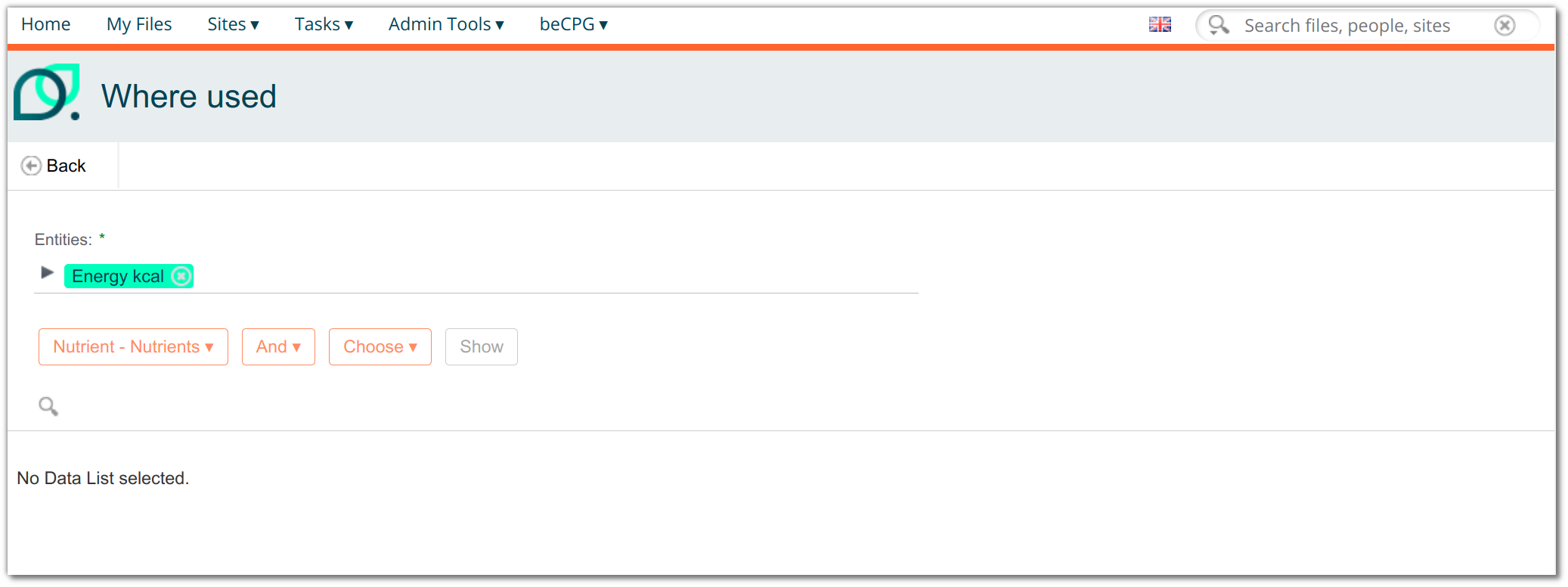
To modify it, override the <config> of the product with the model-type evaluator and modify the <forms> with id="datagridWUsed".
    <config evaluator="model-type" condition="bcpg:compoList">
       <forms>
         <form id="datagridWUsed">
- Where used export
As with the "export" form, you can create an export form on a where-used list:
<config evaluator="model-type" condition="bcpg:ingList">
       <forms>
          <form id="exportWUsed">
If there is no "exportWUsed" form, the Excel export uses the "datagridWUsed" form.
Form fields accessible in security rules
This form is used to define which fields are accessible by type in the security rules. If no specific “security” form is provided, the configuration automatically uses the default model.
<config evaluator="model-type" condition="bcpg:ingList">
       <forms>
          <form id="security">
Visibility
To display a field, it must be present in the <field-visibility> section.
Each field is declared with a <show> tag whose id is the name of the property. To force a field to be displayed, add "force=true".
<show id="bcpg:legalName" force="true" />
Appearance
You can modify the formatting of a field in the <appearance> section.
Each field is declared with a <field> tag whose id is the name of the property.
    <field id="bcpg:meatCharacts" set="charact">
        <control template="/org/alfresco/components/form/controls/textarea.ftl" >
            <control-param name="rows">4</control-param>
        </control>
    </field>
Set
Sets define groups of fields and display them in sections (e.g. Designation).
<set id="mainInfo" appearance="bordered-panel" label-id="becpg.forms.set.designation.label" template="/org/alfresco/components/form/2-column-set.ftl" />
    <field id="bcpg:entityTplEnabled" set="template" />
Available configuration options:
template
- “/org/alfresco/components/form/2-column-set.ftl”: displays the fields in two columns.
- “/org/alfresco/components/form/3-column-set.ftl”: displays the fields in 3 columns.
parent=“idOnglet”: associates a section (
<set>) with a specific tab. To display sets as tabs, add the following parameters after the “appearance” property:
<edit-form template="/org/alfresco/components/form/tab-edit-form.ftl"/>
<view-form template="/org/alfresco/components/form/tab-edit-form.ftl"/>
<create-form template="/org/alfresco/components/form/tab-edit-form.ftl"/>
- appearance
- “bordered-panel”: read/write section with a dark header.
- “panel”: read-only section with a light header, used to nest sections within a “bordered-panel”.
The template attribute defines the FreeMarker template used to display the field or group of fields. If it is not specified, the system uses the default template. This template also determines the layout, including the number of columns used to display the fields.
Controls
The control-param lets you apply filters and conditions in the forms to limit the results of a field.
- Change the display of associations
With extra.characNameFormat, the control must be encoded.
Example: extra.characNameFormat = {ml_bcpg:charactName} - {bcpg:casNumber}
<field id="bcpg:ingListIng" set="1-col-1">
<control template="/org/alfresco/components/form/controls/autocomplete-association.ftl">
<control-param name="ds">becpg/autocomplete/targetassoc/associations/bcpg:ing?extra.searchTemplate=%25(bcpg%3AcharactName%20bcpg%3AerpCode%20bcpg%3AlegalName%20bcpg%3AingCEECode%20bcpg%3AcasNumber%20bcpg%3AecNumber%20bcpg%3AceNumber%20bcpg%3AfdaNumber%20bcpg%3AfemaNumber%20bcpg%3AflNumber)&extra.characNameFormat=%7Bml_bcpg%3AcharactName%7D%20-%20%7Bbcpg%3AcasNumber%7D&excludeProps=bcpg:excludeFromSearch%7Ctrue
</control-param>
</control>
</field>
- Multilingual control
This control appears automatically next to the MLText field. It allows the translation of a field. Click the flag to open the multilingual field editing pop-up and select the language to add:
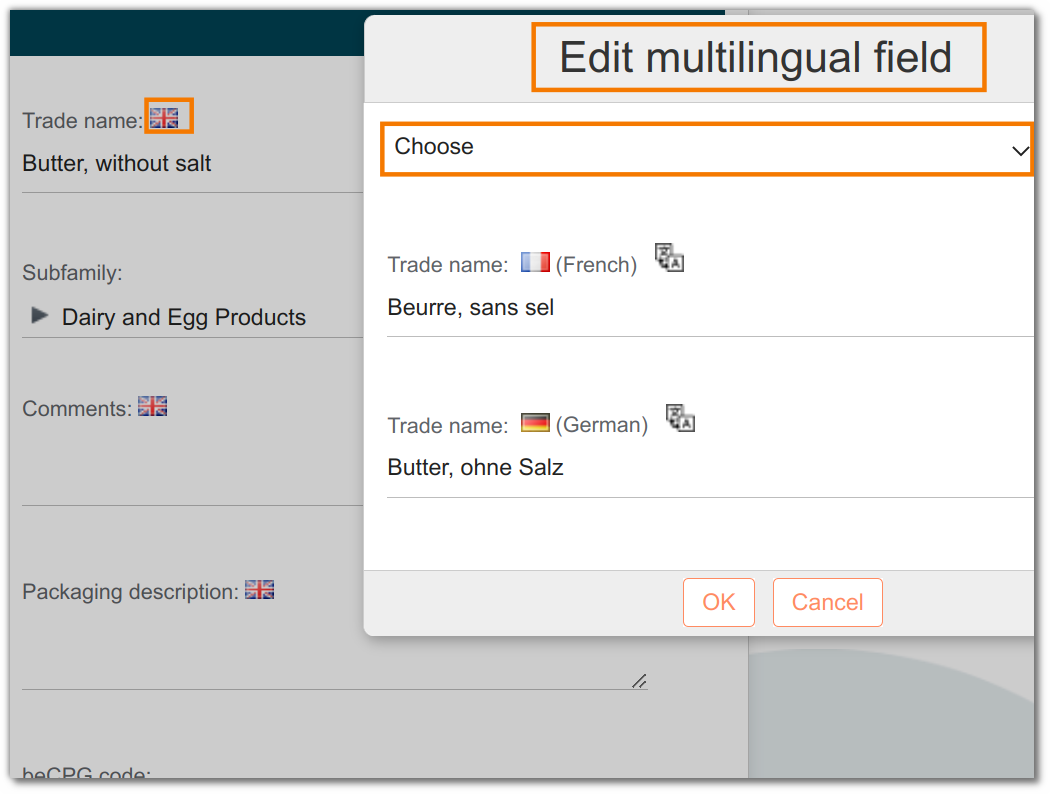
To add this control to a field, use the template defined in "mtlanguage.ftl".
<field id="rep:reportLocales" >
    <control template="/org/alfresco/components/form/controls/mtlangue.ftl">
         <control-param name="insertBlank">true</control-param>
    </control>
</field>
Note: you can use DeepL instead of Google Translate to generate translations. To set up the multilingual control: click here
- Autocompletion control
This control allows you to automatically complete a field. The user selects the desired value from the drop-down menu.
The module currently provides two controls that can be used as is:
Suggest proposals for a text field
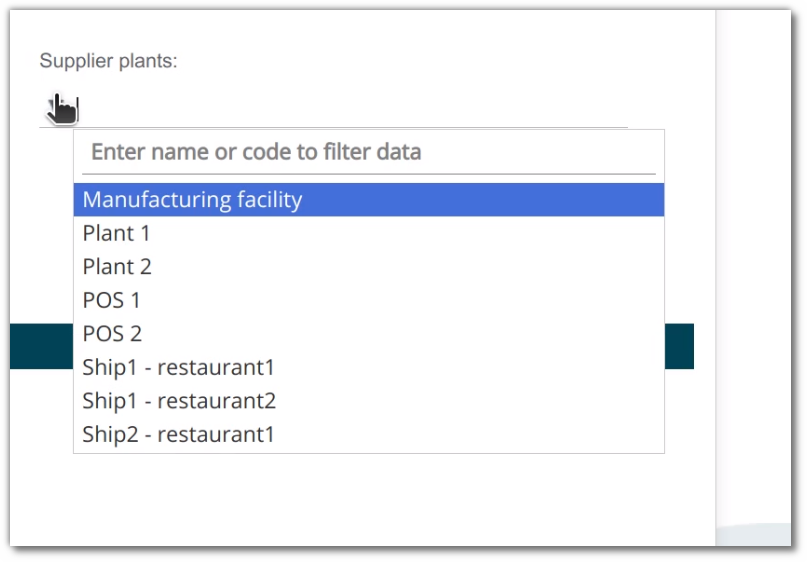
To add this control to a field, use the template defined in "autocomplete.ftl".
<field id="bcpg:productHierarchy1" help-id="becpg.forms.help.productHierarchy1" set="2-col-product-criteria">
    <control template="/org/alfresco/components/form/controls/autocomplete.ftl">
        <control-param name="ds">becpg/autocomplete/allLinkedvalue/values/System/ProductHierarchy/bcpg:entityLists/semiFinishedProduct_Hierarchy
        </control-param>
        <control-param name="multiple">true</control-param>
    </control>
</field>
- Suggest elements to associate with a node. To add this control to a field, use the template defined in "autocomplete-association.ftl".
<field id="bcpg:packagingListProduct" set="3-col-product-criteria">
    <control template="/org/alfresco/components/form/controls/autocomplete-association.ftl">
        <control-param name="ds">becpg/autocomplete/product classNames=bcpg:packagingMaterial,bcpg:packagingKit
        </control-param>
    </control>
</field>
You can also have more than one condition. To do so, use a filter. The URL needs a specific encoding: use
& (equivalent of &), then add the second condition followed by %7C, which isolates the condition (equivalent of "|").
Example: to limit the results to Finished products in the validated state:
<control-param name="ds">becpg/autocomplete/product?classNames="Typed'entité"&filter="secondecondition"%7C"Condition"</control-param>
or
<control-param name="ds">becpg/autocomplete/product?classNames=bcpg:finishedProduct&filter=bcpg:productState%7CValid</control-param>
We first use classNames to limit the choice to Finished products, then filter and a "|" to keep only the Finished products in the validated state.
To configure autocompletion controls: click here
Unit control
When the user selects a unit (L, cL, mL, piece, etc.), for example when editing the properties of a product, a "net weight (kg)" field can be displayed to the right of the field, depending on the chosen unit.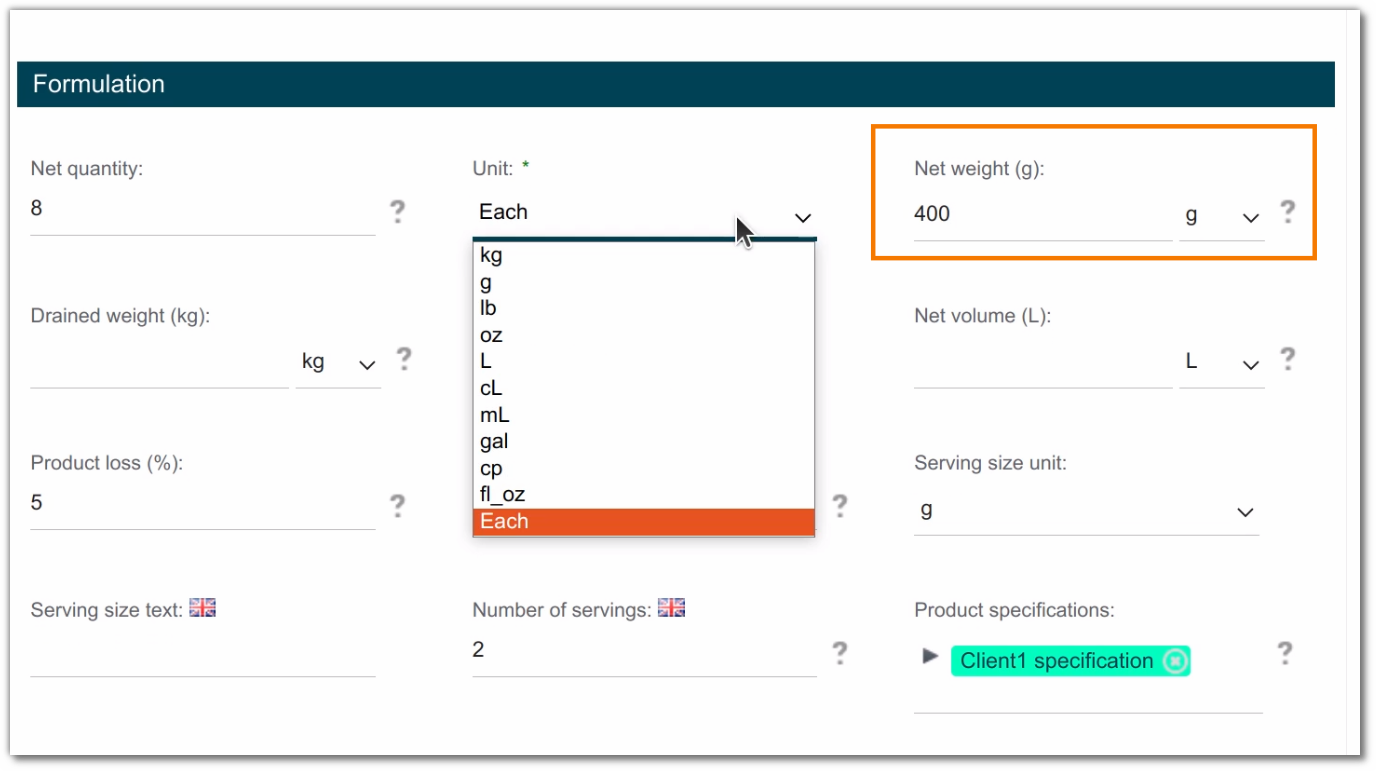 To add this control to a field, use the template defined in "product-unit.ftl".
<field id="bcpg:productUnit" set="formulation">
    <control template="/org/alfresco/components/form/controls/product-unit.ftl">
        <control-param name="options">kg,g,lb,oz,L,cL,mL,gal,cp,fl_oz,P becpg.forms.field.productUnit
        </control-param>
    </control>
</field>
- Control list template You can redefine the values of a list field created in the beCPG model (for example, the list of units) using the following format: ModelValue|DisplayedValue
Example:
<field id="bcpg:productUnit" set="formulation">
    <control template="/org/alfresco/components/form/controls/product-unit.ftl">
        <control-param name="options">kg|KG,g,lb,oz,L,cL,mL,gal,cp,fl_oz,P|becpg.forms.field.productUnit
        </control-param>
    </control>
</field>
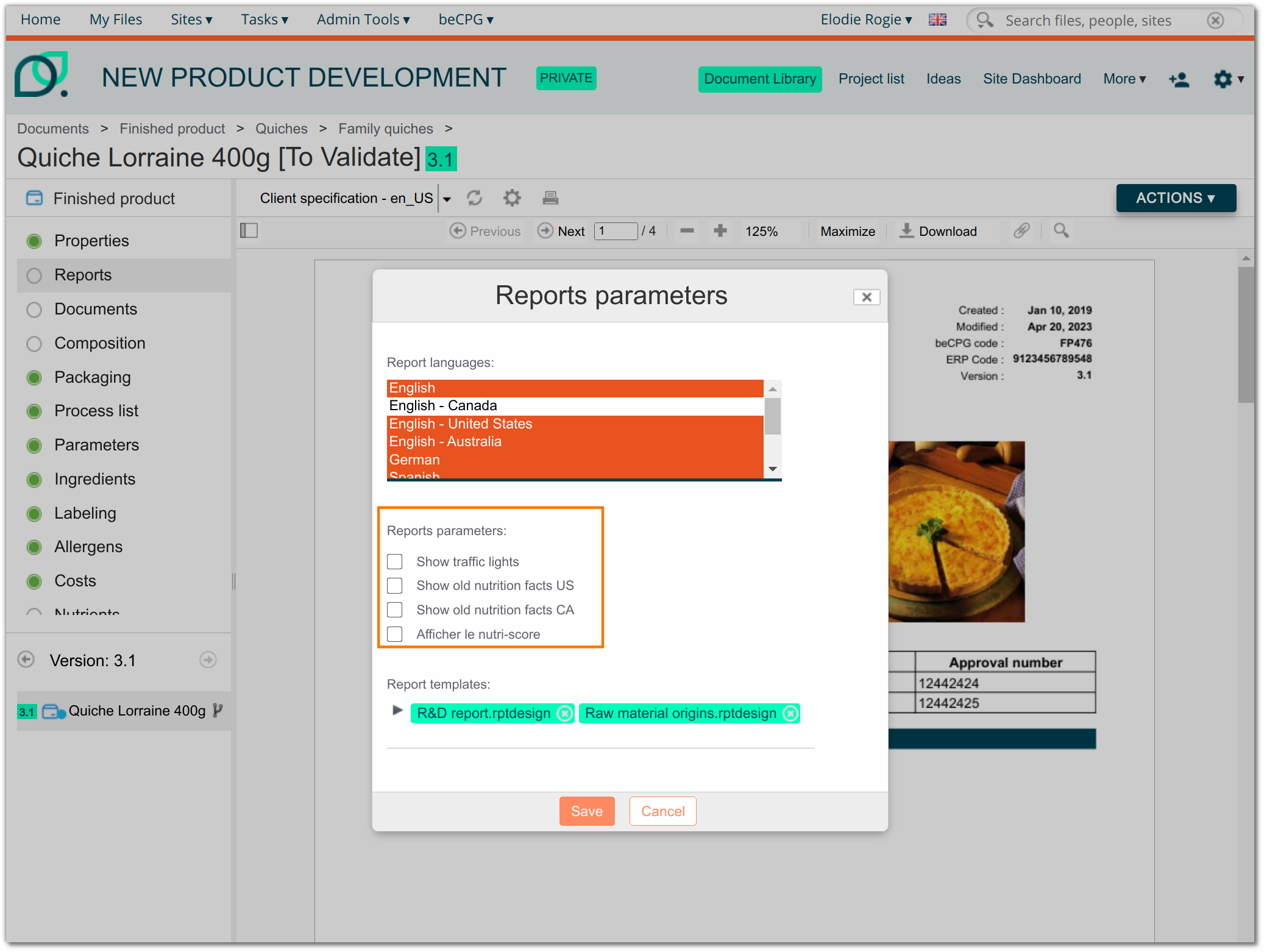
- Checkbox control
When several answers are possible, for example in the Report Settings, use this control so that users do not have to press CTRL to select multiple options.
<field id="rep:reportParameters" >
    <control template="/org/alfresco/components/form/controls/checkboxmany.ftl"/>
</field>
- Decision tree control
Since surveys are now available, we recommend using them rather than building decision trees. To configure the decision tree control: click here
Color picker control
Some fields are color pickers and use a color picker control.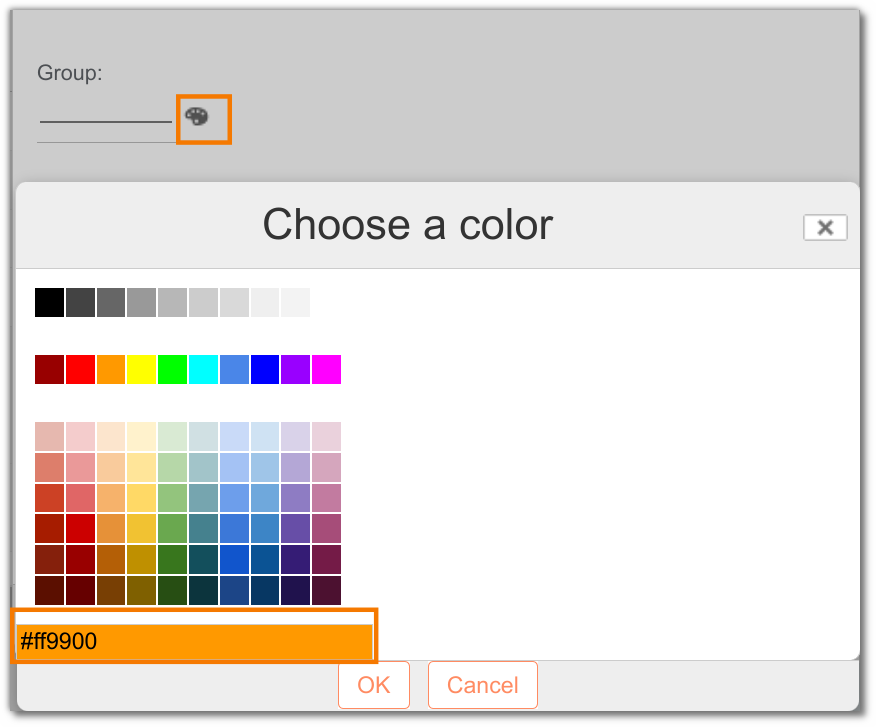
To add this control to a field, use the template defined in "selectcolorpicker.ftl".
<field id="bcpg:dynamicCharactGroupColor">
    <control template="/org/alfresco/components/form/controls/selectcolorpicker.ftl" />
</field>
- Control to fill a value by default
Some fields can be filled in by default with a specific value.
e.g.: The field is always filled in with 125
<control template="/org/alfresco/components/form/controls/textfield.ftl">
    <control-param name="defaultValue">125</control-param>
</control>
- Control to restrict the number of characters
e.g.: The field cannot contain more than 25 characters.
<control>
      <control-param name="maxLength">25</control-param>
</control>
- Control to add a link
Association fields can have a link that opens the linked entity in one click. This is the case, for example, of the entity template. This link can be disabled (false) or enabled (true).
<control-param name="showLink">false</control-param>
- Control to add a link to a URL
You can enter a URL in a text field and turn it into a link.
<control template="/org/alfresco/components/form/controls/httplink.ftl" />
- Field controls for search
| Field Type | Control |
|---|---|
| Multilingual text | <control template="/org/alfresco/components/form/controls/textfield.ftl" /> |
| Text with constraints | <control template="/org/alfresco/components/form/controls/selectone.ftl"> <control-param name="isSearch">true</control-param> <control-param name="insertBlank">true</control-param> </control> |
| Text with constraints - Multiple selection | <control template="/org/alfresco/components/form/controls/selectmany.ftl"> <control-param name="isSearch">true</control-param> <control-param name="forceEditable">true</control-param> <control-param name="insertBlank">true</control-param> </control> |
| Text with constraints - single selection to multiple selection | <control template="/org/alfresco/components/form/controls/selectmany.ftl"> <control-param name="multiple">true </control-param> <control-param name="isSearch">true</control-param> <control-param name="forceEditable">true</control-param> <control-param name="insertBlank">true</control-param> </control> |
| Boolean | <control template="/org/alfresco/components/form/controls/selectone.ftl"> <control-param name="insertBlank">true</control-param> <control-param name="isSearch">true</control-param> <control-param name="options">true|data.boolean.true,false|data.boolean.false</control-param> </control> |
| Date | <control template="/org/alfresco/components/form/controls/daterange.ftl" /> |
| Number | <control template="/org/alfresco/components/form/controls/numberrange.ftl"> <control-param name="forceEditable">true</control-param> </control> |
| Association | <control template="/org/alfresco/components/form/controls/autocomplete-association.ftl"> <control-param name="ds">becpg/autocomplete/targetassoc/associations/bcpg:nameOfType </control-param> <control-param name="multipleSelectMode">true </control-param> <control-param name="isSearch">true </control-param> </control> |
- Control for Boolean fields (yes/no/empty)
<control template="/org/alfresco/components/form/controls/boolean.ftl" />
- Block the use of certain characters in a text field (regex)
Example: allow only values matching ^\d+(\.\d{1,2})?$
<field id="cm:title" set="title" read-only="false">
          <control template="/org/alfresco/components/form/controls/textfield.ftl">
             <control-param name="regex">^\d+(\.\d{1,2})?$</control-param>
          </control>
</field>
- Control for number field format (#,##0.###)
<control template="/org/alfresco/components/form/controls/number.ftl">
      <control-param name="format">#,##0.###</control-param>
</control>
- Control to restrict the field to a single selection
<field id="custom:productCategory" mandatory="false" read-only="false" set="mainInfo" >
    <control template="/org/alfresco/components/form/controls/selectone.ftl">
            <control-param name="multiple">false</control-param>
    </control>
</field>
Label
The label and label-id parameters let you modify the name of a field. label-id supports translation: it refers to a translation key defined in a properties file loaded on the system.
Example:
<field id="cm:title" set="mainInfo" label-id="becpg.forms.field.tradeName">
Help id
The help-id parameter displays a help description for filling in the field.
<field id="bcpg:legalName" help-id="becpg.forms.help.legalName" set="mainInfo" />
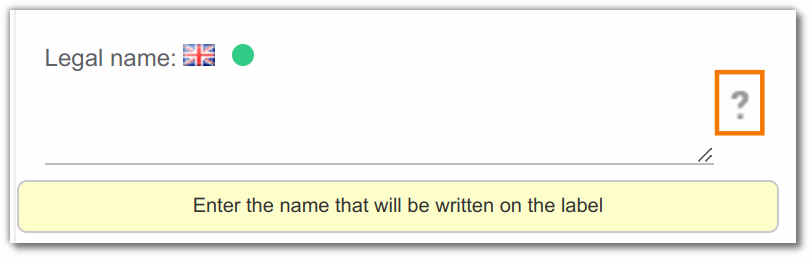
Like the label, this field can be translated into several languages.
Help
In list forms, the help parameter specifies the column sizes in JSON format.
Example:
<field help="{"maxAutoWidth":265,"pattern":"{cm:name}"}" id="cm:name" mandatory="false" read-only="true"/>
The possible parameters are:
{
 "with": 100, // Width
 "minWidth": 200, // Minimum width
 "maxAutoWidth": 500, // Maximum auto width
 "tooltip": 150, // Displays a tooltip if the text exceeds 150 characters (line break = 25 characters)
 "pattern": "{cm:name} - {bcpg:code}", // Pattern that can be used in a columnRenderer
 "className": "align-right|align-center|align-justify|indent|hide-ifopen|bold-ifopen|italic-ifchild|bold-ifclose|hide-ifchild|hide-iflevel1|hide-iflevel2...", // Aligns the text
 "numberFormat":  { "maximumSignificantDigits": 3, "minimumFractionDigits": 3 },
 "forceUnit": "ppm or perc" // Forces the ingredient or allergen quantity to be displayed in % or ppm
}
For the number format, see the options below: https://developer.mozilla.org/fr/docs/Web/JavaScript/Reference/Objets_globaux/Intl/NumberFormat
Mandatory
The mandatory="true" parameter makes the field mandatory.
<field id="bcpg:erpCode" mandatory="true" set="mainInfo" />
Read only
The read-only="true" parameter prevents field editing.
<field id="bcpg:code" read-only="true" set="mainInfo" />
Description
The description and description-id parameters let you override the description shown in the browser tooltip.
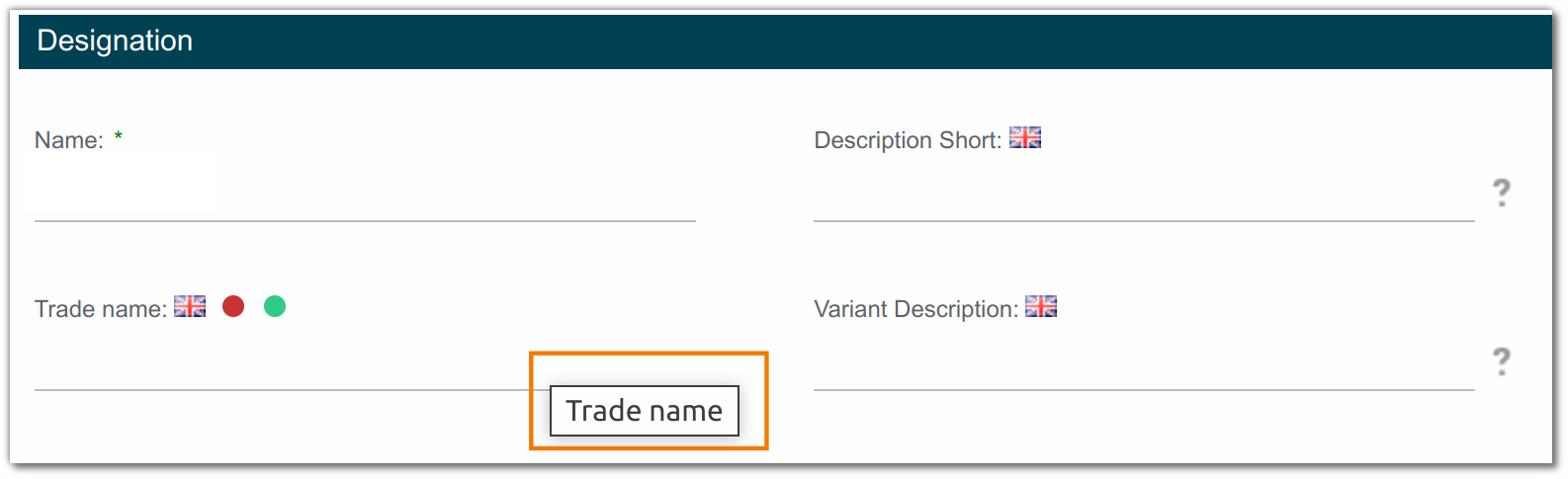
    <field id="cm:title" label-id="becpg.forms.field.tradeName" mandatory="false" read-only="false" set="mainInfo" description-id="becpg.forms.field.tradeName">
        <control template="/org/alfresco/components/form/controls/textfield.ftl" />
    </field>
Validation handler
A validation handler is a JavaScript function that the form calls when a field value must be validated. beCPG uses the following validation handlers, defined in becpg-validation-handler.js:
- mandatoryIf: makes a field mandatory depending on the selection of another field
- hideIf: hides a field depending on the selection of another field
- filterBy: filters the field based on the selection of the parent field
- GTIN: validates the field if it's in GTIN format
- Regular expressions can also be used in the hideIf conditions
To use these handlers, add constraints to the <field> whose ID is the field to validate in the form.
In the constraint, replace : with _. Depending on the kind of field, use a prefix:
- prop_ : in case of property
- assoc_ : in case of association
Note that the constraint must be based on a single-value field: it does not work on multi-value fields (example: a dropdown list text attribute allowing several values).
Example: Make the "acme:fieldId" field mandatory if the "bcpg:code" field is not empty:
This setting only works on the ‘mandatoryIf’ validation handler.
<field id="acme:fieldId">
     <constraint-handlers>
         <constraint type="MANDATORY" validation-handler="beCPG.forms.validation.mandatoryIf" event="keyup,change@[{'prop':'prop_bcpg_code', 'condition': ''}]" />
     </constraint-handlers>
</field>
Example: Hide the "bcpg:code" field if the "acme:fieldId" field does not have the value Other:
<field id="acme:fieldId">
     <constraint-handlers>
         <constraint type="MANDATORY" validation-handler="beCPG.forms.validation.hideIf" event="onclick,oninput,onchange,onhover,change@[{'prop':'prop_bcpg_code','condition':'RegExp_^(?!Autre$).*'}]" />
     </constraint-handlers>
</field>
Example: Hide the "bcpg:client" association if the "acme:fieldId" field is empty:
<field id="acme:fieldId">
     <constraint-handlers>
         <constraint type="MANDATORY" validation-handler="beCPG.forms.validation.hideIf" event="onclick,oninput,onchange,onhover,change@[{'prop':'assoc_bcpg_client','condition':''}]" />
     </constraint-handlers>
</field>
Example: Hide several fields if "gs1:isTradeItemAVariableUnit" is empty or false:
<field help-id="becpg.forms.help.gs1.isTradeItemAVariableUnit" id="gs1:isTradeItemAVariableUnit" mandatory="false" read-only="false" set="hierarchyPanel">
    <constraint-handlers>
        <constraint type="MANDATORY" validation-handler="beCPG.forms.validation.hideIf"  event="keyup,change@[
            {'prop':'prop_gs1_variableWeightAllowableDeviationPercentage', 'condition' : '|false'},
            {'prop':'prop_gs1_variableWeightRangeMinimum', 'condition' : '|false'},
            {'prop':'prop_gs1_variableWeightRangeMaximum', 'condition' : '|false'},
            {'prop':'prop_gs1_variableTradeItemType', 'condition' : '|false'},
            {'prop':'prop_gs1_eanCodeWeight', 'condition' : '|false'}
        ]" />
     </constraint-handlers>
</field>
Example: Hide the "acme:fieldId" field if the "bcpg:code" field is empty:
<field id="acme:fieldId">
      <constraint-handlers>
         <constraint type="MANDATORY" validation-handler="beCPG.forms.validation.hideIf" event="onclick,oninput,onchange,onhover,change@[{'prop':'prop_bcpg_code','condition':''}]"/>
     </constraint-handlers>
</field>
Example: Validate the "acme:fieldId" field if it is in GTIN format:
<field id="acme:fieldId">
     <constraint-handlers>
         <constraint type="MANDATORY" validation-handler="beCPG.forms.validation.GTIN" event="keyup" />
     </constraint-handlers>
 </field>
Example: Filter the "acme:fieldId" field to contain only values prefixed with the "field_bcpg_code" field value:
<field id="acme:fieldId">
    <constraint-handlers>
        <constraint type="MANDATORY" validation-handler="beCPG.forms.validation.filterBy" event="keyup,change@[{'prop':'prop_bcpg_code','condition':'STARTWITH'}]" />
    </constraint-handlers>
</field>
More details at: https://docs.alfresco.com/content-services/latest/
3. Configuration files publication
Files update
To apply the changes, import the updated files:
- Import the model file {$client}Model.xml into the "Repository > Data dictionary > Model" folder.
- Import the form file {$client}-form-config.xml into the "Repository > Data dictionary > Configurations" folder.
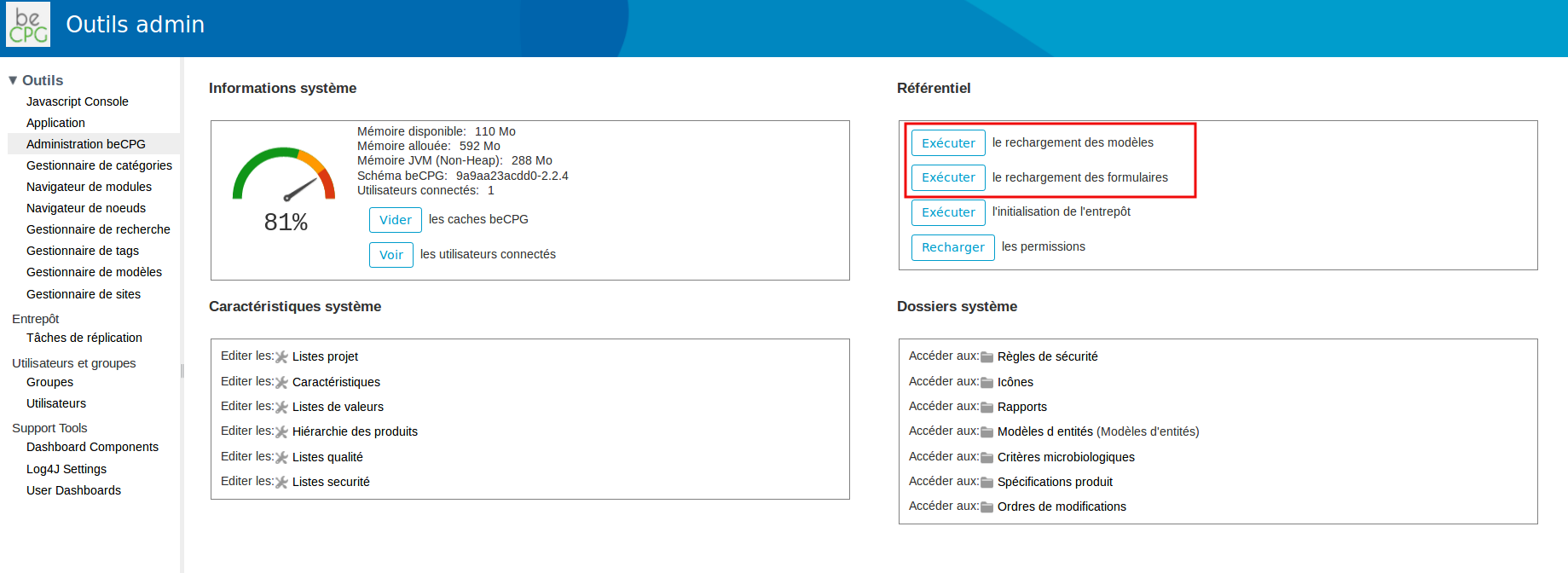
Model refresh and publication
To publish the model, you can either:
- activate the model by clicking "Edit the properties" and ticking the "Model active" box;
- or, in the designer, select the relevant model in the top left menu. The model and form content is displayed in the left panel. Click the "Publish" button.
Then reload the model from the beCPG Administration.
Form refresh and publication
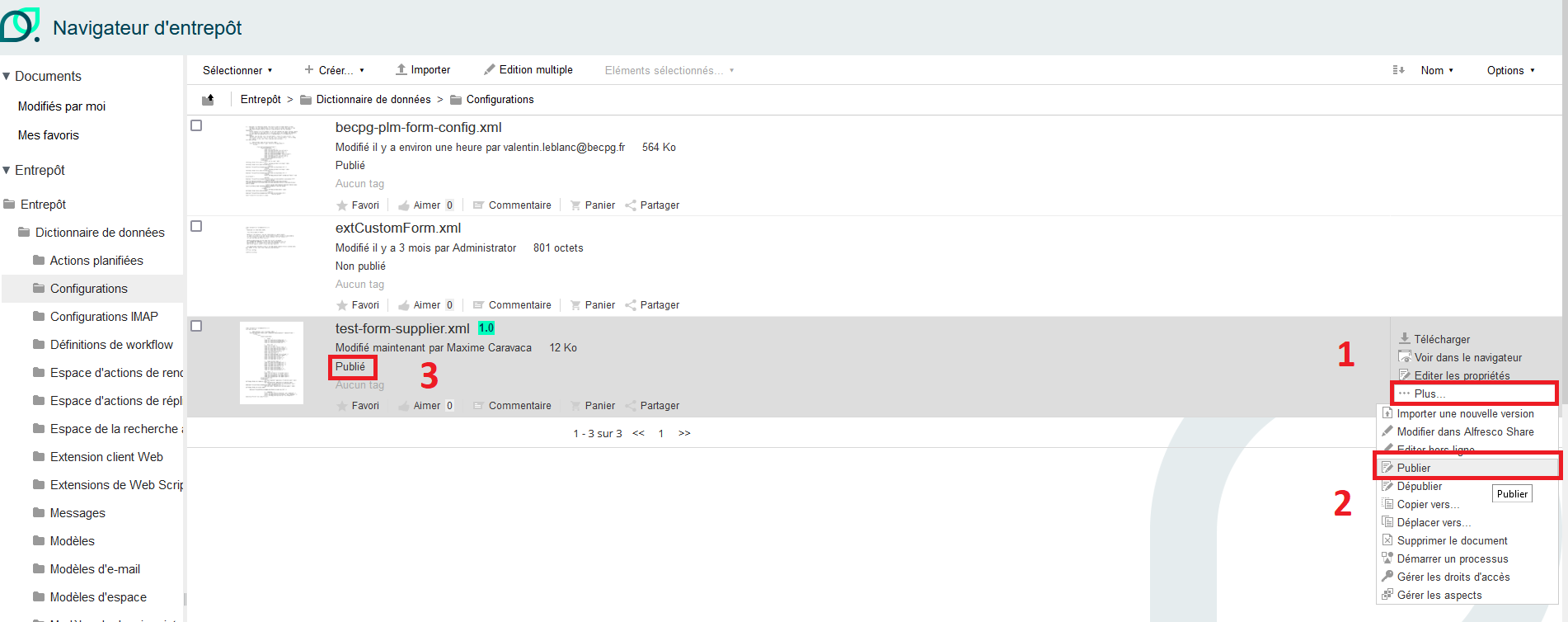
How you publish and reload forms depends on the beCPG version:
- Before version 4.0: in the admin tools, click the "Reload forms" button.
- Since version 4.0: click "More > Publish", or publish from the designer (as described in the previous section).
Wizards form
A wizard is a multi-step form designed to guide the user through a task. It simplifies the experience by breaking down a procedure into successive screens, each requesting specific information. More information here
Create a wizard
To create a wizard, first define a configuration with the condition="wizard" attribute in the becpg-config-custom.xml file. Then describe the steps of the wizard.
For example, here is the supplier wizard for listing Raw materials:
<config evaluator="string-compare" condition="wizard" replace="true">
<wizards>
<!-- Wizard RAW MATERIAL -->
<wizard id="supplier-rawMaterial" comments="true" >
<step id="step1" labelId="becpg.wizard.supplier.properties.label"
titleId="becpg.wizard.supplier.properties.title" type="form"
formId="supplier" itemId="bcpg:rawMaterial"></step>
<step id="step2" labelId="becpg.wizard.supplier.ingList.label"
titleId="becpg.wizard.supplier.ingList.title" type="entityDataList"
listId="ingList" itemId="bcpg:ingList" nextStepWebScript="becpg/remote/formulate?nodeRef={nodeRef}&format=json"></step>
<step id="step3" labelId="becpg.wizard.supplier.nutList.label"
titleId="becpg.wizard.supplier.nutList.title" type="entityDataList"
listId="nutList" itemId="bcpg:nutList"></step>
<step id="step4" labelId="becpg.wizard.supplier.allergenList.label"
titleId="becpg.wizard.supplier.allergenList.title" type="entityDataList"
listId="allergenList" itemId="bcpg:allergenList"></step>
<step id="step5" labelId="becpg.wizard.supplier.physicoChemList.label"
titleId="becpg.wizard.supplier.physicoChemList.title" type="entityDataList"
listId="physicoChemList" itemId="bcpg:physicoChemList"></step>
<step id="step6" labelId="becpg.wizard.supplier.labelClaimList.label"
titleId="becpg.wizard.supplier.labelClaimList.title" type="entityDataList"
listId="labelClaimList" itemId="bcpg:labelClaimList"></step>
<step id="step7" labelId="dlf.form.set.microbiologyList"
titleId="becpg.wizard.supplier.microbioList.title" type="entityDataList"
listId="controlDefList" itemId="qa:controlDefList"></step>
<step id="step8" labelId="dlf.form.label.packagingList.packagingListProduct"
titleId="dlf.form.set.projectDevelopment" type="entityDataList"
listId="PackagingList" itemId="dlf:PackagingList" ></step>
<step id="step9" labelId="becpg.wizard.supplier.organoList.label"
titleId="becpg.wizard.supplier.organoList.title" type="entityDataList"
listId="organoList" itemId="bcpg:organoList" ></step>
<step id="step10" labelId="becpg.wizard.supplier.surveyList.label"
titleId="becpg.wizard.supplier.surveyList.title" type="survey"
listId="surveyList" itemId="survey:surveyList"
nextStepWebScript="becpg/project/path?nodeRef={nodeRef}&path=SupplierDocuments"></step>
<step id="step11" labelId="becpg.wizard.supplier.documents.label"
titleId="becpg.wizard.supplier.documents.title" type="documents">
</step>
</wizard>
</wizards>
</config>
Wizard configuration parameters:
- draft: saves the information entered in the wizard at any time.
- comments: displays the entity's comments.
- step: defines a step in the wizard.
- id: unique identifier for the wizard or step.
- label / label-id: label displayed for the step.
- type: step type:
- form for a properties form,
- entityDataList for displaying a list.
- listId: name of the data list to be displayed (required if type="entityDataList").
- formId: identifier of the form to be displayed (if type="form").
- itemId: identifier of the entity type in beCPG.
- enforceTask: boolean (true/false) to require an assigned workflow task for edit access (default: false).
- skipSecurityRules: boolean (true/false) to ignore protected fields when using the wizard (default: false).
- title / title-id: title displayed at the top of the step.
- nextStepWebScript: web script executed during the transition to the next step. It is configured on the previous step. Examples:
- Add a document: becpg/project/path?nodeRef={nodeRef}&path=SupplierDocuments
- Reformulate a product: becpg/remote/formulate?nodeRef={nodeRef}&format=json
- Change node:
- Project > Entity: "becpg/project/entity?nodeRef={nodeRef}"
- Entity > Project: "becpg/entity/project?nodeRef={nodeRef}"
Warning: changing nodes may not be compatible with the use of a catalog.
The becpg-config-custom.xml file must be deployed as a standard form. The file must be named exactly becpg-config-custom.xml.
Example of a wizard with a node change:
<config evaluator="string-compare" condition="wizard">
        <wizards>
            <wizard id="sample-npd">
                <step id="step1" label="Création demande" type="form" formId="create-article"
                    itemId="pjt:project" nextStepWebScript="becpg/project/entity?nodeRef={nodeRef}"></step>
                <step id="step2" label="Information produits" type="form"
                    formId="create-article" itemId="bcpg:finishedProduct"></step>
                <step id="step3" label="Composition produit" type="entityDataList"
                    listId="compoList" itemId="bcpg:compoList"></step>
                <step id="step4" label="Emballages" type="entityDataList" listId="packagingList" itemId="bcpg:packagingList"></step>
                <step id="step5" label="Your survey label" title="Your survey title" type="survey" listId="surveyList" itemId="survey:surveyList"></step>
            </wizard>
        </wizards>
</config>
Create a form for a wizard
To add the form to an entity, override the <config> of the entity with the node-type evaluator in {$client}-form-config.xml, and modify the <form> whose ID is the wizard ID by adding the fields to display.
Example: Adding the "supplier-mp" wizard to the Raw material entity
<config evaluator="node-type" condition="bcpg:rawMaterial" replace=true>
    <forms>
        <form id="supplier-mp">
Models designer
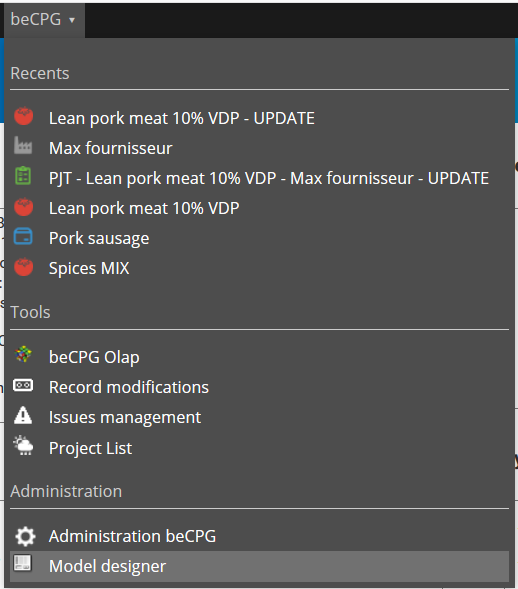
The beCPG models designer lets you create data models and forms. Users with the administrator role can open it from the top banner.
The designer has 3 panels:
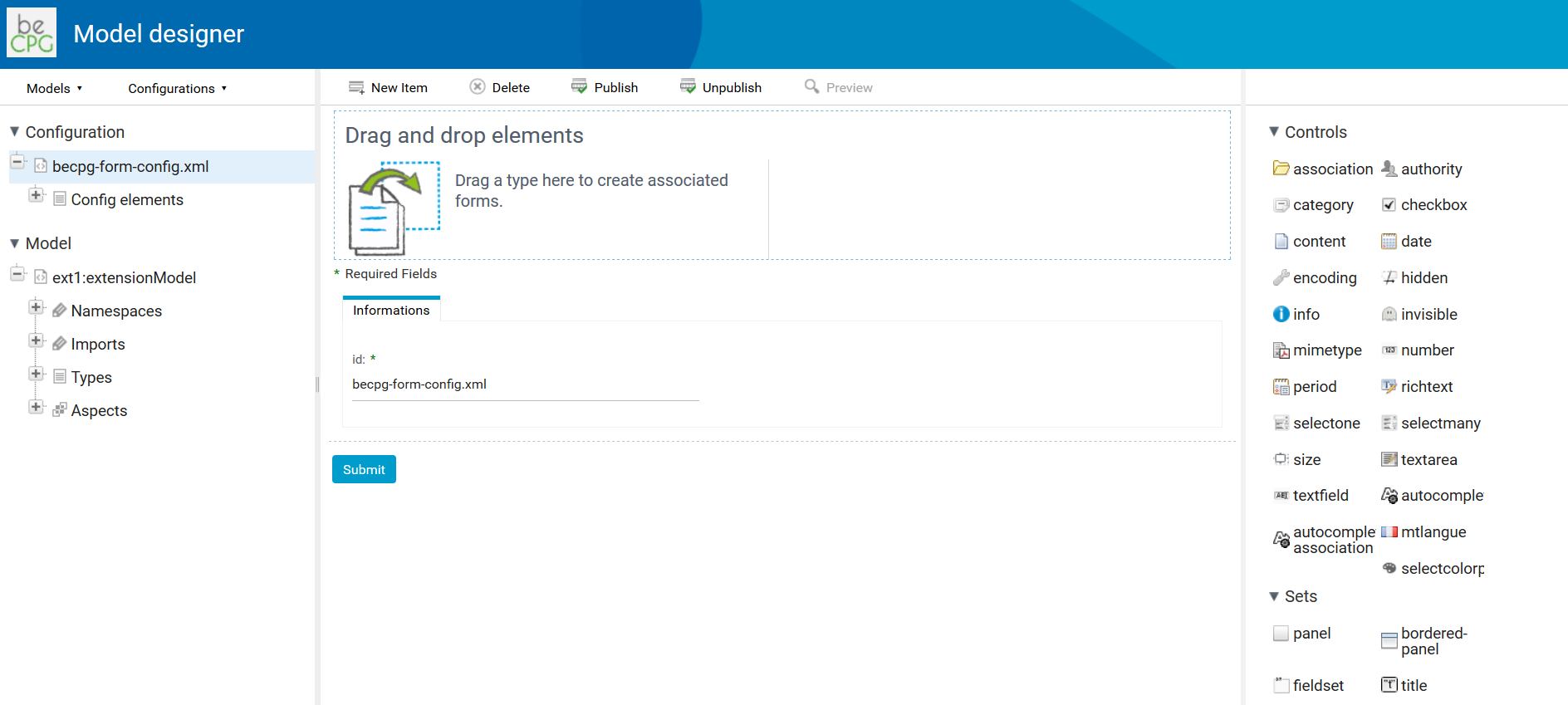
- The left panel displays a tree of the model and a tree of the forms;
- The central panel displays the editing forms for forms and models;
- The right panel displays a palette of groupings and controls.
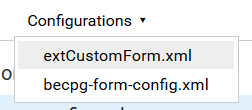
Choose the file whose model and forms you want to display in the drop-down menu of the left panel toolbar.
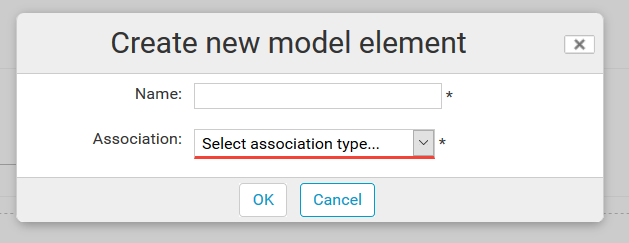
To create types, aspects, properties and constraints, select a position in the models tree and click "New child". The designer asks for the type of element to create and, if needed, the model type.
Once the model has been created or modified, click "Publish" at the model root.
Notes:
- Every mandatory field must be filled in;
- A type can be deleted only if no element in the repository or in the trash uses it;
- A property can only be modified by overriding the type or the aspect.
To create a form, drag and drop a type onto the forms tree, or use the "New child" button. To associate controls with fields, or to group fields, drag and drop them from the palette to the corresponding area of the central panel.

To publish a form, hover over the forms tree root and click "Publish".
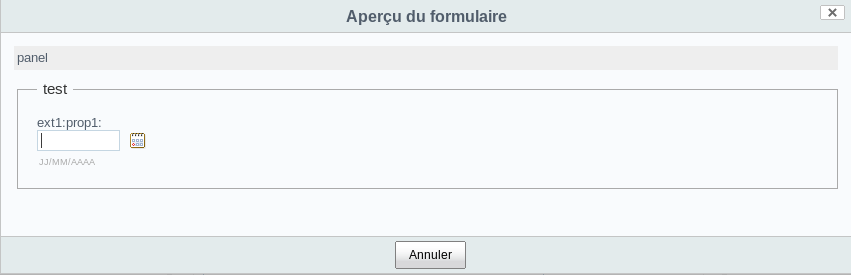
To preview a form, select a type in the models tree and click "Overview". The type must be published, as well as the form with the "Create" identifier associated with the type.
For more information: http://ecmarchitect.com/alfresco-developer-series-tutorials/content/tutorial/tutorial.html
Tutorial
Advanced method of publishing files
Here is another way to publish the modified files:
- Go to the folder of your instance:
cd /opt/becpg-srv-instances/inst1 - Create a config folder if it does not exist yet:
mkdir config - Put your modified files in this folder.
- Create the docker-compose.override.yml file in your instance folder if it does not exist:
touch /opt/becpg-srv-instances/inst1/docker-compose.override.yml - Edit it and add the volumes to the becpg section to override the configurations.
Example: if your file is called becpg-config-custom.xml:
version: '2'
networks:
    internal:
services:
    becpg:
        volumes:
              -./config/becpg-config-custom.xml:/usr/local/tomcat/shared/classes/alfresco/web-extension/becpg-config-custom.xml:ro
See Extend beCPG for more details.
Finally, restart the beCPG service to apply the new configuration: docker-compose up -d.
For more details on stopping and starting the service, see this page.