Supplier portal
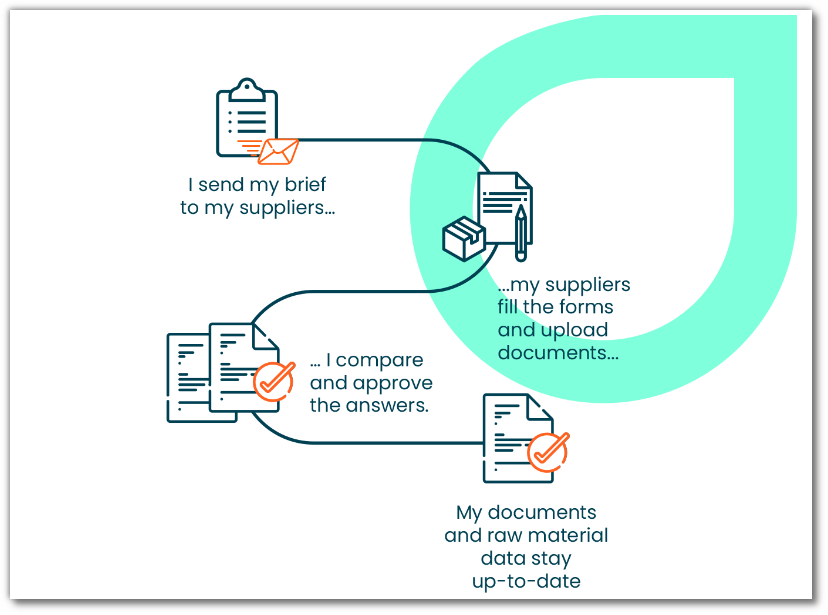
The supplier portal facilitates collaboration with your suppliers. It collects data on raw materials, packaging, trading products and their associated documents.
Rights management for collaborators
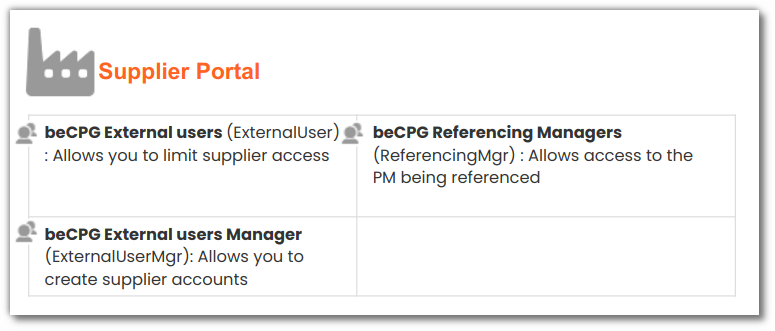
Users in charge of referencing must be added to the following groups: beCPG Listing managers, beCPG Quality managers and beCPG External user managers.
Create a supplier
Create a user account for the supplier
There are three ways to create supplier accounts in beCPG, depending on your version and whether you use SSO:
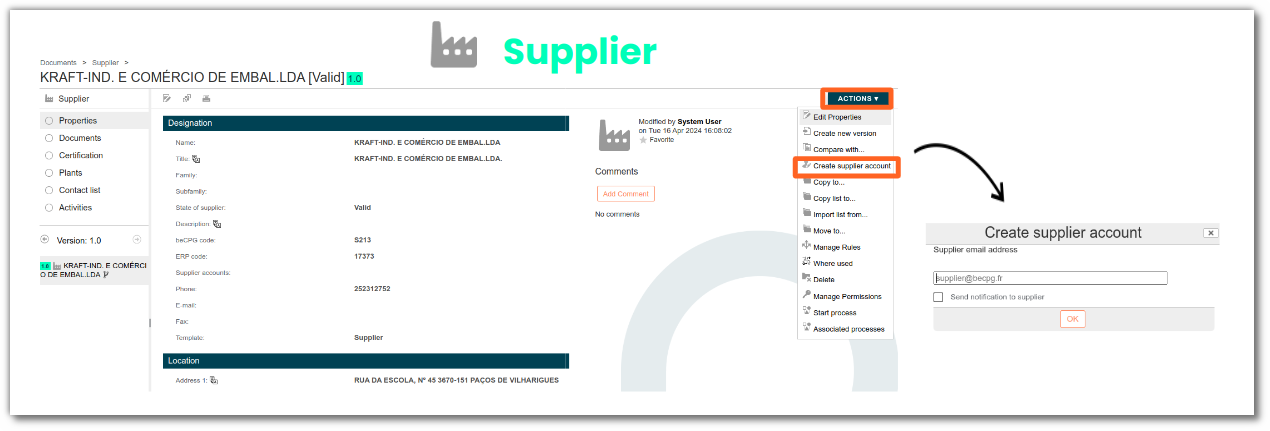
On the supplier Click "Action" then "Create supplier account". Fill in the supplier's email address and check the "Send notification to supplier" box, so that the supplier receives their beCPG login details. When you click "OK", the system creates a user account and associates it with the supplier.
Via an import
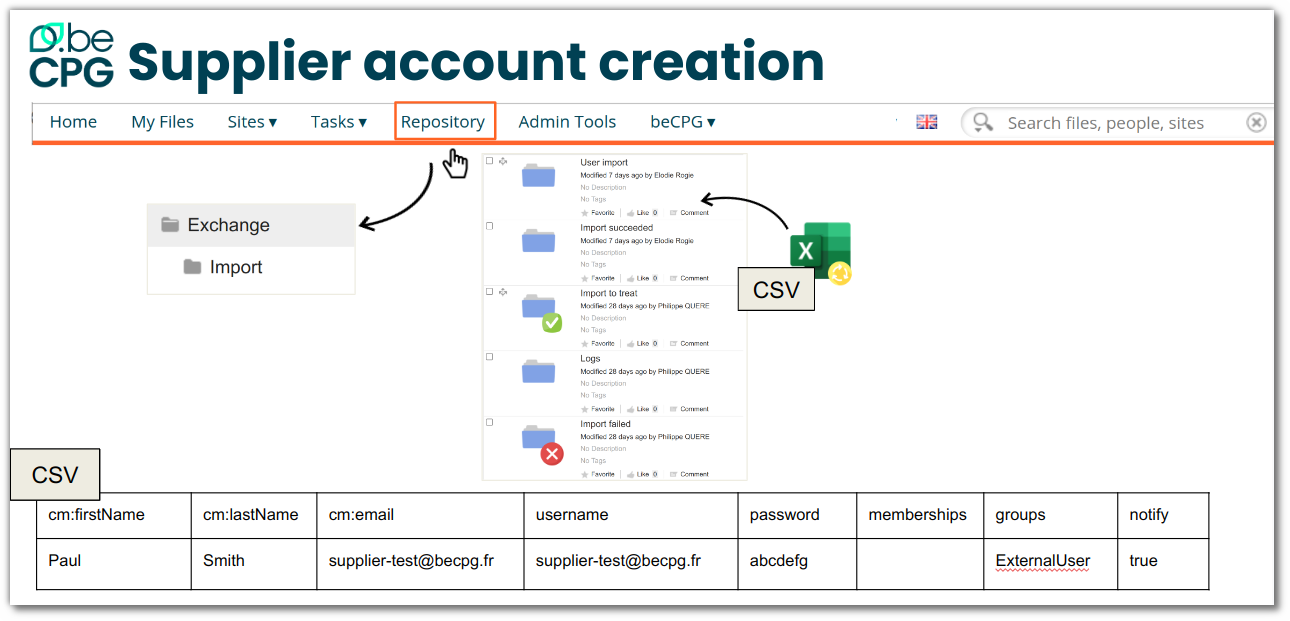
In the administration In "beCPG" > "beCPG Administration", click "Users" to create a new user account for the supplier. Make sure to add it to the beCPG External users group.
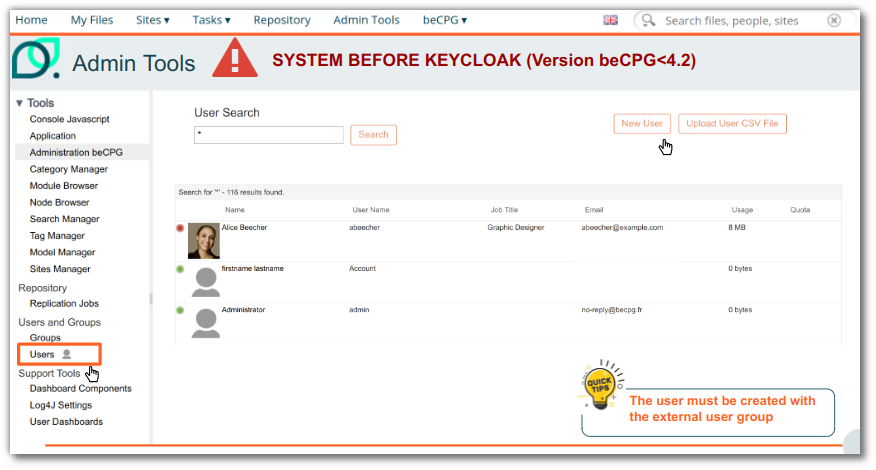
Warning: the account must be created with the beCPG External Users group; if you add the group after the account has been created, visibility is not restricted.
The beCPG External Users group does not need to be added to the supplier portal site. Specific permissions are managed directly on the group.
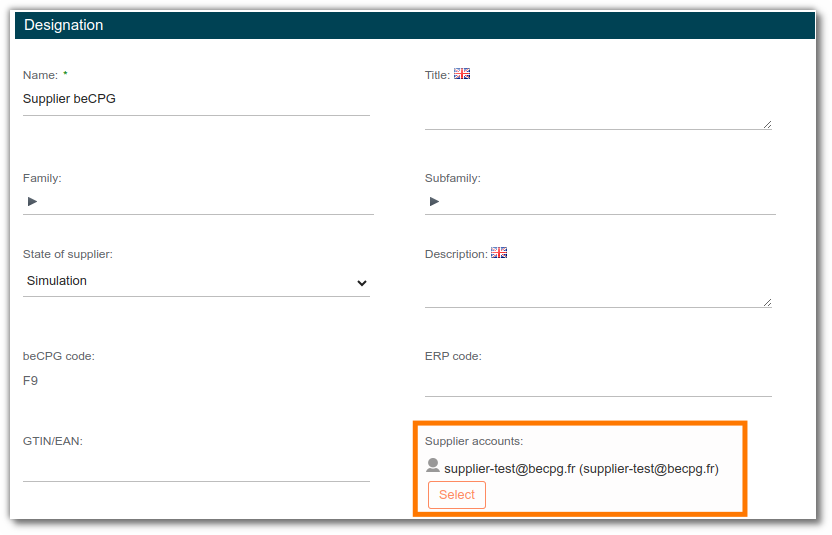
Associate the supplier with a user account
With option 2 or 3, you must then link the supplier account to a supplier entity in beCPG.
Raw material referencing
Sending raw materials to the supplier
On the raw material you wish to send to the supplier, check that it is linked to the supplier and that the supplier has an associated account in beCPG.
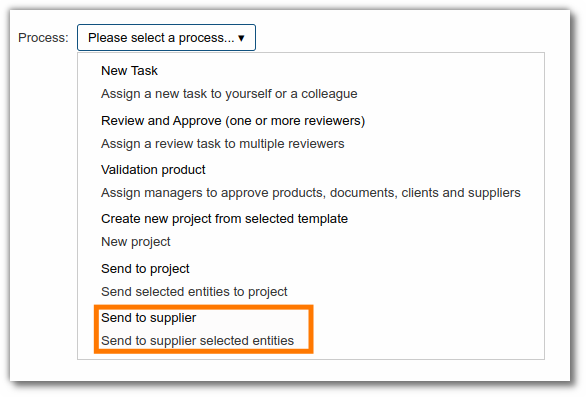
To send it to the supplier, start a process via the "Actions" button.
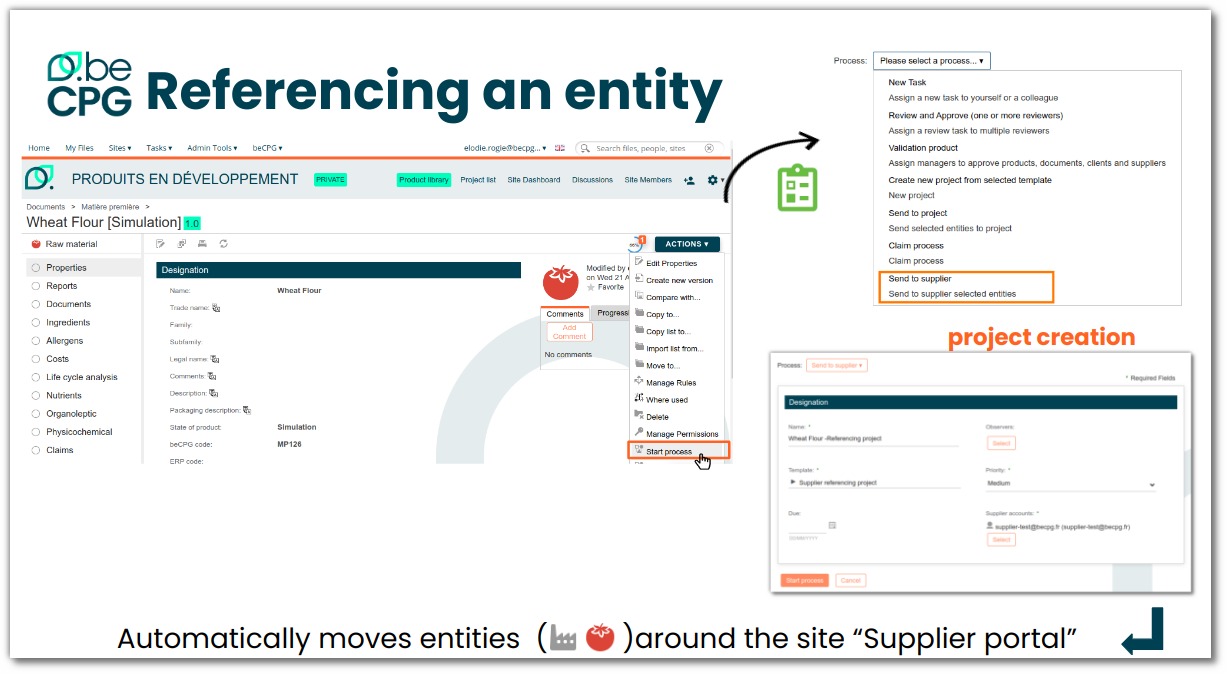
Then choose the "Send to supplier" option and select the "Referencing project" project template.
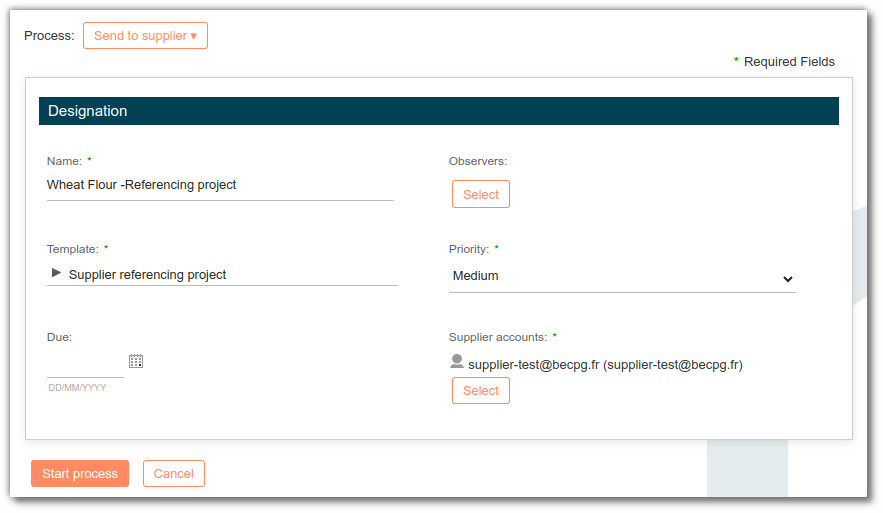
Then fill in the information required to create the project.
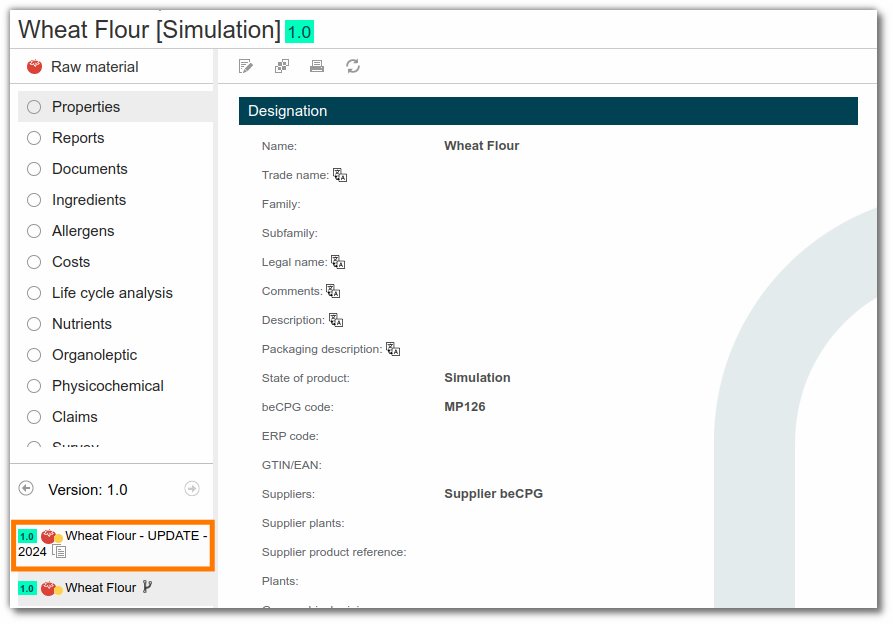
When the project is created, a working copy is created for the supplier via a new version.
Referencing
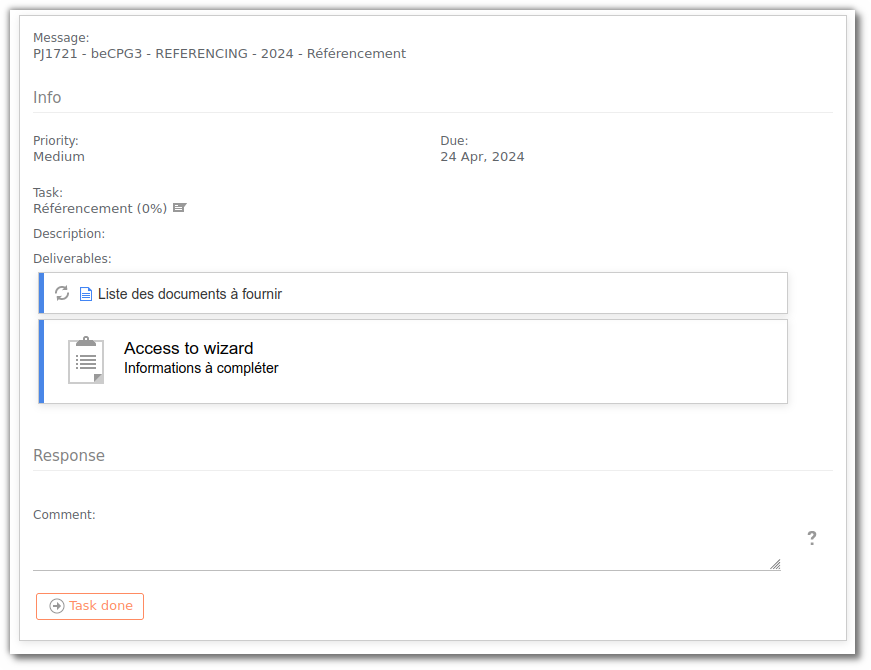
Once the project has been sent, the supplier receives a task linked to this referencing on their dashboard.
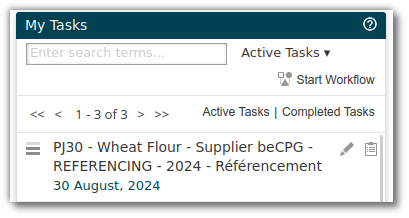
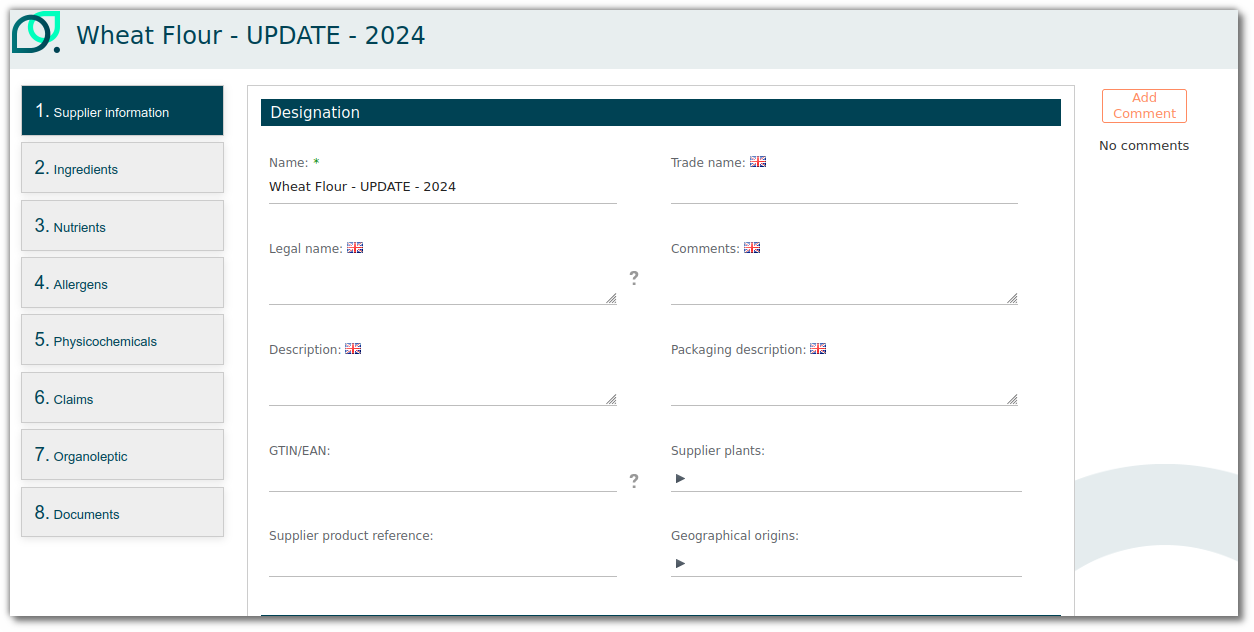
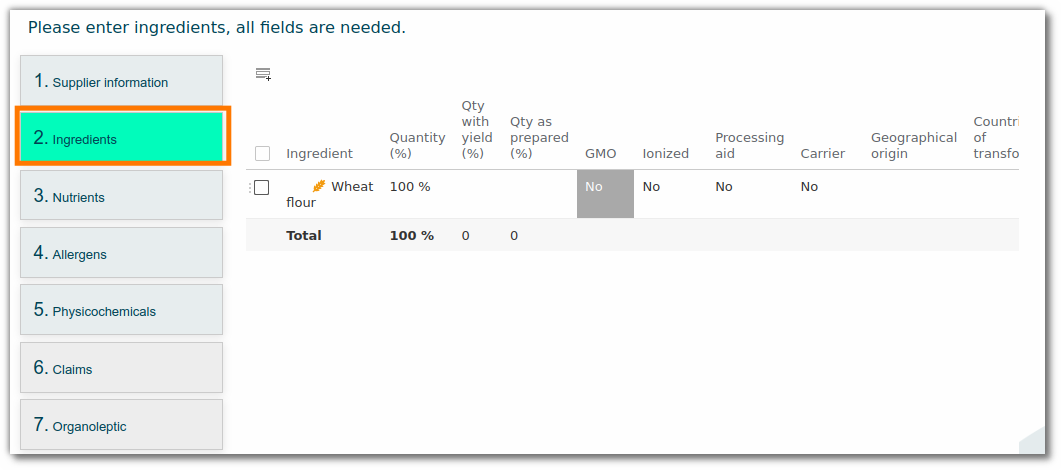
When the supplier opens the task, a form for the raw material referencing is displayed.
This form lets the supplier fill in all the information specific to the raw material:
- Supplier information
- Ingredients
- Nutrients
- Allergens
- Physical-chemical
- Claims
- Organoleptic
- Documents
Referencing validation
When the supplier has filled in all the information and validated the task, you receive a notification asking you to check the information entered.
You can validate the task if all the information is correct.
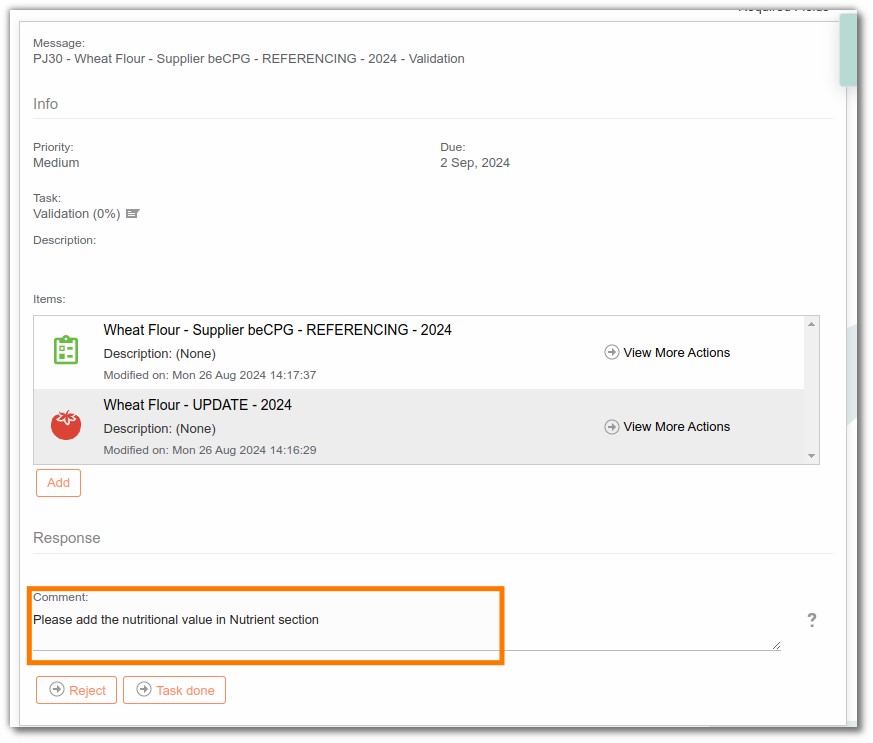
Otherwise, if any information is missing, you can send the task back to the supplier:
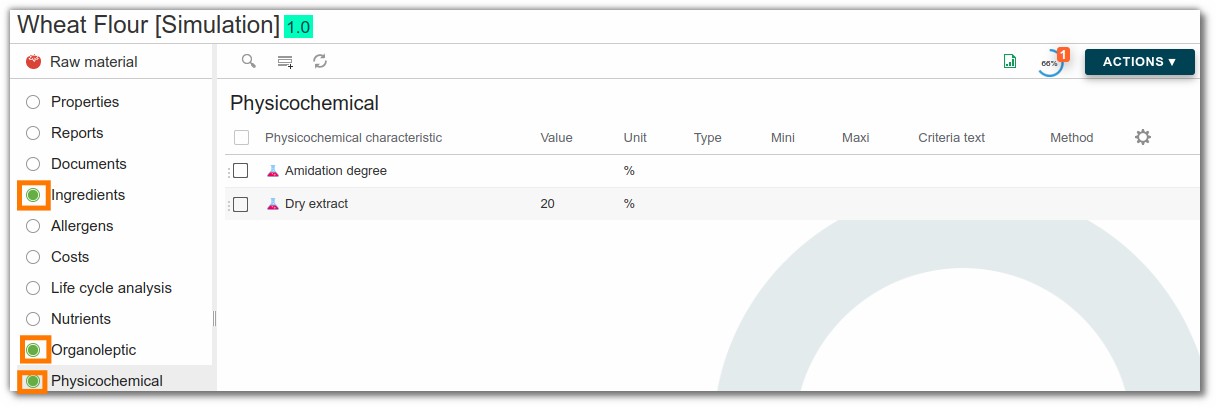
- You can validate the lists that are correct. To do this, click the icon next to the list. This blocks the supplier's input.
- Add your comments to the task
- Or on the product
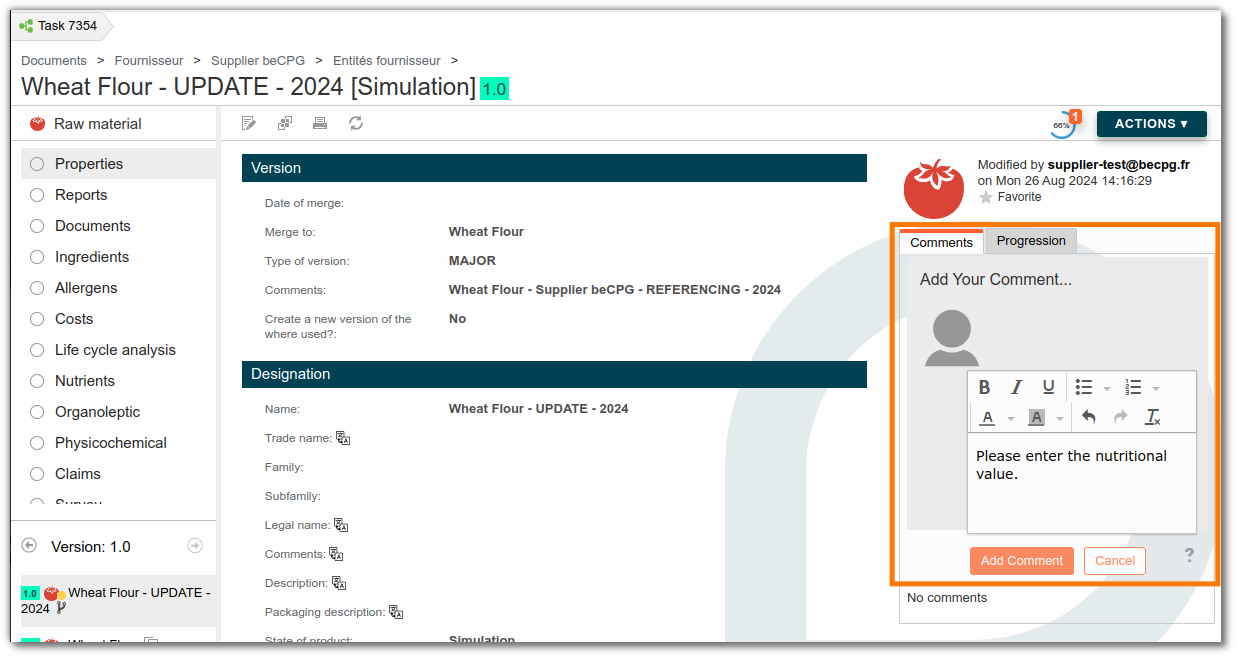
- Or on lists
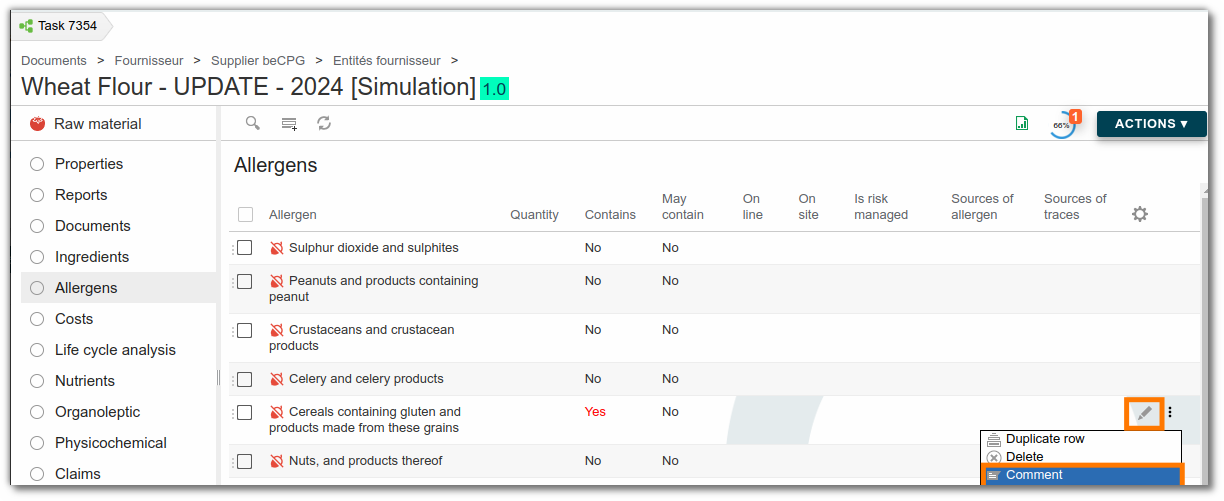
- You can also lock a line to prevent the supplier from modifying it.
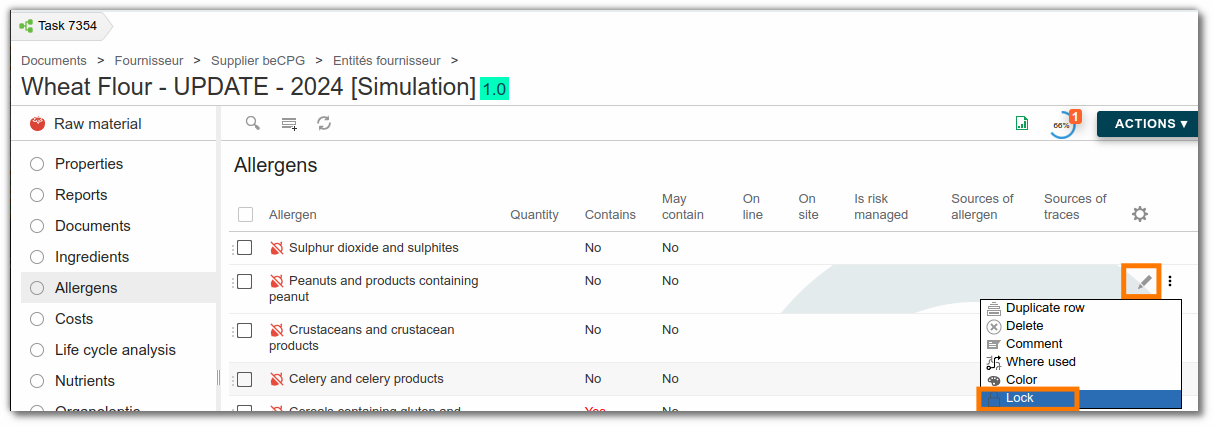
The supplier then receives a new task with your comments.
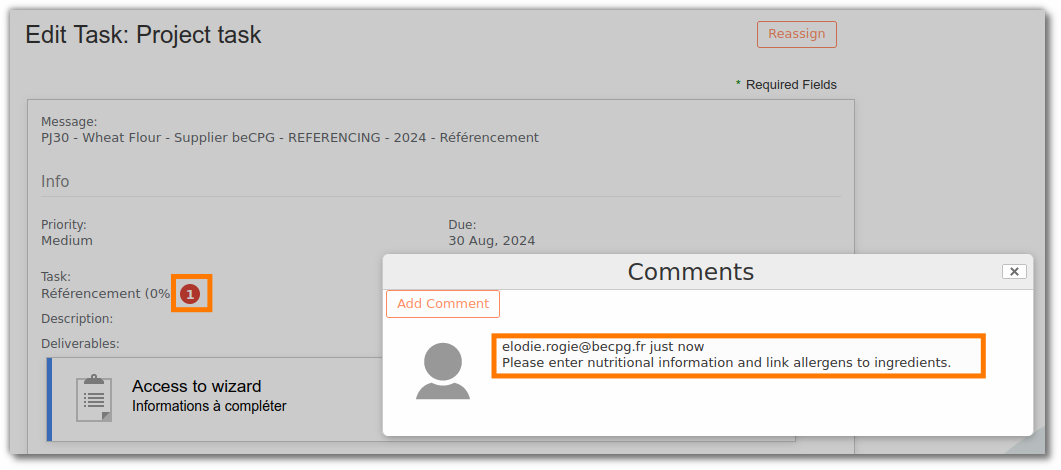
The supplier can complete any missing information. Lists that have been validated can no longer be modified.
Supplier document signature
Once the validation task has been completed, two new tasks are automatically created in beCPG for the referencing project.
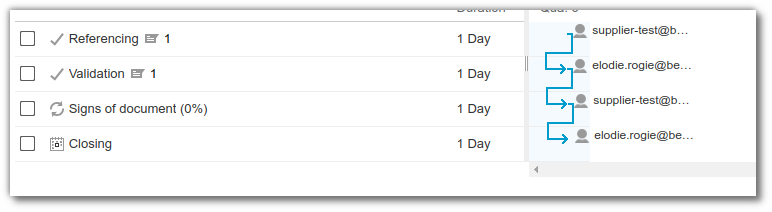
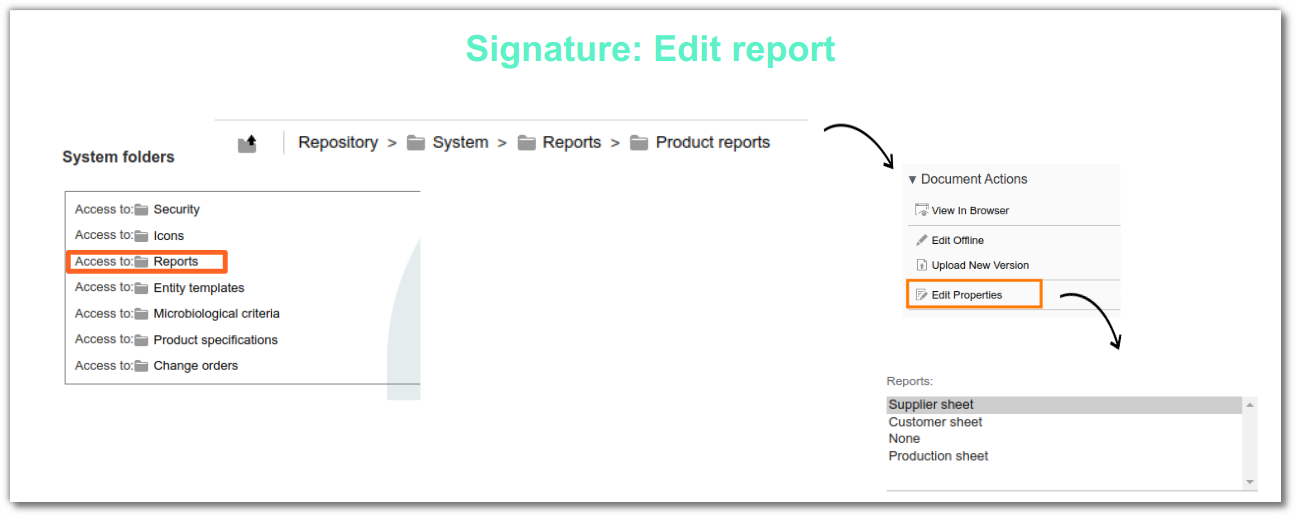
A signature task sends a PDF copy of the report with the report type Supplier report.
The supplier signs each page of the report via the PDFTron portal.
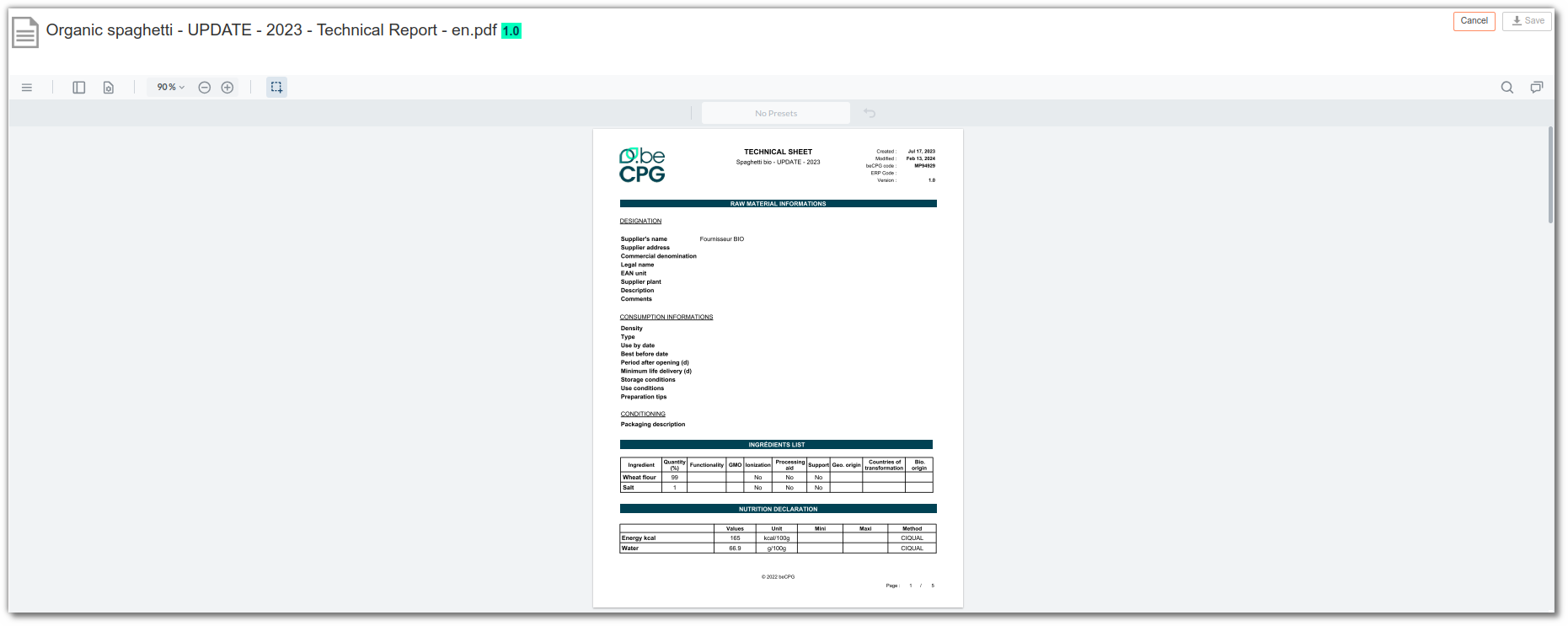
The signed PDF is then stored on the entity in the Document list, in the Supplier document folder.
Note: the task cannot be validated until all pages are signed. The supplier cannot refuse to sign. If you wish to go back at this stage, you must cancel the project and restart the referencing process.
Click here for more information on electronic signing in beCPG.
Closing
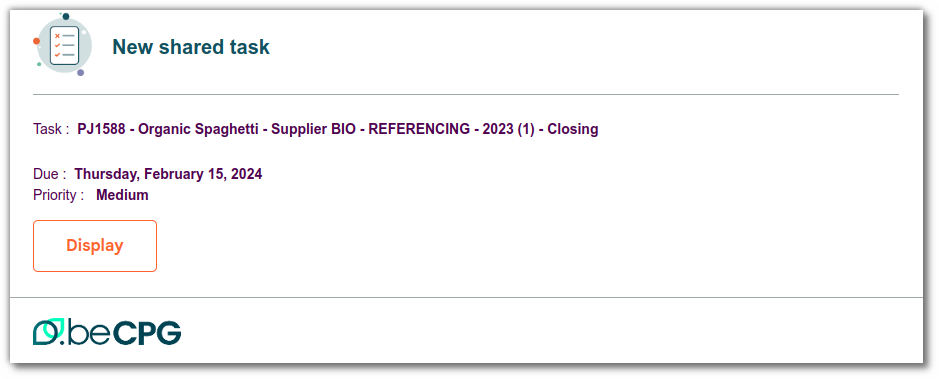
Once the supplier has signed, a notification and the closing task are sent to the project creator. When this task is completed, the raw material branch is merged and validated.
Monitoring referencing via the project
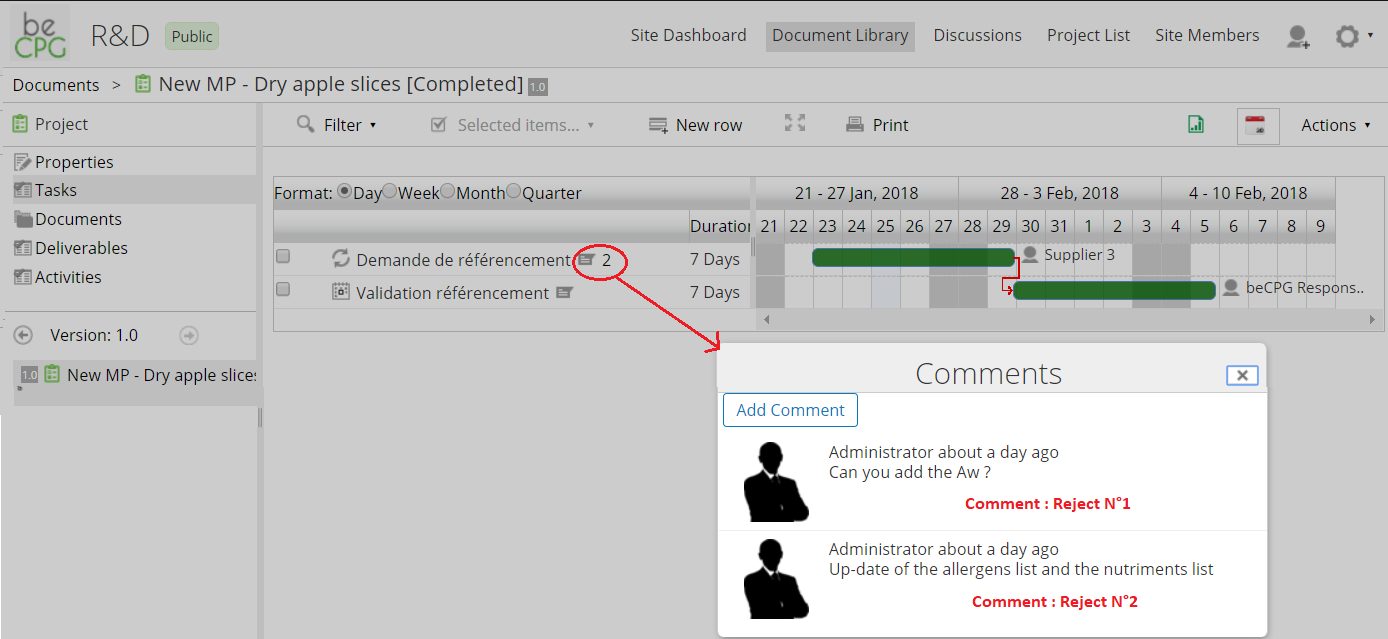
By entering the project code in the search, you can access the associated project. You can then view the exchanges made via the project, as well as the comments entered when a task was rejected.
Discussion
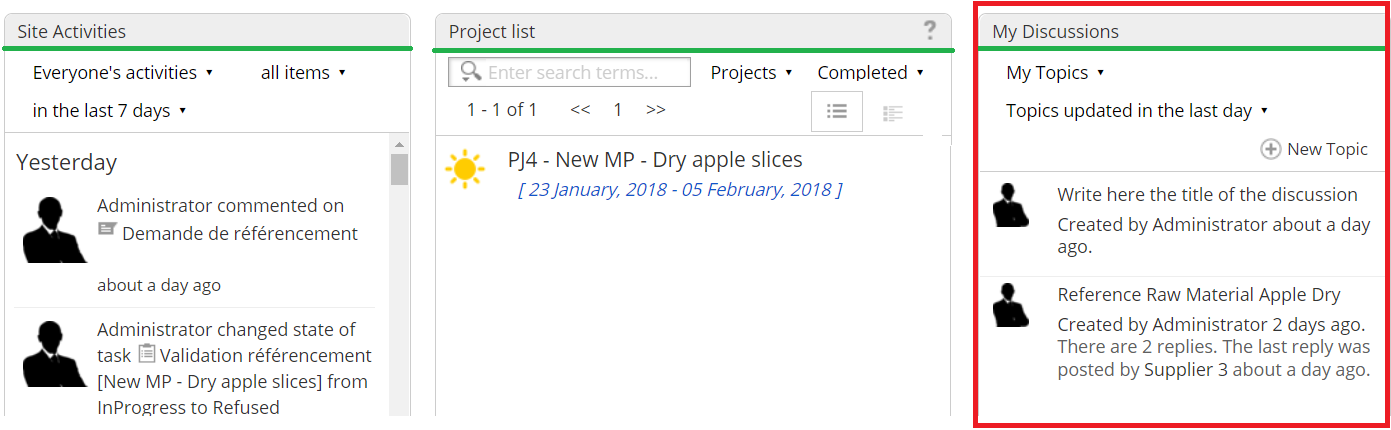
The "Discussion" dashlet lets users chat. You can add one supplier per discussion. This interface is specific to a site.
You can use:
- the "Discussion" dashlet of the collaborative site;
- the chat window on the user's dashboard.
How to create a discussion
In the site
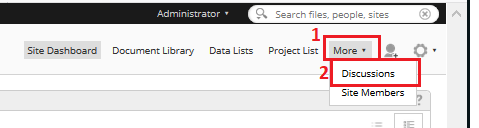
In the banner at the top of the window, you can add the "Discussion" page.
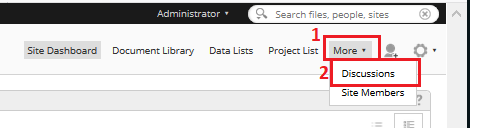
When you click this tab, a specific window opens.
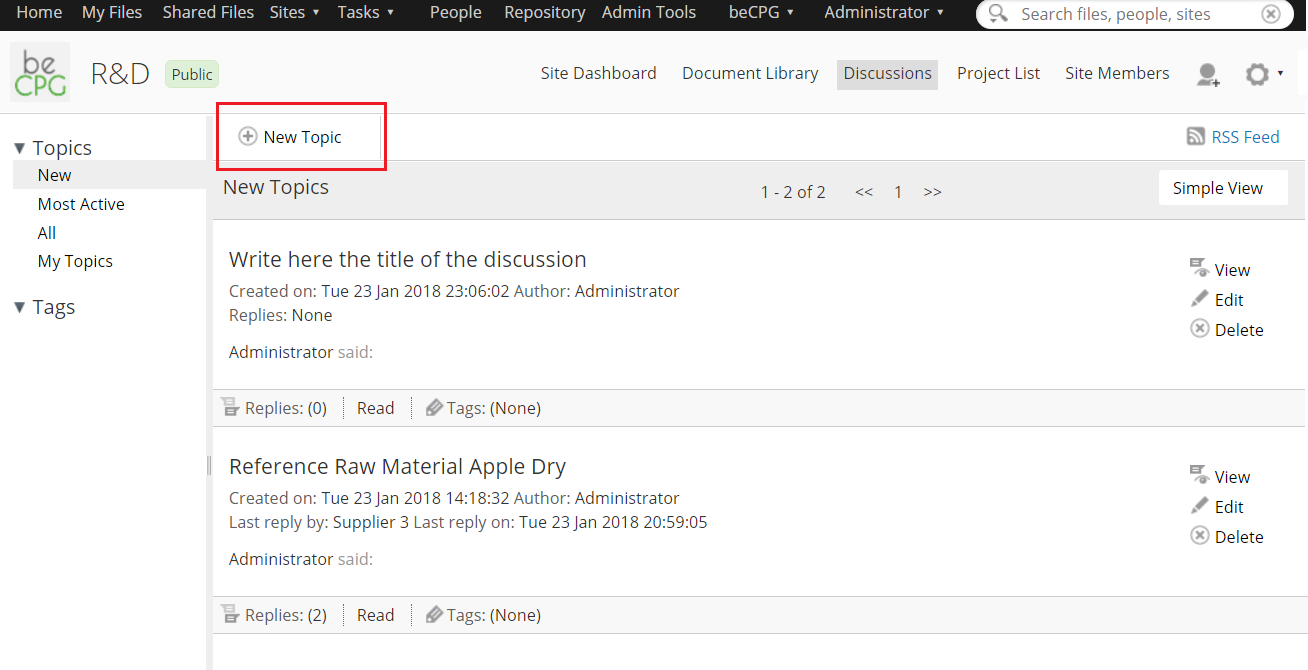
- Click the "Discussion" tab.
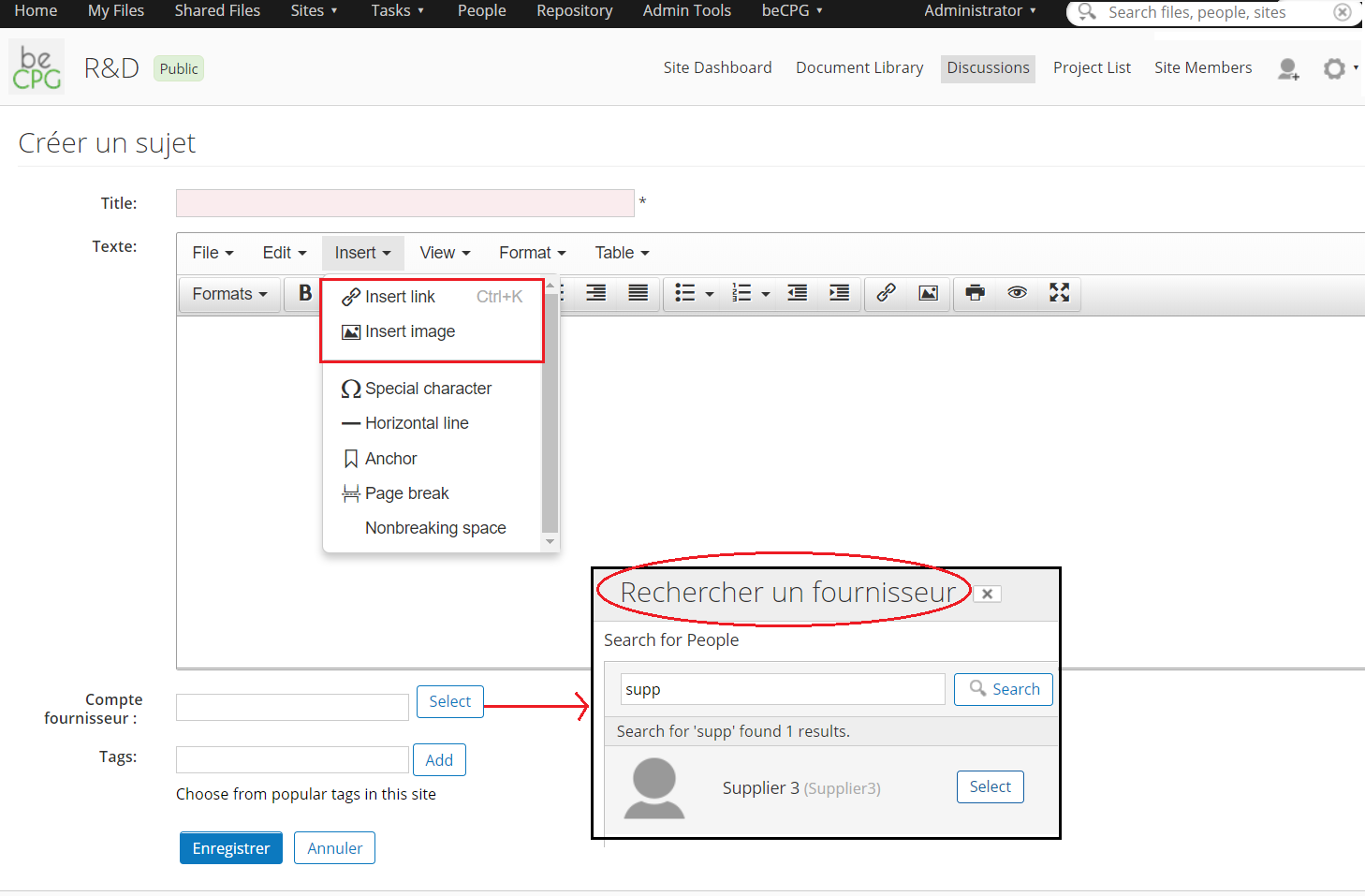
- Click "New Topic".
- Fill in the information, and add links or pictures if needed.
- Select a supplier: only one supplier per discussion.
- Save.
Note:
Discussions are available at any time:
Any internal member of the site can read its discussions.
In the user's dashboard
If you have configured your dashboard, you see all the active discussions from the sites you are a member of when you log in. You can take part in the discussions from this interface without opening each site.