Record modifications
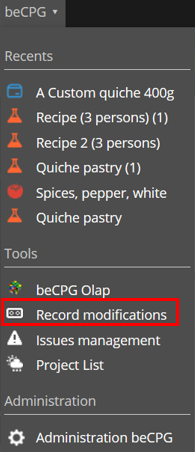
The "Record modifications" tool lets you make major modifications to finished products. To use it, open the "beCPG" menu in the top banner and click "Record modifications".
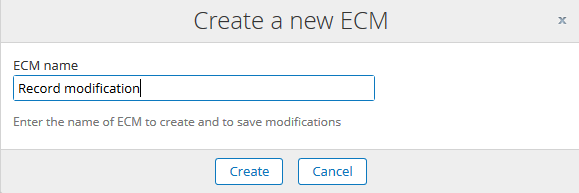
A dialog appears where you enter the name of the record modification. The name will appear in the version tree when a product is modified.
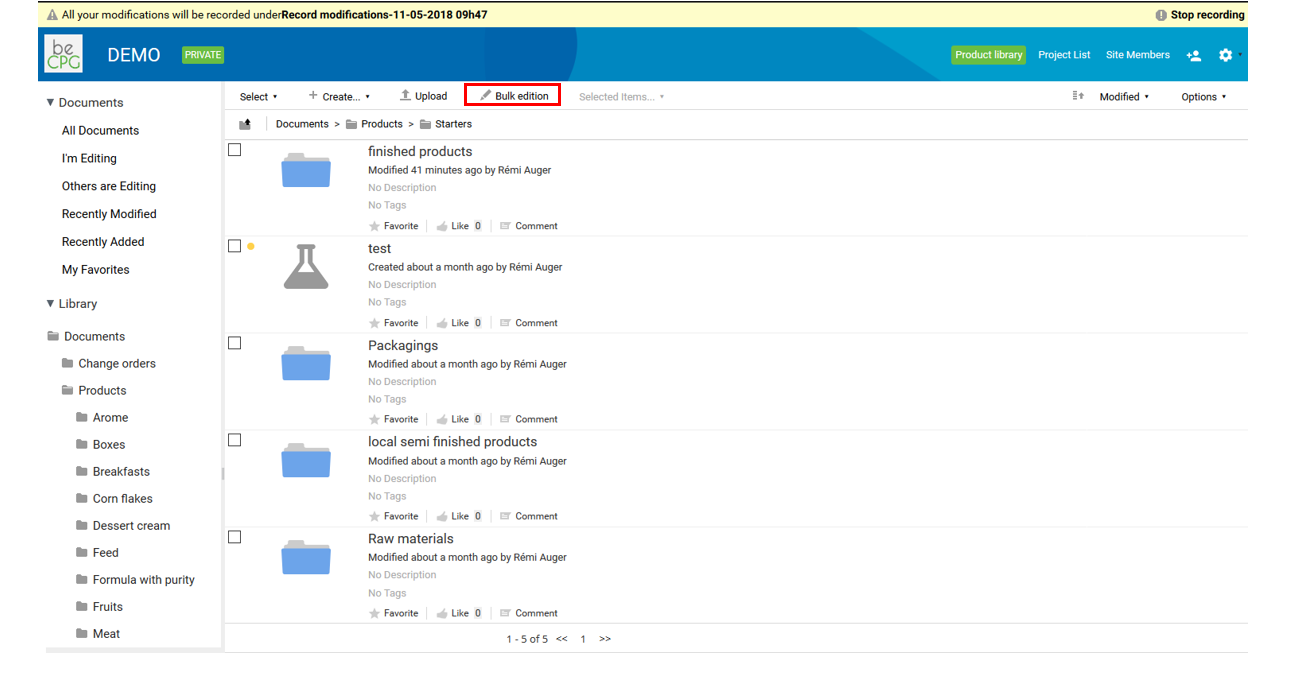
After you click "Create", a yellow banner appears at the top of the page, stating that modifications to a finished product will generate a new version. The new version is named after the record modification. To stop recording modifications, click "Stop recording".

To modify several products in one go, go to the product library of a collaborative site and click "Bulk Edition".
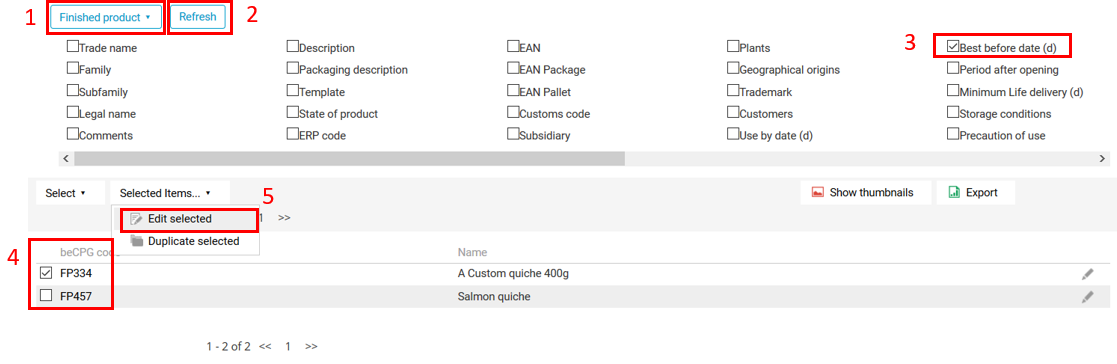
Then, select the type of products to modify and click "Refresh". Select the parameter to modify and the products affected by the modification, then click "Edit selected".
Then, modify the parameter and click "Save".
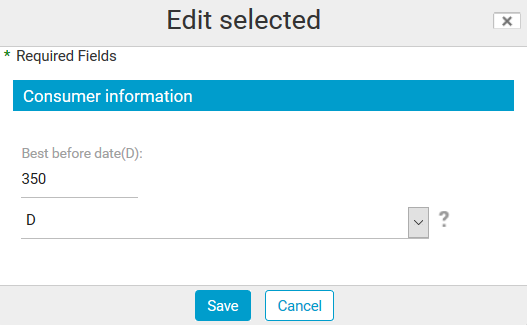
The selected products have been modified.
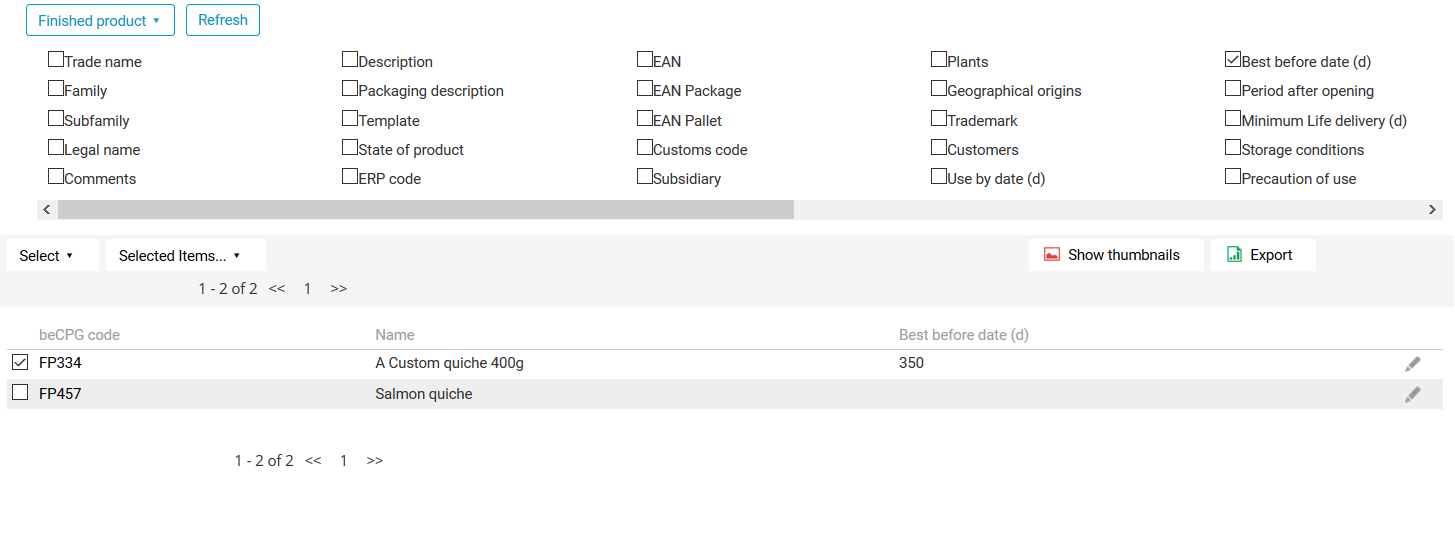
To see the impact of these modifications, go to the product library of a collaborative site. Then select the folder containing the modified products.

Each modified product whose state is listed in the beCPG.eco.automatic.states system parameter gets a new version, major by default (beCPG.eco.automatic.record.version.type parameter). This version is named after the change order.
By default, beCPG.eco.automatic.states contains all states, including "Simulation". If you remove "Simulation" from this parameter, modifying a product in the "Simulation" state does not create a new version.