Customer complaints
Administration
System user groups
There are 6 system user groups, one for each step of the customer complaint workflow:
- beCPG Claim start pilots (ClaimStart)
- beCPG Claim analysis pilots (ClaimAnalysis)
- beCPG Claim classification pilots (ClaimClassification)
- beCPG Claim treatment pilots (ClaimTreatment)
- beCPG Claim response pilots (ClaimResponse)
- beCPG Claim closing pilots (ClaimClosing)
The EMAIL_CONTRIBUTORS group gives the right to add emails to customer complaints as attachments.
Create a customer complaint
To create a customer complaint using workflows, you must belong to the first group: beCPG Claim start pilots (ClaimStart).
Once the permissions of the various stakeholders have been defined, you can create your customer complaint. A customer complaint is made of successive steps. Each step corresponds to a user group (hence the importance of permissions). The tasks are automatically assigned as follows:
- Input: all members of the predefined user group;
- Analysis: all members of the predefined user group;
- Classification: all members of the predefined user group;
- Processing: named user (defined at entry), who must belong to the beCPG Claim treatment pilots group;
- Answer: named user (defined at entry), who must belong to the beCPG Claim response pilots group;
- Closing: all members of the predefined user group.
By default, claims are named as follows: YYYY-RC-claim number (1, 2, 3, ...) Example: 2017-RC-3
Creation and processing of the customer claim: exchanges and validation
As for all entities:
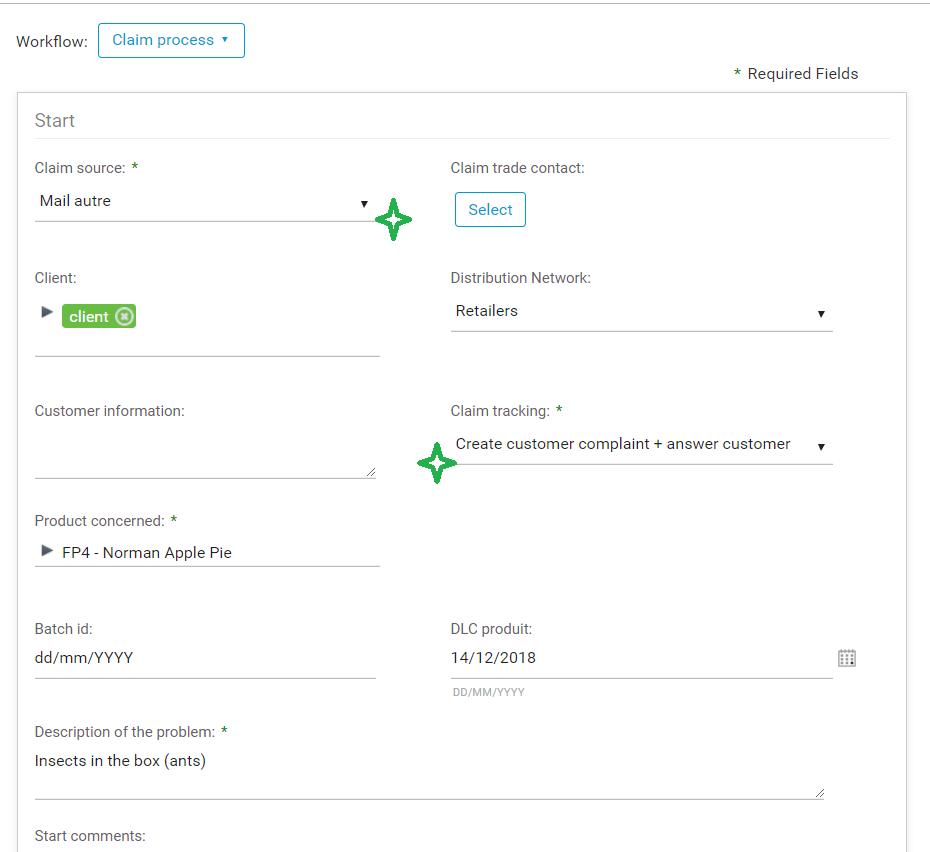
- the fields marked with an asterisk (*) next to their label are mandatory;
- in the screenshots, the fields flagged with a green star are value lists configured in "beCPG" > "beCPG Administration" > "System characteristics" > "Quality lists".
1. Creation and entry
To create a customer complaint:
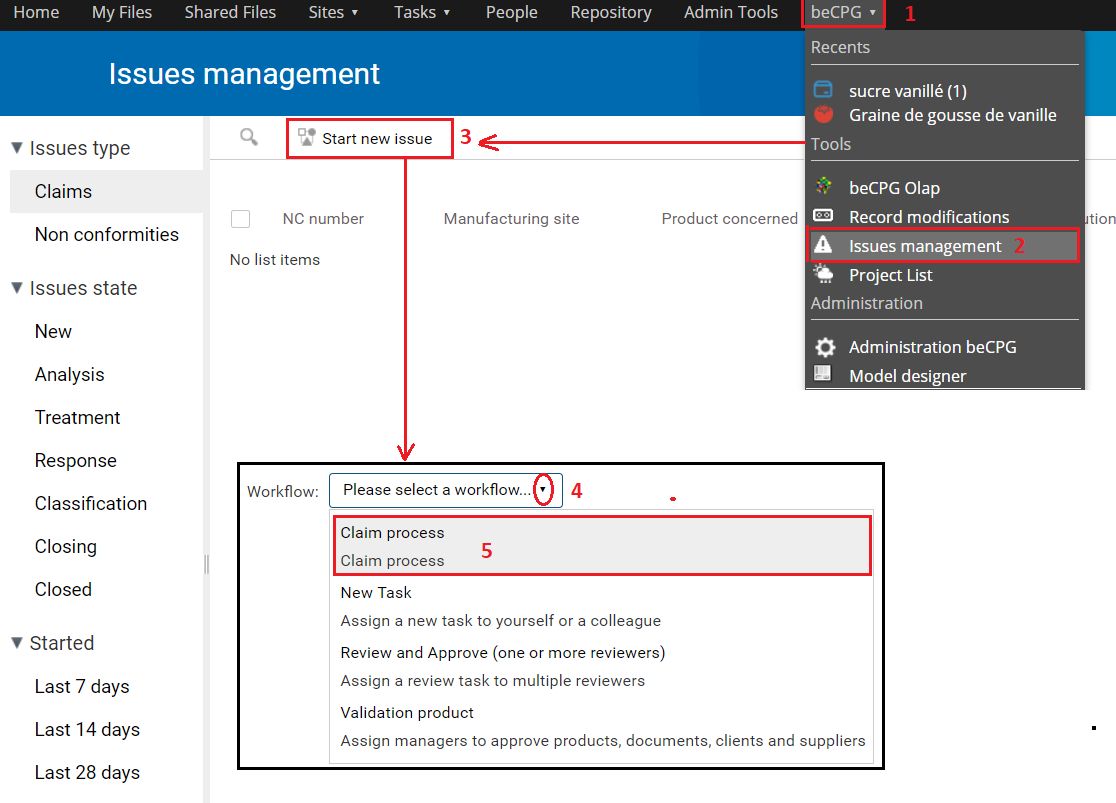
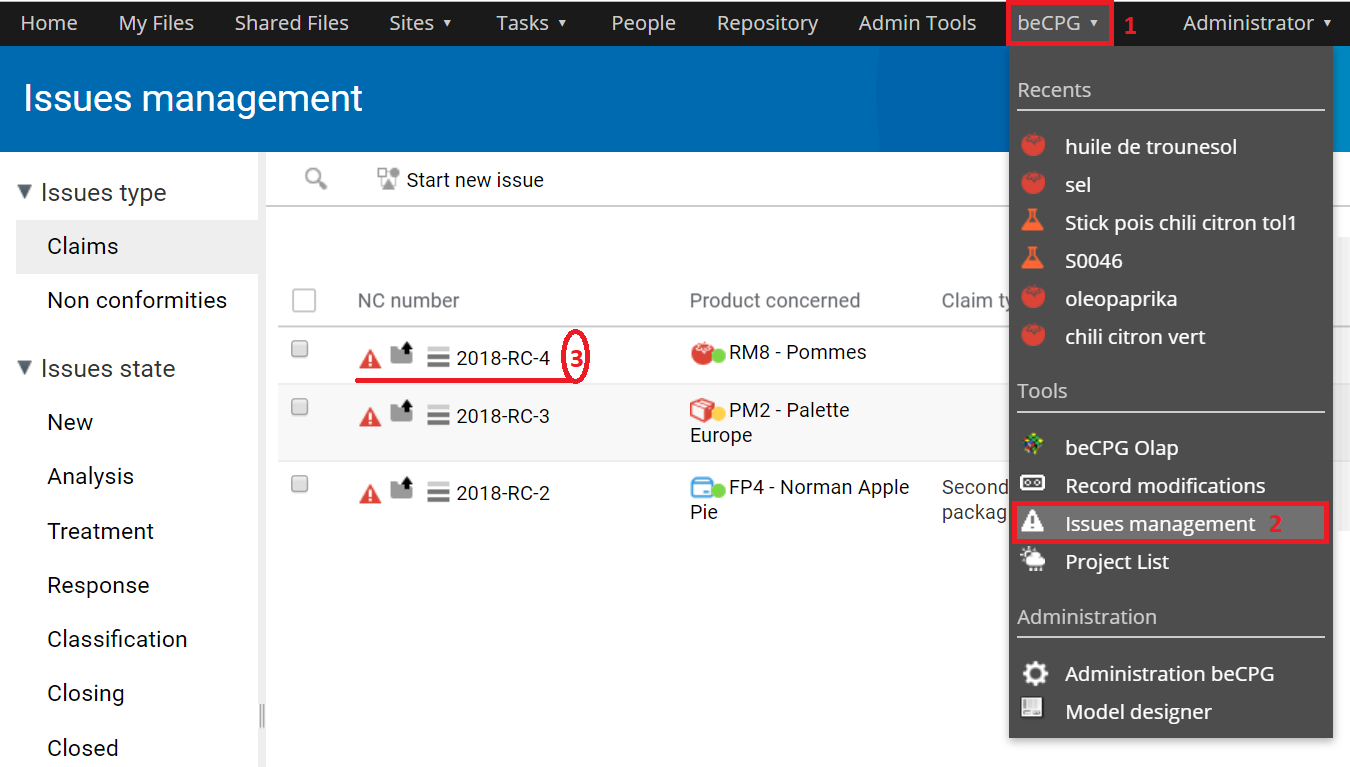
- Go to "beCPG" > "Incident tracking".
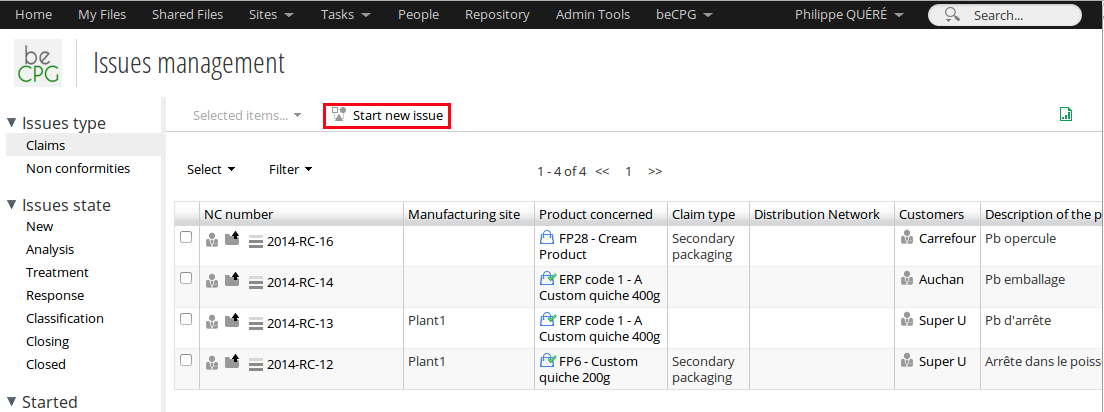
- Click "Report an incident".
- In the drop-down menu, choose the task "Customer complaints".
- Fill in all the fields.
- Use the "Create as a draft" option (at the bottom of the task properties page).
- Click "Start Workflow" (even for a draft).
2. Using the draft mode
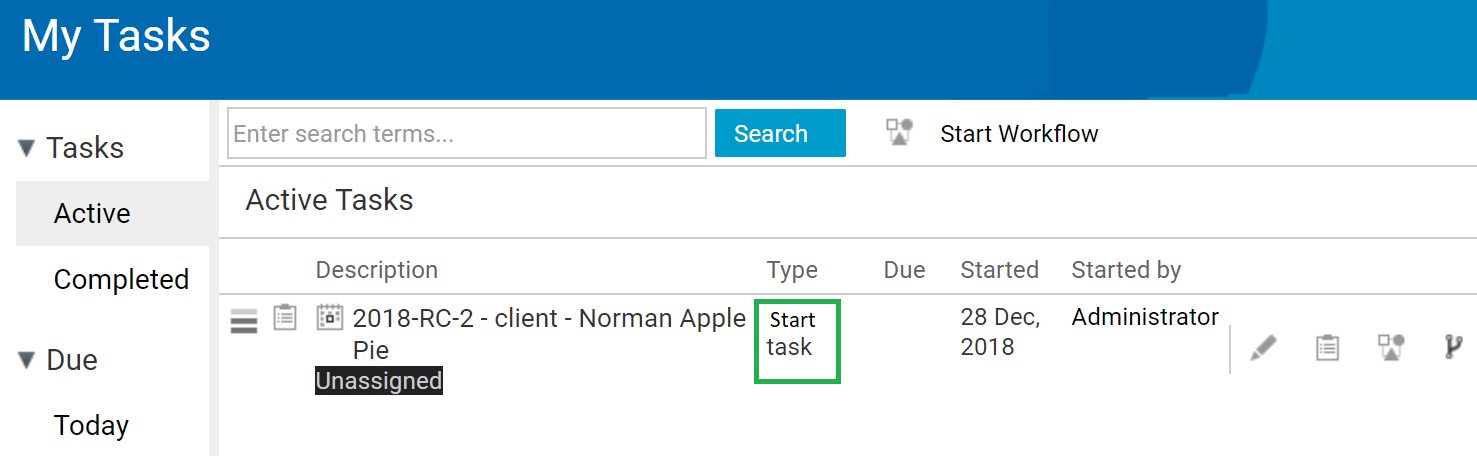
If you have created a draft, a new task appears in "Tasks" > "My tasks".
You can also access workflows through incidents:
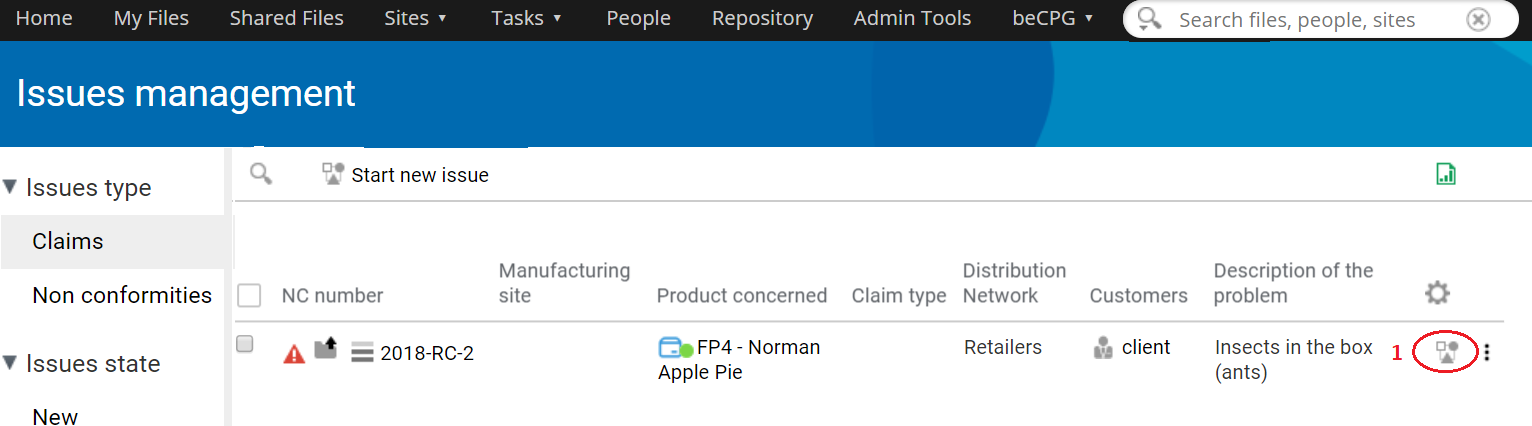
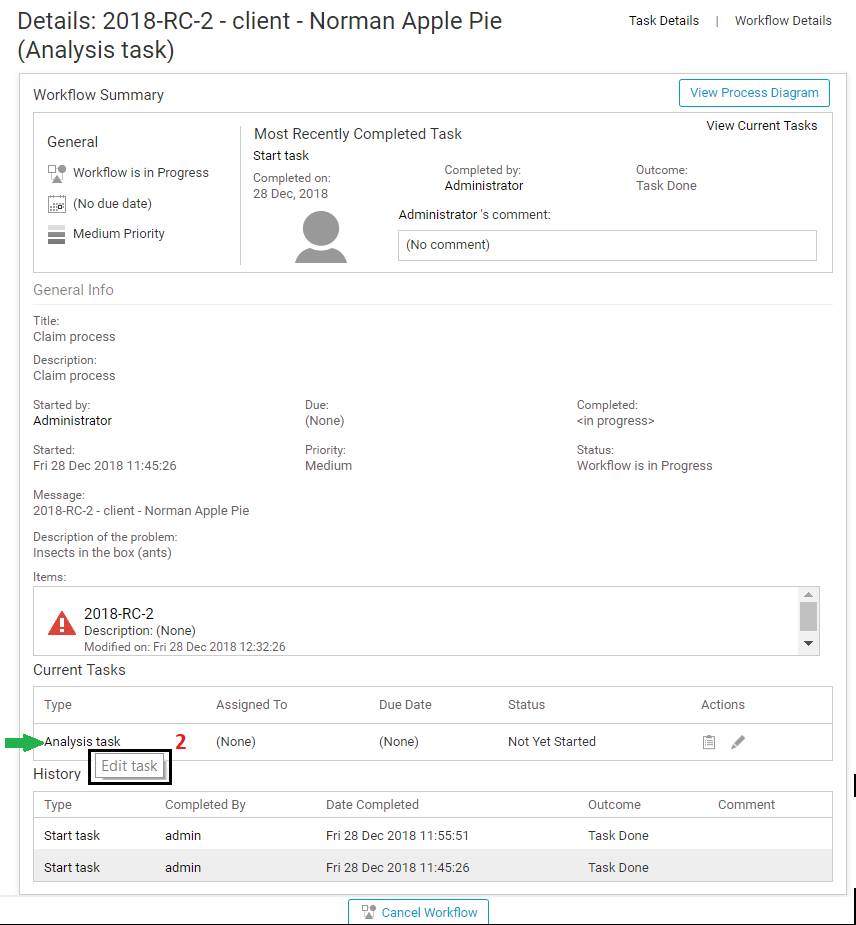
Click this task to complete the claim:
- add attachments such as photos or documents;
- to validate the registration of the complaint, click "Finish the task";
- to continue the entry later, click "Save and close".
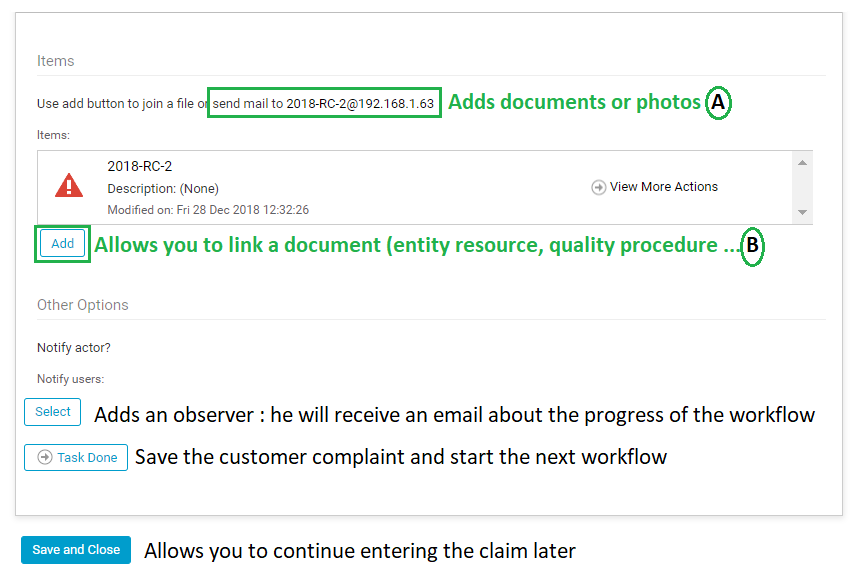
There are three ways to add documents:
- A: by sending an email to the address indicated (specific to the non-compliance);
B: by clicking "ADD": you directly link a document or an existing entity from a site to the non-compliance. This option gives the people who will treat the claim quick access to documents (quality procedure, another claim, etc.);
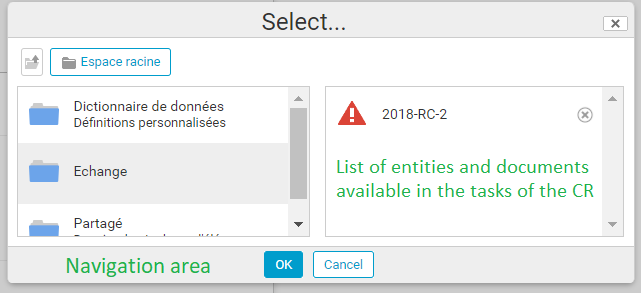
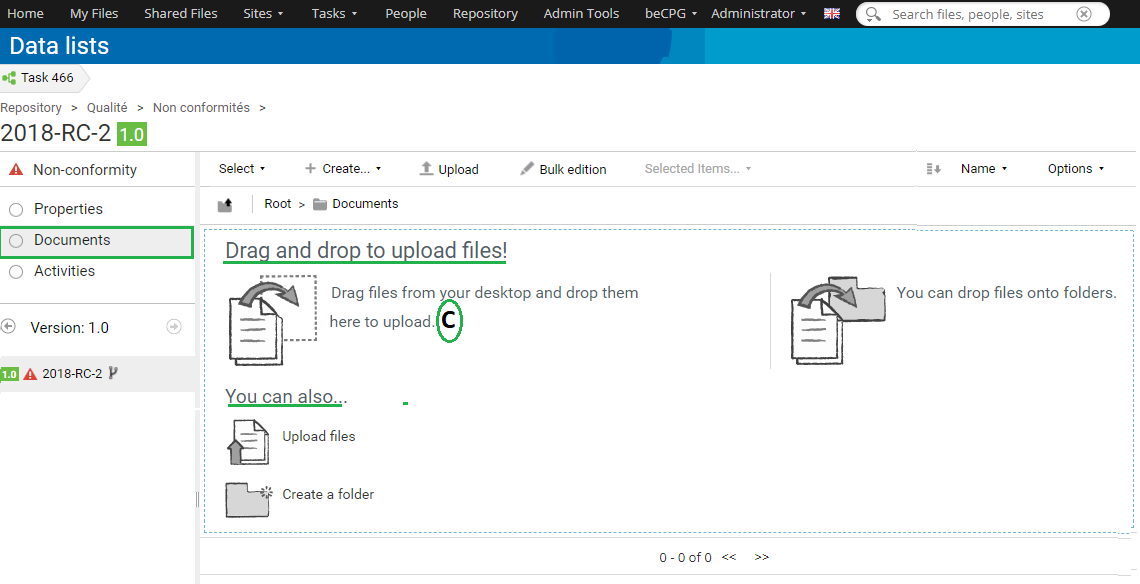
C: by dragging and dropping a document into the "Documents" folder of the customer claim.
3. Claim analysis and orientation
The analysis of the claim directs the claim to specific people.
- Go to "Tasks" > "My tasks" (or use incident tracking, see above).
- Click the task.
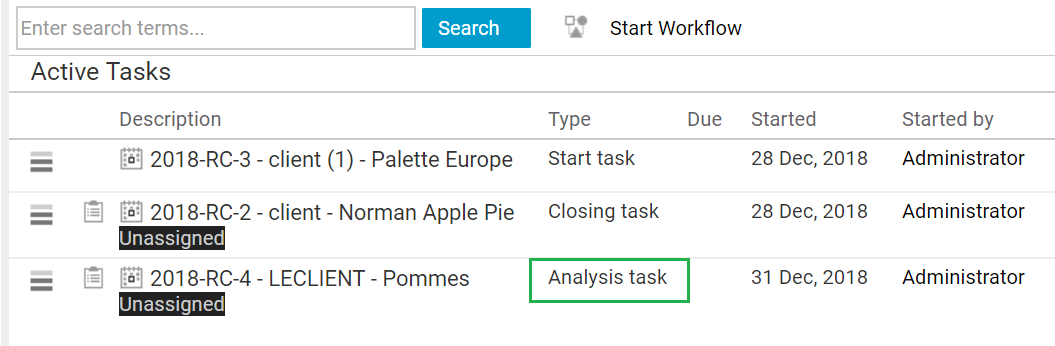
- Fill in all the fields.
- Select the people in charge of the treatment and of the response to the customer.
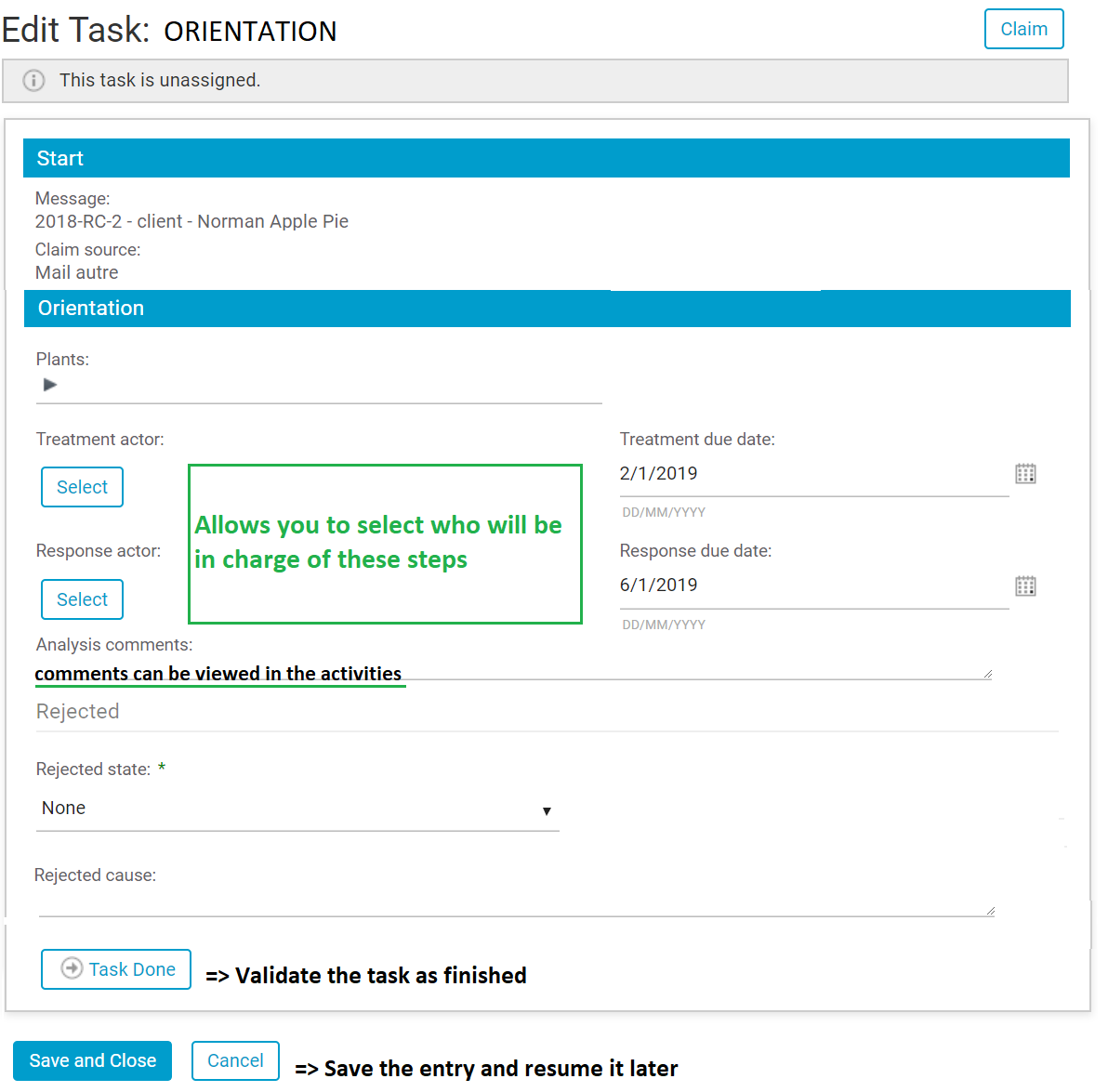
To add a user, click "Select", then:
- search for the person (enter at least 1 letter);
- click "+" to add them as a recipient;
- save by clicking "OK".
To remove a selected user, click the small cross "X" to the right of their name.

Once the orientation task has been validated, two tasks, independent of each other, are created simultaneously:
- the classification task;
- the treatment task.
4. Classification
The classification task categorizes the claim. This classification can be used to produce statistics.
5. Treatment
The treatment task records the actions, the action plans and all the details needed to answer the customer complaint.
6. Answer
The "Answer" task records how the answer is given and its content. It shows how the answer was handled, for example:
- sent to the sales representative so that they can answer the customer directly;
- handled directly;
- waiting to be sent (waiting for validation, etc.);
- etc.
You can complete these values in "beCPG" > "beCPG Administration" > "System characteristics" > "Quality lists".
7. Closing of the complaint
The "Closing" task is used to check that the tasks and information were completely and correctly entered and that the deadlines were met. The person who closes this task closes the workflow and thereby closes the customer complaint.
8. Refusal
At any time in the workflow, you can refuse a task. This refusal can be linked to any previous or current step.
The system then loops back to the rejected step. In other words, when you validate your task, the next step will be the step you selected in the refusal. For example: you are closing > you detect an anomaly in the orientation > you refuse the "orientation" task
the next step in your workflow is the "orientation" task.
- Select the refusal step.
- Write the reason for the refusal.
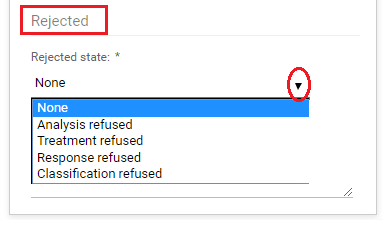
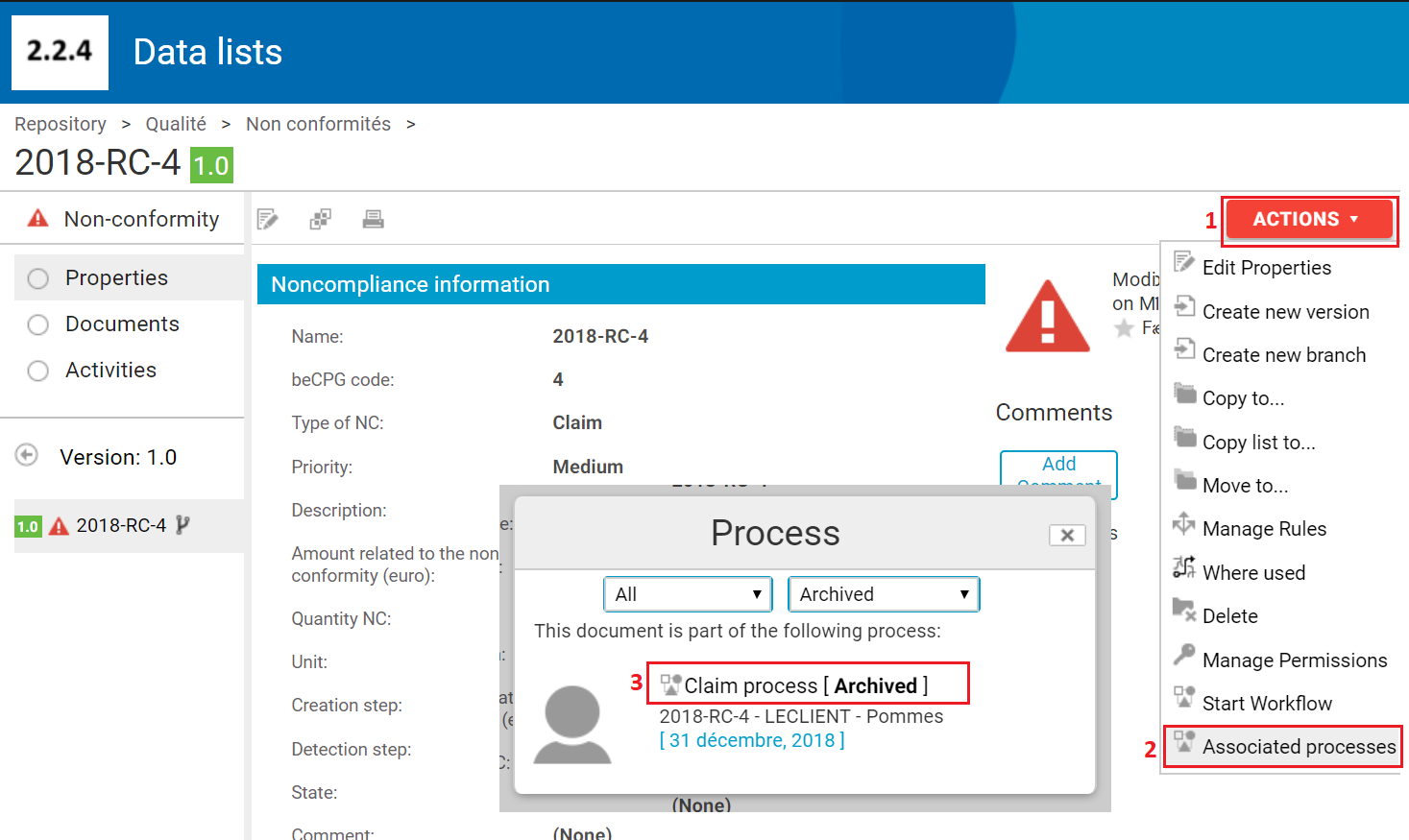
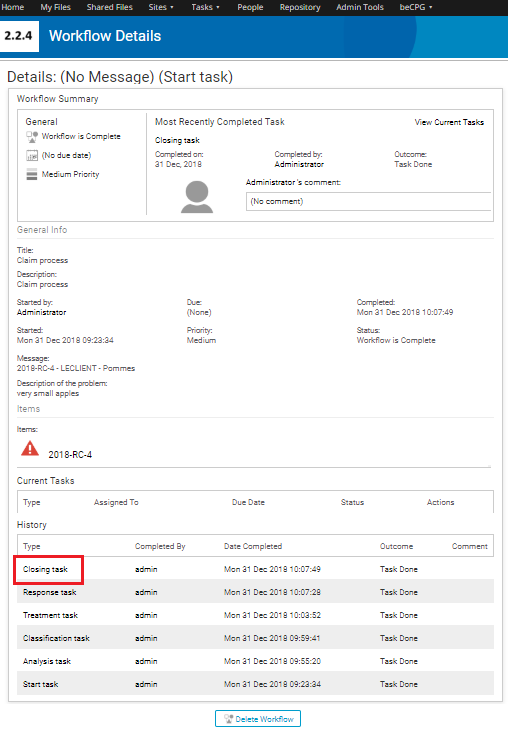
The history of the steps is available in the activity list or work log of your complaint (see below). However, if you modify fields after the refusal, the system does not keep the history of your previous entries. It keeps the comments entered at each step in the work log.
The customer complaint and the quality system
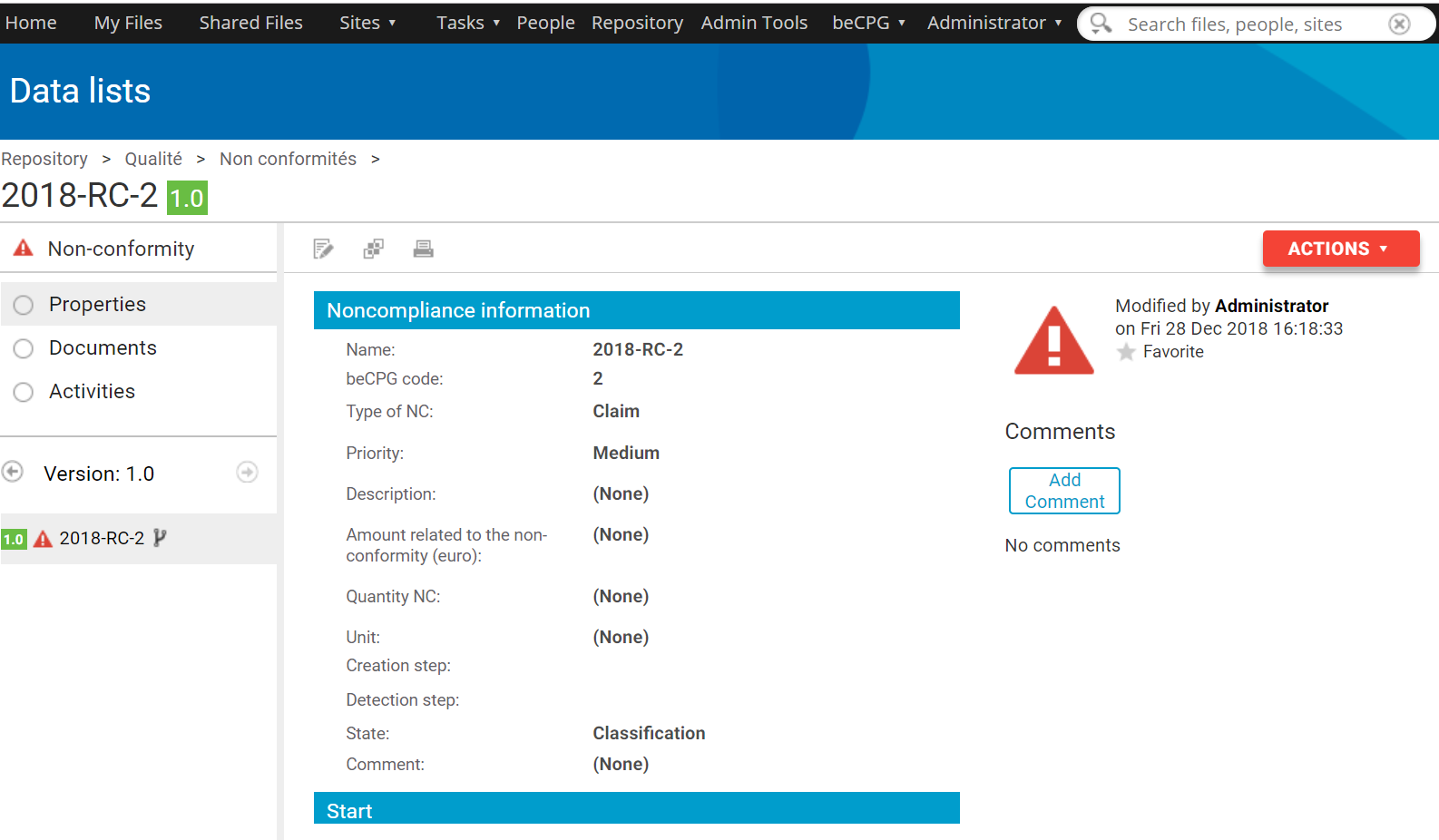
During the processing of the customer claim, you can view it at any time using the link below. This link is present at the end of each task, at every step.

1. Properties of the "Customer Claim" entity
3. Work log of the "Customer Claim" (old version)
The work log traces the various actions step by step, with the dates and the users who performed them. You can add comments in the work log (double-click the cell, write your comments, save).
4. Activities and history of the "Customer Claim" (new version)
Extraction of incidents
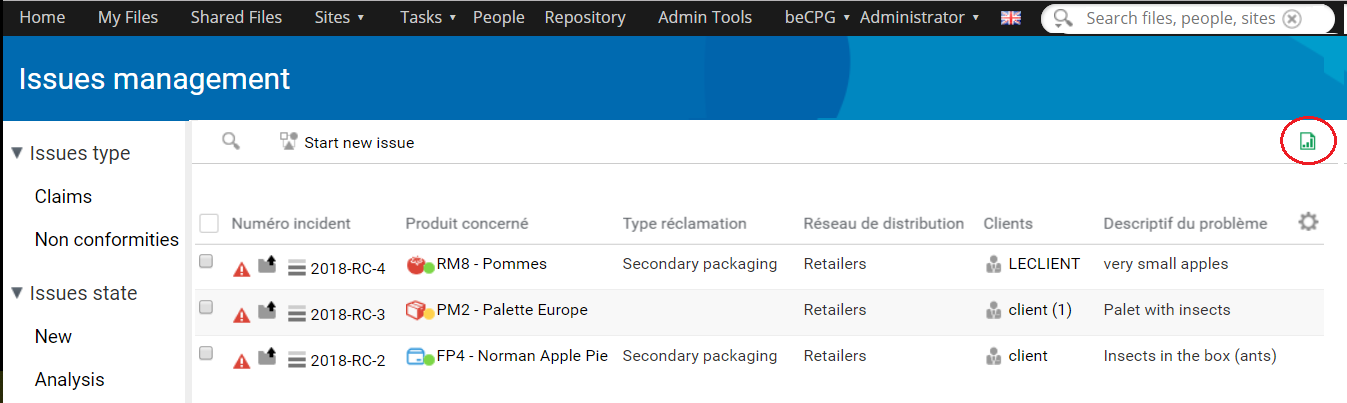
From the "Incident Tracking" page, you can export the
customer complaints to an Excel file (*.xlsx):
- Click the export icon (green icon).
- Save the file.
- Open the file with a spreadsheet application such as Excel.
Configuration of system lists
You can configure the lists of values used in the customer complaint process in "beCPG" > "beCPG Administration" > "System characteristics" > "Quality lists".

OLAP statistics - Business intelligence
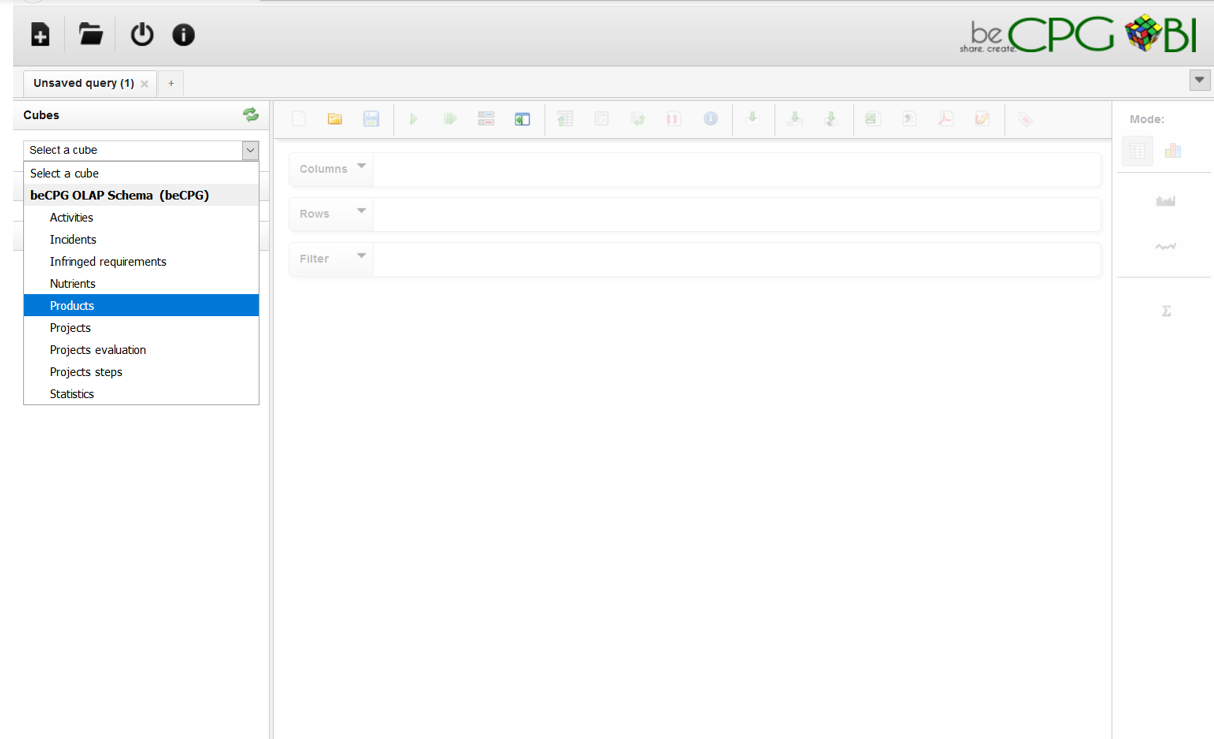
To access OLAP: "beCPG" > "beCPG OLAP".
Choose "Incidents":
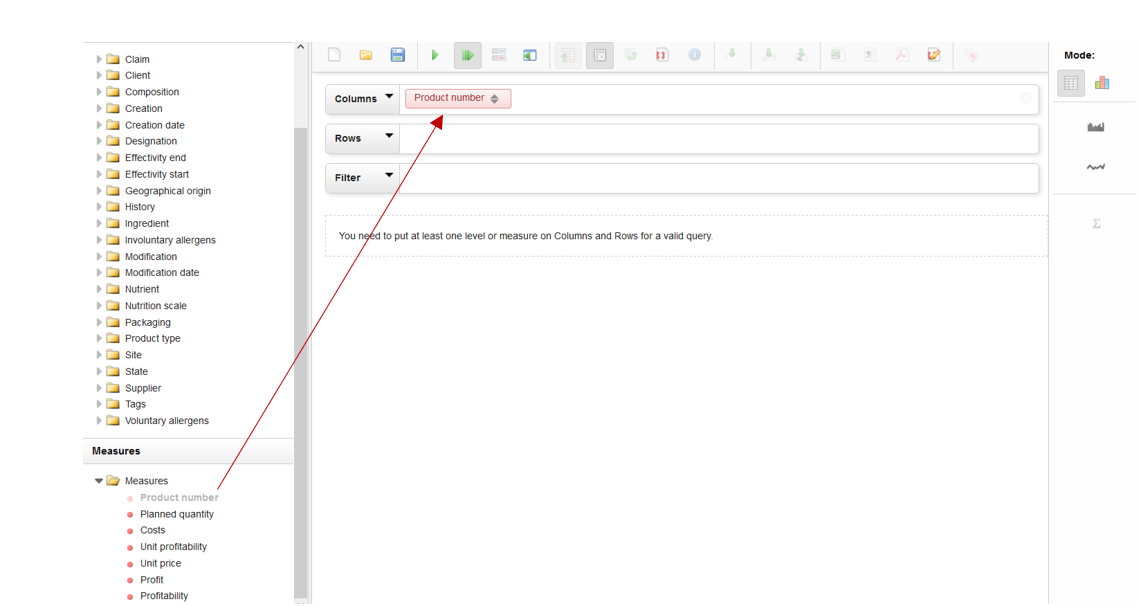
You can generate charts at any time:
Reminder: statistics are updated daily (D-1): changes made during the day are only taken into account in OLAP the next day.