Branches and versions
beCPG allows you to manage versions and create multiple branches simultaneously on the same entity.
A version corresponds to an evolution of an entity, identified by a number (major or minor) and possibly accompanied by a comment. It is generated when a branch is merged in and allows you to track the history of changes made to the entity. Creating a new version requires the appropriate access rights to the entity concerned.
A branch allows you to develop an entity in parallel, based on an existing state. It is particularly useful for creating a new version, carrying out long-term developments, or performing simulations. Each branch follows its own lifecycle, and its storage requires the appropriate access rights to the target entity. At the end of development, the branch can be reintegrated into the original entity, thus generating a new version.
For a given product, only one version can be modified. However, several branches can coexist, be modified, and used simultaneously.
For more information on permissions specific to versions and branches, click here.
Branch
Creating a branch
Create a branch via the "ACTIONS" button (top right) by selecting "New version". This generates a branch of the entity concerned, which you can then modify and manage independently of the original version.
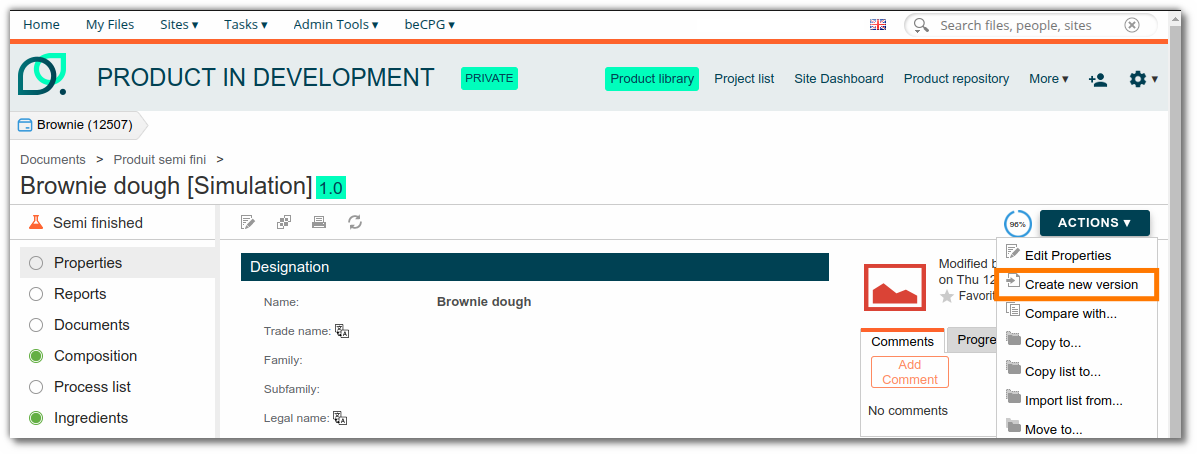
You can also create a branch directly from the composition list. Click here for more information.
Trials
Branches let you run trials and test changes without impacting the main version of the entity.
For example:
- Create a product Product - Test A; the product status is Simulation.
- Create a branch using the “New Version” button from the product Product - Test A and rename it Product - Test B.
- Create another branch from the product Product - Test A and rename it Product - Test C.
- Create a sub-branch from the product Product - Test B and rename it Product - Test B.1.
- Test C is selected. Change the status of the product “Product - Test C” to To be validated and rename it “Product”.
- The product can then be sent for validation. The other trials can be kept in the project folder or deleted.
Version
Creating a version
You can then reintegrate the branch into the original entity via the "ACTION" button > "Merge version". This action creates a version of the entity.
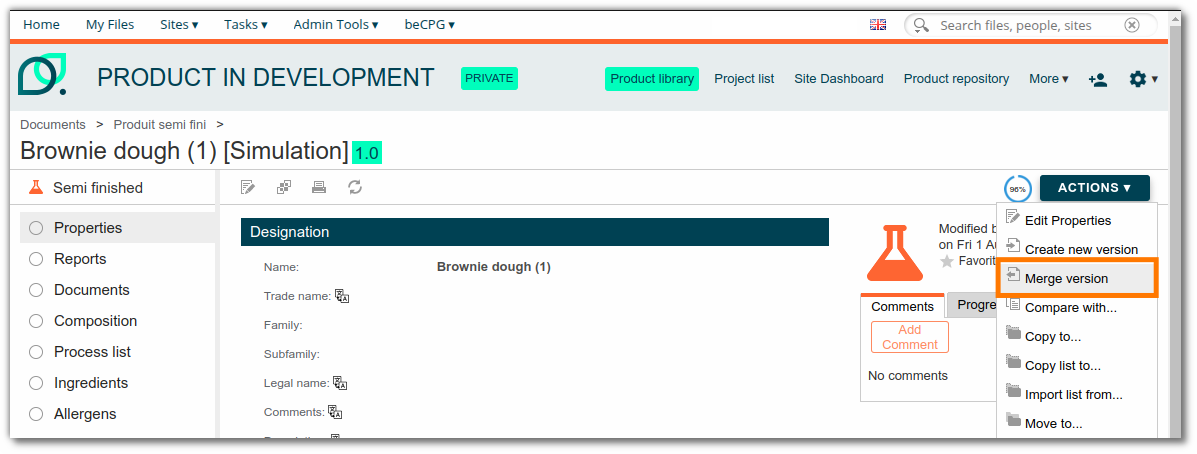
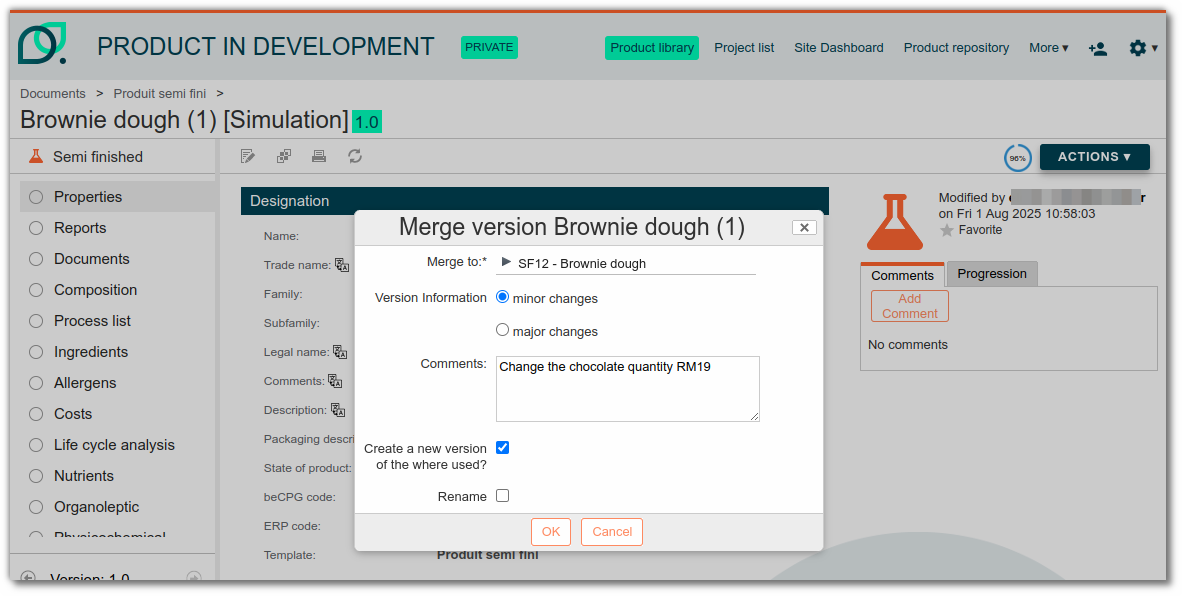
Before merging the branch, you must complete the merge form:
- Merge to: original entity that will benefit from the changes made to the branch
- This version has a minor change (1.0 > 1.1) or major change (1.0 > 2.0)
- Comments: We recommend that you indicate the product code and the reason for the change for traceability purposes
- Create a new version of where used?: If an entity is used in other entities (where used) and the change made has an impact, you can create a new version of the where used to make this change visible. In this case, the where used will also be upgraded to a new version, while the initial information will be retained in the previous version. We recommend that you add an explicit comment specifying the modified product and the reason for the modification. This comment will be visible in the relevant where-used entities. However, for minor modifications with no impact, it is preferable not to create new versions of the where-used entities. Versioning where used has a cost in terms of storage and performance, so it should be used sparingly.
- Rename: If you have changed the name of the entity in the branch and want to keep this new name, check this box.
Important: Once a version is created, it becomes fixed. Information from the previous version is then no longer accessible. If changes are made after a version is created, they will not be included in that version, but only in the next version. This is because the data for a version is recorded at the precise moment it is created, not when the next version is generated. It is therefore crucial to follow a rigorous process when upgrading a version:
- Start with an existing entity associated with a version number (e.g., v1.3).
- Create a branch from this entity.
- Apply the desired changes to the branch.
- Reintegrate the branch into the main entity, which generates a new version (e.g., v1.4).
- Version 1.4 is now created and contains the changes made.
The entity remains editable, but version 1.3 remains unchanged. Any future changes will have to be integrated into a new version (e.g., v1.5).
Automatic version merge
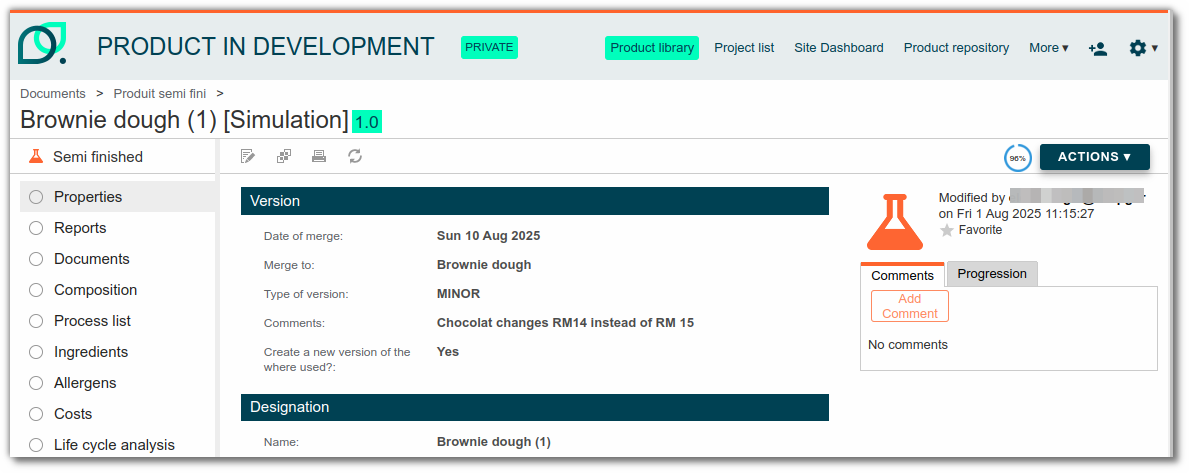
When creating a branch, the “Automatic version merge” aspect is added to the product. This allows you to schedule the branch to be merged on a specific date. To do this, it adds a "Version" section where you can fill in the fields related to the merge, as well as a merge date. On that date, an automatic merge will be performed with the selected entity, resulting in the creation of a new version—major or minor—on that entity.
For more information on aspects, click here.
Viewing a previous version
You can navigate through the properties and lists of the previous version using the "Versions" button available under the lists.
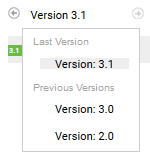
Note: you can also download documents from an older version in the version history, accessible from the version graph.
Comparing a product to its previous version
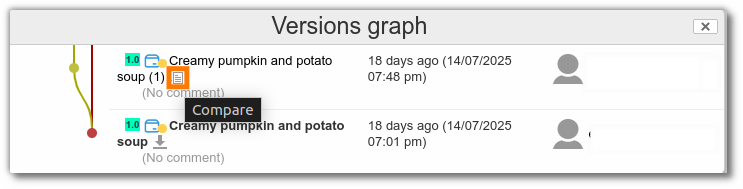
You can compare a product to its previous version using the "Compare" button available in the version history, accessible from the version graph. The system then generates a document describing the differences between the two versions.
Restoring a version
You can restore a previous version of an entity.
To do this, consult the entity's version history, then click the "Restore" icon next to the desired version.
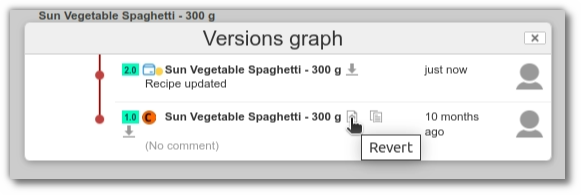
A new branch is then automatically created containing all the information from the targeted version.
Sensitive version
Sensitive versions improve the traceability of product recipes. Their purpose is to allow a raw material to be revised without the new version being used in the composition of older versions of semi-finished or finished products. Sensitive versions allow you to manage the following scenario:
- I create an RM 1.0 and an FP 1.0 that uses RM 1.0
- I create an FP 1.1
- I create an RM 1.1
- FP 1.1 uses RM 1.1 and FP 1.0 uses RM 1.0
- I create FP 1.2
- I create RM 1.2
- FP 1.2 uses RM 1.2, FP 1.1 uses RM 1.1, and FP 1.0 uses RM 1.0