Using beCPG and Alfresco to create advanced PLM applications
Introduction
What’s a PLM and what is it for?
Wikipedia
“In industry, product lifecycle management (PLM) is the process of managing the entire lifecycle of a product from inception, through engineering design and manufacture, to service and disposal of manufactured products.[1] PLM integrates people, data, processes and business systems and provides a product information backbone for companies and their extended enterprise.”
In other words, PLM helps manage a product during its entire lifecycle, from its conception, through design and manufacture, to service and disposal.
PLM often combines:
- Document Management
- BPMN Process
- Project Management
Although PLM was primarily designed for manufacturing, it has been extended to several sectors, including:
- Aerospace & Defense
- Automotive
- Consumer Goods
- Education
- Energy
- Financial
- Food & Beverage
- Government
- Healthcare
- High Tech Electronics
- Industrial
- Medical Devices
- Pharmaceutical
Why the Alfresco platform?
Wikipedia
“Alfresco is a free/libre enterprise content management system for Microsoft Windows and Unix-like operating systems”
Alfresco ECM was a good starting point for creating a PLM platform. It provided:
- Out-of-the-box powerful document management
- BPMN Process integration with Activiti
- Modern Web Interface
- Wide user community
- Content repository for storing product metadata
And much more: http://www.alfresco.com
And beCPG ?
beCPG is an open platform that adds the modules Alfresco lacks to build PLM applications.
It comes in 3 major flavors:
- PLM
- Project Management
- Reporting and BI
One of the first applications built on this platform was the "beCPG for foods" suite. beCPG for foods is a complete PLM application for Food & Beverage. It’s a ready-to-use application with modules specific to this sector, including:
- Product repository
- Formula and recipe management
- Product data sheets generation and reporting
- Regulatory management
- Quality management
beCPG also provides a large set of technical tools that can be used standalone to meet specific client requirements. Some of them are:
- Product datalists and configuration
- ORM Framework
- QueryBuilder
- Custom form controls
- Model designer
- Field-based permissions
- …
The rest of this tutorial presents these modules and components.
beCPG PLM Core features
Model
The beCPG PLM module is the core of the application: it manages products. In beCPG vocabulary, a product is called an "entity". An entity is represented by an Alfresco model and must inherit from the beCPG super type "entityV2".
Here is our first PLM Model:
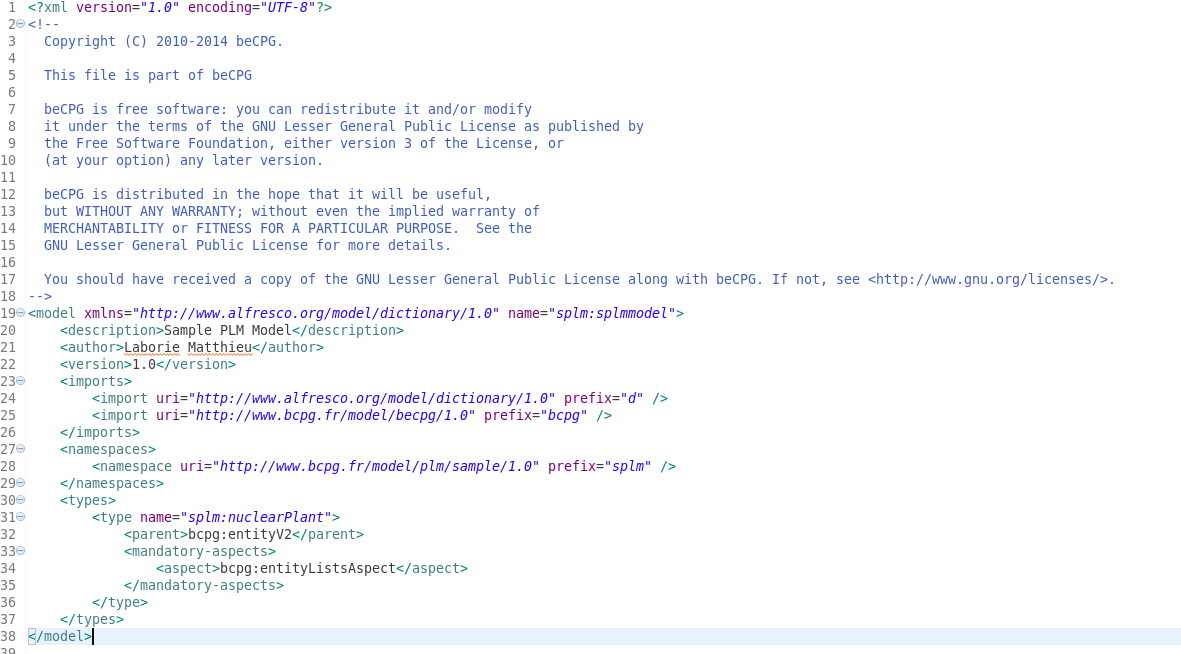
As you will see later, you can create this model using the beCPG Model designer. Once you have created and deployed an entity, the beCPG engine considers it as a PLM product and manages its lifecycle.
Let’s see what you can do with a product.
You can create your new entity using the "Create" menu.
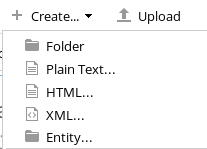
You are then redirected to the entity view.
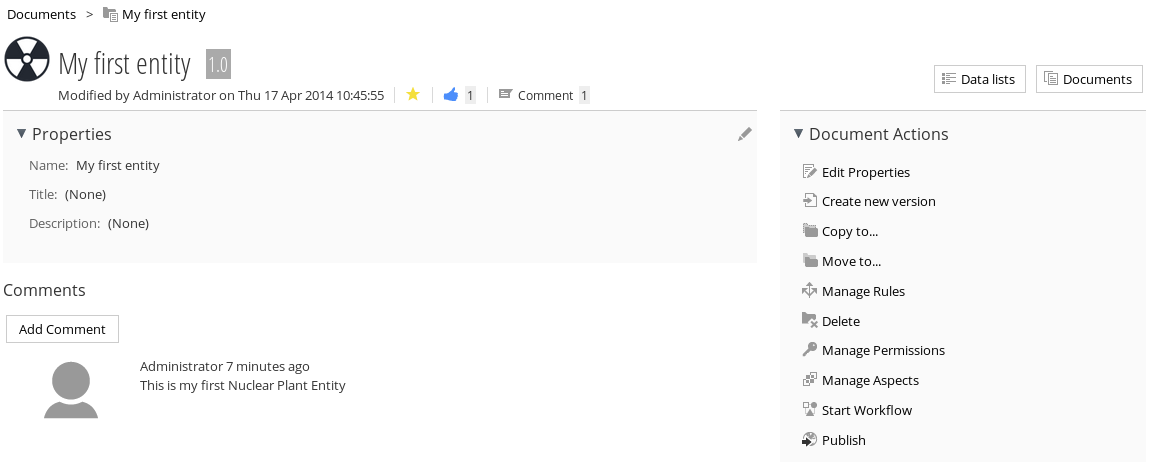
The entity view differs from a standard document view. The entity (or product) view focuses on entity metadata and adds several custom actions. You can also add a custom image to your entity by clicking the logo image.
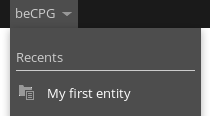
Your new entity appears in the recent items of the beCPG menu.
As always in PLM, your product is associated with documents and data lists. Navigation links to them are in the top right corner. The entity is shown as a folder in the Alfresco document library. To navigate to its content, use the tree or click the "Documents" link. You then access a standard Alfresco folder where you can add the technical documentation of your product.
The entity and its associated documents and datalists form a whole. When we talk about versioning, you will see that everything is versioned under the entity.
Here is the documents view:
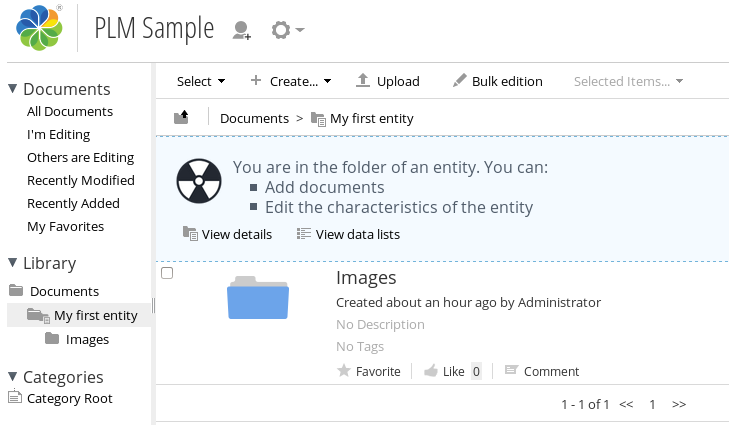
From this view you can navigate to data lists or go back to entity details.
Let’s now talk about data lists. Data lists are the main part of the PLM entity.
Data lists link various information to your product. The most common use of a data list is to represent the composition of the product, but data lists have many other uses, such as task lists or related document lists.
In our nuclear plant example, the entity is created with a hierarchical datalist to represent the different parts of the plant. Each part is also an entity with a datalist for components.
To add the datalist feature to your entity, add the bcpg:entityListsAspect aspect as mandatory to your Alfresco entity type. An aspect is like a new feature of your PLM entity. Aspects are widely used in beCPG.
A datalist is represented by an Alfresco model and must inherit from the beCPG super type "bcpg:entityListItem". To make it hierarchical, we use the aspect “bcpg:depthLevelAspect”.
The model should look like this:
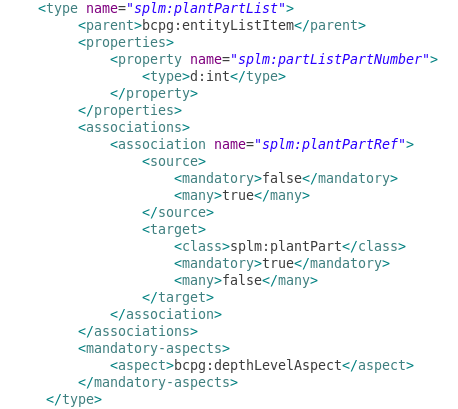
Once the model is deployed, you can add this datalist to your entity. You cannot add it directly: each entity uses an entityTemplate to define its structure and folder hierarchy. To create this template:
- Create a new entity and add the “Entity template” aspect.
- Go to the datalists and add your datalists.
- Return to your first entity: the datalists are added automatically.
You can store your template under “Repository/System/Entity templates” (or via beCPG Admin, System folders).
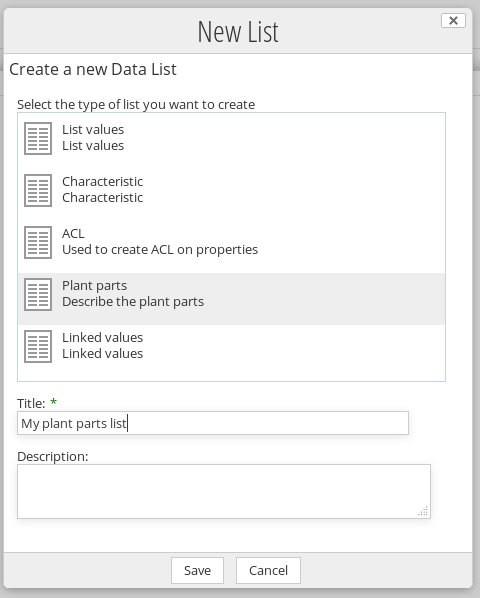
Then start adding new items (form creation is explained in “Using the designer to create your PLM Model”).
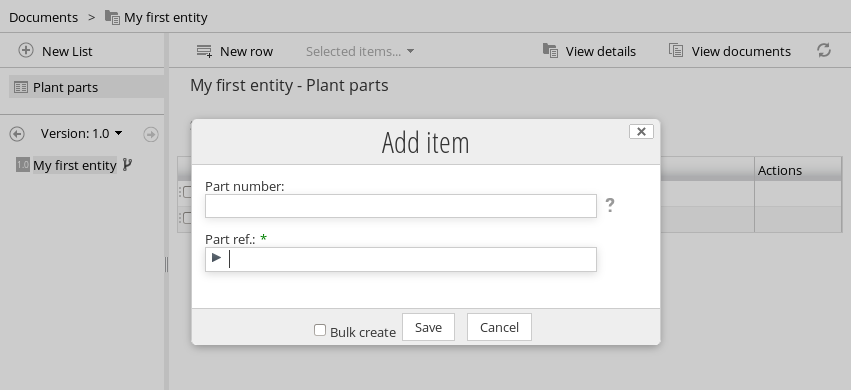
As you can see, beCPG makes it easy to build your data model. Once your entity is ready to use, you benefit from all the beCPG components around entities:
- Versioning with branch
- Entity reports view
- Bulk edit of entities
- Import/export of entities
- Remote access to entities
- Change Order with version control
- BI analysis
- Custom datalist views
- Entity formulation
- Version sensitive datalists
Where Used?
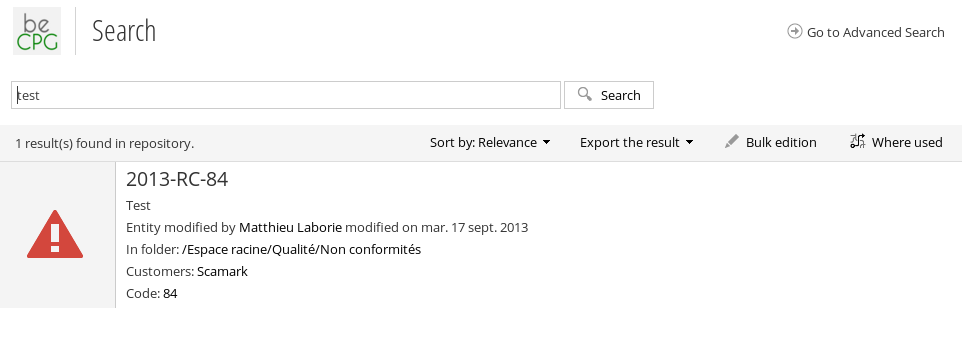
Where used is a PLM feature automatically available for your entities. You can use it from the search (EE only):
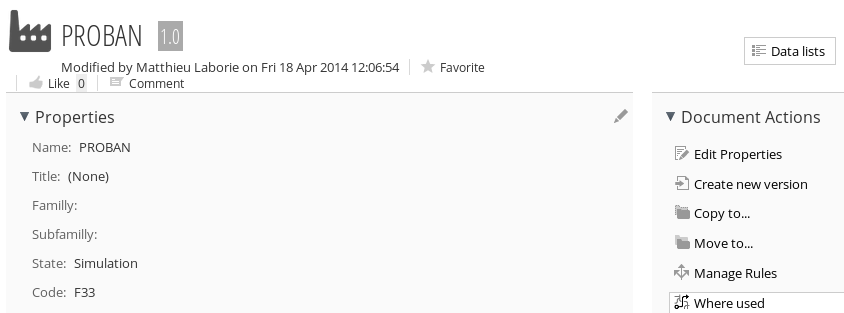
Or directly from your entity actions:
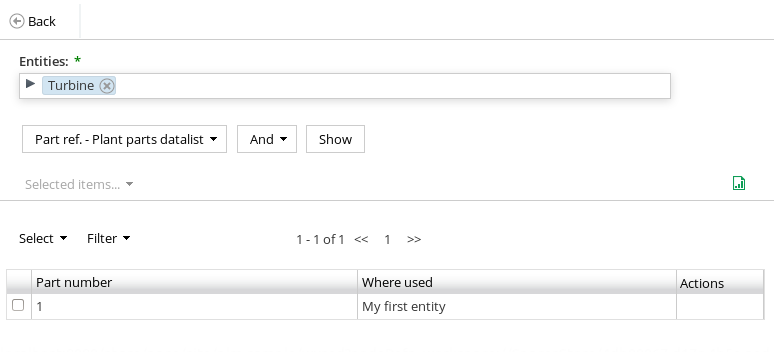
The where used page lets you add more entities, select the association on which the where used applies, and change the operator when several entities are selected.
For example: “Give me all parts that are used in “planPartList” and in Plant 1 OR Plant 2”.
You can export the “where used” results.
Using the designer to create your PLM Model
You can create your model from scratch using the designer, but it's faster to start from an existing XML file. Create a file with this content and add it under “Repository/Data dictionary/models”. Change the name of your model, since it must be unique.
<model xmlns="http://www.alfresco.org/model/dictionary/1.0" name="splm:splmmodel">
    <imports>
        <import uri="http://www.alfresco.org/model/dictionary/1.0" prefix="d" />
        <import uri="http://www.bcpg.fr/model/becpg/1.0" prefix="bcpg" />
    </imports>
    <namespaces>
        <namespace uri="http://www.bcpg.fr/model/plm/sample/1.0" prefix="splm" />
    </namespaces>
</model>
Then go to "Menu > beCPG > Model Designer": you should see your model.
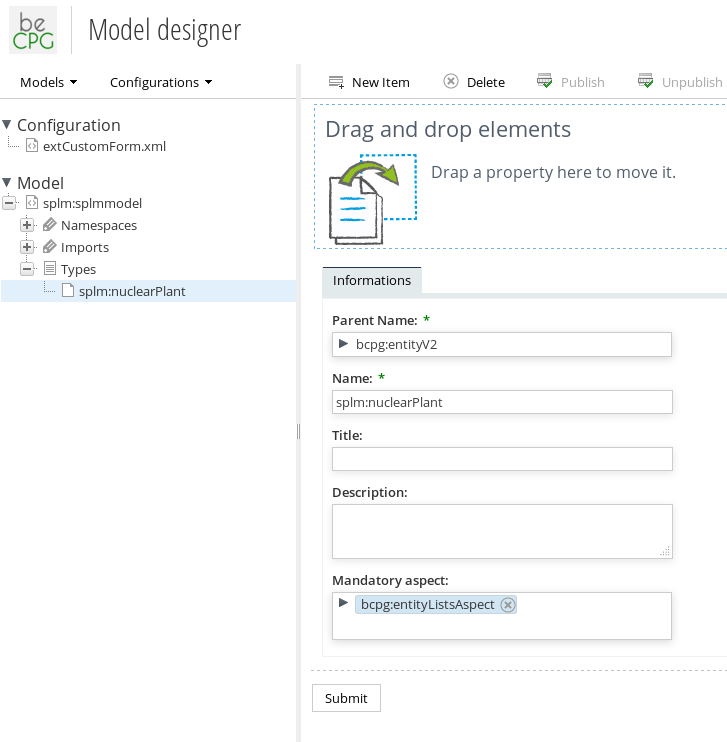
Using the "New item" button, create your model tree and add your nuclear plant properties and datalists.
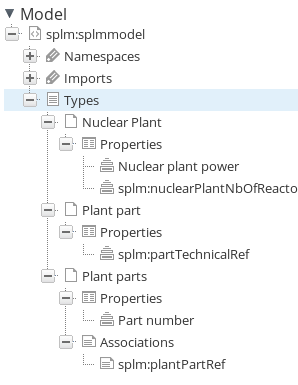
Once your model is ready, you can publish it. Now you need to create the associated forms. Go to “Repository/Data dictionary/configurations” and create a new empty XML file. You should see it in the designer form menu.
Drag your type under the form config: the designer automatically creates the corresponding forms.
To customize the UI, create several forms with different IDs. Forms of kind “model-type” have no associated node, and forms of kind “node-type” edit existing nodes. The possible combinations are:
entity :
   model-type
       - default (creation form)
       - search (search form)
       - bulk-edit (list of field in bulk-edit)
  node-type
      - default (edition form)

datalist :
    model-type
       - default (creation form)
       - filter (filter form)
       - datagrid (datagrid column)
  node-type
      - default (edition form)
We will focus on the plant part datalist. To make it multi-level, add the “bcpg:depthLevelAspect”. Add the “bcpg:parent” field to the form to choose the parent, and the “bcpg:depthLevel” field to the filter form to filter by level. To choose a part, use the beCPG autocomplete control: drag the control to the plantPartRef field. Delete all parameters, as they are not required in this case.
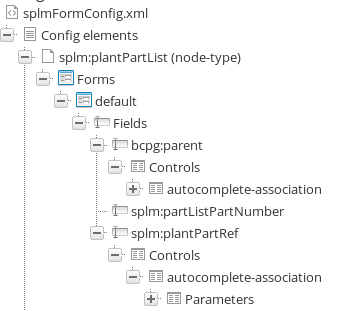
Publish the forms by clicking the toolbar button.
Using the PLM API
TODO.
Creating your first PLM AMP
TODO.