Reports and product sheets
Introduction
This document introduces the configuration and administration of BIRT reports for beCPG. It is intended for beCPG administrators. The following video shows how to modify a BIRT report:
Prerequisites
- Eclipse BIRT,
- The Eclipse plugin ResourceBundle,
- Basic knowledge of:
- XML,
- XPath (optional),
- JavaScript,
- Admin access to the PLM.
BIRT Product Sheet Report
beCPG uses BIRT (Business Intelligence and Reporting Tools) software to generate data sheets. BIRT is an Open Source project that provides reporting and document generation tools. This tool is widely recognized for its flexibility and ability to produce data-rich and customized reports.
BIRT is an open source project supported by the Eclipse Foundation. The complete BIRT documentation is available here: BIRT Documentation. This documentation provides a comprehensive overview of the tool, including basic concepts, advanced features, and best practices for creating reports.
Installation
The different versions of BIRT can be found on this page: https://download.eclipse.org/birt/downloads/
Use the version of the BIRT editor that matches your version of beCPG, as shown in the table below:
| beCPG Report Version | BIRT Version | Java Version | Eclipse RCP Birt Version |
|---|---|---|---|
| 4.20.0 | 4.20 | JDK 17 | BIRT RCP 4.20 |
| 4.17.0 | 4.17 | JDK 17 | BIRT RCP 4.17 |
| 4.15.0 | 4.15 | JDK 17 | BIRT RCP 4.15 |
| 3.2 | 4.8 | JDK 11 | Eclipse Photon |
Types of report
Product reports
There are 2 types of reports for products:
- system report (always generated automatically by the system);
- user report (chosen by the user when editing the product). This kind of report is generated on request.
These reports are defined in the /System/Reports/Product reports folder.
To add a new report (note: you can copy and paste an existing product report):
- Add a folder.
Add the .rptdesign file and edit its metadata:
the name of the report;
- the type of product to which the report applies: Raw material by adding: {http://www.bcpg.fr/model/becpg/1.0}rawMaterial
Semi-finished product by adding: {http://www.bcpg.fr/model/becpg/1.0}semiFinishedProduct
Finished product by adding: {http://www.bcpg.fr/model/becpg/1.0}finishedProduct
Packaging by adding: {http://www.bcpg.fr/model/becpg/1.0}packagingMaterial
You can also enter a general type. With a general type, the report is available for all entities. General Type: {http://www.bcpg.fr/model/becpg/1.0}product
- the model type: System model indicates whether the report is generated automatically for this type of product. If the report is not a system report, users must select it when editing the product.
Default model indicates that the report is the default one for the product, which means that it is displayed by default when the "Create the report" button is clicked.
- There can be only one default report per product type. When they are generated, reports that are not default reports are stored in the "Documents" folder of the product.
- the report extension.
When a product is created or edited, the system generates one report per report template associated with the product.
Search exports: EXCEL
Excel search exports are simple to create.
An Excel file corresponds to a single entity type (Finished product, RM, etc.).
It includes several tabs. Each tab corresponds to a list of the entity (properties, ingredients, composition, etc.). The first tab always corresponds to the property list of the entity. In this first tab, define the entity type that your search relates to.
You define which entity, which lists and which fields you need.
To create your file, you need to know the internal names of the beCPG fields (see How to find the internal beCPG fields?).
First tab
Define the type of entities:
Whatever the tab, cell A1 of your Excel file always contains information.
In the 1st tab:
- A1: TYPE
- B1: the entity type that your search relates to (bcpg:finishedProduct, bcpg:rawMaterial, etc.)
| TYPE | bcpg:finishedProduct | ||||
|---|---|---|---|---|---|
| COLUMNS | cm:name | bcpg:code | bcpg:erpCode | bcpg:productHierarchy1 | bcpg:productHierarchy2 |
| # | Name Code | Code Becpg | Code ERP | Family | Subfamily |
Other tabs
In the following tabs, you can extract the datalists of the entity or the content of the different lists:
- A1: TYPE
- B1: the list that your extraction relates to
Example with the "Composition" list:
| TYPE | bcpg:compoList | ||
|---|---|---|---|
| COLUMNS | bcpg:erpCode | bcpg:compoListProduct | bcpg:compoListProduct_bcpg:productHierarchy1 |
| # | Erp code | Recipe component | Component family |
Specificities
You can use the entity_ prefix to display entity properties in datalist type tabs.
- Export of datalists in column
Since version 2.5, you can also display the datalists of an entity in columns: you no longer need to create several tabs to get the elements of a datalist linked to a product. With this export, the fields of your entity are followed by the elements of the datalist on the same line.
Formula to use:
name_of_the_datalist [ name_of_the_association # search_item == " search_value " ]_ field_to_display
Example:
Export of the cross-contamination by the "Soybean and soybean-based products" allergen for Finished products
bcpg:allergenList[bcpg:allergenListAllergen#bcpg:allergenCode == "FX5"]_bcpg:allergenListInVoluntary
| TYPE | bcpg:finishedProduct | ||||
|---|---|---|---|---|---|
| COLUMNS | cm:name | bcpg:code | bcpg:erpCode | bcpg:allergenList[bcpg:allergenListAllergen#bcpg:allergenCode == "FX5"]_bcpg:allergenListInVoluntary | |
| # | Name | Code Becpg | Code ERP | Accidental presence of soy and soy-based products |
- The dynamic characteristics:
The composition, packaging and process lists can have dynamic characteristics. To get the list of dynamic characteristics by entity:
| TYPE | bcpg:dynamicCharactList | ||||
|---|---|---|---|---|---|
| COLUMNS | bcpg:code | bcpg:dynamicCharactTitle | bcpg:productHierarchy1 | bcpg:productHierarchy2 | |
| # | Code Becpg | Dynamic characteristics |
To retrieve the value of a specific dynamic characteristic, for example from the composition list, build your column header as follows: dyn_property_name
Example:
| TYPE | bcpg:compoList | ||
|---|---|---|---|
| COLUMNS | bcpg:erpCode | bcpg:compoListProduct | dyn_nom_de_la_charact_dynamique |
| # | Erp code | Recipe component | dynamic characteristic name |
- Multilevels and Formulas
For the bcpg:compoList and bcpg:packagingList types, you can use multilevel extraction parameters (AllLevel, MaxLevel2, OnlyLevel2), as well as formulas whose column headers are built as follows: formula|props["formula name"] (for example, enter formula|props["qty"] in the column header).
| TYPE | bcpg:compoList | OnlyLevel2 | |
|---|---|---|---|
| COLUMNS | bcpg:erpCode | bcpg:compoListProduct | bcpg:compoListProduct_bcpg:erpCode |
| # | Erp code of entity | Product Component | ERP code of component |
- Allocation:
The allocation plugin extracts information about the materials used in collections or products. To use it, specify the "Allocation" parameter on the bcpg:compoList type. The available fields are:
- "Quantity" (kg): formula|props["qty"]
- "Quantity per product" (%): formula|props["qtyForProduct"]
- Entity fields: entity|
- Product fields: product|
Here is an example data structure to use this plugin:
|TYPE |bcpg:compoList|Allocation|
| COLUMNS | bcpg:erpCode | cm:name | formula|props["qty"] | formula|props["qtyForProduct"] | entity|cm:name | entity|bcpg:productCollectionHierarchy1 | product|cm:name | product|bcpg:productHierarchy1|
| # | ERP code | Material | Qty | Qty per product | collection | Collection Family | Product | Product family|
Spreadsheet function
Use the results of your searches by adding a tab with Excel formulas (VLOOKUP, HLOOKUP, etc.). To identify the tab that uses Excel spreadsheet functions, its first cell (A1) must contain the # symbol.
You can also define a column by entering an Excel formula directly, or a text like:
excel|SUM(A1:A10)
Image Export
Several formulas can be used to download images stored on entities in beCPG:
- URL finder:
formula|@img.getEntityImagePublicUrl()
formula|@img.getEntityImagePublicUrl($nodeRef)
formula|@img.getImagePublicUrlByPath($nodeRef, "./cm:Images/cm:produit.jpg")
formula|@img.getImagePublicUrlByPath($nodeRef, "./cm:Dossier/"+dataListItem.name+".jpg")
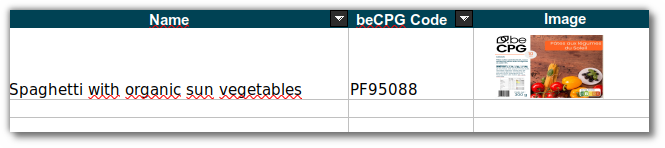
Once you have the public URL of the image in a column, you can use it in a second column with the Excel =IMAGE function to insert the image into Excel.
excel|IMAGE(H2)
- Get the image directly from the export:
image|@img.getEntityImageBytes()
image|@img.getEntityImageBytes($nodeRef)
image|@img.getImageBytesByPath($nodeRef, "./cm:Images/cm:produit.jpg")
image|@img.getImageBytesByPath($nodeRef, "./cm:Dossier/"+dataListItem.name+".jpg")
$nodeRef is a SPEL formula that retrieves the product or image node. e.g.: formula|@img.getEntityImagePublicUrl(entity), or for a list, formula|@img.getEntityImagePublicUrl(datalistItem)
Search exports: BIRT
Only for reports: BIRT
- The data to export for the report is defined
in ExportSearchQuery.xml. This file defines the product
attributes to export to run the report:
- product properties (name, state, etc.);
- product associations (suppliers, customers, etc.);
- product characteristics (costs, nutrients, allergens, etc.).
To create or modify a BIRT report, see the chapter Modification of a product report model.
Installing search exports
These reports are defined in the /System/Reports/Research Exports folder.
These reports are BIRT reports that export the result of a search.
To add a new report:
- Add a folder.
- In the folder, add the BIRT or Excel report and fill in its name and metadata. The name is displayed on the results page of an advanced search. The file extension must be xls for an Excel report and rptdesign for a BIRT report.
- Set permissions on the report folder. Users must have read permission to see the report in the search results.
Here are some of the metadata to configure:

- The export Name, as generated by the system.
- The export Type: keep "ExportSearch" in this case.
- The Class name: filters the entities to consider for the export. To filter on FP:
{http://www.bcpg.fr/model/becpg/1.0}finishedProduct
To filter on SFP:
{http://www.bcpg.fr/model/becpg/1.0}semiFinishedProduct
To filter on RM:
{http://www.bcpg.fr/model/becpg/1.0}rawMaterial
To filter on Packaging:
{http://www.bcpg.fr/model/becpg/1.0}packagingMaterial
To filter on Kit:
{http://www.bcpg.fr/model/becpg/1.0}packagingKit
To filter on all product types (FP, SFP, RM, Packaging, Kit):
{http://www.bcpg.fr/model/becpg/1.0}product
Search limit: the maximum number of lines extracted in the export. By default, it's 1000.
Is disabled: deactivates the export without deleting it.
Search exports: ZIP
ZIP search exports
Entity documents can be exported to a ZIP file. To do this, create an XML file in "Repository > System > Reports > Search exports > Product exports".
This file contains the export settings, with one line per condition.
<file/>
You can filter the extracted entities, select the documents to export, and define the names of the extracted files and of the folder that contains them.
Export by inclusion
Example: documents whose name contains the word ‘xxx’
<export format="zip">
<file entityFilter="spel(hierarchy1.toString().equals('[family node CHEESE]'))" path="cm:Documents/*[like(@cm:name, '%recette%', false)]" name="{doc_cm:name}" destFolder="CHEESE"/>
</export>
In this example:
- 'entityFilter': filter on entities that have the ‘Cheese’ family
- 'path': filter on documents that have the word ‘recipe’ in their name
- 'name': keeps the document name
- 'destFolder': stores the document in the ‘Cheese’ folder during extraction
Export by exclusion
Example: documents whose name does not contain the word ‘xxx’
<export format="zip">
<file entityFilter="spel(@beCPG.assocPropValues(nodeRef,'bcpg:trademarkRef','cm:name')[0]=='Brand X')" path="*/*[like(@cm:name, '%png', false) and not (like(@cm:name,'xxx')) and not (like(@cm:name,'zzz')) ]" name="{bcpg:eanCode} {bcpg:productVersion} {doc_cm:name}" destFolder="png/Brand X"/>
</export>
In this example:
- 'entityFilter': filters entities that have the 'Brand X' tag
- 'path': filters documents that have the 'png' extension but do not have the words 'xxx' and 'zzz' in their name
- 'name': renames the document with the EAN code and entity version, followed by the document name
- 'destFolder': saves the document in the 'png' folder, then the 'Brand X' subfolder
Export filtered on an entity association
<export format="zip">
<file entityFilter="js(entity.assocs['bcpg:productGeoOrigin'] && entity.assocs['bcpg:productGeoOrigin'].length > 0 && entity.assocs['bcpg:productGeoOrigin'][0].properties['bcpg:charactName'] == 'Africa')" path="*/*[like(@cm:name, '%pdf', false)]" name="{doc_cm:name}" destFolder="A3P"/>
</export>
In this example:
- 'entityFilter': JavaScript formula that filters entities with the geographical origin association 'Africa'
- 'path': filters documents with the extension 'pdf' but without the words 'xxx' and 'zzz' in their name
- 'name': keeps the document name
- 'destFolder': stores the document in the 'A3P' folder
How to find the name of the fields in beCPG
Field names can be found in the properties of a product and in the lists (composition, packaging, etc.).
To find the names of the fields in "Properties", edit the properties, right-click the field and inspect the element.
To find the names of the lists, you can either:
- extract the list by clicking the Excel logo,
- or use the node browser (see Tools).
Other sheets
In the other sheets, datalists of the main type can be extracted. Example for the composition:
| TYPE | bcpg:compoList | ||
|---|---|---|---|
| COLUMNS | bcpg:erpCode | bcpg:compoListProduct | bcpg:compoListProduct_bcpg:productHierarchy1 |
| # | ERP Code | Recipe component | family of the component |
Columns and types of attributes are internal names given to fields.
Since version 2.5, you can also display the datalists of an entity in columns. You no longer need to create a tab for each datalist linked to a product. With this export, the fields of your entity are followed by the datalist elements on the same line.
Formula to use:
datalist_name [ association_name # search_element == " search_value " ]_ field_to_display
Example:
Export of the cross-contamination by the "Soybeans and soy products" allergen for Finished products
bcpg:allergenList[bcpg:allergenListAllergen#bcpg:allergenCode == FX5"]_bcpg:allergenListInVoluntary
| TYPE | bcpg:finishedProduct | ||||
|---|---|---|---|---|---|
| COLUMNS | cm:name | bcpg:code | bcpg:erpCode | bcpg:allergenList[bcpg:allergenListAllergen#bcpg:allergenCode == "FX5"]_bcpg:allergenListInVoluntary | |
| # | Name | Code | ERP Code | Cross contamination by soybeans and soy products |
Modification of a product report model
Each beCPG report has a BIRT template with the .rptdesign extension.
BIRT introduction
beCPG relies on a reporting solution: BIRT (Business Intelligence and Reporting Tools).
- Reporting: synthesizes data in the form of reports.
- BIRT:
- open source reporting tool based on Eclipse;
- graphical tool, with a palette to select the elements to place on the report.
A BIRT report can be connected to a database to display the result of an SQL query in the worksheet. To do so, add a "Data source" that connects to the database.
Then add a "Data set" containing the SQL query. It can run static queries, but also dynamic queries with parameters entered when the report is generated.
The "Data cube" creates a "crosstab". It displays data in columns and automatically computes totals for statistics.
The beCPG report is executed as follows:
- The beCPG engine generates the XML data source;
- The BIRT template is loaded;
- The report is executed and produces a .pdf, .doc or .xls output.
Report design
You design the report in the Eclipse designer, which contains:
- The palette, which gives access to rendering controls such as tables, lists, text areas, etc.;
- The XML data source (Data Explorer);
- The report formatting (Layout);
- The master page, to modify the page header and/or footer;
- The report preview.
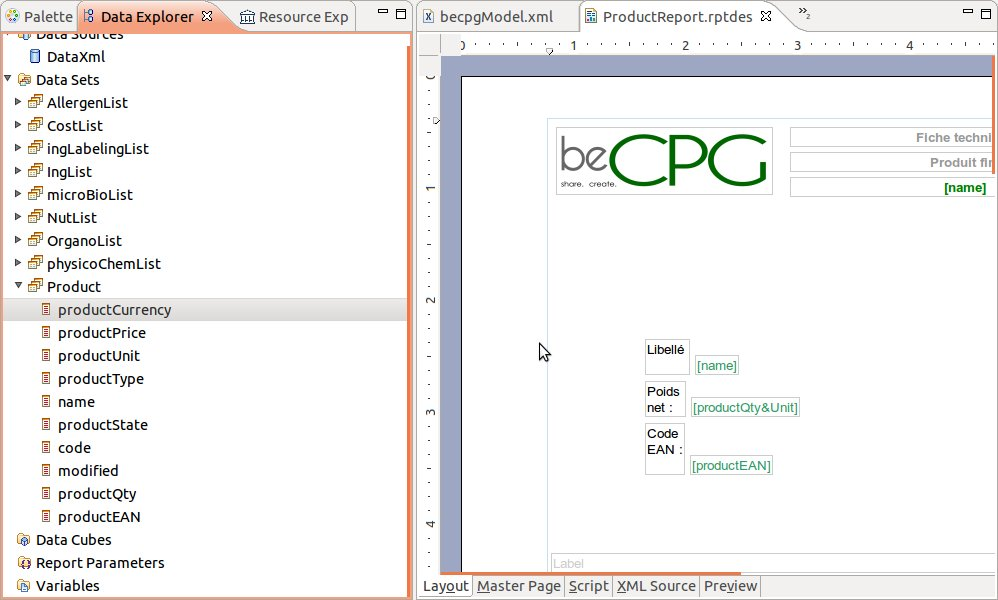
Configuring the report consists in:
- arranging tables, text areas, etc.;
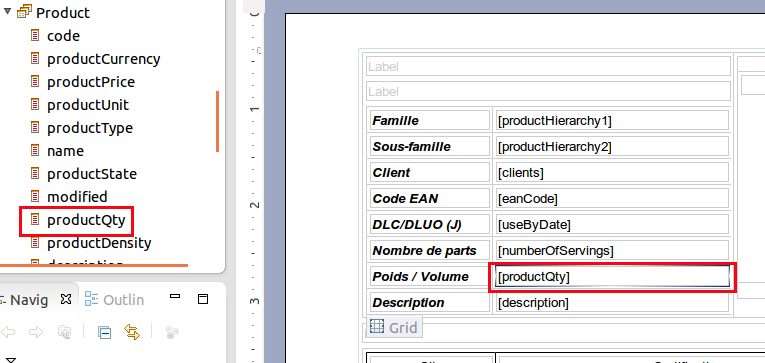
- placing the data in the report by dragging and dropping data source attributes.
Report creation
- "Window > Open perspective > Other > Report Design"
- "File > New > Project > Business Intelligence and Reporting Tools > Report project". Then name the project.
- "File > New > Report". Then name the report and choose the starting template.
Data explorer
Select the "Data explorer" tab to explore the data.
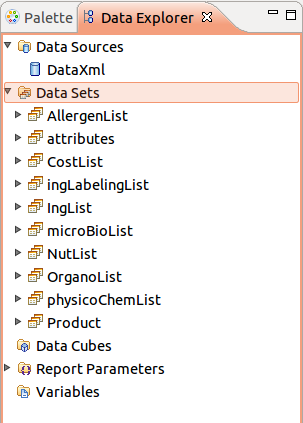
Here is an example of XML data source:
<entity name="8 sushis assortment" code="1009"
    store-identifier="SpacesStore"
    productQty="0.200" productUnit="kg" productState="ToValidate"
    productEAN="8001456682" />
You can get this XML from the following URL:
http://{serveur}:8080/alfresco/service/becpg/report/datasource?nodeRef=workspace://SpacesStore/2aad6284-afc2-4d89-8bbf-bd3dd50ff1bc
OR
http://{serveur}:8080/share/proxy/alfresco/becpg/report/datasource?nodeRef=workspace://SpacesStore/2aad6284-afc2-4d89-8bbf-bd3dd50ff1bc
Where "workspace://SpacesStore/2aad6284-afc2-4d89-8bbf-bd3dd50ff1bc" is the product identifier (shown in the browser URL when you are on a product). This URL displays the XML, which you can save on your computer with "Save as".
XML indentation:
xmllint --format datasource.xml > datasource-pretty-print.xml
Data source choice
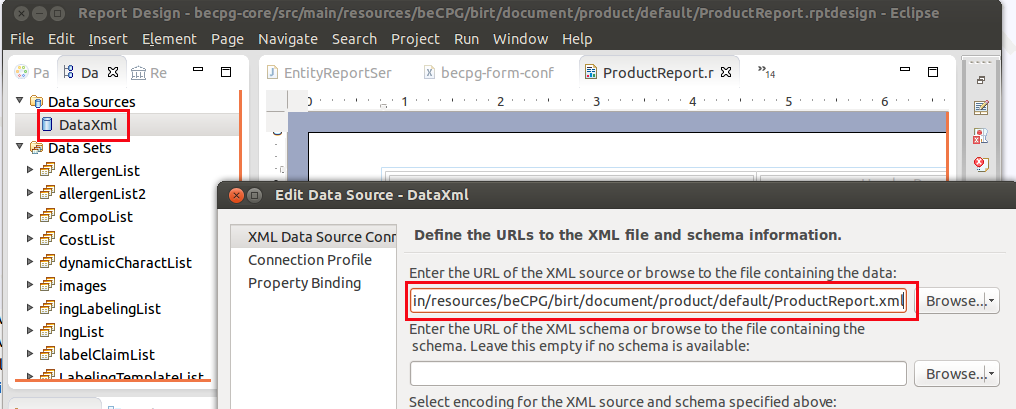
To modify a data source:
- Go to "Data explorer > Data source > New data source".
- Select "XML Data Source".
- Right-click and select "Edit".
- Click "Browse" to find the data source.
- Select the XML saved on your computer.
- Click "Test connection" and enter the administrator ID and password.
- If "Ping succeeded" appears, the connection works.
- Click "Finish".
XML choice
Data Sets
Data sets let you explore the data source and select attributes.
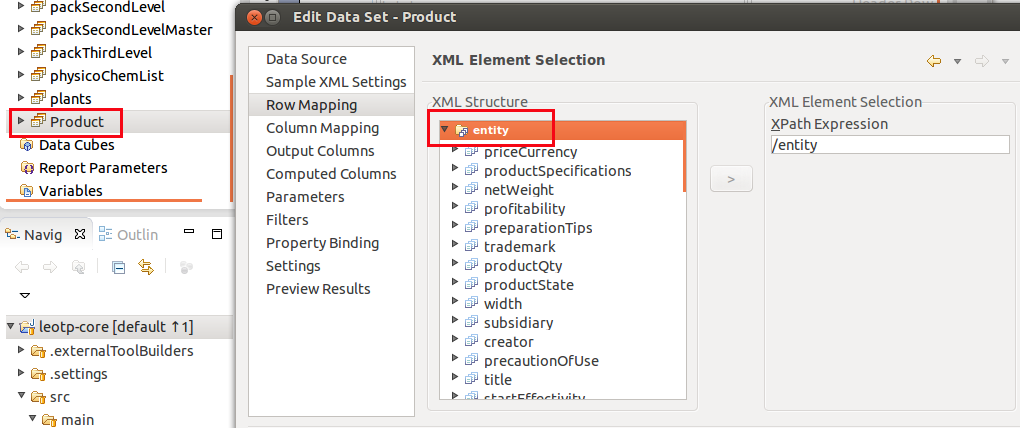
- Go to "Data set > New data set". Then click the data source previously entered and click "OK".
- Select the data to explore (the XPath that selects the XML nodes feeding the dataset).
- Select the XML node attributes that feed the dataset columns.
Adding a property:
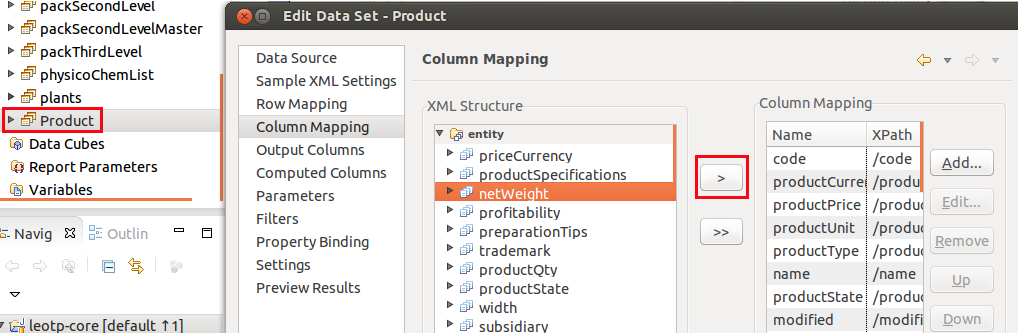
You can preview the content of a dataset by clicking "Preview results". Once the dataset is configured, drag and drop its data into the report.
Report visualization
To switch between report views, click the tabs below the main area.

Layout
The layout is where you build the report:
- adding controls;
- adding data.
Master page
The master page lets you define:
- the report header and footer;
- the report width and height.
Script
You can write functions for the report and store them in the "Script" tab. These scripts can run when the report opens or closes, for a specific element or for the whole report. The XML source code is accessible.
XML Source
Displays the report XML.
Preview
Displays the report preview, as if beCPG ran it: "Run > View report > Output format (PDF)".
Controls palette
Open the palette with the "Palette" tab. It lets you add static text.
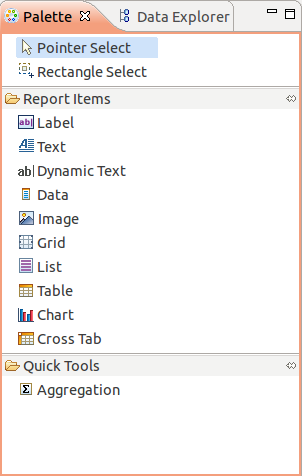
Available controls
- Label: to add static text;
- Text;
- Dynamic Text: dynamic text. Example: to put words in bold in the label, use HTML tags;
- Data: rarely needed, because data is added from the "Data explorer";
- Image;
- Grid: static grid (tables can be added inside);
- List: dynamic list that follows the number of lines in the dataset;
- Table: dynamic table that follows the number of lines in the dataset (lists can be added inside);
- Chart;
- Cross table.
Control addition in a report
Add a control by drag and drop.
Images addition
Adding a static image is straightforward.
Adding a dynamic image is more complex. In that case, the beCPG engine gets an image associated with a product and sends it to the report data source during execution. The procedure is as follows:
- Add the image;
- Make it dynamic by referencing the image ID provided in the data source, for example: row["productImage"]
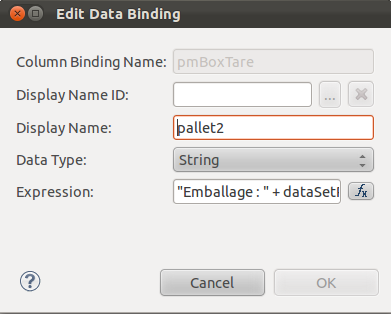
Data type fields expression
Data type fields can use conditions or concatenate several attributes, for example:
"Packaging : " + dataSetRow["palletBoxName"] + ", indicative tare (g) : " + dataSetRow["pmBoxTare"] + ", dimensions (mm) : " + dataSetRow["pmBoxDimensions"]
To edit this expression:
- Right-click the data attribute.
- Select "Edit Value/Expression".
- Enter the expression.
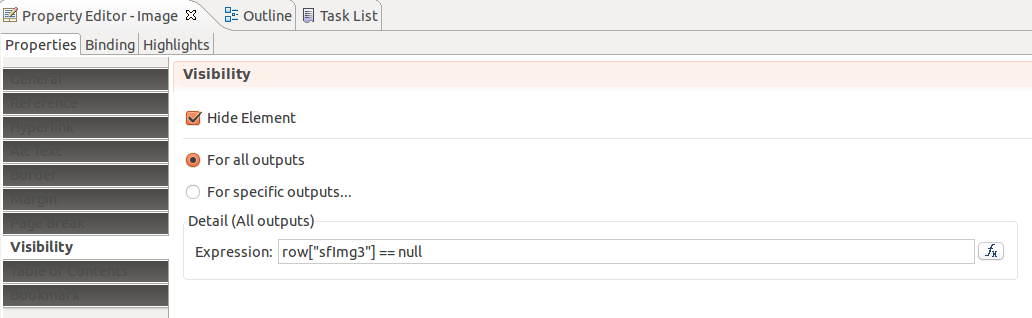
Visibility
You can hide fields or images depending on conditions. To do so:
- Display the control properties.
- Select the "Visibility" tab.
- Enter the expression that defines when the control is hidden.
Formatting
You can define formatting styles in a report. To do so:
- Right-click a control.
- Select "Style > New style".
You can then apply, edit or delete styles on controls: right-click a control and select "Style".
Deployment
Once you have edited the report in Eclipse, save it in the .rptdesign format.
- Technical sheets: go to "Repository > System > Reports > Product reports > Entity" and drop the report.
- Language files (properties): go to "Repository > System > Reports > Product reports" and drop the files.
In "Edit the properties", choose:
- System model if the report applies to all the products of the same type;
- Default model if there are several templates and this one must be displayed by default;
- If nothing is ticked, go to the product and select the report manually.
To translate the report into different languages, associate language files with it, and select the languages in the drop-down list.
JXLS report
JXLS report presentation
The JXLS format lets you build reports directly in an XLSX editor such as Excel. The file uses SpEL formulas to extract the data.
This feature was added in beCPG 3.2.1 (2020/02/13).
To read more about JXLS: http://jxls.sourceforge.net/
Setting
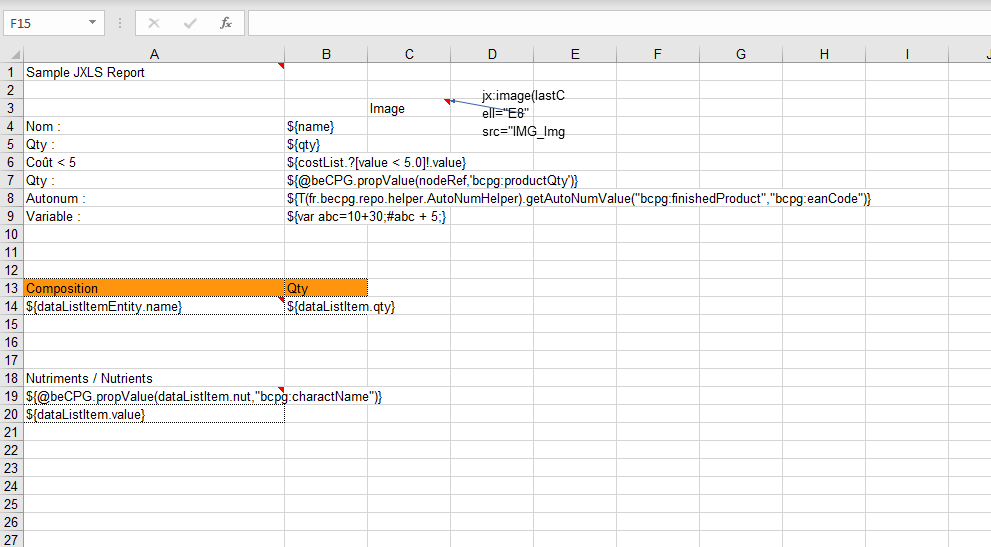
Here is an example of JXLS file:
Notes
Notes (or comments) are essential in these files. Use them in 3 situations:
- File and formulas data range
This note is mandatory and is usually placed in cell A1. In our example, formulas apply from cell A1 to E20:
jx:area(lastCell="E20")
- Datalists
For datalists, the note must be in the cell of the first column. In our example, for the composition datalist, the note is in cell A14. This note defines the datalist to export and the range to consider. In our case, the range is A14 to B14:
jx:each(items="compoListView.compoList" var="dataListItem" lastCell="B14")
The items value depends on the datalist to extract. To extract the packaging list, use:
jx:each(items="packagingListView.packagingList" var="dataListItem" lastCell="B14")
The var value is ALWAYS "dataListItem".
You can also export in columns by adding direction="RIGHT", as in the Nutrients export of our example:
jx:each(items="nutList" var="dataListItem" lastCell="A20" direction="RIGHT")
Note that when datalists are exported, the table dimensions are adjusted automatically. If a datalist has 3 values, the export uses 3 lines and shifts the content below by 3 lines. So there is no risk of overlap.
- Pictures
The note defines the picture dimensions (in cells) and calls the picture to export:
jx:image(lastCell="E8" src="IMG_Img0" imageType="PNG")
The image name in src is ALWAYS preceded by "IMG_".
Fields export
Fields are exported with SpEL formulas, between:
${...}
For example, if you want to extract the beCPG code:
${@beCPG.propValue(nodeRef,'bcpg:code')}
For more information on SpEL formulas, see SPEL Formulas.
Release
Once the XLSX file is ready, release it with the same procedure as for a BIRT report. Choose "XLSX" as report format, and rename the ".xlsx" extension to ".jxls".
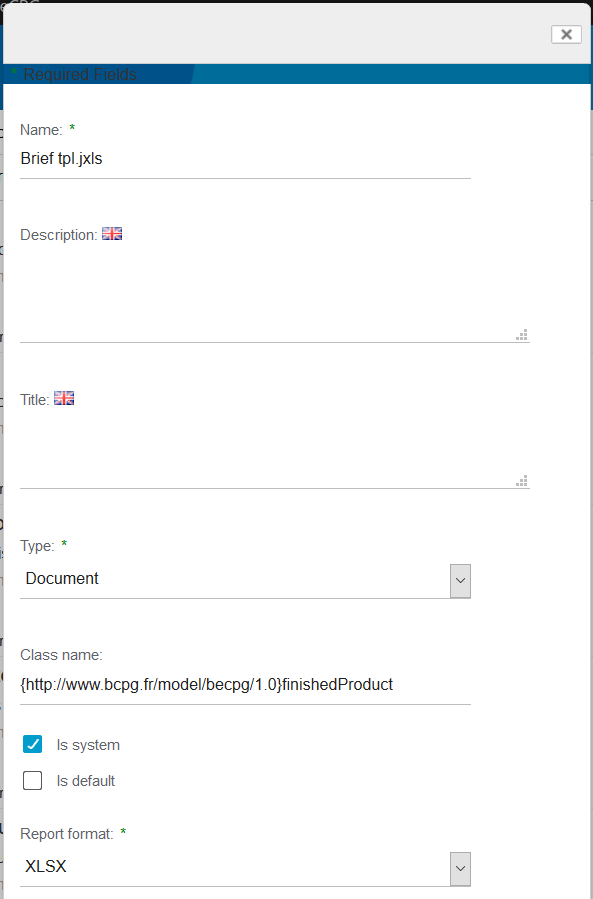
WARNING: every time you upload a new version of your JXLS report, the format is reset to ".xlsx". You have to change it back to ".jxls".
Extractor
Extractor Configuration
The extraction parameters let you customize data extraction.
| Global Parameter | Relative Parameter | Description |
|---|---|---|
| beCPG.product.report.componentDatalistsToExtract | componentDatalistsToExtract | Specifies the lists to extract when the composition is extracted in multi-level, in associations extracted with a list, or in the raw material list. The second argument specifies the object type on which to extract the list. |
| beCPG.product.report.assocsToExtract | assocsToExtract | Extracts association data. |
| beCPG.product.report.assocsToExtractWithImage | assocsToExtractWithImage | Extracts images from the association. |
| beCPG.product.report.assocsToExtractWithDataList | assocsToExtractWithDataList | Extracts lists from the association. |
| beCPG.product.report.assocsToExtractInDataList | assocsToExtractInDataList | Extracts association data in a list. |
| beCPG.product.report.entityDatalistsToExtract | entityDatalistsToExtract | Specifies lists to extract on the entity. |
| beCPG.product.report.multilineProperties | multilineProperties | Extracts the property in a CDATA field to keep line breaks. Instructions, descriptions and product comments are always extracted in a CDATA block; the other properties are placed in an attribute. |
| beCPG.product.report.priceBreaks | extractPriceBreaks | Displays the cost list based on purchase quantities. |
| beCPG.product.report.extractRawMaterial | extractRawMaterial | Extracts raw materials. |
| beCPG.product.report.extractDatalistImage | extractDatalistImage | Extracts images in lists |
| beCPG.product.report.multiLevel | extractInMultiLevel | Extracts the composition in multi-level. |
| beCPG.product.report.nonEffectiveComponent | extractNonEffectiveComponent | Extracts non-effective lines in addition to effective lines. |
| beCPG.product.report.maxCompoListLevelToExtract | maxCompoListLevelToExtract | Sets the maximum number of levels to be extracted for the compoList (must be associated with extractInMultiLevel=true). |
| beCPG.product.report.extraImagePaths | extraImagePaths | List of xPaths separated by semicolons allowing indication of images to be extracted. |
| beCPG.product.report.nutList.localesToExtract | nutLocalesToExtract | Extracts rounded nutrient values. |
| beCPG.entity.report.mltext.fields | mlTextFields | Extracts all the languages entered in a field. |
| beCPG.entity.report.mltext.locales | mlTextLocales | Specifies the languages to be extracted for mlText fields. |
| beCPG.product.report.showDeprecatedXml | showDeprecatedXml | Displays GDA and nutrients in the old format. |
| beCPG.report.name.format | nameFormat | |
| beCPG.report.title.format | titleFormat | |
| beCPG.report.includeReportInSearch | includeReportInSearch | Displays reports in the search. |
The default values for each parameter are:
| Relative Parameter | Default Value |
|---|---|
| componentDatalistsToExtract | Empty (none) |
| assocsToExtract | bcpg:plants, bcpg:suppliers, bcpg:storageConditionsRef, bcpg:precautionOfUseRef |
| assocsToExtractWithImage | bcpg:clients |
| assocsToExtractWithDataList | |
| assocsToExtractInDataList | |
| entityDatalistsToExtract | Empty (all) |
| multilineProperties | |
| extractPriceBreaks | false |
| extractRawMaterial | false |
| extractDatalistImage | false |
| extractInMultiLevel | false |
| extractNonEffectiveComponent | false |
| maxCompoListLevelToExtract | Empty (no maximum level) |
| extraImagePaths | Empty (none) |
| nutLocalesToExtract | Report locale |
| mlTextFields | |
| mlTextLocales | |
| showDeprecatedXml | false |
| nameFormat | {entity_cm:name} - {report_cm:name} - {locale} - {param1} |
| titleFormat | {report_cm:name} - {locale} - {param1} |
| includeReportInSearch |
Possible customization values are:
| Relative Parameter | Example |
|---|---|
| componentDatalistsToExtract | bcpg:nutList, bcpg:ingLabelingList|bcpg:semiFinishedProduct |
| assocsToExtract | bcpg:trademarkRef |
| assocsToExtractWithImage | bcpg:suppliers, bcpg:clients |
| assocsToExtractWithDataList | bcpg:suppliers, bcpg:clients |
| assocsToExtractInDataList | bcpg:nutListNut |
| entityDatalistsToExtract | bcpg:nutList, bcpg:ingList |
| multilineProperties | cm:title, cm:description |
| extractPriceBreaks | true |
| extractRawMaterial | true |
| extractDatalistImage | true |
| extractInMultiLevel | true |
| extractNonEffectiveComponent | true |
| maxCompoListLevelToExtract | 2 |
| extraImagePaths | cm:Mon_x0020_Dossier//[like(@cm:name, '%PNG', false)];cm:Autre_x0020_Dossier/* |
| nutLocalesToExtract | empty: only the report locale; all: all the supportedLocales; supportedLocale list: en, en_US, en_CA, en_AU, de, es, fr |
| mlTextFields | bcpg:legalName |
| mlTextLocales | fr, en |
| showDeprecatedXml | true |
| nameFormat | {entity_bcpg:erpCode} - {entity_cm:name} - {report_cm:name} - {locale} |
| titleFormat | {entity_bcpg:erpCode} - {report_cm:name} - {locale} - {param1} |
| includeReportInSearch |
Introduction
The extractor creates the data source. Since version 2.1, beCPG lets you extract specific aspects of the data with predefined parameters.
The following parameters must be placed in [instanceName]/becpg/classes/beCPG.properties.
Parameters with an asterisk in their title can take several values, separated by a comma ",".
Parameters
becpg.reportServerUrl
This parameter specifies the server on which the BIRT module is located.
Default value:
- becpg.reportServerUrl=http://localhost:8080/becpg-report
beCPG.report.name.format
This parameter tells the BIRT module how to name the report.
Default value:
- beCPG.report.name.format={entity_cm:name} - {report_cm:name} - {locale}
beCPG.entity.report.mltext.fields*
Extracts all the languages entered in a field.
Example:
If the legal name field (bcpg:legalName) is entered in 2 languages (French and English) and both must be displayed in the report, the configuration is:
- beCPG.entity.report.mltext.fields=bcpg:legalName
beCPG.product.report.multiLevel
Enables multi-level extraction. It can take 2 values: 'true' and 'false'.
Example:
If this parameter is:
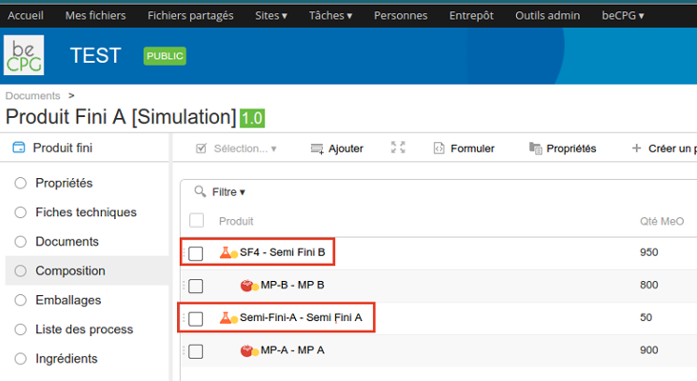
- False: only level 1 elements are extracted (framed in red in the image below)
- True: all elements are extracted.
Default value:
- beCPG.product.report.multiLevel=false
beCPG.product.report.nonEffectiveComponent
Includes non-effective lines in the extraction. It can take 2 values: 'true' or 'false'.
Default value:
- beCPG.product.report.nonEffectiveComponent=false
beCPG.product.report.priceBreaks
Displays the cost list depending on the purchase quantity. It takes 2 values: 'true' and 'false'.
By default, it is equal to 'false'.
beCPG.product.report.assocsToExtract
The 'Title' and 'Clients' fields are both Finished product properties: the first one is a simple property and the second one is an association. By default, the extractor only extracts the 'name' field of the association, but sometimes we want to retrieve all the data of the clients (name, address, phone number, etc.). This parameter extracts, on a product, all the properties of an association.
Default value:
- beCPG.product.report.assocsToExtract=bcpg:plants,bcpg:suppliers,bcpg:storageConditionsRef,bcpg:precautionOfUseRef
beCPG.product.report.assocsToExtractWithImage
A Finished product has a 'Clients' property, which associates a client entity with the product. By default, the extractor does not extract the images of an association when extracting the Finished product. This parameter tells the extractor to retrieve the images of the associated entity, for example the client.
Example: To retrieve client images, use the value bcpg:clients: > beCPG.product.report.assocsToExtractWithImage=bcpg:clients
Default value:
- beCPG.product.report.assocsToExtractWithImage=
beCPG.product.report.assocsToExtractWithDataList
Similar to "beCPG.product.report.assocsToExtract", but extracts the datalists of an association.
Default value:
- beCPG.product.report.assocsToExtractWithDataList=
beCPG.product.report.componentDatalistsToExtract
A "component" can be a "Raw material" (RM), a "Semi-finished product" (SF), a "Packaging" or a "Packaging Kit".
A product has lists (Composition, Packaging, etc.) that contain components. During a simple extraction, components are extracted without their lists. This parameter extracts the component lists.
Example: The following configuration extracts the datalists of the components of the product composition.
- beCPG.product.report.componentDatalistsToExtract=bcpg:compoListProduct
Default value:
- beCPG.product.report.componentDatalistsToExtract=
Extractor Parameters (Part 2)
Introduction
As seen in the previous part, the extractor is configured in the beCPG.properties file, and the server must be restarted after each modification.
Since version 2.2.2, you can configure the report extractor directly in beCPG PLM, without restarting the server.
Principles
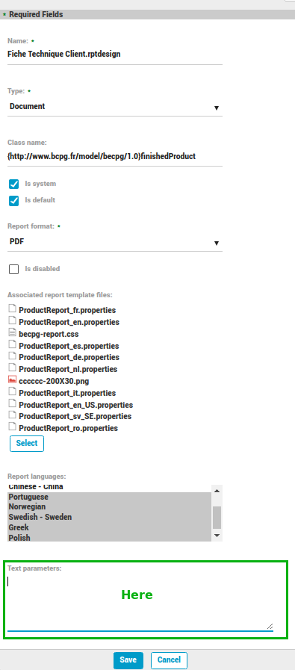
beCPG is installed with a default configuration for the extractor. You can override this configuration with the "Text parameters" field of the report properties editing form (see the image below).
With this override, you do not need to restart the server. The new configuration is used for the next extractions.
Text parameters contains a JSON object with a list of keys.
We first list the available keys, then their roles, and finish with a practical use case.
Keys list
- iterationKey
- params
- prefs
- extractInMultiLevel
- extractNonEffectiveComponent
- componentDataListsToExtract
- extractPriceBreaks
- mlTextFields
- assocsToExtract
- assocsToExtractWithDataList
- assocsToExtractWithImage
- nameFormat
- titleFormat
Keys Role
iterationKey: specifies the datalist (Packaging, Composition, etc.) on whose components the extractor iterates. It is used together with the params key.
params: an array of parameters. Each parameter object has 2 keys:
- id: a variable name. You choose the variable name freely, so that you can use it in other keys, such as nameFormat and titleFormat.
- prop: specifies the value to retrieve and store in the id variable.
prefs: an object that sets the extractor behavior. The parameters taken into account are:
Note: click one of the parameters above to see its role.
nameFormat: defines the naming pattern of the PDF report. By default, the pattern is {entity_cm:name} - {report_cm:name} - {locale}, which gives "Quiche Lorraine – Client specification - fr" for the Finished product Quiche Lorraine.
Example: To display the beCPG code of a component of the Composition, nameFormat has the value: "{entity_cm:name} – {report_cm:name} - {locale} - {param1}"
{param1} is a variable defined in the JSON. The use case section shows how to define it.
titleFormat: defines the naming pattern of the report in the reports list. The generated reports are in the Reports list of the entity.
Use case
Let’s take, for example, a supplier with several plants, for which you need one report per plant. Each report name must contain the report type (Production sheet, technical sheet, etc.) and the plant name.
To do this, you must have created the Reports list beforehand in the supplier model. Once the supplier report created and deployed, enter the following JSON in the Text parameters field to finish the report configuration:
{
   iterationKey : "bcpg:plant",
   params : [{
      id: "param1",
      prop : "cm:name"
   }],
   prefs : {
      assocsToExtract : "bcpg:plants,bcpg:suppliers,bcpg:storageConditionsRef,bcpg:precautionOfUseRef,bcpg:nutListNut",
      assocsToExtractWithDataList : "bcpg:compoListProduct"
   },
   nameFormat : "{entity_cm:name}- {report_cm:name}  - {locale} - {param1} ",
   titleFormat : " {report_cm:name} -  {locale} - {param1}"
}
Finally, click "Create reports" to generate the supplier reports.
Tips
The params array is used with iterationKey, so there is no point in using one without the other.
If you have overridden a key (mlTextFields, assocsToExtract, etc.) and you remove it from Text parameters, the extractor uses the default value.
The parameters defined in the JSON params key are extracted in the report data source (XML). Example: If params is:
{ ...

   params : [{
      id: "plantName"
      prop: "cm:name"
   },
   {
      id: "plantCertifName"
      prop: "bcpg:plantCertifications|cm:name"
   }],
   ...
}
The XML node corresponding to the result of the JSON parameter is:
<entity> ...
    <reportParams>
        <plantName nodeRef="workspace://SpacesStore/108624b8-49da-44a0-be1f-7735b7a35143" prop="cm:name" value="Plant XY"/>
        <plantCertifName nodeRef="workspace://SpacesStore/108624b8-49da-44a0-be1f-7735b7a35143" prop="bcpg:plantCertifications|cm:name" value="Certification X1"/>
    </reportParams>
</entity>
Note that:
- the node name is the value specified in id;
- the nodeRef attribute is the nodeRef of the current component;
- the prop attribute is the text string entered in the JSON;
- the value attribute is the value stored in "plantName";
- you can retrieve a property of an association with the pattern "associationKey|attributKey".
There are 2 ways to retrieve a data source containing the reportParams node: enable debug mode in Java, or check the rep:reportTextParameters attribute of the generated report node.
We describe the second way, which is simpler.
After setting up and generating the report:
- Go to the Documents folder of the entity (the Supplier in our example) and click the PDF report.
- Get the NodeRef of the PDF document and open the document in the node browser (see Tools to learn how to retrieve a nodeRef and use the node browser).
- On the document node, look at its rep:reportTextParameters attribute: it contains a JSON similar to:
{
    "titleFormat":" {report_cm:name} - {nomUsine} - (fr - {locale} )",
  "nameFormat":"{entity_cm:name} - {report_cm:name} - {nomUsine} - (fr - {locale} )",
  "params":[{
      "nodeRef":"workspace://SpacesStore/108624b8-49da-44a0-be1f-7735b7a35143","prop":"cm:name","id":"nomUsine","value":"Usine XY"
    },{
      "nodeRef":"workspace://SpacesStore/108624b8-49da-44a0-be1f-7735b7a35143","prop":"bcpg:plantCertifications|cm:name","id":"nomCertifUsine","value":"Certification X1"
    }],
  "prefs":{…}  ...
}
With this matching, you can rebuild the reportParams XML node.
Adding the “Report / Technical Data Sheets” list to an entity
The “Report / Technical Data Sheets” list is added in the administration section. See this page for more information.
Good Practices - BIRT
In the Reports and product sheets section, you got used to the BIRT Designer: the Data Explorer tab, the Tool Box (tables, text, etc.) and the layout tab (report formatting).
Next to the Navigator tab, there is an Outline tab. This tab shows the report structure (see the image below).
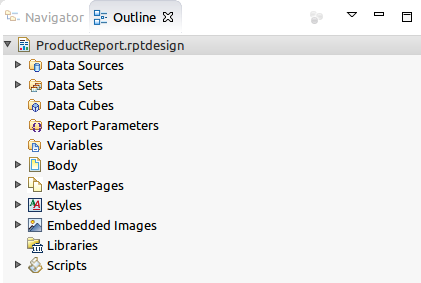
This guide of good practices covers some sections of this structure.
Function declaration
Sometimes a developer creates the same function in different elements (text, data, dynamic text, etc.) of the report. This makes the report heavier, and any maintenance on this function requires modifying all the elements that contain it.
To reduce maintenance time, declare the function once and make it available in the whole report. To do this, use the ‘Initialize’ event of the report.
Pros:
- Lighter report, without code duplication.
- Reduced maintenance time.
Use of Aliases
An alias on the fields of a DataSet is useful when the field key is very different from the name displayed to the user. Aliases save time when you need to find a field for a specific processing.
Manage images in BIRT
To minimize the report size, make sure that all unused embedded images are deleted after each report modification.
For efficiency, rename / add / delete images through the Eclipse Outline tab.
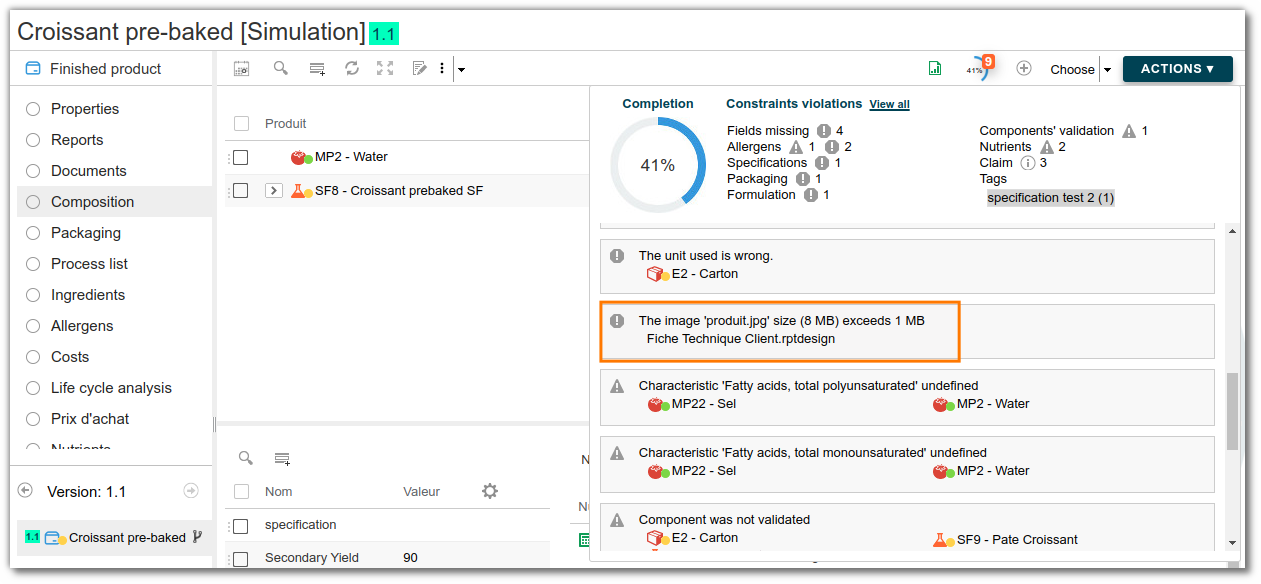
Images must be smaller than 1 MB; otherwise, an alert is displayed on the product.
Scripts management (event)
BIRT lets you define JS scripts at different event levels (Initialize, onPrepare, onRender, etc.). When an event contains JS code, it is displayed in the Script section of the Outline tab. This gives an overview of all the report elements that have a script associated with an event.
Before each delivery, check that no unused script remains in the report.
To learn more about BIRT events and scripts, read this documentation