Managing costs in beCPG
The different types of costs
The cost management module in beCPG can be used to calculate the cost of products, taking into account, for example:
- RM costs (raw materials)
- PACK costs (packaging)
- Fixed costs
- Production costs
These costs can be:
- Formulated: calculated from the cost of raw materials or packaging
- Manual: added at finished product or semi-finished product level.
You can set a cost to manual by checking the "Manual" box when creating the cost in the administration, or by directly modifying the Manual column in the product cost list.
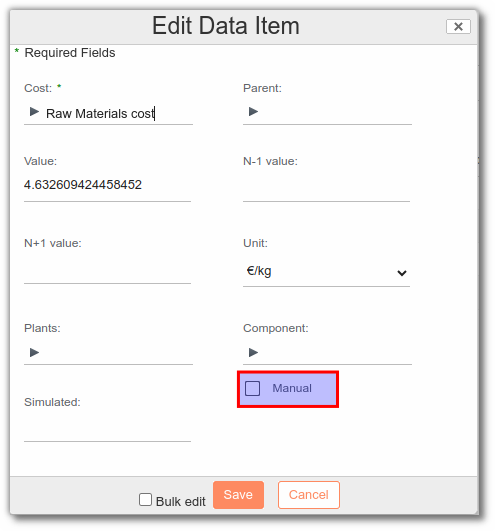
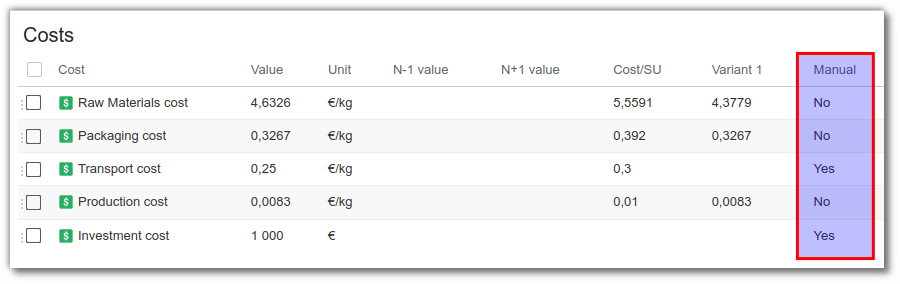
Costs in beCPG
To obtain the total cost of a finished product, you can add different types of cost. To create a cost, refer to beCPG Administration.
Raw material costs (RM)
In the raw material cost list, add the "Raw Materials cost":
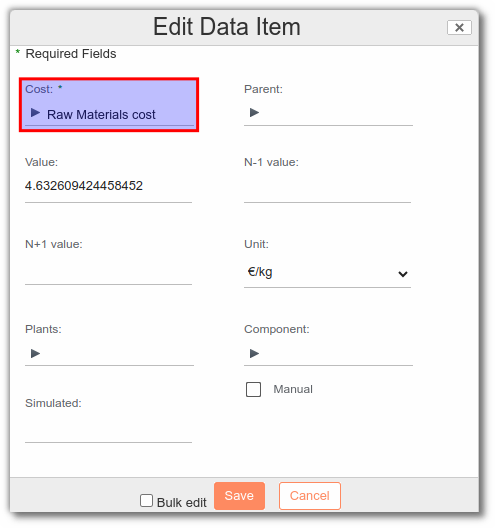
- The Value field refers to the current cost, which will be used in subsequent cost calculations.
- The N-1 Value field refers to the previous year's cost.
- The N+1 Value field refers to the cost for the following year.
- The Unit field is used to select the unit associated with the cost.
- The Factory field is used to select the factories the product comes from.
- The Component field is used to associate the cost with a particular entity.
Packaging costs (PACK)
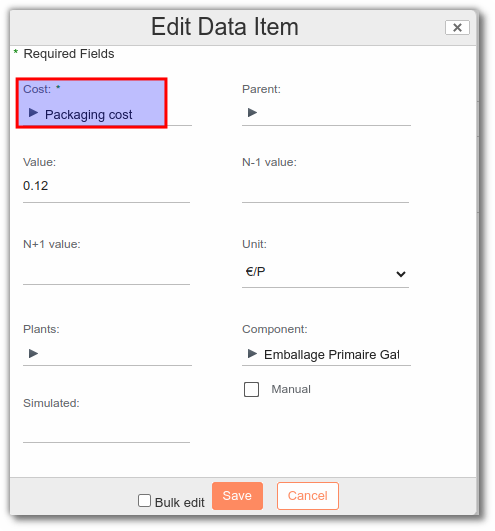
In the packaging cost list, add the "Packaging cost":
For more information on packaging, see Packaging management.
Example of a calculation in beCPG:
- Primary Pack = 0.12€/Piece; I can put 1 product per Primary Pack. My Primary Pack cost is 0.12€/Sales Unit (SU).
- Secondary Pack = 1.32€/Piece; I can put 10 products in my Secondary Pack. My Secondary Pack cost is 0.132€/SU.
- Tertiary Pack = 16.92€/Piece; I can put 250 products in my Tertiary Pack. My Tertiary Pack cost is 0.06768€/SU.
Therefore my total packaging cost is 0.31968€/SU.
Transport costs
Transport costs can be added to raw materials or finished products. If you manage both costs (RM and FP), create a separate cost for each type of transport. e.g. RM Transport Cost vs FP Transport Cost.
For raw materials
This is, for example, the cost of transporting raw materials to the plants. Add the Transport cost at raw material level:
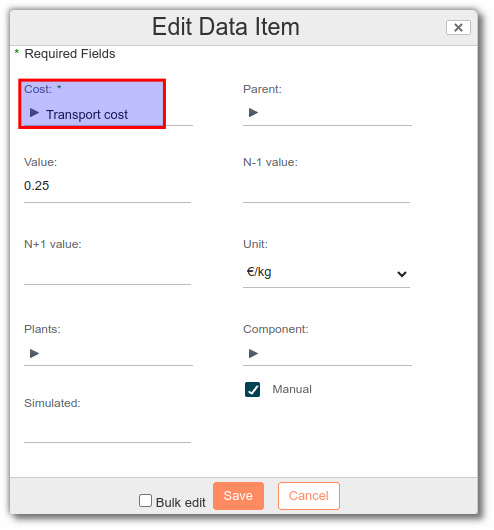
For finished products
This is the cost of transporting the finished product to distributors or points of sale. Add the Transport cost at finished product level.
Note: set transport costs to manual. Otherwise, the field is overwritten and the information lost during formulation.
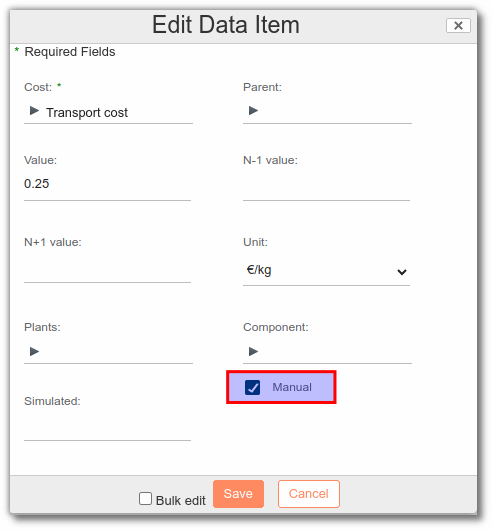
Calculation example: If it costs me 100€ to transport my 4000 kg of raw materials to the plants, the cost of transport is 0.025€/kg.
Production costs
Production costs include, for example:
- energy used (electricity, gas, etc.)
- resources (washing water, etc.)
- equipment (production line, etc.)
- operators
To set up a resource, refer to Process management.
In the resource cost list, add the "Production cost":
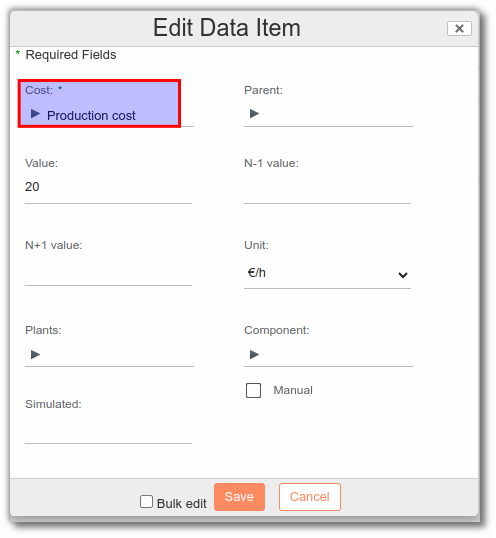
Note: in the "Process list" tab of the finished product, the user can add a rate to the production line.
Calculation example: Here, our production line costs 20€/hour to operate. My production line has a production rate of 2000 P/h at 20€ per hour. This gives a production cost of 0.01€/SU.
Investment costs
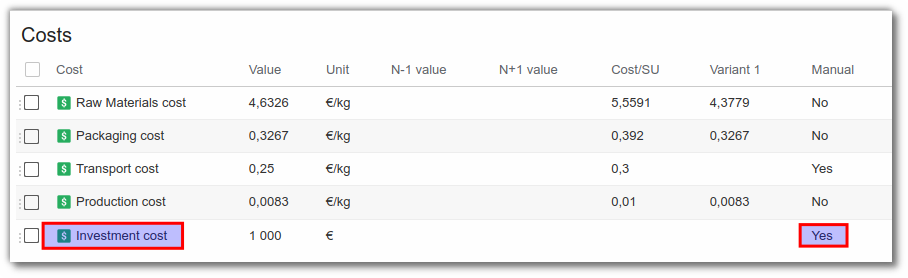
In the finished product cost list, you can add the Investment cost. This is a manual cost, i.e. it does not depend on the quantity of the product (example: Design). To add an investment cost, the user can create a new characteristic in beCPG Administration.
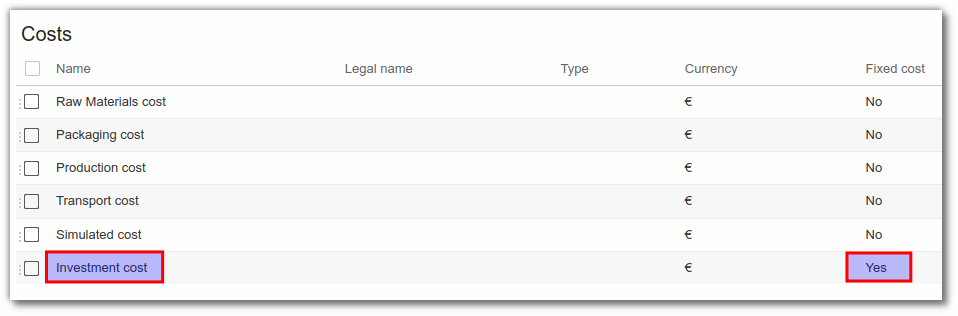
When investment costs are created in the entity (FP, RM, etc.), they must be set to manual. Otherwise, during formulation or simulations, the field is overwritten and the information lost:
Finished product total cost
To view the total cost of a finished product, make sure you have completed the following lists:
- Composition: all the RMs are present, with their losses (if any) and their costs filled in.
- Packaging: all the packaging items are present and their costs are filled in.
- Process list: the various resources are present and their costs are filled in.
In the finished product cost tab, add the desired costs to the list:
- Raw materials: RM cost
- Fill in the Loss % in the Composition tab of the FP. The Loss % has a direct impact on the cost of the FP.
- Packaging: PACK cost
- Fill in the Loss % in the Packaging tab of the FP. The Loss % has a direct impact on the cost of the FP.
- Transport: Transport cost
- Production: Production cost
Formulated costs are calculated automatically. If no cost has been entered in the RM, packaging or resources, the line returns an empty value.
The user can view the total cost/SU on the right of the page under the name Cost per SU.
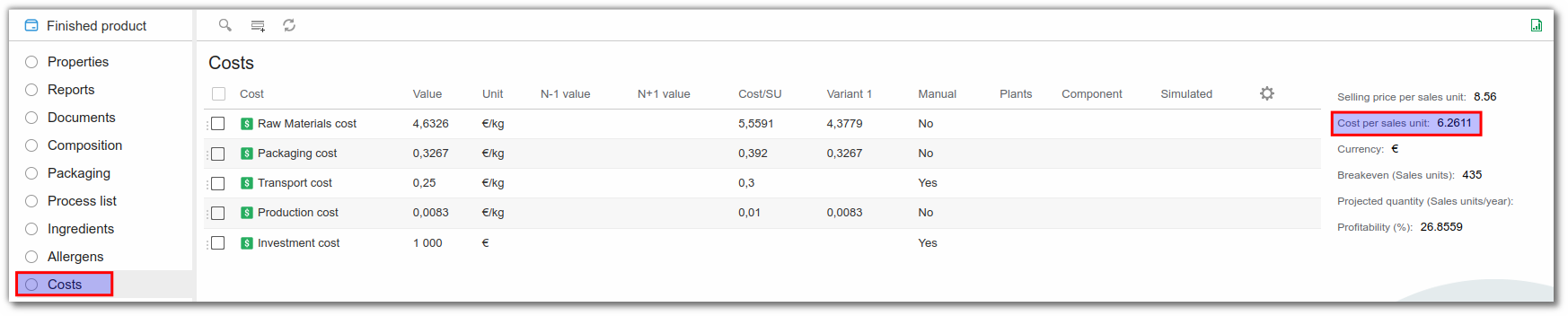
The user can also add the selling price per SU to obtain the product's profitability.
If a cost is missing from the drop-down lists, refer to beCPG Administration to create it.
View detailed costs
Details
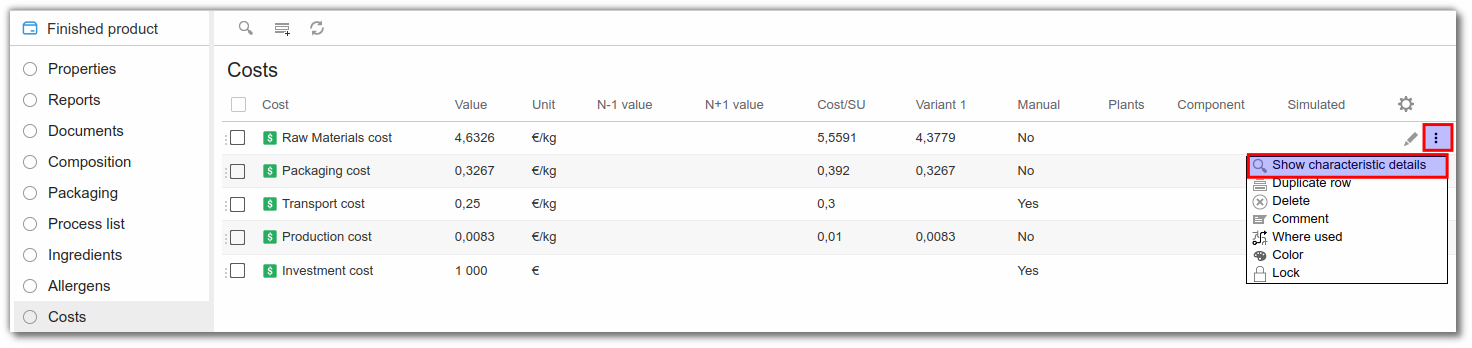
Select the "Costs" list. To view the details of a cost, click "..." to the right of the line, then "Show Characteristic Details".
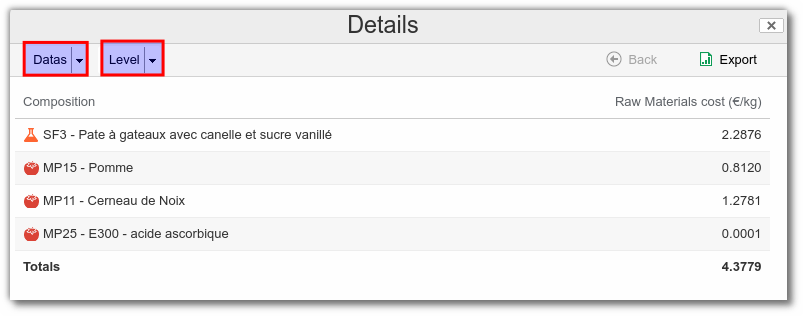
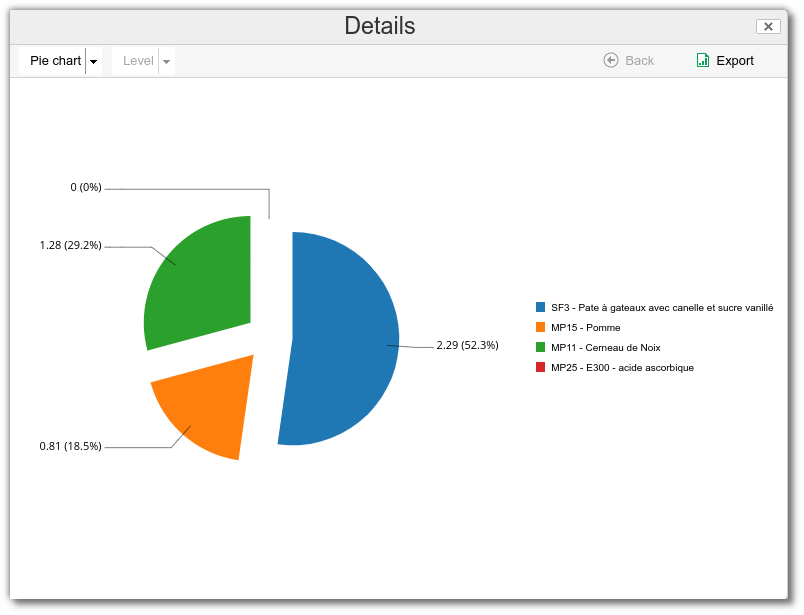
The user can then choose:
- the type of graphical representation.
- the level of detail to be displayed (only available for the Datas display).
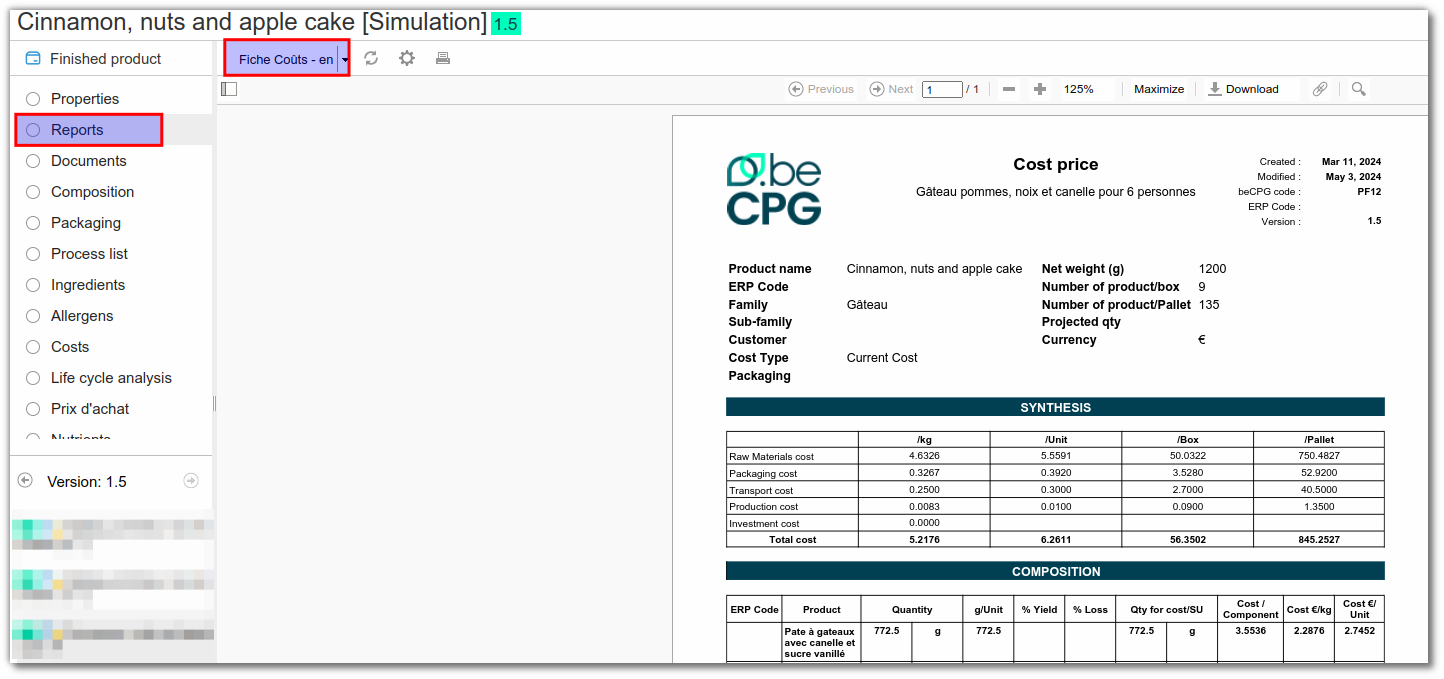
Cost reports
Cost reports can be created in the "Reports" list. The user can select "Cost sheet" in the desired language (English in this case).
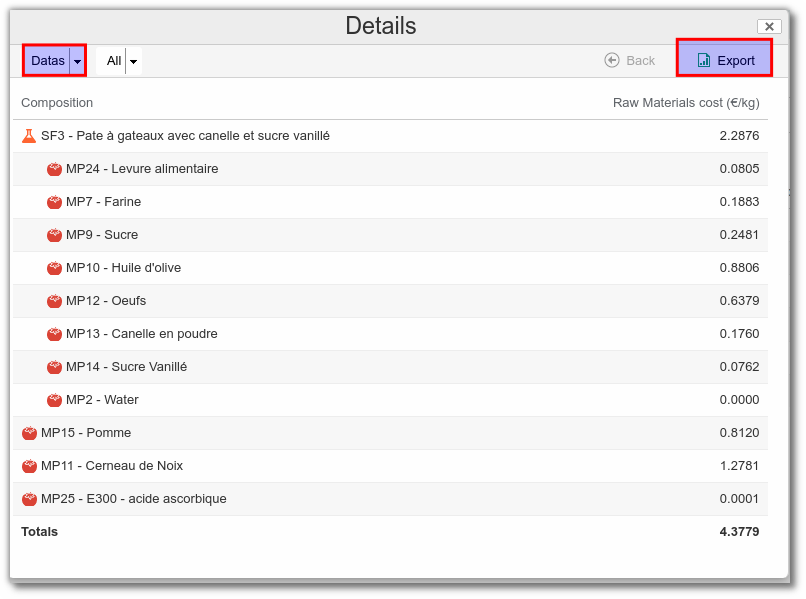
Data can be exported to be viewed in a document. We recommend that you use the graphical representation Data Table and the desired level of detail.
Cost change simulation (simulated costs)
In beCPG, you can add a simulated cost to a given cost. In other words, you can simulate a price change and see its impact on the final cost (e.g. change of supplier, etc.) without modifying the entity values (SF, RM, etc.).
If the simulated cost does not exist, create a new characteristic in the beCPG administration; see beCPG Administration.
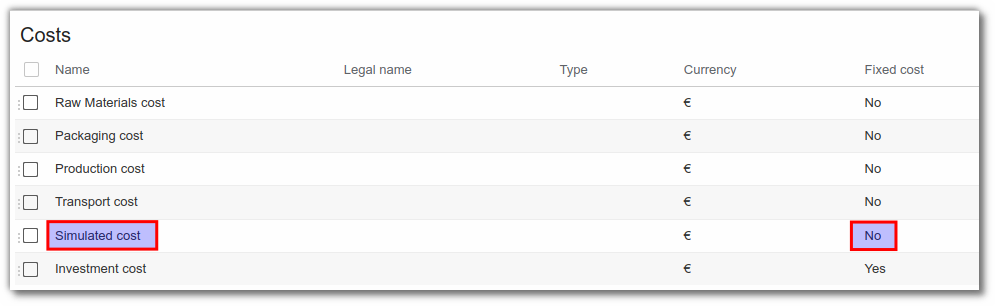
Back in the entity (SF, FP, etc.), create a simulated cost and assign the desired cost as its parent. To add a simulated cost:
- In the cost tab of the finished or semi-finished product, add the simulated cost with the impacted cost as its parent and fill in the following fields:
- Parent: the cost impacted by the simulated cost.
- Component: the name of the component whose price is changing.
- Simulated: the new price of the component.
The unit automatically takes the value of its parent.
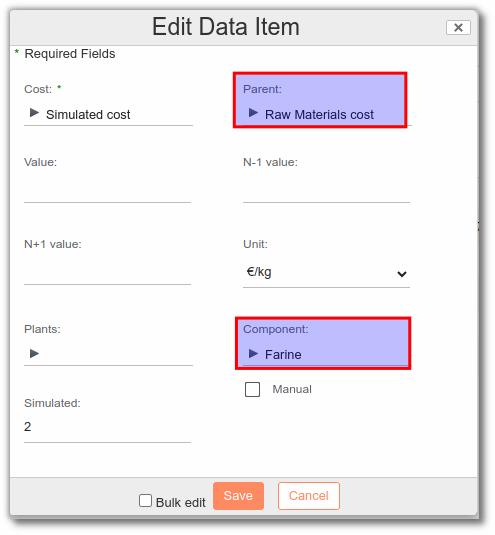
Example: the Simulated cost has been added to the Raw Material cost. The simulation cost has a Flour component and a Simulated value equal to 2€/kg.
The calculated cost displayed is the cost difference between the initial price and the simulated RM price (negative if cheaper, positive if more expensive).
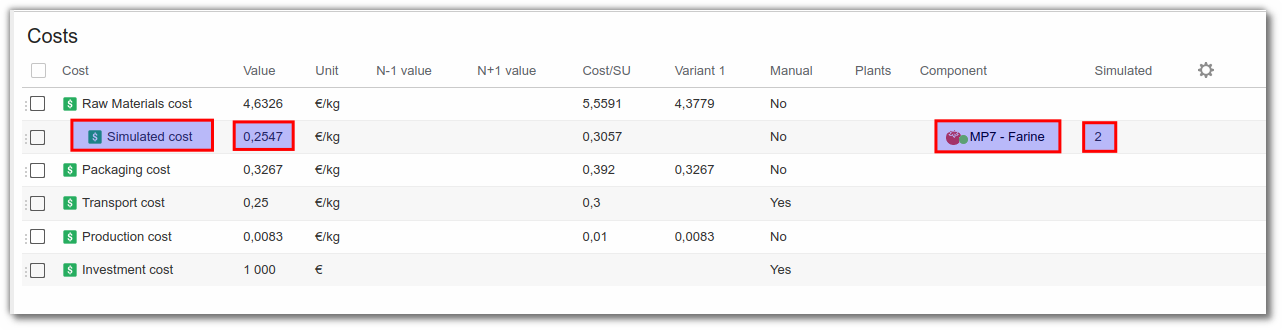
- You can change the value of the simulated cost directly in the appropriate box at any time.
- Several simulated costs can be added to a single cost.
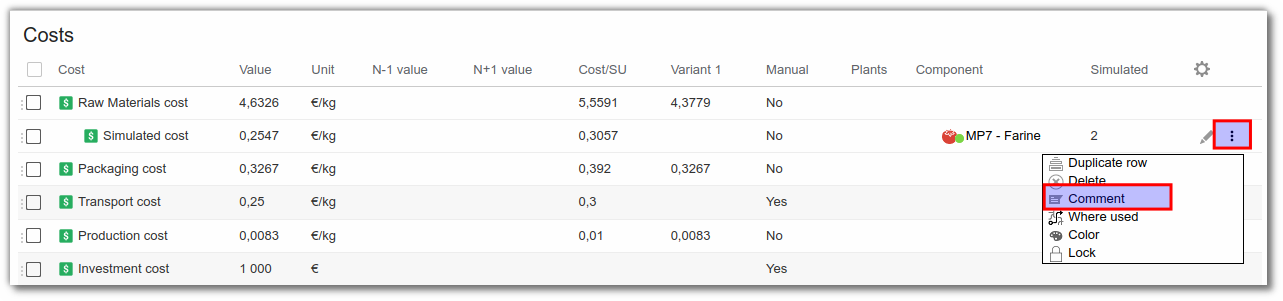
- The user can also add comments, as shown below:
Note: after any change in costs, remember to formulate your product.
The purchase price list
The purchase price list is an advanced cost management list. It offers more possibilities than the standard cost list.
The purchase price list is filled in on raw materials or packaging.
The user can add the purchase price list to the raw material and packaging templates. To add lists, refer to beCPG Administration.
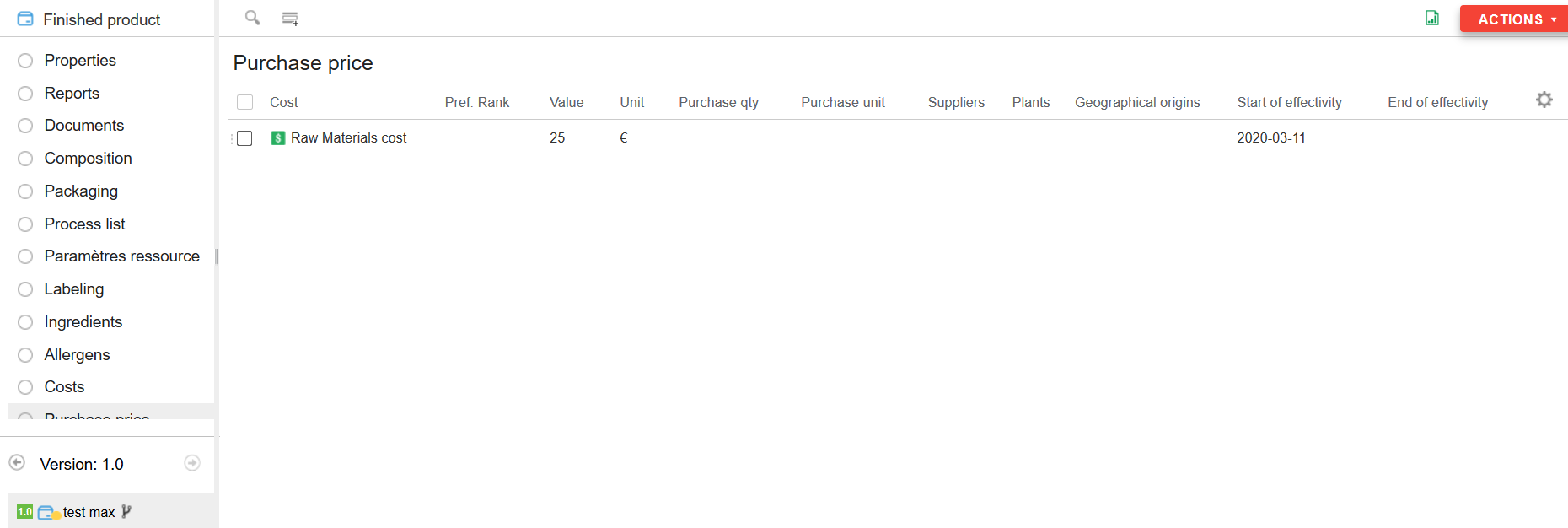
The purchase price list works in the same way as the cost list, with the addition of:
- Additional information:
- Plants
- Geographical origin
- Supplier
- Preference rank (optional): used if you have several lines in the purchase prices. Preference rank 1 is taken into account.
- Purchase quantity: used to keep a history of the various suppliers.
- Effective date: date interval when the cost is active. The user can enter only a start date if the cost has no scheduled end date.
- Additional information:
In the cost list of finished products, the RM and PACK costs are formulated from the purchase price list if it is present.
Note: the purchase price list has priority over the cost list for raw materials and packaging.
When the purchase price list is present on an entity, there are several scenarios for formulating the costs of the entity that uses it:
- The purchase price list contains one or more costs that are also used by the cost list of the entity that uses it: the formulation of the cost list takes the purchase price list into account.
- The purchase price list is empty: the formulation takes the cost list into account.
- The purchase price list contains one or more rows with a rank less than or equal to 0: the formulation takes the cost list into account.
- The purchase price list contains only non-effective rows: the formulation takes the cost list into account.
- If the effective dates overlap, the preference rank is used.
- If several purchase price lines have the same preference rank greater than 0, beCPG smooths the purchase price in the cost list.