Labeling rules
Labeling rules are a flexible way of configuring the rendering of a product's label. For example, you can add labeling rules to change the name of one or more ingredients/components on the label, or to hide them.
These rules can be defined in several places in the application:
- the labeling list of the entity;
- the labeling list of the entity template: these rules are copied to the products using the template at formulation (manual) or executed directly (template);
- the labeling rule list of the specification: the specification is associated with the finished product (FP) by adding it to the FP properties (it may be customer-specific);
- the list of regulatory categories of ingredients in the value lists ("Do not declare", "Place at the end").
Create a labeling rule
A rule is defined by:
- a name;
- a type.
Depending on the rule type, other fields such as Label, Expression, Components, Group, Languages and Replacements are available.
Synchronization and group management can be used to automate all rules.
The rules Declare, Format, Languages, Do not declare, Omit, Render, Rename, Declaration threshold, Ingredient type, Show percentages, Show geo origins, Show organic origins, Put at end and Footnote can be applied to a specific language.
Synchronisable State
There are 3 types of synchronization for labeling rules.
Template
- The rule is registered on the product template: product A (FP, SF, RM);
- The rule is always applied to all the products whose template is product A;
- The rule is not visible to users when they look at the labeling rules of their products.
Benefit: this shortens the labeling rule list of the finished product. The rule is only found on the template.
Synchronisation
- The rule is registered on the product template: product A (FP, SF, RM);
- The rule is always applied to all the products whose template is product A;
- The rule is visible to users when they look at the labeling rules of their products;
- The rule can be changed in the product template.
Benefit: the rule is used by all the products and is easy to change. You can also disable it.
Manual
- The rule is registered for each product;
- The rule is visible to users when they look at the labeling rules of their products;
- The rule can be changed in the labeling rule list of the product.
Benefit: the rule remains independent from the other products.
Activate/deactivate a rule
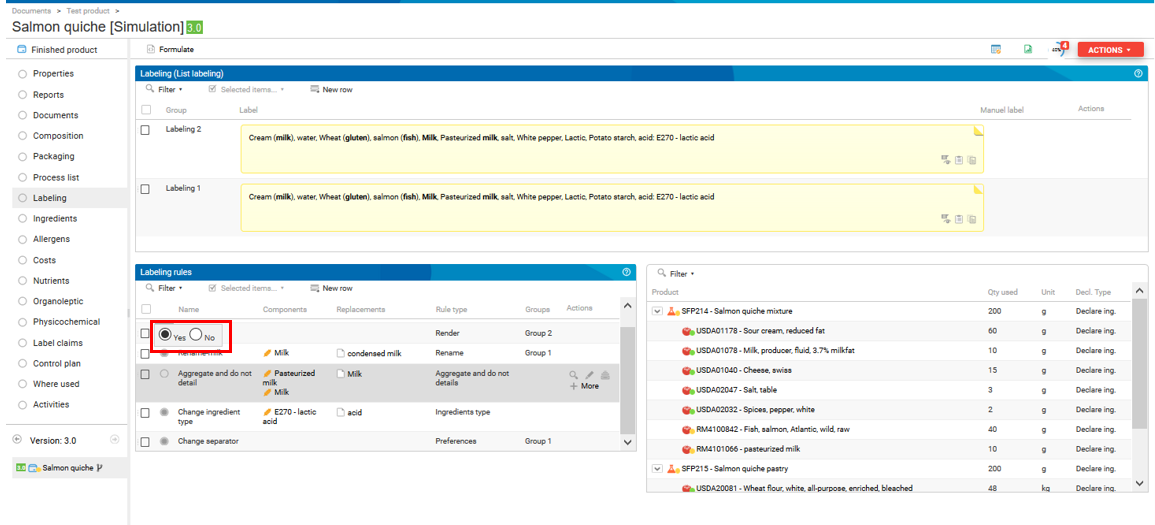
"Template" rules (at entity template level) and "synchronized" or "manual" rules (at entity level) can be activated or deactivated using the buttons below. Click them and choose to enable (Yes) or disable (No) the labeling rule.
Rules defined on groups
The "Group" field is useful:
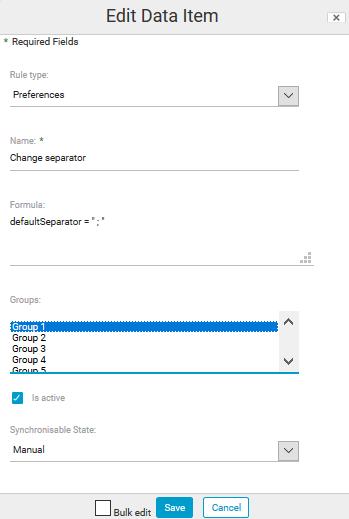
- First case: when different rules (of a type
other than "Render") must be applied to different labels. For example,
consider a group 2 label and a group 1 label. The separator
must be changed from "," to ";" only on label 1. Create a new
rule of type "Preference", enter
defaultSeparator = " ; "in the "Formula" field and select group 1.
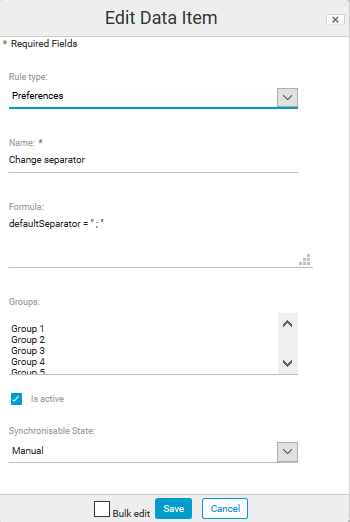
- Second case: when the same rule must be applied to all labels. For example, consider a group 2 label and a group 1 label.
The separator must be changed from "," to ";" in all
the labels. Create a new rule of type "Preference", enter
defaultSeparator = " ; "in the "Formula" field and leave the "Group" field blank.
WARNING: if the "Display percentages" rule is chosen by default, case 1 does not work.
Rules defined on languages
The “Languages” option is available in several labeling rules.
For example, with the Format rule, to display allergens in brackets only on the English label:
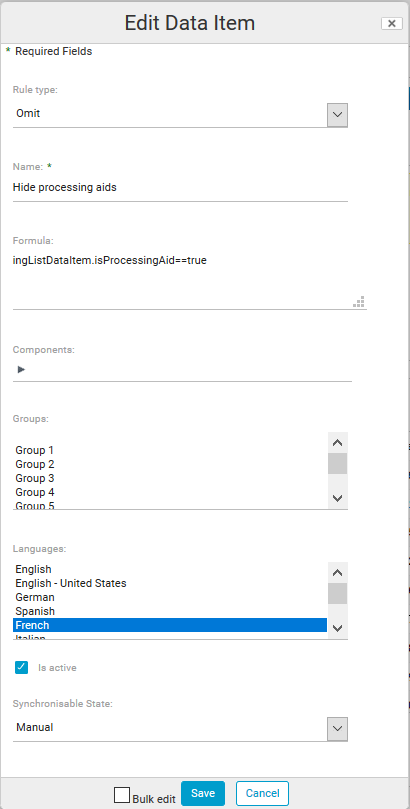
- To enclose allergens in brackets, use:
allergenDetailsFormat|{0} ({2}) - Select the language (English).
Allergens on the English label are now enclosed in brackets.
Another example: to display the geographical origins of ingredients only for the labels translated into German and English:
- Select the "Display geo origins" rule.
- Select the languages (English and German).
Geo origins of ingredients are displayed only for the label translated into English and German.
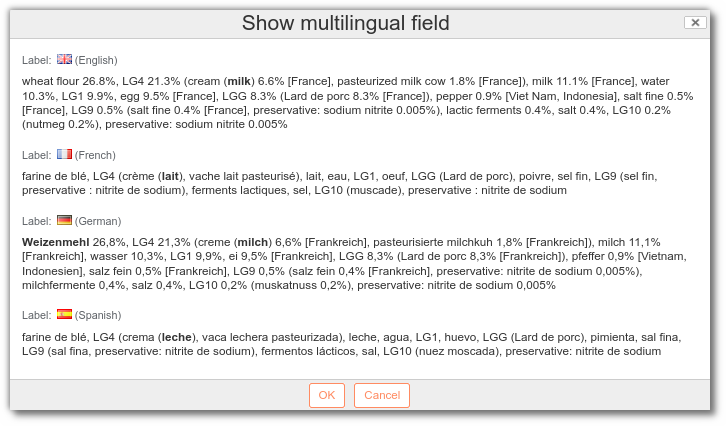
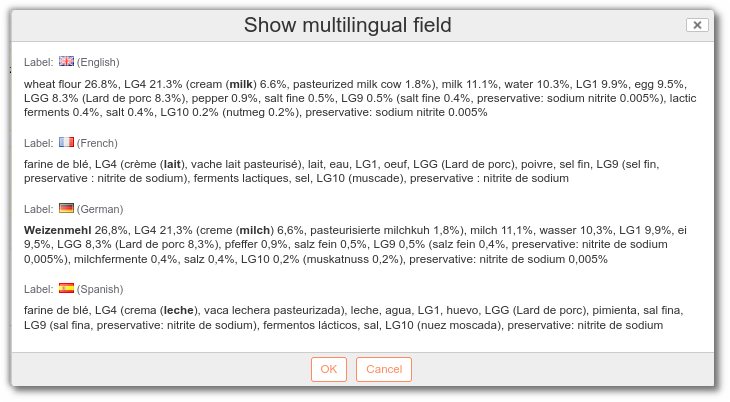
A last example: to display the ingredient quantities in % only for the labels translated into German and English:
- Select the "Display percentages" rule.
- Select the languages (English and German).
Ingredient quantities are displayed in percentages only for the label translated into English and German.
Types of rules
Show percentages
By default, percentages are rounded to the nearest value, and a value exactly halfway is rounded down (HALF_DOWN mode):
- 18.4% => 18%
- 18.5% => 18%
- 18.6% => 19%
This rule displays the quantity of elements (ingredients, sub-ingredients, semi-finished products, etc.) as percentages, according to the declaration type associated with the entity. Combining "Show percentages" with the declaration type lets you display the percentages as you want. To display percentages for ingredients, their proportions must be filled in on the ingredients of each raw material.
Note: "#.#" gives the number of decimals. E.g. after choosing the Show percentages rule, enter #.## in Formula to display 2 decimals (#.# displays 1 decimal, #.### displays 3 decimals, and so on).
Formula: #.#
For #.#, by default, the value is rounded down from #.#0 to #.#5 and rounded up from #.#6 to #.#9 (HALF_DOWN mode). You can set different rounding rules:
#.#%|DOWN: always rounds down (2.26% --> 2.2%)#.#%|UP: always rounds up (2.21% --> 2.3%)#.#%|HALF_DOWN: for #.#5, rounds down (2.25% --> 2.2%)#.#%|HALF_UP: for #.#5, rounds up (2.25% --> 2.3%)#.#%|HALF_UP||NEAREST_HALF_UP: for #.#5, rounds up to the nearest 0.5 (2.25% returns 2.5%)#.#%|HALF_UP||NEAREST_HALF_DOWN: for #.#5, rounds down to the nearest 0.5 (2.25% returns 2%)
These rules are equivalent to the ones in the Preferences section. Both methods have pros and cons:
- For a global rounding rule for all products, use Show percentages: it centralizes everything in a single rule (percentage display + format).
- For a special format for some products, use Preferences: the percentage display and the rounding rule are separate, and you can activate them or not depending on the product.
You can also add a threshold to the rule in the expression:
#.#||1applies, for example, to ingredients with a proportion less than or equal to 1%#.###|HALF_UP|0.1applies, for example, to ingredients with a proportion less than or equal to 0.1%
By combining these rules, you can create reporting intervals.
Force percentage
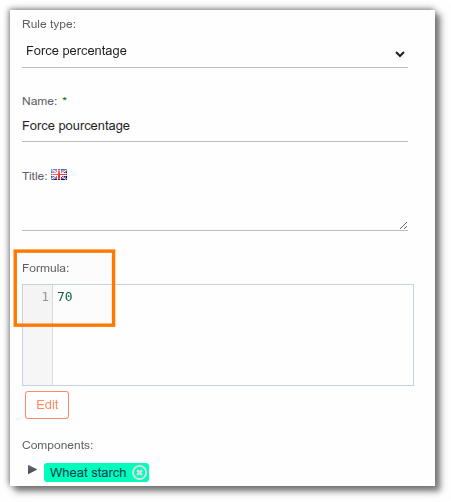
This rule overrides the quantity of a component (ingredient or entity) calculated by the formulation with a custom value for labeling.
To set it up:
- Select the component.
- Enter the percentage to force in the "Formula" field. Use a period as the decimal separator. You can also enter a SpEL expression.
Show geographical origin
This rule displays the origins of elements (ingredients, sub-ingredients, semi-finished products, etc.) according to the declaration type associated with the entity.
To use this rule, fill in the origin of your raw material elements:
- for ingredients: in the ingredient tab of your raw material, fill in "Geographical origin";
- for the raw material itself: in the properties of the raw material, fill in "Geographical origin".
Depending on the origins that you want to display, modify the "Component" field of your rule and/or the declaration type of your entity:
- for the origin of one or more specific elements: associate the component(s) with the rule and choose the correct declaration type (e.g. for an ingredient, select "Declare ingredients");
- for all origins, you do not need to add the components of your recipe to the rule. Component origins are displayed by default if the component field of the rule is empty.
Example 1:
- Origin of the RM Smoked bacon,
- % for the RMs and the SF, with the % display of the SF composition.

Example 2:
- % of the rice ingredient
- Origin of the RM Smoked bacon
Formulas
You can filter components with a SpEL formula. The available variables are:
compoListDataItem: the element in the composition;ingListDataItem: the extracted ingredient.

For some products, additional information on the origin is required. For seafood, you may need to display the catch zone. For meat products, you may have to declare the birth, rearing and slaughter origins.
These statements can be added to the "Show origins" rule. First, create the country of origin in "beCPG Administration" > "Characteristics" > "Geographical origins". Then, for each country, you can add a "place of activity". The possible values are: Assembly, Birth, Bottling, Catch zone, Farming, Importation, Last processing, Milking, Rearing, Slaughter.
You can add more than one value to a country.

Then, add the country of origin to the raw material.

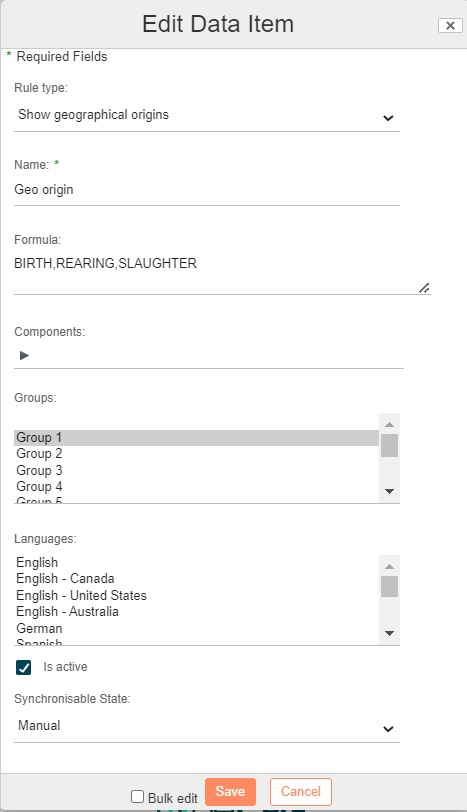
Back on the finished product, add the "Show origins" labeling rule. This rule can be completed to indicate the places of activity, using: ASSEMBLY, BIRTH, BOTTLING, CATCH_ZONE, FARMING, IMPORTATION, LAST_PROCESSING, MILKING, REARING, SLAUGHTER, EMPTY
By default, the rule only displays the country of origin if there is more than one place of activity. The label then shows "ingredient or raw material" [country of origin]. Adding a place of activity followed by EMPTY in the rule displays the place of activity before the country of origin.
Finally, if a rule contains more than one place of activity, the places of activity precede the country of origin.
e.g. BIRTH,REARING,SLAUGHTER
Show biological origins
This rule displays the organic origins of elements (ingredients, sub-ingredients, semi-finished products, etc.) according to the type of declaration associated with the entity.
Rename
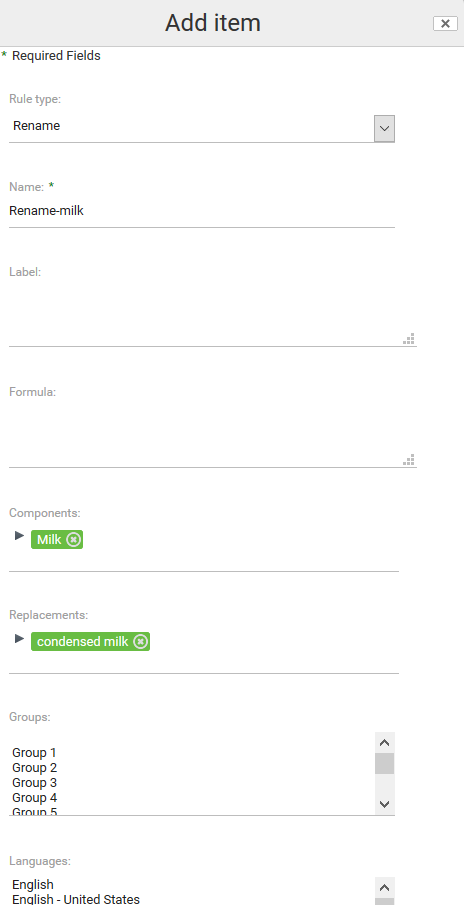
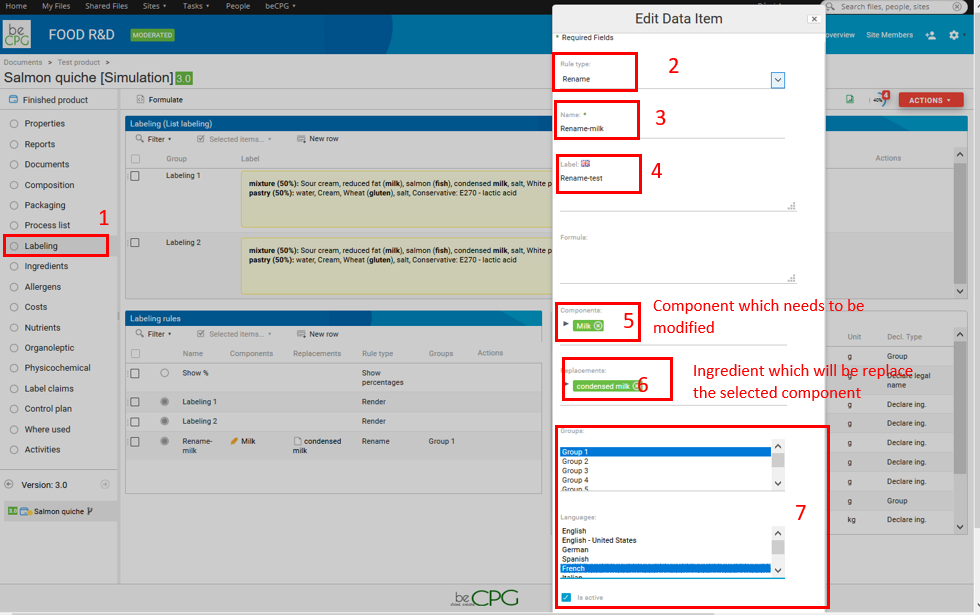
To use this rule, choose the component to replace (in the "Components" drop-down list) and its substitute in the "Replacement" drop-down list (if it already exists), or create the substitute by entering its name in the "Wording" field (label).
If the renaming concerns the labels generated in a specific language, select this language in the language list as shown below:
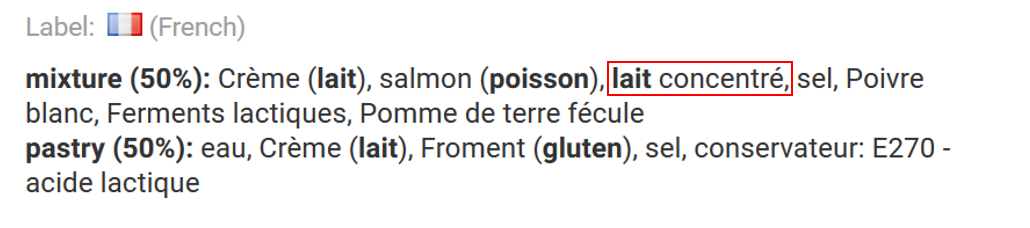
This generates the following:
Note: Contains less than 2%
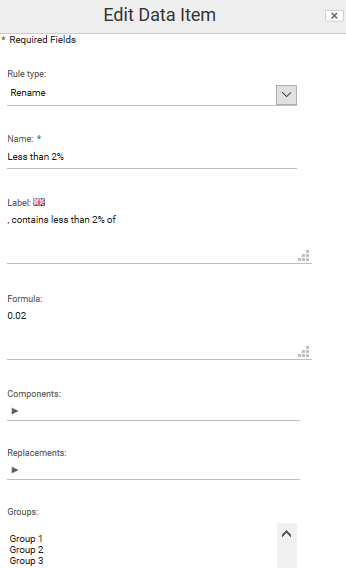
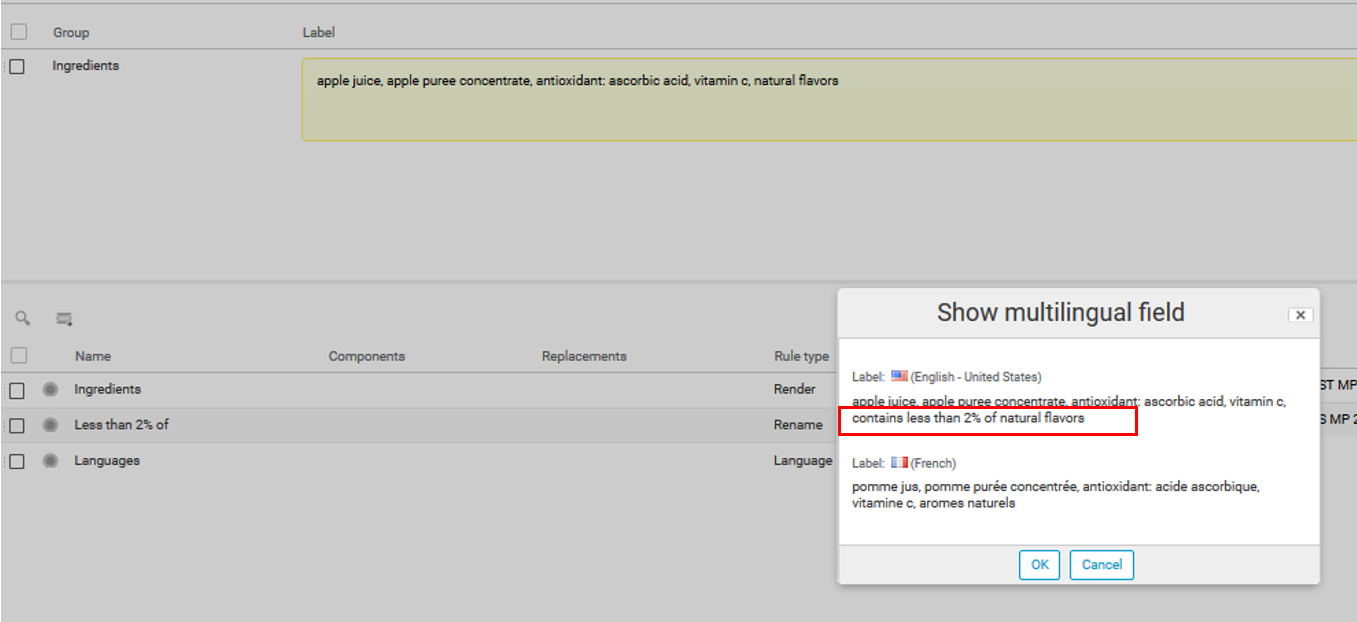
Under US regulation, the descending order of predominance does not apply to ingredients present in amounts of 2 percent or less by weight when the listing of these ingredients starts with ", contains less than 2% of ". beCPG handles this with the "Rename" rule:
- Enter "Less than 2%" as the name.
- Enter ", contains less than 2% of " as the label.
- The formula must contain your threshold, here "0.02" (2 percent).
The result is displayed in your ingredient list.

If this labeling rule must apply to a specific country, use the "Language" rule as shown here.
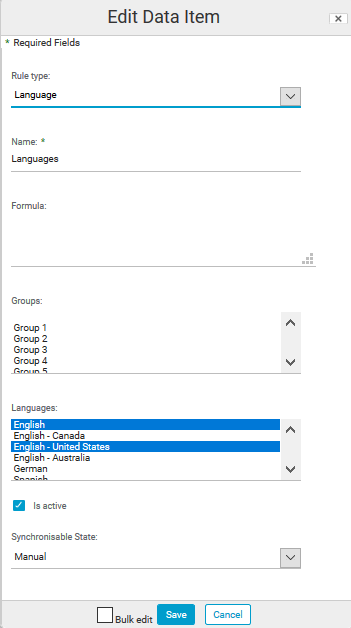
This results in the following display:
Aggregate and detail
You can also specify the shares of the ingredients in the aggregate. For example, to take 100% of milk and 80% of pasteurized cow milk, enter "100,80" in the "Expression" field. The aggregate is displayed with the detail of its components and their shares in the product.

Here, only the aggregate is displayed in the ingredient list.
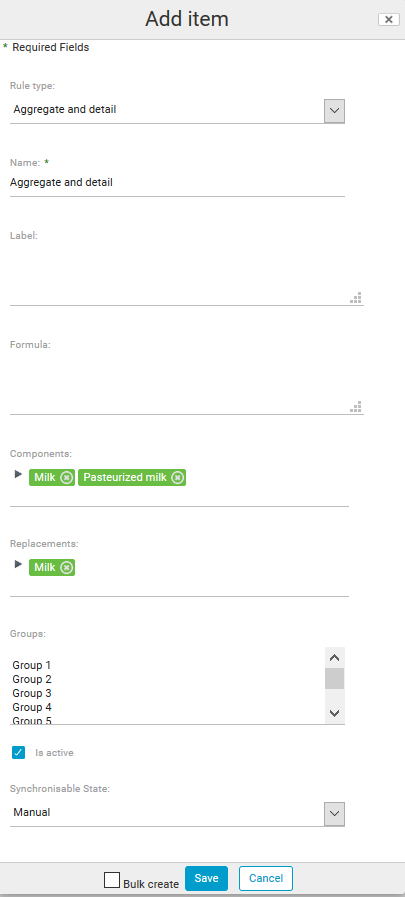
Becomes:

Aggregate and do not detail
Aggregation rules aggregate two ingredients into a third ingredient (example: milk, pasteurized cow milk --> milk).
Here, only the aggregate is displayed in the labeling.

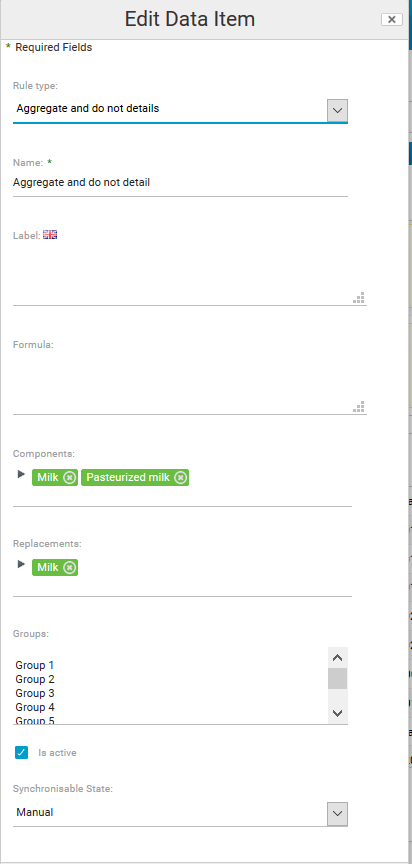
Becomes:

Each declaration can be set at composition level, or overridden by a rule that indicates the declaration type and the component to override. For example, if only one RM must be detailed, a rule can be set on a template to force the labeling of this RM, whatever the user has chosen in the drop-down list.
Put at the end
This rule displays the legal name of the RM, SF or FP at the end of the labeling.
Formula
You can filter the components with a SpEL formula.
The available variables are:
compoListDataItem: the element in the composition;ingListDataItem: the extracted ingredient.
Aggregate and group
Same as "Aggregate and detail", except that the aggregate is separated from the rest of the labeling. In addition, the share of the aggregate in the finished product is indicated.

Becomes:

Declare
Declares a component even though it would not be declared under the standard rules.
For example: water as a processing aid (component: Water):
- Before: wheat flour, water (25%), yeast, salt...
- After: wheat flour, water (28.5%), yeast, salt...
Detail
This rule is not a duplicate of the declaration type. A declaration type applies to all labels, whereas this rule can be used for one label, one group, one product, or one or more components. For example, it can display the raw material followed by its ingredients. Example: Milk cream 27% (Milk 50, Cream 50)
Declare the legal name
This rule declares the legal name of a component for a specific label group (group 1, group 2...). The declaration uses the legal name, or the name (cm:name) if the legal name is missing.
The declaration type, in contrast, applies to all labels.
E.g. use the legal name for the pastry dough:
- Component field: SF Pastry paste
- Group field: Group 1
- Result:
- Label 1:
Pastry paste (gluten, egg, milk) 55,28% , wheat flour 28,05%, water 8,98%, sugar 5,78%, yeast 1,12%, salt 0,56%, pasteurized whole egg 0,22% - Label 2: wheat flour 52,25%, water 16,24%, sugar 12,55%, butter 11,62%, egg yolk 3,48%, yeast 1,12%, salt 0,56%, lemon zest 0,48%, pasteurized whole egg 0,22%, natural flavors 0,15%, preservative: potassium sorbate (sa) 0,03%, lactic acid 0,01%
- Label 1:
Omit
Omitted components are not visible and their share in the recipe is set to zero.
- before: wheat flour 60%, butter 30%, water 9%, salt 1%
- after: butter 75%, water 22.5%, salt 2.5%
Do not declare
"Do not declare" means that the selected component is not visible in the labeling. However, its share in the recipe is still taken into account (unlike "Omit").
- before: wheat flour 60%, butter 30%, water 9%, salt 1%
- after: butter 30%, water 9%, salt 1%
Declaration threshold
Sets a threshold below which an ingredient is not declared.
- Rule Type: Declaration threshold
- Name: Test
- Expression: 5
- Components: lemon zest, butter, egg yolk
- Group: choose a group (if you do not choose a group, all the labels are modified)
before: wheat flour 52.25, water 16,24, sugar 12,55, butter 11,62, egg yolk 3,48, Orange blossom water 1,45, yeast 1,12, salt 0,56, [lemon zest 0,48]*, liquid whole egg 0,22
after: wheat flour 52.25, water 16,24, sugar 12,55, butter 11,62, Orange blossom water 1,45, yeast 1,12, salt 0,56, liquid whole egg 0,22
Only the ingredients below 5% that are selected in the rule are not declared.
Ingredient types
To use this rule, choose the component to replace (in the "Components" drop-down list) and its substitute (in the "Replacement" drop-down list). For example, the E250 additive could be used as an "antifoaming agent" rather than a preservative. In this case, choose "E250-Sodium-Nitrite" in the "Components" field and "acid" in the "Replacements" field.
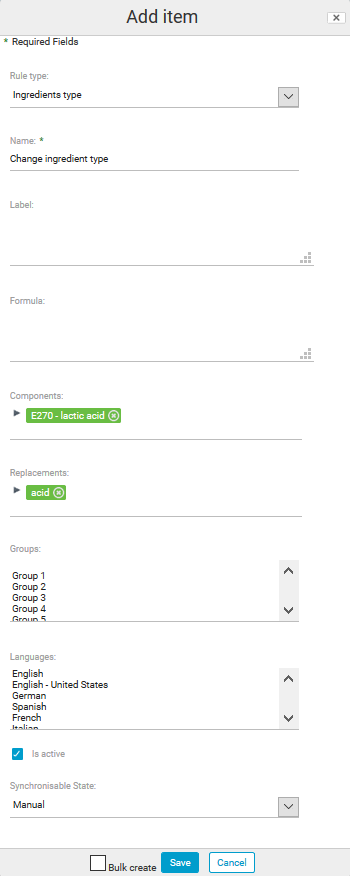
Becomes:

If the type change only concerns the labels generated in a specific language, select this language in the language list (see the "Rename" section).
Render
This rule type lets you, for example, create a new label. When you create a label, you can assign a group (group 1, group 2, ...) to it. You can then associate other rules with this group, and therefore with this label.
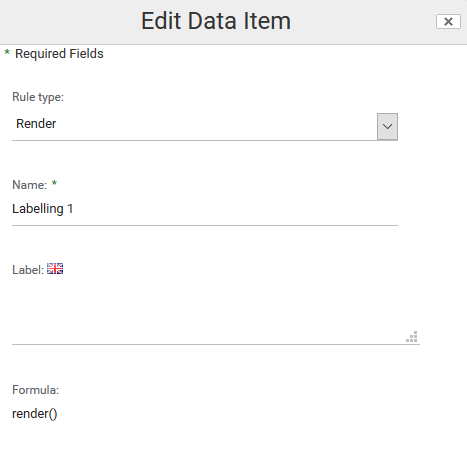
Many labeling formats exist. They are defined by the following formulas, to enter in the "Expression" field:
Displays ingredients and groupings:
render()
Example:

Only displays ingredients:
render(false)
Example:

Only displays the groupings:
renderGroupList()
Example:

Or any combination:
renderGroupList()+"<br/>"+render(false)*

Displays the allergens present:
renderAllergens()

Displays involuntary allergens:
renderInvoluntaryAllergens()
Displays involuntary allergens in processes:
renderInvoluntaryAllergenInProcess()
Displays involuntary allergens in raw materials:
renderInvoluntaryInRawMaterial()
Displays the detected allergens (example: if butter is detected, butter is displayed and not milk):
renderDetectedAllergens()
Displays a table:
renderAsHtmlTable()
Optional parameters are available in the parentheses (styleCss, showTotal, force100Perc):
- styleCss is the table format ("border-collapse:collapse", "border-collapse:separate", null...);
- showTotal = true displays the total;
- force100Perc = true forces quantities to 100%.
Example: create a table with the style "border-collapse:collapse", without the total, and forcing the percentages so that the total equals 100%:
renderAsHtmlTable(“border-collapse:collapse”, false,true)

You can also add preference rules to the table, as well as rules for displaying organic and geo origins.
Displays footnotes:
renderFootNotes()
Displays the label language:
@beCPG.join(",",locales)
Advanced parameters
Filter by language or country for a different render:
locale.getCountry() ou (locale.getLanguage()
Example: locale.getLanguage() =="fr" ? T(java.lang.String).format(fr)+ render : "" + locale.getLanguage() =="en" ? T(java.lang.String).format(en)+ render : ""
Add text before the render:
T(java.lang.String).format(
Example: add "Ingredients:" before the ingredient list:
T(java.lang.String).format(Ingredients)+render() or T(java.lang.String).format(@beCPG.propValue('workspace://SpacesStore/bf5128f4-d5e1-4b8d-a436-35498j998e9b', “bcpg:legalName”))+render()
'workspace://SpacesStore/bf5128f4-d5e1-4b8d-a436-35498j998e9b' is the node of the 'Ingredient' characteristic, which makes "Ingredient" multilingual depending on the label language.
Replace a symbol or text:
“render“.replace(”value to replace”, ‘replacement value’)
Example: in the label, I want to replace "sans" with "without":
render.replace(“without”,“”)
Language
The "Language" rule generates labels in different languages. Enter the codes of the labeling languages in the "Expression" field.
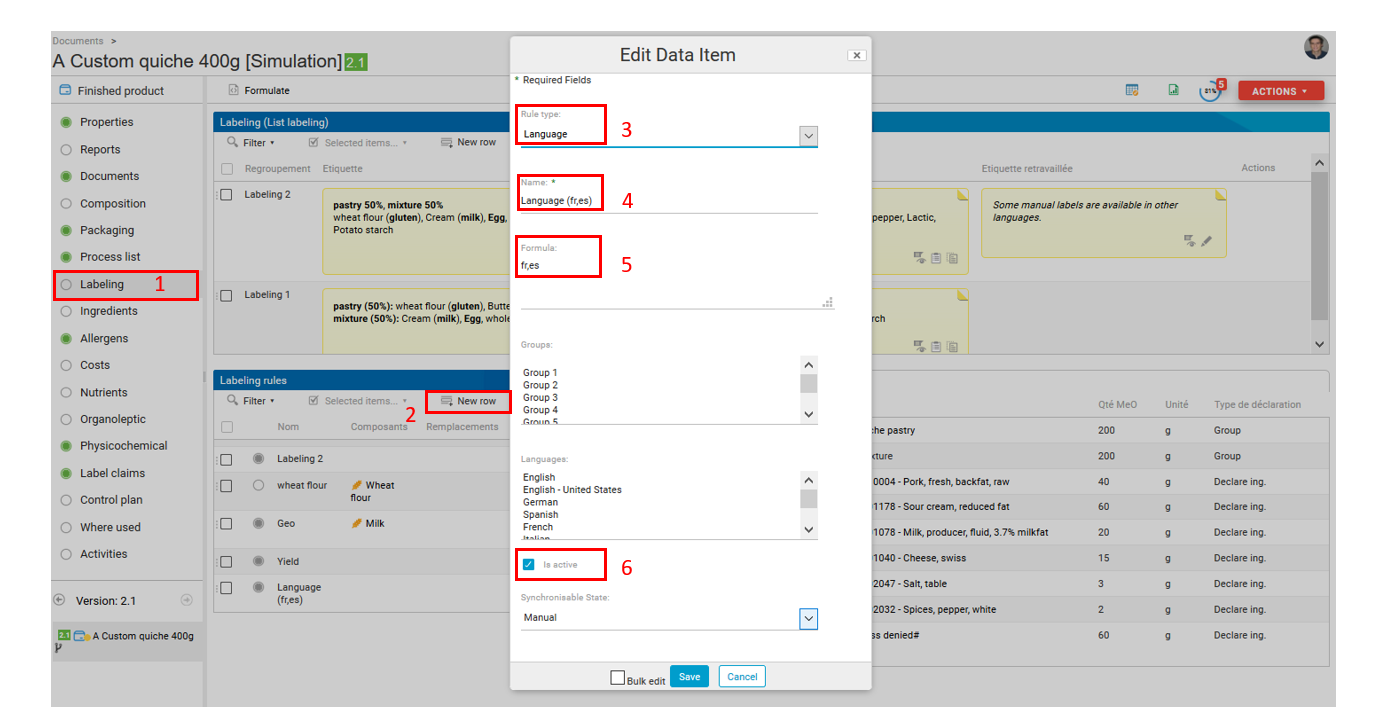
The labels generated in the different languages are then available:
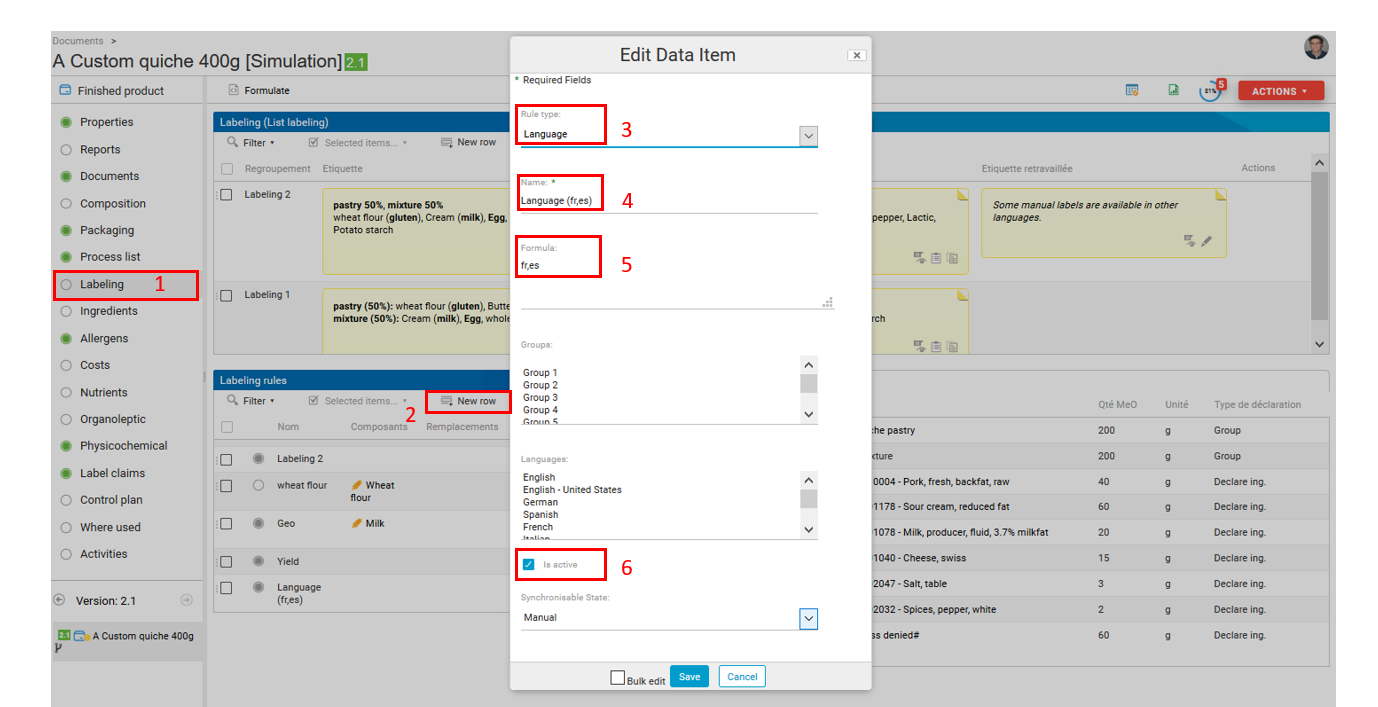
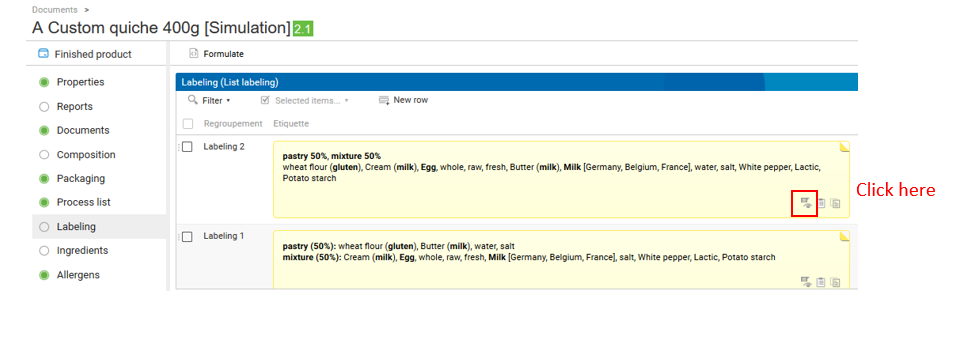
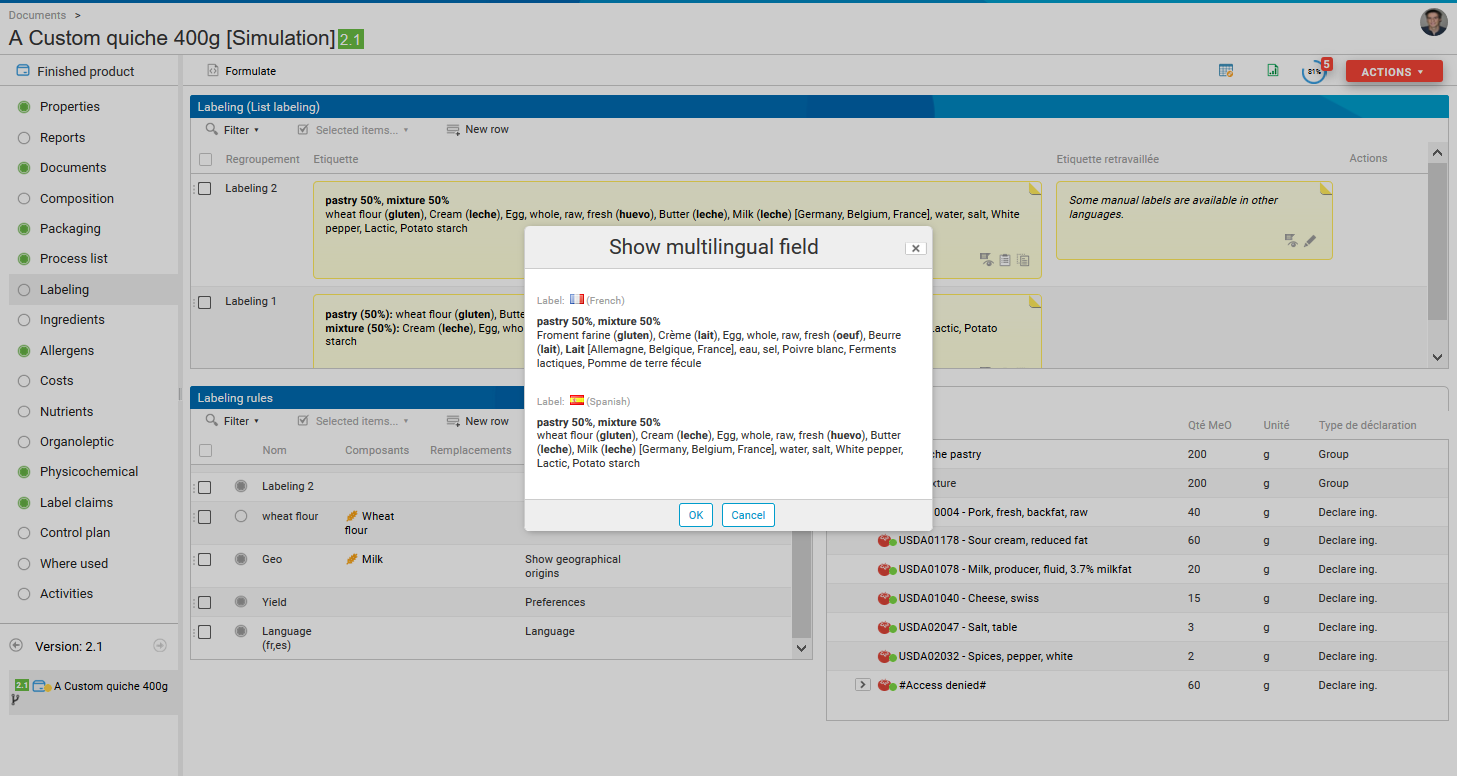
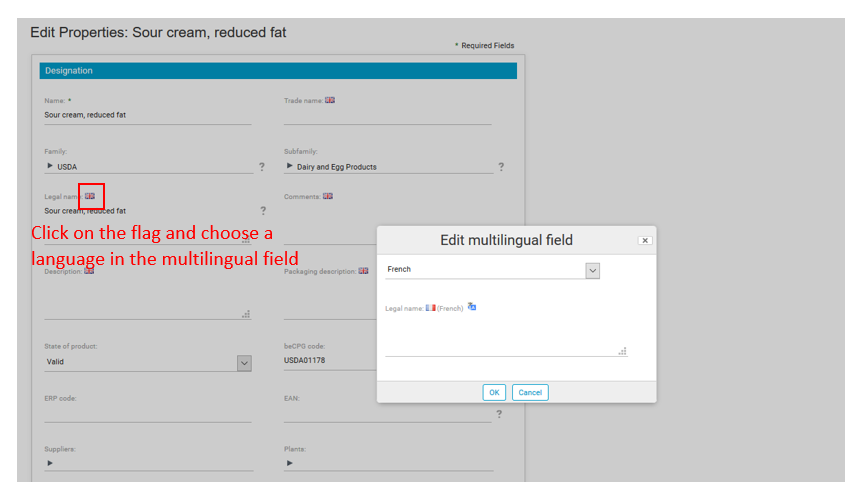
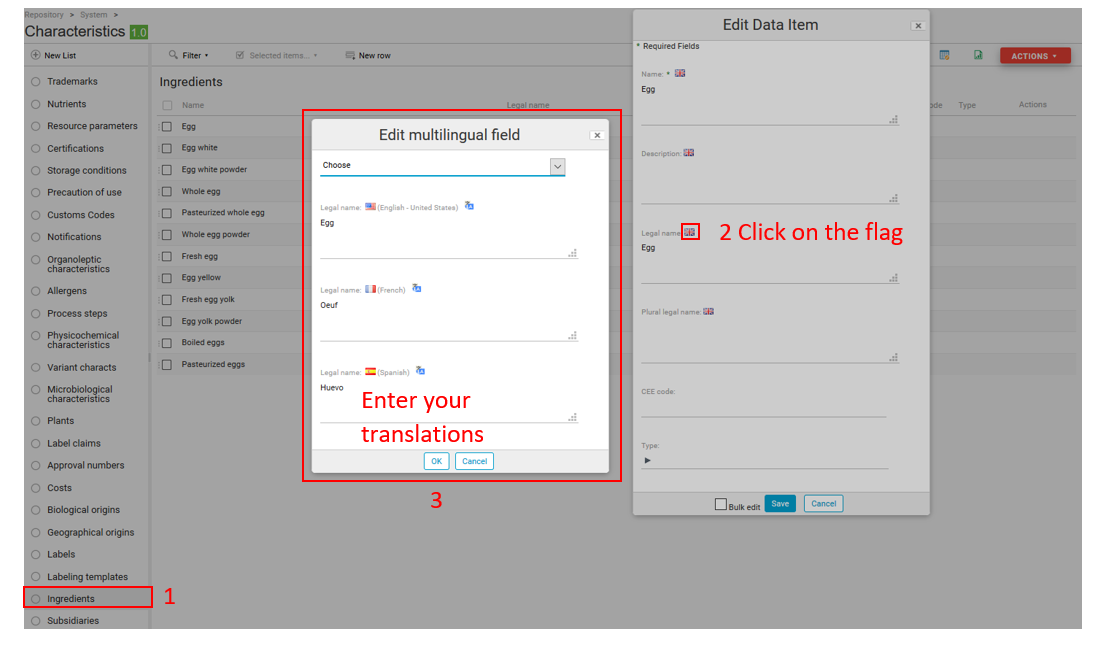
Note: here, the three labels are written in French or in English because the translations have not been provided. To display everything properly, the legal names of all ingredients/components must be entered in the administration.
For raw materials:
For ingredients:
Format
The "Format" type is often used on the product template to manage the label format. "Format" applies to one or more ingredients or RMs: it lets you bold, color, italicize or display % on a selection of specific words. For a more global application, we recommend using "Preferences".
There are 4 default formats:
- Groupings:
<b>{0} ({1,number,0.#%}):</b> {2}Bread: wheat flour, water, yeast, salt ...
- Detailed elements:
{0} {1,number,0.#%} ({2})icing sugar (sugar, maize starch)
- Ingredient types:
{0}: {1}Preservative: ascorbic acid
- Ingredients (default):
{0}wheat flour, water, yeast, salt ...
Other examples:
E.g. to write "wheat flour" in red:
- Formula:
<h style="color:#DC143C">{0} {1,number,0.#%} </h>{2} - Components: wheat flour
Result:
wheat flour 24.2 butter 14.52%, sugar 6.78%
E.g. to display ingredient origins ({3}) (see also "Render" for a table of the components and their origins):
- Formula:
{0} ({1,number,0.#%}): {3} - Components: wheat flour
- Result: wheat flour (24.2%): France, Spain, butter, sugar
Enter these format codes in the expression field. Then select the targeted component, or leave the field empty to define the default format. You can display percentages, put text in bold or in red, and so on. Formats can include HTML.
Preferences
You can associate a "Preference" rule with a group, and therefore with a label. The rule applies to the whole label. To be more precise, use a "Format" rule.
Work in volumes
useVolume = true
Display CEE ingredients codes instead of the legal name
showIngCEECode = true
Redefine the separators
    defaultSeparator  = "; "
    groupDefaultSeparator  = ", "
    ingTypeDefaultSeparator  = ", "
    subIngsSeparator = ", "
    allergensSeparator = "; "
    geoOriginsSeparator = "; "
    atEndSeparator=","
    footNotesLabelSeparator =" <br/>"
Redefine the format
Group format
#: indicates the number of digits after the decimal point (e.g.##, 2 digits after the decimal point);<b> ...</b>: these HTML tags set the text in bold (<i> ... </i>sets it in italic);- Percentages are rounded to the nearest value, and a value exactly halfway is rounded down (
HALF_DOWNmode):- 18.5% => 18%
- 18.6% => 19%
- -1.5% => -1%
- -1.6% => -2%
groupDefaultFormat = "<b>{0} ({1,number,0.#%}):</b> {2}"
Groups lists format
groupListDefaultFormat = "<b>{0} {1,number,0.#%}</b>"
WARNING: the 4 rules Ingredient format, Ingredient type, Detail format and Ingredient format with sub-ingredient only work if used together with Show origins and Show biological origins.
The following 2 rules (Ingredient format and Ingredient type) are useful to display the country of origin and the biological origin of ingredients. These 2 rules must be combined. They are usually set on the finished product template but can also be used directly on entities.
- {0}: the ingredient
- {2}: name of the ingredient and country of transformation (replaced by the country of origin if the country of transformation is missing)
- {3}: country of transformation (or geographical origin if the country of processing is empty)
- {4}: biological origin
- {5}: geographical origin
Ingredient format
ingDefaultFormat = "{0} [{3}]"
Ingredient type format
ingTypeDefaultFormat = "{0}: ({2})[{3}]"
e.g. antioxidant: (ascorbic acid, tocopherol)
ingTypeSingleValueFormat="{0} : {2} [{3}]"
e.g. antioxidant: ascorbic acid
ingTypeSingleValueFormat replaces ingTypeDefaultFormat when only one child ingredient is present.
Detail format
detailsDefaultFormat = "{0} ({2}) [{3}]"
For compound ingredient detail.
Ingredient format with sub-ingredient
subIngsDefaultFormat = "{0} ({2}) [{3}]"
For sub-ingredient detail (ingredients of ingredients).
Ingredient type with threshold
ingTypeDecThresholdFormat = "{0} [{3}]"
You can also change the case:
Capitalize (example: Water)
<ca></ca>
Have the text in capital letters (example: WATER)
<up></up>
Lowercase (example: water)
<lo></lo>
Percentage rounding rule
To round down (2.26% --> 2.2%)
defaultRoundingMode=T(java.math.RoundingMode).DOWN
To round up (2.21% --> 2.3%)
defaultRoundingMode=T(java.math.RoundingMode).UP
In the situation where you have 2 decimals #.#5 and wish to round down (2.25% --> 2.2%)
defaultRoundingMode=T(java.math.RoundingMode).HALF_DOWN
In the situation where you have 2 decimals #.#5, and wish to round up (2.25% --> 2.3%)
defaultRoundingMode=T(java.math.RoundingMode).HALF_UP
Show percentages (see above) can also manage rounding rules.
Allergen
Set the allergen in bold (<b>) or in italic (<i>):
allergenReplacementPattern = "<b>$1</b>"
Format of the allergen when it does not appear in the text:
allergenDetailsFormat = "{0} ({2})";
Disable the allergen display for some languages:
disableAllergensForLocales = "ru,ja_JP,zh_CN"
Disable the allergen display for all languages:
disableAllergensForLocales = "*"
Tables
By default, the table displays the ingredients, their geographical processing origins, the organic origin, and the quantity before and after yield.
With a preference rule, you can rename, reorder or add columns by modifying the following formats. Here is the complete list of available indices:
| Indices | Value |
|---|---|
| {0} | Ingredient/Component Name |
| {1} | Percentage (quantity) |
| {2} | Geographic Origin and country of transformation |
| {3} | Organic Origins |
| {4} | Percentage with yield |
| {5} | Geographic Origin |
| {6} | Additional Information |
Table column format:
htmlTableHeaderFormat = '<thead><tr><th style="border: solid 1px;padding: 5px;" >{0}</th>
<th style="border: solid 1px;padding: 5px;" >{2}</th>
<th style="border: solid 1px;padding: 5px;" >{3}</th>
<th style="border: solid 1px;padding: 5px;text-align:center;">{1}</th>
<th style="border: solid 1px;padding: 5px;text-align:center;">{4}</th></tr></thead>'
Table row format:
htmlTableRowFormat = '<tr><td style="border: solid 1px;padding: 5px;" >{0}</td>
<td style="border: solid 1px;padding: 5px;" >{2}</td>"
<td style="border: solid 1px;padding: 5px;" >{3}</td>"
<td style="border: solid 1px;padding: 5px;text-align:center;">{1,number,0.#%}</td>
<td style="border: solid 1px;padding: 5px;text-align:center;">{4,number,0.#%}</td></tr>'
Table footer format:
htmlTableFooterFormat = '<tfoot><tr><th style="border: solid 1px;padding: 5px;" ><b>{0}</b></th>
<td style="border: solid 1px;padding: 5px;"></td><td style="border: solid 1px;padding: 5px;"></td>
<td style="border: solid 1px;padding: 5px;text-align:center;"><b>{1,number,0.#%}</b></td>
<td style="border: solid 1px;padding: 5px;"></td></tr></tfoot>'
Geographical and biological origins are only displayed if the rules governing their appearance are present in the table. Remember to add them to the entity template via groups, so as not to affect the other labels.
Differentiating the country of origin and the country of transformation
You can also differentiate the country of origin and the country of processing:
- {2} = geographical origin of transformation
- {5} = geographical origin
With two preference rules:
htmlTableRowFormat = '<tr><td style="border: solid 1px;padding: 5px;" >{0}</td>
<td style="border: solid 1px;padding: 5px;" >{2}</td>
<td style="border: solid 1px;padding: 5px;" >{5}</td>
<td style="border: solid 1px;padding: 5px;" >{3}</td>
<td style="border: solid 1px;padding: 5px;text-align:center;">{1,number,0.#%}</td>
<td style="border: solid 1px;padding: 5px;text-align:center;">{4,number,0.#%}</td></tr>'
htmlTableHeaderFormat = '<thead><tr><th style="border: solid 1px;padding: 5px;" >{0}</th>
<td style="border: solid 1px;padding: 5px;" >Transformation</td>
<td style="border: solid 1px;padding: 5px;" >Origin</td>
<th style="border: solid 1px;padding: 5px;" >{3}</th>
<th style="border: solid 1px;padding: 5px;text-align:center;">{1}</th>
<th style="border: solid 1px;padding: 5px;text-align:center;">{4}</th></tr></thead>'
You then get a new column for the country of transformation (column 5 in the first preference rule).

Yield
The ingredient list takes the yield into account, which means that it gives the exact percentages before cooking.
ingsLabelingWithYield = true
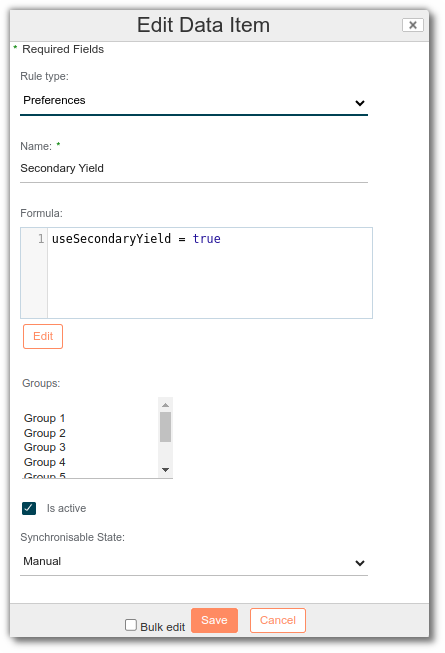
Secondary Yield
The labeling takes into account the secondary yield, i.e. it gives the exact percentages after preparation (e.g. cooking at the customer's premises).
useSecondaryYield = true
Do not propagate yield
This rule allows the evaporation rate to be used instead of free water for upper levels, which helps preserve the moisture specific to the products.
doNotPropagateYield = true
Note: the rule must be added to all levels (e.g., semi-finished and finished products) to be effective.
Precision
You can set the precision threshold used in aggregation and reconstitution calculations. Two quantities whose difference is below this threshold are considered equal when sorting, and a reconstituted ingredient whose quantity is below this threshold is removed from the label:
qtyPrecisionThreshold = 0.001d;
When the format displays percentages, the system automatically adapts the number of decimals to the quantity. You can configure the maximum number of decimals:
maxPrecision = 4;
Example with maxPrecision = 2:
- 3.5% gives 3.5%
- 0.021151% gives 0.02%
- 0.005% gives 0.00%
- 0% gives 0%
Force the sum to 100%
When the sum of rounded values is not 100%, you can force it to 100%. The rounding difference is then added to the first ingredient of the label, which is displayed with an increased precision. If the labeling takes the yield into account, all quantities are recalculated in proportion to the total:
force100Perc = true
Burst the type of ingredients
Groups the ingredients by category only when they are next to one another in the ingredient list.
shouldBreakIngType = true
Default: milk, Flavors: strawberry, vanilla, water
With the preference rule: milk, Flavor: strawberry, water, Flavor: vanilla
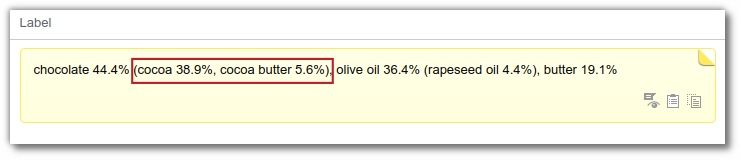
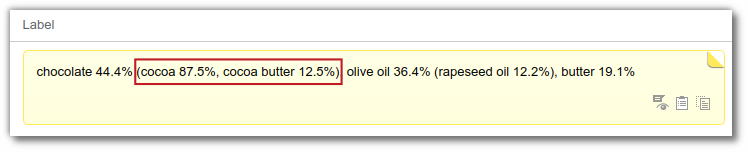
Label relative to parents
Labels the percentages of ingredients relative to the parent ingredient.
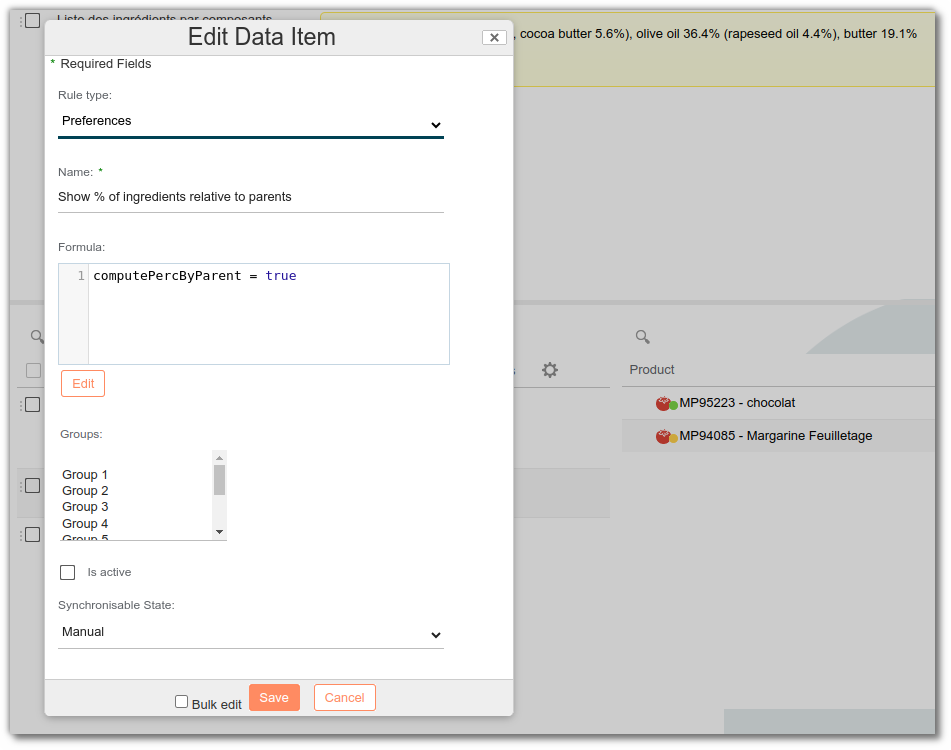
computePercByParent = true
By default:
With the computePercByParent rule:
Rule to create:
Keep the order of ingredients
Keeps the order of the ingredient list when there is only one raw material or semi-finished product, as with the Detail option.
forceKeepOrder = true
Keeping ingredients in order based on language
Ingredients with the same quantity are sorted alphabetically, with uppercase letters coming before lowercase letters. Since “A” comes before “a” in the Unicode character set, “Sodium acetate” (where “Acetate” begins with a capital “A”) will be placed before “acacia” (where ‘acacia’ begins with a lowercase “a”). Special characters and numbers come first. Therefore, the order of ingredients may vary depending on the translation for the same product. You can set a specific sorting order for a language with the following rule:
sortWithSpecificLocale="language code"
e.g.: sortWithSpecificLocale="fr"
Footnote
Displays a footnote after an ingredient.
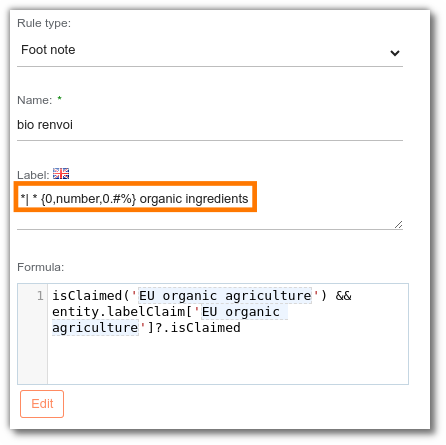
- In Label, declare the marker and the footnote separated by | (double the apostrophes so that they appear on the label). Example:
*|* Organic ingredients
**|** Fairtrade ingredients
To display the percentage of the ingredient concerned by a claim:
*| * {0,number,0.#%} organic ingredients
- In Component, you can select the component on which to display the footnote.
- In Formula, you can use a SpEL formula to condition the display of the footnote (labeling context).
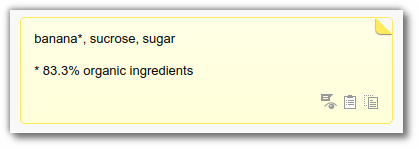
This rule must be combined with the renderFootNotes render.
Add a quote
To add a quote, for example to a footnote rule, double it; otherwise it is not taken into account in the labeling.
E.g. "Product"s label"
HTML elements list
Most labeling rules accept HTML elements for specific formatting.
Here is the list of some HTML elements:
Bold
<b> ... </b>Strong (stronger than bold)
<strong> ... </strong>Italic
<i> ... </i>Underline
<u> ... </u>del: strikethrough text
<del> ... </del>br: line break
... <br/> ...Span uppercase: all the text in uppercase letters
<span style='text-transform:uppercase'> ... </span>Span capitalize: first letter in uppercase letter
<span style='text-transform:capitalize'> ... </span>Span lowercase: all the text in lowercase letters
<span style='text-transform:lowercase'> ... </span>h style color: color the text
<h style='color:#DC143C'> ... </h>Example with #DC143C (red). For other color codes: https://htmlcolorcodes.com/
You can also use these elements directly in the legal name.