Electronic document management (EDM)
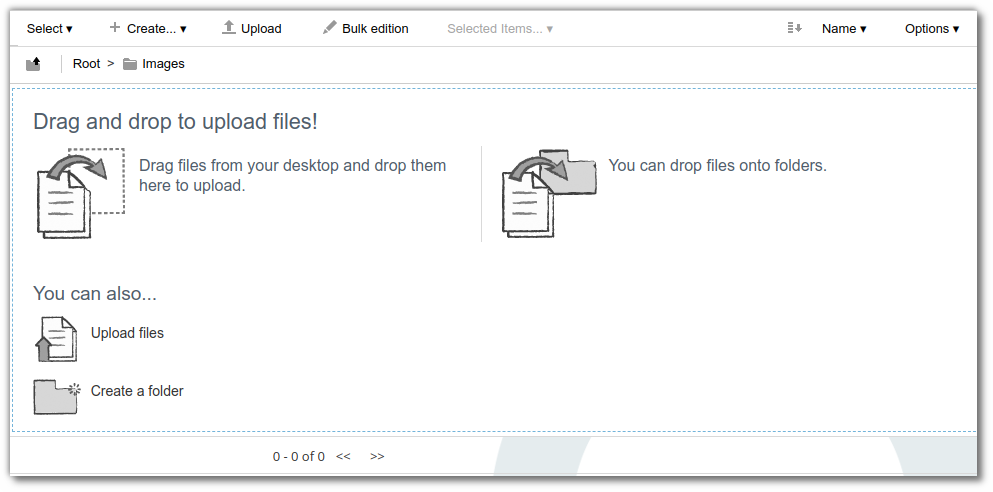
Add documents
To add documents to beCPG, drag them into the document list.
Document properties
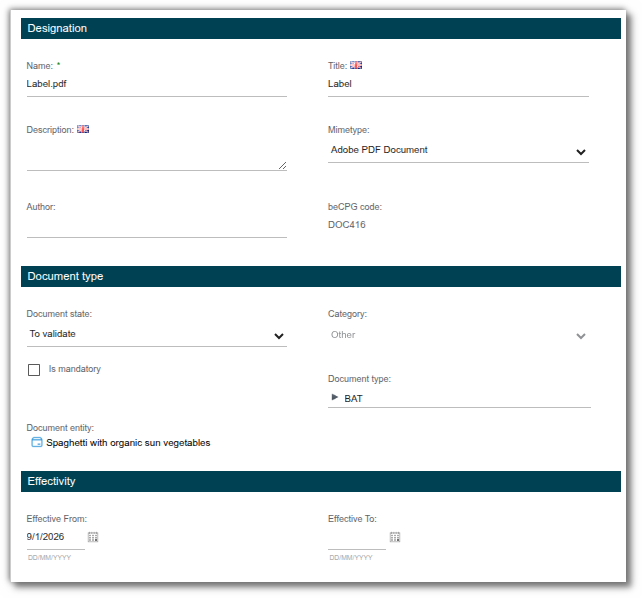
You can enter the following information for each document:
- Name: file name.
- Title: displayed label (available in multiple languages).
- Description: explanatory text or details about the document's content.
- Tags: keywords that make searching and filtering easier.
- Effectivity (start and end dates): defines the validity period, used to trigger alerts before expiration. You can enter it manually, or it is calculated automatically from the rules of the document type.
- Document type: category of the document (from the administration's list of values). Selecting it may display additional fields. For more information, see Document type administration.
- Document state: visual indicator of the validation status:
- yellow: Simulation;
- blue: To Validate;
- green: Valid (automatically turns green when the parent entity is validated);
- red: Refused, Archived, Stopped.
- Is mandatory: indicates whether the document is required (set at document type level).
- beCPG code: ID generated automatically by beCPG (DOCXXX format).
Basket
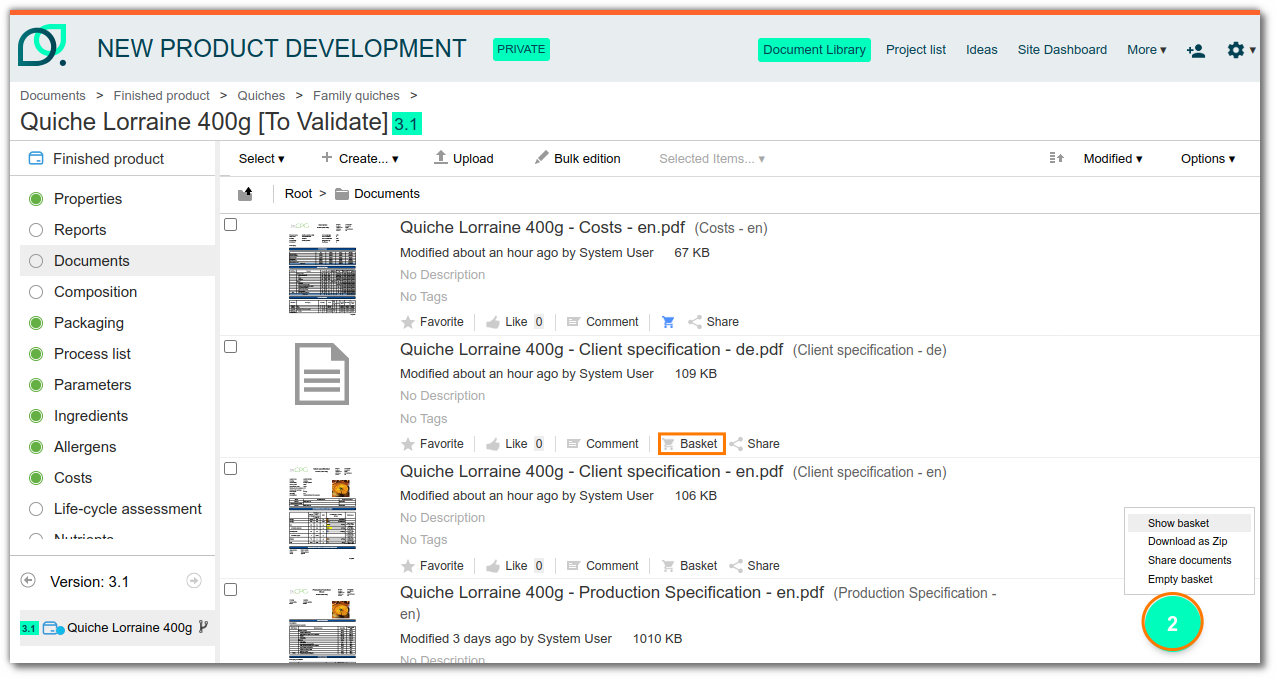
With the basket, collect documents stored in different folders or entities, then upload them to a folder.
Share documents
Share documents with users outside beCPG by generating a public link.
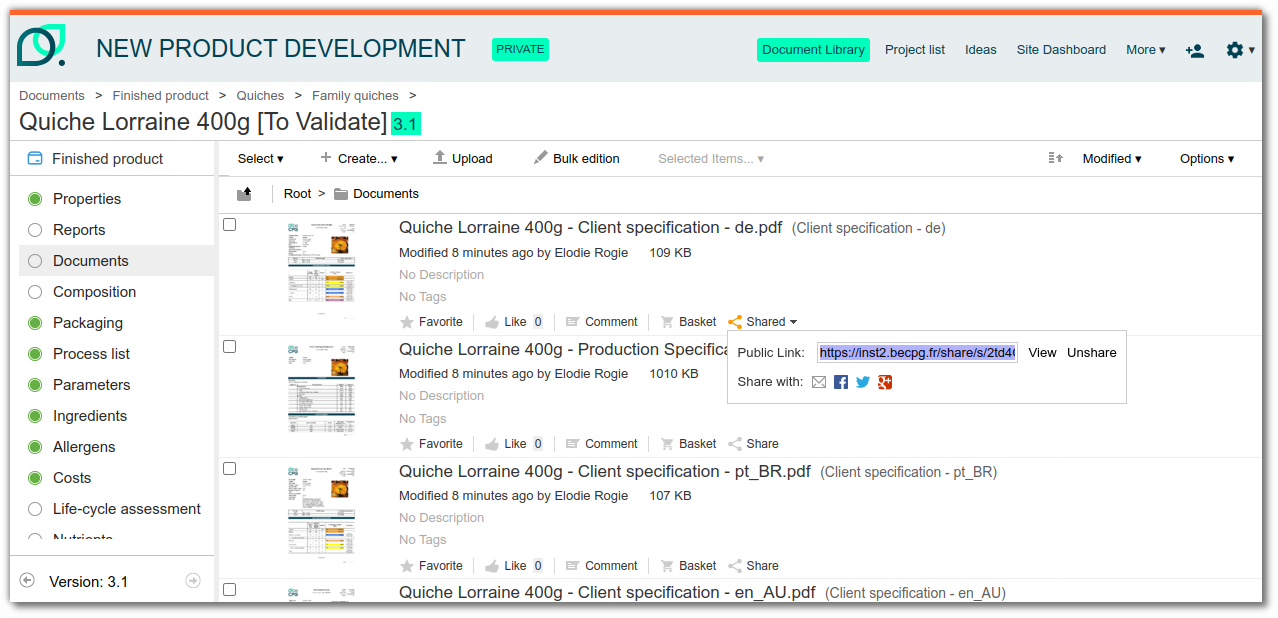
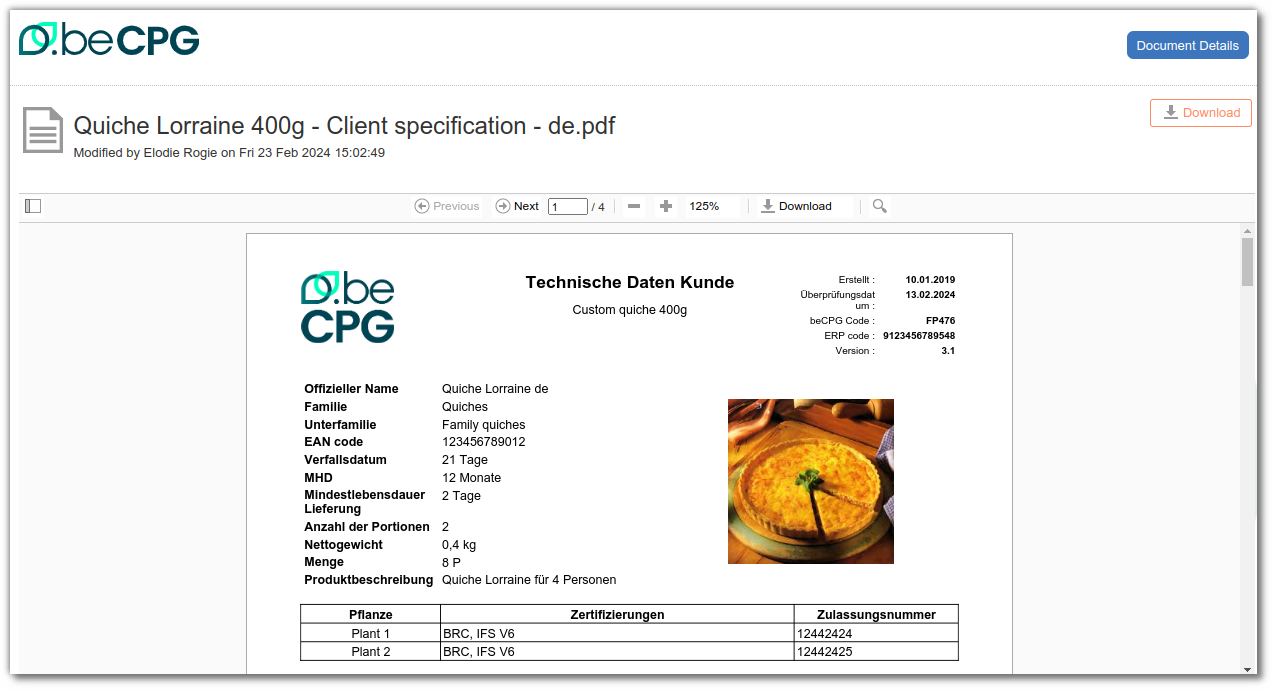
With this link, the external user can view and download the document.
Artwork module: annotations
The becpg-artworks module is an add-on that can be included in beCPG PLM to modify PDF documents. The add-on is available at https://github.com/becpg/becpg-artworks. It lets you make changes to PDF documents. You need an annotation license to use this feature.
Usage
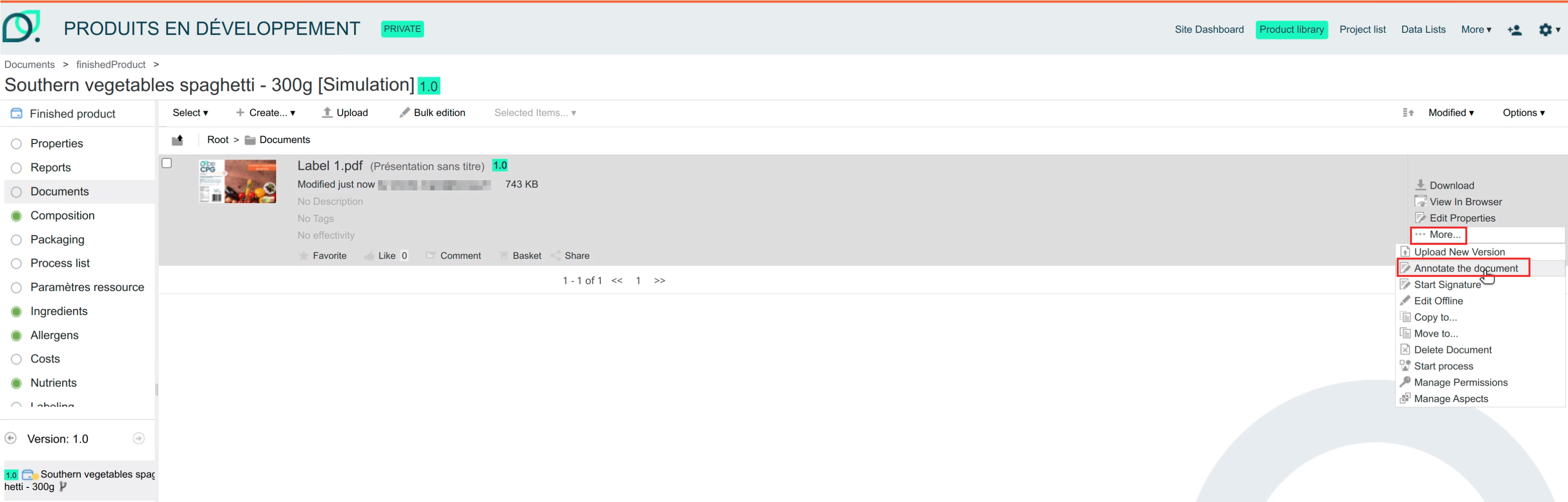
To modify a PDF, click "Annotate the document":
A new editing window opens, where you can make different kinds of modifications to the document:
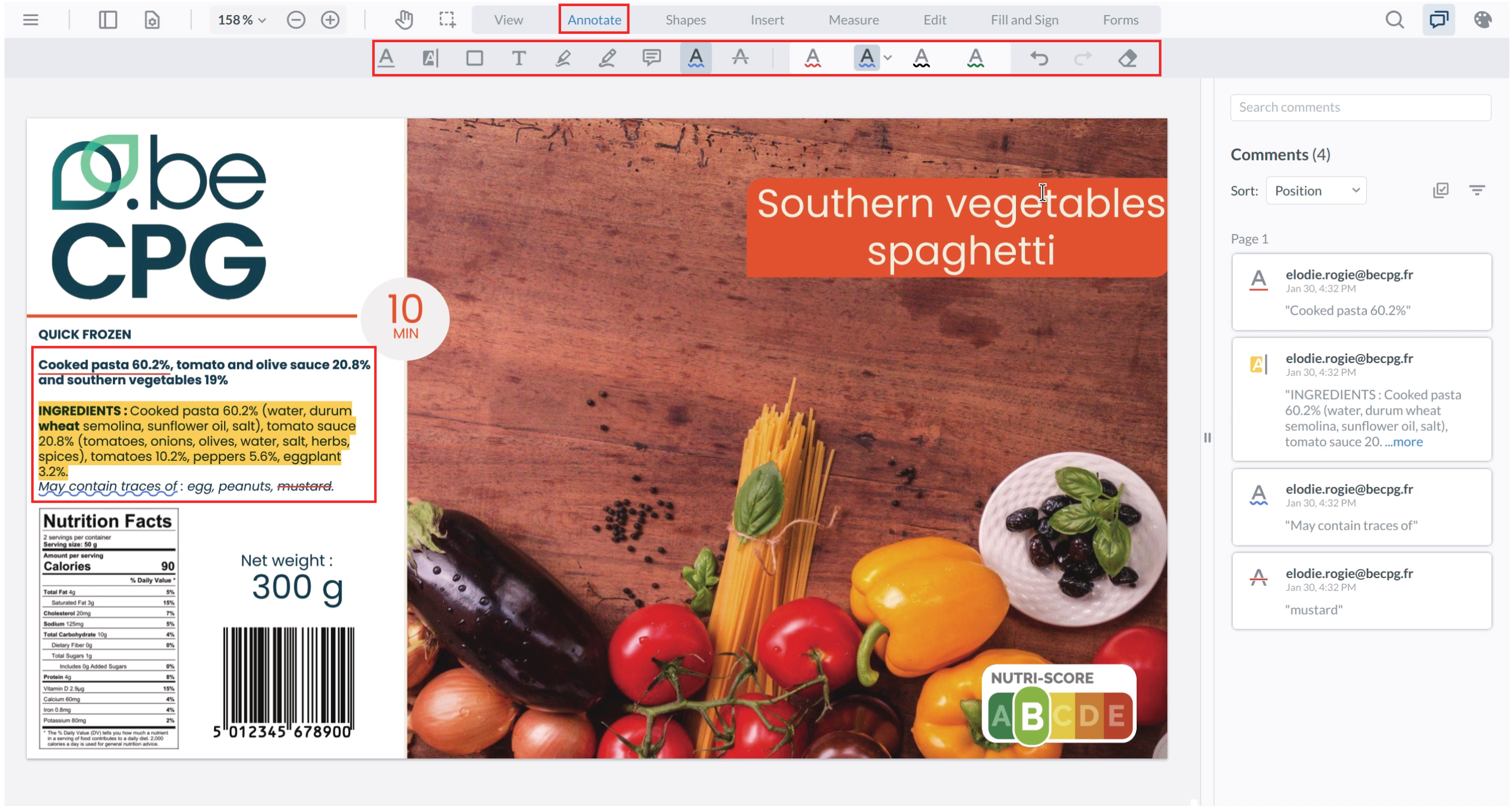
Annotate : Add Text
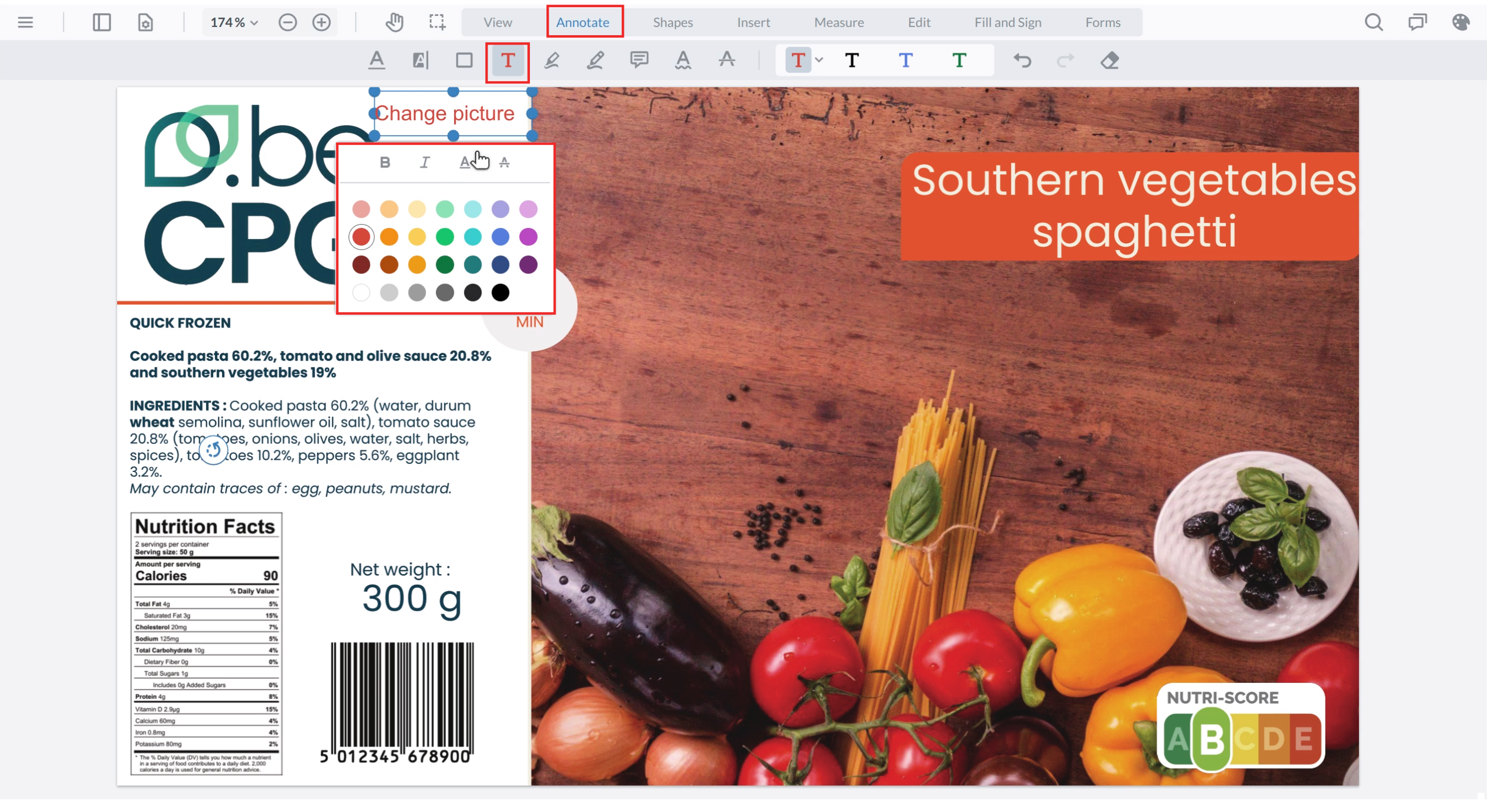
Can be used to add text, highlight text, draw rectangles, add notes, use pencil tool...
Shapes
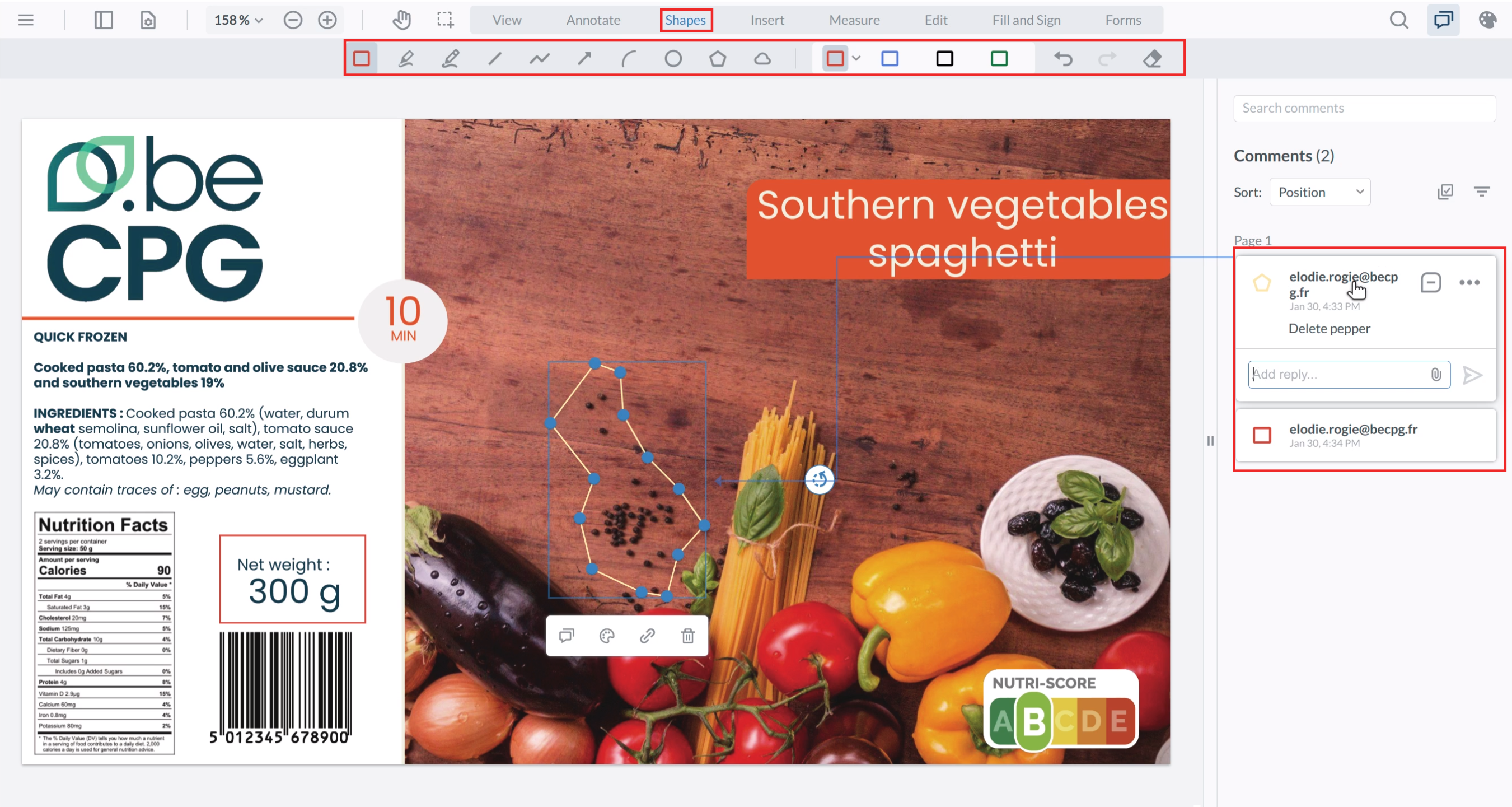
Can be used to add different kinds of shapes (rectangles, squares, circles...)
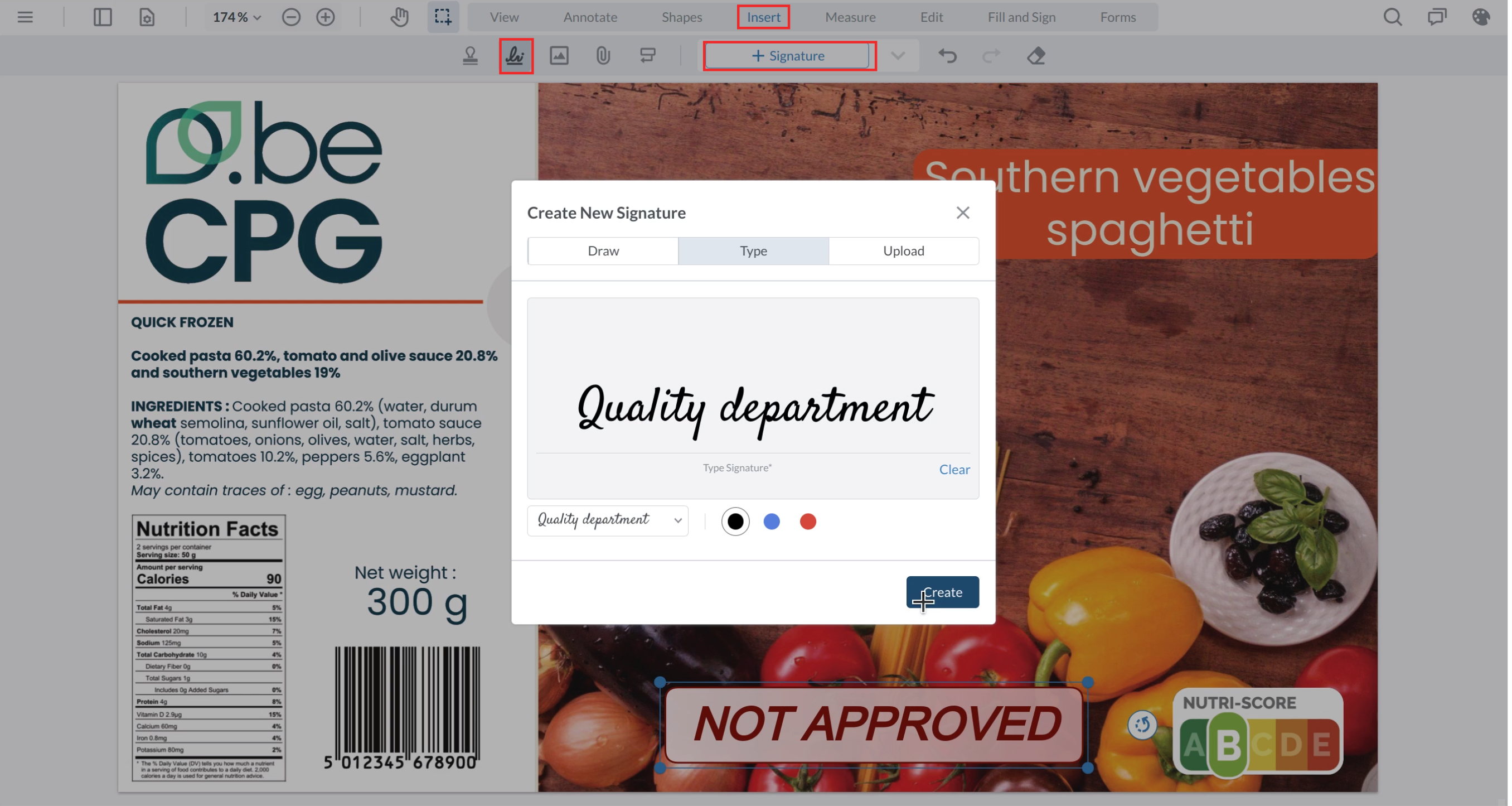
Insert
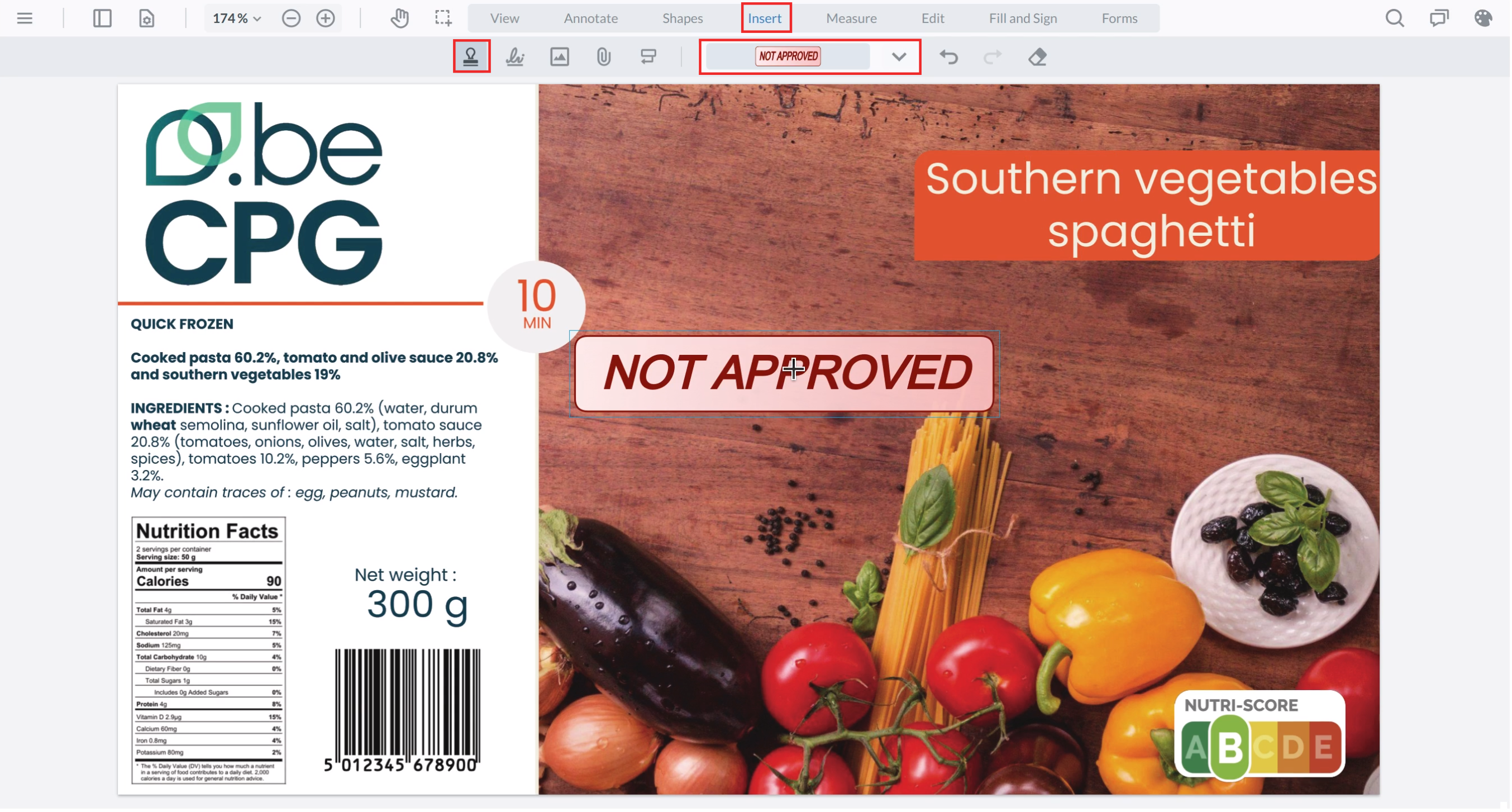
Can be used to add images, files, stamps, or sign...
Measure
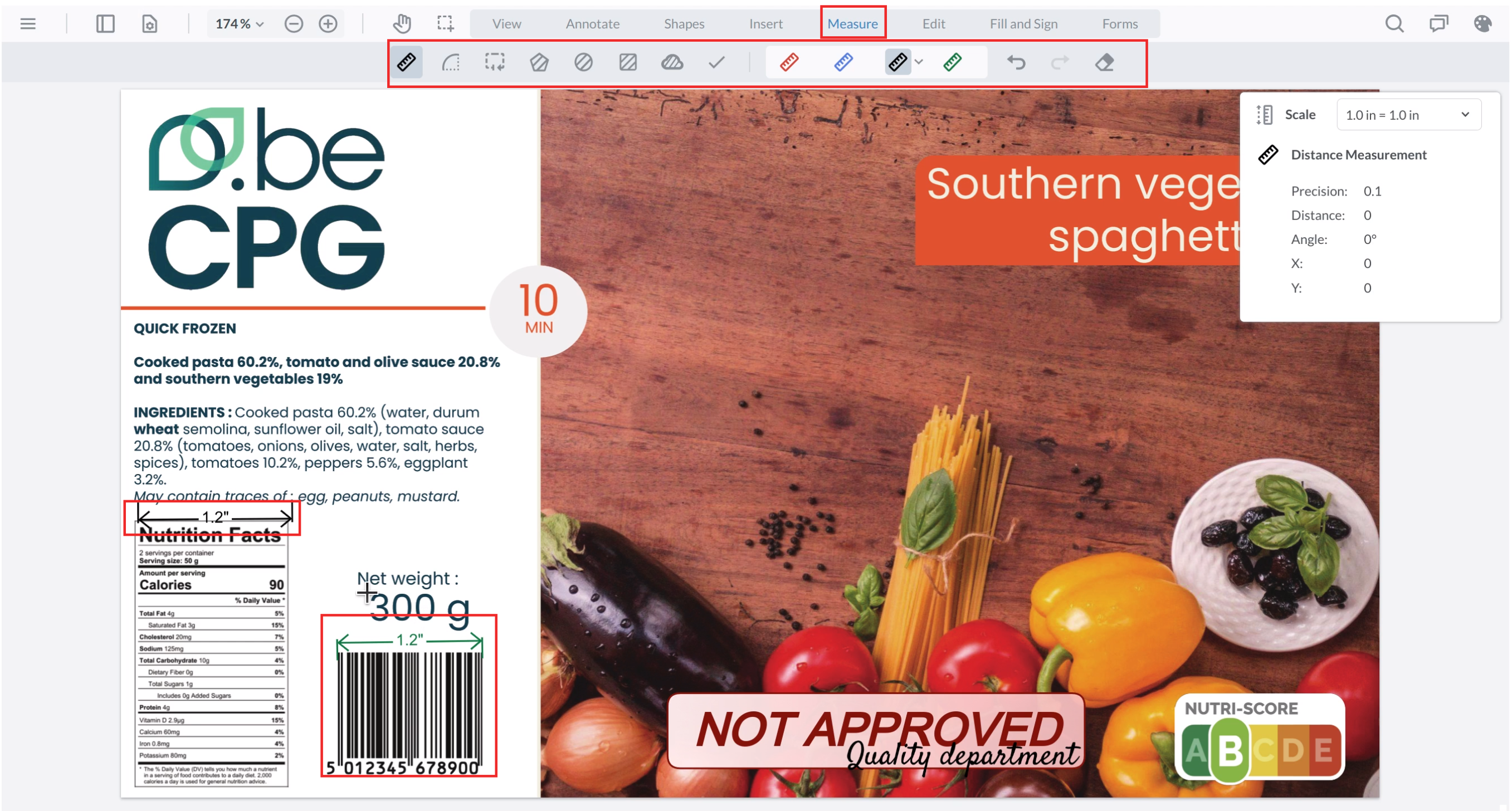
Lets you take measurements on the document: you can define a new scale for each measure and select different measure units.
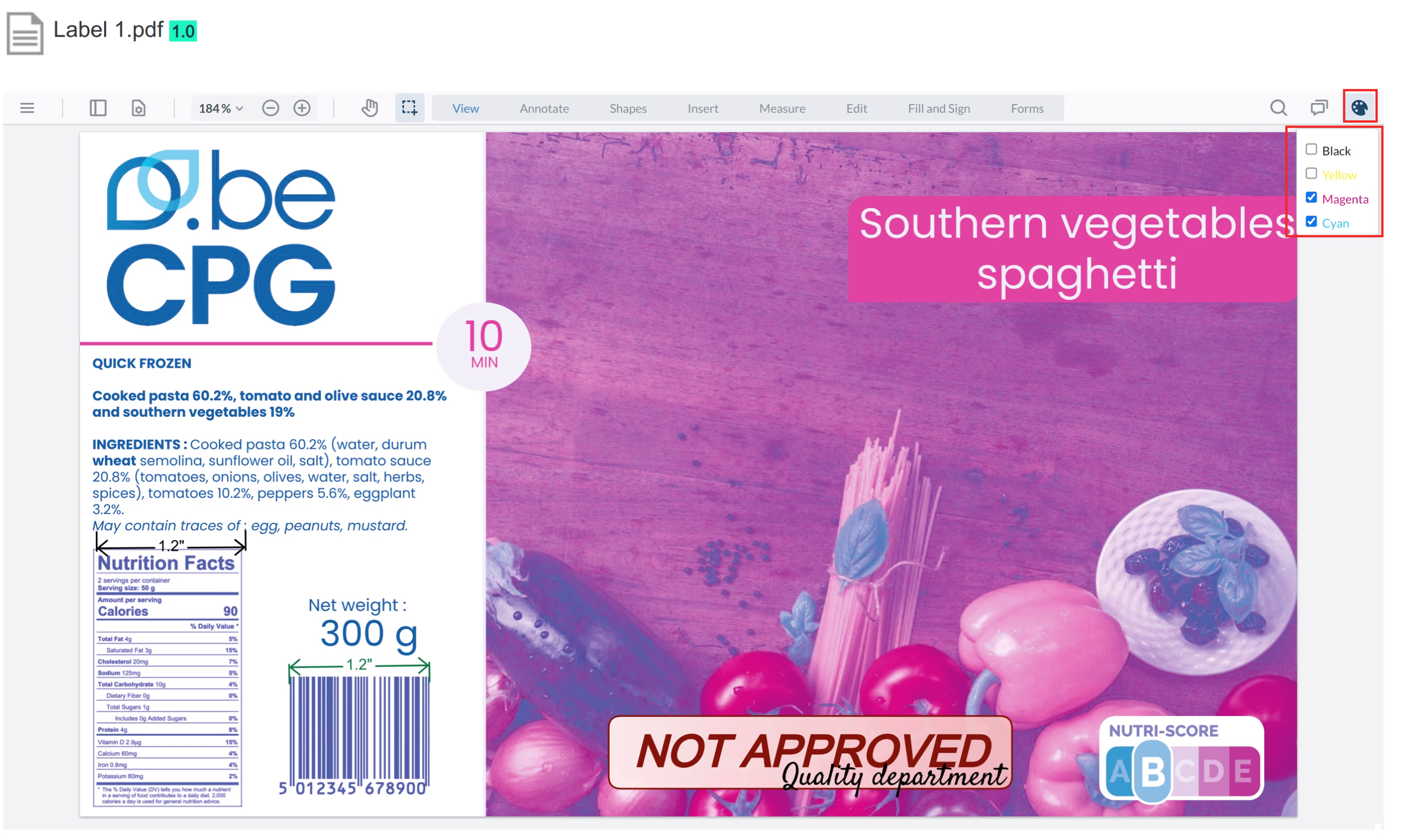
Colors extraction
You can extract and filter the document colors by using the palette-shaped button and selecting the different colors you want to keep:
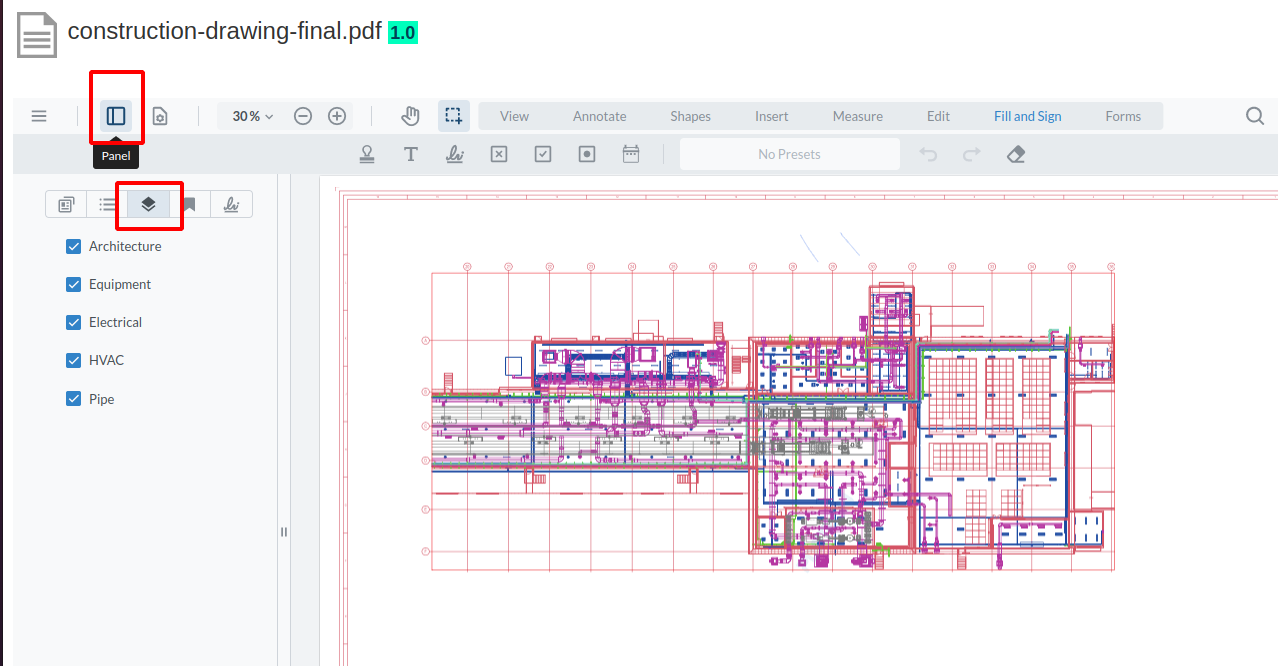
Layers extraction
If your PDF document contains several layers, you can extract them by opening the left panel and displaying the layers as shown:
Saving
Once you have finished editing your file, save it by clicking "Save":

The document is then saved with the modifications as a new minor version.
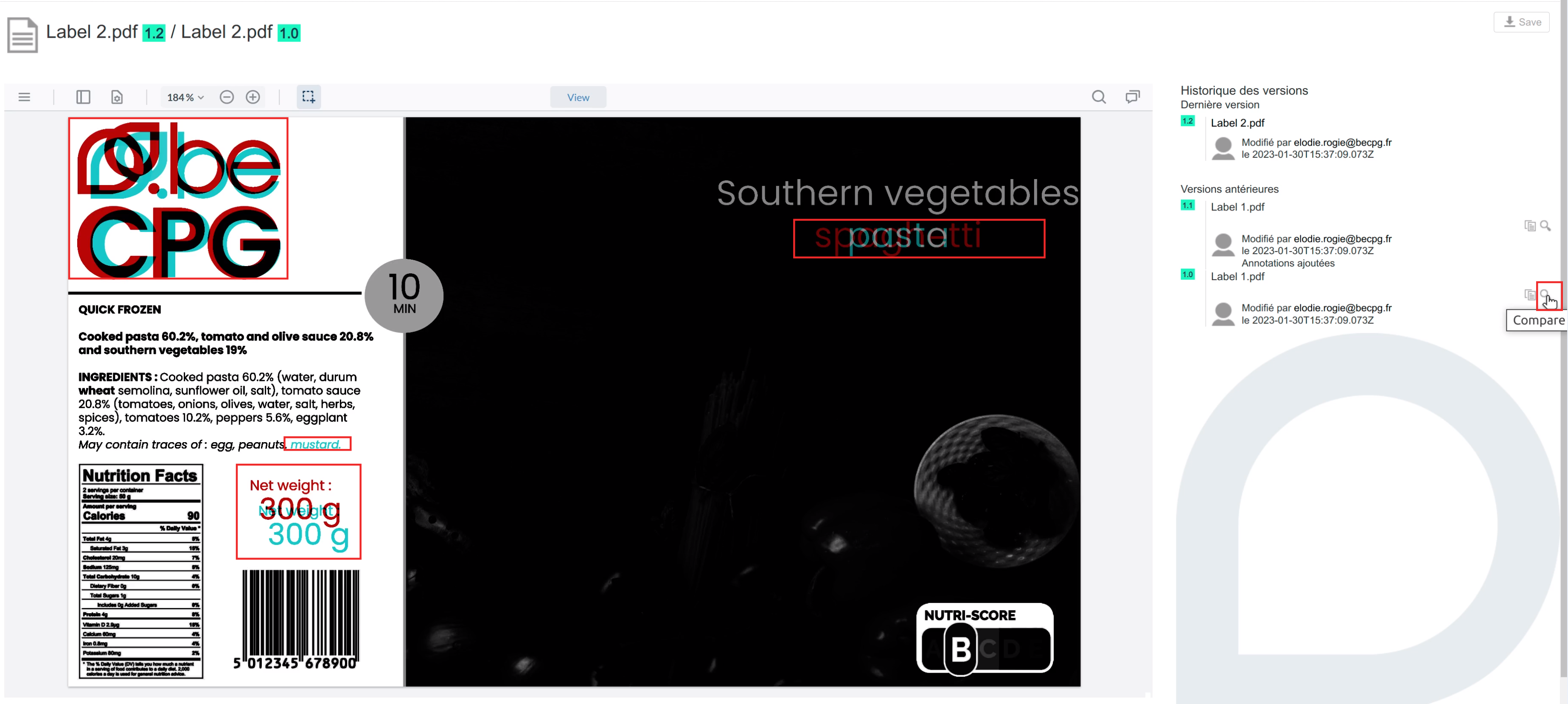
Comparison
If you create a new version of a file and open it with the viewer, you can compare it with its previous versions:
with text comparison
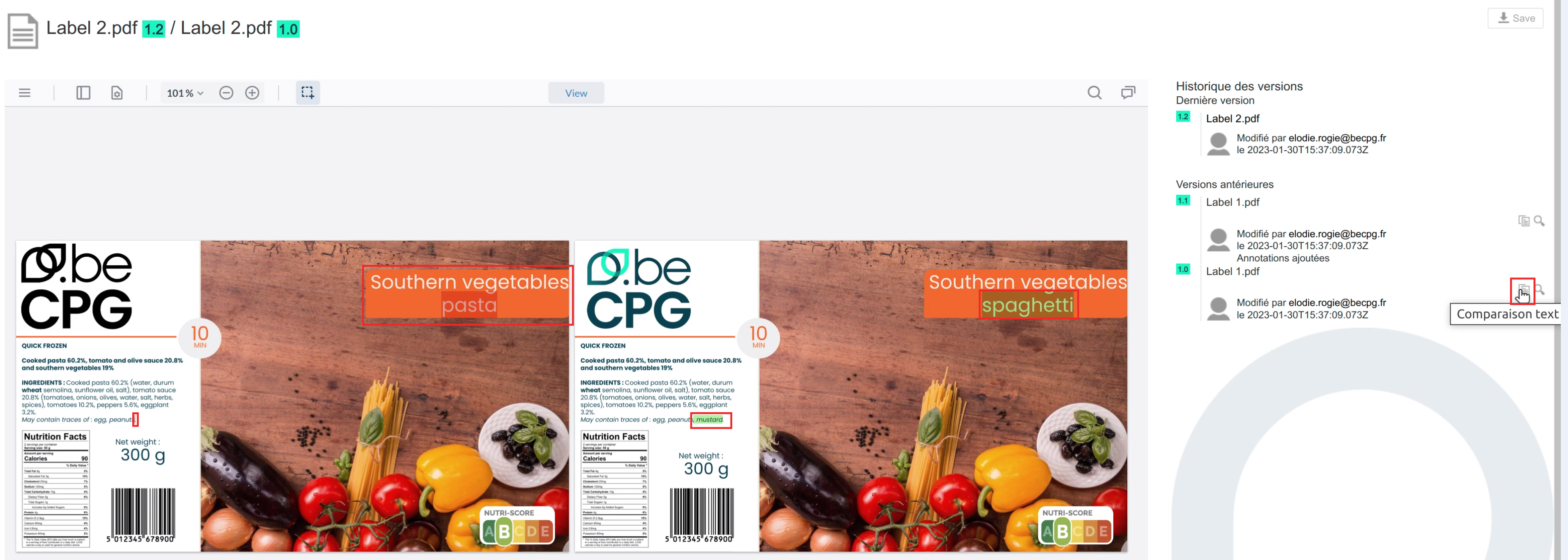
with pixel comparison
Images
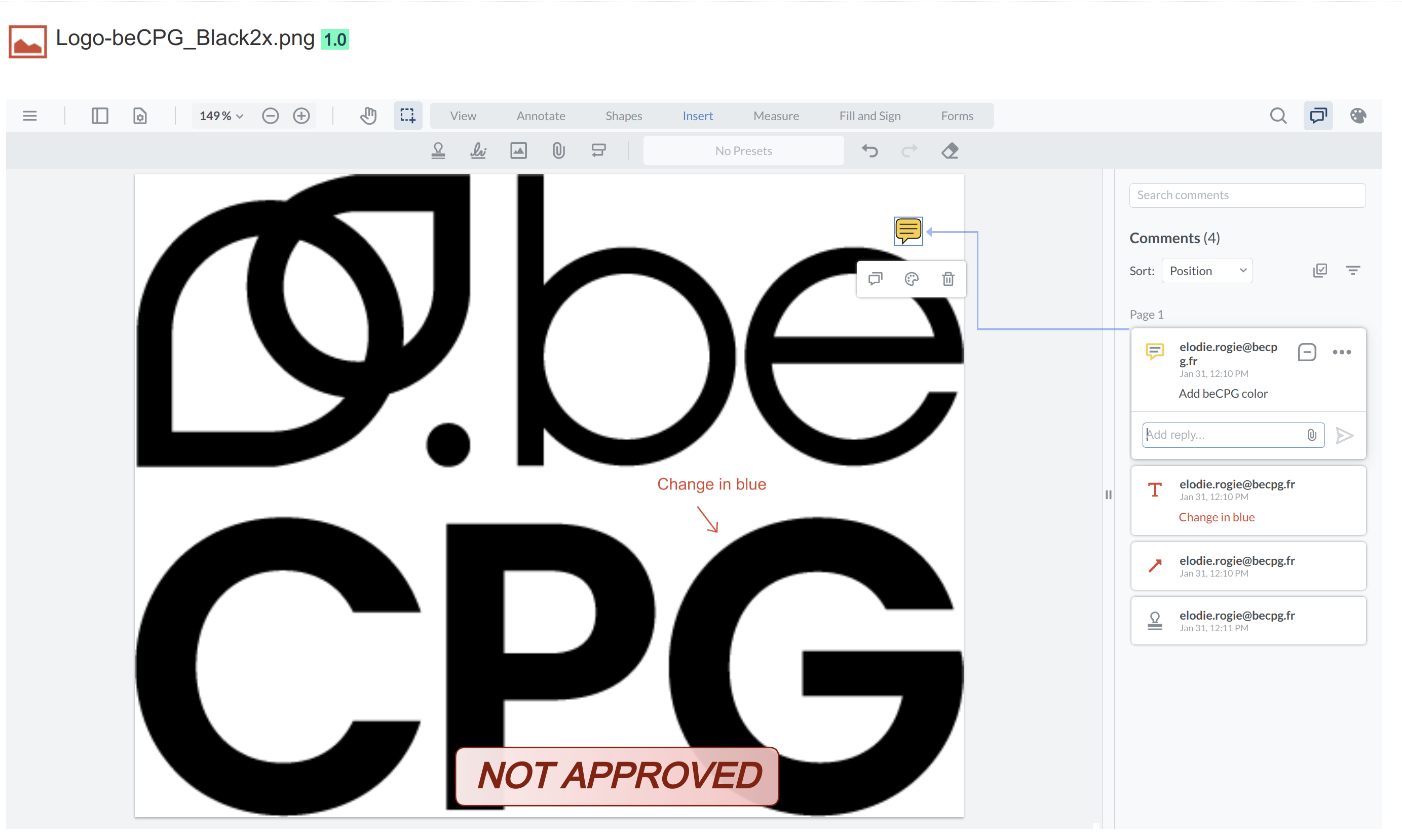
You can use the viewer with images. However, some features might not work properly, as the library is designed to work with PDF files.
You can open an image with the viewer, add some annotations, save it, and the system will create a new PDF file right next to the original one.
Electronic signature
The electronic signature is a digital solution designed to facilitate the validation of internal or supplier documents. beCPG guarantees document signature integrity with PDFTron technology.
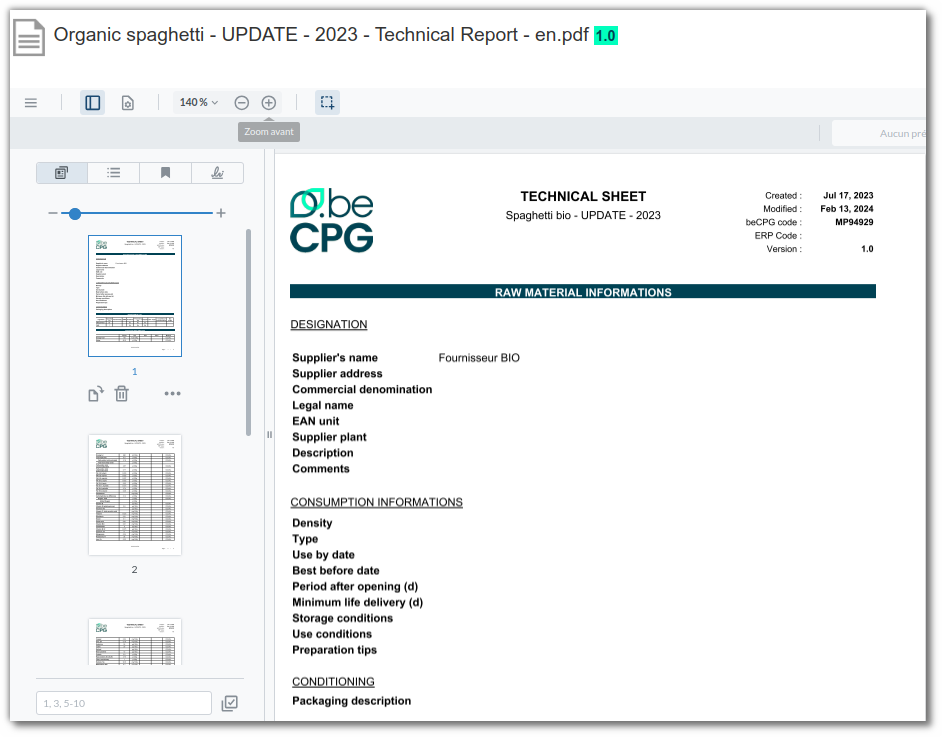
With this module, you can, for example, ask the supplier to sign the raw material data sheet report. Click here for more information.
Internal electronic signature
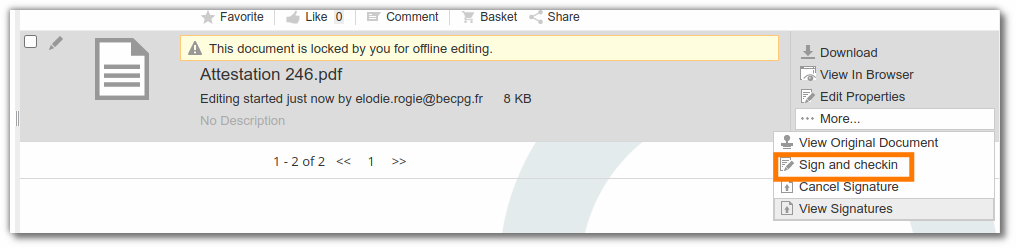
PDF or PNG documents can be signed directly in beCPG. In the document list, on the document:
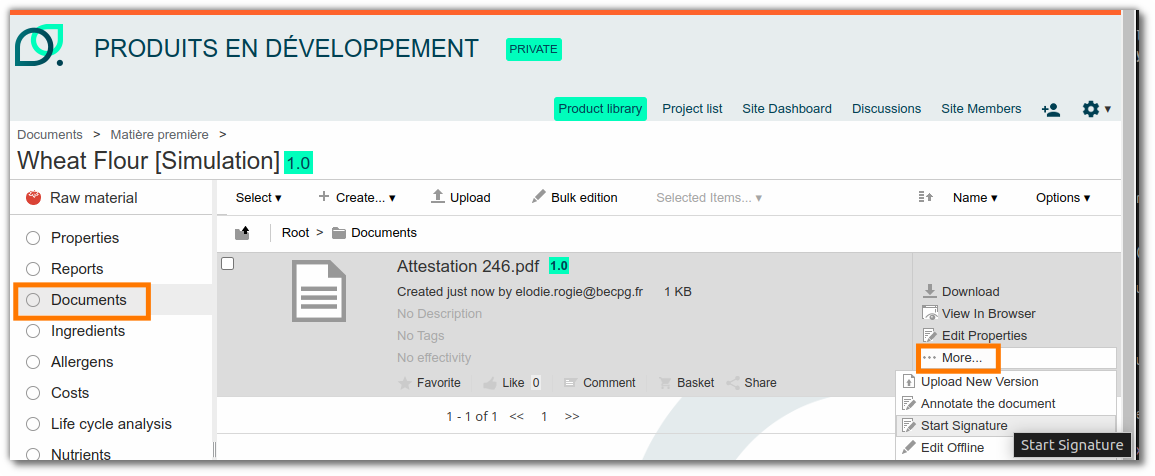
- Start signature
- Sign pages via the beCPG portal
- Save
- Sign and check in
Send to signature
A signature process is available to send a document for signature to a third party or an external user (e.g. a supplier).
On the document:
Start a process
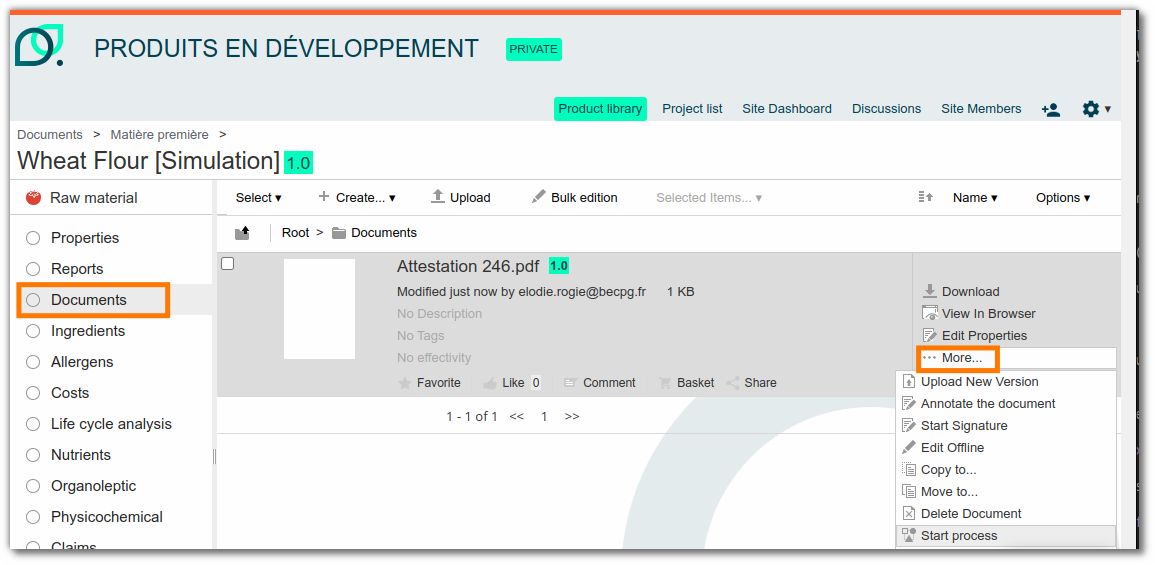
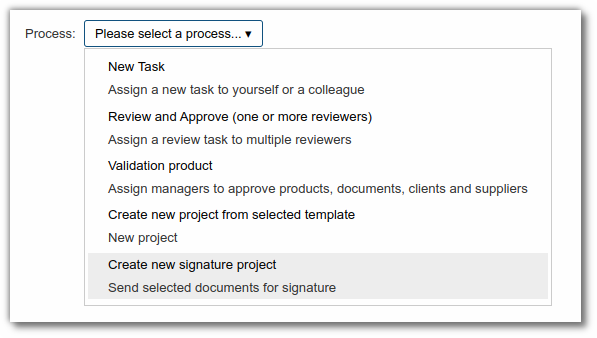
Create a new signature project
Enter the name of the signatory
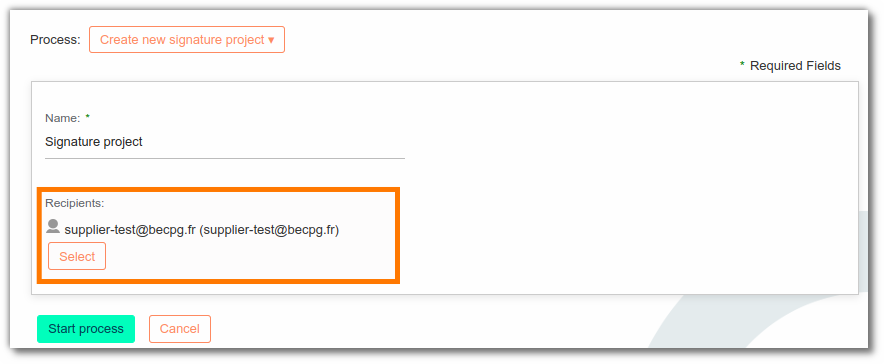
The signature project is created. The signatory can refuse to sign if the document is not compliant.
Signing
The signatory receives a signature task containing the document to sign.
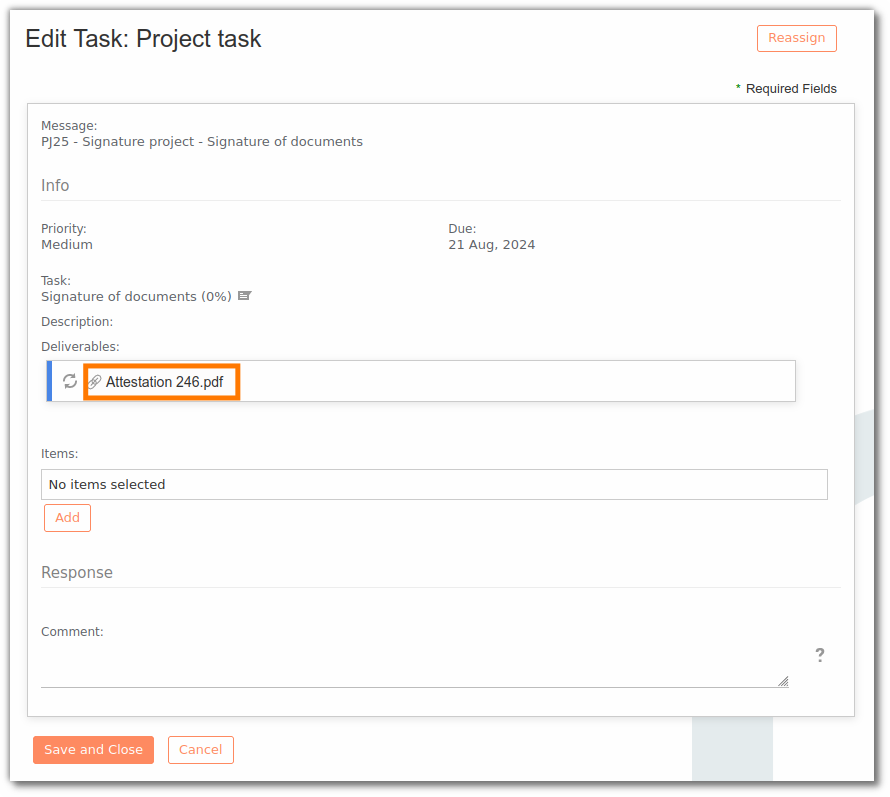
Note: the task cannot be validated until the document is signed.
After validation, the project creator is notified by email and assigned a task to complete the process.
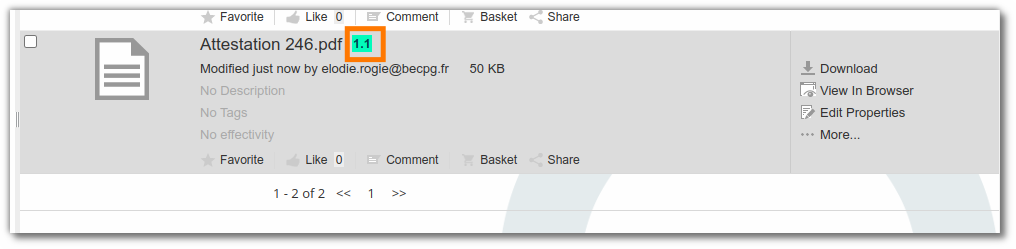
Note: when a document is signed, a new version is created with the signature, to keep track of the document's modification.
If a document is sent to the supplier, it must be in the supplier portal to be signed by the supplier.
Notification
To keep track of document expiration dates, beCPG sends an email notification listing the documents that will expire in less than 90 days.
Two effectivity fields are available in the document properties.
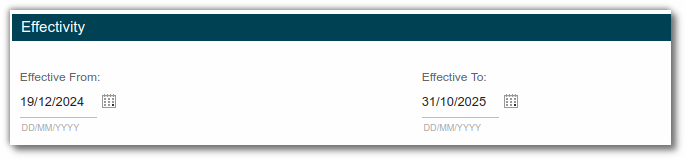
You can modify and create new notifications in the administration. Click here for more information.
Note: if the fields are not present, add the effectivity aspect via a rule.
Rule for compressing and resizing images
Compression rules reduce the size of technical data sheets (TDS) and save disk space. You can set them on a folder in the document list of entity templates (e.g. images) or on the beCPG repository, so that they apply to all images in the system.
It is important to define the right criteria to restrict compression to images only. You can filter by type, name, size, etc.
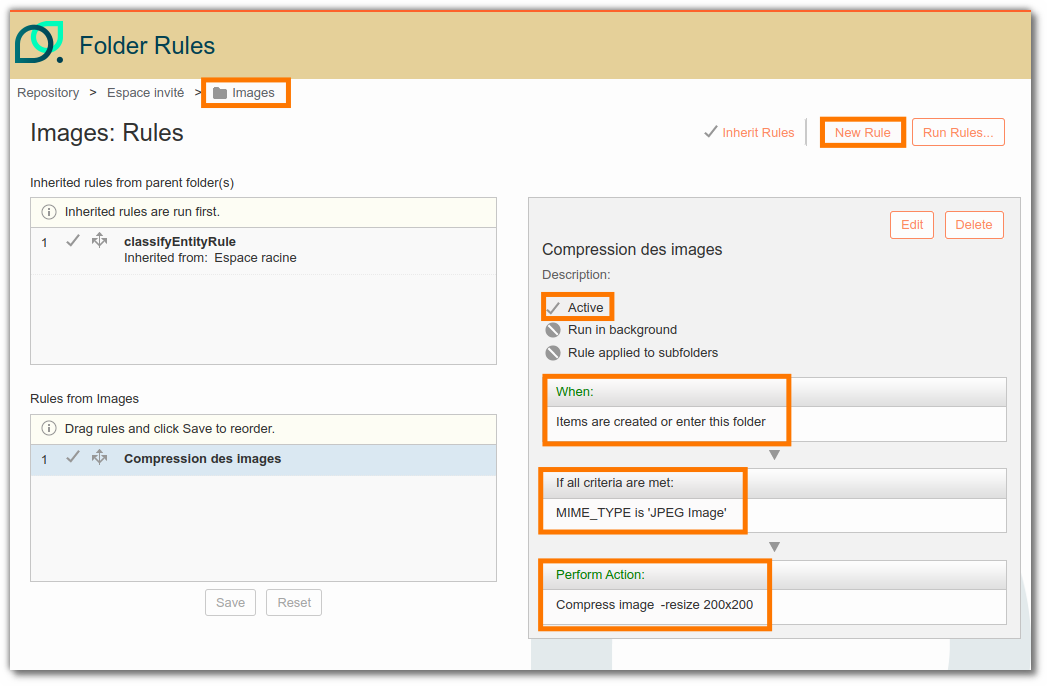
e.g. here the filter is based on the document extension (jpeg).
For more information on how to create a rule, click here.
Note: we recommend images smaller than 1 MB for TDS (a few KB if possible).
Search documents
Advanced search
To find documents of a specific type, use the advanced search from the "Content" tab. Then filter the results by various criteria (effectivity dates, status, creation or modification dates).
You can also find these documents in the Product repository for a more visual overview.
Faceted search
The faceted search lets you search for documents added to beCPG. It is available via the advanced search module in the search bar at the top right of beCPG.
You can filter the search by type, creator, creation date, size or modifier.
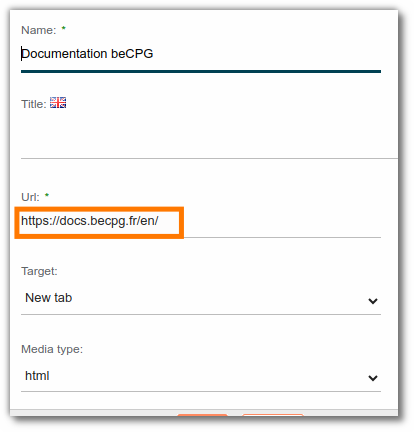
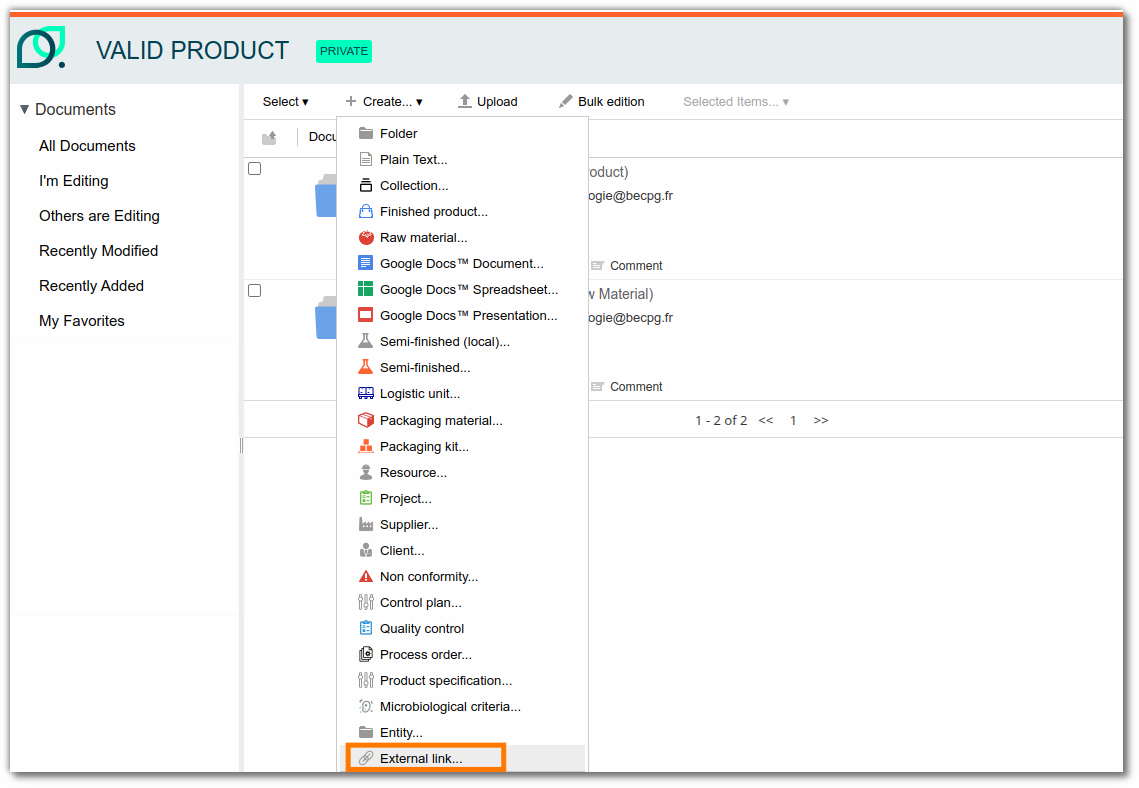
External link
To create shortcuts to other web pages, the external link entity stores the URL. Click the entity to open the URL.
In the target field, this entity also stores how the link opens:
- in a new tab;
- in the current tab.
It also stores the media type:
- html: for web pages
- file: for files (e.g. pdf)
- folder: for documents
- img: for images.