Supplier tutorial
Logging in to beCPG
beCPG will send you an email containing your login details, the connection URL and a temporary password.
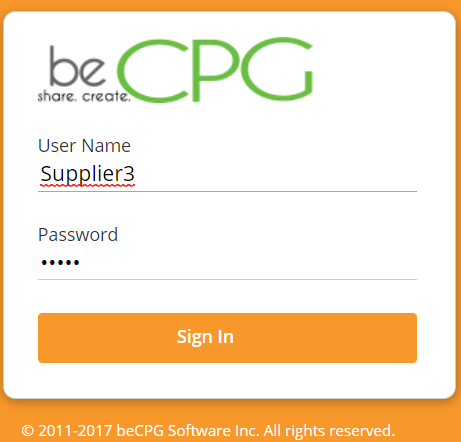
When you log in for the first time, you are asked to change this password.
Home
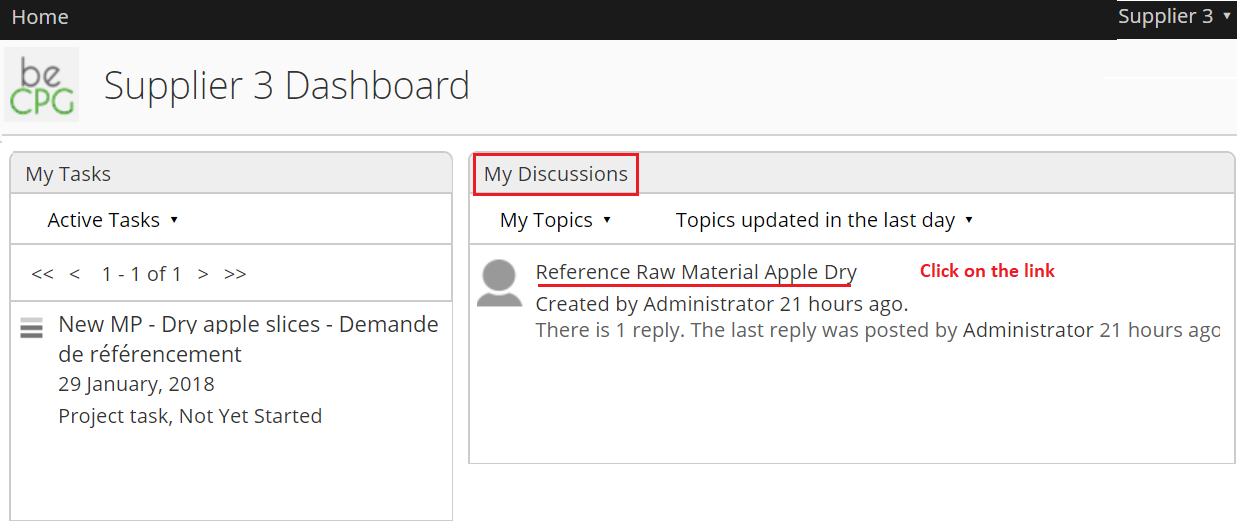
Once you are logged in, your dashboard opens. The dashboard shows at a glance whether you have pending tasks or active discussions.
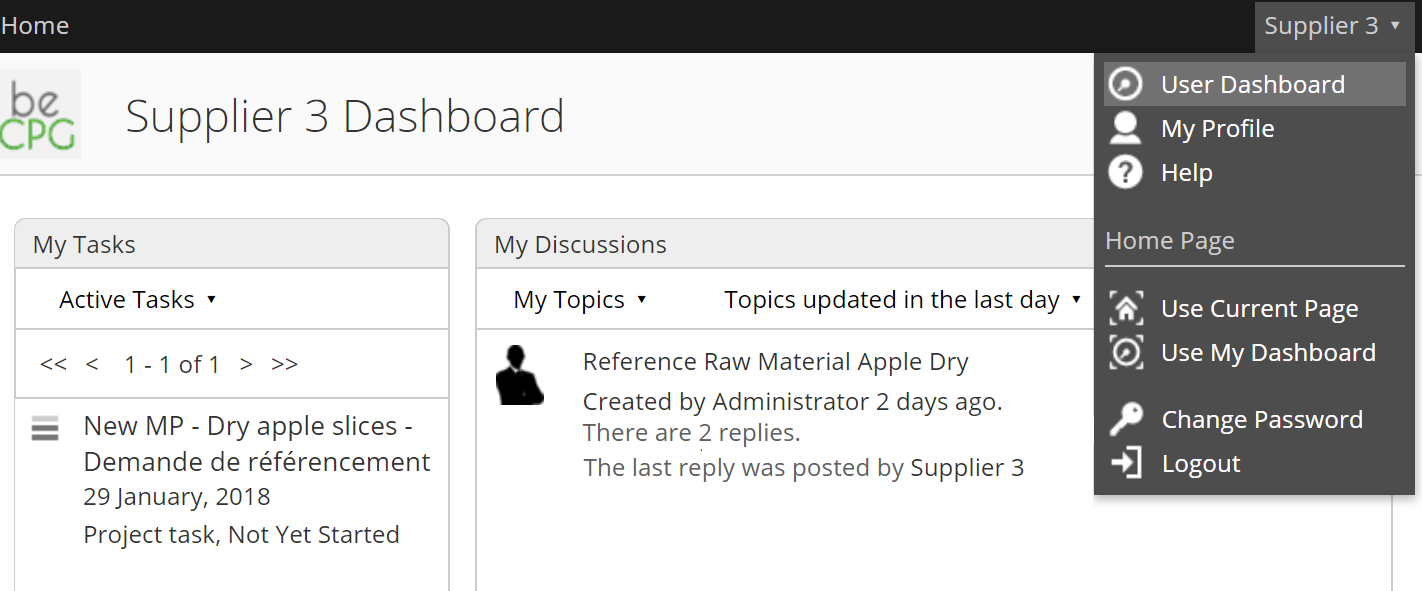
Note: you cannot create a task or a discussion. Only the customer can do it.
Tasks
To access a task, click it on your dashboard. A "Modify task" window opens.
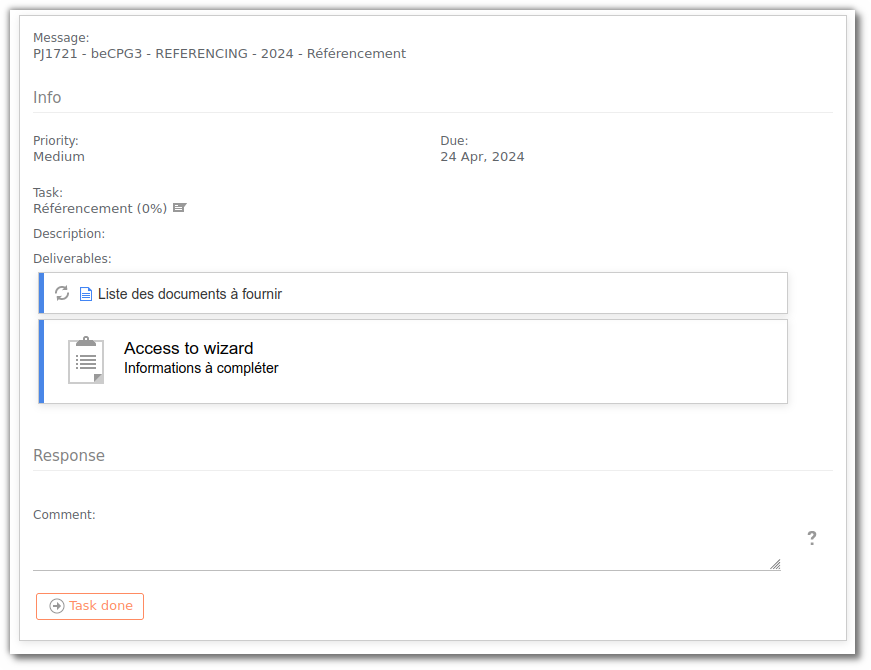
To access the form, click "Access the wizard".
Product modification
The wizard allows you to enter your supplier information and/or modify the customer's information.
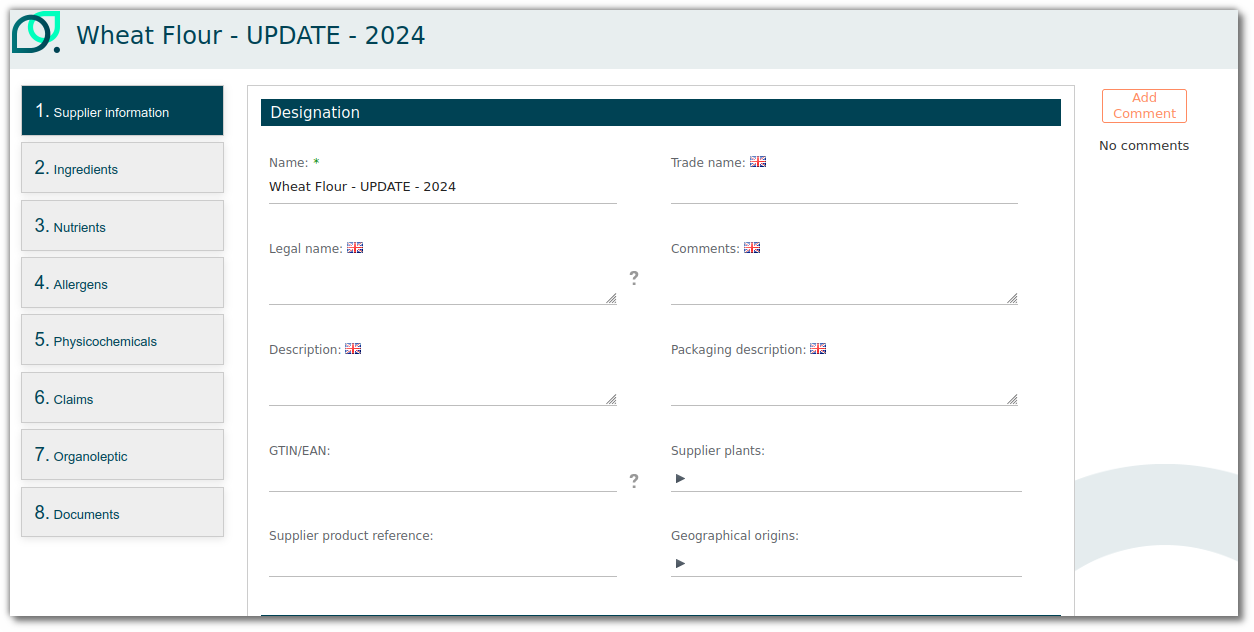
Fill in the information requested by your customer at each step, click "Next", and finally "Save and close".
If you want to stop entering data, click "Next" then "Save and close" to save what you have entered. You can resume at any time. If you click "Cancel", your progress is saved, except the information in the last window.
Task rejected by a customer
The customer may have comments on a completed task. In this case, you receive an email notification and the task reappears in your task list.
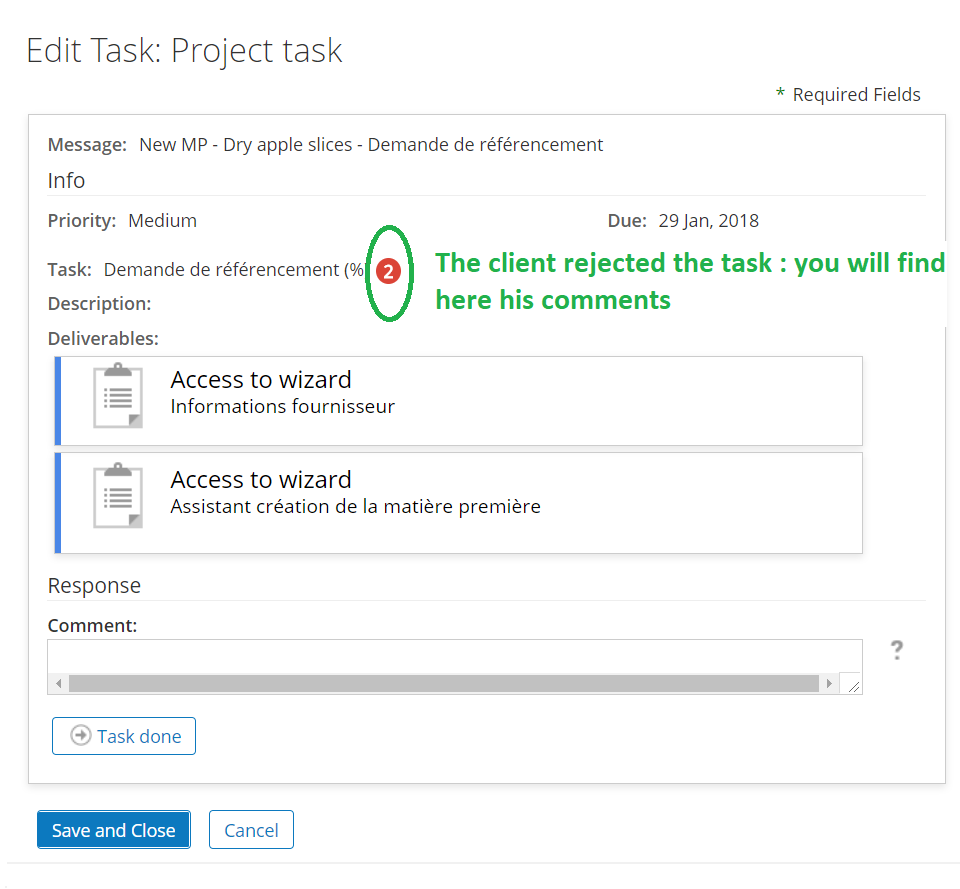
You cannot modify the information the customer has validated.
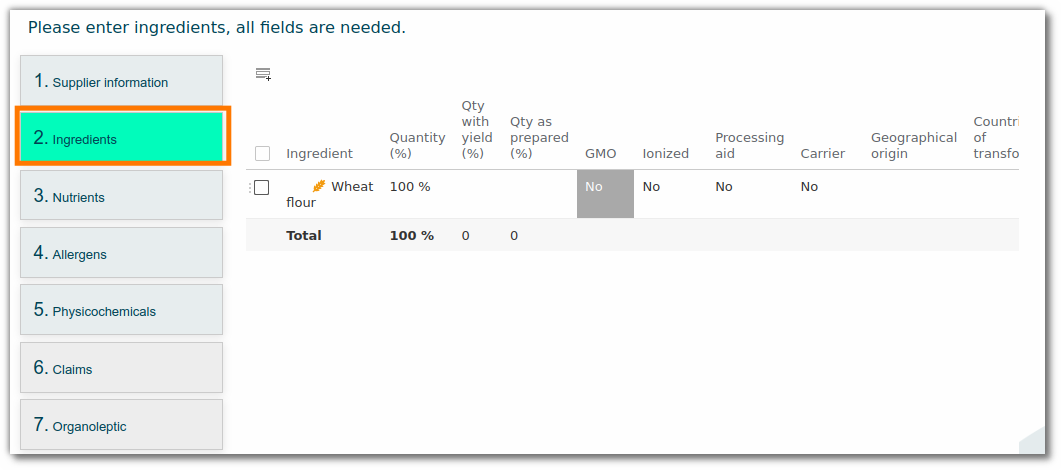
An icon (see illustration) shows where the customer has added a comment. You can view the comment and write a reply to the customer.

Electronic signature
Once the customer has validated the data entry, you receive an email notification and a signature task.
This task contains a link to the document to sign.
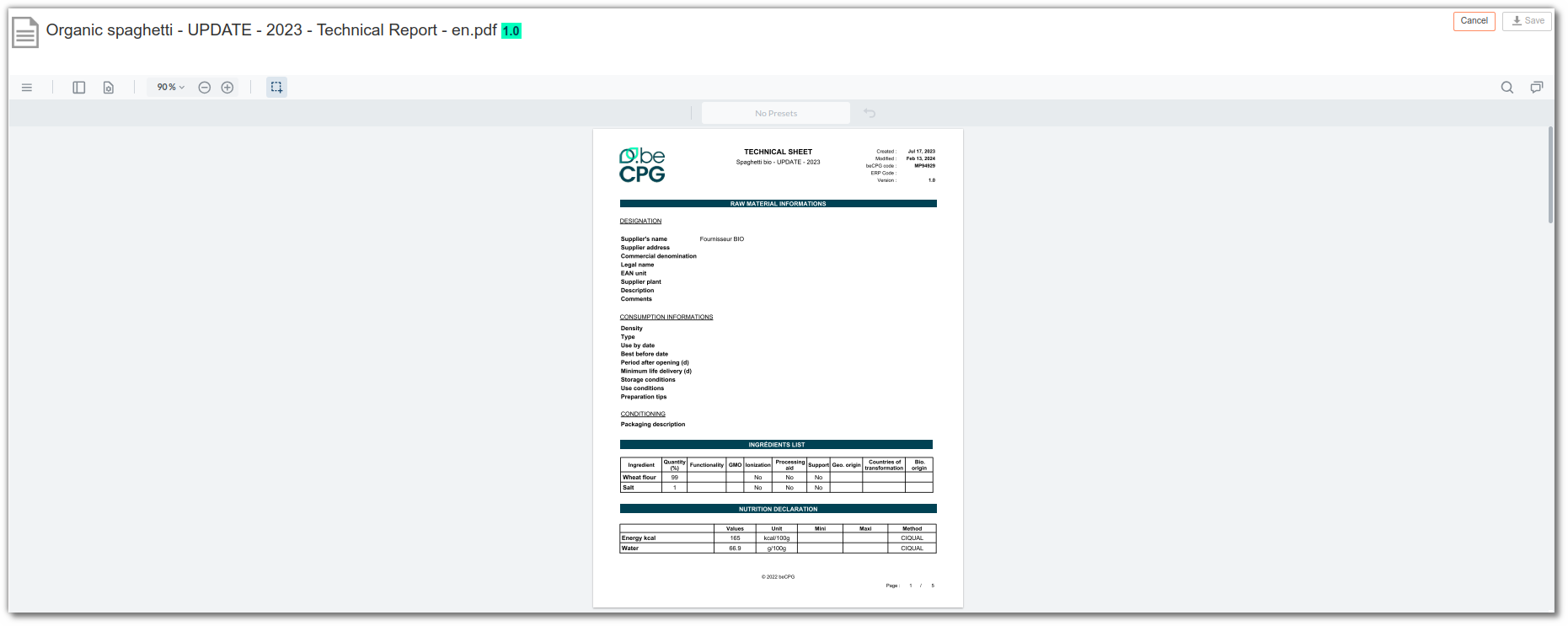
Note: you cannot validate the task until all pages are signed. You cannot refuse to sign. If you want to go back, contact the customer.
Discussion
To facilitate the exchange of information, the customer can create a discussion. A discussion lets the site's members discuss all subjects in the same space. Only the subjects related to your products are visible on your dashboard.
How to answer
Click on the discussion you are interested in:
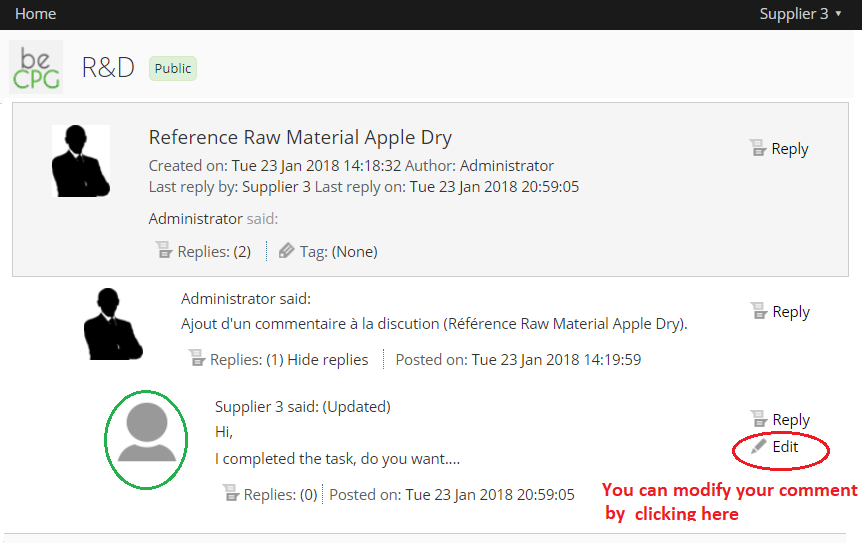
Click "Answer". You can change your answer later by clicking "Edit".
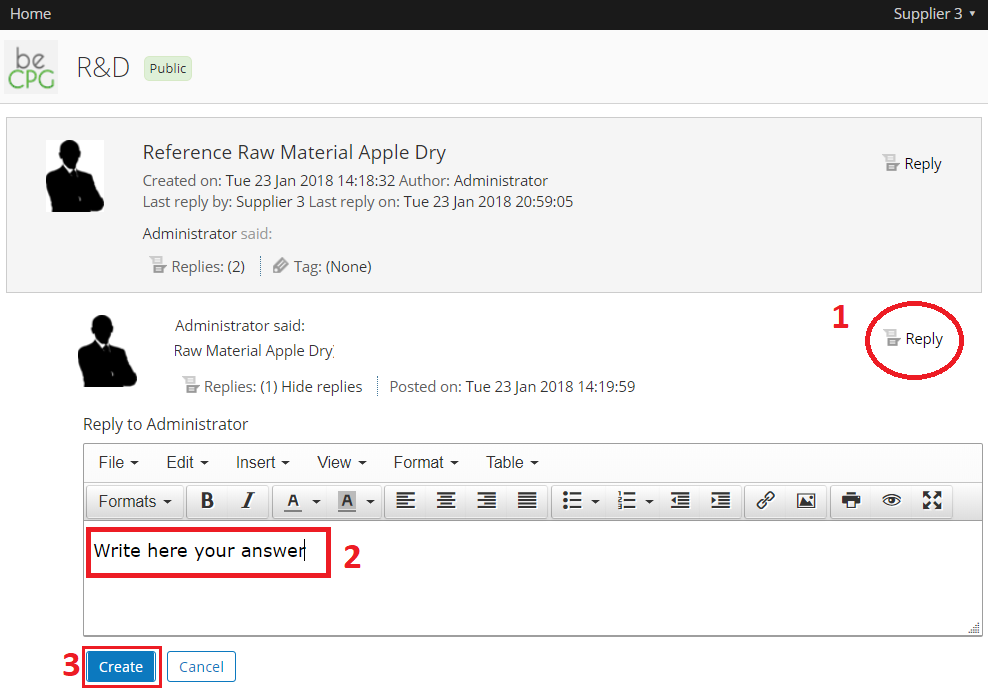
Your answer is displayed.