Workflows
General
A "workflow" is the modelling and computerized management of a sequence of tasks or operations carried out by a person, a group of people, an organization, etc. The term "flow" refers to the transfer of the product, document or information from one step to the next.
In beCPG, there are 4 types of workflows:
- New task: this process assigns a new task to a user without building an entire project;
- Customer claim;
- Review and approve;
- Validate and classify product: this process validates a product and classifies it in the repository according to its type, family and subfamily.
Workflow histories
Histories are not linked to the entities but to the user.
Workflow histories are available in the account of the person who created the workflow: "My Tasks" > "Workflows I initiated" > "Completed".
The people involved in these workflows find the part concerning them in their task histories: "My Tasks" > "Tasks" > "Completed".
You can view the active workflows of an element in: "Action" > "Associated workflows".
Workflow creation
There are two ways to start a workflow:
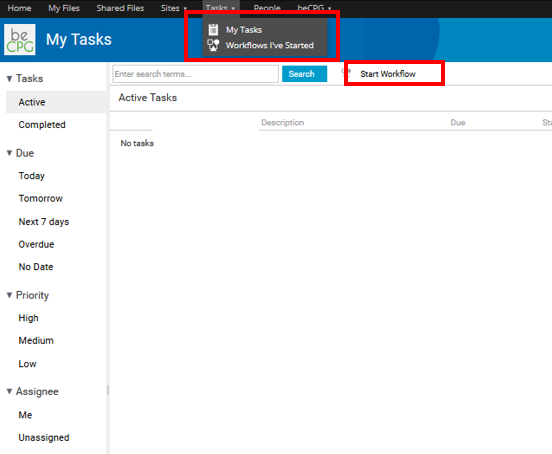
- Go to "Tasks" > "My tasks" > "Initialize a workflow".
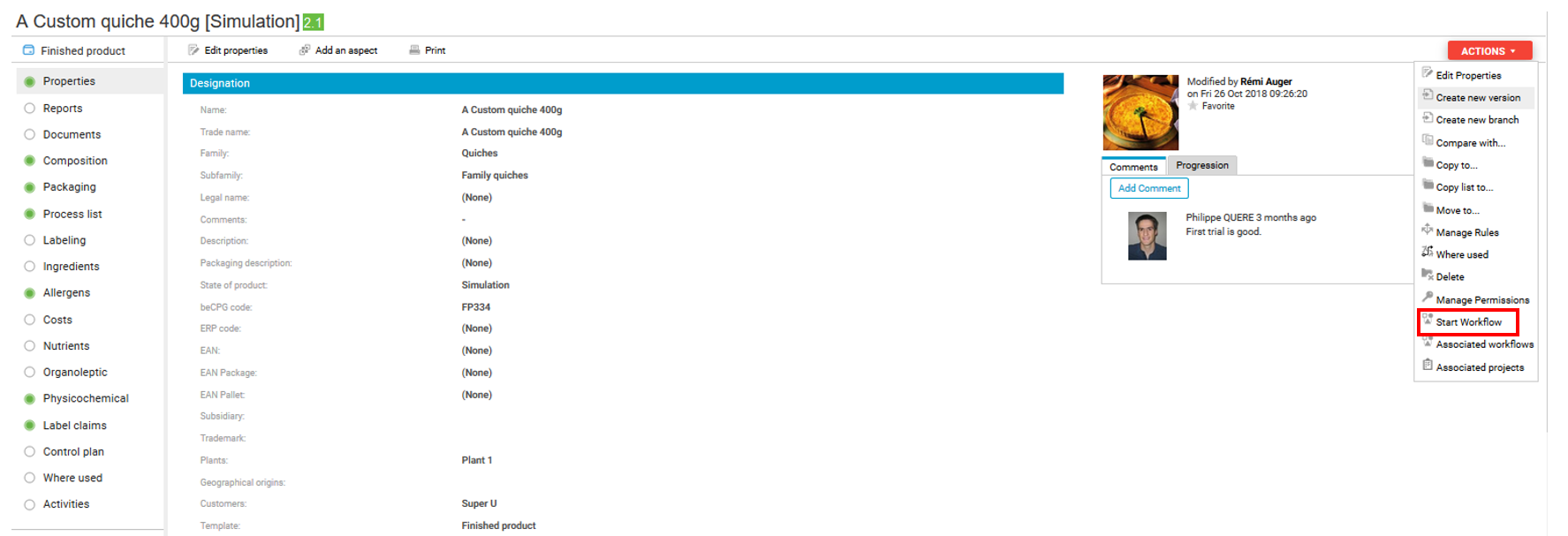
- Open a product and click "More", then "Initialize a workflow" (right banner).
Workflow tracking
There are different ways to follow up a workflow:
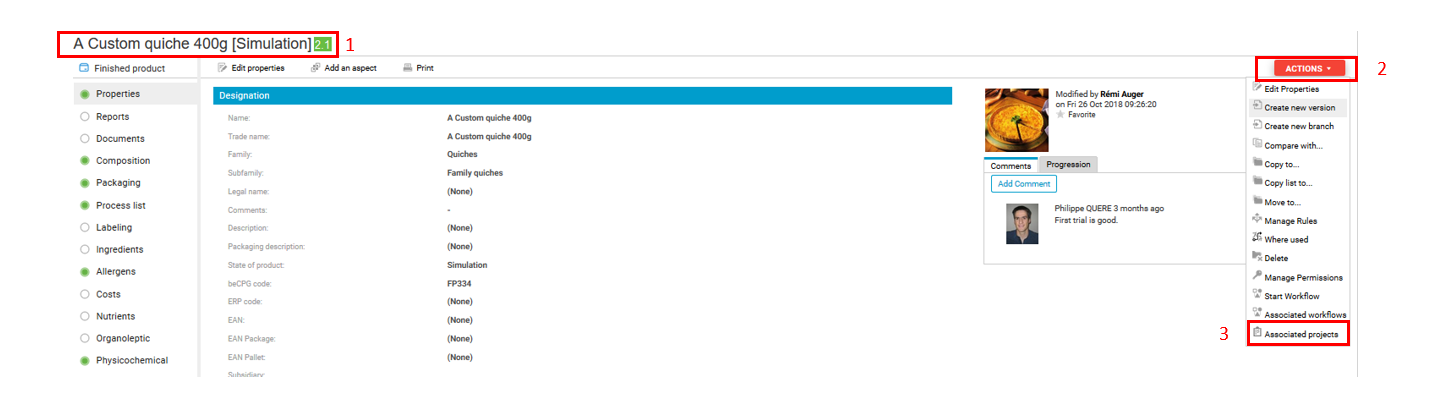
- To know whether an entity is part of a workflow, go to its properties and click "Action" > "Associated workflows".
- To know whether a document of an entity is part of a workflow, open the entity and click the "Document" list. Then, open a report and check whether the "Workflow" section at the bottom of the page states that the document is part of a workflow.
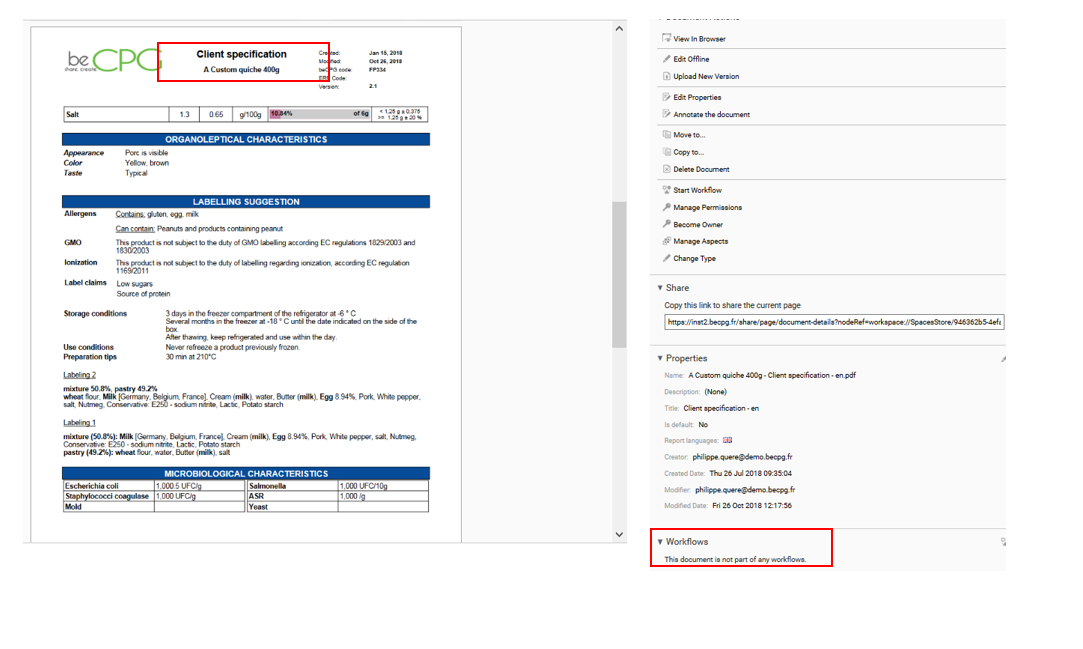
- To see all the workflows you have started, click the "Tasks" tab of the top banner, then "Workflows I've started". You can then sort the workflows by state (active or not), due date, start date, priority and workflow type.
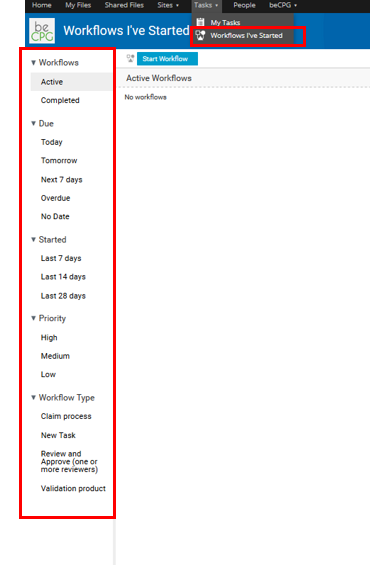
- To access your own tasks, which are part of a project or a workflow, click the "Tasks" tab of the top banner and then "My tasks". You can then sort your tasks by state (active or not), due date, start date, priority and assignee (me or nobody, so that you can take an unassigned task).
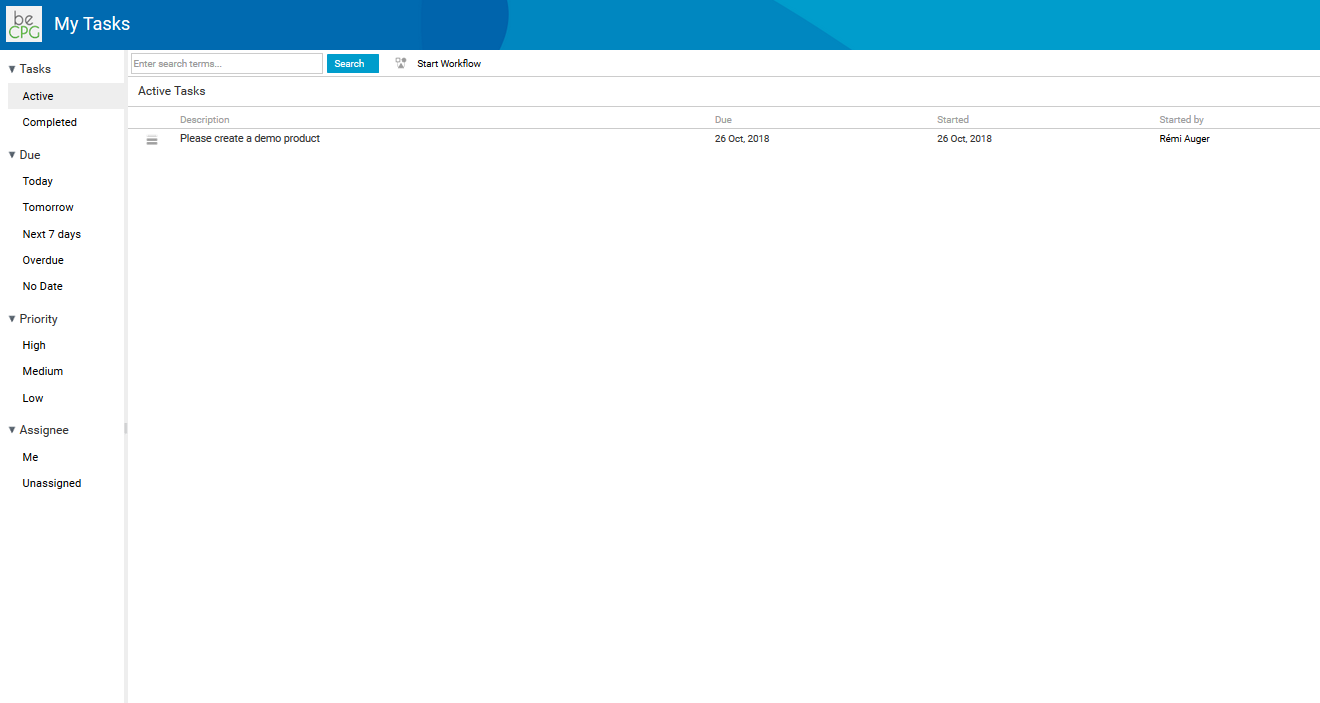
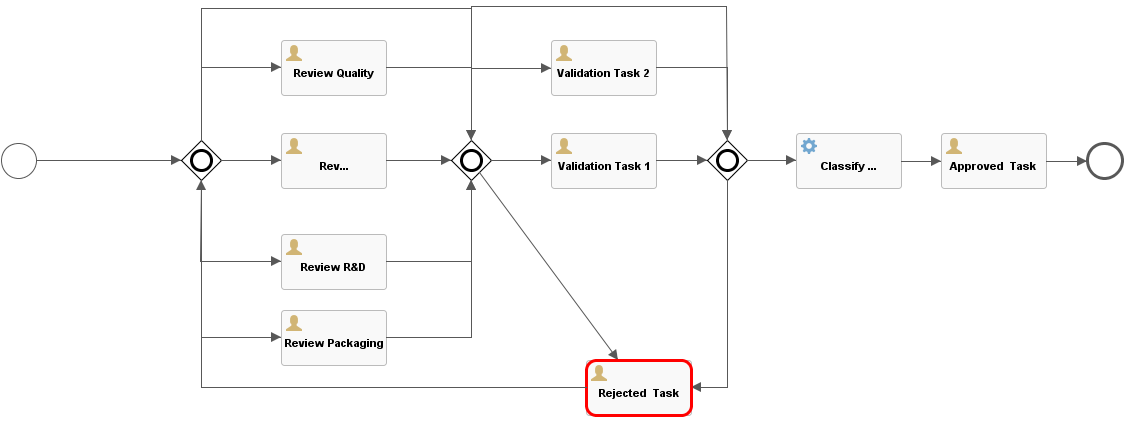
- To know the current task of a workflow, click the workflow and then "Display the process scheme". Current tasks are circled in red.
Assign a task with a comment
You can assign a task to a user by tagging them in a comment (@MarieDupond).
The identifier is the "User name" entered when their account was created in the PLM.
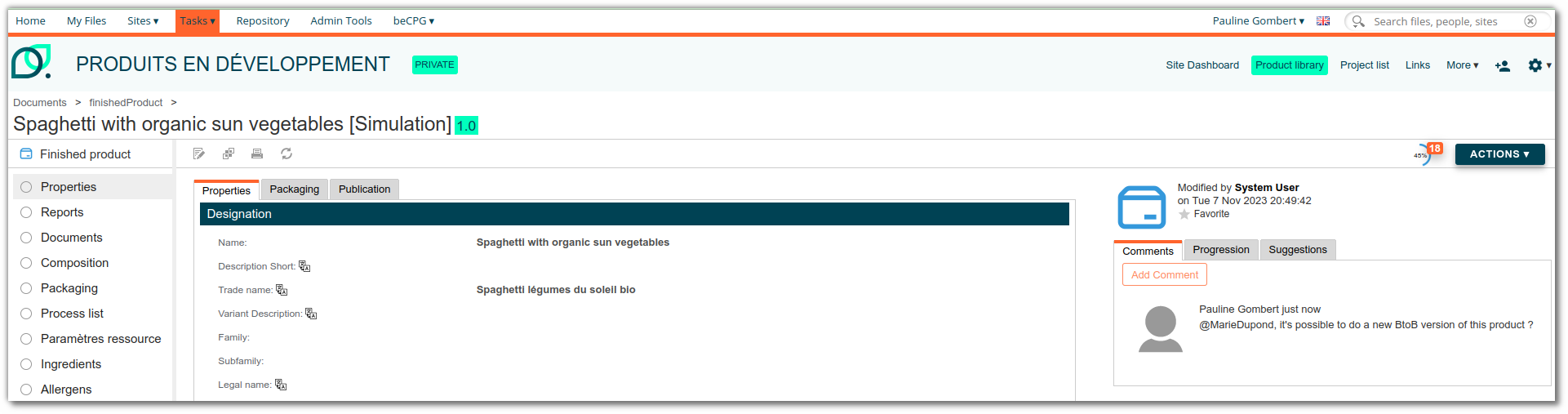
A task, with an email notification, is then assigned to the user so that they can process your request.
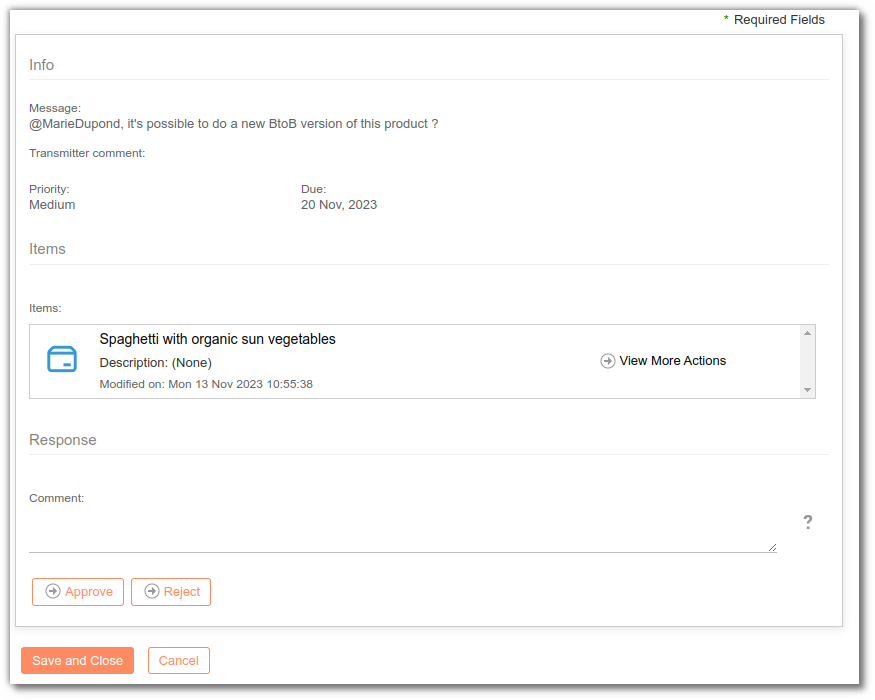
How to fill in the workflow form
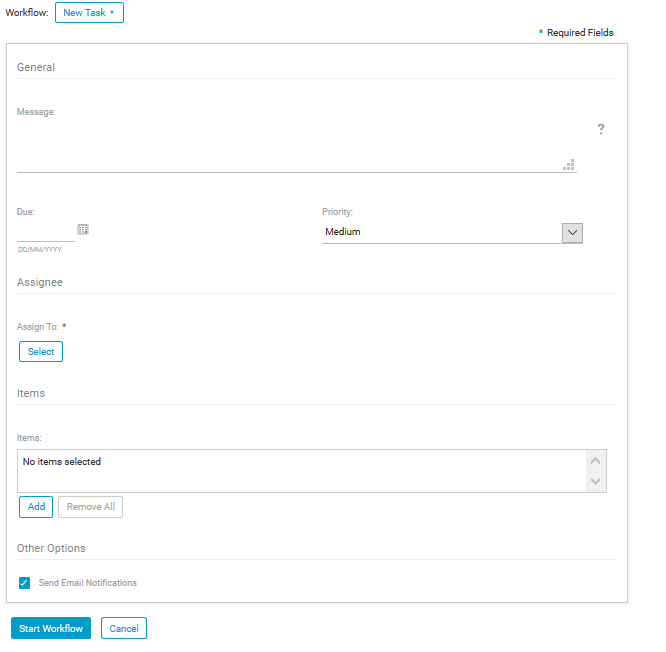
New task
- Message: text area where you can write the name of the workflow, including the instructions for the person in charge of this new task;
- Due date: the deadline of the new task;
- Priority: priority of the new task;
- Assigned people: person in charge of carrying out this new task;
- Elements: elements (products, documents, etc.) linked to this new task;
- Send email notifications: check this box to notify the person in charge of this new task and the person responsible for this workflow by email.
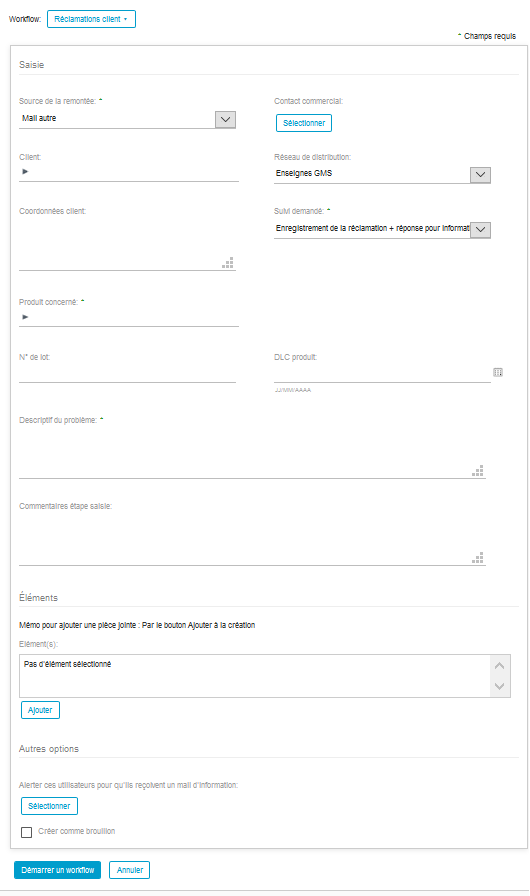
Customer claim
- Claim source: means by which the claim was raised;
- Claim trade contact: click here to search for the trade contact;
- Client: the client who raised the claim;
- Distribution network: network through which the product concerned by the claim has passed;
- Customer information: text area to enter the information of the customer who raised the claim;
- Claim tracking: selection of the claim tracking type for this customer claim;
- Concerned product: product concerned by the claim;
- Batch id: batch id of the product concerned by the claim;
- DLC produit: shelf life of the product concerned by the claim;
- Description of the problem: text area to describe the problem encountered by the client;
- Start comments: text area in which a person can enter a comment at each step of the workflow;
- Items: elements (e.g. product brief) linked to this claim;
- Notify users: click here to search for the people to inform of this claim;
- Créer comme brouillon: save the customer claim workflow as a draft.
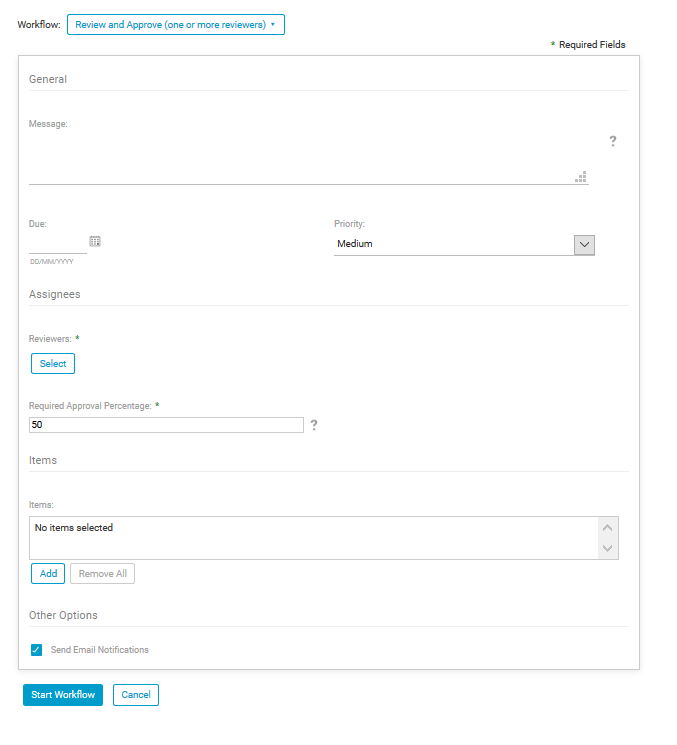
Review and approve a document
- Message: text area where you can write the name of the workflow and the instructions for the person in charge of reviewing and approving the document;
- Due date: the date by which the new task must be finished;
- Priority: priority of the new task;
- Assigned people = Proofreader: person in charge of proofreading the document and giving an approval percentage for this document;
- Required approval percentage: percentage that the proofreaders must reach to approve the document;
- Items: elements (products, documents, etc.) linked to this new task;
- Send email notifications: check this box to notify the person in charge of this new task and the person responsible for this workflow by email.
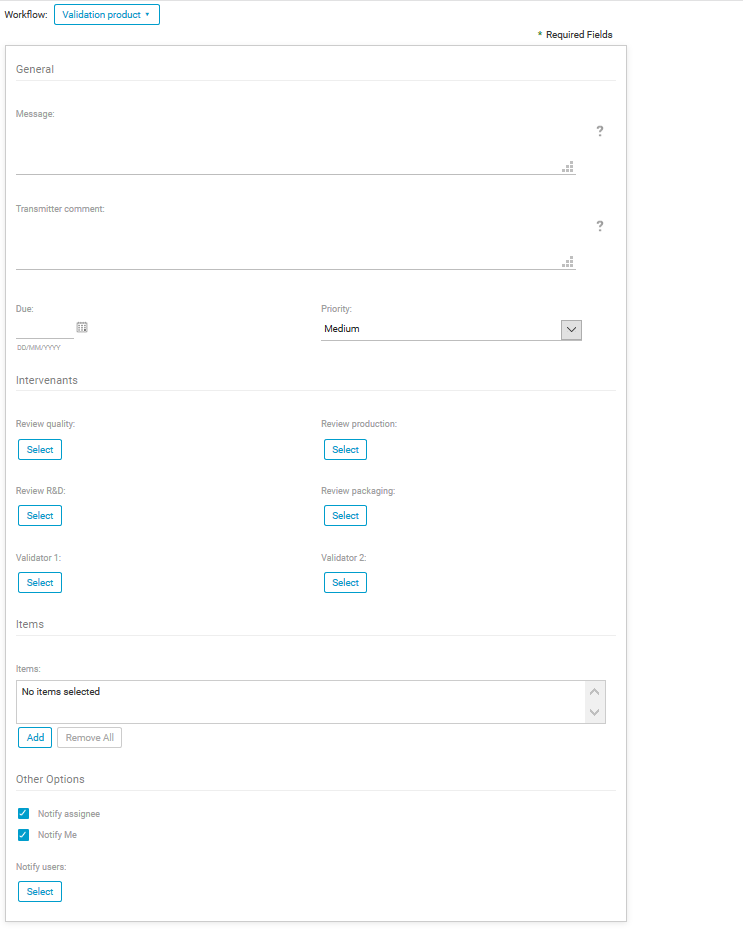
Validate and classify product
- Message: text area where you can write the name of the workflow and the instructions for the person in charge of validating and classifying the product;
- Transmitter comment: text area in which a person can enter a comment at each step of the workflow;
- Due date: the date by which the new task must be finished;
- Priority: priority of the new task;
- Stakeholders:
- Quality verifier: person from the quality department in charge of approving the validation and classification of the product;
- Production verifier: person from the production department in charge of approving the validation and classification of the product;
- R&D verifier: person from the R&D department in charge of approving the validation and classification of the product;
- Packaging verifier: person from the logistics department in charge of approving the validation and classification of the product;
- First person in charge of the validation: first person in charge of giving their approval if the 4 verifiers have approved the product;
- Second person in charge of the validation: second person in charge of giving their approval if the 4 verifiers have approved the product.
- Items: products to validate and classify;
- Other options:
- Notify assignee
- Notify me
- Notify users: click here to search for the people to inform of the validation and classification of the product.
Workflow principles
New task
- The workflow starts with the description of the new task to accomplish.
- If the "Send notification per email" box has been checked, an email is sent to the person assigned to the new task. Otherwise, this person sees a new task in the "My tasks" section.
- Once the task is finished, if the "Send notification per email" box has been checked, an email is sent to the workflow initiator. Otherwise, the initiator sees a new task in the "My tasks" section. This lets the workflow initiator know when the person assigned to the task is done and check the work this person has done.
Customer claim
- The workflow starts with the input of the customer claim by the workflow initiator.
- If the "Send notification per email" box has been checked, an email is sent to the selected users to inform them of the workflow.
- The second step is the orientation of the claim to a person in charge of its processing and a person in charge of its response.
- In parallel to the second step, the customer claim must be classified.
- Once the task is finished, if the "Send notification per email" box has been checked, an email is sent to the workflow initiator. Otherwise, the initiator sees a new task in the "My tasks" section. This lets the workflow initiator know when the person assigned to the task is done and check the work this person has done.
Review and approve
- If the "Send notification per email" box has been checked, an email is sent to the proofreaders. Otherwise, they see a new task in the "My tasks" section.
- Once the task is finished, if the "Send notification per email" box has been checked, an email is sent to the workflow initiator. Otherwise, the initiator sees a new task in the "My tasks" section.
- If the approval percentage is not reached, the workflow initiator must take the proofreaders' comments into account to modify the document before starting a new workflow.
Validate and classify product
- The workflow (WF) initiator opens the product properties and clicks "Action" > "Start a workflow".
- The initiator fills in the WF form.
An email is then sent to the 4 verifiers to inform them of the task to complete. When the 4 verifiers have given their decision, there are two possibilities:
All the verifiers approve the validation and classification of the product: an email is sent to both persons in charge of approving the validation. Then:
- Either both persons approve the decision of the 4 verifiers. In this case, an email is sent to the WF initiator, who must review a task of the type "Approved product". Once the initiator clicks "Achieved task", a "Validation" section appears in the product properties. It summarizes all the WF actors. From then on, the product is in the "Validated" state.
- Or at least one of the persons in charge of the validation refuses the decision of the 4 verifiers. In this case, an email is sent to the WF initiator, who has a task of the type "Refused product" to consult.
- At least one of the 4 verifiers refuses the validation and classification of the product: an email is sent to the initiator of the WF, who has a task of the type "Refused product" to consult.