Tutorial: creating a new cosmetic formula
This tutorial is intended for new beCPG users working in a cosmetics company. The tutorial covers product creation and viewing its main characteristics (raw materials, microbiology, specifications, regulations, labeling).
Product creation
To share your products with your teammates, we recommend creating them on a collaborative site, such as "Products in development". This site allows you to share the products you create with others. These sites are accessible from the dashboard or the menu bar. See the Navigation documentation.
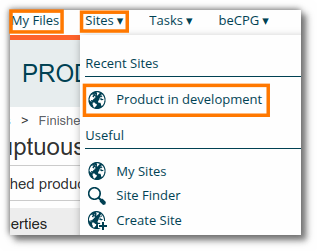
Note: you can also use the "My Files" folder. Products created in this personal space will not be visible to your teammates. If you work in a team, it is preferable to create them in dedicated collaborative sites.
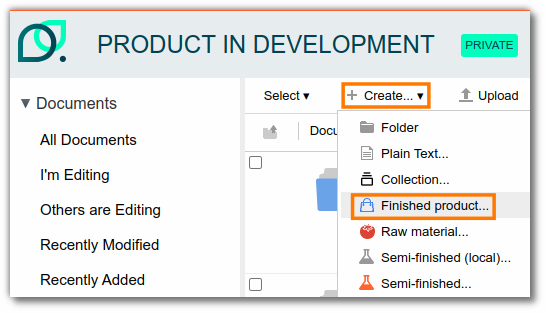
The "+ Create..." button is present in all beCPG folders and allows you to create entities such as finished products, semi-finished products, or raw materials.
Example: To create a finished product, click "+ Create..." then "Finished Product".
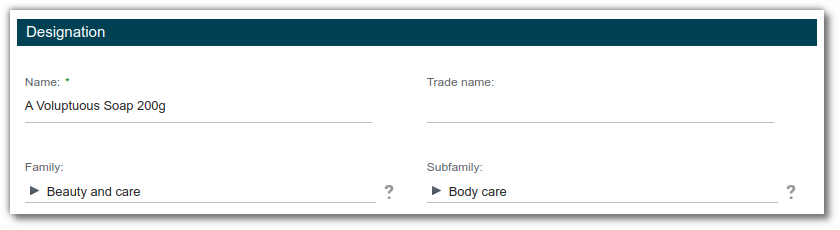
The creation form then appears, allowing you to fill in several properties, such as:
- the product name (e.g., A Voluptuous soap 200g);
- the net quantity (e.g., 200g);
- other properties.
Then, click "Create" at the bottom of the form.
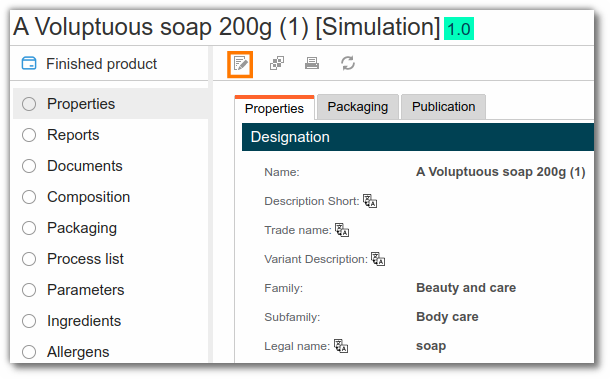
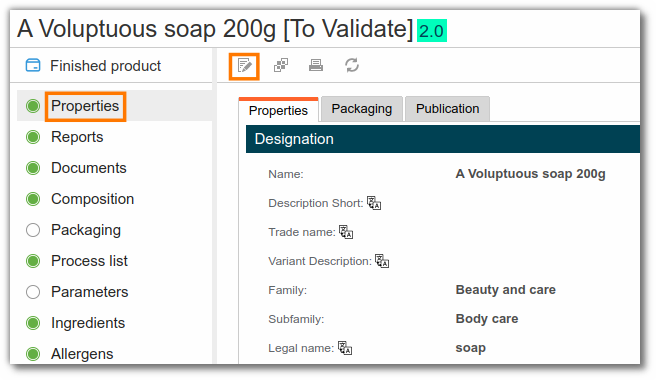
Once the entity is created, you are automatically redirected to the "Properties" tab, which shows the information you entered. To modify these values, click "Edit Properties". Additional properties are also available to describe your product.
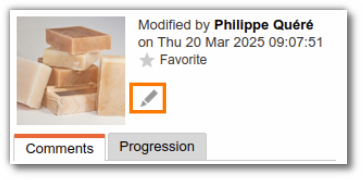
You can associate a photo with the product by clicking its icon (on the "Properties" page).
Formula creation and formulation
Formula creation and formulation covers product development with the addition of raw materials or semi-finished products, the management of costs, allergens and labeling, and claims management.
Formula composition
The "Composition" list is accessible from the left menu of the entity.
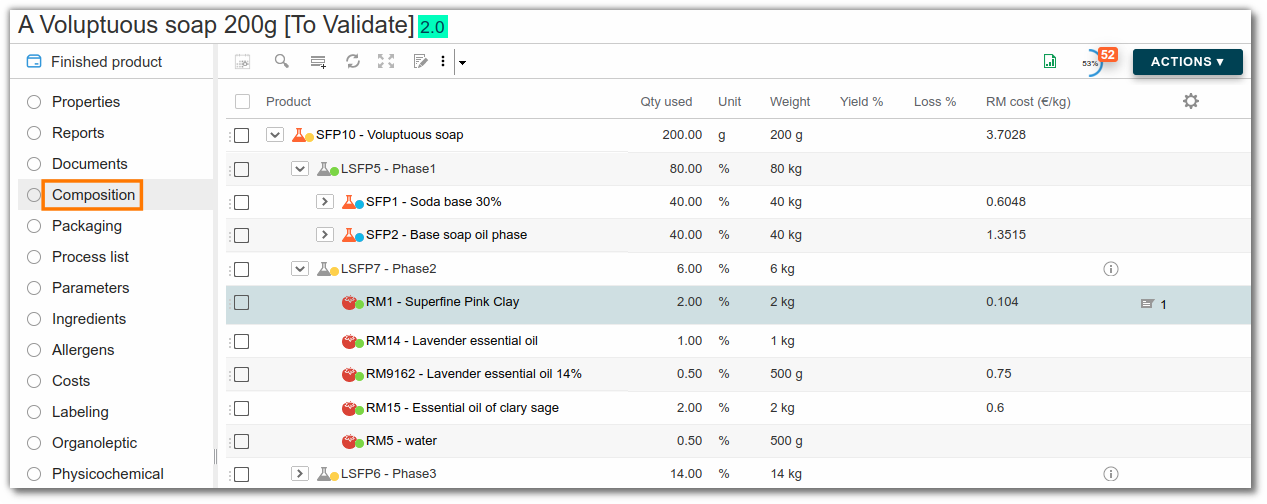
To work in full screen mode, click the button outlined in orange in the screenshot below:

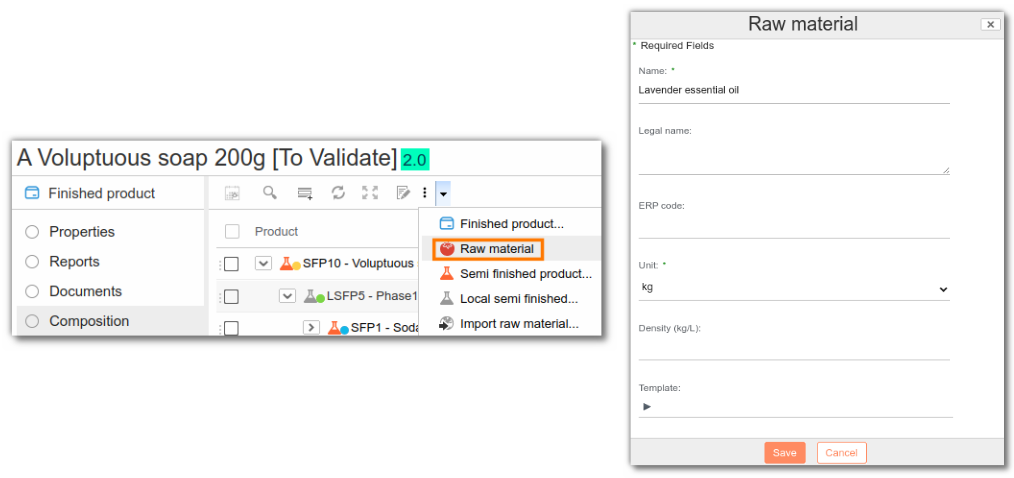
Adding a raw material or a semi-finished product
There are two ways to add a raw material or a semi-finished product:

- Add an existing raw material or semi-finished product in beCPG by typing at least the first 3 letters of its name.
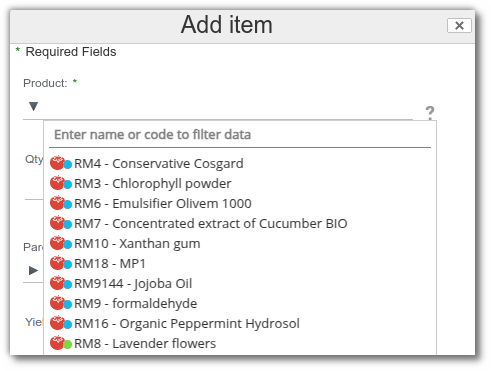
- Create a new raw material or semi-finished product by entering at least its name and unit (kg by default).
Quantity management
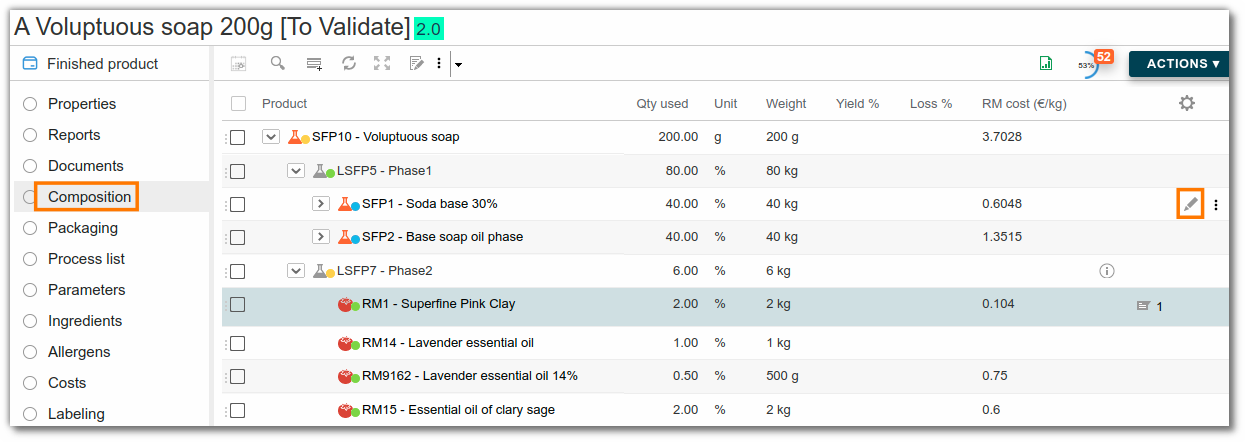
Once the components have been added to the composition, you can enter their quantities in several ways:
- Edit the line by clicking the pencil icon at the end of the line: a full editing form appears.
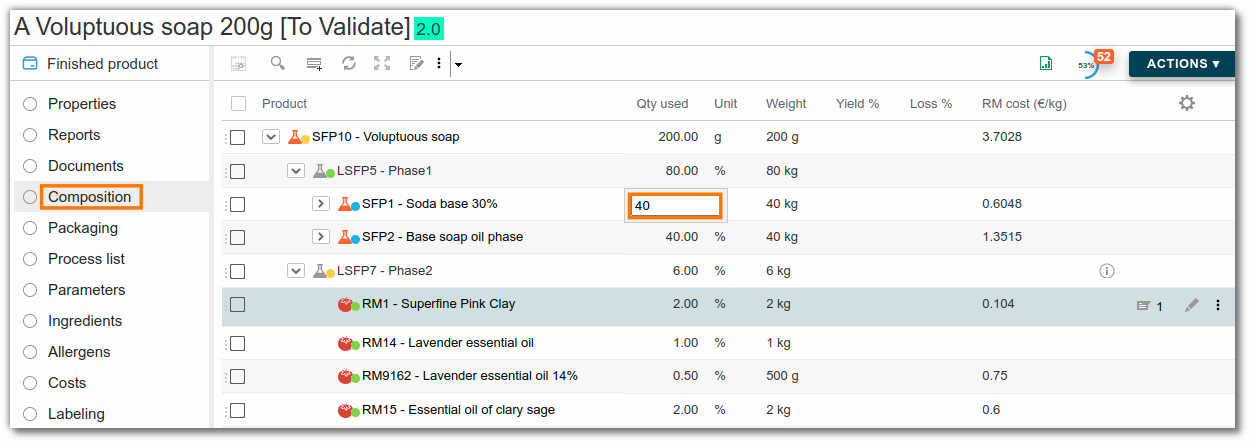
- Double-click a cell in a row to edit it. To move between cells, you can use the keyboard or the mouse.
- For semi-finished products, enter the quantity used in the formula. Then, click the semi-finished product to access its formula and add the components (essential oils, soap base, etc.).
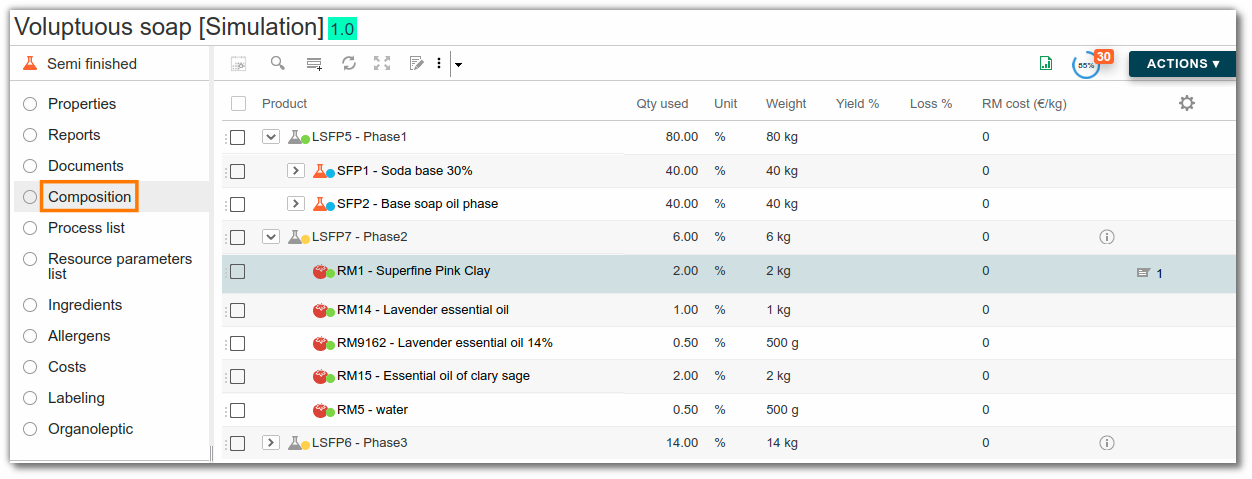
We recommend using phases to group components within a phase of the manufacturing protocol. To add a phase, add a local semi-finished product.
Product formulation
The formulation button (a circle with two arrows) allows you to refresh the calculations made by beCPG. Costs, ingredients, and allergens are calculated based on the quantity of the raw material in the composition and the information entered on the raw materials.
Cost management
For each raw material, enter its cost (e.g., raw material cost).
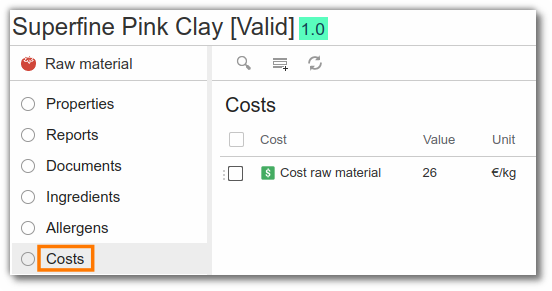
Click "Where used", then navigate to the finished product, or return to the finished product composition via the beCPG menu, which provides quick access to recently viewed products. Remember to click "Formulate" to calculate costs, ingredients, allergens, etc.
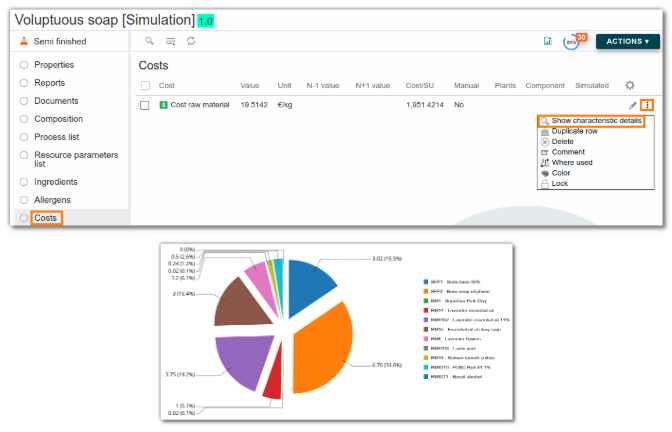
To view a cost breakdown, click the magnifying glass icon in the "Costs" list of the finished or semi-finished product.
Managing physicochemical characteristics
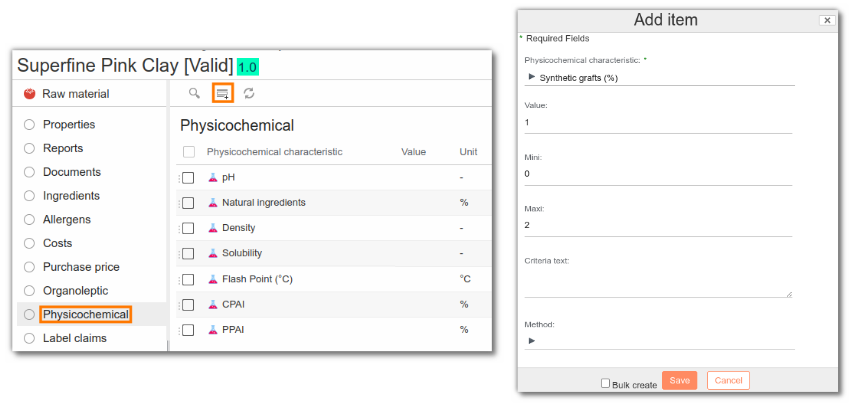
For each raw material, enter the physicochemical characteristics, for example:
- PPAI (Physically Processed Agro Ingredients),
- CPAI (Chemically Processed Agro Ingredients),
- pH,
- and so on.
If the characteristic you wish to enter is not automatically present (added to the entity template), you can add it directly to the raw material.
Claim management
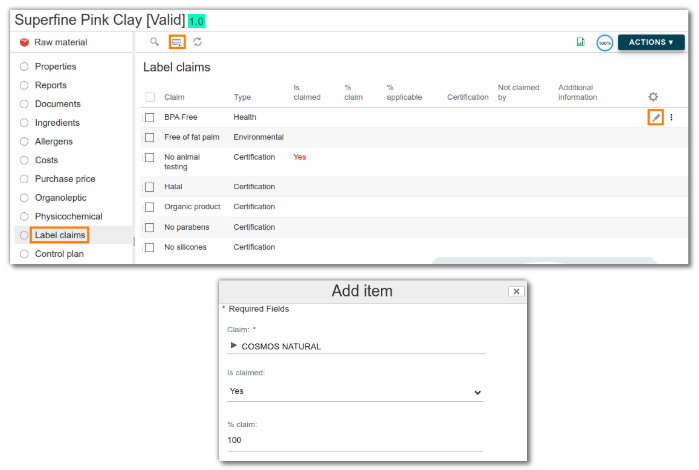
For each raw material, enter the claims (e.g., organic, halal). You can edit an existing line by clicking the pencil icon, or add a new one.
Some claims are calculated; for example, the COSMOS ORGANIC claim is calculated using these physicochemical characteristics:
- PPAI;
- ORGANIC PPAI;
- CPAI;
- ORGANIC CPAI;
- Synthetic grafts.
Ingredients management
For each raw material, enter the ingredients and their quantities.
Example: red dye is composed of 5 ingredients, including water, dye, and sodium benzoate.
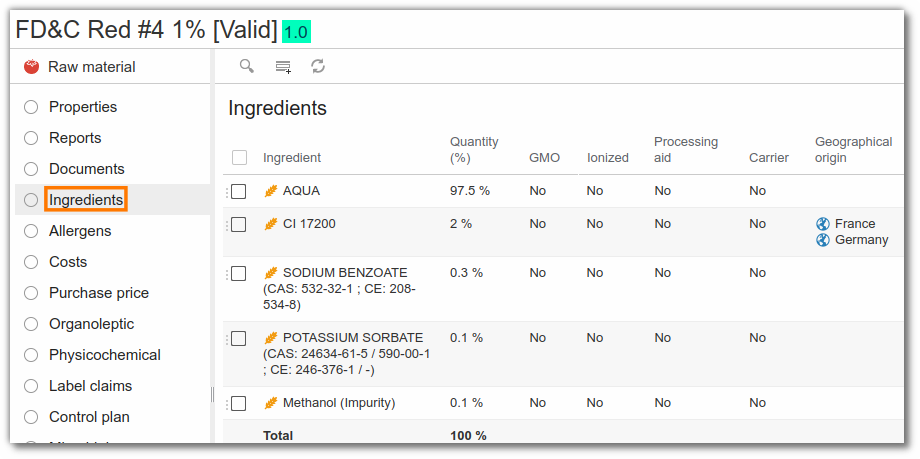
If certain ingredients are impurities, the "Support" field must be checked. They will then be excluded from the INCI list. Impurities from an ingredient can be added as a sub-ingredient using the parent field.
Heavy metals are listed in the "Hazardous Substances" list.
Allergen management
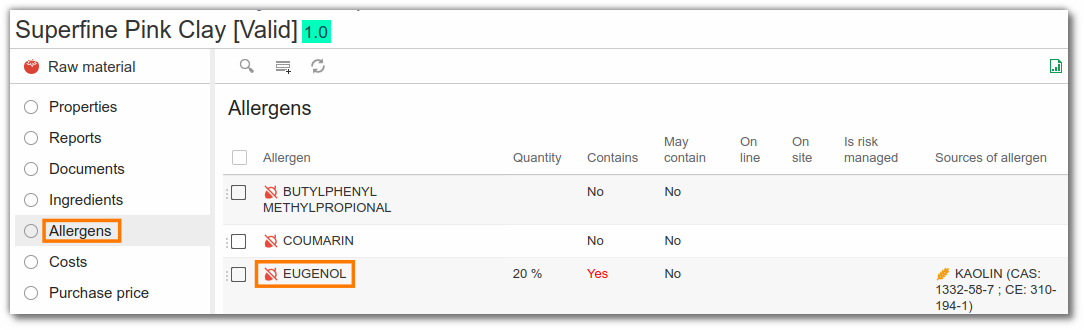
Ingredient-related allergens appear automatically when the raw material is formulated.
If an allergen is not linked to an ingredient, it must be entered at the raw material level.
Labeling management
Once the ingredients of the raw materials have been filled in, return to the finished product and click the "Labeling" list.
This list offers three different views:
- Labeling;
- The list of labeling rules applied to the entity (bottom left): documentation on labeling rules is available here;
- The list of the entity's different components, with the declaration type (bottom right): from this view, you can define how the raw materials present should be declared.
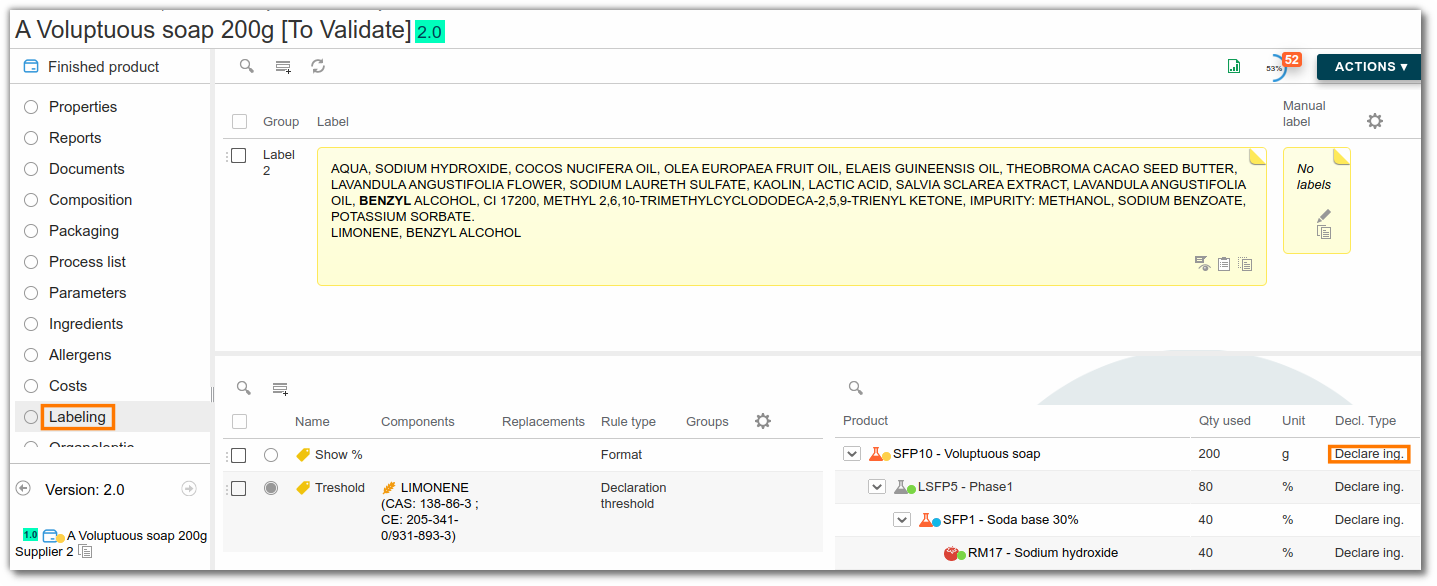
Here are some examples of labeling rules:
- Declare ingredients will display the ingredients of the raw material;
- Declare legal label will display only the legal name of the raw material;
- Do not declare will not declare the raw material.
More detailed documentation is available here.
Specifications
Unmet requirements appear if a specification is linked to the product. The link is established by filling in the "Specifications" field in the entity properties. More detailed documentation on product specifications is available here.
To display these requirements, click the progress wheel in the top right corner of the window. They are of the types "Prohibited", "Tolerated", or "Info".
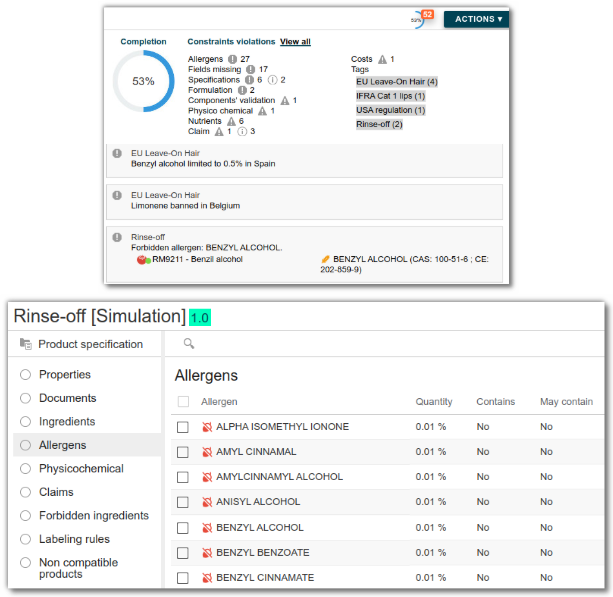
Specifications allow you to manage allergen thresholds or prohibited ingredients in formulas. The specifications corresponding to the allergen thresholds for rinse-off and leave-on products are provided as standard in beCPG.
Viewing generated technical data sheets
In the "Technical Data Sheets" list, click "Generate Reports" (a circle with two arrows). The page refreshes and the technical data sheets are generated.
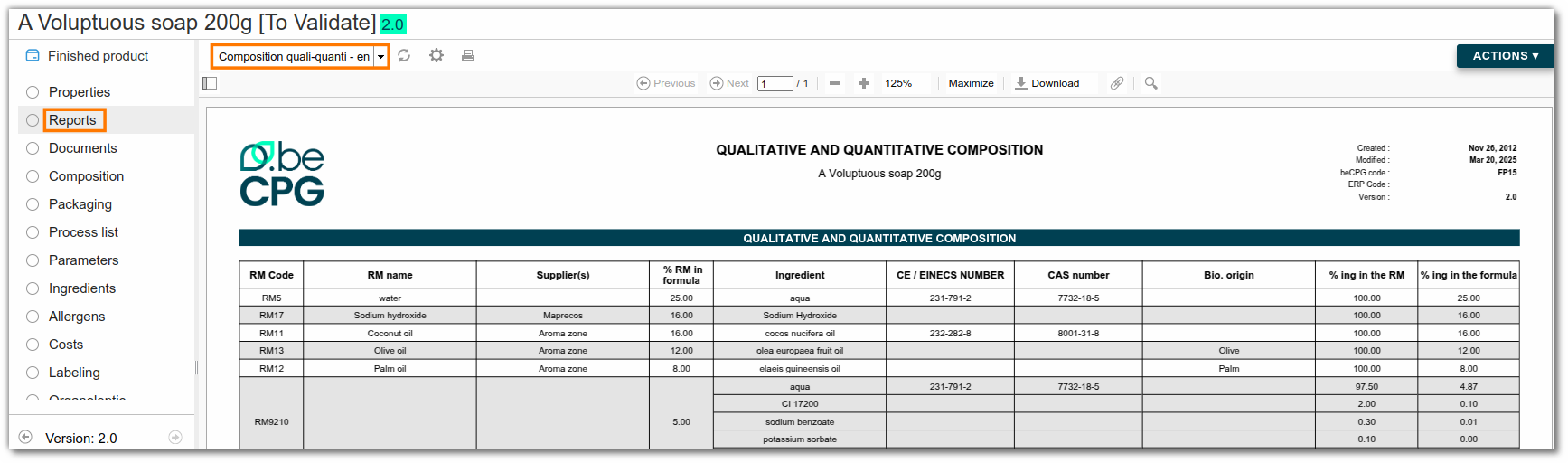
Note: once generated, the technical data sheets are automatically updated as soon as the product is modified.
Creating multiple trials
From the "A Voluptuous soap 200g" product composition, create a trial via the "Action" > "New version" menu.
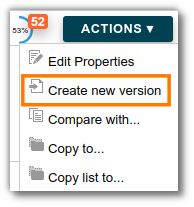
A new "A Voluptuous soap 200g (1)" trial is then created and appears in the list at the bottom left of the screen. You can navigate from one trial to another to modify the formula of each one.
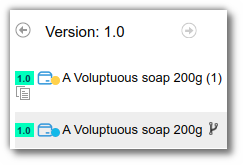
Rename each trial by clicking the edit button in the "Properties" tab.