Formulation of the composition/recipe
The composition describes the content of a product and is used to calculate the following product characteristics:
- Costs
- Nutrients
- Ingredients list
- Ingredient Declaration
- Allergens
The composition includes:
- The level of product in the composition
- The components used
- The amount used in the recipe
- The implementation unit (kg, g, L, mL, P, m, m², Perc)
- The declaration type:
- Include: the component ingredients are included in the ingredients of the formulated product
- Detail: the component ingredients are listed under the component itself
- Consolidate: to group the declaration (pastry, filling, for example)
- Omit: the component ingredients are not included in the ingredients of the formulated product
- Do not include: the component ingredients are included in the ingredients of the formulated product but are not displayed (for example, water, sulfite)
On the formulated product, three fields are required for formulation:
- Quantity after processing: the amount of product obtained after the processing step, taking into account the yield-related losses.
- Product unit (kg, L, P): the product sales unit. This unit defines the unit price (€/kg, €/L) and the nutrient unit (/100 g or /100 mL).
- Product density: the density used to convert a liter or a piece of product into kg.
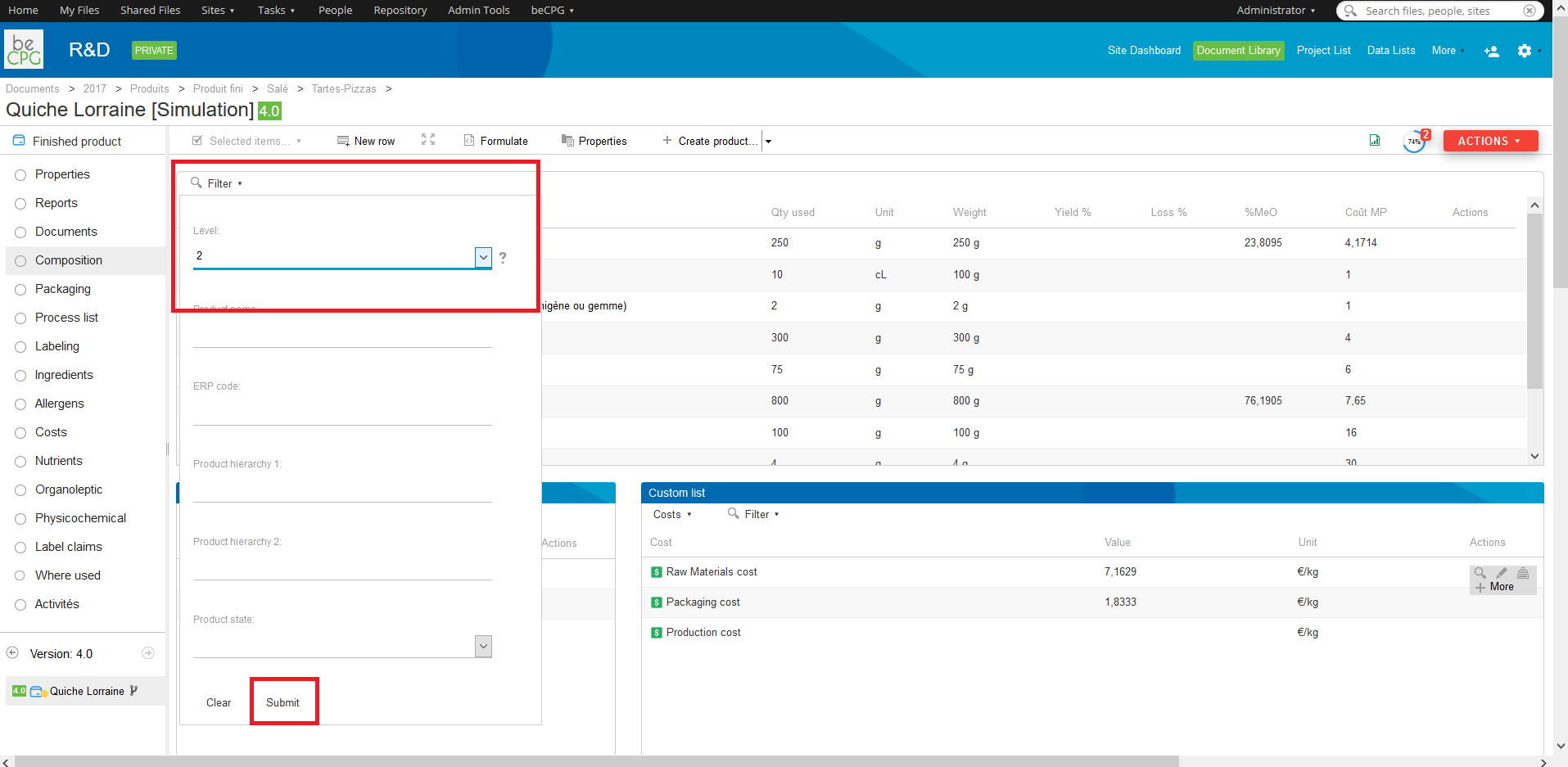
Filters and Tier 2 items
The data filters section lets you filter lists and display elements of level greater than 1. "Show Tier 2 items" lets you see the composition of a semi-finished product present in your composition.
Import raw materials from nutritional databases
beCPG provides CIQUAL and USDA nutritional databases. You can import raw materials from the composition of a product:
- Click the import button.
- Type the first letters of the raw material that you want to import.
- The system suggests raw materials.
- Select the raw material you want to import.
- Click "OK" to import the raw material (you can select several raw materials before importing).
- A message confirms that the products have been imported.
- You can add the raw material to the composition of your product.
Copy Childs
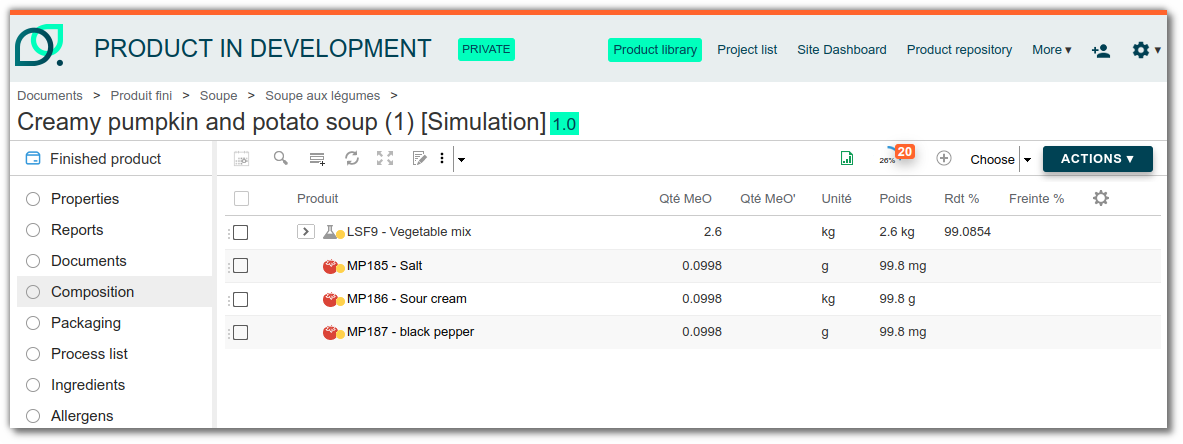
The “Copy Childs” function allows you to replace a semi-finished or finished product component in a composition with the components that make it up. The level is thus removed from the composition and these components are added directly to the first level of the composition. Quantities are automatically recalculated based on the initial quantity of the semi-finished product.
For example, semi-finished product SF1 (net quantity: 10 kg) is composed of:
- 5 kg of RM1
- 2 kg of RM2
- 3 kg of RM3
If the composition of FP1 uses 1 kg of SF1, the function adds directly to FP1:
- 500 g of RM1
- 200 g of RM2
- 300 g of RM3
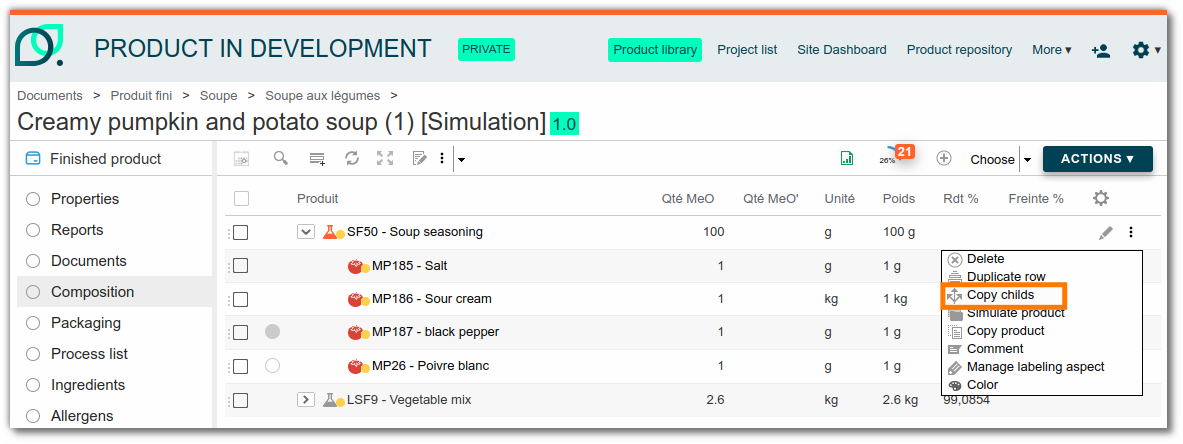
If the semi-finished product contains variants, only the components of the default variant are taken into account.
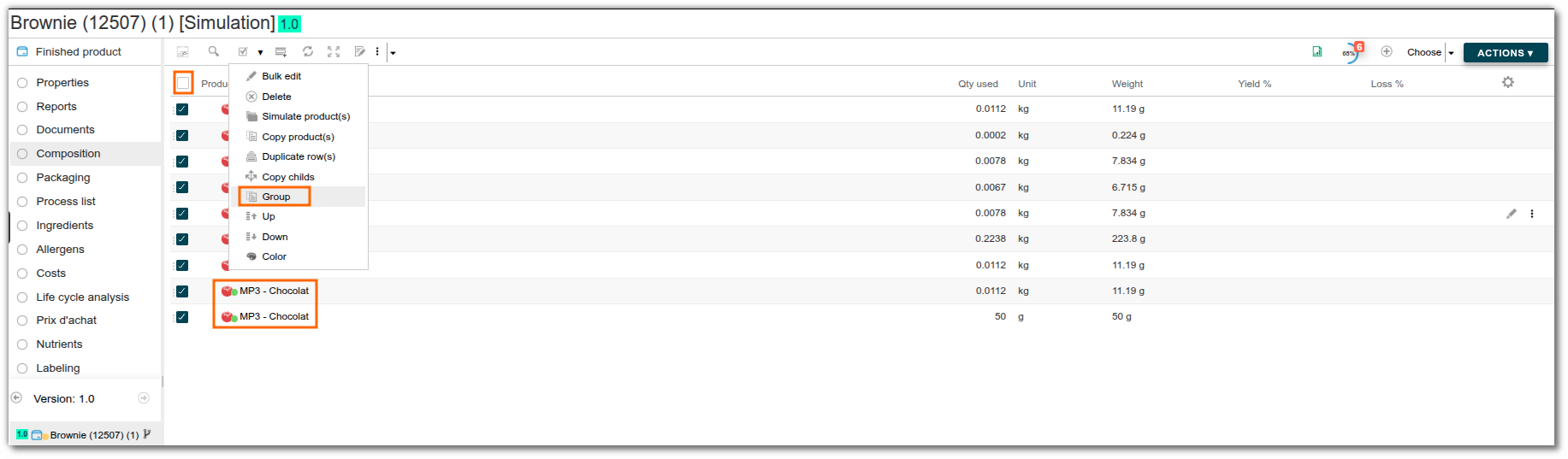
Note: to group duplicate components, go to the composition, select all components, and then click "Group".
Copying a recipe component
The "Copy product" tool lets you duplicate a product directly from the composition list. This feature is useful for testing a new formulation of a semi-finished product or raw material independently of the original product. The copy automatically replaces the original component in the composition.
To make a copy, open the composition of a product, click "..." next to the component concerned, then select "Copy product".
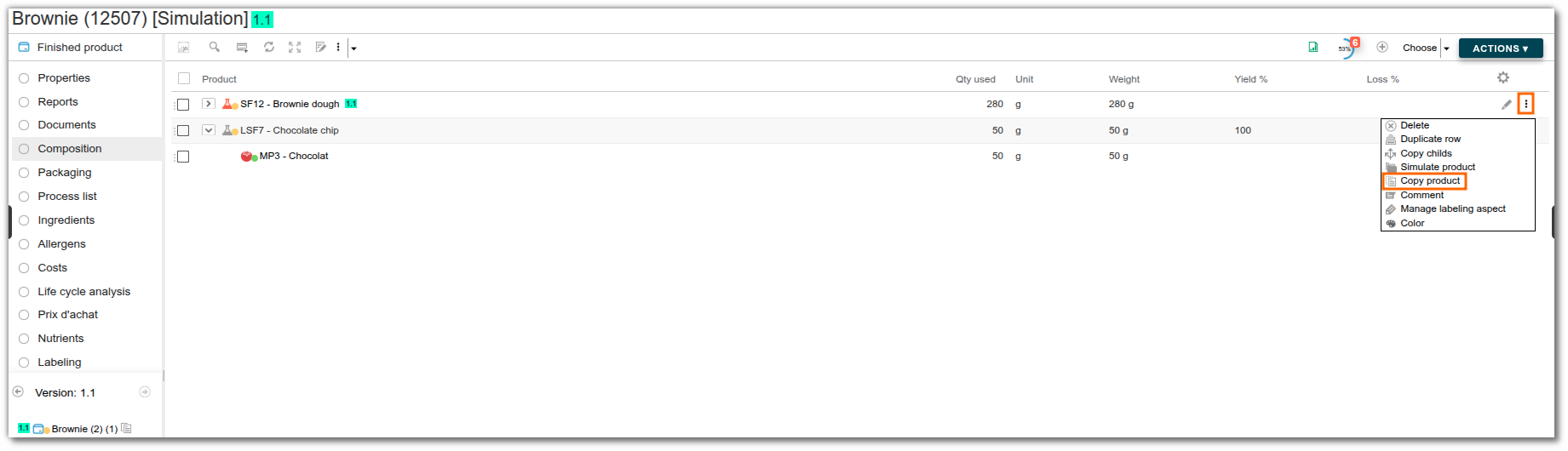
You can then modify this copy by accessing its details via the navigation. A shortcut at the top left takes you back to the main composition.
Simulate a component in a recipe
The "Simulate Product" tool lets you create a product branch directly from the composition list. You can then test a new formulation using a modified version of a semi-finished product or raw material without impacting existing finished products that depend on it. A branch of this component is then automatically created and replaced in the composition.
To start a simulation, go to the composition of a product, then click "..." next to the component concerned and select "Simulate Product".
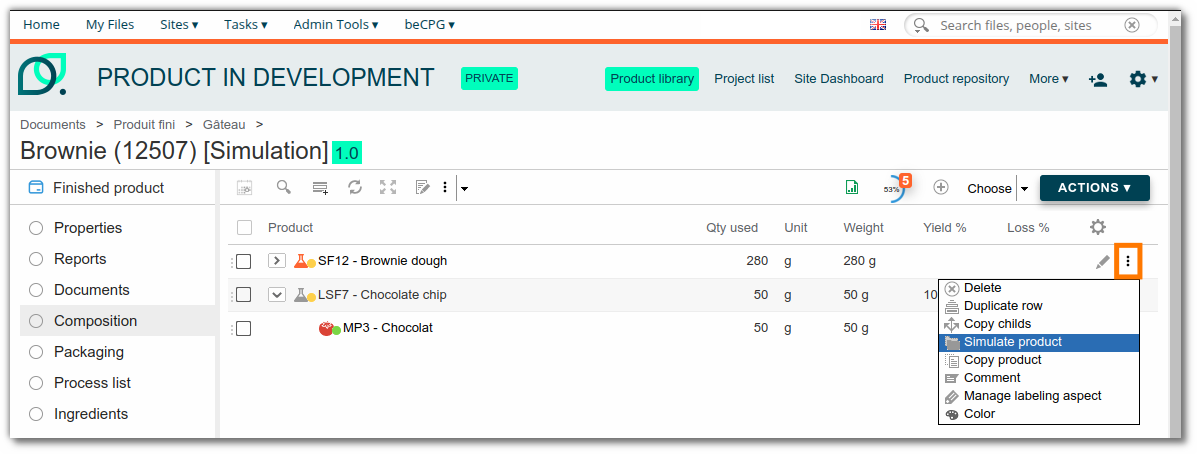
You can then make the necessary changes by navigating through this new branch. A shortcut at the top left takes you back to the main composition.
Duplicate component row
The "Duplicate row" tool creates an exact copy of a line in the composition. You can add a component a second time to the composition without searching for it again with "Add an element".
To duplicate a line, go to the composition of a product, then click "..." next to the relevant component and select "Duplicate line".
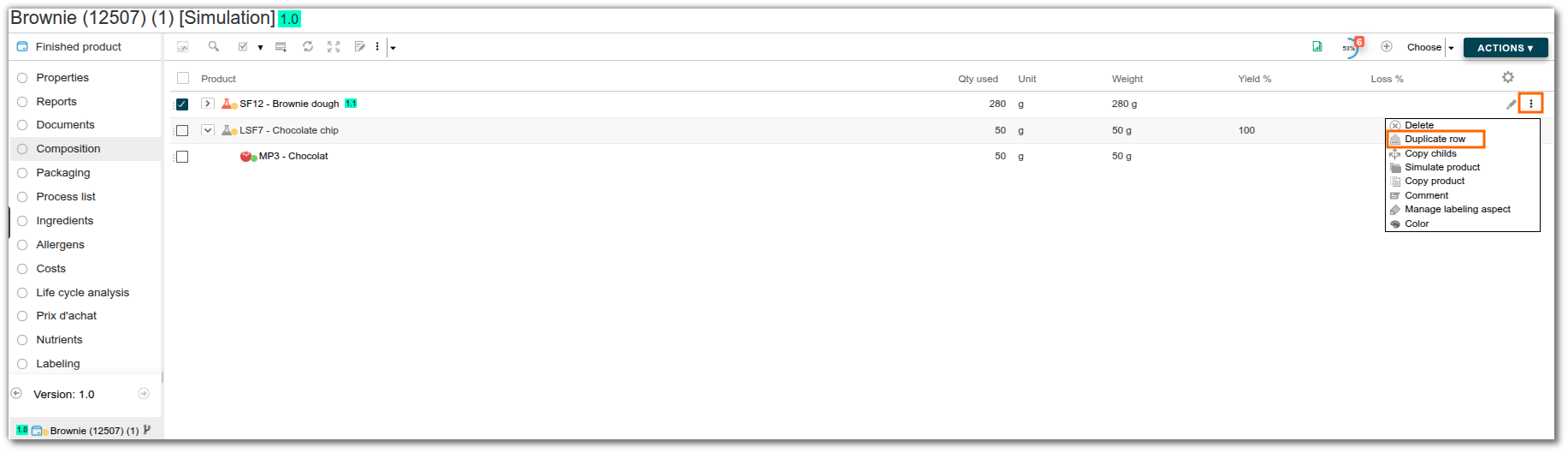
A new line for this component is then automatically added to the composition.
Yields
In food, the yield is the ratio between the net quantity of the final product and the net quantity of the initial product. The product undergoes losses during the different processing steps. Water losses during cooking are often the largest. In beCPG, the yield therefore distinguishes an uncooked product (100% of its water content) from a cooked product (100 - x water lost during cooking). When the yield is taken into account, nutritional values are impacted: for example, when the water content decreases, the dry matter content increases. The yield is calculated with the following formula:
YIELD = (Final quantity / Initial quantity) x 100
In beCPG, the initial product quantity is called "Quantity used" and the final product quantity "Net quantity". beCPG takes the yield into account in two ways:
- either by entering the yield for each raw material in the product composition:
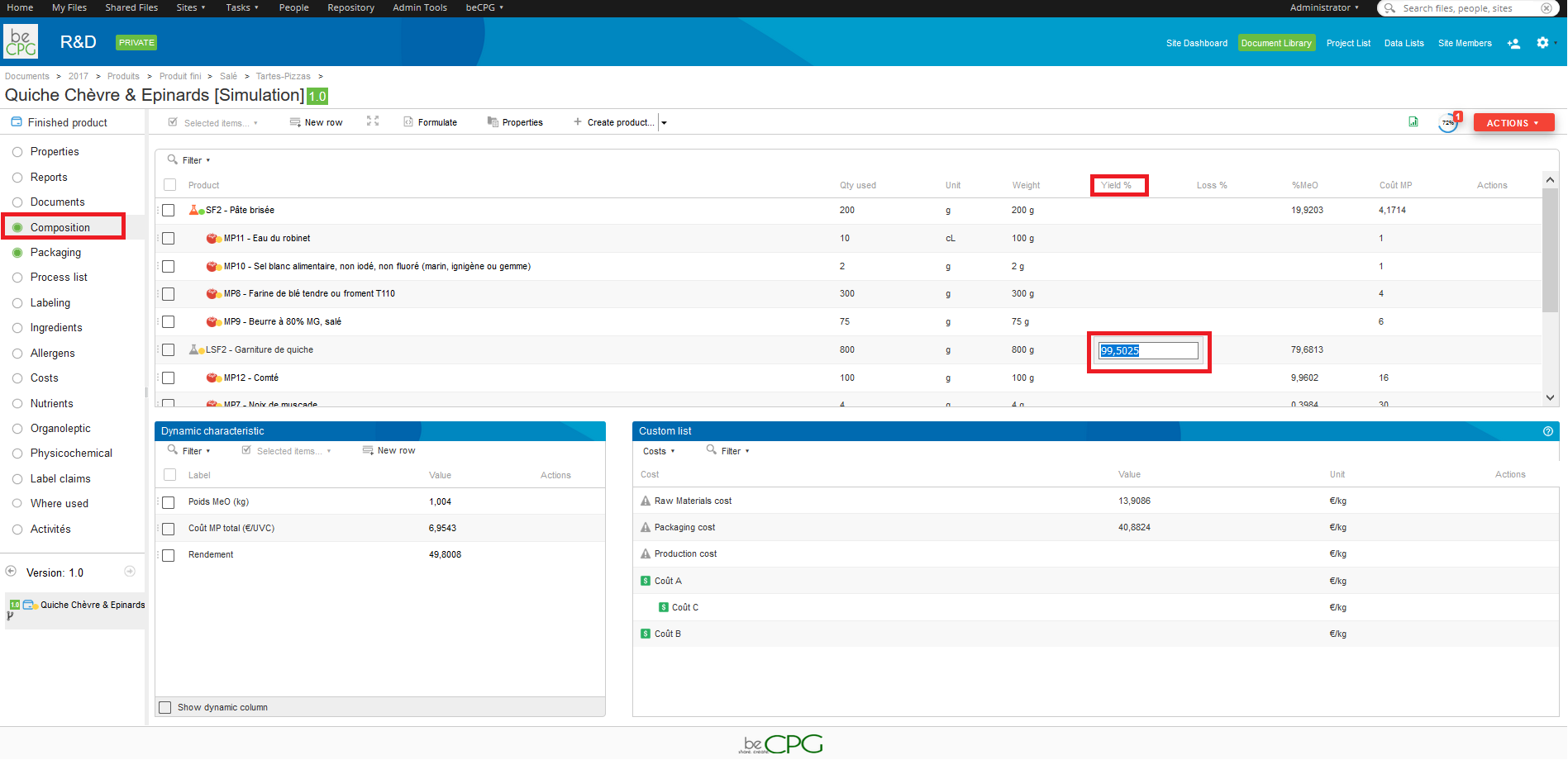
- or by entering the net quantity of the final product in the "Net quantity" field (in the product properties).
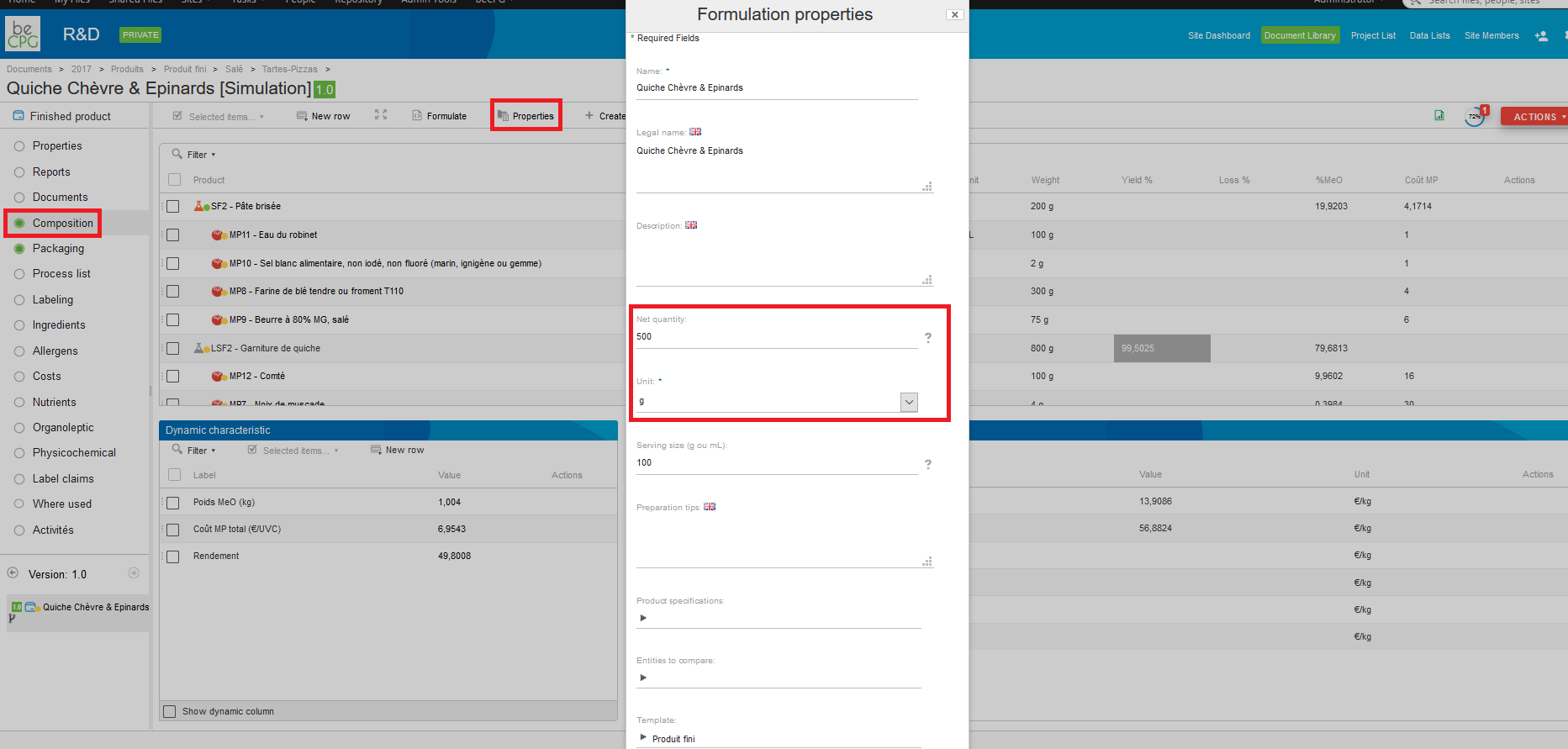
You can display the "Yield" and "Net quantity" fields with formulated characteristics.
Apply the yield to the water ingredient
The water content of cooked products is reduced by evaporation. The quantities of the other ingredients increase in proportion to their concentration. beCPG offers an additional setting to apply the yield to the "water" ingredient. The "Qty with yield (%)" column of the ingredient tab then displays quantities that take into account the evaporation of water in the product.
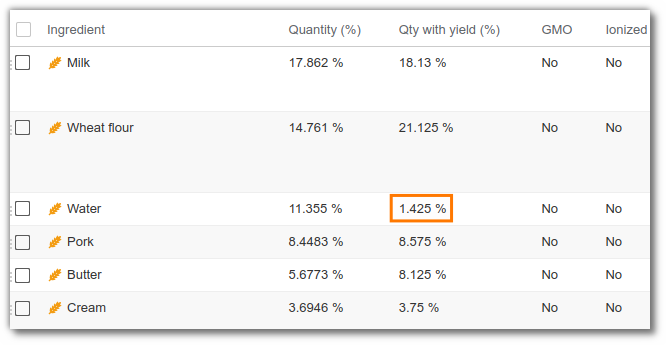
You can also label quantities after cooking. Click here for more information.
To do this, first add the water aspect to the water ingredient and the water RM(s). Contact us if you need assistance with this operation.
- Prerequisite: be a system administrator.
- Retrieve the nodes of the water ingredient and water RM(s) (only the 100% water ingredient).
- In the Admin console, apply the following script:
var node = search.findNode("workspace://SpacesStore/<node-id>");
node.addAspect('bcpg:waterAspect');
Note: if you label using quantities after yield, remember to enter the legal name of the water raw material.
Manual yield
beCPG does not take the yield into account when components are entered as percentages in the recipe of your product. The yield is the net quantity divided by the quantity used in the recipe, which cannot be computed when quantities are entered as percentages.
This is where the manual yield comes in. Enter the composition of your finished product and add a net weight in the properties of your finished product. Then go back to the composition list of your finished product. In the dynamic characteristics panel, you can enter your yield manually. The system computes the quantity used in the recipe from the yield and the net quantity. To enter a yield manually, click "Edit" next to the manual yield formula, then enter a number corresponding to your yield.
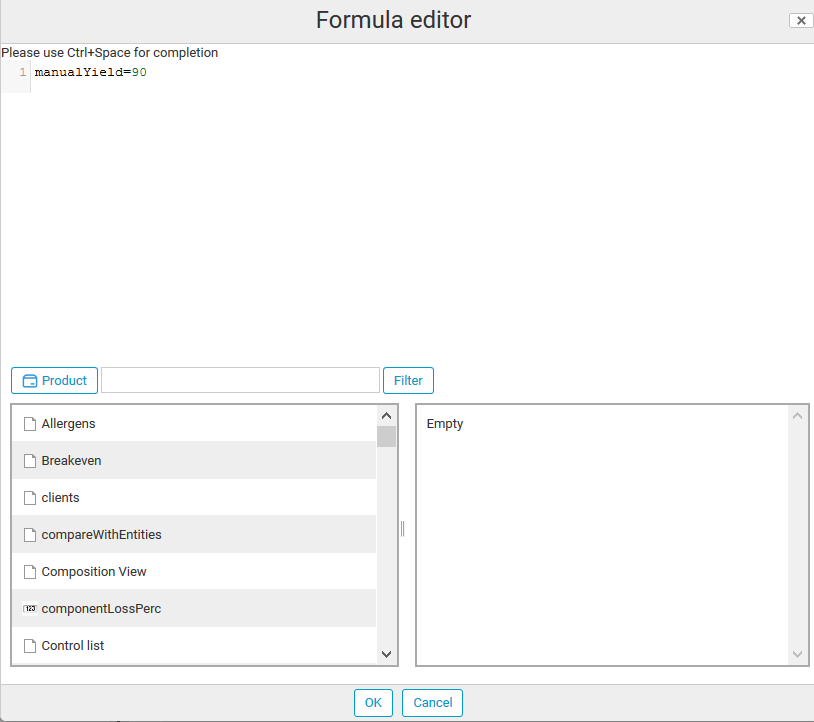
Yield as prepared
In the ingredient list, you can display the percentage of ingredients as prepared.
To do this, add the "secondaryYield" rule, making sure to enter "Pre" in the "Execution order" field:
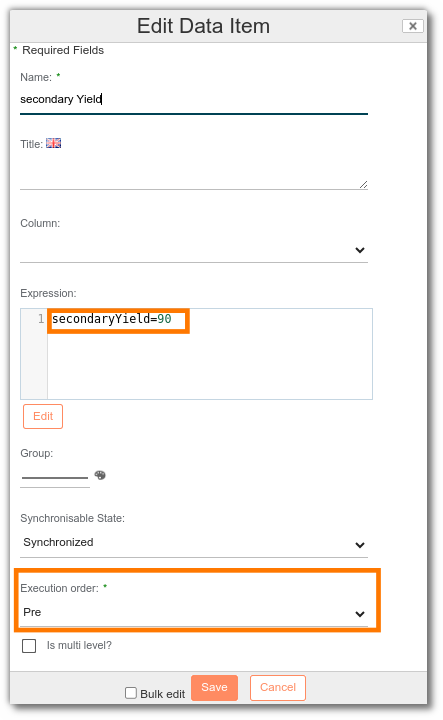
The "Qty as prepared (%)" column of the ingredient list is then calculated automatically from the value entered in "SecondaryYield".
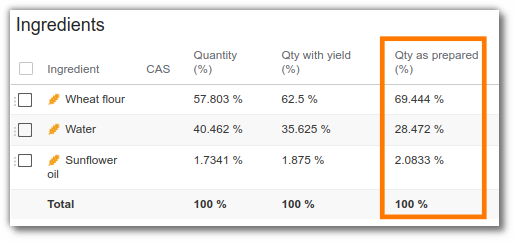
To label according to quantities as prepared, click here.
Loss
In beCPG, the loss is a loss of product quantity during transportation or production. It may be due to spoilage or damage.
For example, for cheeses, the loss of matter can be due to lipolysis or proteolysis; for apples, it can be the quantity lost through peeling.
With losses, only the quantity decreases: more product is needed to obtain the desired quantity. Therefore, when a loss percentage is entered, costs are impacted but not nutritional values. The loss is calculated with the following formula:
Loss =[ ( Quantity used / Net quantity after loss)* 100] - 100
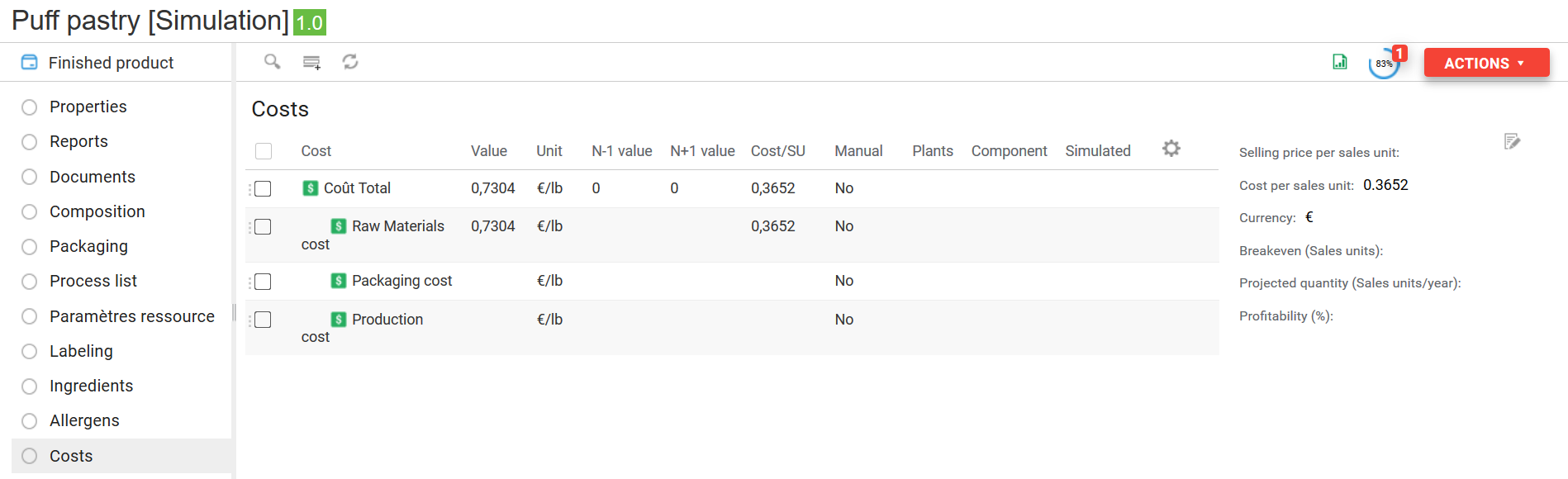
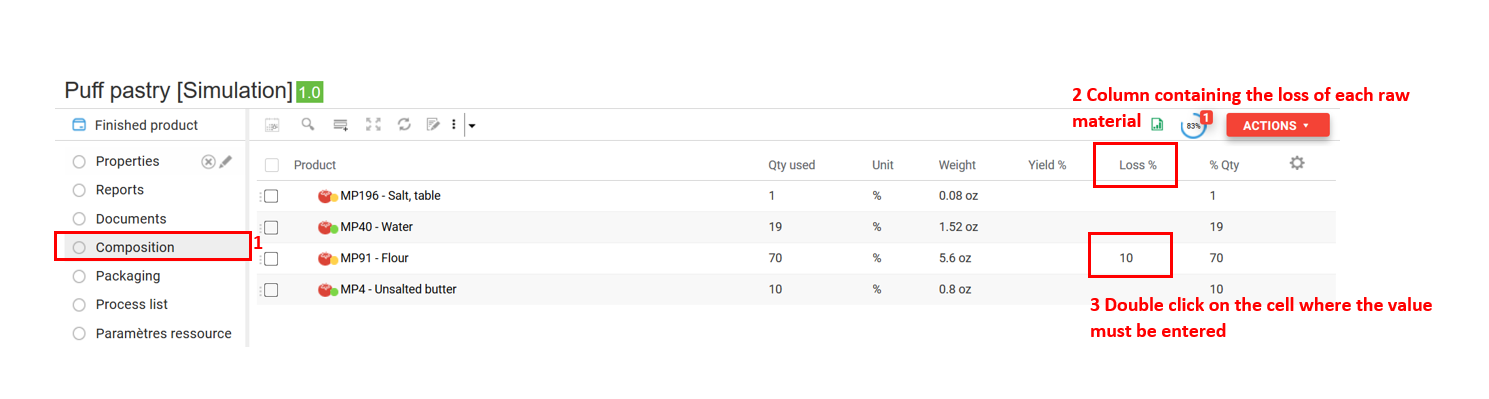
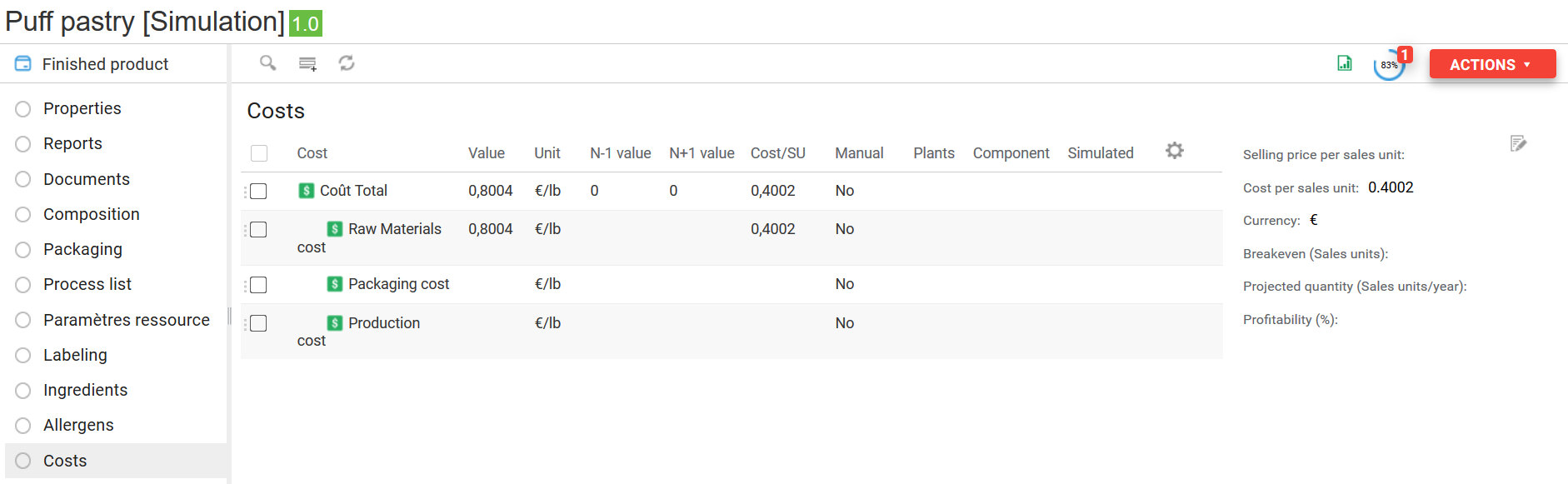
In beCPG, the loss is entered directly in the composition for each raw material. For example, for a 10% flour loss on a production line, enter 10 in the loss % field. The costs of this entity then increase by 10%.
Quantity used = Net quantity after loss * (1 + Loss / 100)
Cost with loss = Unit cost * Net quantity after loss * (1 + Loss / 100)
Costs before loss:
Modification of the loss for flour:
Costs after loss:
Dynamic characteristics
Simple dynamic characteristics
Dynamic characteristics are customizable. These characteristics, specific to your activity, will be calculated with the formulation.
Examples:
- Profit
- Yield
- HPD <78% (% Water x 100) / (100 -% lipids)
- Nutri-Score detail:
var context = T(fr.becpg.repo.product.formulation.score.NutriScoreContext).parse(nutrientDetails);
#context.toHtmlDisplayValue();
- Show Nutri-Score:
"@html<span class='viewmode-value nutrient-class'><span class='selected nutrient-class-"+nutrientClass.toLowerCase()+"' >"+nutrientClass+"</span></span>"
Once the product composition has been defined, the system calculates the product's dynamic characteristics when the “Formulate” button is clicked.
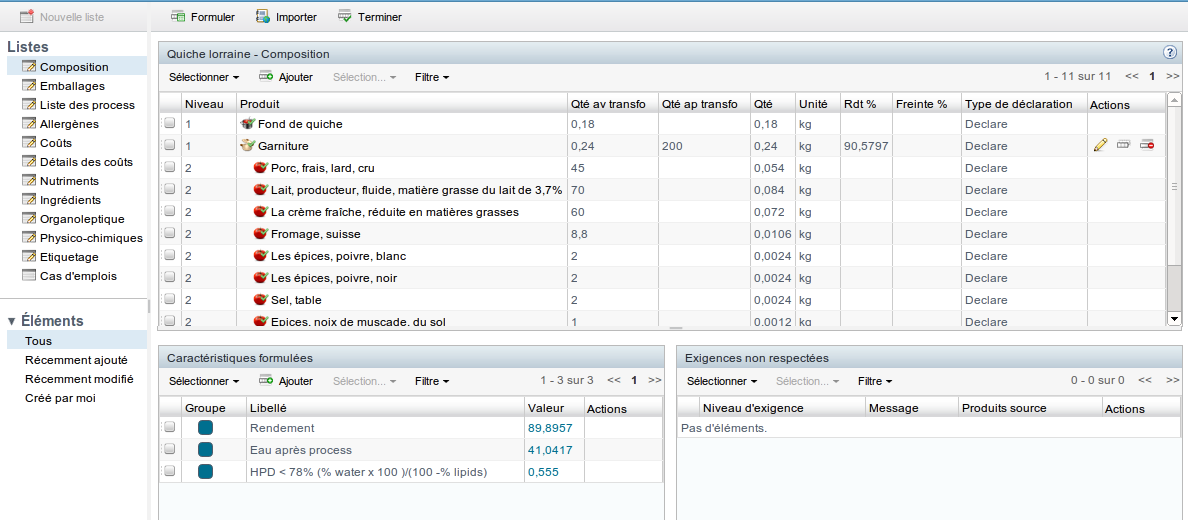
To add a dynamic characteristic:
- Click "Add" (in the "Dynamic characteristics" panel of the "Composition" list).
- Enter the name of the calculation.
- Enter the title (multilingual name that can be translated in the application).
- Enter the expression by selecting the list, the characteristic and the desired field (e.g. Nutrients > Salt > Value). The formula then appears in the formula editor.
When creating a dynamic characteristic, several synchronization options are available:
- Template: the calculation is present on the template, but does not appear. The calculation is hidden to avoid overloading the window.
- Manual: the calculation is specific to a product.
- Synchronized: if you modify the calculation, it is automatically synchronized on all products.
Dynamic column characteristics (dynamic columns)
These dynamic characteristics are available as columns in the composition or packaging lists. These columns are hidden by default. A maximum of 10 dynamic columns can be created.
To add a dynamic characteristic as a column:
- Click "Add".
- Enter the name of the column characteristic.
- Enter the title (multilingual name that can be translated in the application).
- Enter the column.
- Enter the expression by selecting the list, the characteristic and the desired field (e.g. Nutrients > Salt > Value). The formula then appears in the formula editor.
Then:
- if it is an RM characteristic, add
dataListItemEntity.in front of the expression; - if it is a characteristic of the formulated product, add
entity.in front of the expression.
Here are a few examples of dynamic characteristics (to copy them, paste them into a text editor first):
- Raw material cost (€/kg):
dataListItemEntity.costList.size() != 0 ? dataListItemEntity.costList[0].value * dataListItem.qty : ""
Taking density into account:
dataListItemEntity.costList.size() != 0 ? dataListItemEntity.costList[0].value * dataListItem.qty / (entity.qty * entity.density) : ""
- Indicator of the impact of raw material costs (via a progress bar)
'<progress value="'+100*(dataListItemEntity.cost['workspace://SpacesStore/2ea642fd-792d-494b-b295-37577cd4d60e']?.value?:0) * (dataListItem.compoListUnit.toString().equals("P") and dataListItemEntity.unit.toString().equals("P") ? dataListItem.qtySubFormula : (dataListItemEntity.isLiquid() ? dataListItem.volume : dataListItem.qty)) * (1 + (dataListItem.lossPerc?:0) / 100)/entity.cost['workspace://SpacesStore/2ea642fd-792d-494b-b295-37577cd4d60e']?.valuePerProduct+'" max="100" style="width:80px;"></progress>'
- Each Quantity (kg)
dataListItem.qty * entity.compoListView.dynamicCharactList.?[title == 'Nb Ech'][0].value
- Cost packaging (€ / kg)
dataListItemEntity.costList.size() != 0 ? dataListItemEntity.costList[0].value * (dataListItem.packagingListUnit.toString() == "PP" ? 1/dataListItem.qty : dataListItem.qty) / (entity.qty * entity.density) : ""
- Cost packaging (€ / UVC)
dataListItemEntity.costList.size() != 0 ? dataListItemEntity.costList[0].value * (dataListItem.packagingListUnit.toString() == "PP" ? 1/dataListItem.qty : dataListItem.qty) : ""
There are two types of dynamic characteristics:
- single-value characteristics;
- column characteristics (to add columns to the composition).
For now, there is no editor to add a column characteristic. You must write the formula directly. Several variables are available:
entity: the formulated productdataListItemEntity: access to the component and its data lists (e.g.dataListItemEntity.costListprovides access to the component costs)dataListItem: access to the element of the composite list (Composition, Packaging)
In this mode, the sum(RANGE, FORMULA) and avg(RANGE, FORMULA) functions are available. In the formula, dataListItem is each line of the range and dataListItemEntity its component:
sum(@beCPG.children(dataListItem, entity.compoListView.compoList), "dataListItemEntity.costList[0].value * dataListItem.qty")
or:
sum(entity.compoListView.compoList.?[parent == #root.dataListItem], "dataListItemEntity.costList[0].value * dataListItem.qty")
More information about the SpEL language: https://docs.spring.io/spring-framework/reference/core/expressions.html
Format of results
By default, the system displays 4 significant figures. You can specify the format of the results as illustrated below:
- new java.text.DecimalFormat("0.00##").format(1.22222222) or @beCPG.formatNumber(1.22222222, "0.00##") display 1,2222
- new java.text.DecimalFormat("0.00##").format(1.2200) or @beCPG.formatNumber(1.2200, "0.00##") display 1,22
- new java.text.DecimalFormat("0.0000").format(1.2200) or @beCPG.formatNumber(1.2200, "0.0000") display 1,2200
For double-type numeric fields:
- T(java.lang.Math).round(12.2) will display 12 and T(java.lang.Math).round(12.22*10)/10 will display 12.2