Labeling
To generate the labeling of your product with a single click, open your product and click the "Labeling" list on the left of the screen. When you click "Formulate", labels are generated automatically using the standard beCPG rules.
You can customize labeling by adding labeling rules to the entity template, or by modifying the declaration type.
Allergen labeling
For allergens to appear on product labels, they must first be indicated on the raw materials. Click here for more information.
Allergens subset
If you want allergen variants (e.g. cheese for the milk allergen) to appear in bold, fill in the allergen subset in the administration. Click here for more information.
Note: in this case, if the ingredient name matches one of the allergen subsets, the ingredient name is displayed in bold instead of the allergen, and the allergen is placed in brackets next to it.
Modify the formatting
The beCPG standard displays allergens in bold by default. However, you can modify this formatting with a preference rule.
Click here for more information.
Manually format the ingredient name
If the automatic bolding of allergens described above is not appropriate, you can format the ingredient's legal name by hand. Translations are independent of each other, so you must modify all the ingredient translations manually.
In the administration, open the ingredient concerned and edit its properties. In the legal name, add the HTML tags you require. Then return to the "Labeling" list and click "Formulate" to see your changes.
Manual formatting overrides the default formatting.
Modification to make:
e.g. the tag <b> at the beginning of the word to put in bold and </b> at the end.
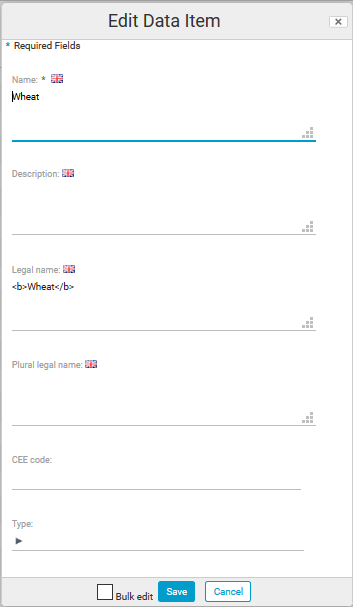
Before modifications:

After modifications:

E.g. in German, wheat allergen = Weizen, wheat flour = WeizenMelh. beCPG does not recognize the translation WeizenMelh and displays: WeizenMelh(Weizen). The allergen subset "wheat flour" does not exist in the standard version, as in most languages the words wheat and flour are separate. In this case, it may be useful to manage the allergen manually.
Labeling of organic products
Identifying organic ingredients
In the ingredients list of raw materials, link each ingredient considered as organically grown to the EU - Organic Agriculture claim in the claim field.
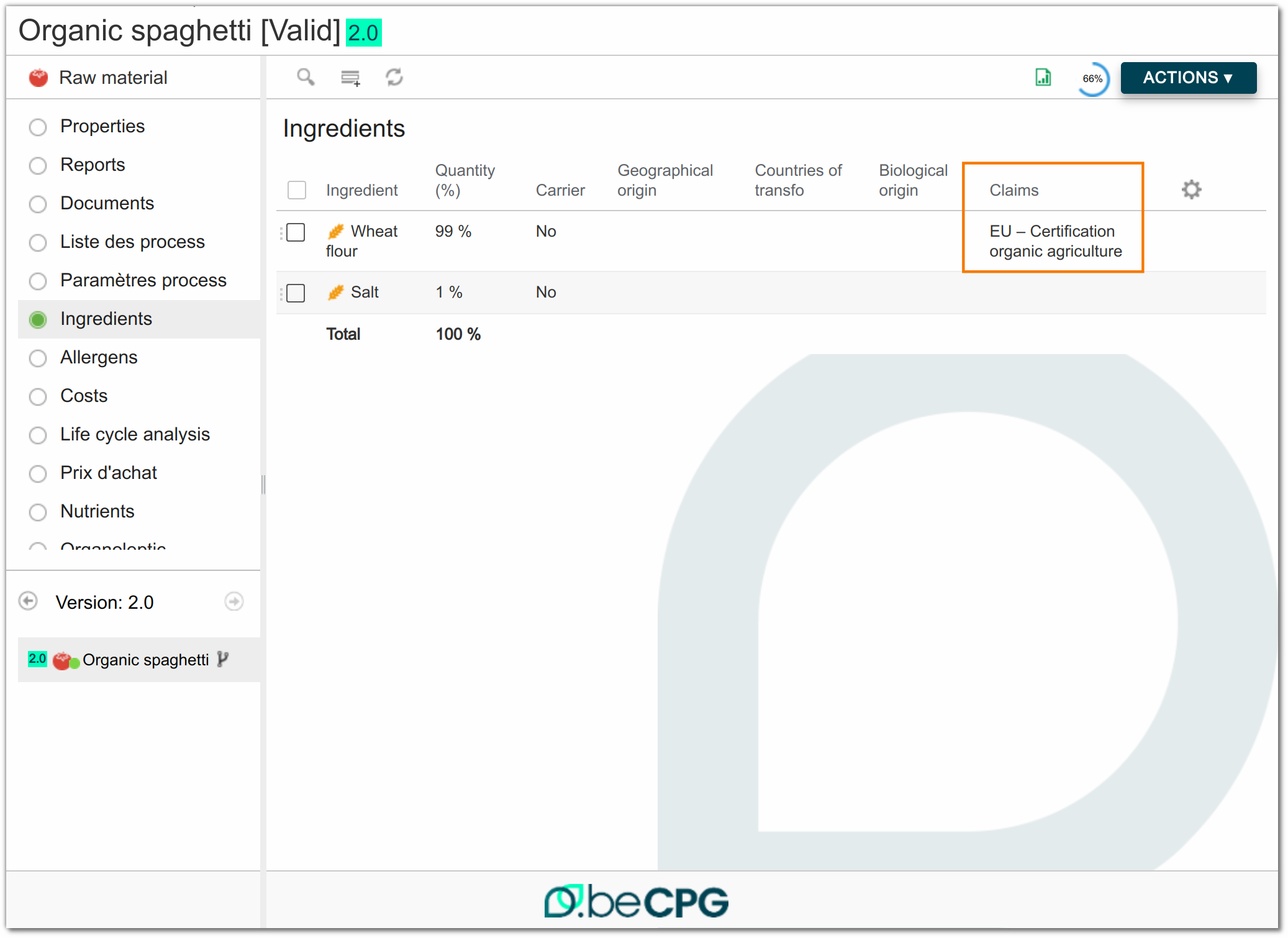
Complete the organic claim
On each raw material, indicate the organic claim:
- Add the claim EU - Organic Agriculture
- Complete the % claimed and % applicable.
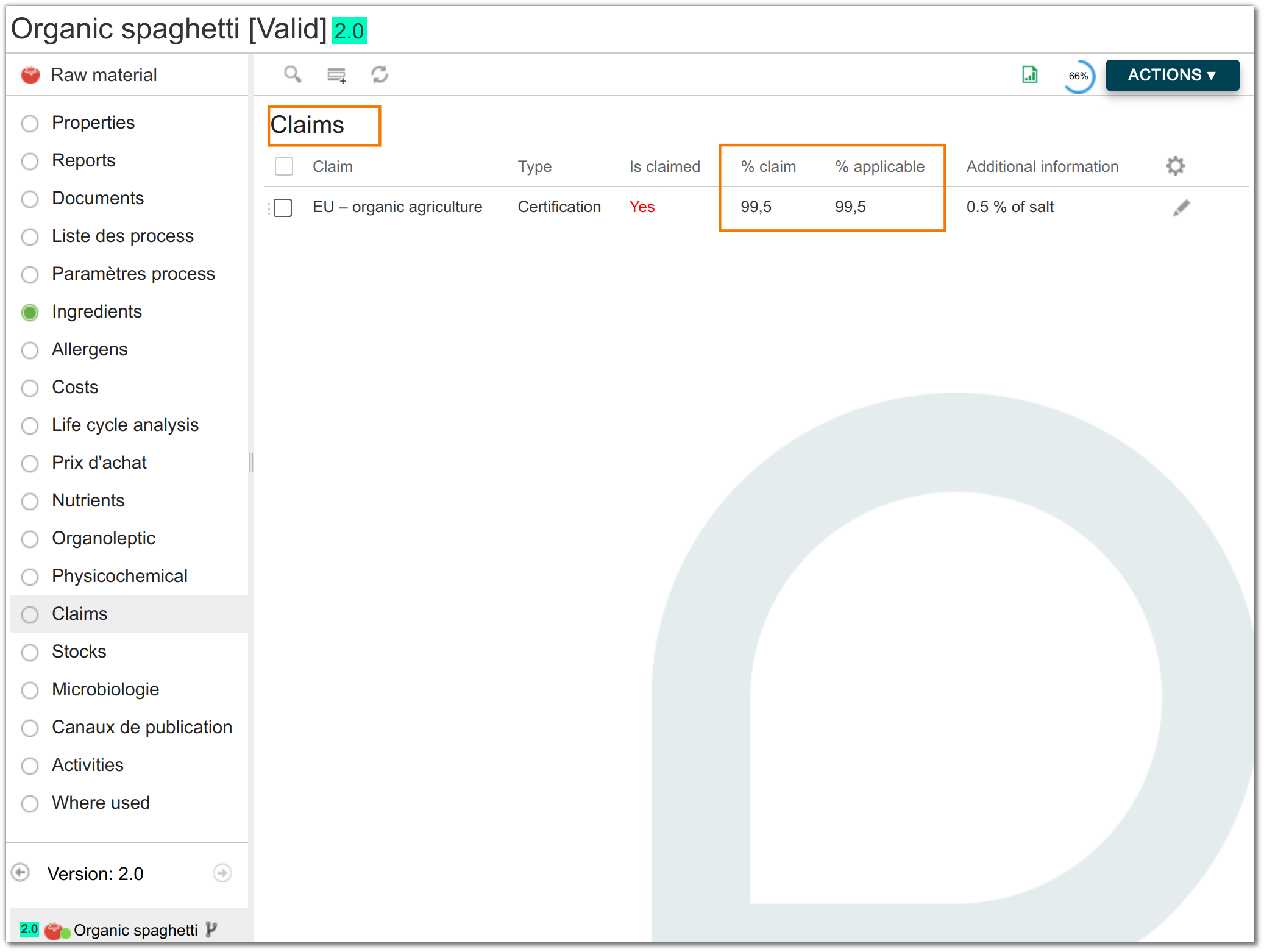
For more information on claims, click here.
Set labeling rules
On the finished product, in the labeling list:
- Modify the render of your labeling: add the footnote render to the current render.
- Add the footNote labeling rule.
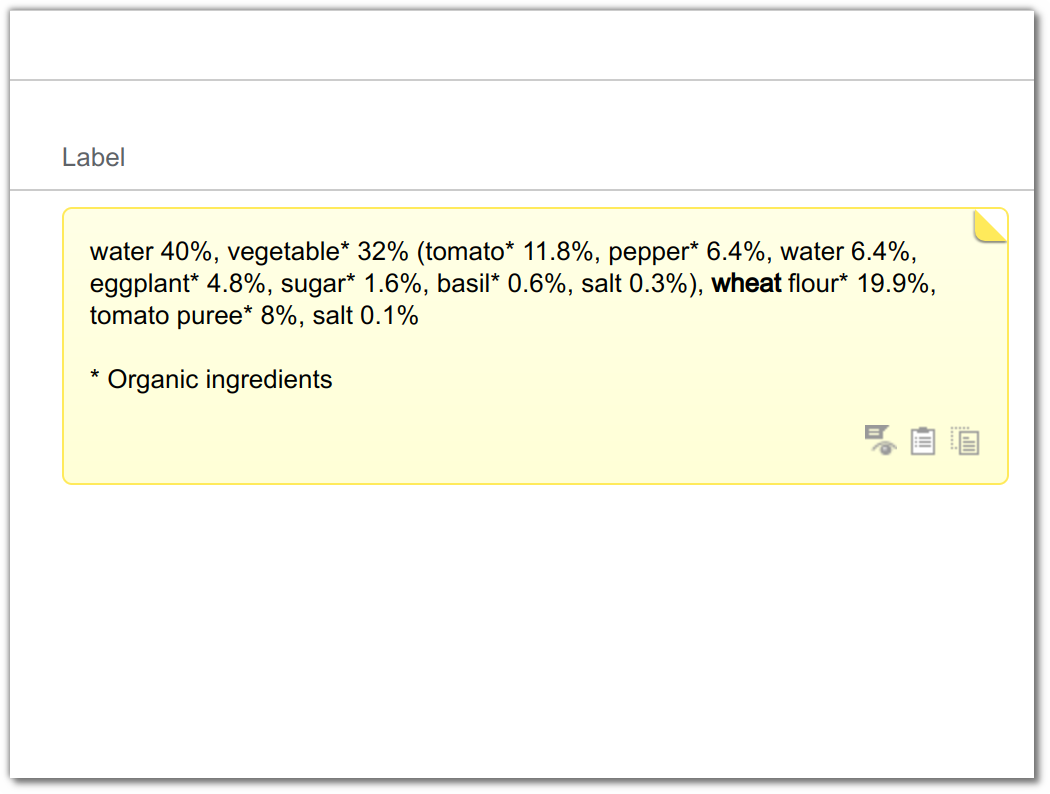
Before version 4.2.1: For organic ingredients to appear with an asterisk (*) on the product label:
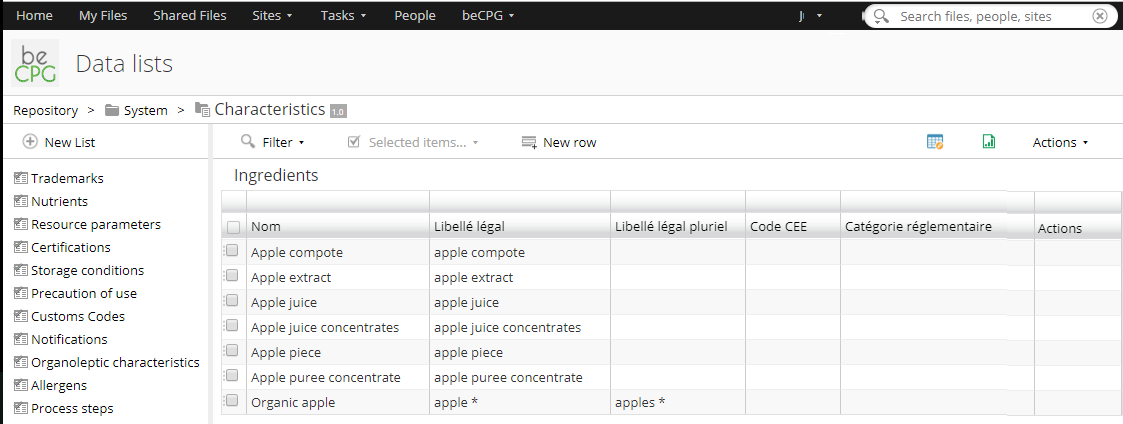
- Create organic ingredients in Administration > Characteristics > Ingredient (e.g. organic wheat flour)
- Add the asterisk to the legal name (e.g. wheat flour*)
These ingredients are only used for organic raw materials.
Labeling and yield
Labeling with or without yield
You can choose whether or not to take the yield into account in the product labeling.
Labeling without yield
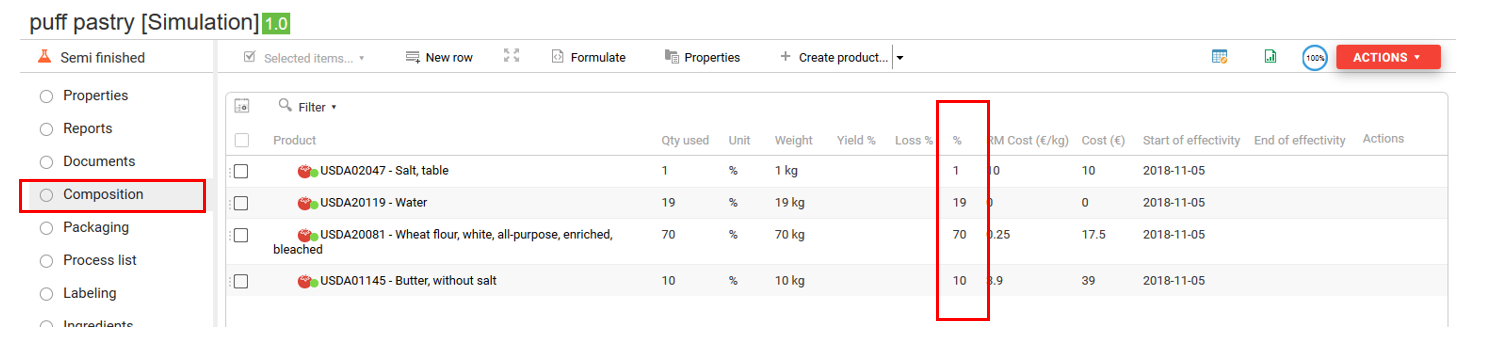
By default, when the product is formulated, the product labeling does not take the yield into account. The ingredient percentages therefore correspond to the percentages used in the raw product.
Composition of the raw product:
Raw product labeling without yield:

Composition of the cooked product:
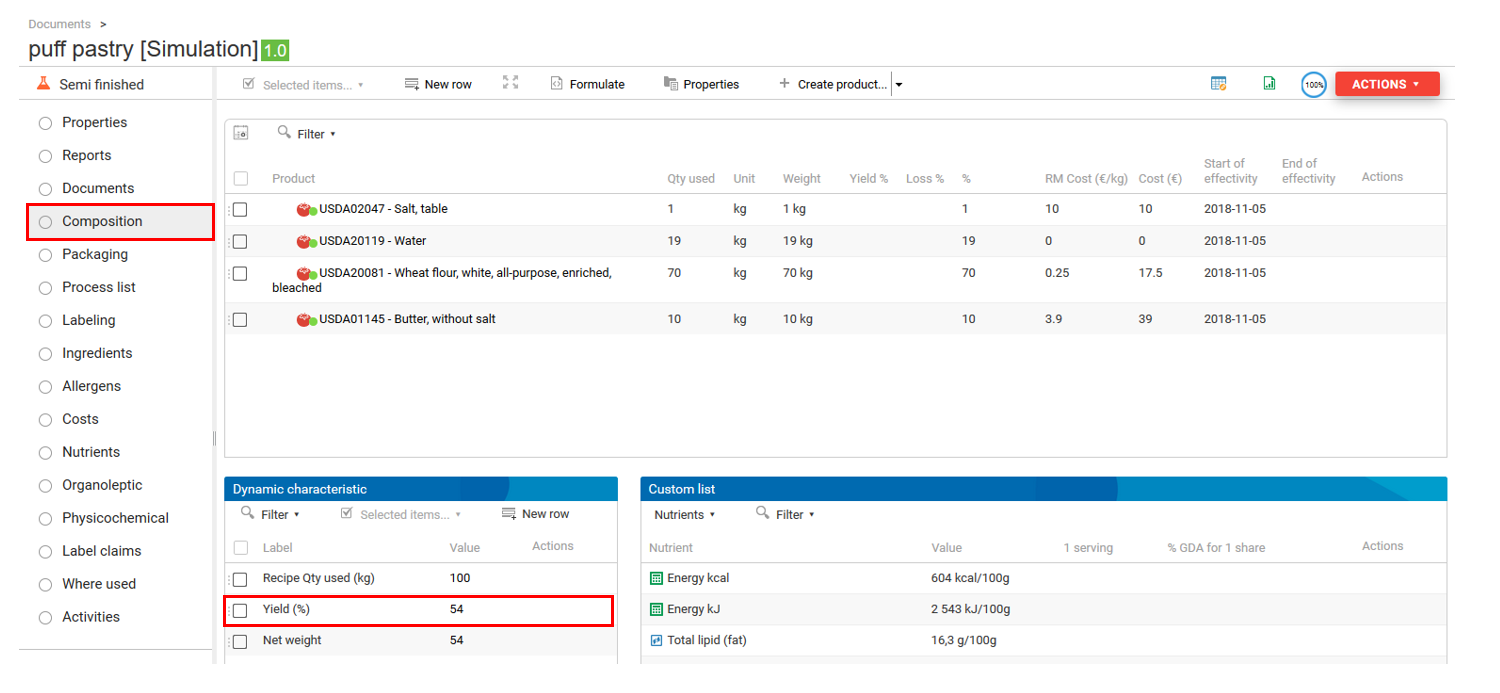
Cooked product labeling without yield:
Labeling with yield
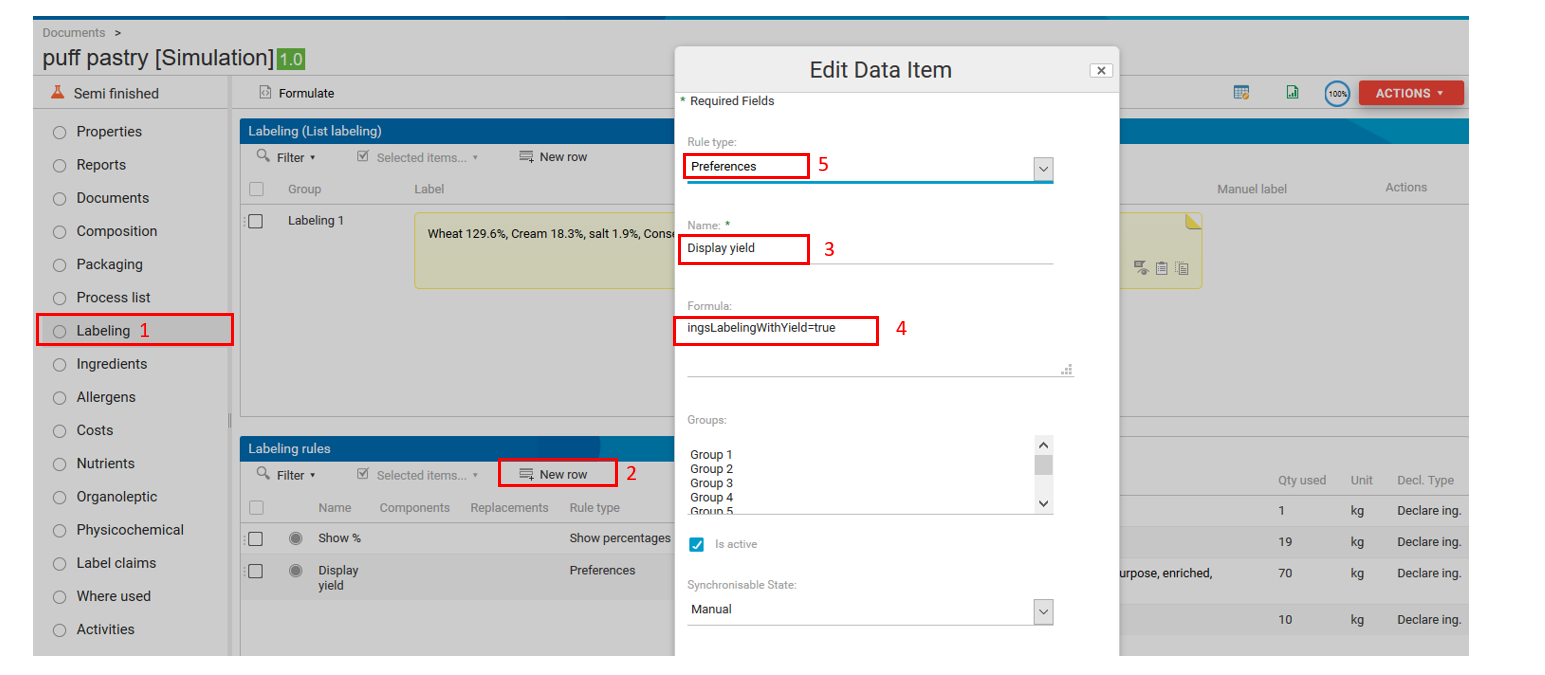
To take the yield into account when generating the labeling,
you must create a rule. To do so, go to "Labeling
rules" in the "Labeling" list and click "New Row". Enter (for
example) "Display yield" as the rule name and paste
ingsLabelingWithYield=true in "Formula". Then, choose
"Preferences" in "Rule type" and click "Save". Formulate the
product.
In the PLM, a product can be set up as cooked or raw through the yield.
Raw products
For a raw product, the weight used is taken into account in the nutritional, physicochemical and labeling calculations. If there is a yield, it does not affect the calculations.
Cooked products
There are two cases for cooked products.
Basic assumption: the product contains the "water" ingredient.
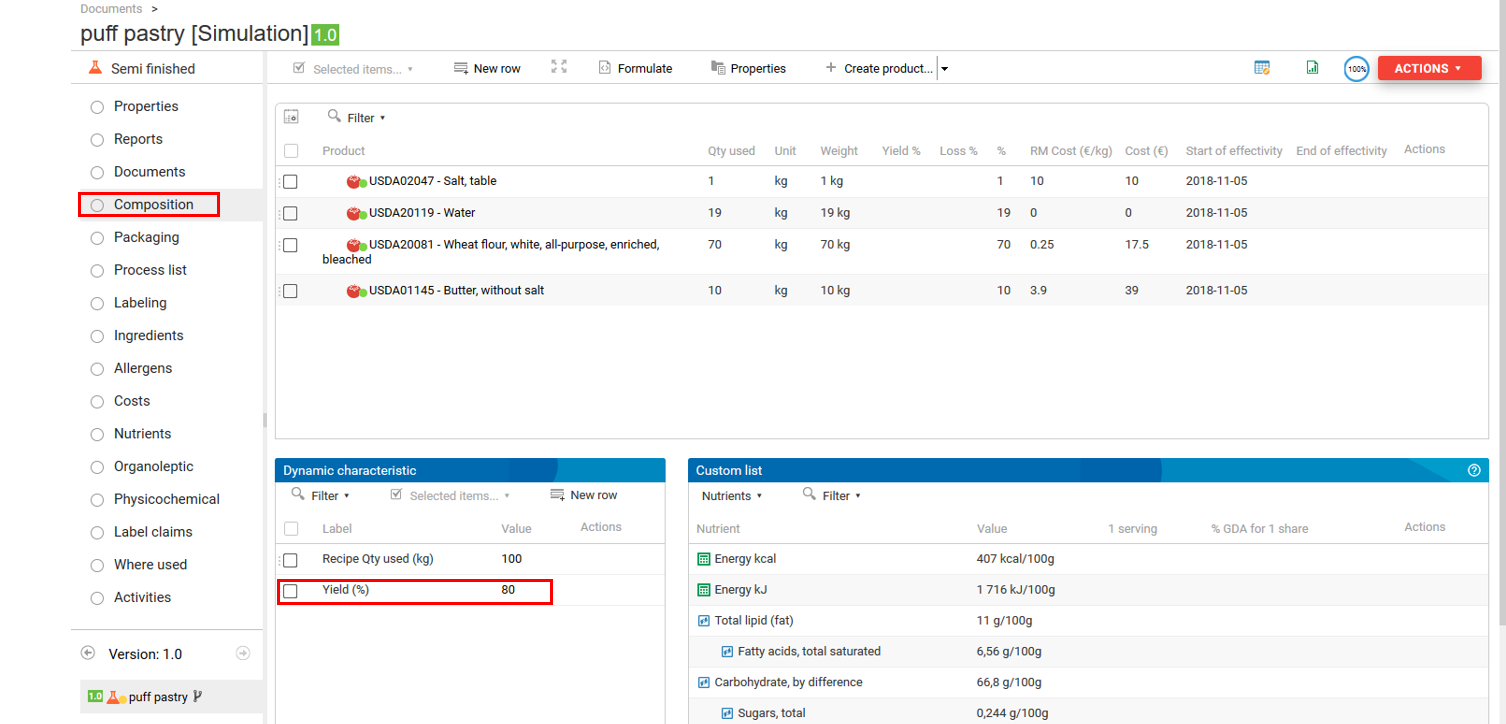
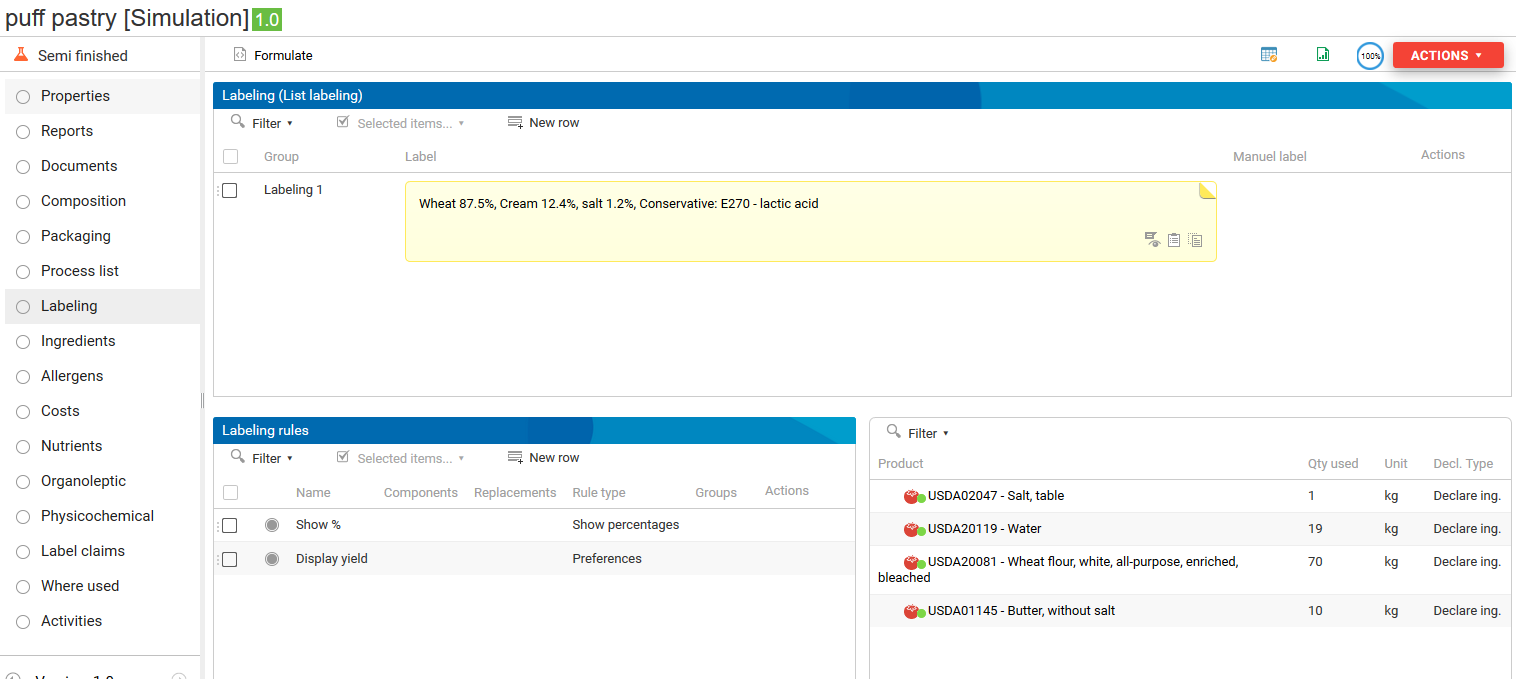
Either a small quantity of water has evaporated during cooking: the water percentage has decreased and the other ingredients have increased proportionally, so that their sum still equals 100%.
Cooked product composition:
Cooked product labeling:
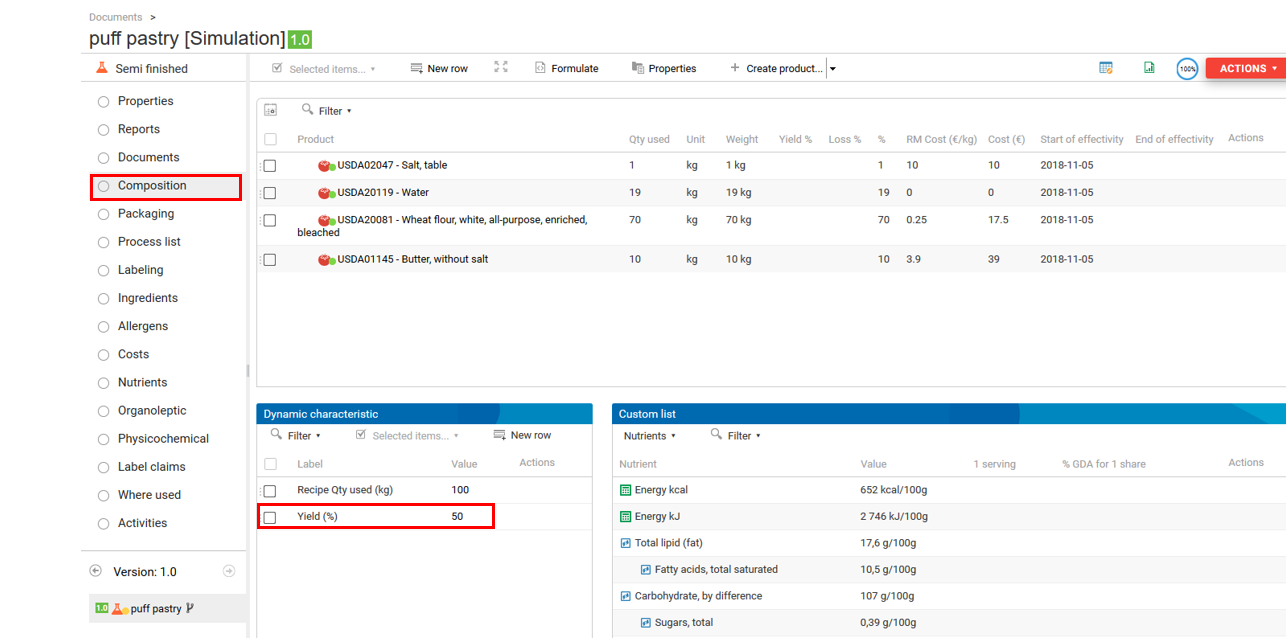
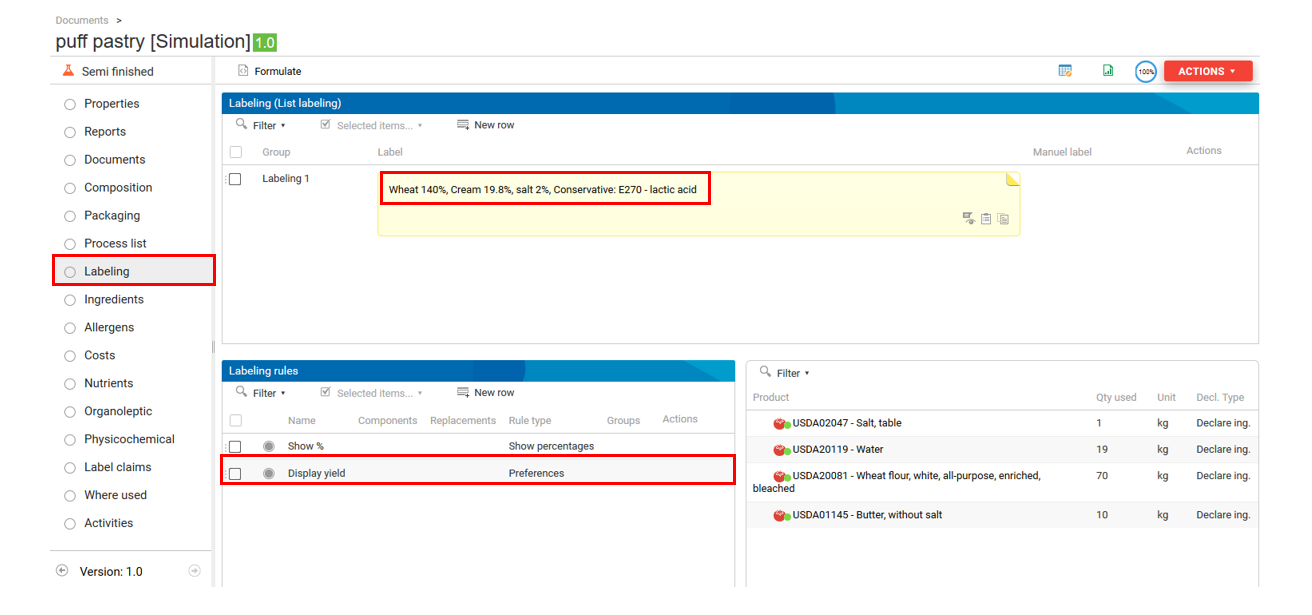
Or all the water of the product has evaporated, as well as a small part of the water contained in the ingredients. In this case, there is no more water; the percentages of the ingredients whose water has not evaporated have increased but remain below 100%, and the percentages of the ingredients whose water has evaporated have increased and exceed 100%.
Overcooked product composition:
Overcooked product labeling:
Regulation on the labeling of cooked products
According to Annex VIII of EU regulation 1169/2011, for foods that have lost moisture following heat treatment or other treatment, the quantity is expressed as a percentage of the quantity of the ingredients used, related to the finished product. When this quantity, or the total quantity of all the ingredients mentioned on the label, exceeds 100%, the quantity is expressed as the weight of the ingredients used to prepare 100 g of finished product (EU regulation 1169/2011).
For products that have lost water, the ingredient percentages are therefore computed as follows: [ (Percentage of the ingredient used in the raw product x Raw product weight) ] / (Cooked product weight)
Labeling of percentages as prepared
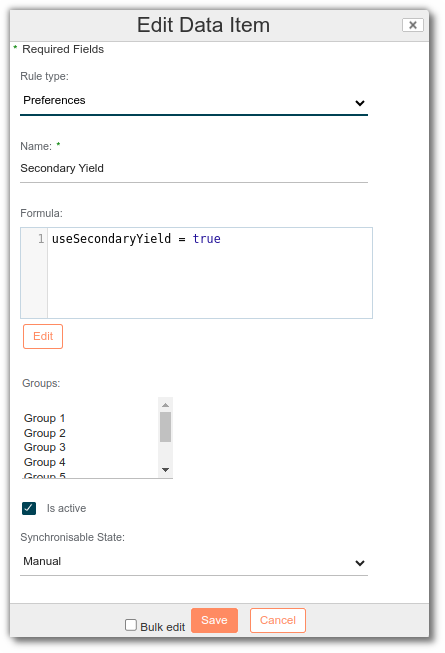
You can also label according to the quantity as prepared. To do this, calculate the "Qty as prepared (%)" column of the ingredient list (see Yield as prepared).
Then, add the following labeling rule to take the secondary yield into account:
useSecondaryYield = true
Additive labeling
Additives must be associated with an ingredient type to be grouped in accordance with legislation. To do this, check that the ingredient type exists in the list of values (click here). Then associate the additive with this type in the ingredient characteristic list. You can also change the type of additive on the label using the ingredient type labeling rule.
If an additive can have several types depending on its use, it is advisable to create a separate ingredient for each type. Example: E300 can be an antioxidant or a flour treatment agent, depending on the application.
Alcohol case
Evaporated alcohol is not handled through the yield but through declaration rules, using "Omit" for example.
Reconstitution of an ingredient
A reconstituted ingredient is an ingredient that has been previously dehydrated, concentrated, or dried for preservation or transportation purposes, and then restored to its liquid or original state by adding an appropriate amount of water (or another diluent) during the manufacture of the finished product. If the added water exactly compensates for the water evaporated during concentration, the ingredient can often be listed under its original name.
Set reconstitution data for the raw material
To configure a raw material to be reconstituted:
Add the "Reconstitutable" aspect Assign the "Reconstitutable" aspect to the raw material. Click here for more information.
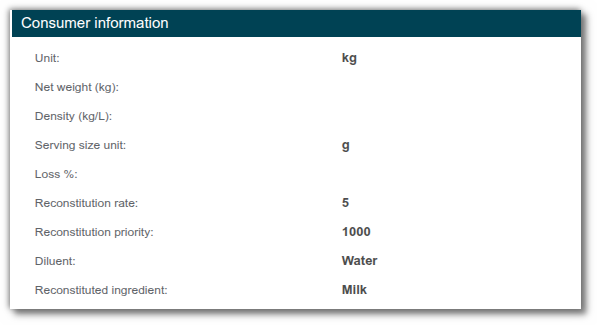
Configure the reconstitution fields Once the aspect has been added, new fields are available in the raw material properties. Fill them in according to the following rules:
- Reconstitution rate: Final quantity / Initial quantity. Example: Milk reconstitution rate = (20 g of milk powder + 80 g of water) / 20 g of milk powder = 5
- Reconstitution priority: if the same diluent (e.g., water) is shared among several reconstituted ingredients and its total amount is limited, define a numerical order of priority. The higher the number, the higher the priority of the ingredient. Example: if you assign priority 2 to fruit juice and priority 1 to milk, the available water is allocated first to the fruit juice. The milk is then reconstituted only up to the amount of water remaining.
- Diluent: select the ingredient in which the raw material is reconstituted (e.g., water).
- Reconstitution ingredient: enter the name of the ingredient after reconstitution (e.g., milk).
Labeling of the reconstituted ingredient
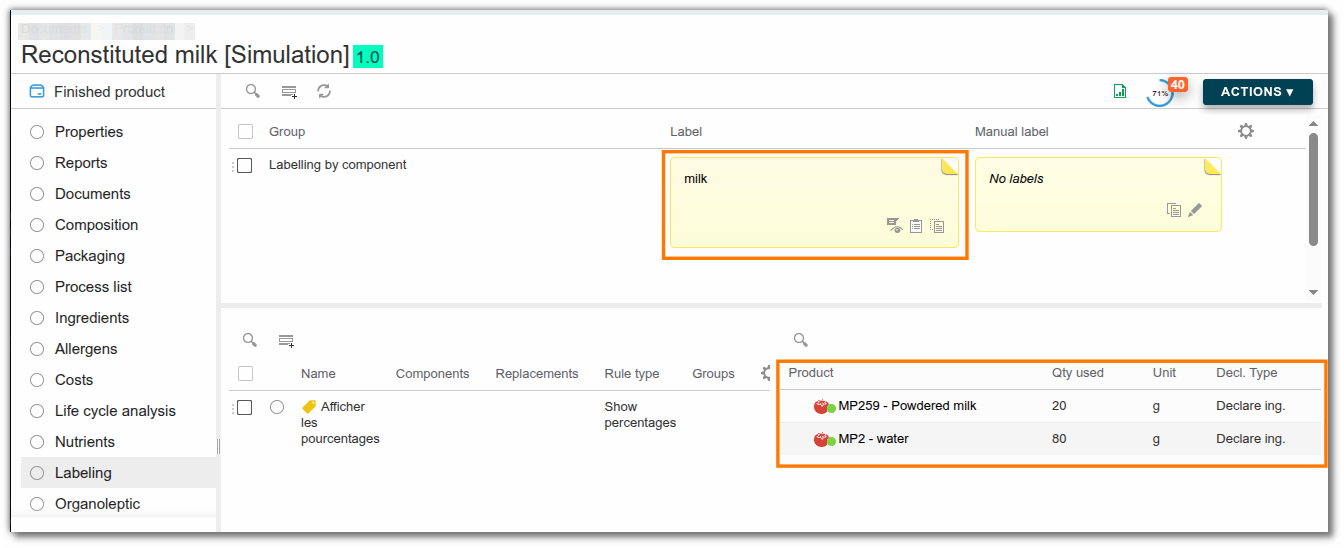
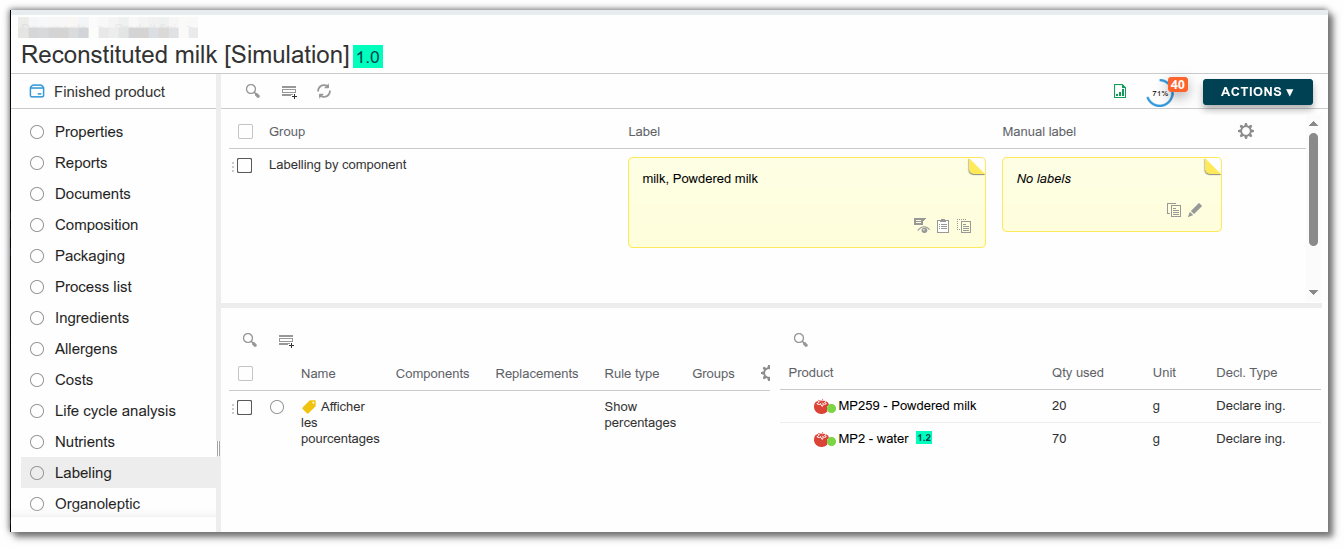
For the reconstitution to be applied correctly to the label, the recipe must meet the following conditions:
- Recipe composition: it must contain both the raw material used as a diluent (e.g., water) and the raw material to be reconstituted or diluted (e.g., powdered milk).
- Declaration type: in the labeling list, the diluent and the raw material to be reconstituted must have the "Declare ing." declaration type.
The reconstituted ingredient then automatically appears on the label in proportion to its reconstitution rate.
Management of surpluses: if not all of the diluent or of the ingredient to dilute in the formula is used for the reconstitution, the remaining quantities are automatically labeled under their own names, as usual (after deducting the quantities used for reconstitution).
Excess amount of diluent:
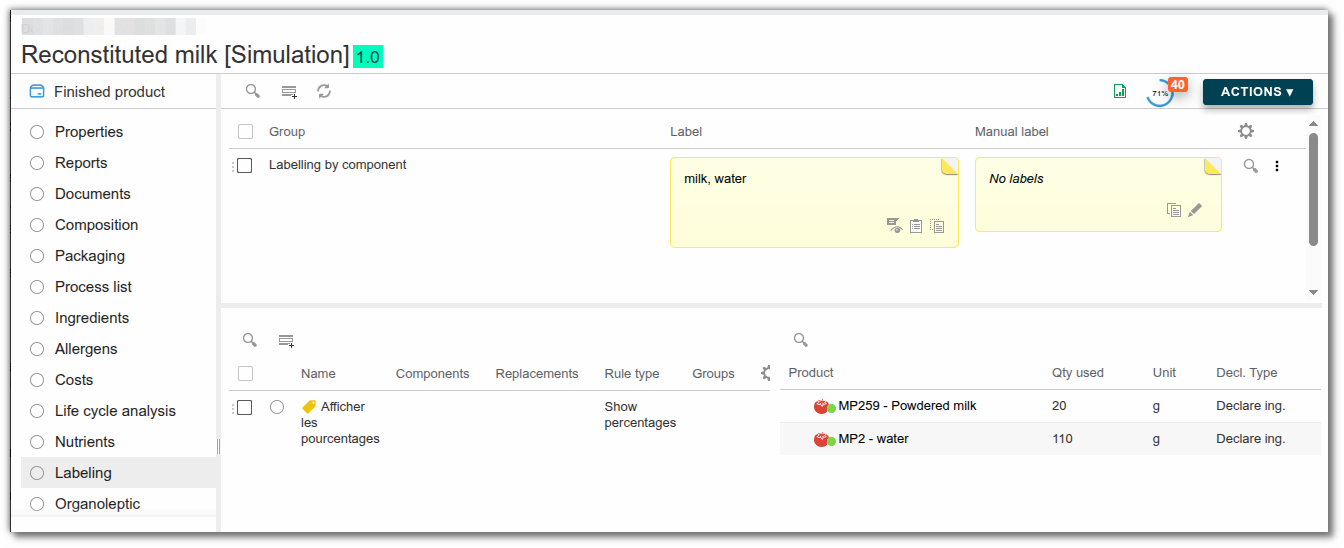
Excess amount of ingredient to be reconstituted:
Labeling and QUID meat
Meat type list (QUID) (list of values)
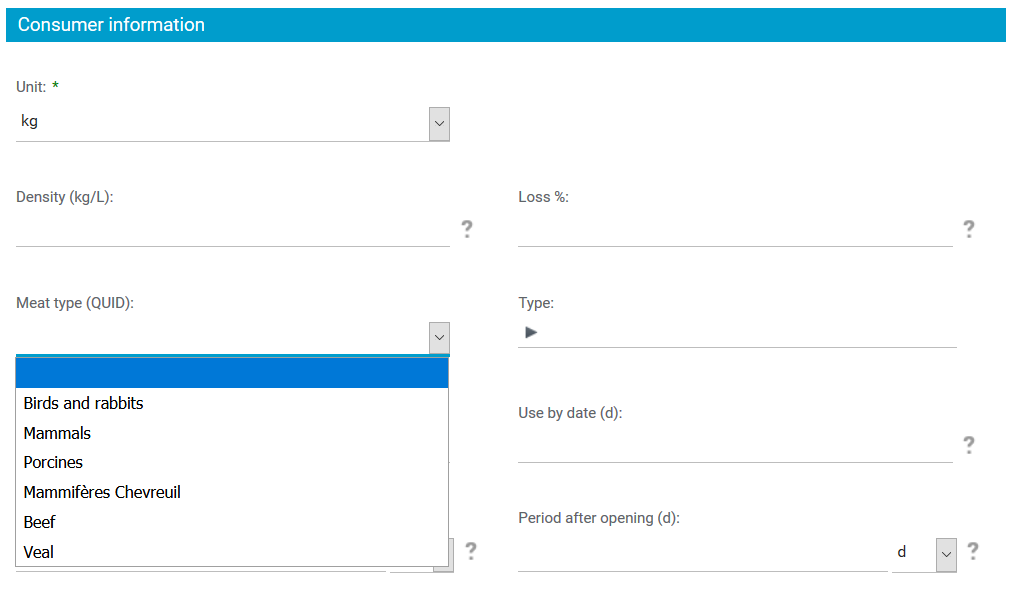
The list of meat types is in "Lists of values" > "Meat types (QUID)". By default, three meat types exist in the system: BirdsAndRabbits, Mammals and Porcines. You can add new elements to this list.
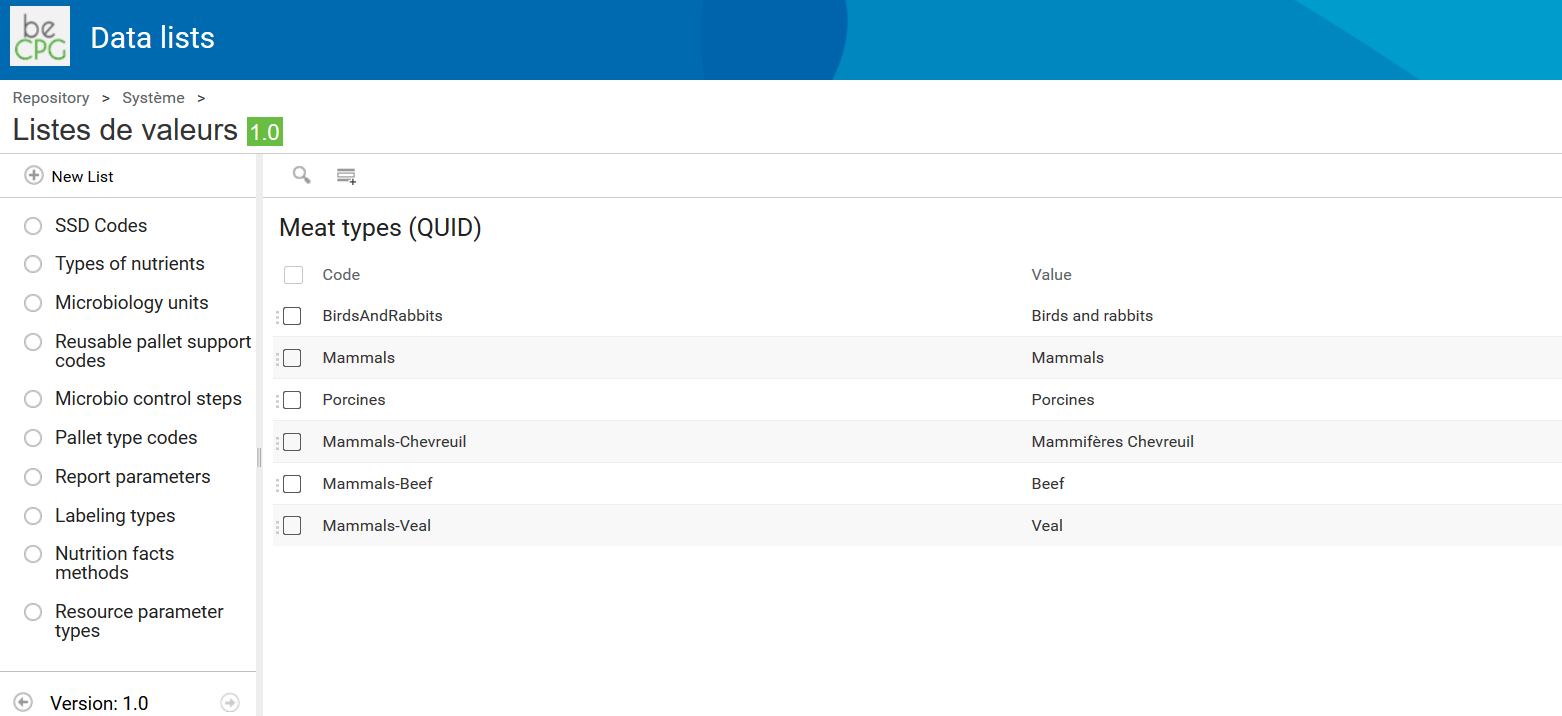
To add an element, click "Add new row". Then enter the code (mandatory for the QUID to work properly) in the form "Main type code"-"code of the new category" (e.g. BirdsAndRabbits-Rabbit), and add the value, which is the name of the category (e.g. Rabbit).
Collagen nutrient
As collagen is used for the meat calculation, you must add it to the nutrient list of the:
- Raw material template
- Semi-finished product template
- Finished product template
To do so, go to each product template > "Nutrients" list > "Add a new row" and search for "Collagen" by typing the first letters.
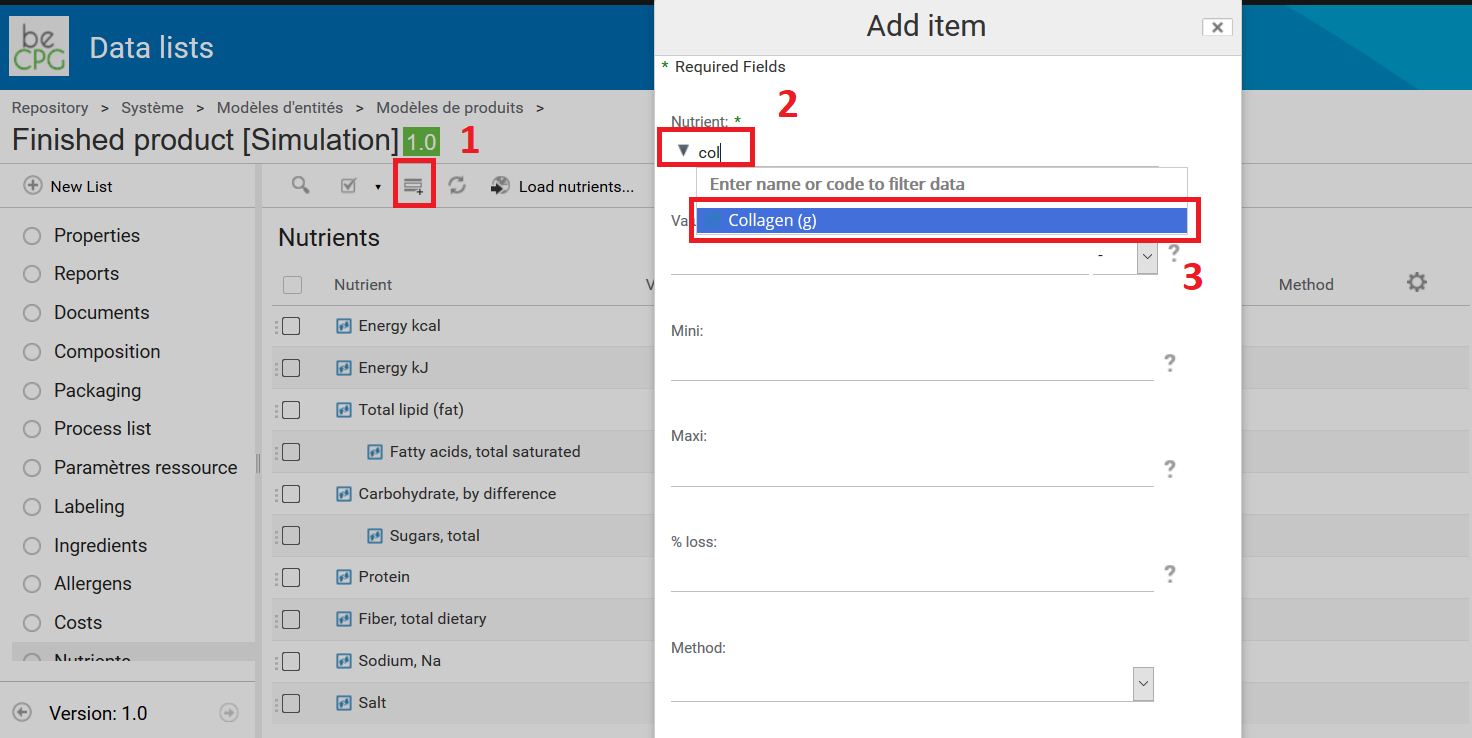
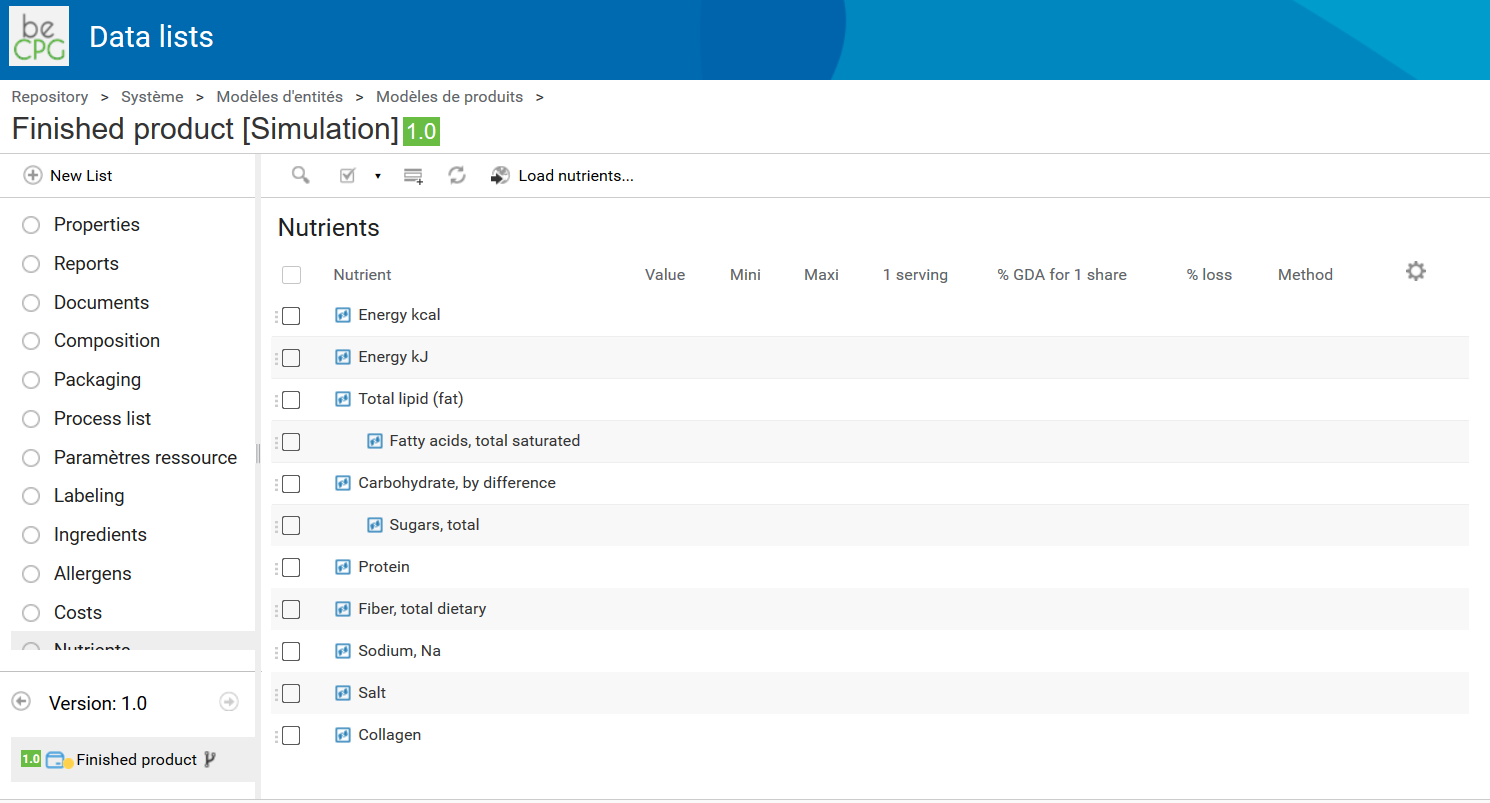
Select it and click "Save". Collagen is added to your template.
Raw material meat type
This applies only to raw materials.
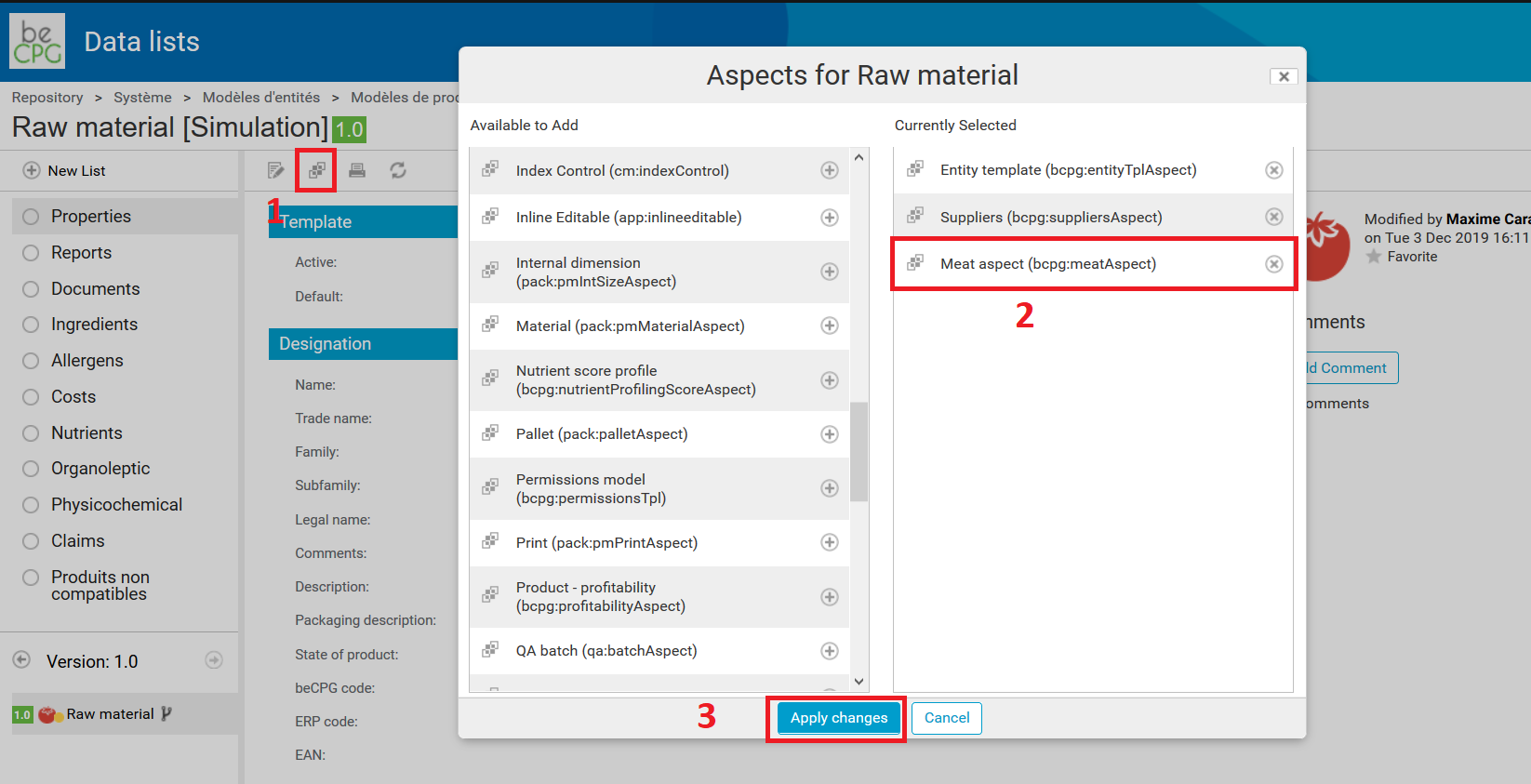
Go to the raw material template and click "Add an Aspect". Then look for the Meat aspect (bcpg:meatAspect), select it by clicking "+" and click "Apply changes".
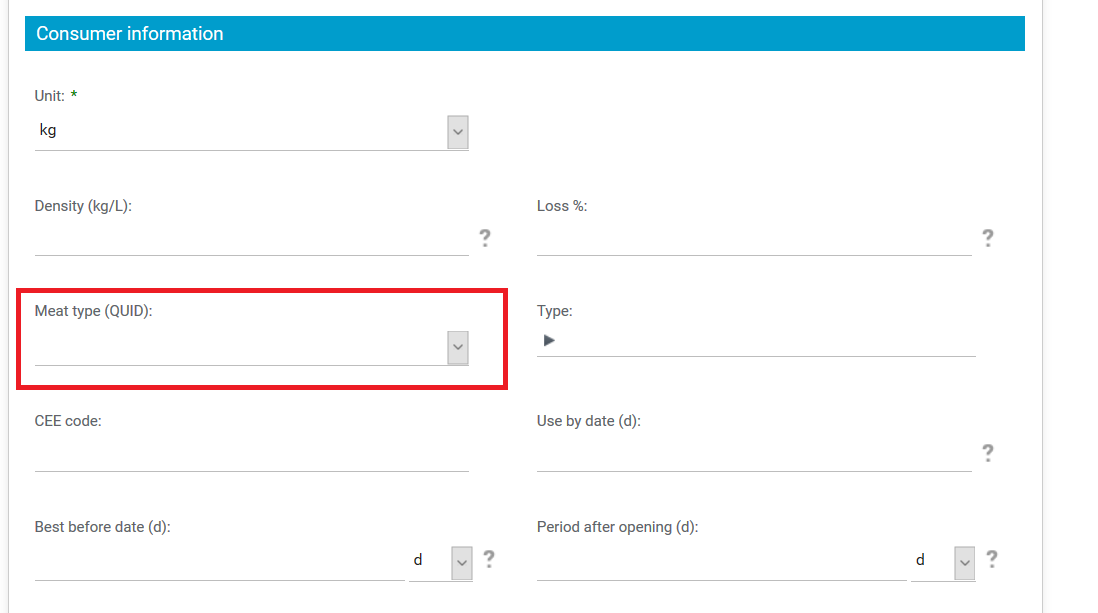
A new field, "Meat type (QUID)", is then available in the Consumer information part of the properties.
This field is a drop-down list based on the Meat type (QUID) list described above.
As each meat raw material has a QUID meat type, the finished product recipe knows which meat types the product is made of.
Note: since version 3.2.0, you can also add this aspect to semi-finished and finished products. This is useful if you do not use raw materials.
QUID composition calculation
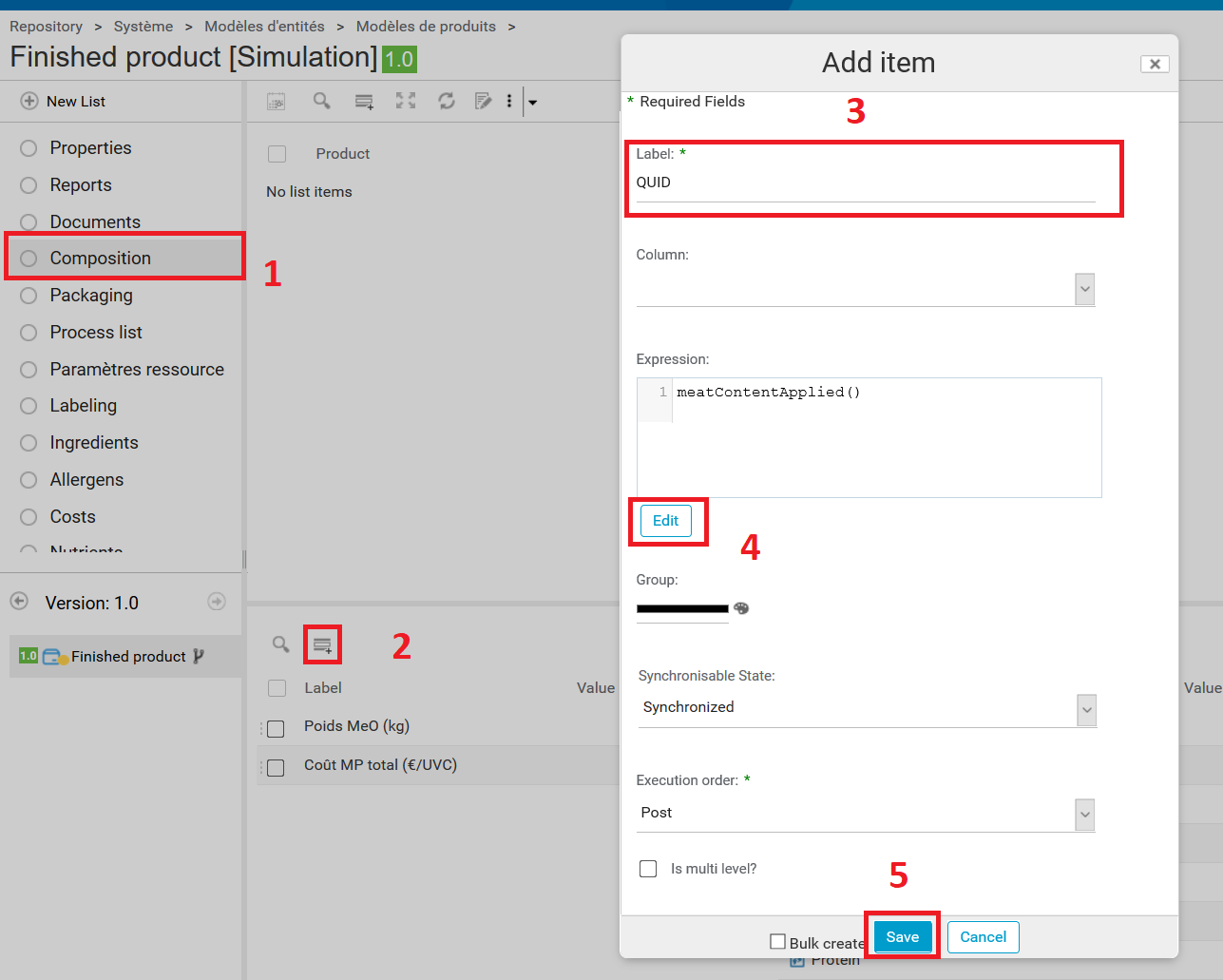
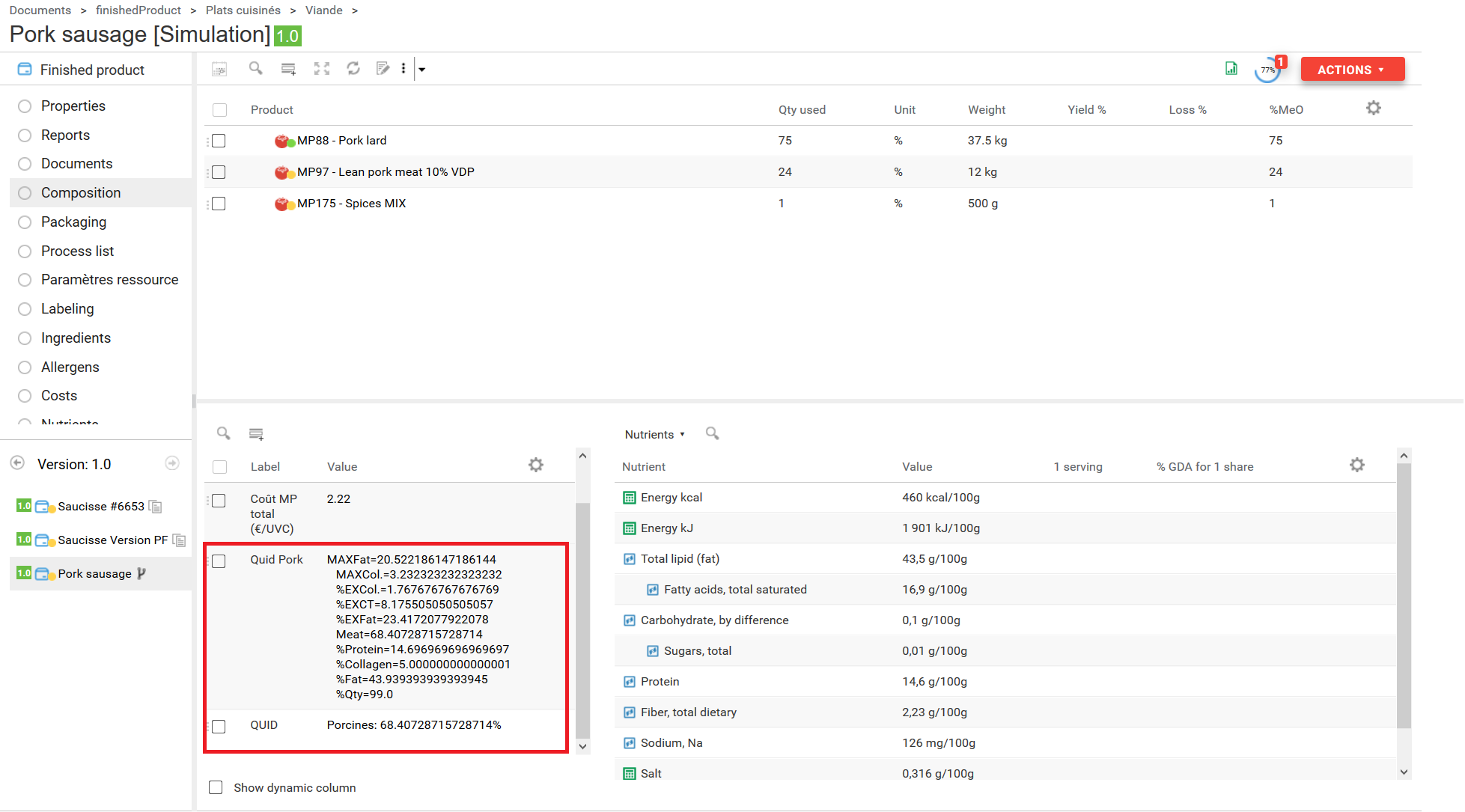
This section applies to finished products, and can also be used for semi-finished products. In the template, you can add two dynamic characteristics. For the "Synchronisable State" of your characteristics, choose "Synchronized" or "Manual". If you choose "Template", the characteristics do not appear on the product.
- To display the % of each meat:
- Label: QUID
- Expression:
meatContentApplied()
- To display the details of one meat (MaxFat, Collagen, MaxCol, ExFat...):
- Label: {name of meat type}
- Expression:
meatContentByType("{meat type code}").toString()
For example, with the type "Porcines":
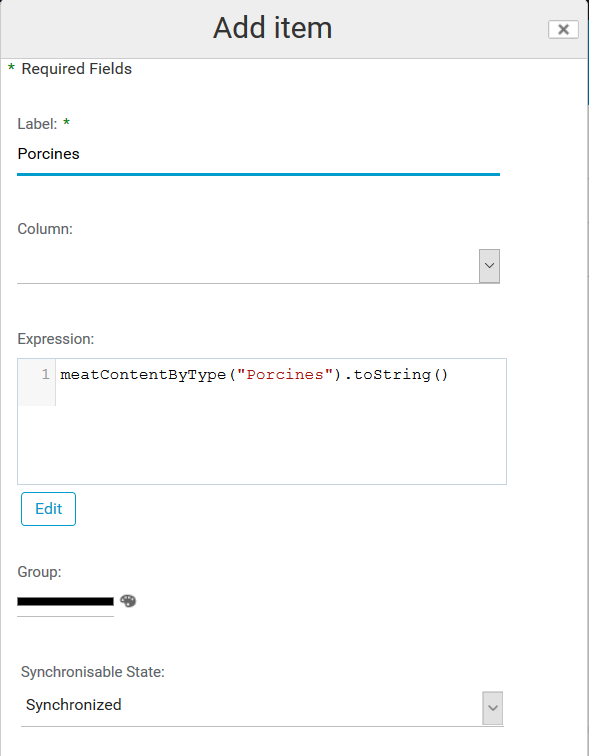
You can add as many detailed meat characteristics as you want. You can also add them directly to individual products rather than to the template, since a template modification applies to all products.
(These characteristics are for information only and are not mandatory. The QUID calculation works without them.)
QUID Labeling section
This applies to finished products, and can also be used for semi-finished products if they have a labeling section (not by default).
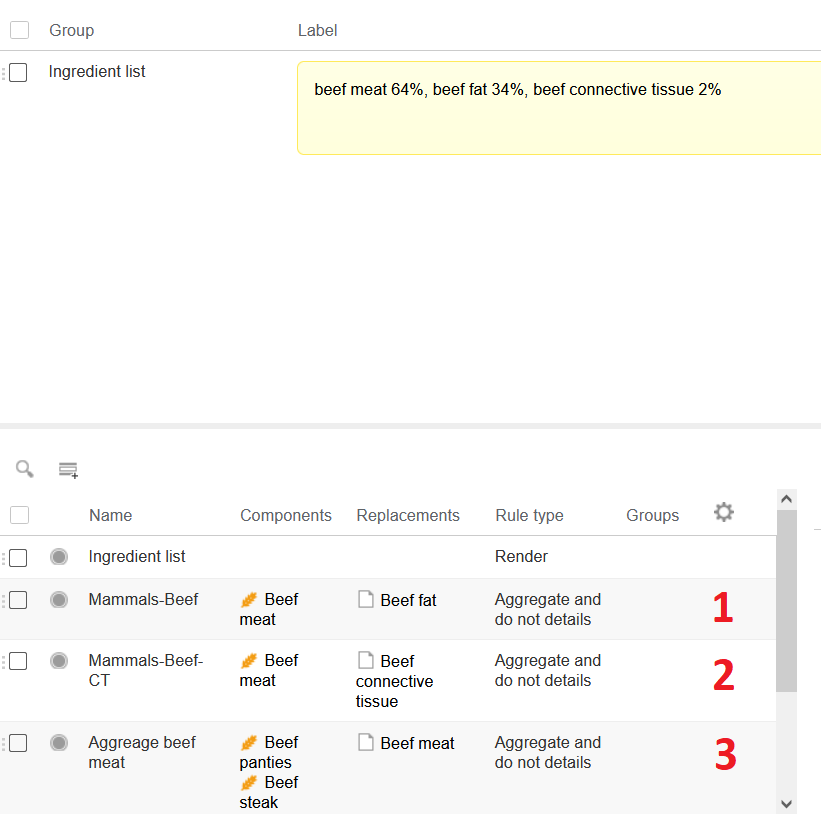
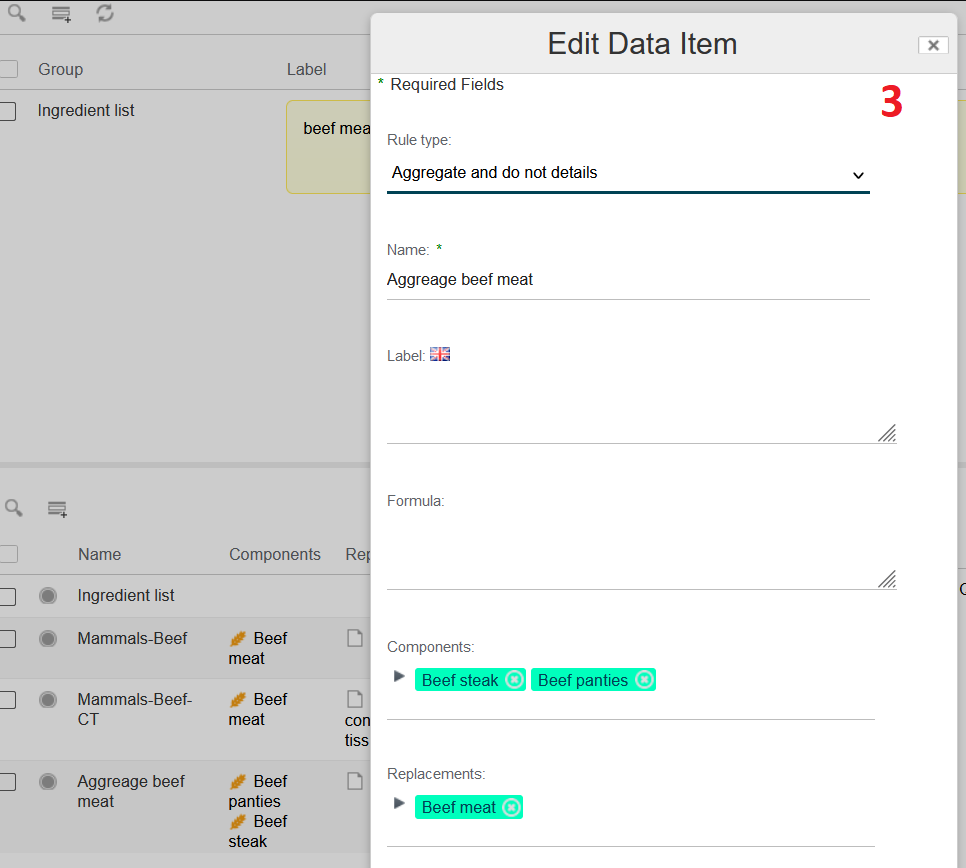
The "Agreggate and do not details" rule is used in three different ways:
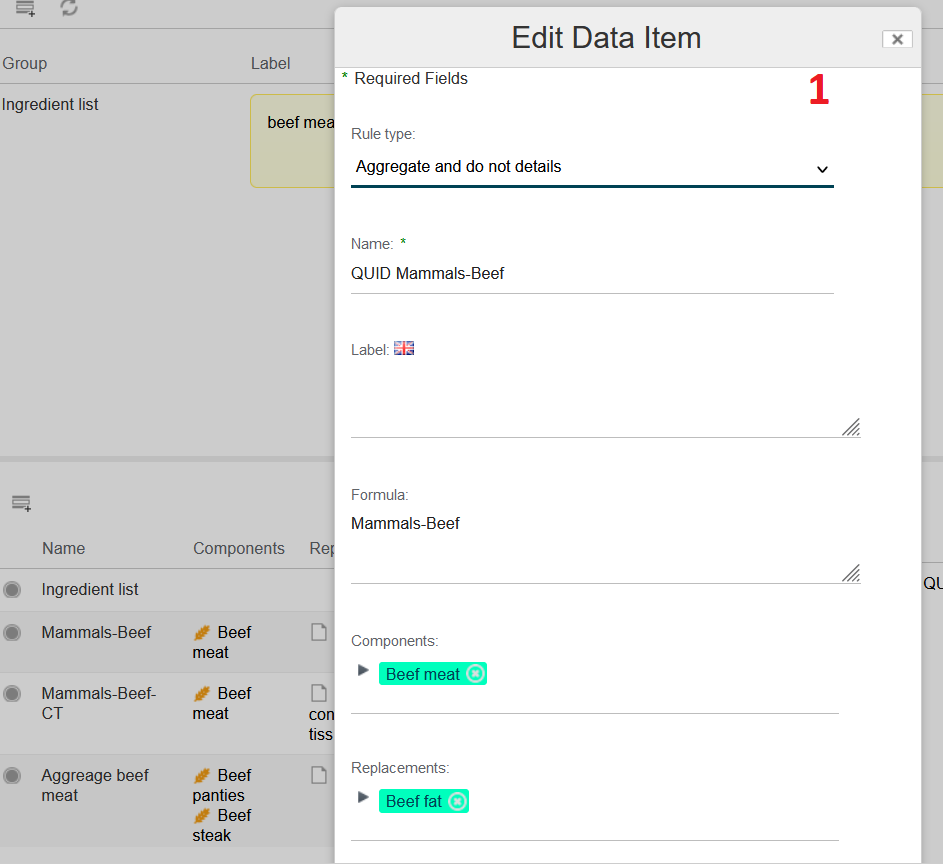
Excess fat declaration: lets the system declare the right proportions in the labeling, depending on the meat and fat quantities to declare per meat type. This rule is mandatory for the QUID calculation.
In the formula, use:
{MEAT_QUID_ID}Example:
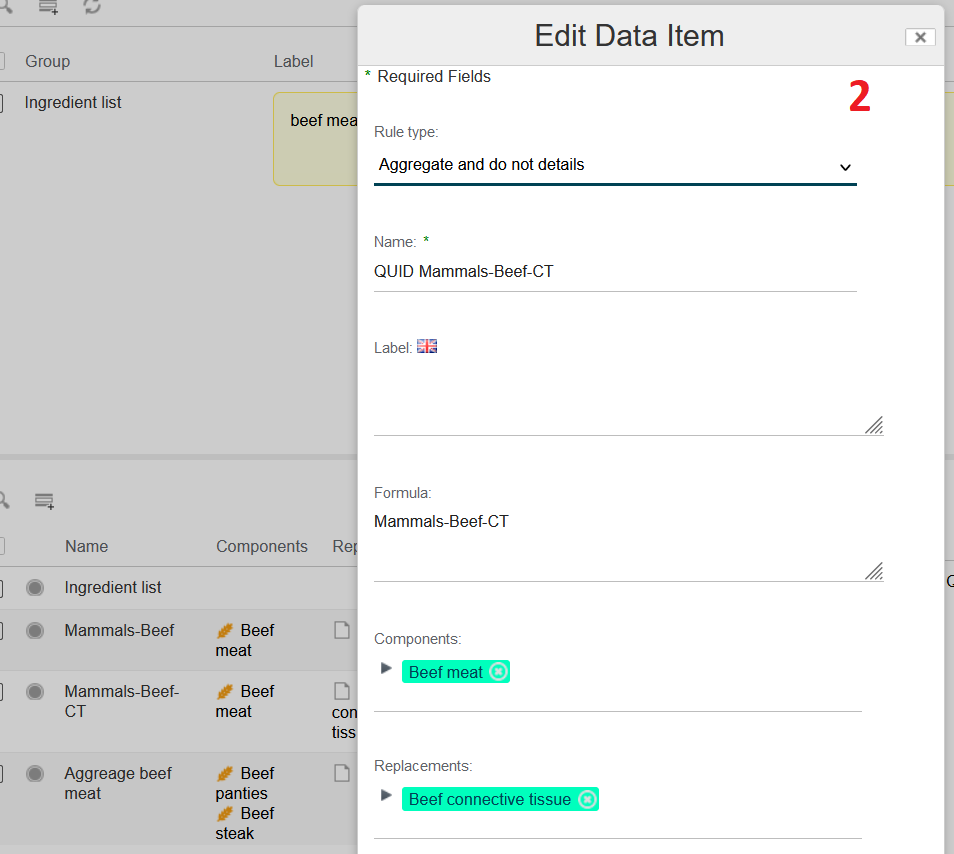
PorcinesExcess connective tissue declaration (available since version 3.2): lets the system declare the right proportions in the labeling, depending on the meat and collagen quantities to declare per meat type. This declaration must be used together with the fat declaration.
In the formula, use:
{MEAT_QUID_ID}-CTExample:
Porcines-CTGrouping: lets the system group different ingredients of one meat type (for example, two raw meats, Pork meat and Pork ham, to be declared as "Porcines"). This use is not frequent.
QUID Results
Once everything is set up, enter the ingredients in the ingredient list of your raw materials (or of your semi-finished or finished products if you do not use raw materials).
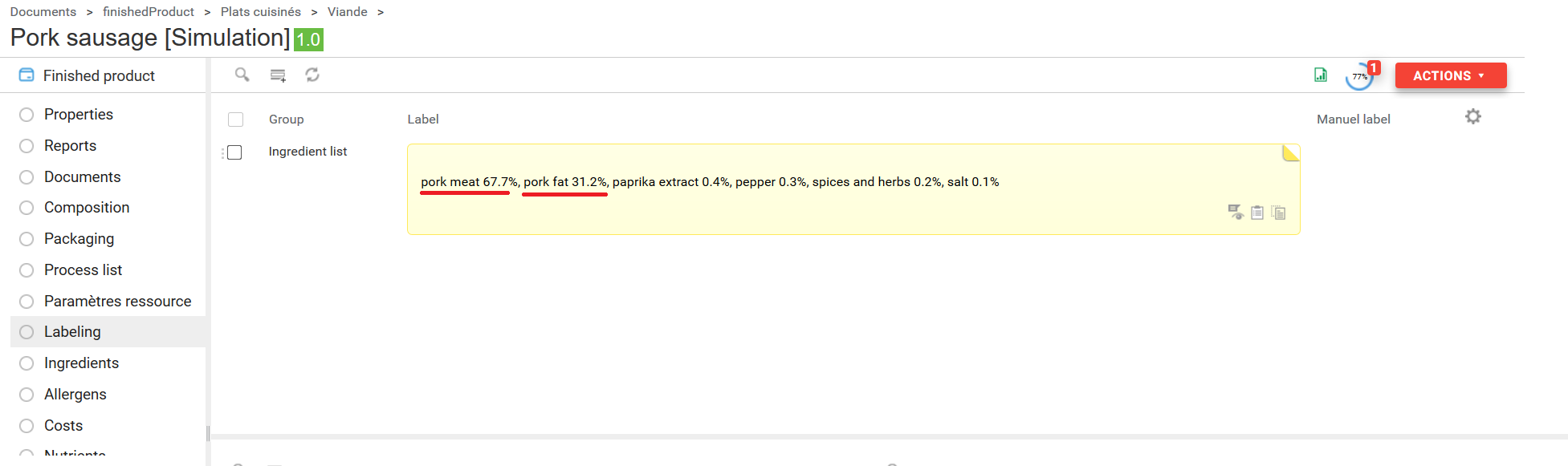
You can then see the meat calculation in two places:
- the composition, if you have created the characteristics;
- the labeling, which is the main purpose of the QUID configuration.
We recommend setting up dedicated finished product templates for the QUID calculation, depending on how often you use it. If you use it for almost every product, you can modify the main templates directly.