Business intelligence
Principle
According to Wikipedia, OLAP (Online Analytical Processing) is a type of computer application designed for the immediate analysis of information along different axes, in order to produce summary reports. OLAP also provides information extraction functions (for visualization, analysis or processing) and query functions in the MDX language. For example, you can analyze the sales revenue of a company along the following dimension: Product range > Type > Family > Reference.
Operation
Every night, an update is carried out so that saved queries take into account the changes made during the day.
Query creation
To create new queries, go to "beCPG" > "beCPG OLAP".
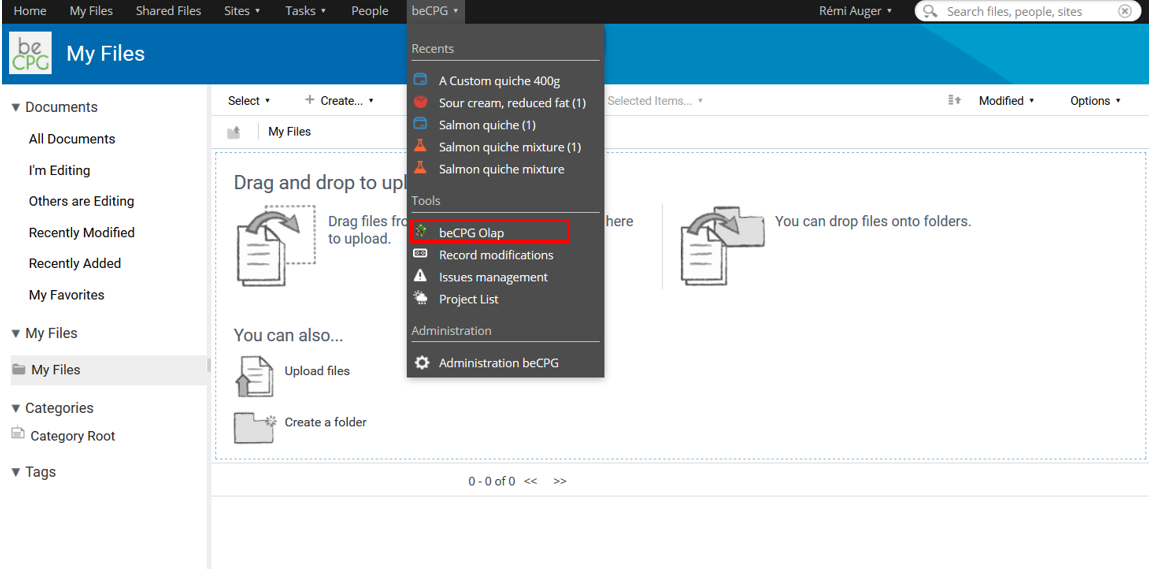
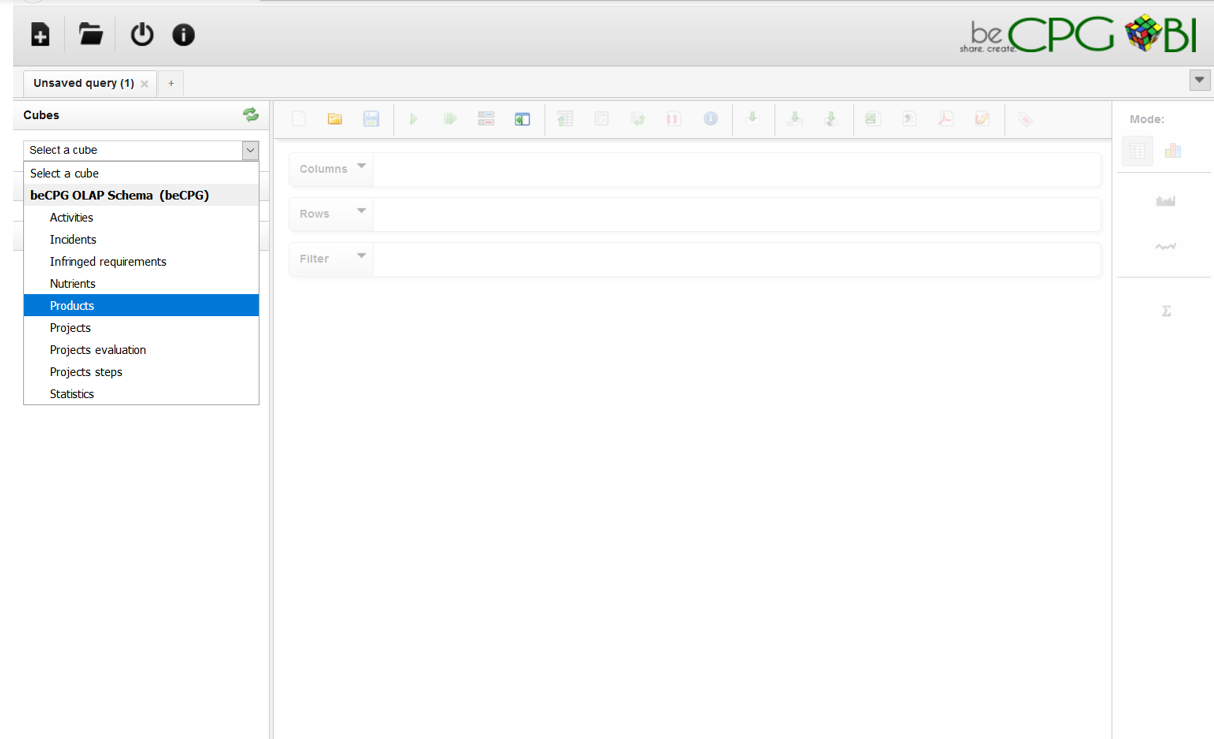
Choose the cube on which you want to create a query, that is, its subject, among:
- Project steps;
- Projects evaluation;
- Non-respected requirements;
- Incidents;
- Nutrients;
- Products;
- Projects.
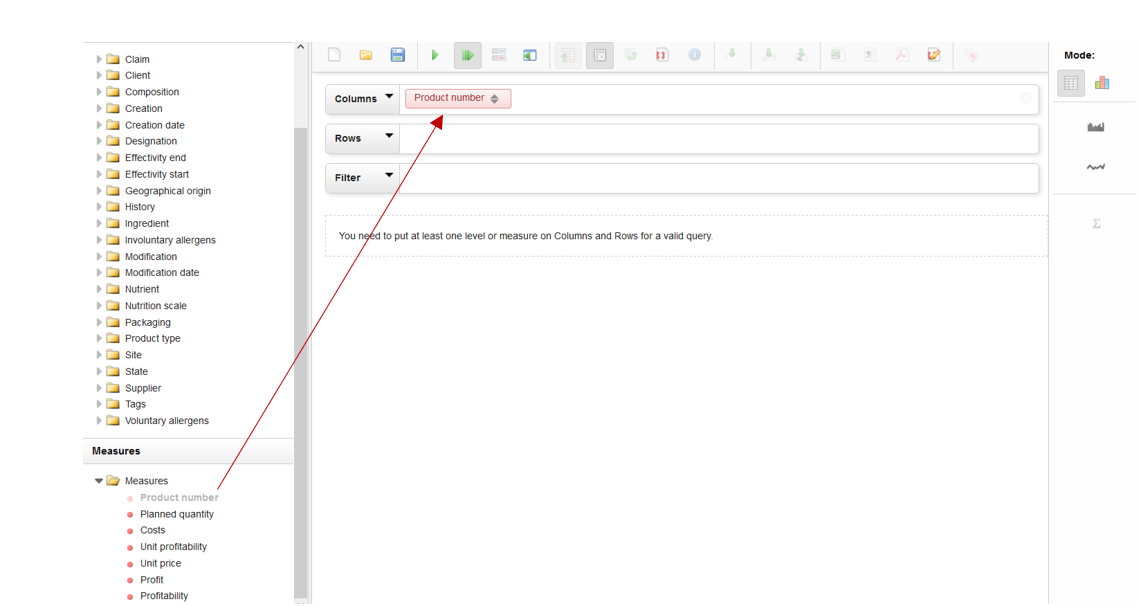
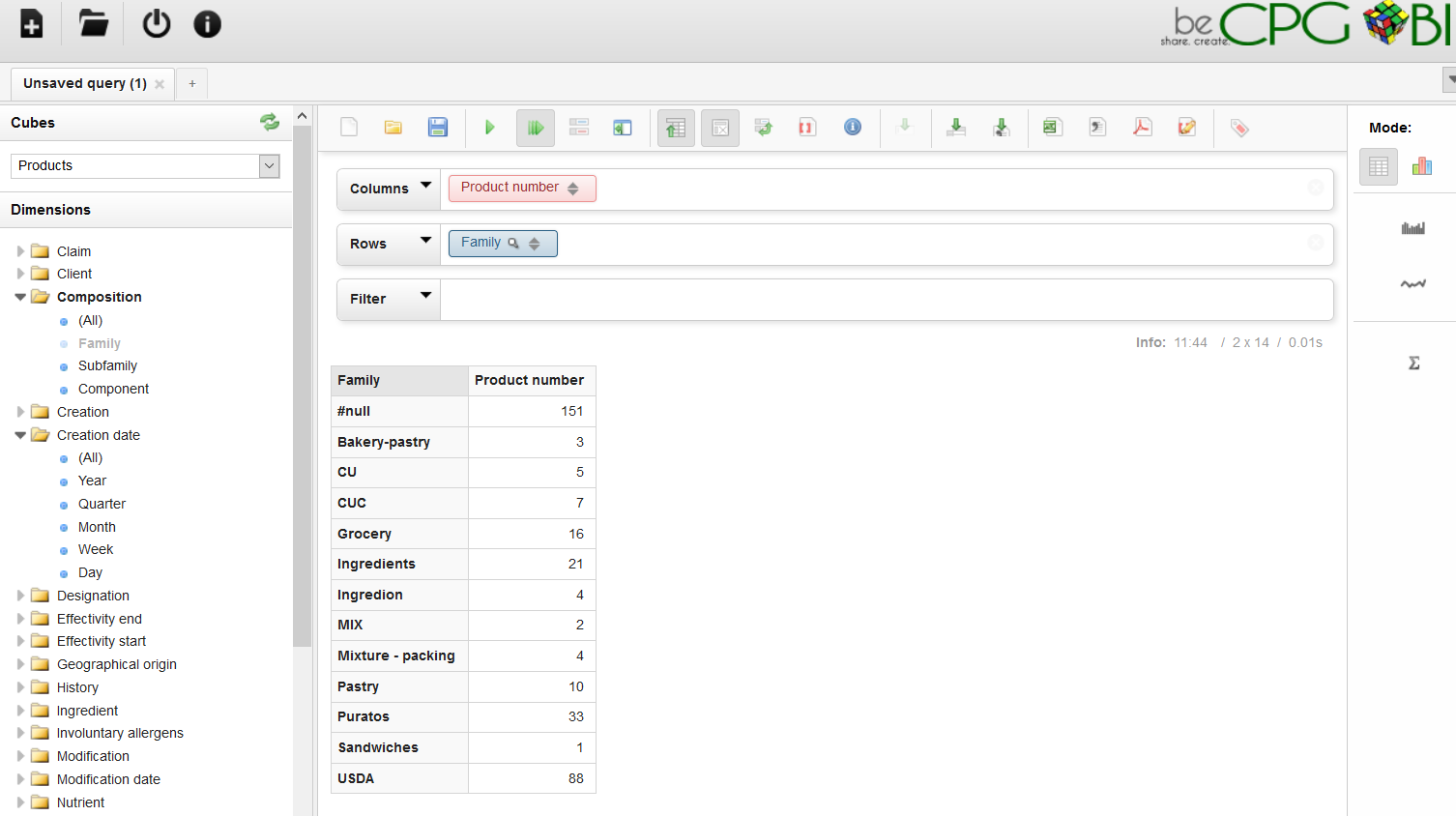
Choose the measure(s) to compute and drag and drop them into columns (as shown in the screenshot below) or into rows. For a "Products" cube, these measures can be:
- Products number calculation;
- Projected quantity calculation;
- Costs calculation;
- Unit profitability calculation;
- Unit price calculation;
- Profit calculation;
- Profitability calculation.
Choose the dimension(s) to compute and drag and drop them into columns or rows (as shown in the screenshot below). Dimensions categorize the measures. For example, you can display the number of products per family and per creation date (months).
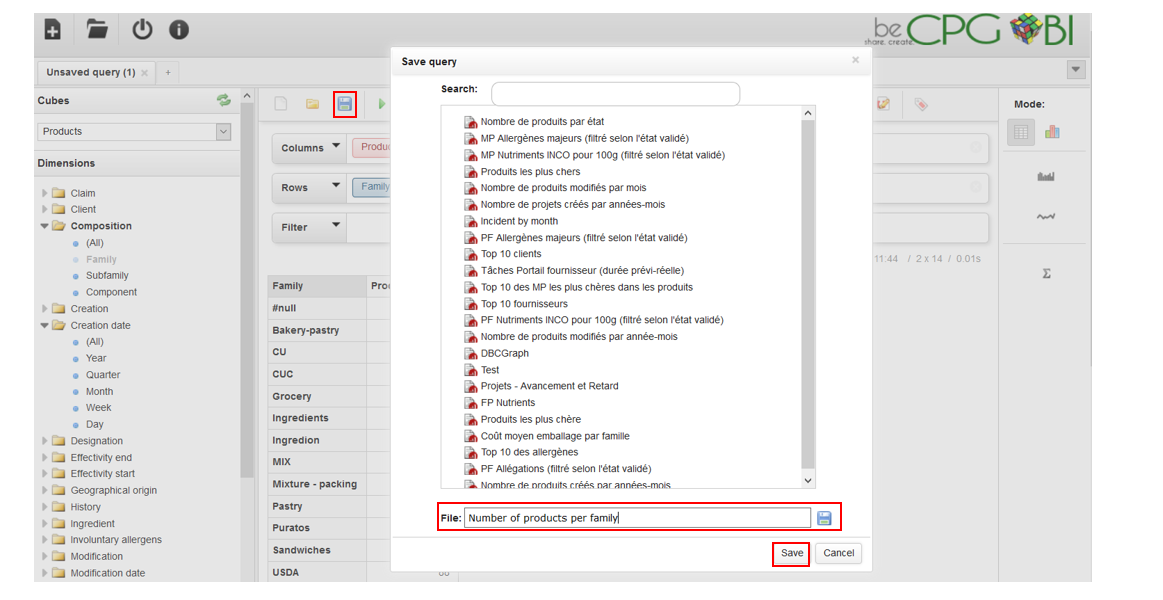
To save your query, click the floppy disk icon, give the query a name and click "Save".
Tips:
- To remove a measure or a dimension, click it or drag and drop it into an empty area.
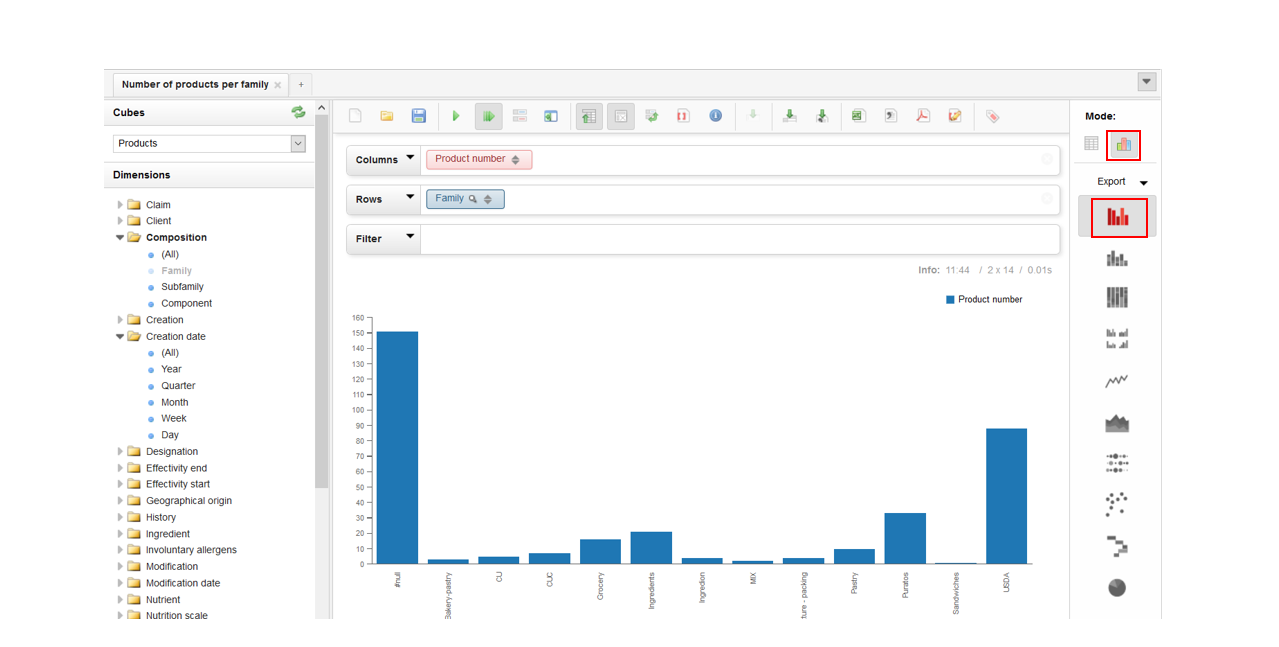
- To display the query as charts, click the icon at the top right of the screen.
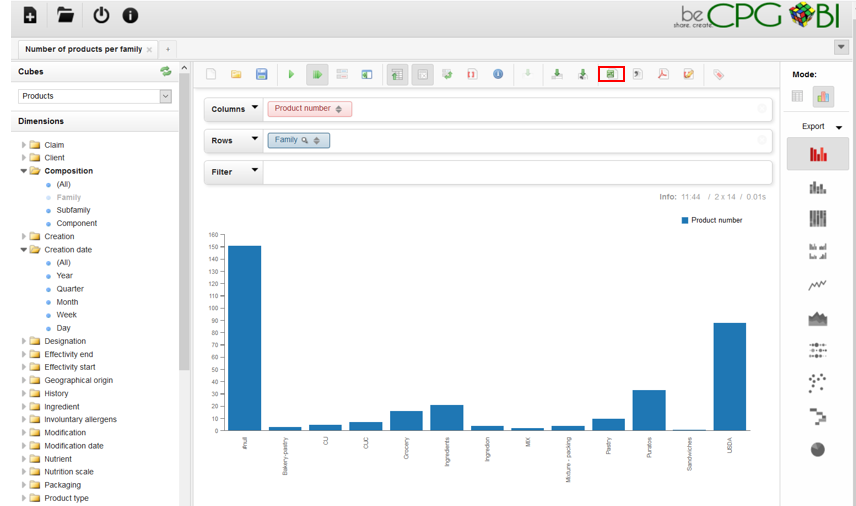
To export a query to Excel, click the icon circled in red in the screenshot below:
Query generation
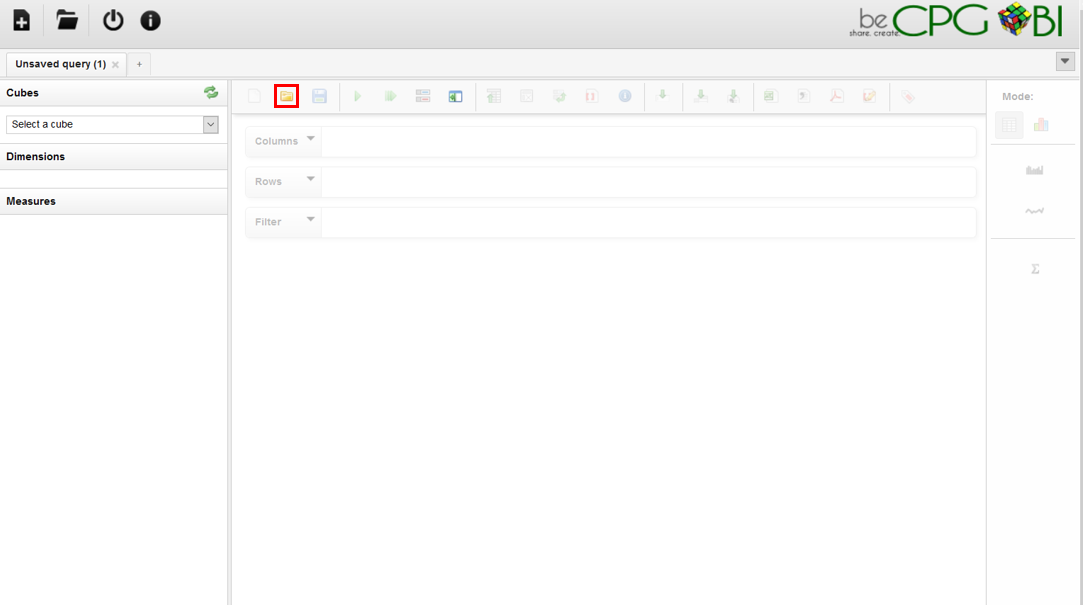
To run an existing OLAP query (created by yourself or by beCPG), go to "beCPG" > "beCPG OLAP" and click the yellow folder icon.
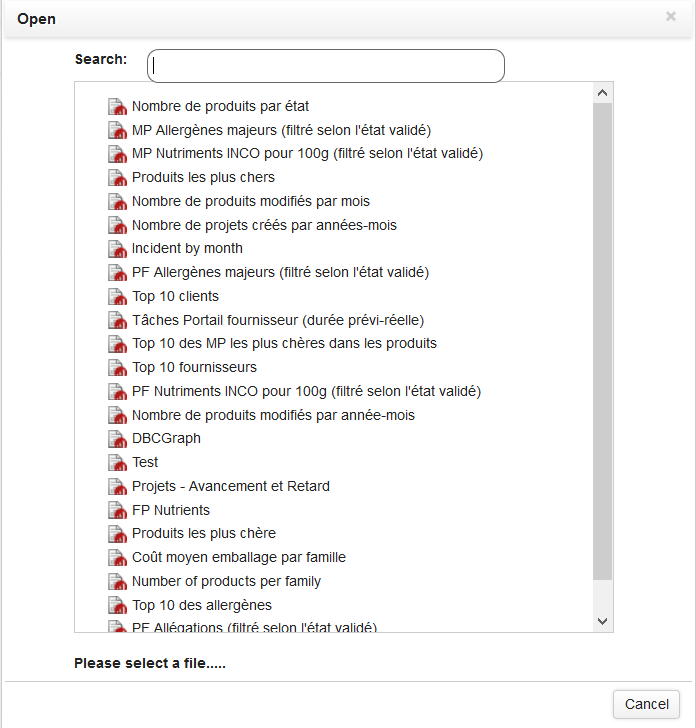
Click the desired query and then "Open".
Daily consultation of queries
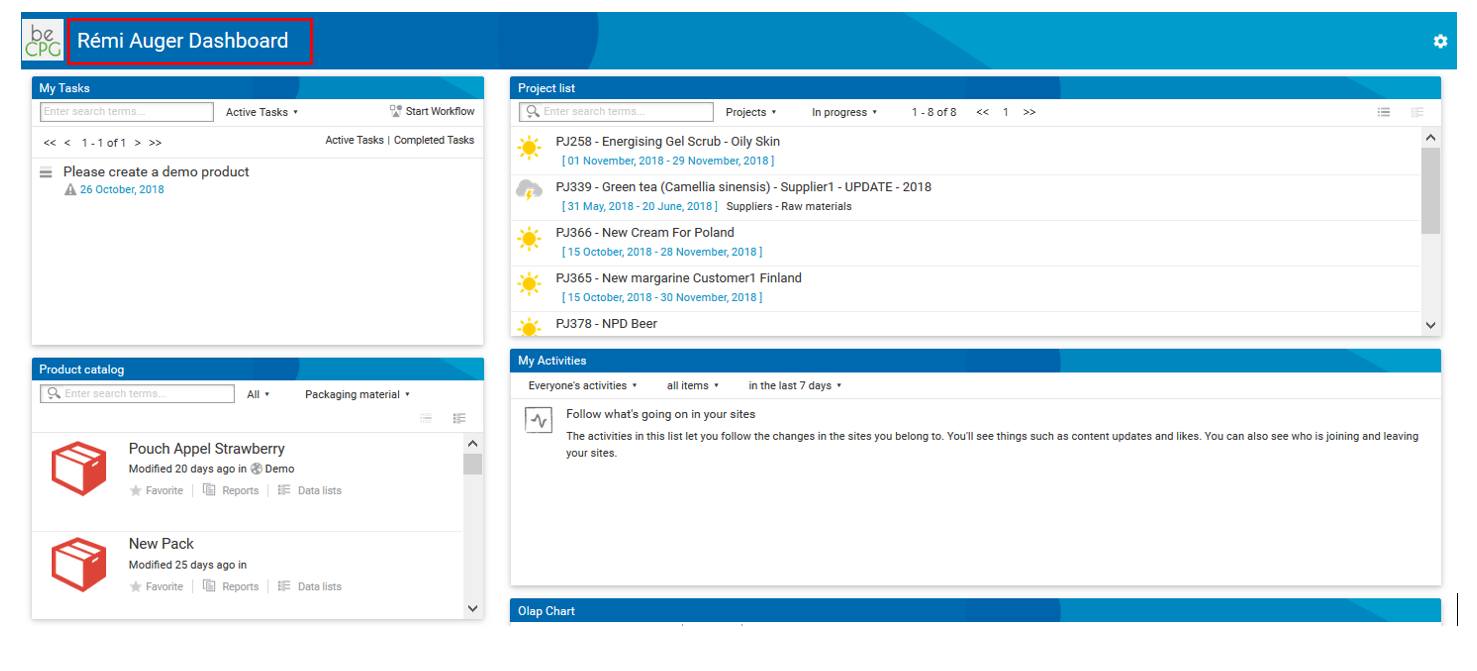
To run queries daily and monitor a saved query (created by yourself or by beCPG), go to your dashboard and click the gear icon.
Click "Add dashlets", select "BI chart", then drag and drop it to the desired dashboard column. Finally, click "OK".
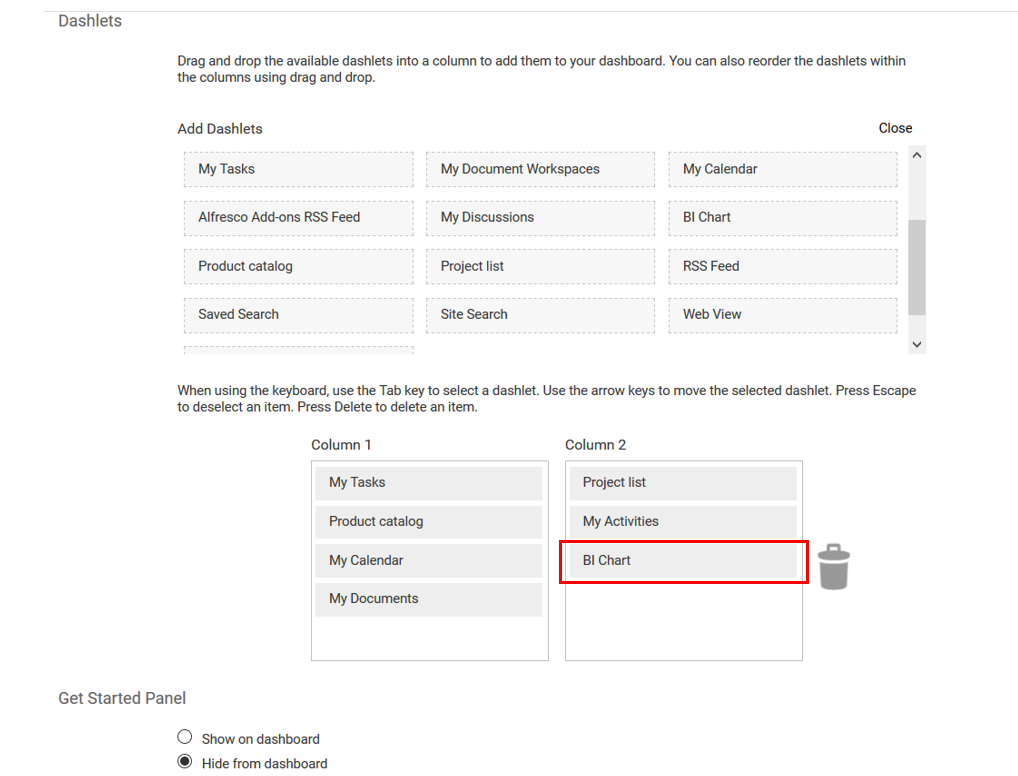
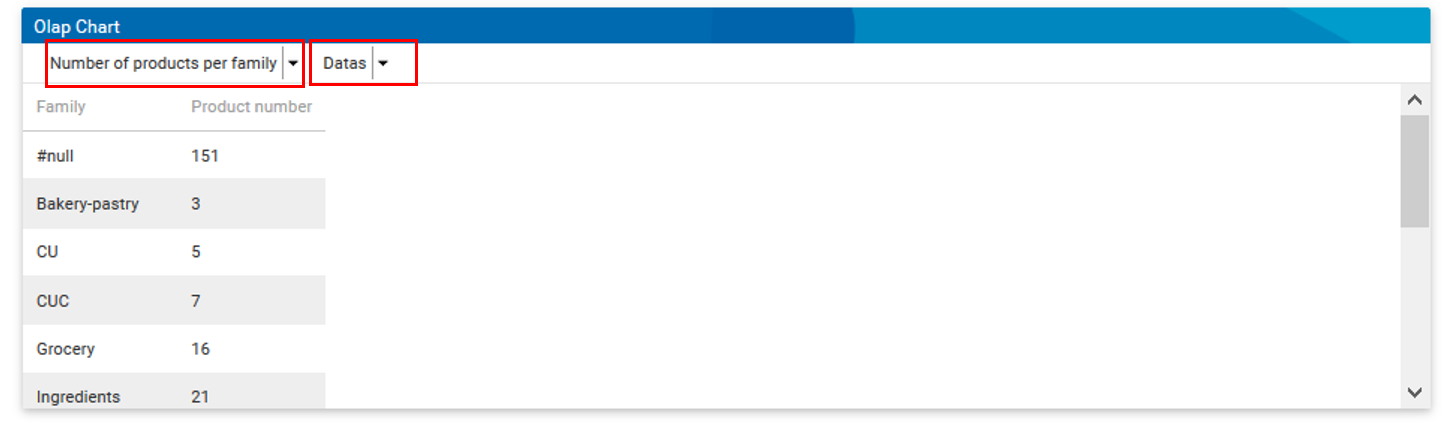
An "OLAP chart" section with two drop-down lists appears on your dashboard. These two lists let you choose:
- the query;
- the chart type.