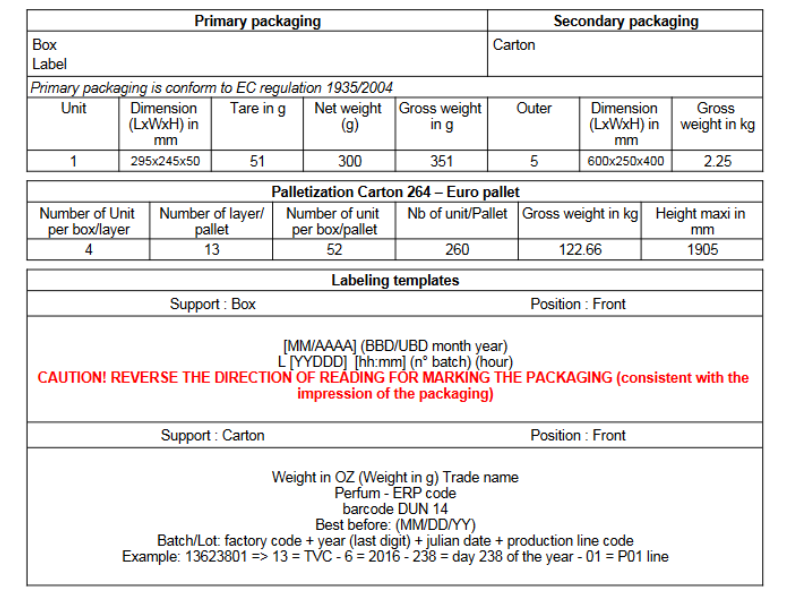
Labeling templates
Labeling templates let you associate labeling information (such as the date coding position) with packaging and display it in the packaging section of your reports.
Creating labeling templates
First, create the labeling templates you want to use. To do so, go to "beCPG Administration" > "Characteristics" > "Labeling Templates". Click "Create", enter a name for your template and add a description. The description is the text displayed in the report.

Labeling positions and types are also defined in the administration. To do so, go to "beCPG Administration" > "List of values" > "Labeling types" (e.g. Ink jet and color) and "beCPG Administration" > "List of values" > "Labeling positions" (e.g. Back).
Assign a labeling template to a finished product
Next, assign a template to a finished product. Go to the packaging list of your product. Select a packaging item in the list and click "Manage labeling aspect".
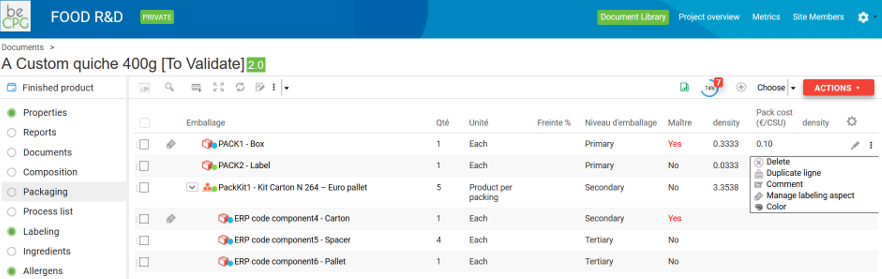
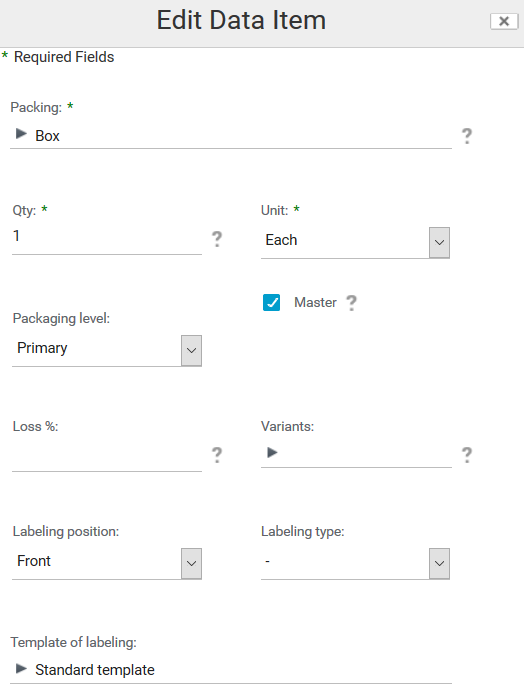
Then click "Edit" and select the position of your labeling template.
The labeling template is then displayed on the report of your finished product.