Navigation - Access to contents
Once logged in to beCPG PLM, you can navigate via the user dashboard, the menu bar or collaborative sites to finally consult a product.
User dashboard
My Dashboard presents an overview of the beCPG application. You can access it from the menu bar by clicking "Home". Click the gear icon to customize it: change the layout or add dashlets.
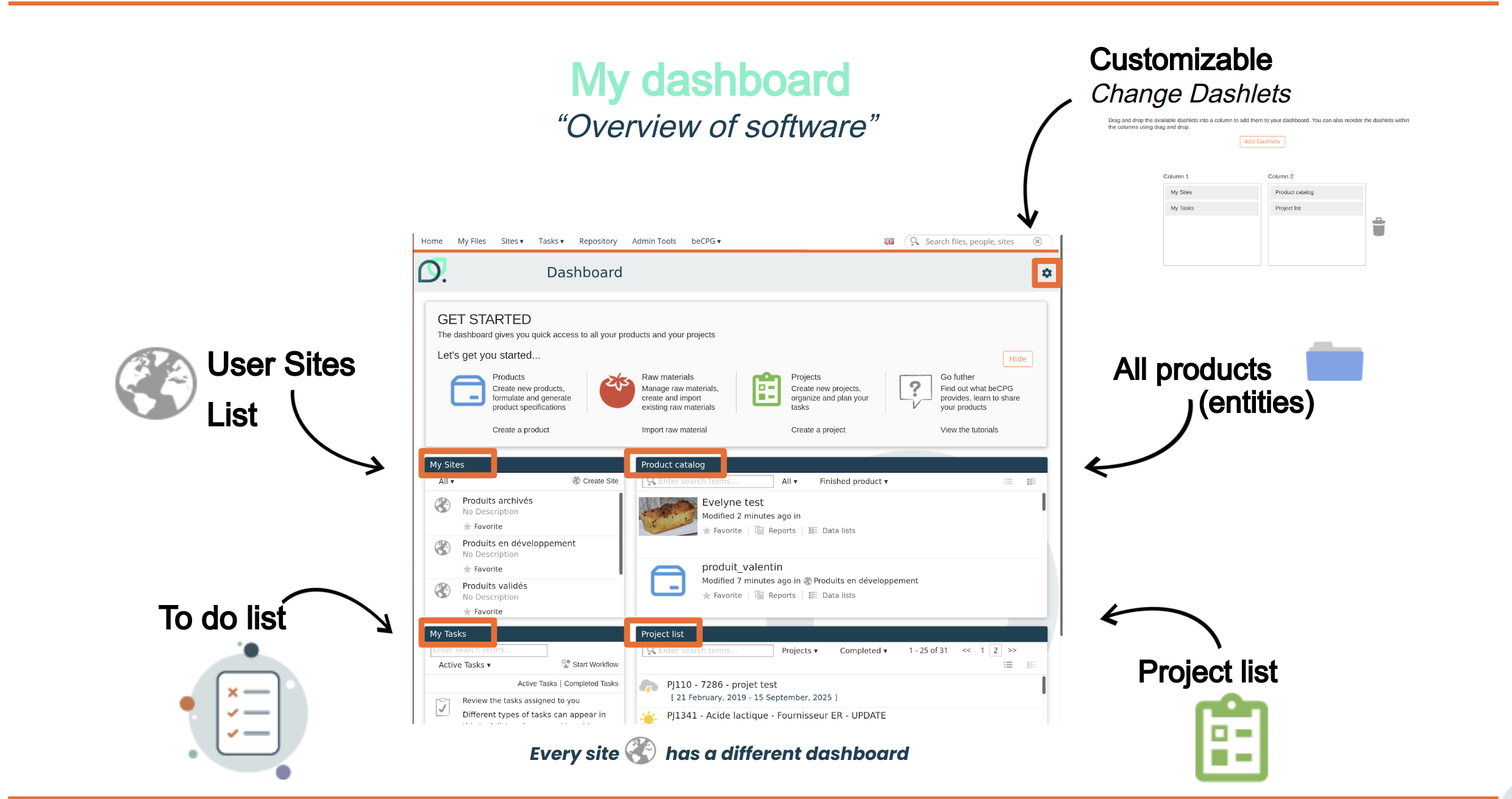
Each user can customize it with the "Customize dashboard" button by adding dashlets. There is a global dashboard for beCPG and a dashboard for each collaborative site.
By default, the dashboard presents:
- My tasks: the tasks and workflows to which the user is assigned
- My Sites: the list of the sites to which the user has access
- My activities: the activity of my sites, including the creation, deletion and modification of content (documents, products, wiki pages, forum posts, etc.)
- Product Catalog
- Project list: the ongoing projects the user is part of
Other dashlets are available:
- My calendar: the shared calendar events to which the user has access
- My Documents: "Favorites", "Locked by me" and recently "Modified"
- My profile: information on the user
- My activities: the activity of my sites, including the creation, deletion and modification of content (documents, products, wiki pages, forum posts, etc.)
The interface language can be changed via the flag next to the user's name.
The menu bar
The contents are accessible from the menu bar:
- Home: displays your dashboard, with:
- the "My documents" dashlet for documents
- the "Product Catalog" dashlet for products
- the "Project list" dashlet for projects
- My files: personal space not shared with other users
- Sites: access to collaborative sites
- Tasks: view the tasks assigned to you
- Repository & Admin Tools: (system administrators only) access the system configuration
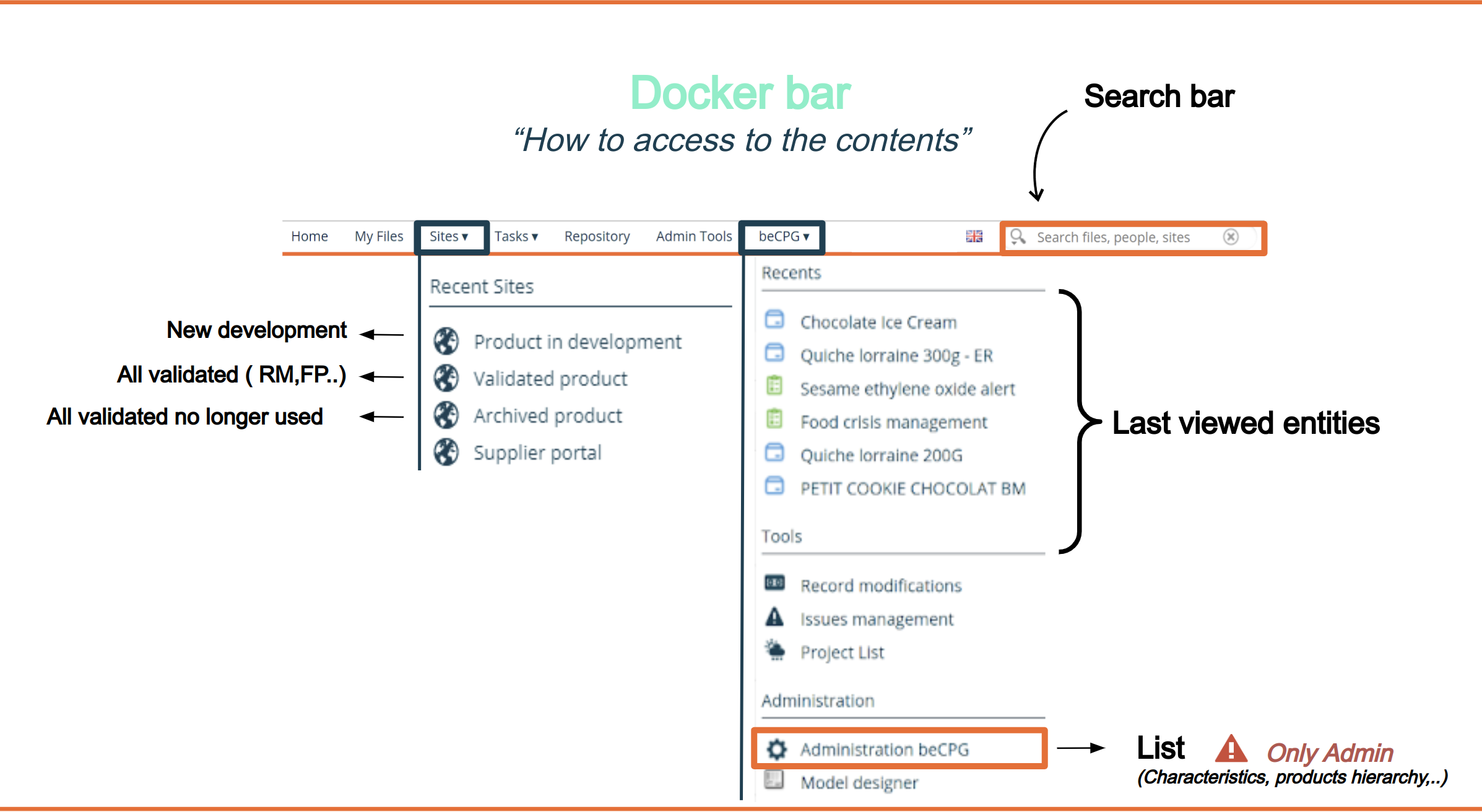
- beCPG: display the last 6 entities viewed and access the beCPG administration
- User profile: access user settings (notifications, trashcan, etc.)
- the simple search, by typing the name or the ERP/beCPG code, or the advanced search
Collaborative sites
Collaborative sites are workspaces shared by several users. All products, items and objects are stored in these sites.
Several collaborative sites can be created (by department, by process, by customer, for internal projects) in order to organize the contents and manage access rights. Each user sees the sites and their contents according to their rights.
Access to the collaborative site
You can access the sites from:
- the Sites menu in the top banner;
- the My Sites dashlet on the dashboard.
Rules for classification of collaborative sites
By default, beCPG offers the following sites:
- Products in development (simulation) contains products in the simulation, to be validated and rejected states;
- Validated products (valid) contains products in the validated state;
- Archived products (archived) contains all products in the archived state, which are no longer used or marketed;
- Supplier portal (supplier-portal) contains all raw materials and suppliers being referenced or updated by the suppliers.
Products are automatically classified into folders or sites via classification rules:
- By state (represented by sites)
- By type (raw material, finished product, supplier, project, etc.)
- By family
- By sub-family
Change orders and quality controls are classified according to their status (simulation or archived), then by date (year then month).
Content of a collaborative site
Each collaborative site has several pages:
- Site Dashboard
- Product library where projects, products, folders and documents can be found
- Discussions (FAQ)
- Data lists
- Site members
- Project list
Navigation in the product library of a site
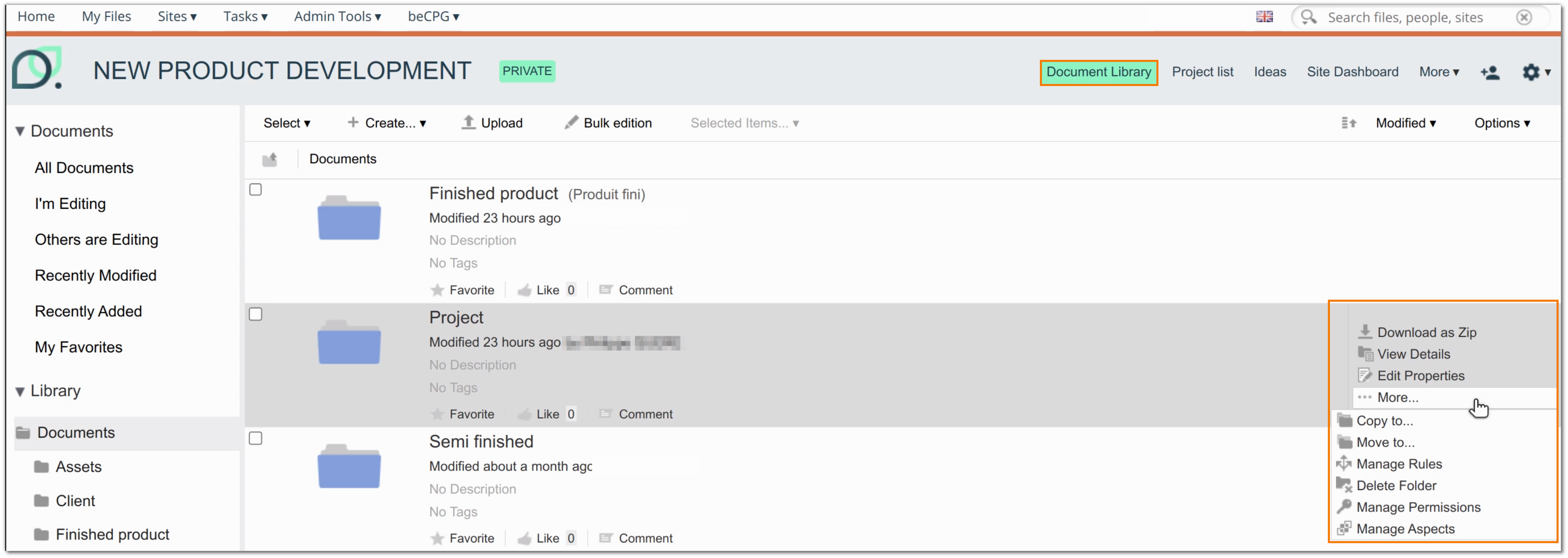
The product library of a site contains the products (raw materials, finished products, semi-finished products, etc.). To access it, click "Product library" at the top right of the site dashboard.
In this space, you can:
- navigate in the folder tree of the site, on the left;
- create products;
- perform actions on each product:
- Download as a zip file
- View details
- Edit properties
- Copy to: to copy/paste the entire product to another location
- Move to: to move the product to another location
- Manage rules
- Delete
- Manage access rights: to set specific permissions on this product
- Start a process: to start a workflow or a project involving the product
Viewing a product
The "Properties" page is displayed by default when you click a product. Several sections are available:
- Designation: contains the general information about the product (name, ERP code, supplier, etc.)
- Consumer information: gathers the information related to the consumption of a product (weight, shelf life, precautions for use, etc.)
- Formulation: includes information used for calculation purposes (e.g.: portion, net quantity, density, etc.)
- Marketing
- Tare
- Audit: gathers data related to the creation and modifications of a product
You can also add other sections, such as Nutrient profiling score, which calculates the Nutri-Score and displays its logo.
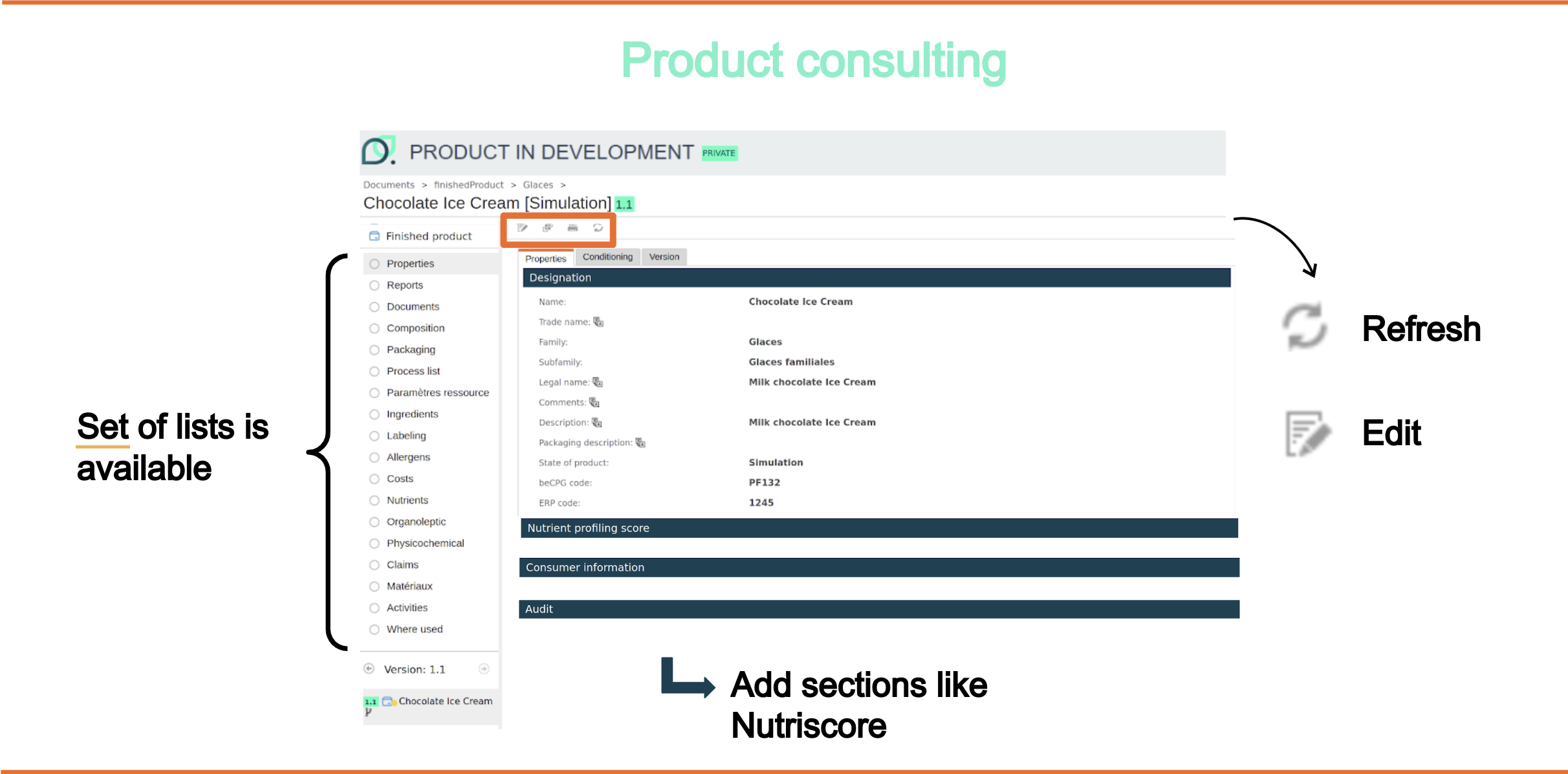
At the left of the screen, a set of lists is available:
- Reports to generate the product technical sheets
- Documents to store the documents related to the product (images, brief etc.)
- Composition
- Packaging
- Process List
- Ingredients
- Allergens
- Costs
- Nutrients
- Organoleptic
- Physicochemical
- Label claims
- Where used to see which products use this product
- Activity to view the activities performed by users on the product
In Composition / Packaging / Process List lists, a dynamic characteristics table is available. This table allows you to perform calculations based on the product characteristics. You can add dynamic characteristics on product templates and/or on the product itself.
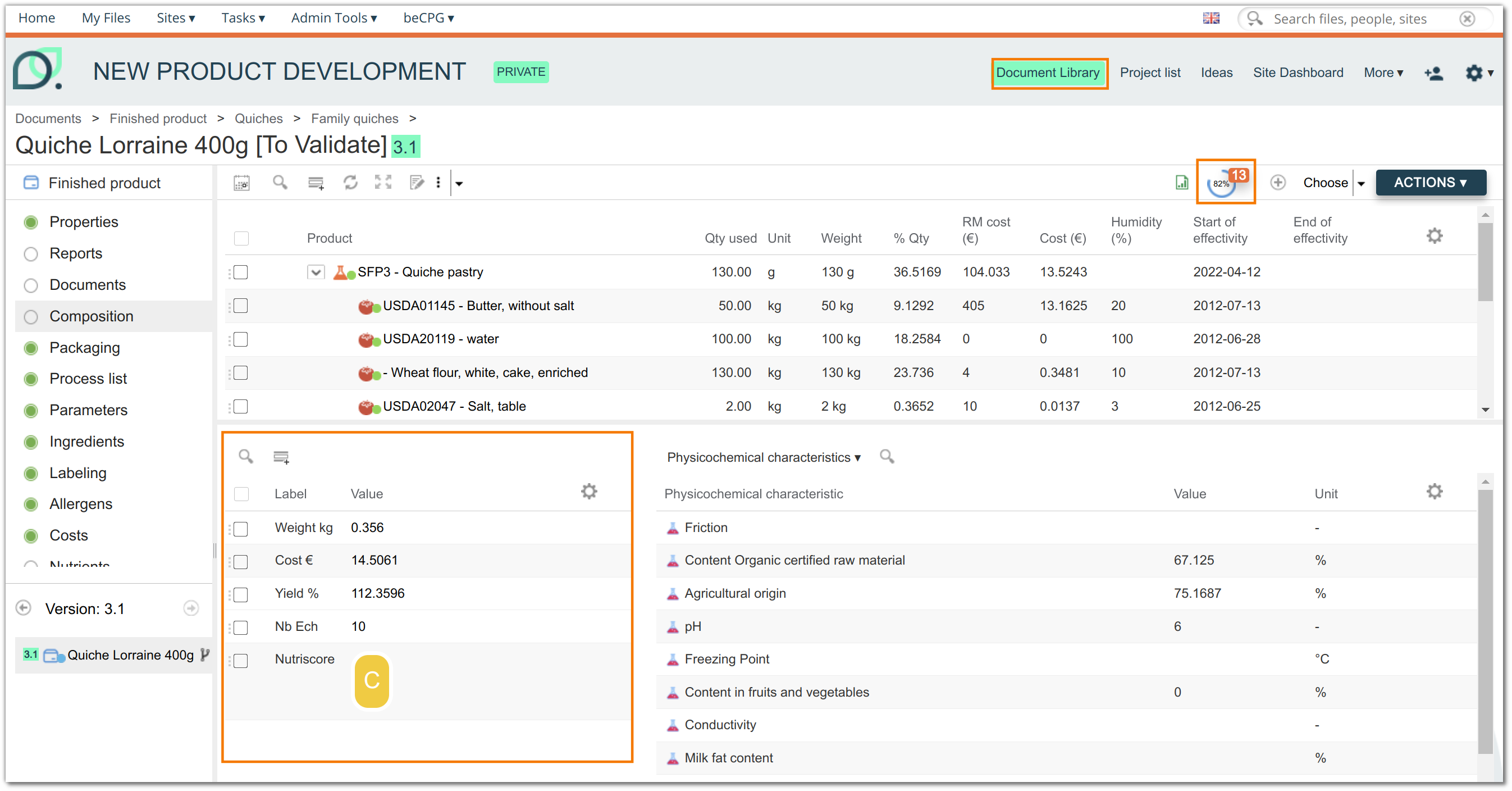
The requirements the product does not comply with are shown to the left of the "ACTIONS" button.
The section at the bottom left of the screen lets you:
- view the version number of the product;
- navigate through the different versions of the product (by clicking the left and right arrows);
- view the version history, by clicking on the tree to the right of the product name. This tree displays, for each previous version, the modification date, the reason for the modification and the person who revised the product
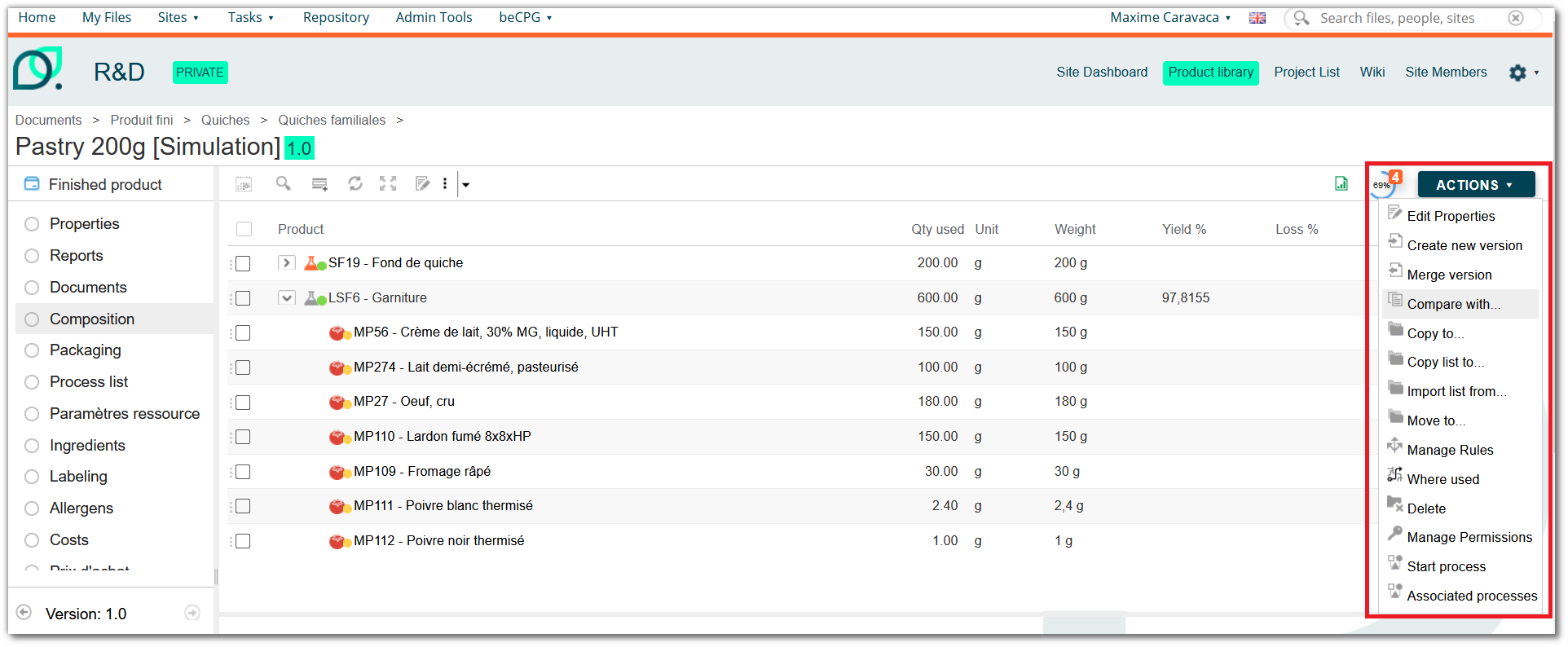
At the top of the screen, an "ACTIONS" button lets you:
- Edit properties
- Create new version
- Merge version: to merge a version into a product. This option is only visible for versions created with the New version option
- Compare with: to compare the product with up to 4 others
- Copy to: to copy/paste the entire product to another location
- Copy the list to: to copy/paste only one list (nutrients, allergens, etc.) into another product
- Import list from: to import a list from another entity (the opposite of the Copy the list to option). There are 3 import options:
- Override: replace the existing list by the imported one
- Add: add the imported list to the existing one
- Merge: add missing and different lines of the imported list to the existing one. The comparison is based on all the list columns
- Move to: to move the product to another location
- Manage rules: to assign specific rules to a product
- Where used: to consult entities using this product in their composition (the shortcut of this action is the "Where used" list)
- Delete
- Manage permissions: to define specific permissions on this product
- Start process: to start a workflow / project linked to this product
- Associated processes: to see the projects/workflows linked to this product
My Profile
By clicking on your name at the top right of the screen, next to the system language flag, you can access the "My Profile" area. In this section, you can:
- Edit your personal information (email address, name, job title)
- Project task delegation: Configure who can manage your tasks in your absence.
- Languages:
- Content language: used for multilingual fields.
- Interface language: language displayed in the application.
Notifications: Enable or disable standard beCPG notifications:
- Tasks I am assigned to
- Tasks I am observing
- Project follow-ups
- Managed notifications
You can disable certain notifications in bulk, for all users or for groups of users, using scripts. Contact beCPG to request this.
Manage the recycle bin: View the documents and folders you have deleted. You can restore them or delete them permanently. The recycle bin is emptied automatically at regular intervals. Deleted items are only kept for a limited time.