Repository
The repository contains documents, products, customers and suppliers. It consists of 2 parts:
- The warehouse, where validated data are stored
- Collaborative sites, where all data currently in development are stored
Warehouse
The warehouse is accessible via the "Warehouse" button located on the top bar. The warehouse includes the following folders:
- Data Dictionary: a system folder
- Documents
- Guest home
- User homes where users can store their personal documents
- Exchange to import data into the application ("To process" folder)
- Products where you store the products according to the product type, the product state, the product family and the product subfamily:
- The "Validated" folder contains validated products.
- The "Rejected" folder contains the rejected products that you want to keep.
- The "Archive" folder contains validated products that are no longer used or marketed.
- The "As developments" folder contains the products under development whose project is frozen but will be resumed later.
- Sites: a system folder where collaborative websites are stored
- Companies which contains suppliers and customers
- System where the system data is stored
- Temp
- Shared
Collaborative sites
Collaborative sites are accessible by using the "Sites" button on the top bar.
Collaborative sites enable teams to work on documents and products in development. Documents and products currently in development are accessible via the "Resource Center" tab.
Besides the document space, a site includes:
- The site dashboard
- Wiki pages
- Blogs
- The shared calendar
- Links
- Discussions or forums
- The data lists
- Members of the site

Browsing the repository
There are 4 ways to browse the contents of the warehouse:
- Shortcuts
- Folder tree
- Hierarchical classifications that display elements associated with categories
- Tags
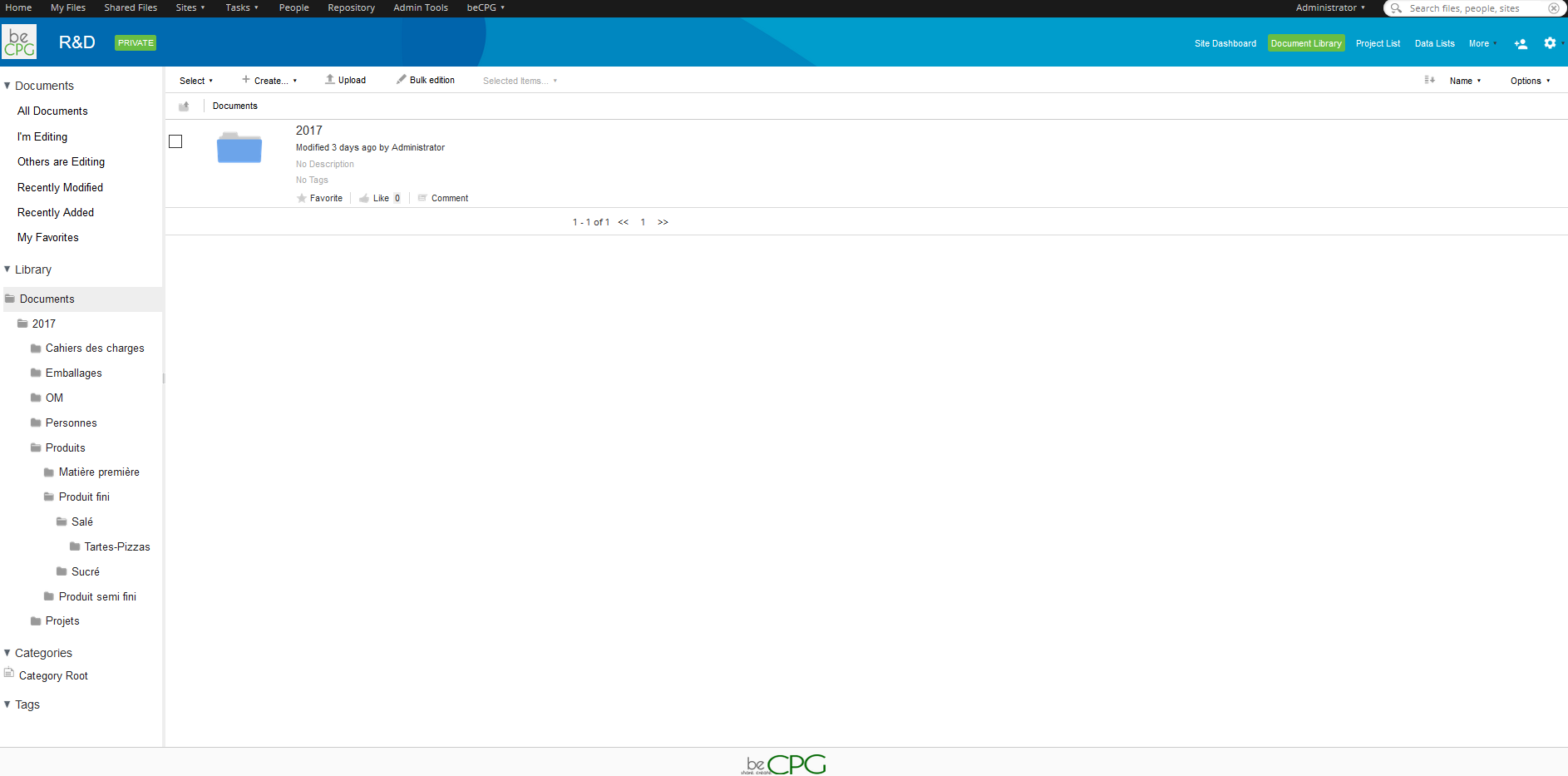
The document library of a collaborative site offers:
- Shortcuts to documents (Shortcuts)
- Navigation in the folder tree (Navigation)
- Actions on selected content (Action 1)
- The display of the content (Content)
- The pagination when all the results cannot be displayed on a single page (Pagination)
- The selection of the view (View). This enables you to show or hide folders, or switch between a simplified and a detailed view
- Actions on content (Action 2)

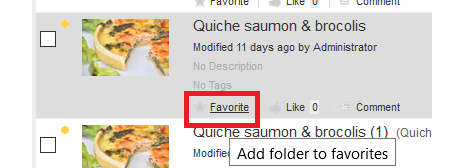
Each content item can be set as a favorite and is then accessible with the "Favorites" shortcut.
Product repository
The product repository lets you manage finished products, semi-finished products, raw materials and packaging with the following information:
- composition
- packaging
- process
- ingredients and their origins
- nutritional values
- allergens present and cross-contamination
- costs
- microbiological criteria
- physico-chemical data
- organoleptic data
- labeling data
- claims (organic, kosher, halal...)
- associated documents such as reports, certificates, pictures
It also lets you manage objects associated with products such as suppliers and customers.
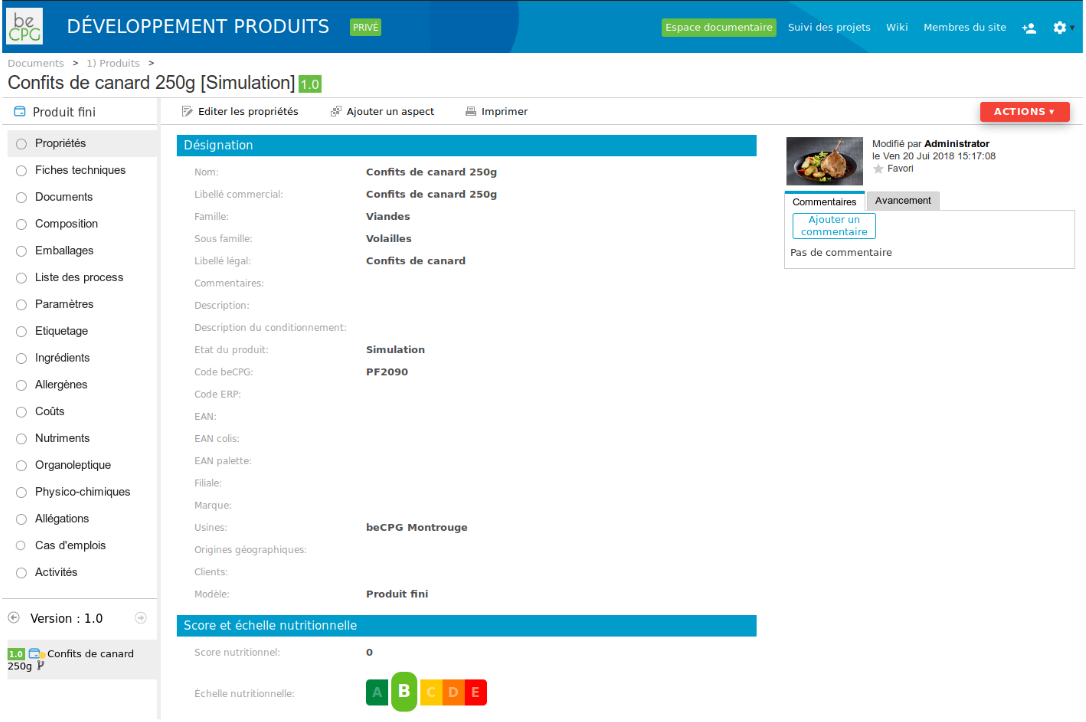
Documents associated with the product are saved in the "Documents" view, for example analysis results and product pictures. Documents are organized in folders.
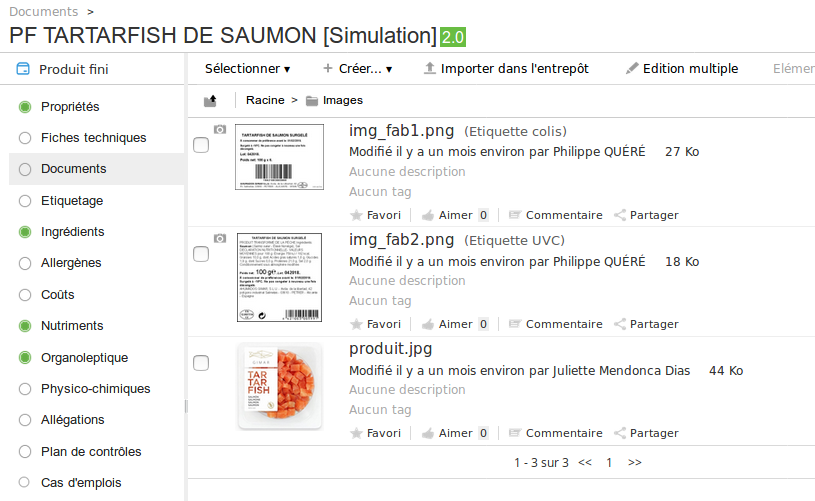
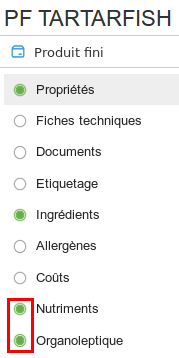
Also, each list of the product (composition, packaging, and so on) has a state to indicate if it is validated.
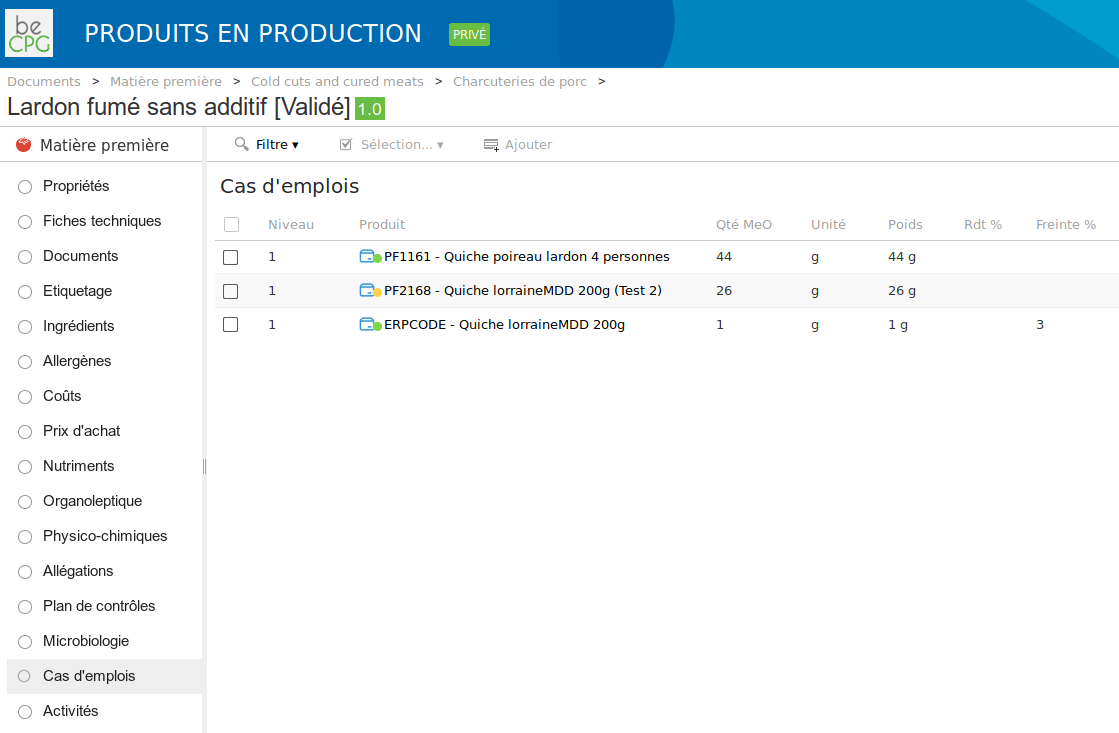
The "Where Used" list of a component indicates where the component is used and what the impacts would be if the component were modified.
When the version changes, previous data are saved. It is also possible to compare two versions of a product. Finally, it is possible to add other lists or fields to the data mentioned above.
Product catalogs and completion
To follow the completion of a product, the system computes a completion score indicating which fields/lists have not yet been filled in.
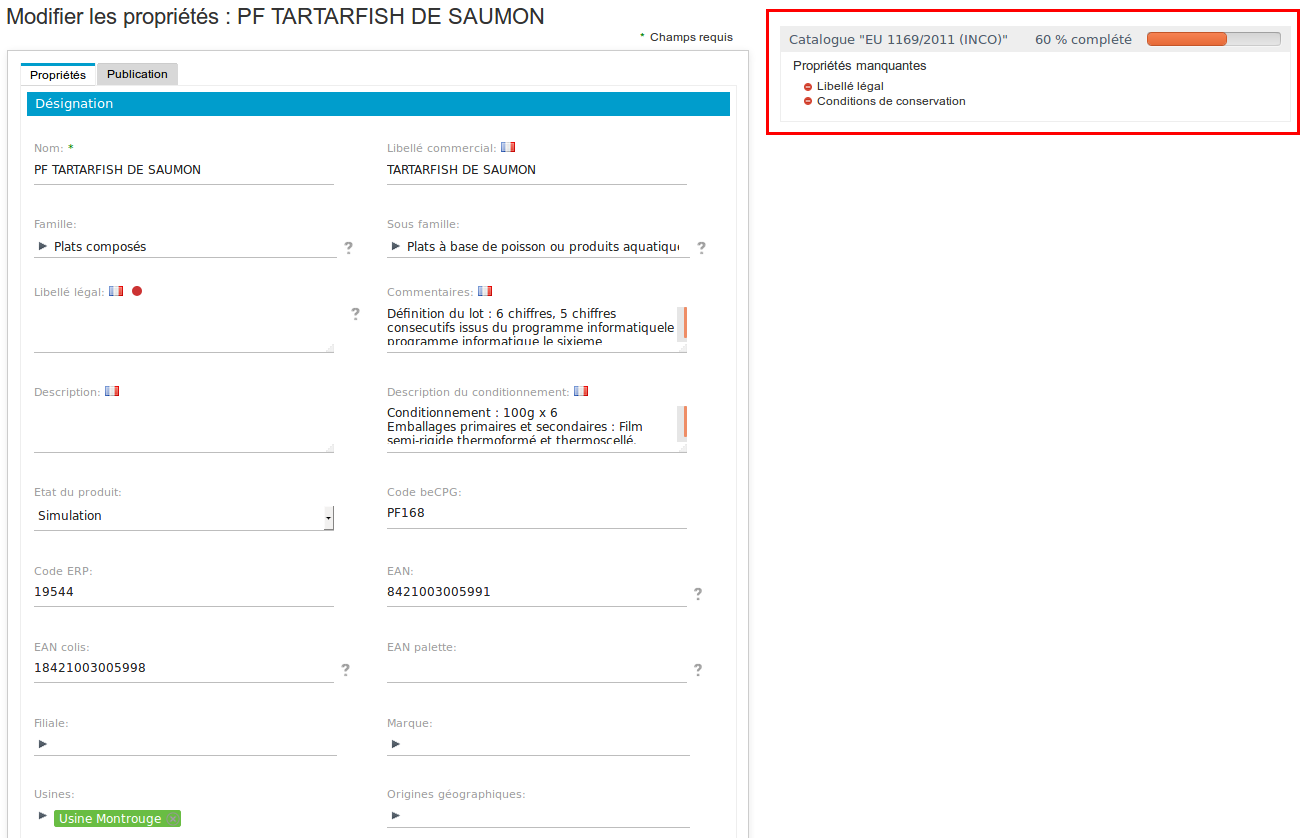
It is possible to define mandatory properties catalogs for a product. These properties impact the computation of the product completion score when they are not filled in.
Several catalogs can be defined. For example:
- The customer catalog indicates mandatory properties published to a customer
- The GDSN catalog indicates mandatory properties published in a GDSN catalog
- The website catalog indicates the properties expected by a website
- The ERP catalog indicates mandatory properties published in the ERP
Therefore, users know whether their product is complete and which fields are missing.
Notifications
Notification rules can be created in the administration:
- To get a reminder for obsolete documents (e.g. I want a reminder on documents that have not been updated for a year).
- To receive by email the list of products modified the day before, with a comment on the modification and a link to the new version of the product.
Search
The search is available at the top right of the screen.
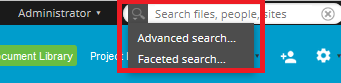
There are two types of search:
- Simple search, which looks into the document metadata and the content of documents. It is similar to the search provided by internet search engines.
- Advanced search, which lets you search by content type (document, folder, product) in the metadata. E.g. validated products whose name contains flour.
It is possible to include and exclude criteria in the search with the operators AND, OR, NOT. E.g.:
- Looking for products whose name matches "sushi AND (tuna OR salmon OR
bream)" returns:
- Tuna Sushi
- Salmon Sushi
- Sushi bream
- But will not return "Sushi" or "Cucumber Sushi"
- Looking for products whose name matches "sushi AND NOT bream" returns:
- Tuna Sushi
- Salmon Sushi
- Sushi
- Cucumber Sushi
- But will not return "Sushi bream"
The following actions are possible on the results of a search:
- Sort according to certain metadata (name, title, and so on)
- Export results into an Excel document via the "Export results" button, according to the rights of your profile
- Navigate to an element of the result
- Options via the "Switch to advanced search" button
Search on characteristics and components
- Search for all products that have an ingredient of a certain origin
(e.g. Spanish strawberries):
- Advanced search > Select the type "Product" > fill in the ingredient field and the origin field > Search
- Search for all products that have the ingredients ING1 and ING2:
- From the "Ingredients" list of a product > click the "Where Used" action of an ingredient > select "Ingredient" > add ING2 to the elements > select the AND operator > Search
- Or from the "Where Used" search > Select the type "Ingredient" > select ING1 and ING2 + AND operator > Search
- Search for all products with the raw materials MP1 and MP2:
- Advanced search > Select the type "Product" > fill in the MP1 and MP2 codes > Search > Where Used > select "Product - composition" + AND operator > Search
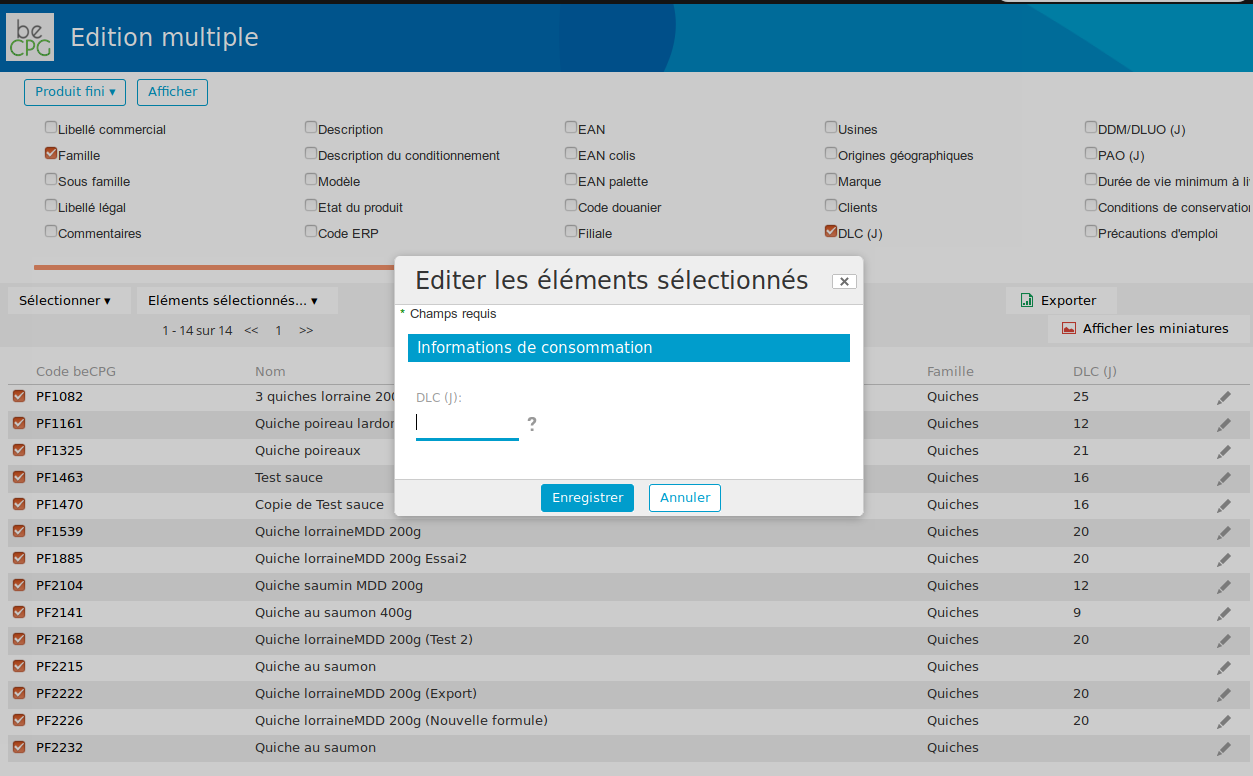
Multiple editing
Multiple editing allows editing several products at the same time. It is accessible from a search result and from a folder.
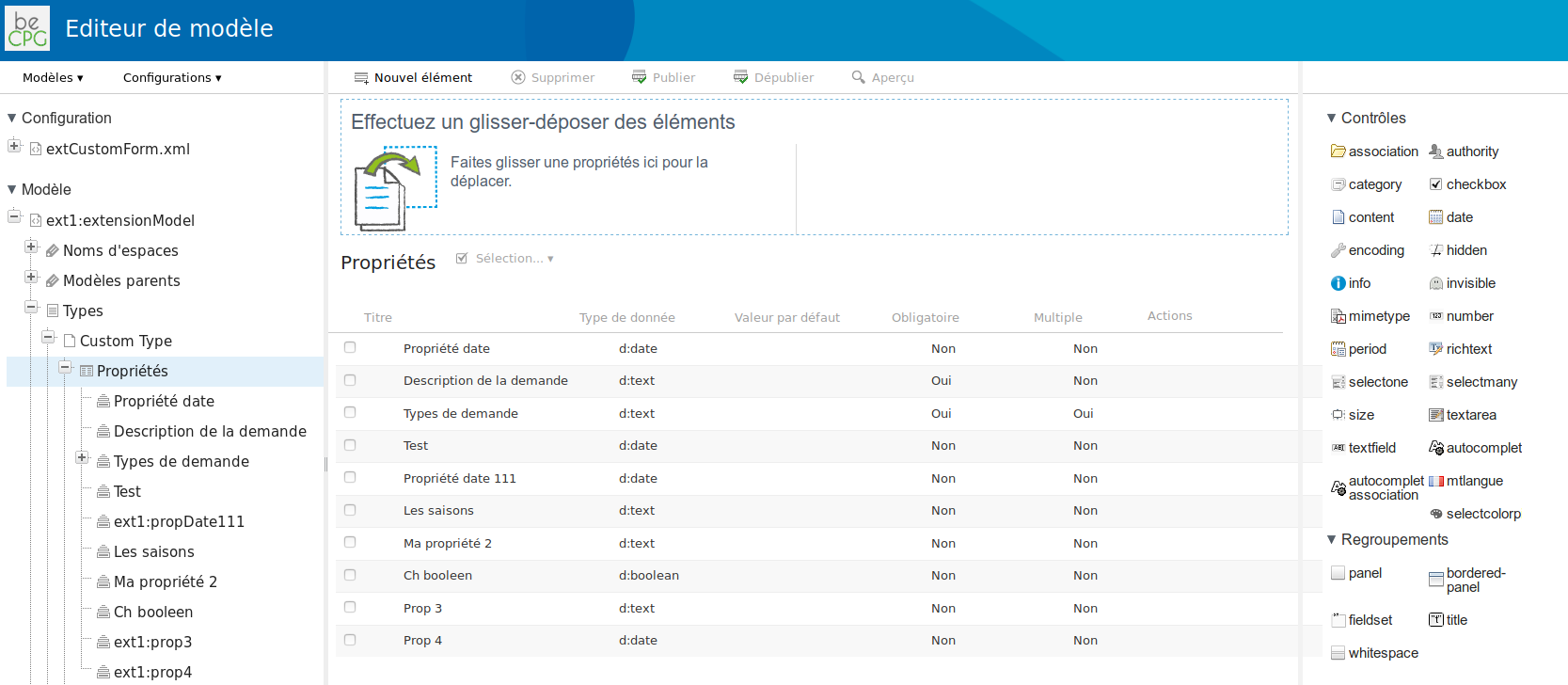
Form editing
A graphical modeling tool lets you create forms (e.g. product, documents).
Lifecycle
Product states
By default, beCPG manages the lifecycle of a product in 5 system states:
- Simulation
- To Validate
- Validated
- Archived
- Rejected
The "Simulation" state corresponds to the design phase of a product. After validation, the product state changes and the product is classified in the repository. Depending on the state, users do not have the same rights.
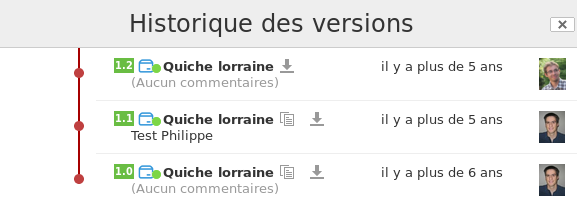
Versions
For each state, the product versions are stored in the version history. Versions can be compared and viewed, with the following system fields:
- Type of revision (minor/major)
- Author of the new version
- Start and end of the version effectivity
- Comment
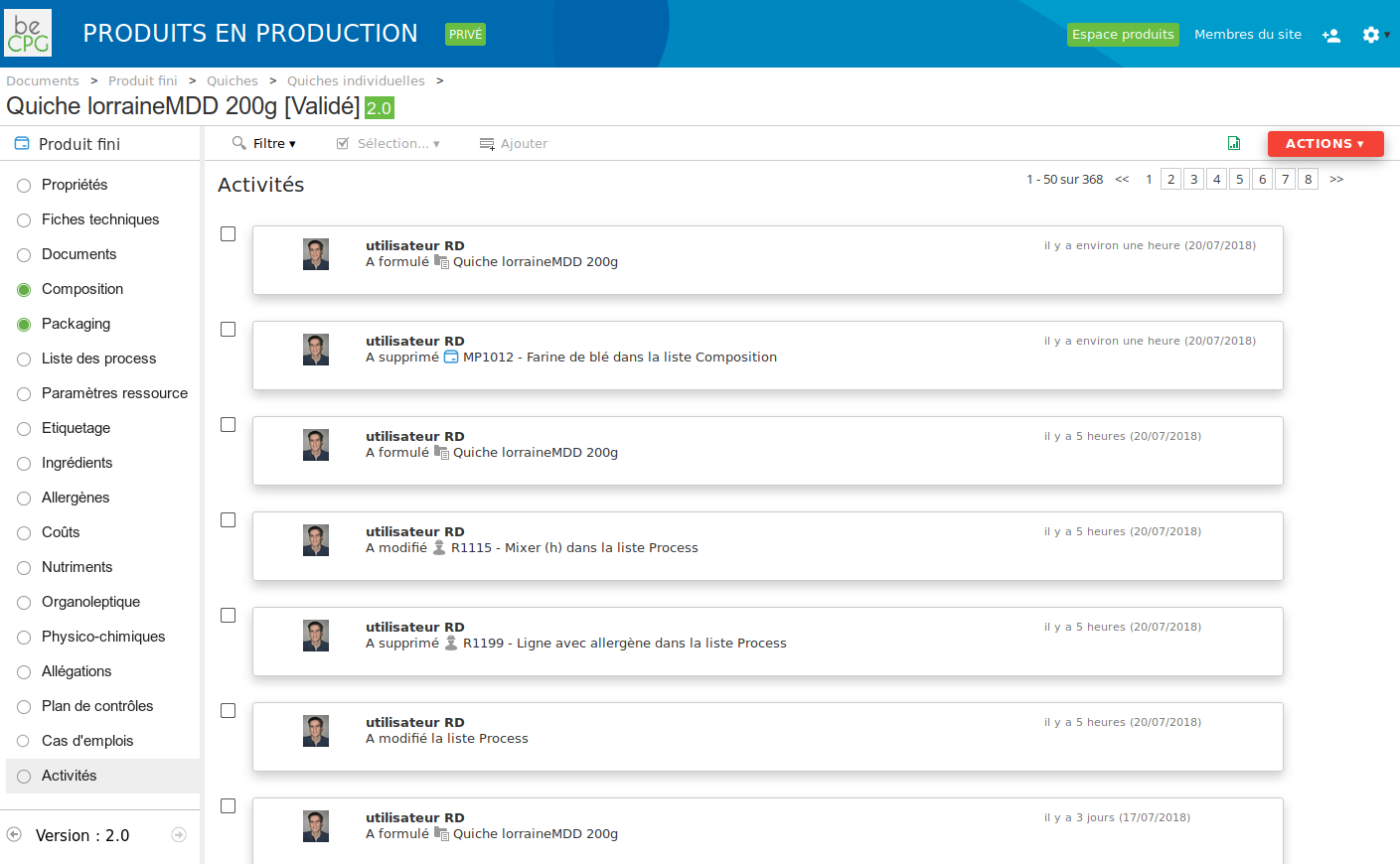
Activities
Activities let you follow the actions done by collaborators on a product, for example adding a component to a recipe, deleting a document or modifying nutritional values. Activities can be viewed in the user dashboard and show the actions done by your colleagues.
Information linked to the lifecycle
It is possible to associate information with the lifecycle of a product. Information can then be added to the product throughout its lifecycle.
Date of validation and effectivity
beCPG can distinguish the date of validation and the date of effectivity. The date of effectivity lets you validate a product that will be operational in the future. It also lets you manage the effectivity of product components with the Change Order module. When classifying the version of a product, a date of effectivity can be entered. The product view indicates whether the product is effective. It is also possible to view other product versions and to identify which versions are effective.
Product library
The product library allows you to save all types of documents. For example office documents (Excel, Word, PDF, and so on), pictures, videos, archives. Documents are classified in folders and subfolders. They can be attached to objects such as products or projects.
Editing of documents
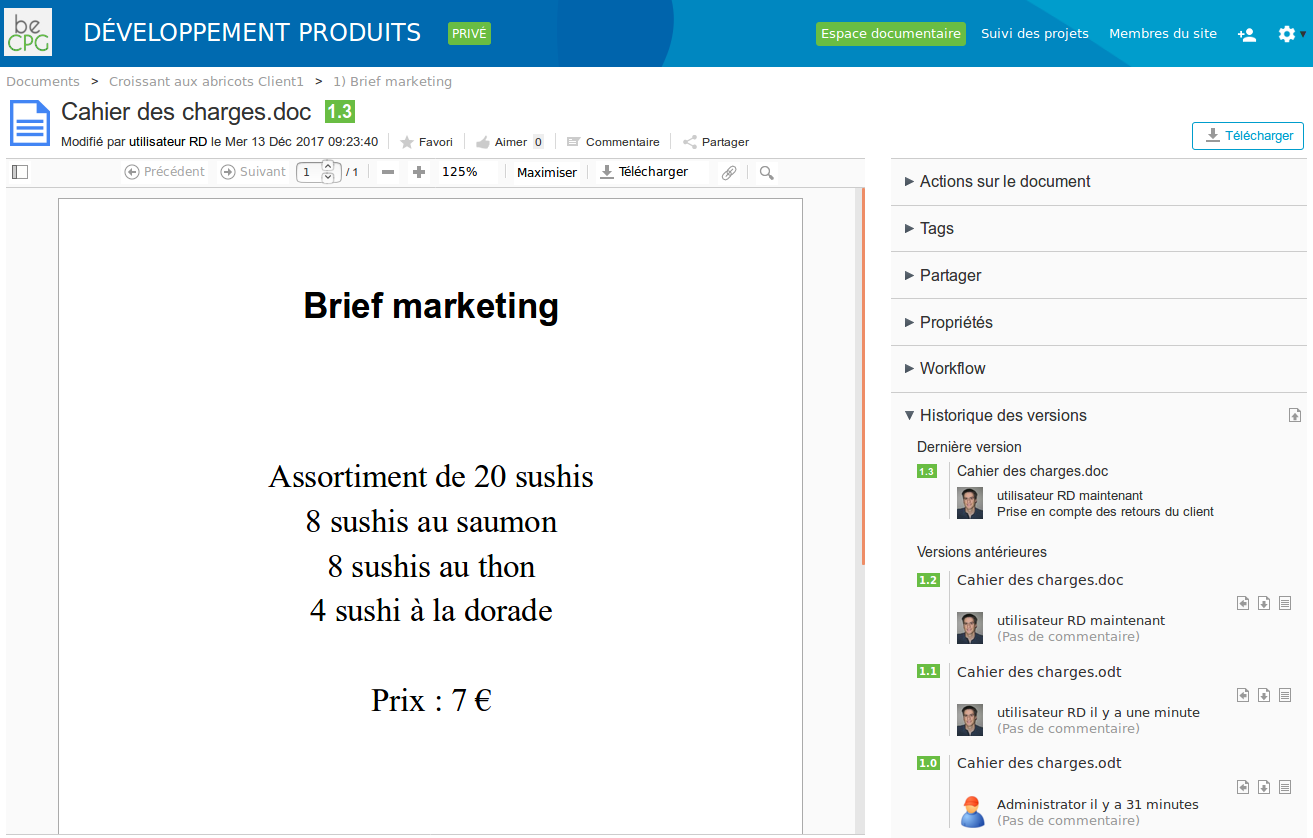
Users can consult documents with the online preview and can edit them in Microsoft Office or Google Docs. As soon as a document is modified, the old version is archived in the version history. This provides full traceability of modifications (who modified, when and why).
Share documents
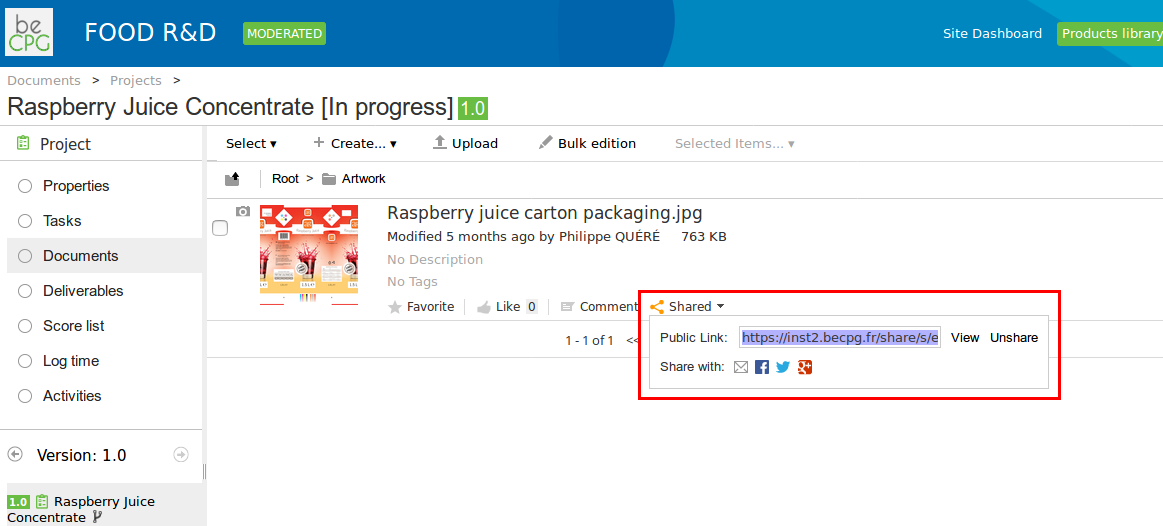
Documents can be shared with non-beCPG users, for example customers and printers.
Annotation and proofreading
An annotation module lets several users collaborate on documents to:
- Add comments
- Add / cross out / underline text
- Draw shapes
- Upload pictures
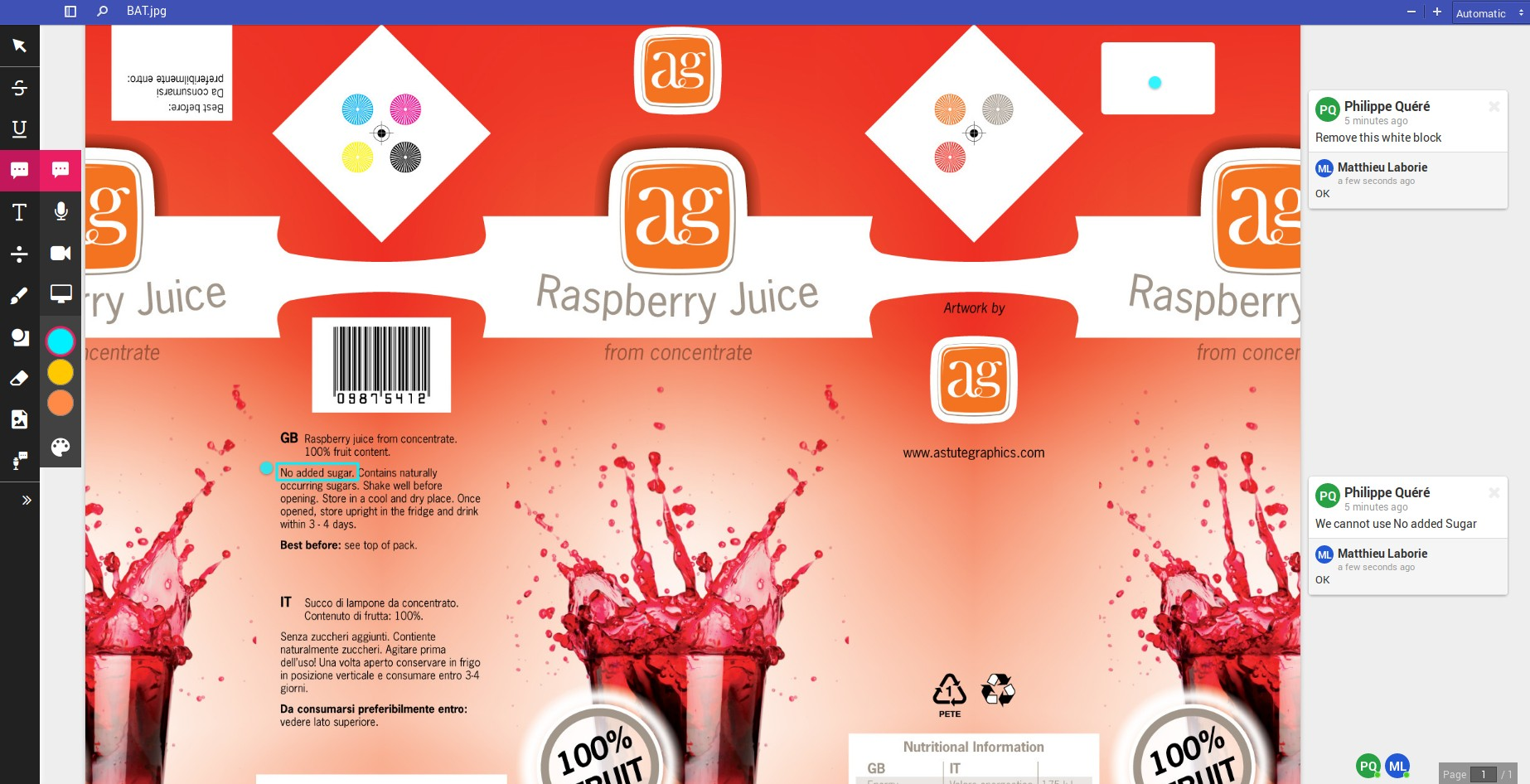
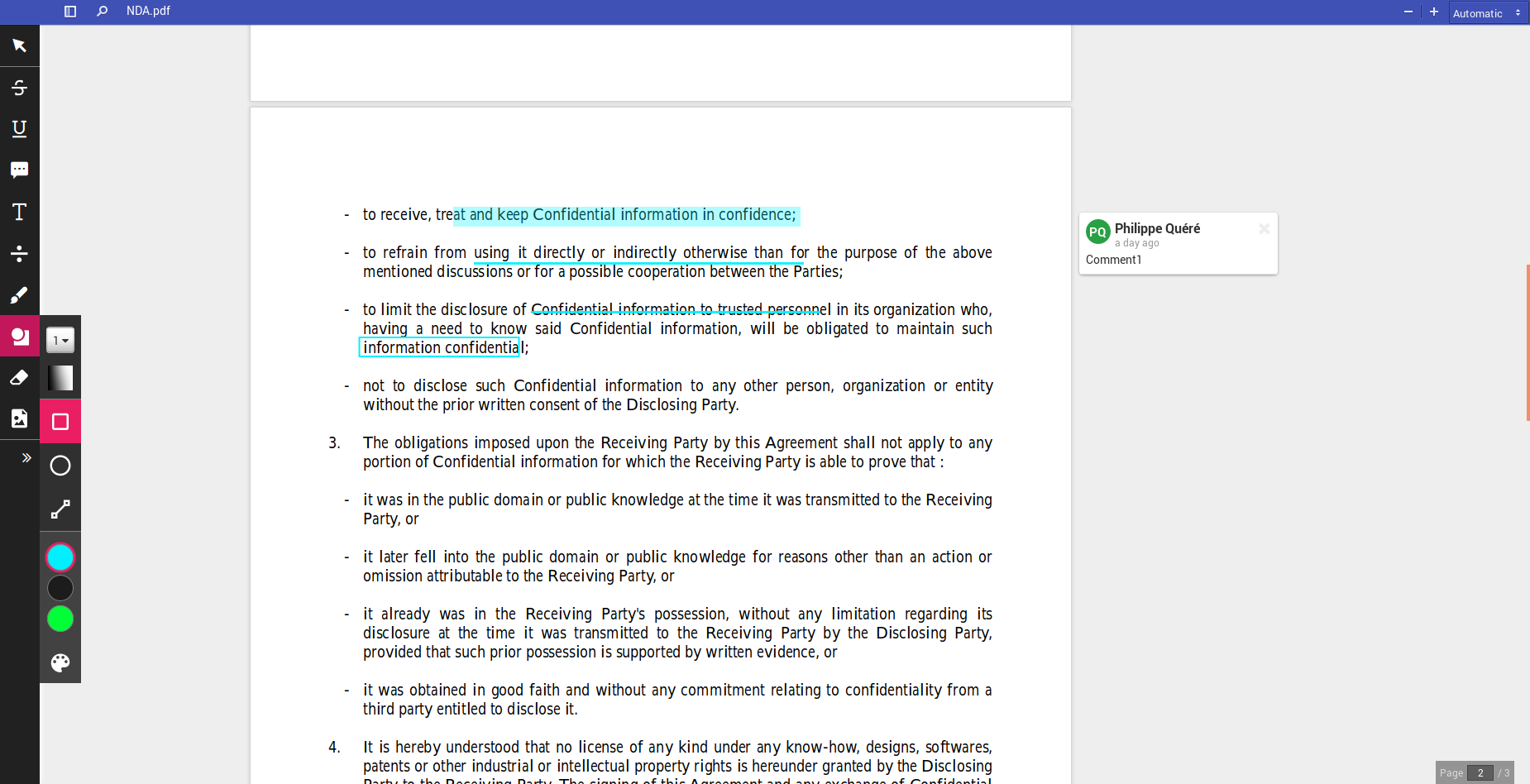
A proofreading workflow can be used to proofread, annotate and validate documents. It is possible to define checklists per task to indicate which elements must be checked (e.g. check the logo and font for the marketing department, or check regulatory texts for the quality department).
Document comparison
You can compare document versions using the "Compare" button in the version history:
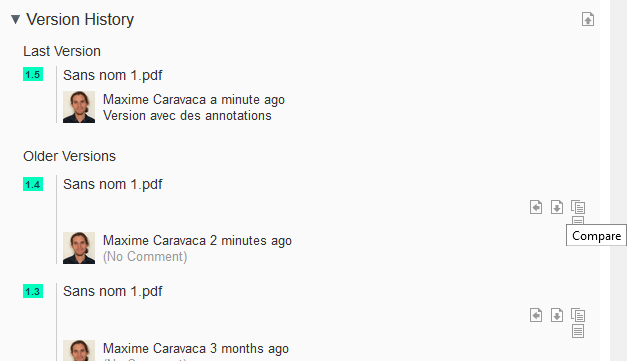
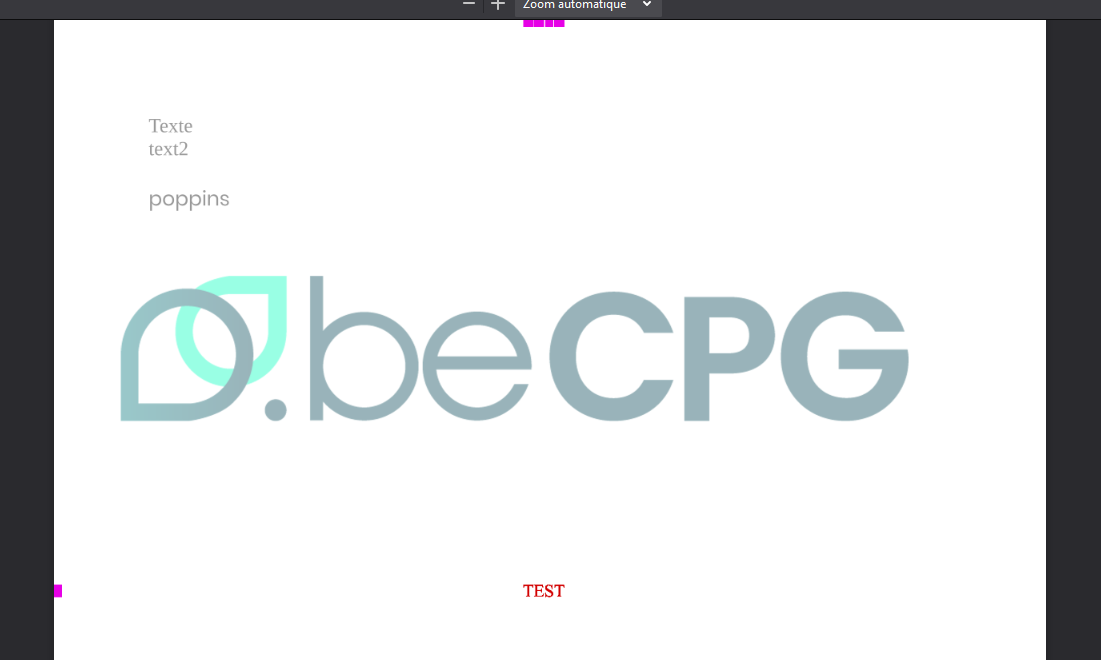
It will generate a PDF document comparing two documents, pointing out their differences.
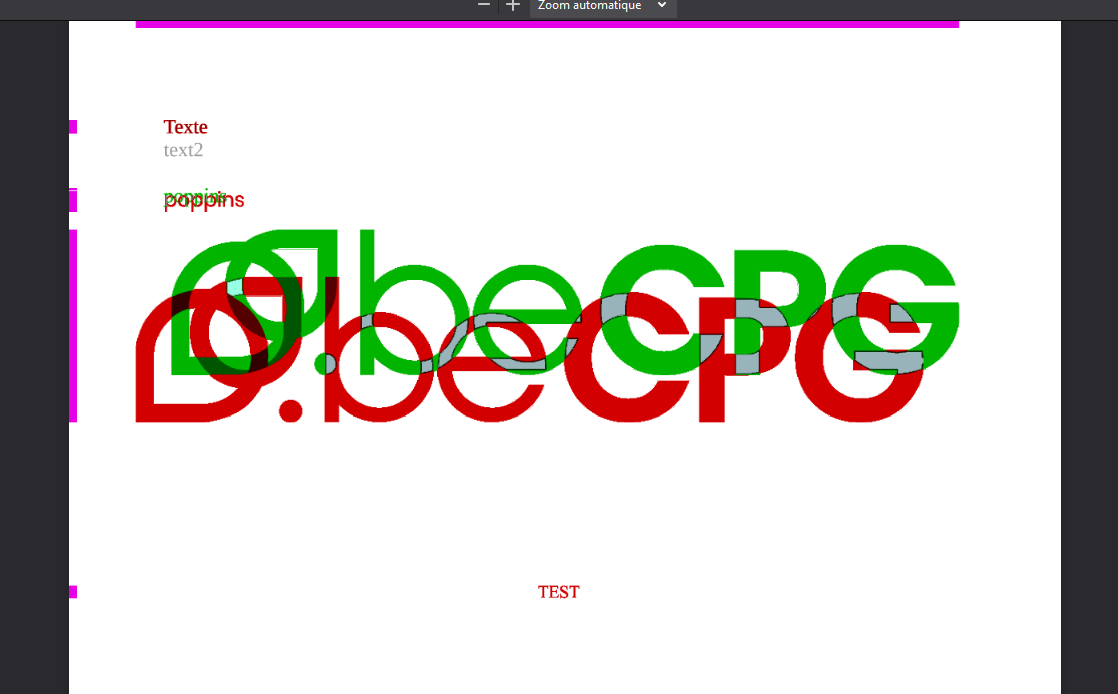
Another example, after slightly moving the beCPG image in the previous picture:
Supplier Portal
A form can be sent to suppliers to enter:
- Product data
- Documents (images, certificates, reports, and so on)
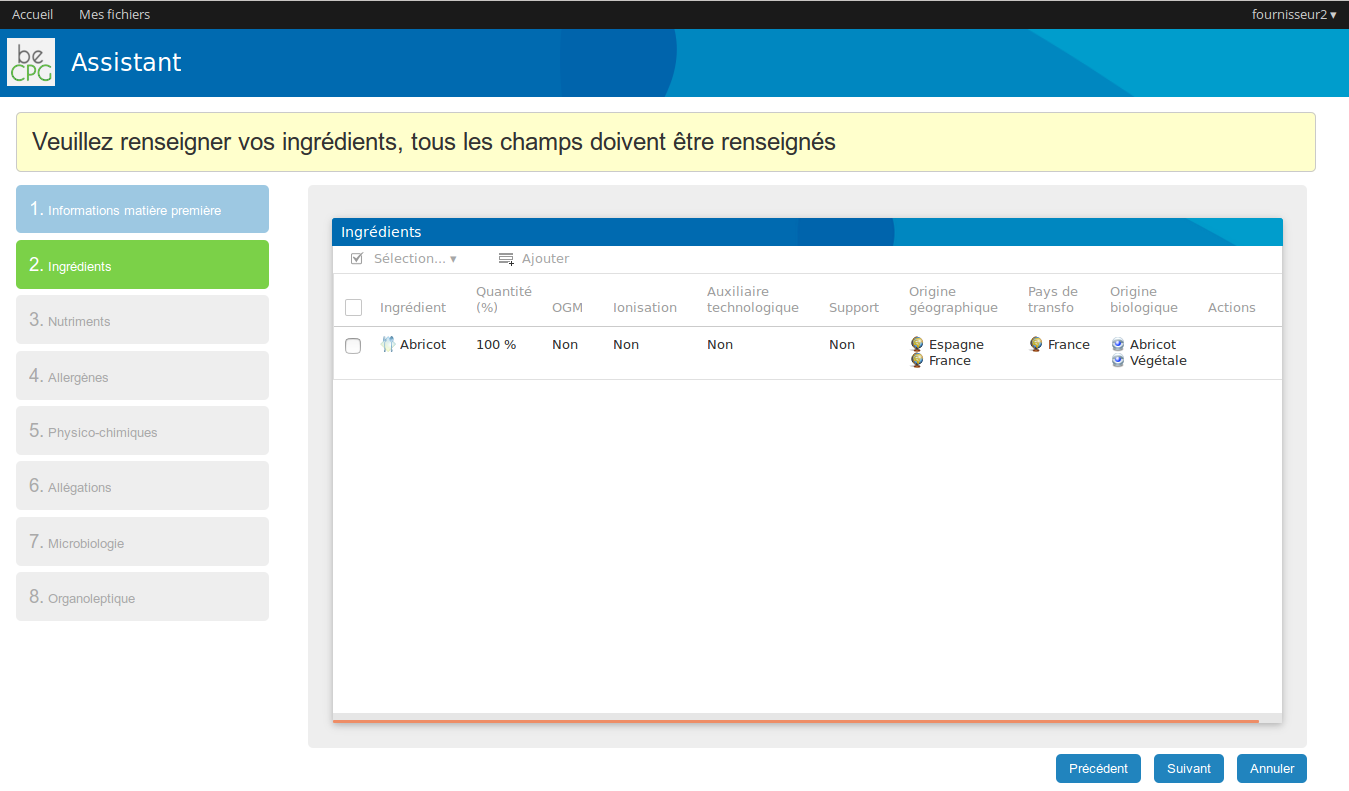
A second wizard collects supplier data (address, factory, certifications and supplier contacts). When data are not correctly entered by the supplier, the user can ask the supplier to send back a form containing the validated chapters. Validated chapters are then in read mode (chapters in green). In each chapter, it is possible to indicate elements needing to be worked on. It is also possible to compare 2 versions of the same material or to compare materials of several suppliers with the product comparison report.
Permissions
It is possible to define rights:
- per collaborative site
- per content
- per action
- per field
Permissions on contents
beCPG lets you define permissions on contents by action:
- creation
- editing
- viewing
- deletion
- copy
- check in, check out (creation of a new version)
- and so on
These permissions can be defined by role:
- Consumer (can consult content);
- Contributor (can add and modify their own documents);
- Collaborator (can add and edit their own documents and other users' documents);
- Manager (can add and edit their own documents and other users' documents, manage permissions, create rules).
For each role, we define users and groups. These permissions can be defined on folders, contents or collaborative sites. There is also the notion of inheritance, which passes permissions on to child folders.
Permissions on actions
It is also possible to configure permissions on actions depending on:
- the user role
- the type of content
- the values of certain properties (for example, I can't download a product report, if that product is not in "validated" state)
You can configure new evaluators, chain them or develop your own.
Permissions on fields
beCPG lets you define, for each field, the groups that can modify and view the field.
Permissions on extraction reports
Extraction reports are subject to rights (users and groups). Therefore, users only see the extraction reports they have access to.