Tools
File transfer
WebDAV overview
WebDAV can be used to bulk transfer files to the beCPG server.
Two URLs are available: one for Windows and one for Linux:
RFC-compliant WebDAV: alfresco/webdav
Microsoft-compliant WebDAV: alfresco/aos
WebDAV for Windows
The WebClient service must be installed and running:
services.msc
start WebClient
Configuration by command
You can configure the network drive with commands (here, the network drive letter is Y):
net use Y: /delete
net use Y: https://{server}/alfresco/aos /USER:{username} {password} /persistent:yes
The persistent:yes parameter keeps the connection, which is not possible with a manual configuration.
You can also use a more specific path, like:
https://{server}/alfresco/aos/Exchange/Import
Manual configuration
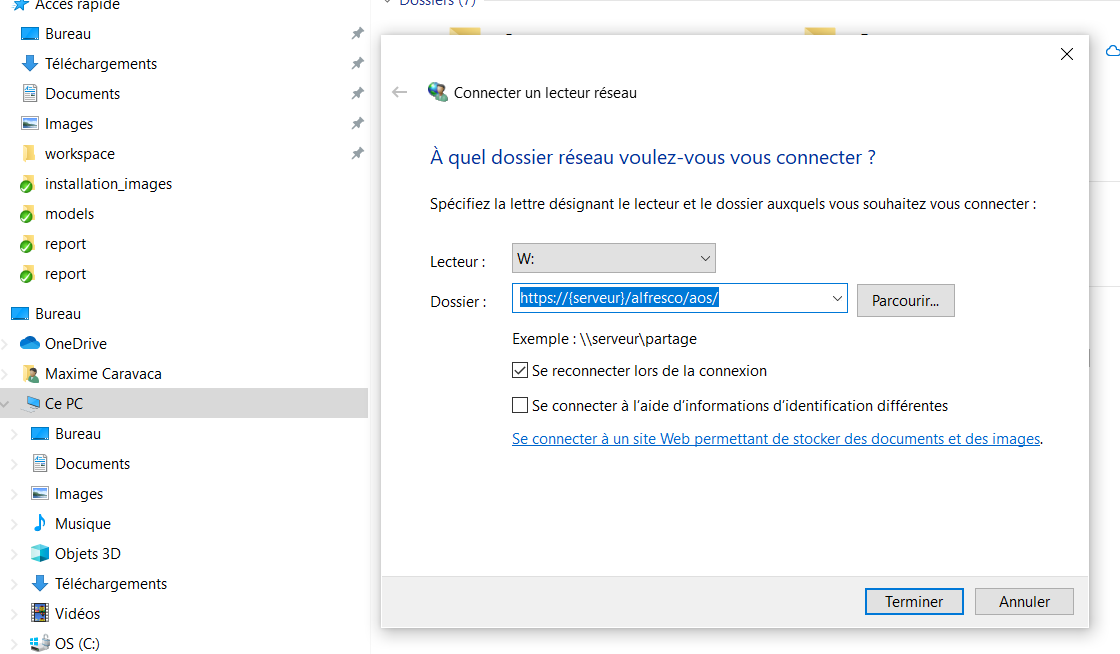
In the File Explorer, map a network drive and choose the URL:
https://{server}/alfresco/aos/
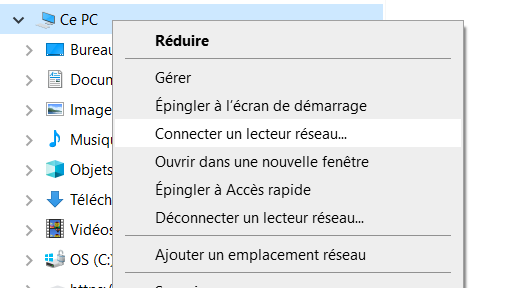
To do so, right-click "This PC" and select "Map network drive...".
A dialog opens, where you select a drive letter and a folder path.
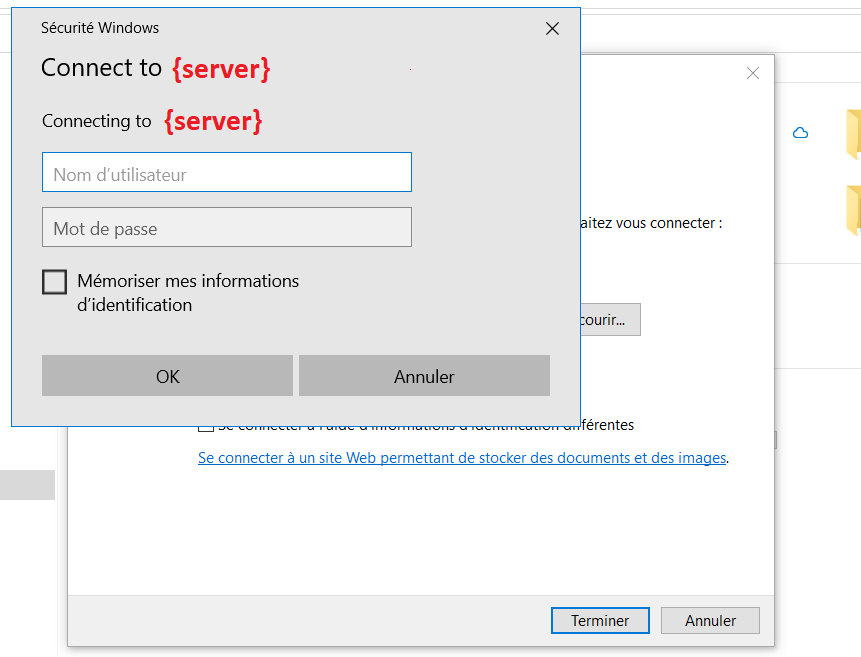
Then, your PC tries to connect to the server and asks for your credentials (use your beCPG credentials):
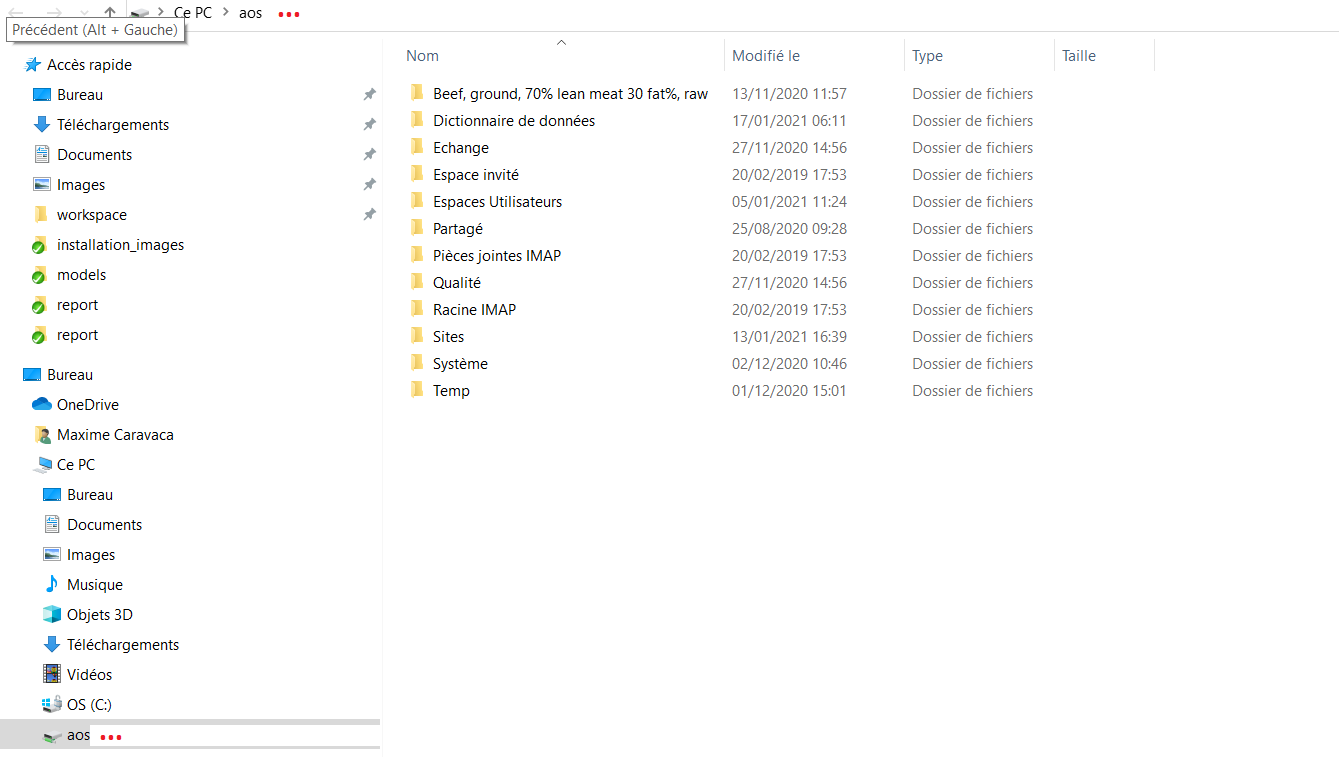
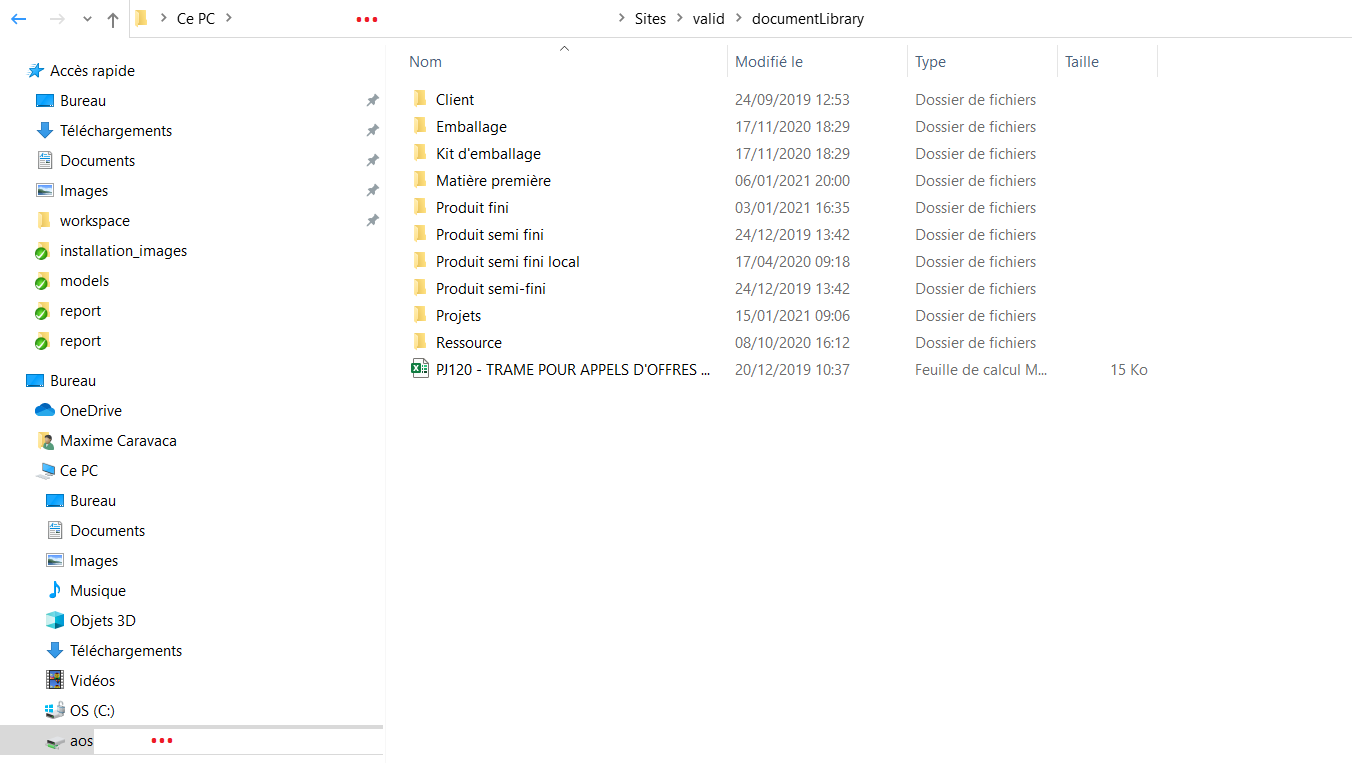
Once you are authenticated, a network location is created, where you can consult all the documents of your system with the same folder organization and access rights (depending on your permissions):
For example, you can access the "Validated products" site by going to Sites > valid > documentLibrary:
When configuring the network drive, you can indicate a direct path to a specific site by using:
https://{server}/alfresco/aos/Sites/{site ID}/documentLibrary
The standard site IDs are:
- valid: Validated products
- simulation: Products in development
- archived: Archived products
So, in our previous example, for direct access to Validated products, use:
https://{server}/alfresco/aos/Sites/valid/documentLibrary
SSL is highly recommended; otherwise, set:
HKEY_LOCAL_MACHINE\SYSTEM\CurrentControlSet\Services\WebClient\Parameters\BasicAuthLevel to 2
https://docs.alfresco.com/microsoft-office/latest/
If the server name is fully qualified (for example www.myserver.fr) instead of myserver:
WebDAV for Linux
To connect with Ubuntu:
apt-get -y --force-yes install davfs2
adduser $USER davfs2
echo "/media/becpg user password" >>/etc/davfs2/secrets
mkdir -p /media/becpg
mount.davfs https://server/alfresco/webdav /media/becpg
To connect with an RPM-based distribution (example: CentOS 7):
yum -y install davfs2
echo "/media/becpg user password" >>/etc/davfs2/secrets
mkdir -p /media/becpg
mount -t davfs https://server/alfresco/webdav /media/becpg
Use cURL instead of WebDAV
cURL installation:
sudo apt update
sudo apt install curl
# Update certificates client side
sudo update-ca-certificates
 curl -k -X POST --user user:password -F filedata=@path/to/myfile.csv \
-F destination=workspace://SpacesStore/bb5143c8-de56-422e-ba3d-ddcd83b5c32c \
-F filename=myfile.csv https://server/alfresco/service/api/upload
Edit in Microsoft Office
Edit in Microsoft Office is active by default in beCPG. It is compatible with the Microsoft Office desktop versions for Windows and macOS supported by Alfresco Office Services.
SSL must be enabled and configured.
Useful links: